How to use the selective sync
All Twake users have access to this feature, including those with a free plan.
The Twake Drive application allows you to sync the files in your Twake with a folder on your computer(s). This means that it ensures that the contents of this folder and your Twake are permanently identical, passing on any changes made on one side to the other.
By default, the application synchronizes all of the Twake's folders with the local computer, but it can be useful to exclude certain folders on the server.
For example, don't copy a backup folder to the local drive, to free up space on your computer.
Or, if you sync your Twake with a home computer and a work computer, don't copy your photos to the office computer / your work folders to the home computer.
So your Twake allows you to select which folders on the server you don't want to sync for each connected computer.
If you are using for the first time the selective sync
After the connection phase to the Twake, a screen allows you to select the server folders to synchronize and the folder location on your machine:
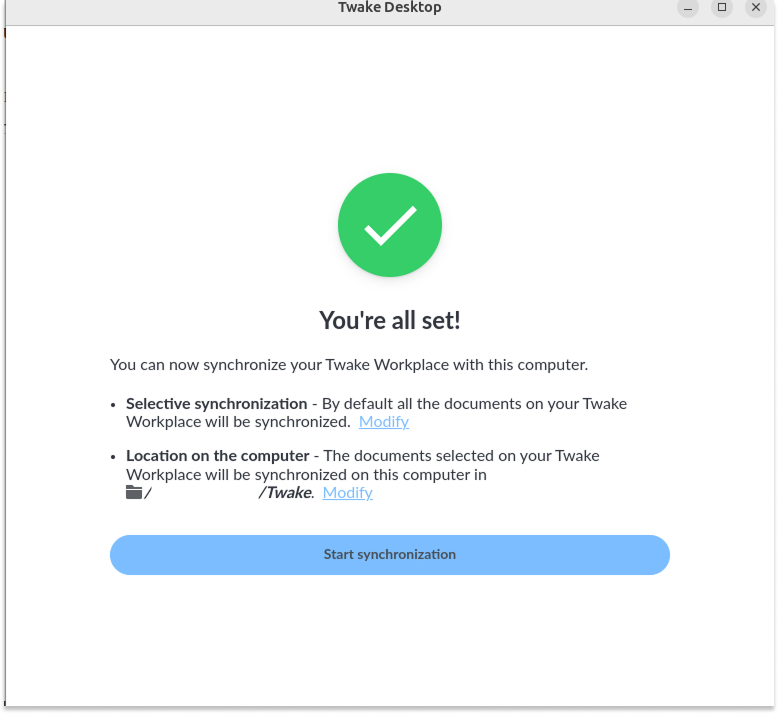
By default, the application will sync all of the Twake's content to a Twake Drive folder located in your home folder.
Click the Modify buttons to select the folders.
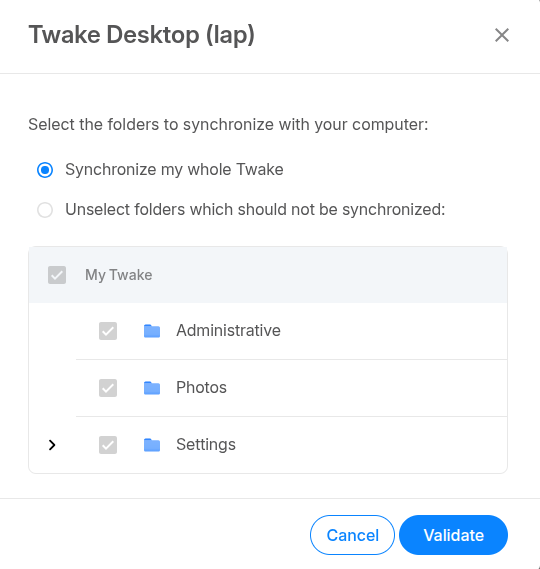
A new window will open allowing you to choose between Synchronize all your Twake or Exclude folders from synchronization. You will be able to select the folders you do not want to synchronize on this machine by unchecking them.
After clicking on the Validate button, all you have to do is launch the synchronization.
If you already have a client connected
Just go to the Settings of your installed client and click on Configure in the Selective Synchronization section
Manage the folders synchronized from the Twake
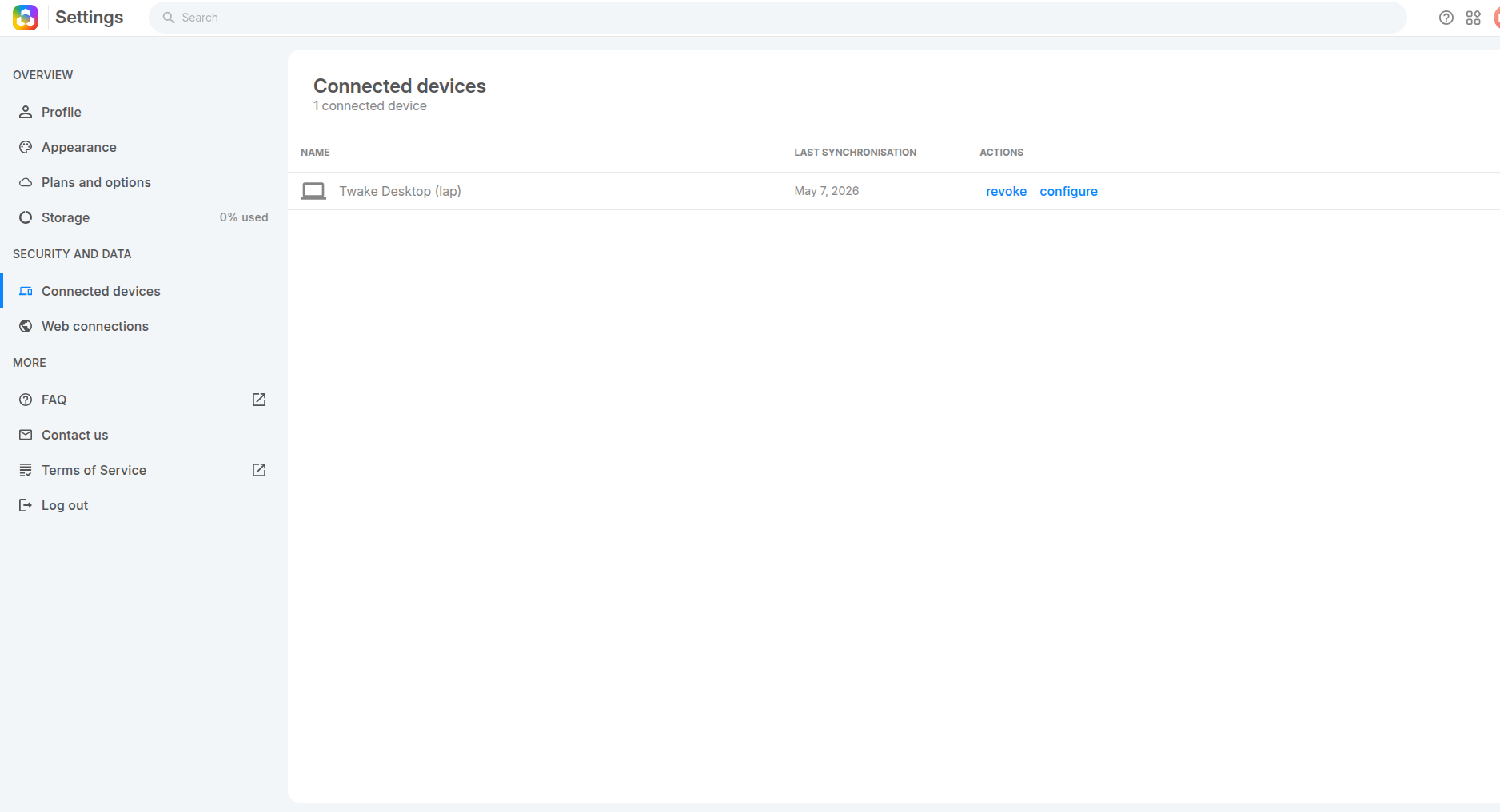
To change the list of excluded folders, you can go to the Connected Devices section of your online Twake settings.
Click on Configure next to the computer you are syncing with: