Create a group chat
Group chats allow you to collaborate with multiple people in a single conversation.
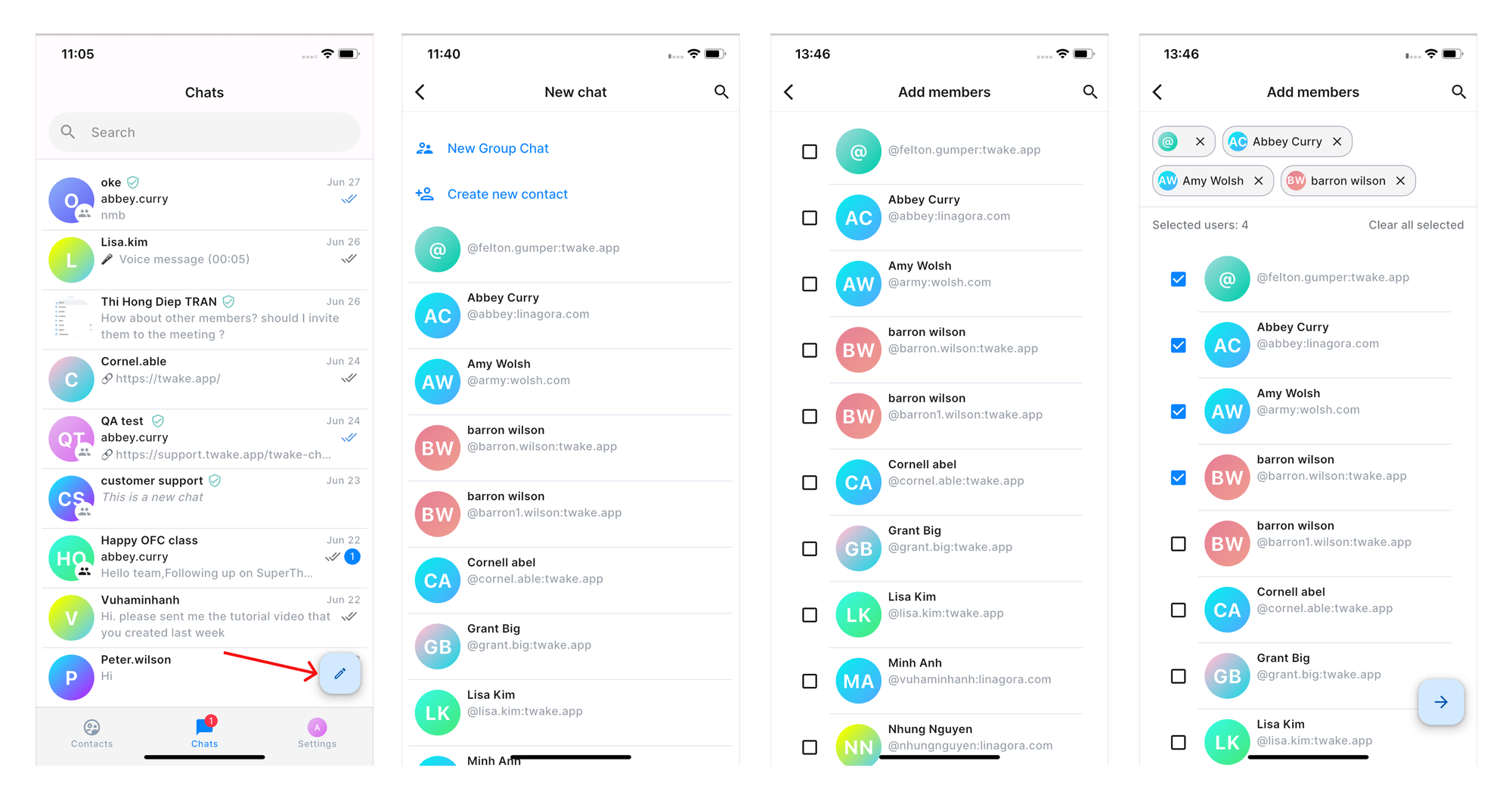
To create a group chat:
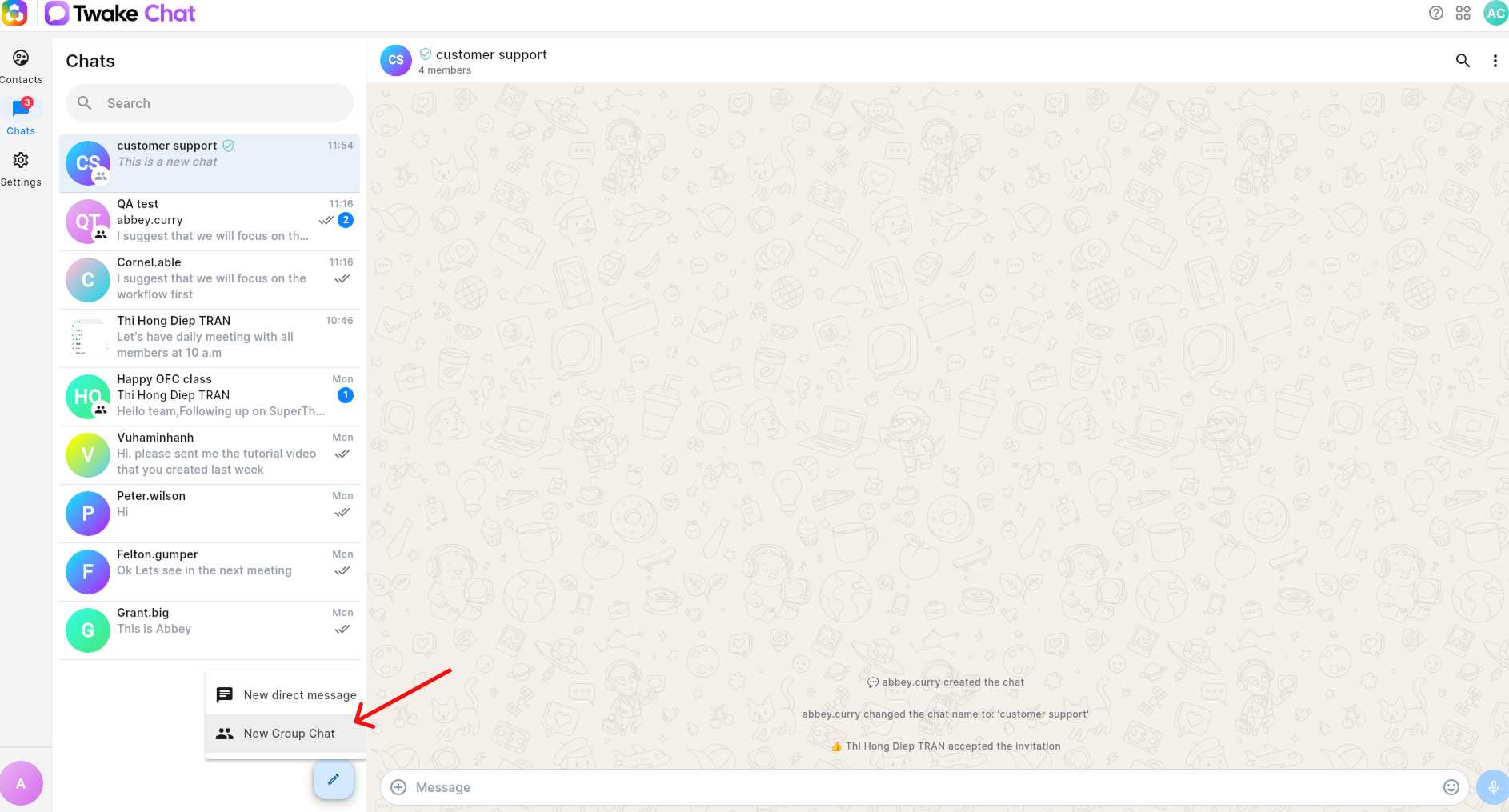
- In the Chats section, click the New Chat button.
- Select New Group Chat.
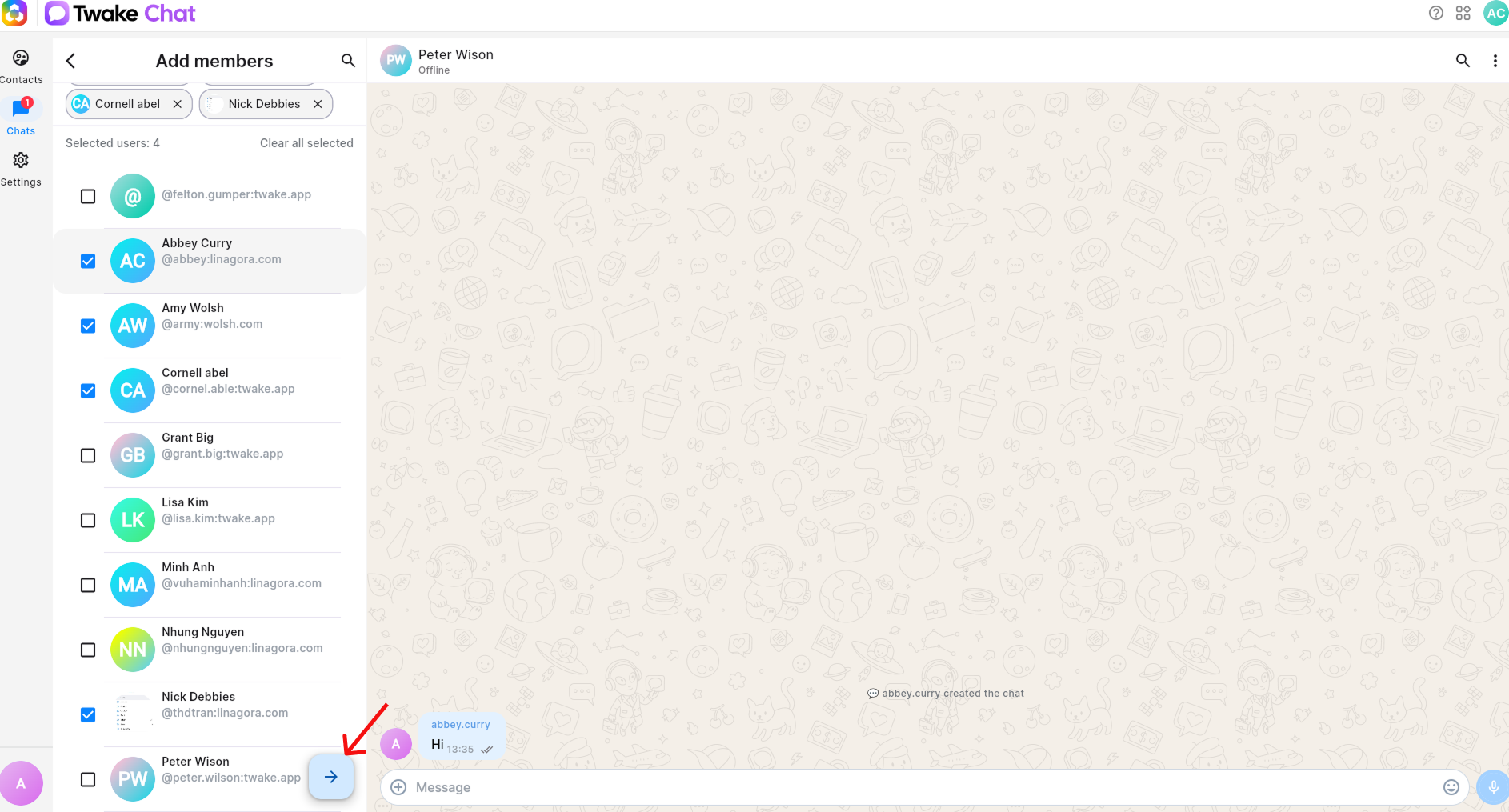
- Choose the people you want to add to the group.
- Click Next arrow to the group configuration screen.
On Mobile app:
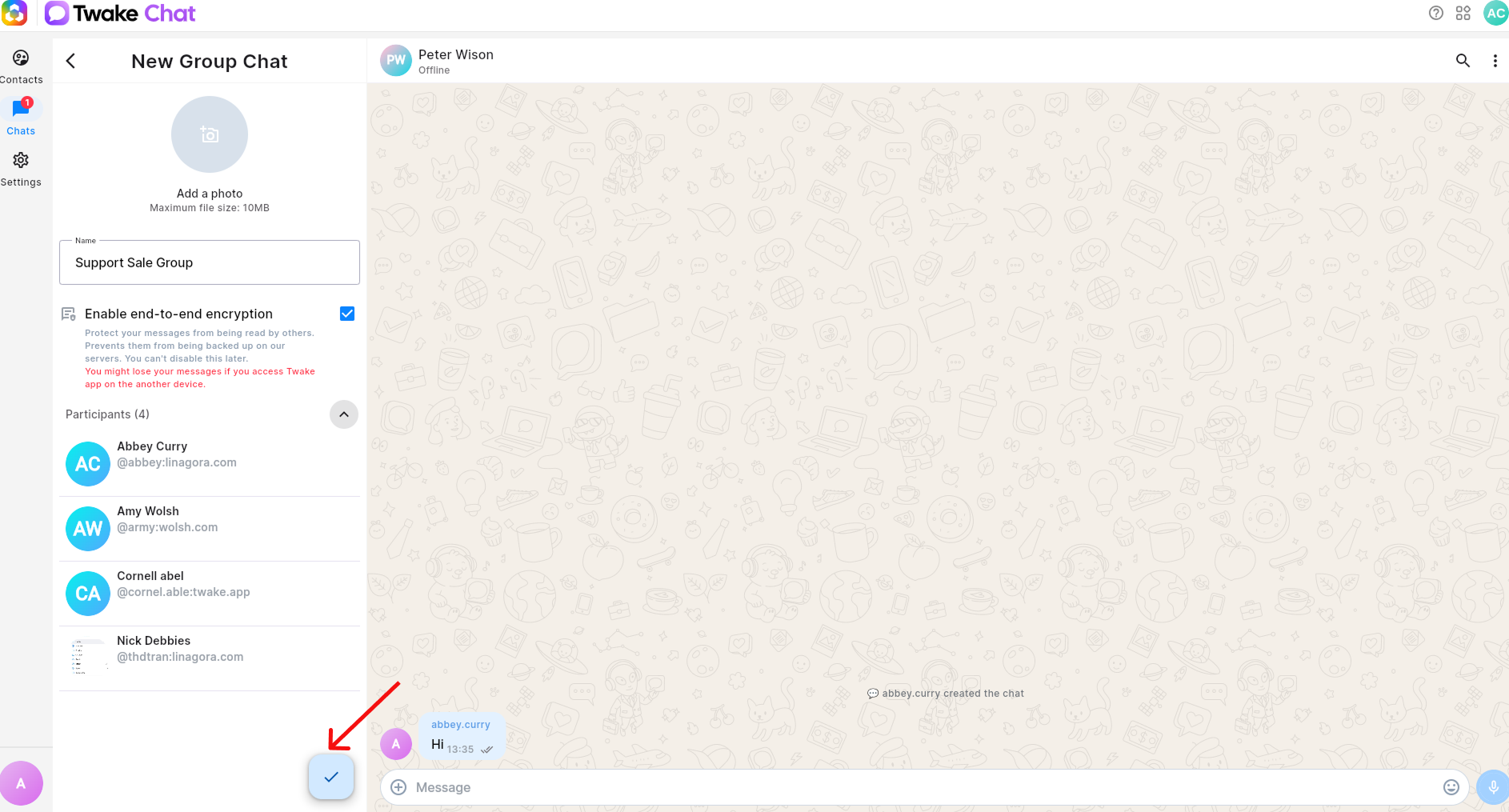
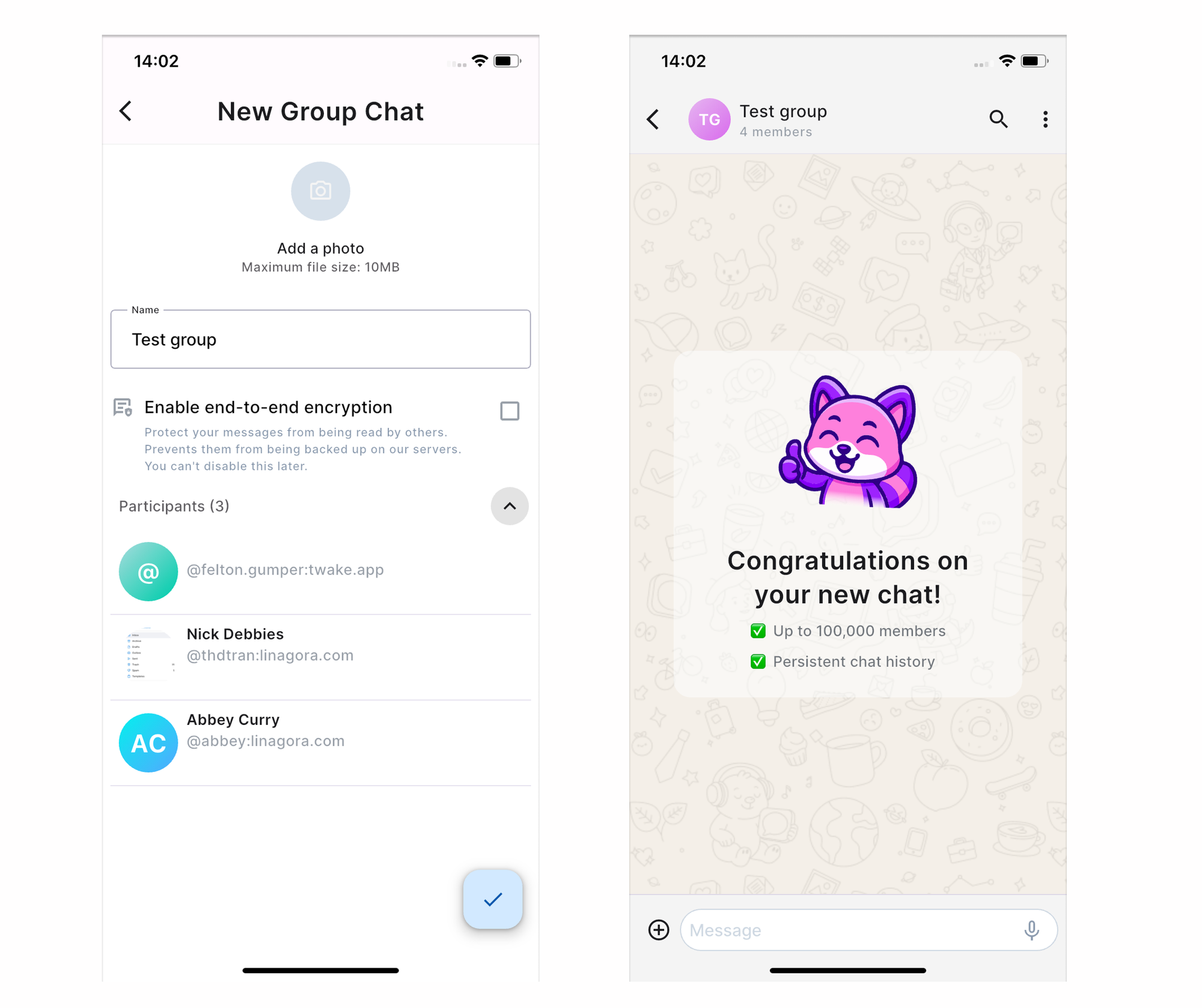
On the group configuration screen, you can:
Add a Group Picture
- Click Add a photo.
- Select an image from your device.
The image will be used as the group avatar.
Maximum file size: 10 MB
Enter a Group Name
In the Name field, enter a name for the group chat.
Enable End-to-End Encryption (Optional)
You can enable end-to-end encryption to increase the privacy of your conversations.
When enabled:
- Messages can only be read by chat participants and cannot be read by the server.
- Encryption cannot be disabled after the group is created.
Best practice: For the best experience, we recommend using end-to-end encryption only for smaller chats. Long-term chats with many members may experience reduced reliability in terms of message decryption
The Participants section displays all members that will be added to the group.
After configuring the group: Click Create button
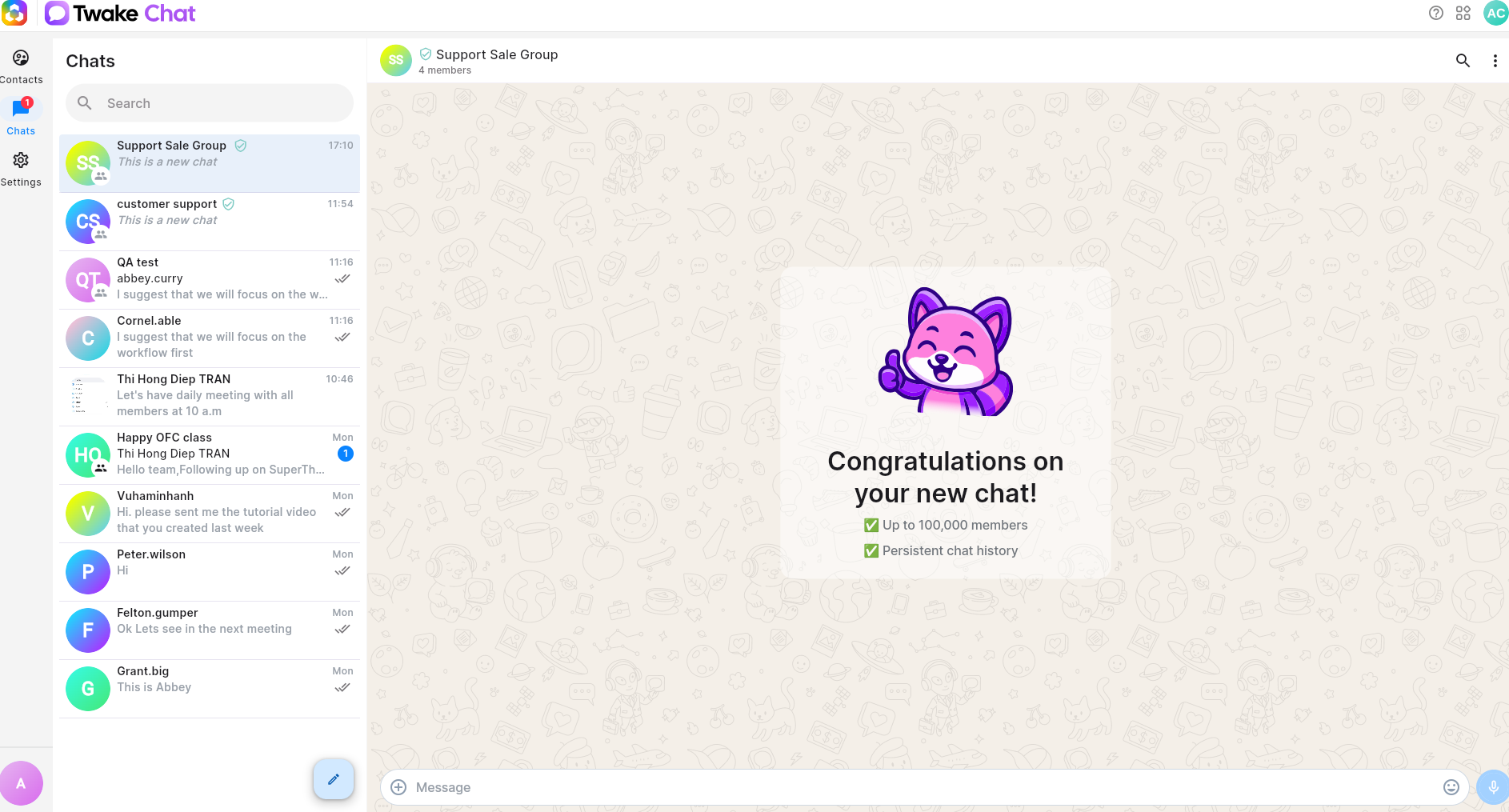
The new group chat is created and automatically appears in your chat list.
Note: Creating a group chat may take several seconds when it includes many members. The more members you add, the longer the setup may take.
On mobile:
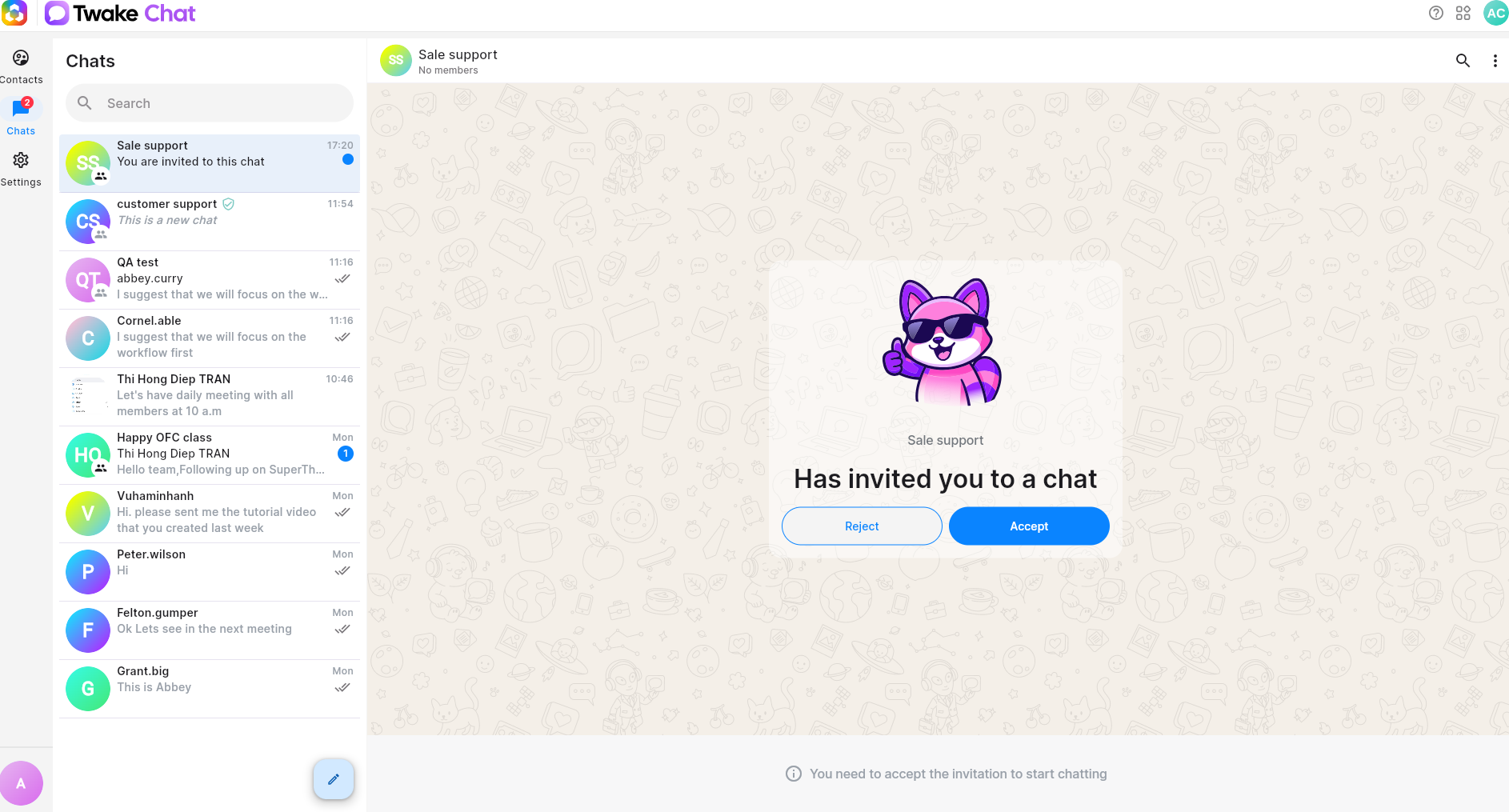
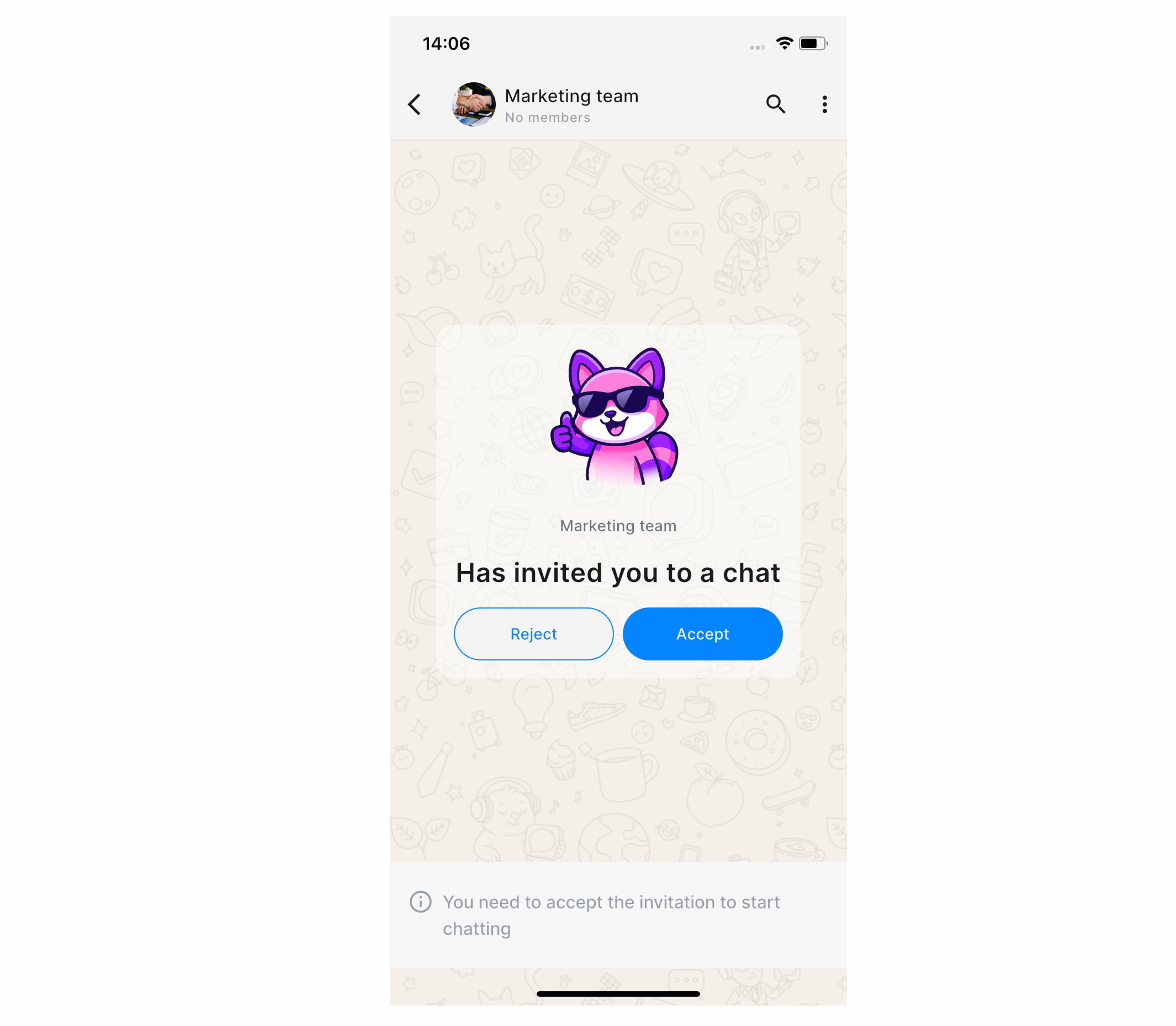
When a member is added to a group chat, he will receive an invitation and need to click Accept to join the group chat: