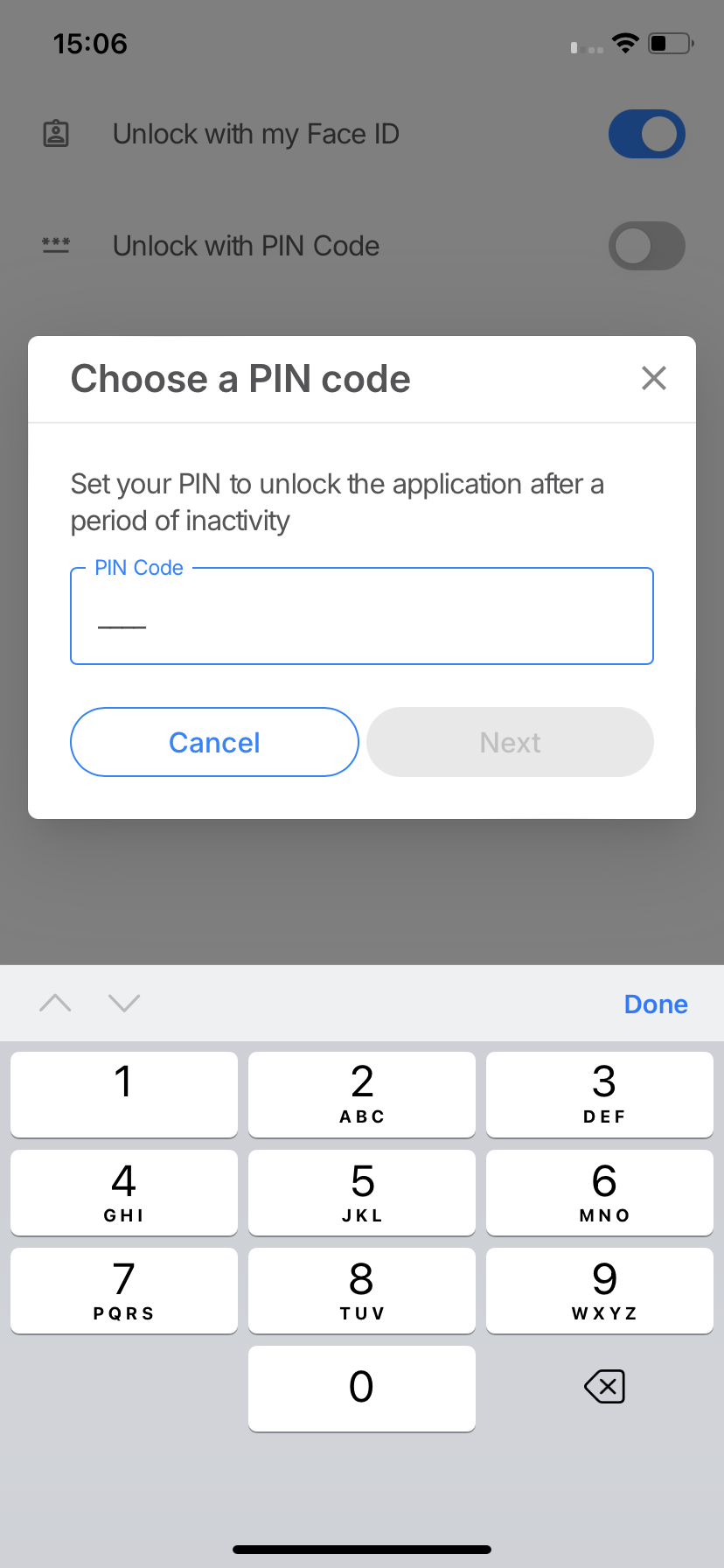
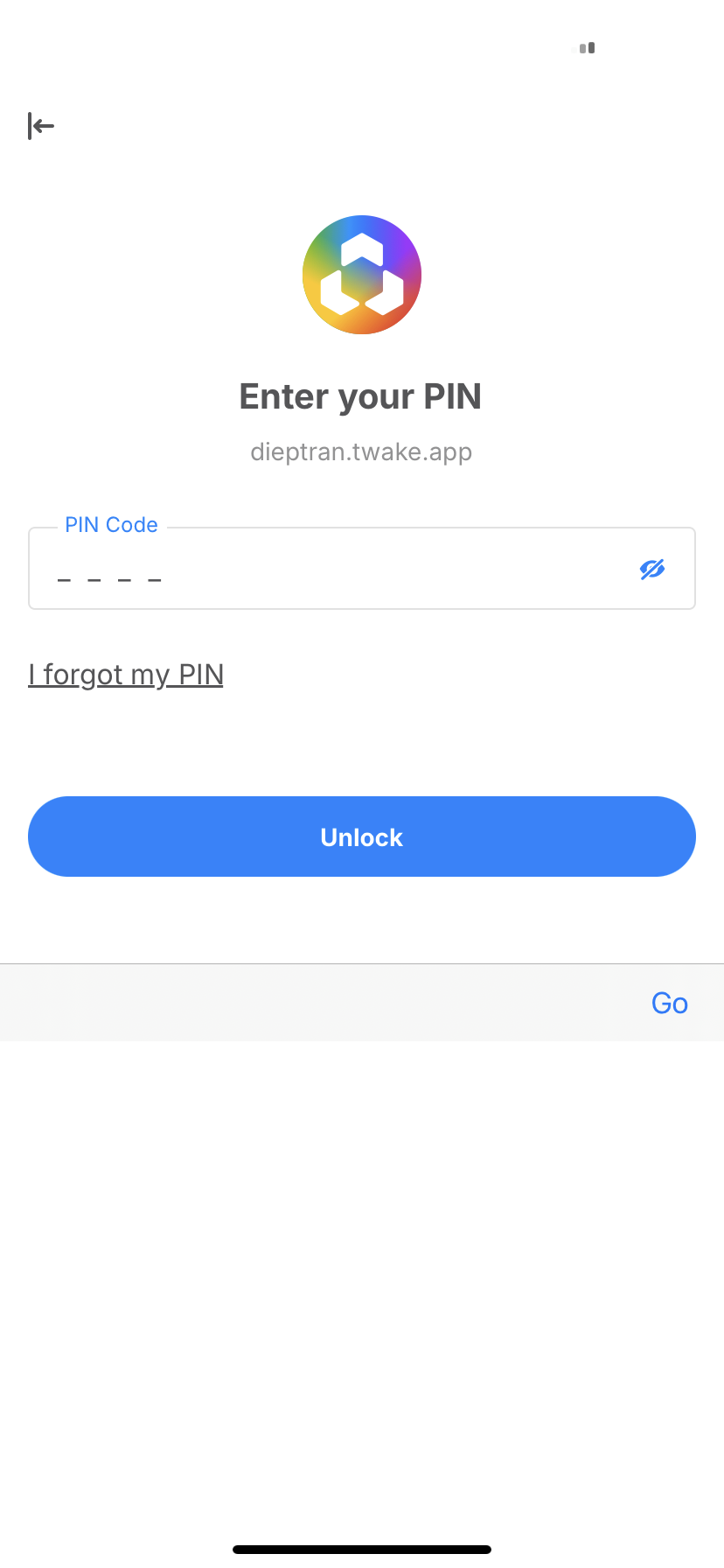
Lock the Twake app on my phone
If you want to prevent someone who has access to your phone from accessing your data stored in your Twake, you have the option of automatically locking your application and unlocking it using your password, a code PIN or your biometric authentication (fingerprint or face recognition).
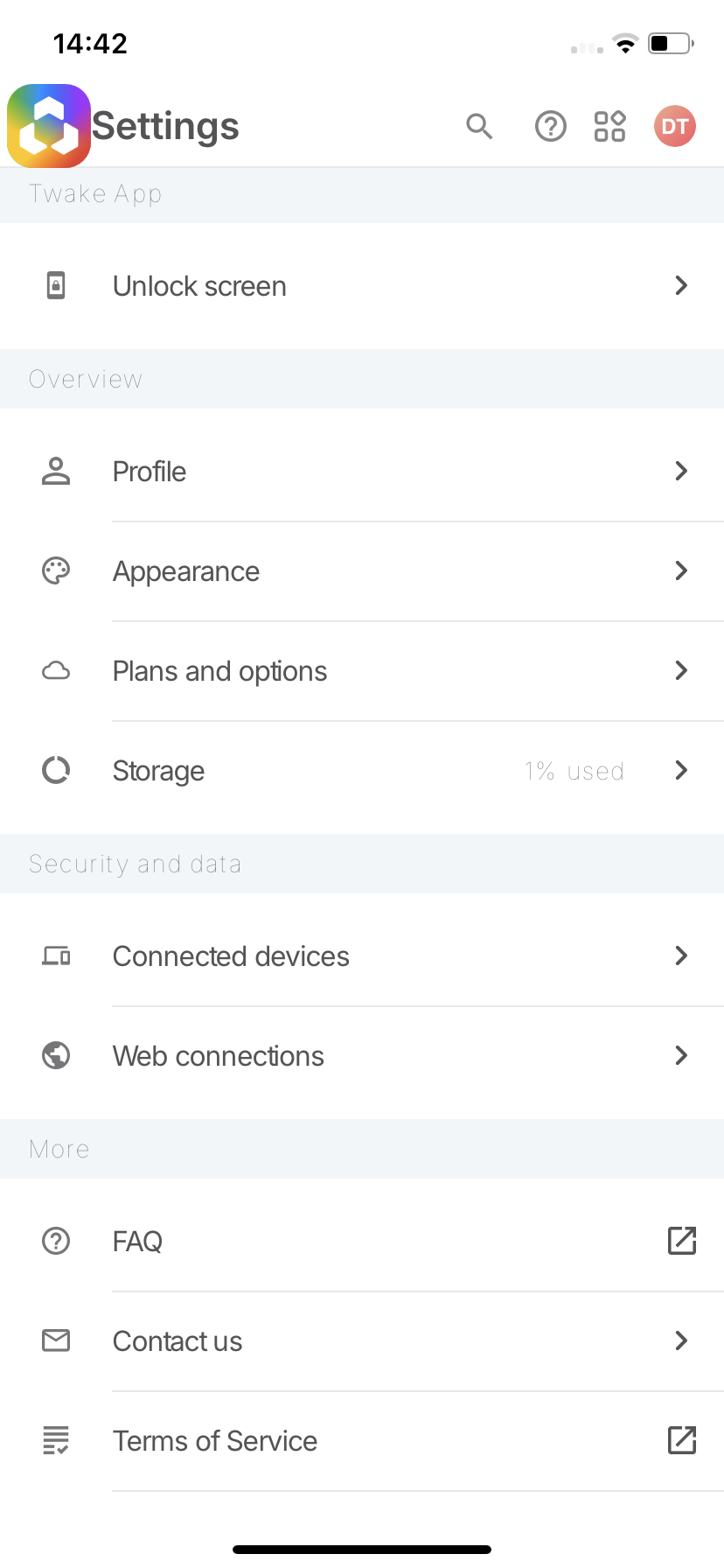
To activate the automatic lock of your mobile app, all you need to do is go to your Settings app and then go to the 'Unlock screen' menu. In this menu, you can choose to “Lock when the app goes into background”. Once this option is activated, your application will be locked as soon as it is killed or in the background.
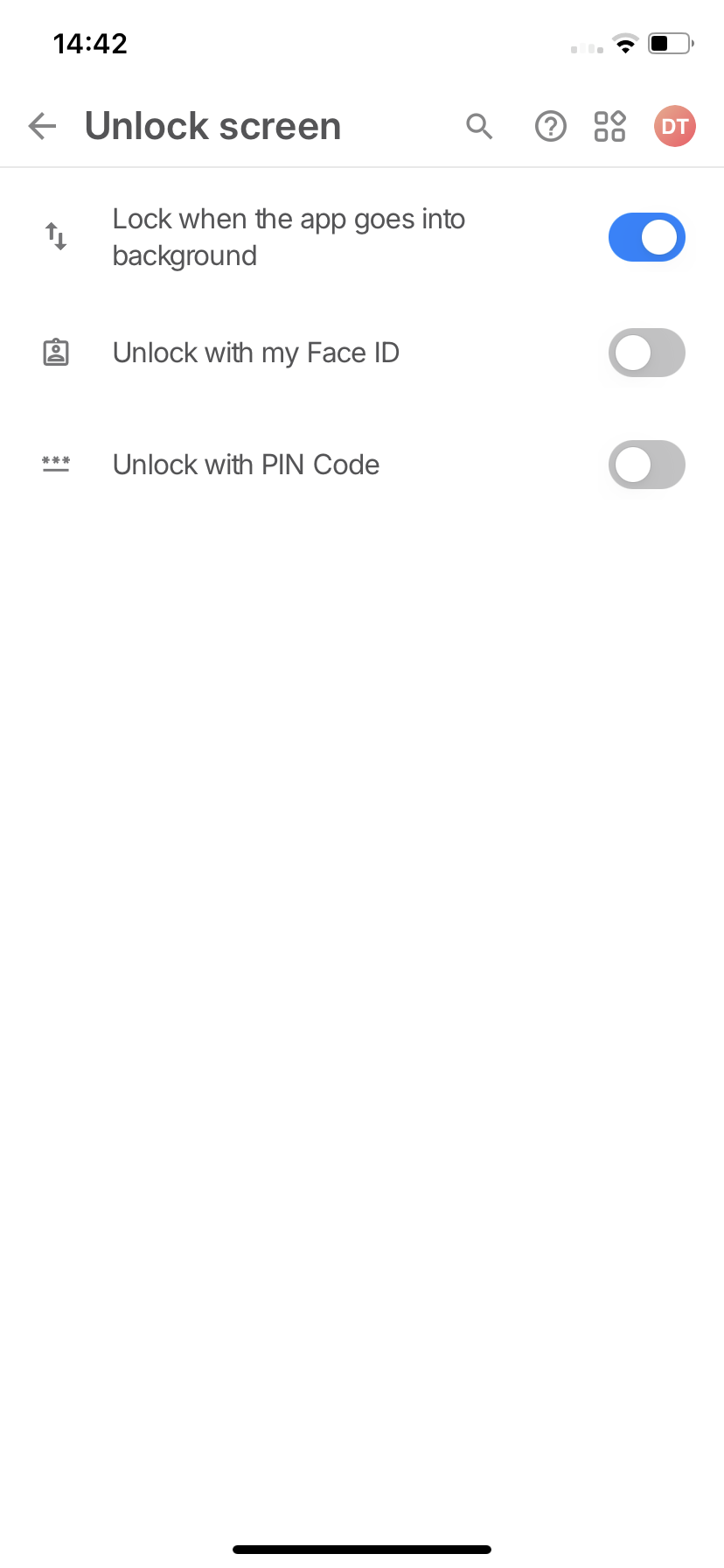
In order to make it easier to unlock your app, you can choose to unlock your app using a PIN code or using your fingerprint or face recognition depending on what your phone offers. To do this, simply select the options you want from the 'Unlock screen' menu in the Settings app.