Manage a calendar
Manage your calendars to keep them organized and up to date. You can edit a calendar's information, customize its appearance, control the default visibility of new events, show or hide calendars, or delete a calendar you no longer need.
Edit a Calendar
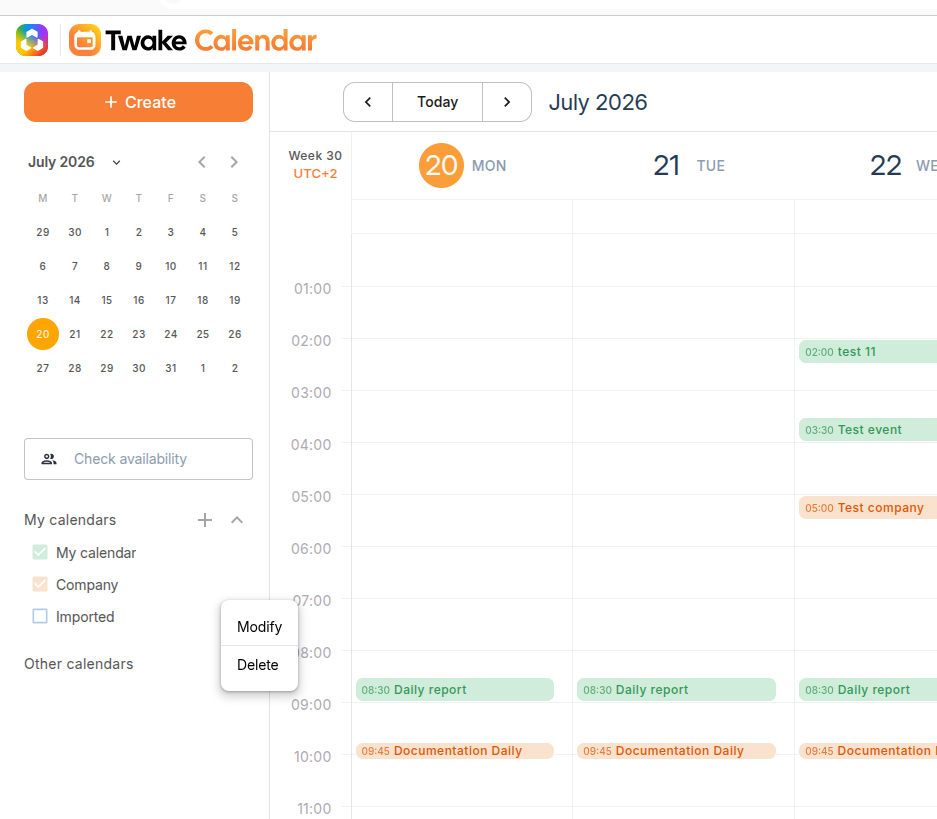
- In the left sidebar, hover over the calendar you want to edit.
- Click the More actions (︙) menu.
- Select Modify.
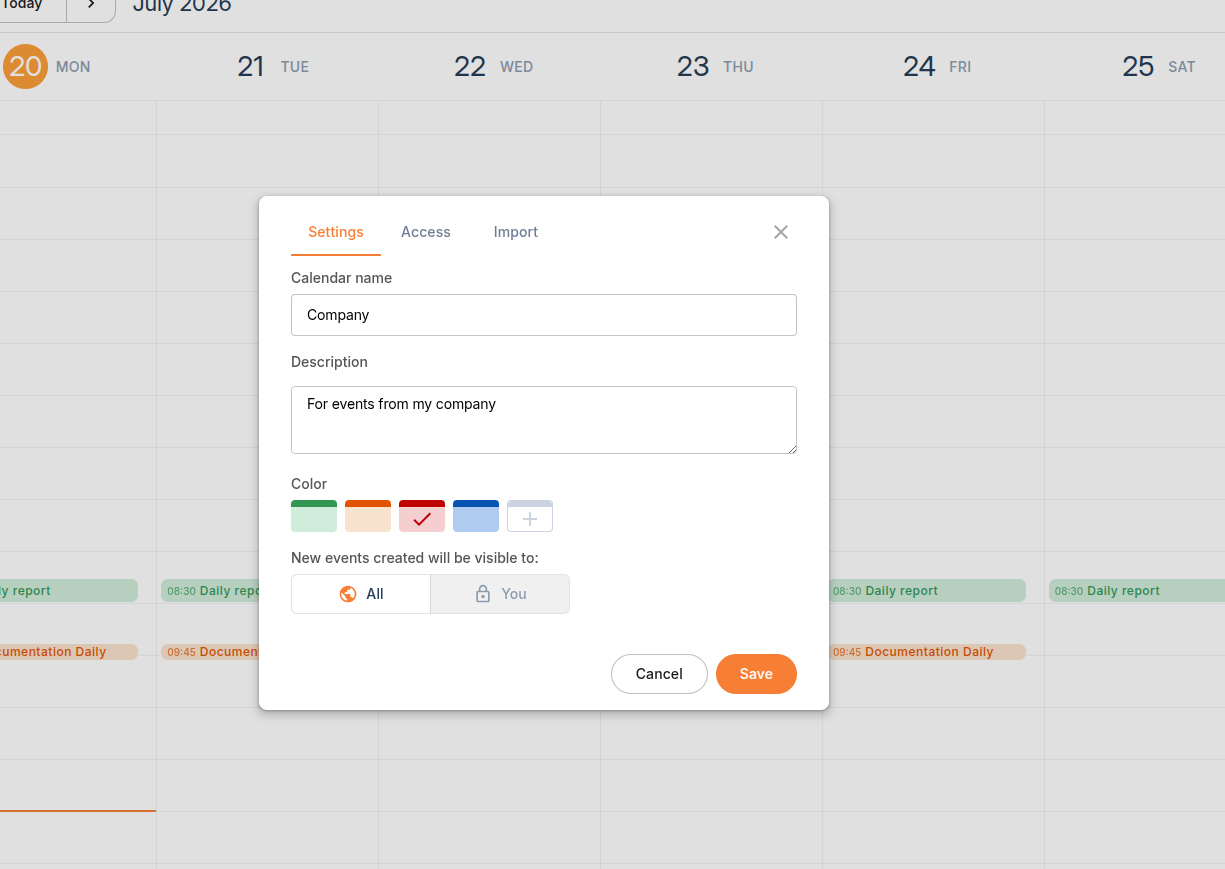
- In the Settings tab, update any of the following:
- Calendar name
- Description
- Color
- Default visibility for new events:
- All – New events are visible to anyone with access to the calendar.
- You – New events are visible only to you.
- Click Save.
Your changes are applied immediately.
Show or Hide a Calendar
Control which calendars are displayed in your calendar view..
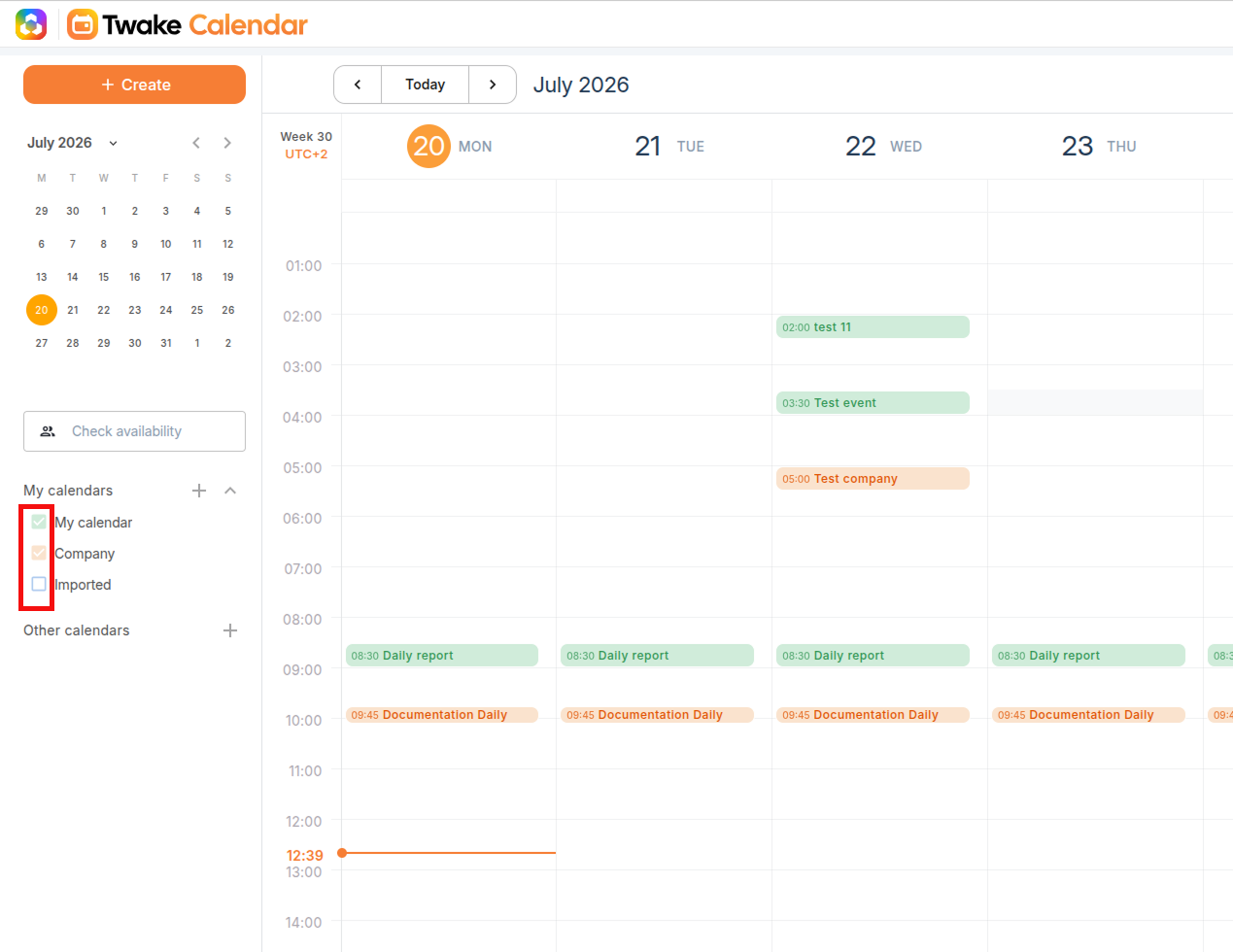
- In the left sidebar, locate the calendar under My calendars or Other calendars.
- Click the checkbox next to the calendar name:
- Checked – The calendar is visible, and its events appear in the calendar view.
- Unchecked – The calendar is hidden, and its events no longer appear.
- Repeat for any other calendars you want to show or hide.
The calendar view updates immediately to reflect your selection:
Delete a Calendar
Delete a calendar that you no longer need.
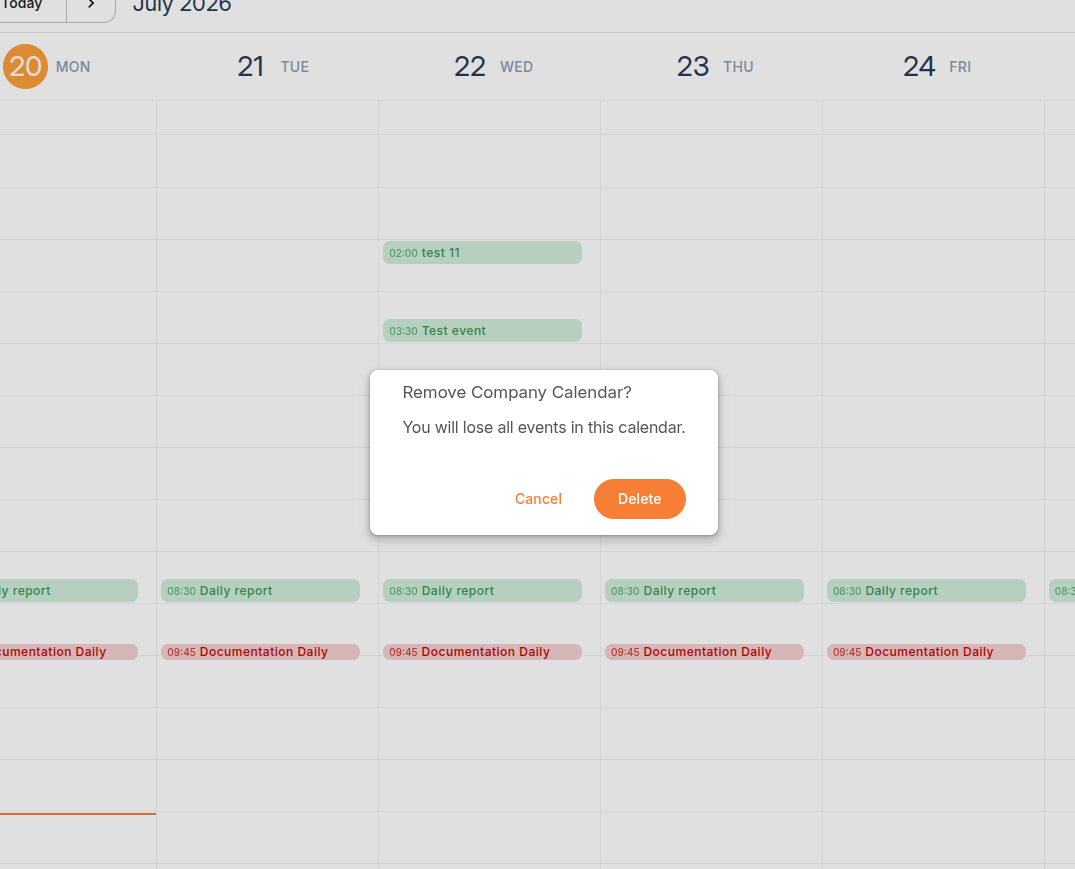
Warning: Deleting a calendar permanently removes the calendar and all events it contains. This action cannot be undone.
- In the left sidebar, hover over the calendar you want to delete.
- Click the More actions (︙) menu.
- Select Delete.
- Review the confirmation message.
- Click Delete to confirm.
The calendar and all of its events are permanently removed from Twake Calendar.