
Find and book rooms and resources
Resources are shared spaces or equipment that you can use for meetings and other activities, such as meeting rooms, TVs, or whiteboards... Each resource has its own calendar to help you check its schedule and plan when to use it.
In Twake Calendar, you can add resource calendars to your view and follow their schedules and add a resource to an event to request a booking.
Add a resource calendar
Add resources you use regularly to your calendar view so you can easily check their schedules.
- Open Twake Calendar.
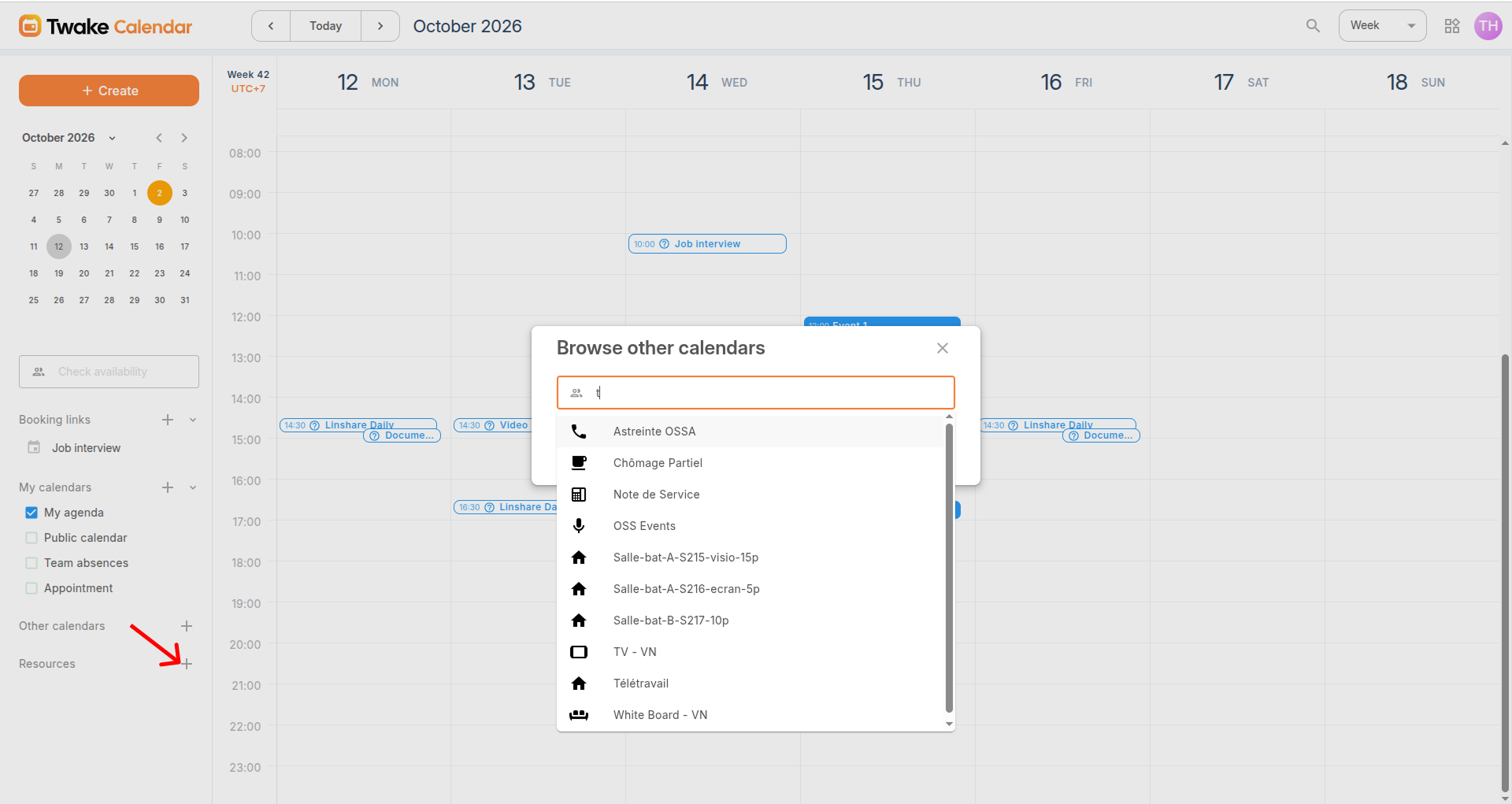
- In the left sidebar, click + next to Resources.
- In the window, start typing the resource’s name.
- Select the resource from the results.
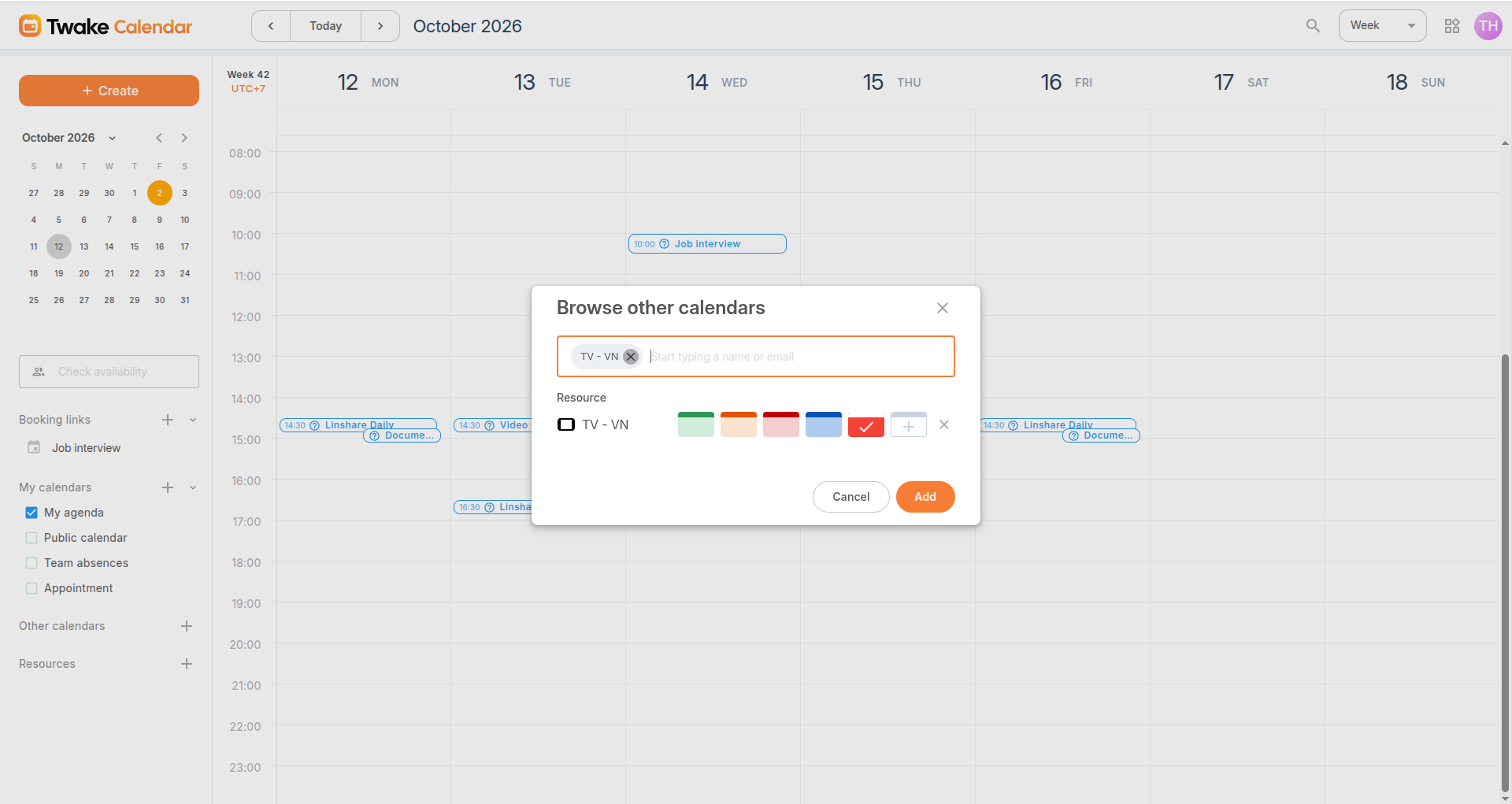
- Choose a color for its calendar.
- Click Add.
The resource appears under Resources in the left sidebar.:
Check a resource’s schedule
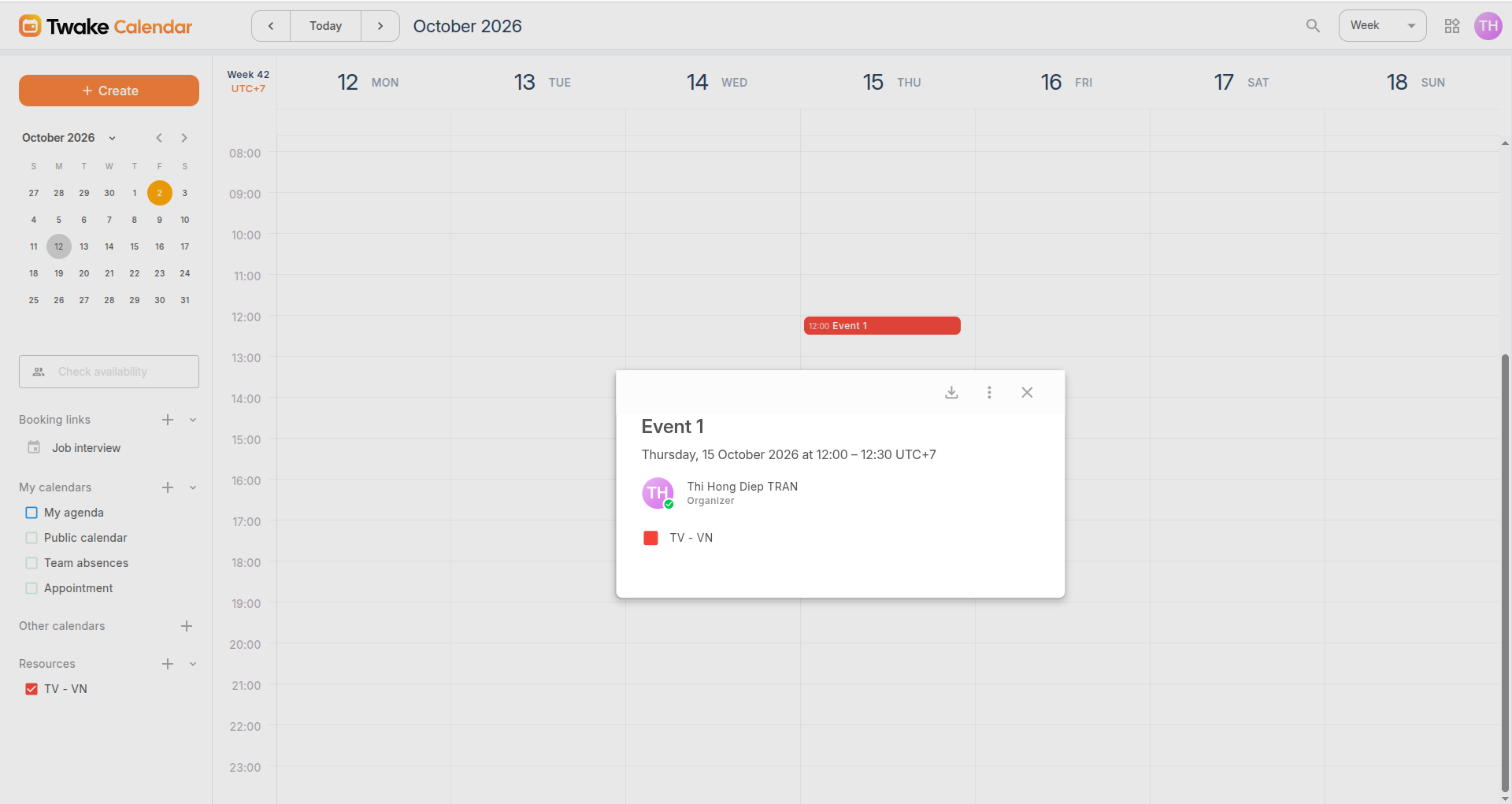
- Under Resources, select the checkbox beside the resource’s name.
- Navigate to the date you want to check.
- Review the events displayed in the resource’s calendar.
Click an event to view the information available to you, such as its title, time, and organizer.
Tip: Use different colors for your resources and personal calendars to distinguish their events.
Book resources for an event
- Click + Create, or select an empty time slot.
- Enter the event title, date, and start and end times.
- Click More options to open the full event editor.
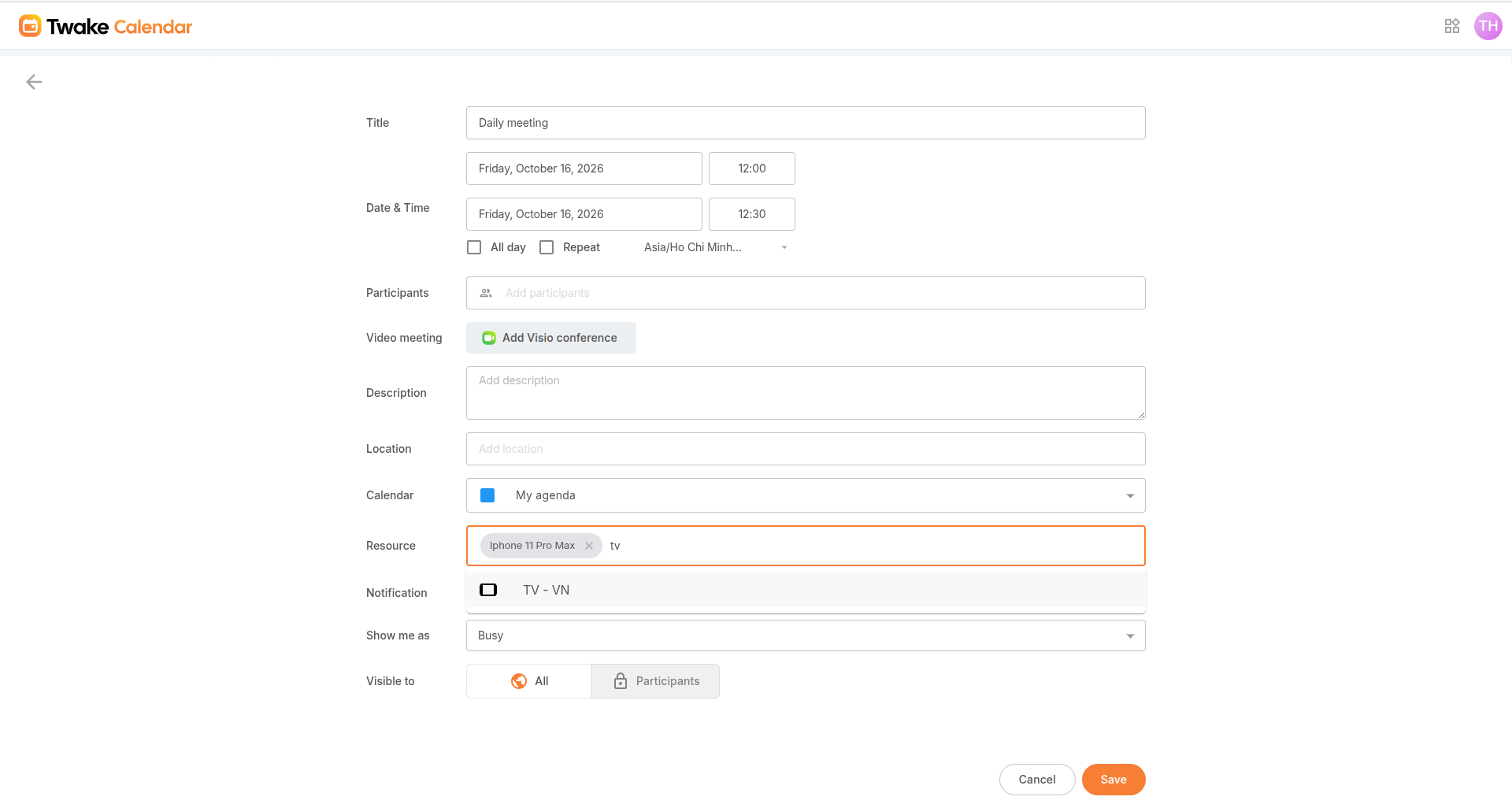
- In the Resource field, start typing the name of the room or equipment you need.
- Select the resource from the results. You can select multiple resoures
- Complete the other event details, such as participants and description.
- Click Save.
The selected resources are listed in the event details.
Check the booking status
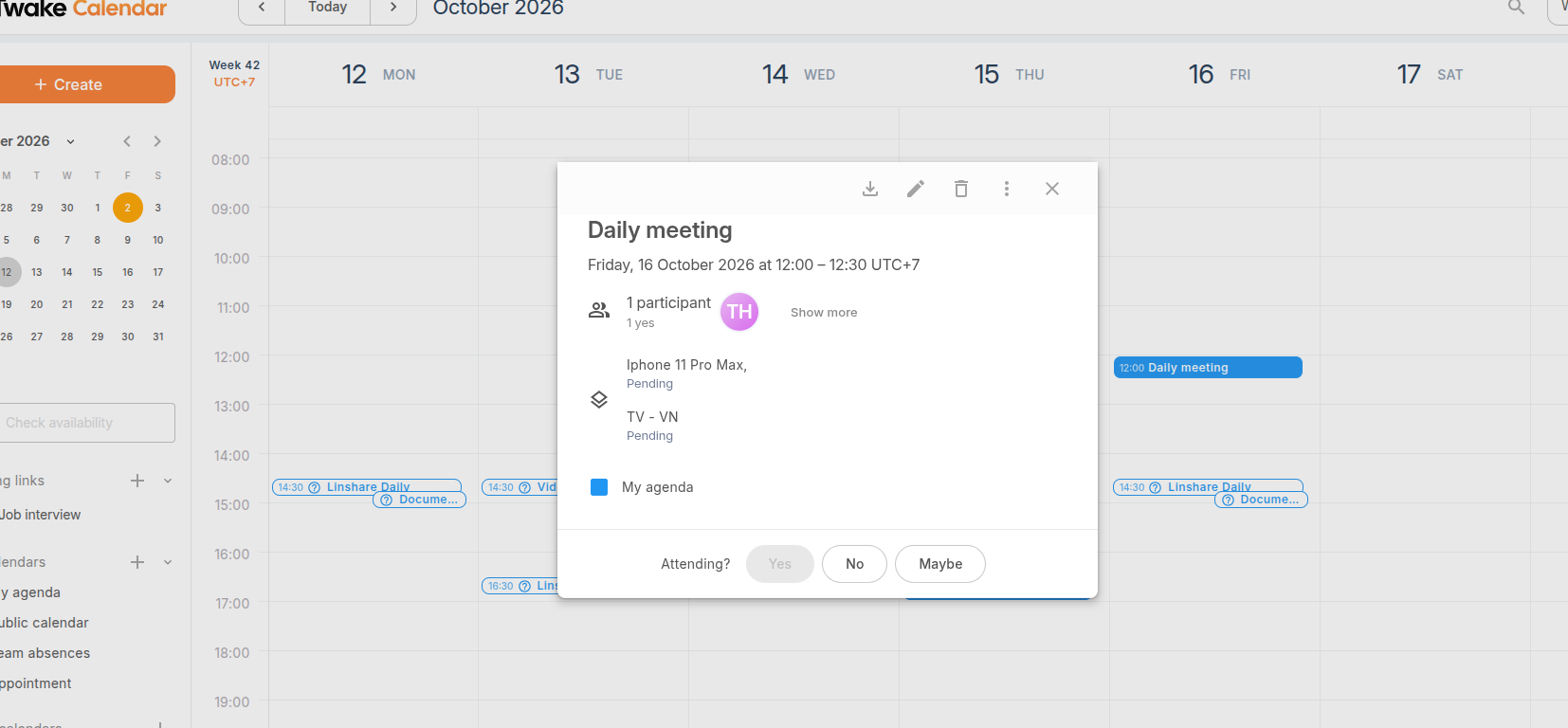
Open the event from your own calendar and check the status beneath the resource’s name.
If it shows Pending, the booking has not yet been confirmed by the administrator. Check the status before using the room or equipment.
Change the resource or event time
If you are the event organizer or have permission to edit it:
- Open the event from your own calendar.
- Click the Pencil icon.
- Update the date, time, or selected Resource.
- Click Save.
- Reopen the event and check the resource’s booking status.
If you no longer need the resource, remove it from the Resource field and save the event.
To cancel the entire event, open it and click the Delete icon.