
Share a calendar
Share a calendar with other people so they can view or collaborate on your schedule. Depending on the permission you grant, others can view events, edit events, or manage the calendar.
In the left sidebar, hover over the calendar you want to share.
- Click the More actions (︙) menu.
- Select Modify.
- Open the Access tab
- Choose an access level.
- View all events – View all events in the calendar.
- Editor – View, create, edit, and delete events.
- Administrator – Manage events and the calendar’s sharing settings, including access permissions.
- In the Grant Access field, enter the person's name or email address.
- Select the user from the list.
- Click Save.
The user is added to the calendar with the selected permissions.
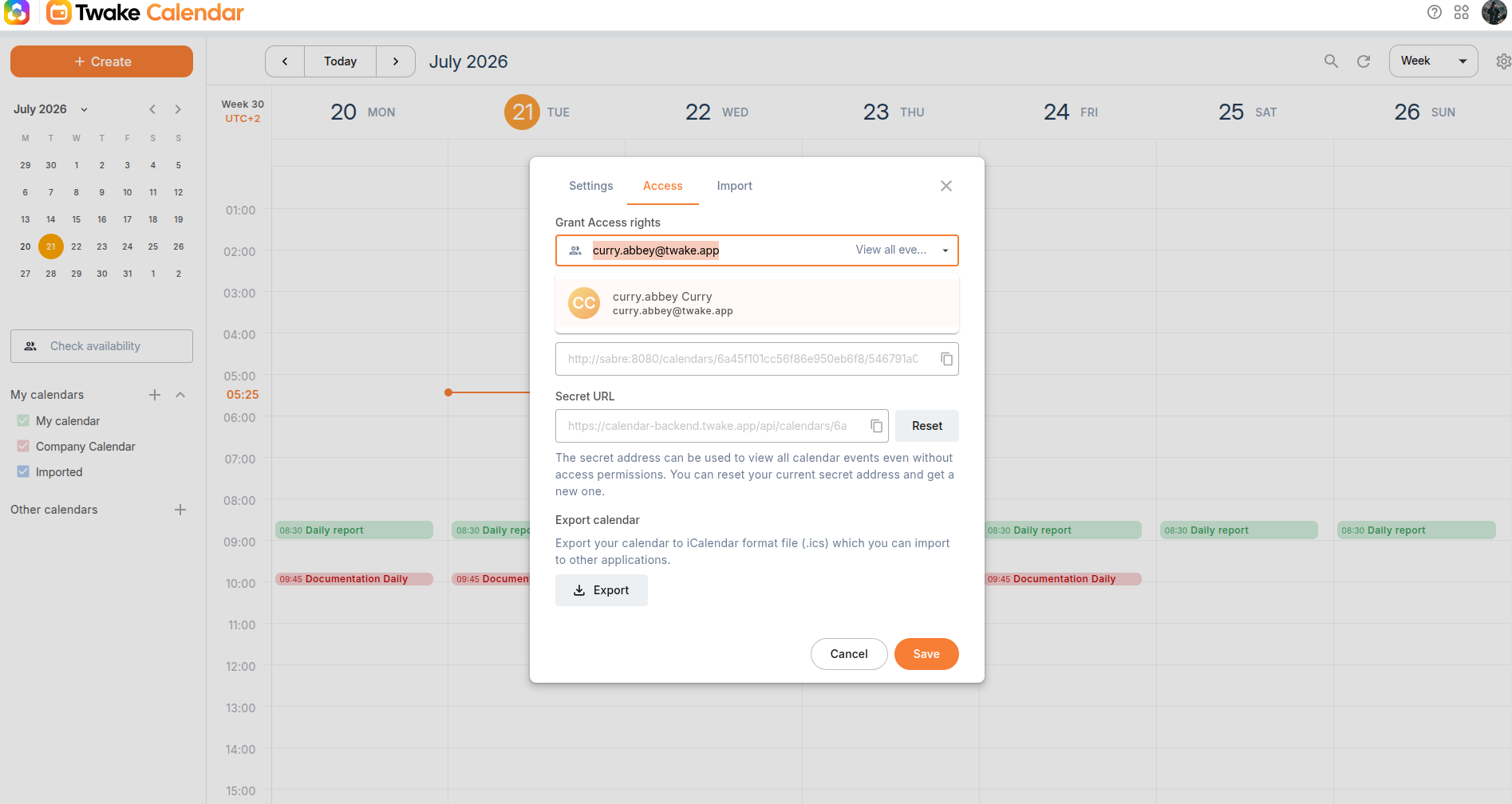
Manage Calendar Permissions
You can change or remove a user's permission at any time.
- Open the calendar's Access tab.
- Locate the user in the access list.
- Open the permission menu next to their name.
- Select one of the available access levels.
- Click Save.
The new permission takes effect immediately.
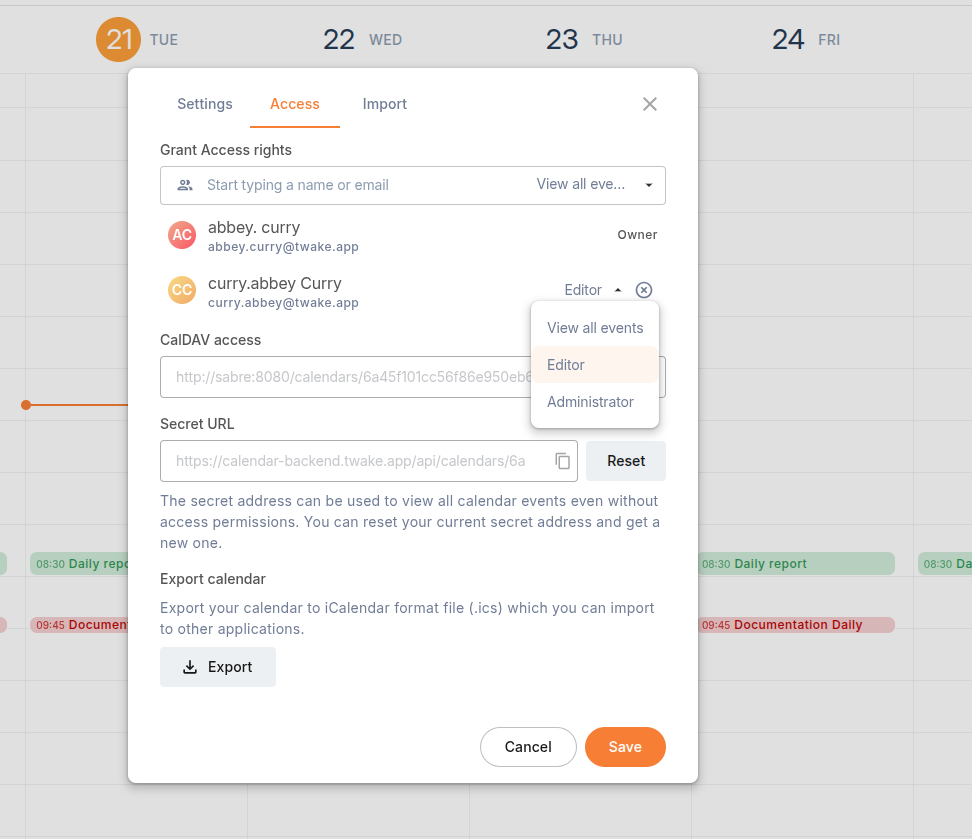
To remove a user's access, click cross icon next to the user 's permission, then the user can no longer access the calendar.
Connect with CalDAV (two-way sync)
Use CalDAV if your calendar application supports it, such as Mozilla Thunderbird or Apple Calendar.
This option keeps your calendars synchronized, so you can view and manage your events from either Twake Calendar or the connected application.
Use the Secret URL
The Secret URL provides read-only access to your calendar without requiring authentication. It is useful for subscribing to your calendar from applications that support iCalendar feeds.
Copy the Secret URL
- Open the calendar's Access tab.
- In the Secret URL section, click Copy.
- Paste the URL into a supported calendar application or share it with others as needed.
Important: Anyone with the Secret URL can view your calendar events. Share it only with people you trust.
The calendar will appear in the application and will automatically update when changes are made in Twake.
Note: A subscribed calendar is read-only. You can view events, but you cannot create or edit them from the external application.
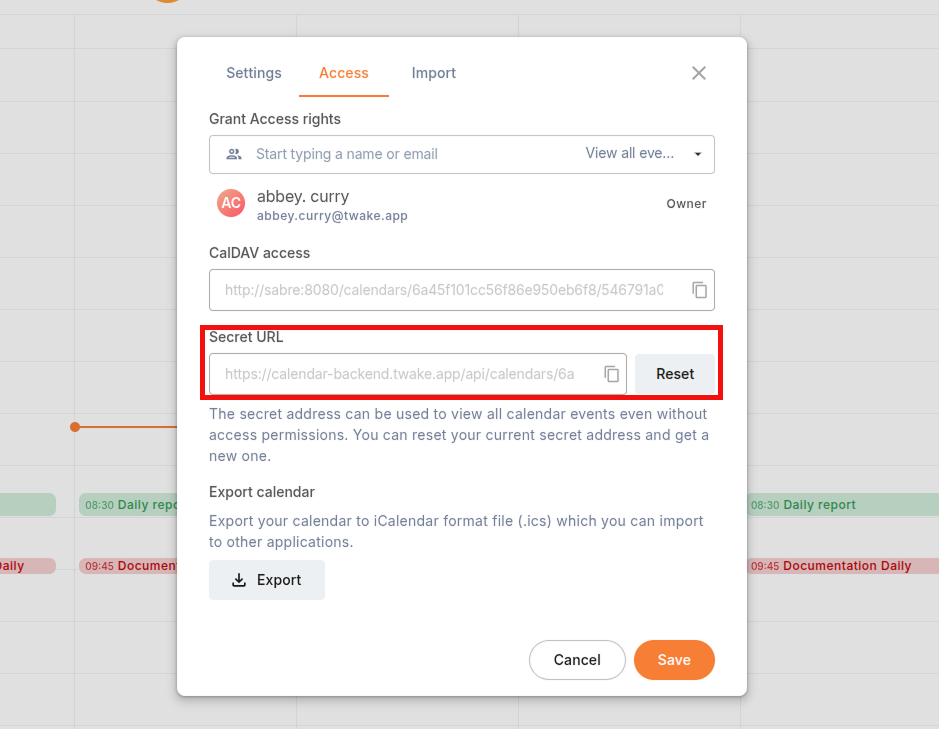
If you think your Secret URL has been shared with someone else or you no longer want the current subscription link to work, you can click Reset button generate a new one.
Important: Resetting the Secret URL permanently invalidates the previous URL. Any applications or services using the old URL will stop receiving updates until you replace it with the new Secret URL.
Export a Calendar
Export an entire calendar as an .ics file to back it up or import it into another calendar application.
- Open the calendar's Access tab.
- In the Export calendar section, click Export.
- Save the downloaded .ics file to your device.
The exported file contains all events currently stored in the selected calendar.
Note: The exported file is a snapshot of the calendar at the time of export. Changes made later are not automatically reflected in the exported .ics file.