Manage file/folder in Twake Drive
Rename a file/folder
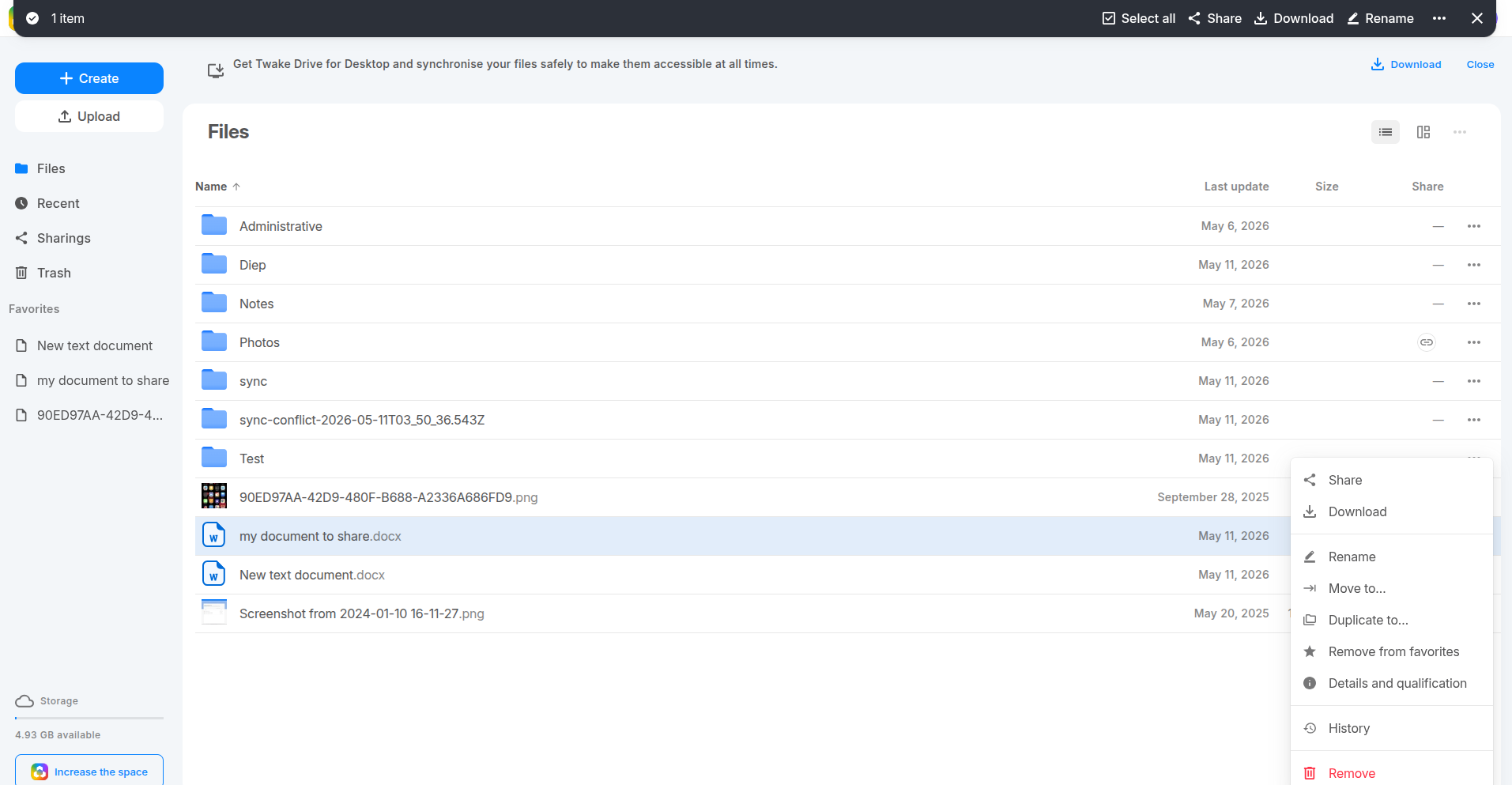
You can rename a file or folder using 3 entry points:
1. Click 3-dot (⋯) menu
- Hover or select a file/folder
- Click the ⋯ (three dots) on the right
- Choose Rename
- Enter new name → press Enter
2. Right-click
- Right-click the file/folder
- Click Rename
- Type new name → press Enter
3. Top action bar
- Select a file/folder
- On the top bar, click Rename
- Enter new name → press Enter
Move file(s) / folder(s) in Twake Drive
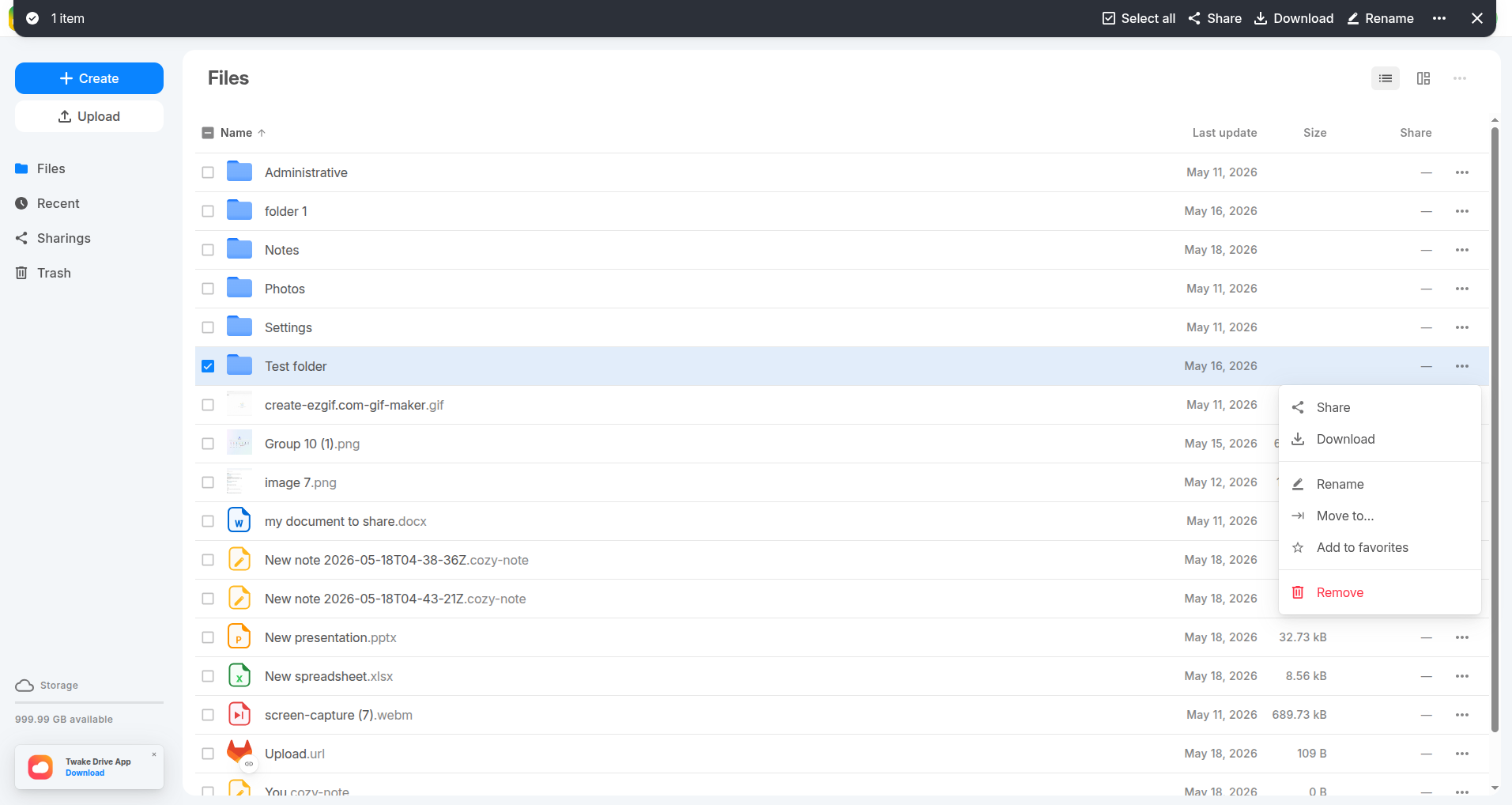
You can move one or multiple files/folders to another location easily.
- Select items
- Select one or several files/folders
- Top bar will show: “X items selected”
- You have 3 ways to move:
- Click Move to… in the top action bar
- Click ⋯ (3 dots) → Move to…
- Right-click → Move to…
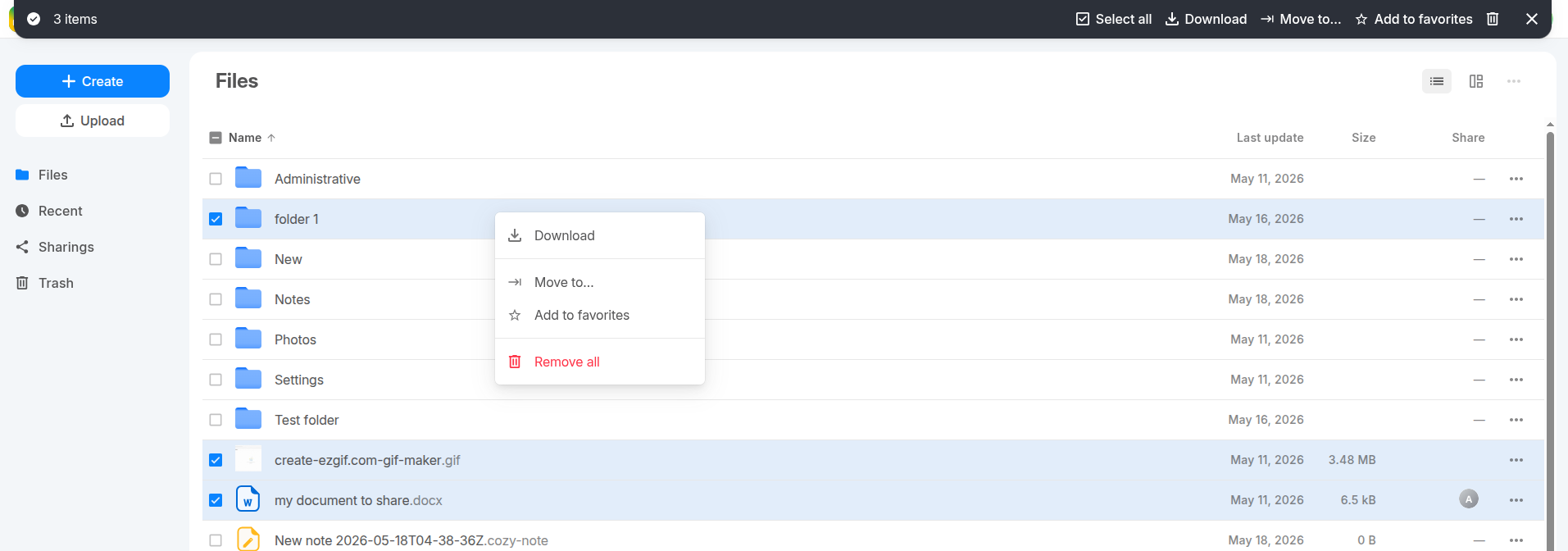
- Choose destination
- A Move window appears
- Browse folders
- Click the target folder
👉 You can also:
- Navigate inside folders
- Create a new folder then select it as destination folder
- Drag file(s)/folder(s) then drop them onto a target folder.
- Click Move
💡
Drag & drop:
- Select one or multiple files/folders
- Click and hold, then drag
- Drop them onto a target folder
- Release → items are moved
- Select one or multiple files/folders
- Click and hold, then drag
- Drop them onto a target folder
- Release → items are moved
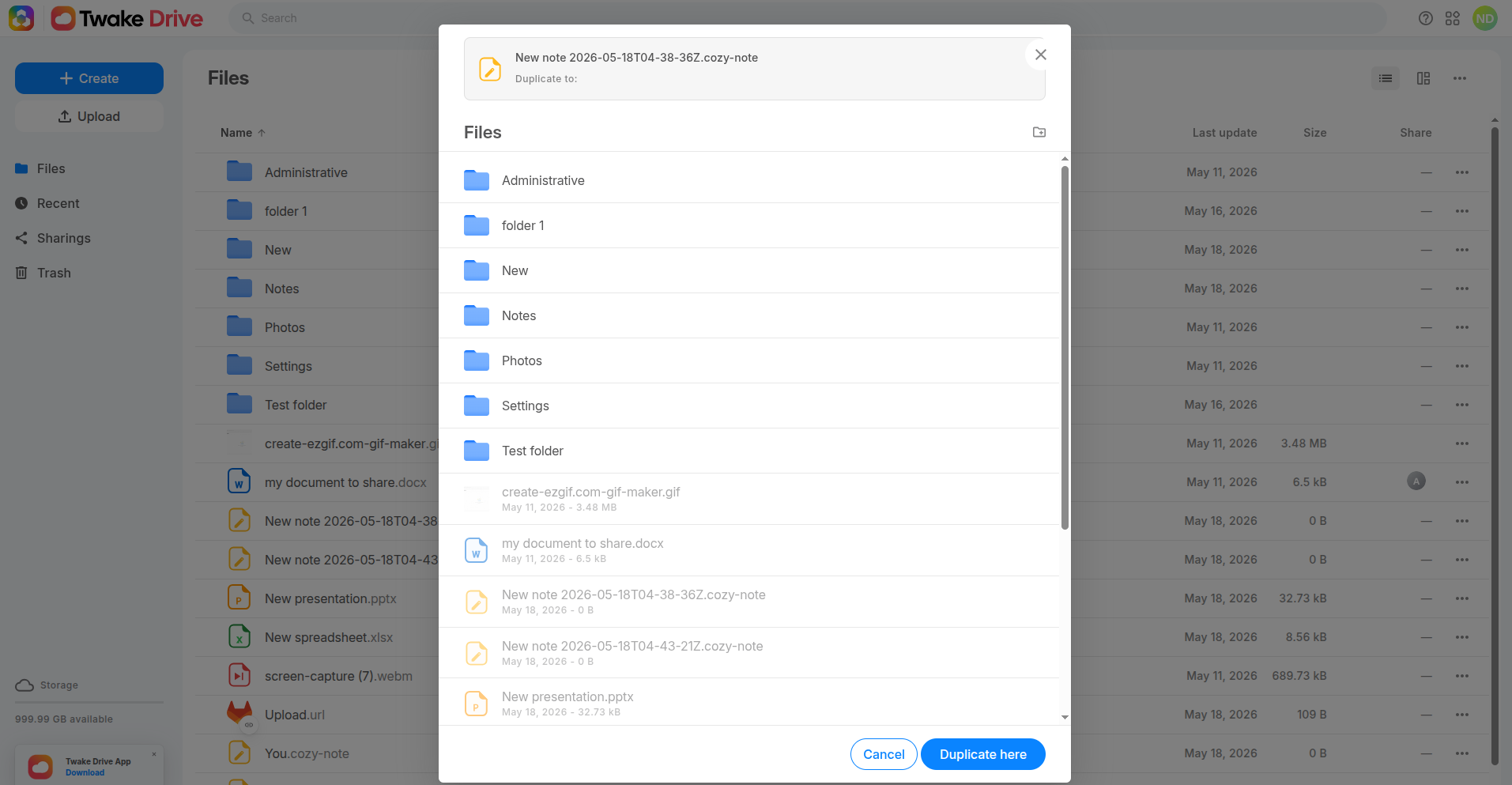
Duplicate a file
- Select a file
- You have 3 ways to duplicate:
- Click ⋯ (3 dots) → Duplicate to…
- Right-click → Duplicate to…
- Use the top action bar (if available)
- Choose destination
- A Duplicate window appears.
- Browse and select a target folder
- You can C]create a new folder then select it as destination folder
- Click Duplicate here
Move one or multiple files/folders to Trash
1. Select one or multiple items
2. Trigger Remove
You can do it via:
- Right-click → Remove
- Click ⋯ (3 dots) → Remove
- Use top action bar → Remove
3. Confirm
- A dialog appears => click Remove button
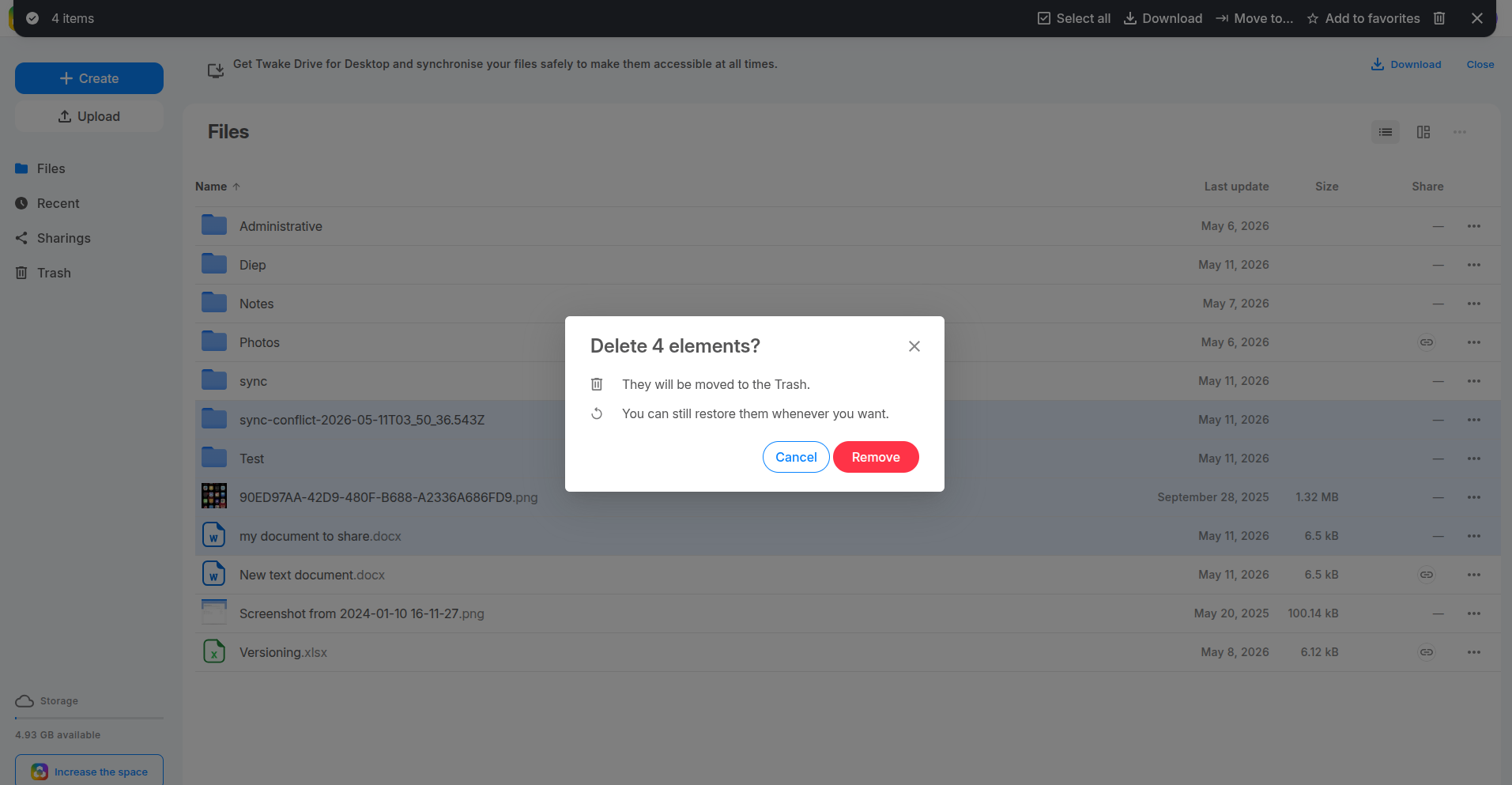
- Selected items are moved to Trash
- They are not permanently deleted
- You can restore them anytime from Trash
Add/Remove files/folders to Favorite
How to add files/folders to Favorite:
- Select one or multiple files/folders
- Add to favorites by several ways:
- Right-click → then select Add to favorites
- ⋯ (3-dot menu) → then select Add to favorites
- From top action bar → select Add to favorites
Selected items appear in the Favorites section in the left sidebar
How to remove files/folders from Favorites:
1. Select the file/folder
- Click the favorite item in Files view or Favorites sidebar
2. Open actions menu
Use one of:
- Right-click
- ⋯ (3-dot menu)
- Top action bar
3. Click Remove from favorites => Item disappears from the Favorites section