
How to add a file/folder to Twake Drive
Create a folder
- Open Twake Drive
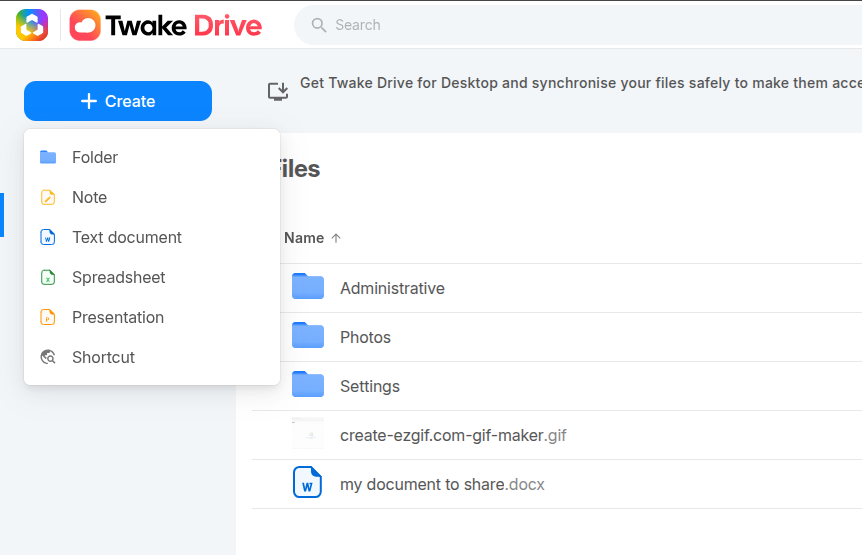
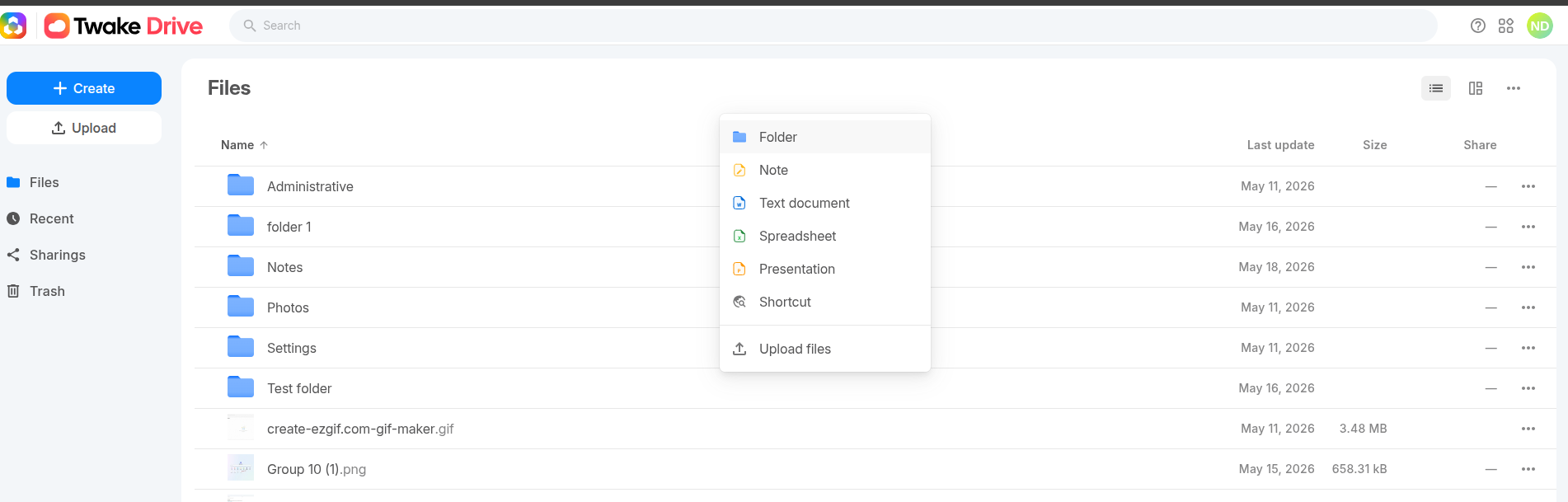
- Click the ➕ Create button (top-left) then select Folder from the drop-down menu or right-click then select option :"Folder"
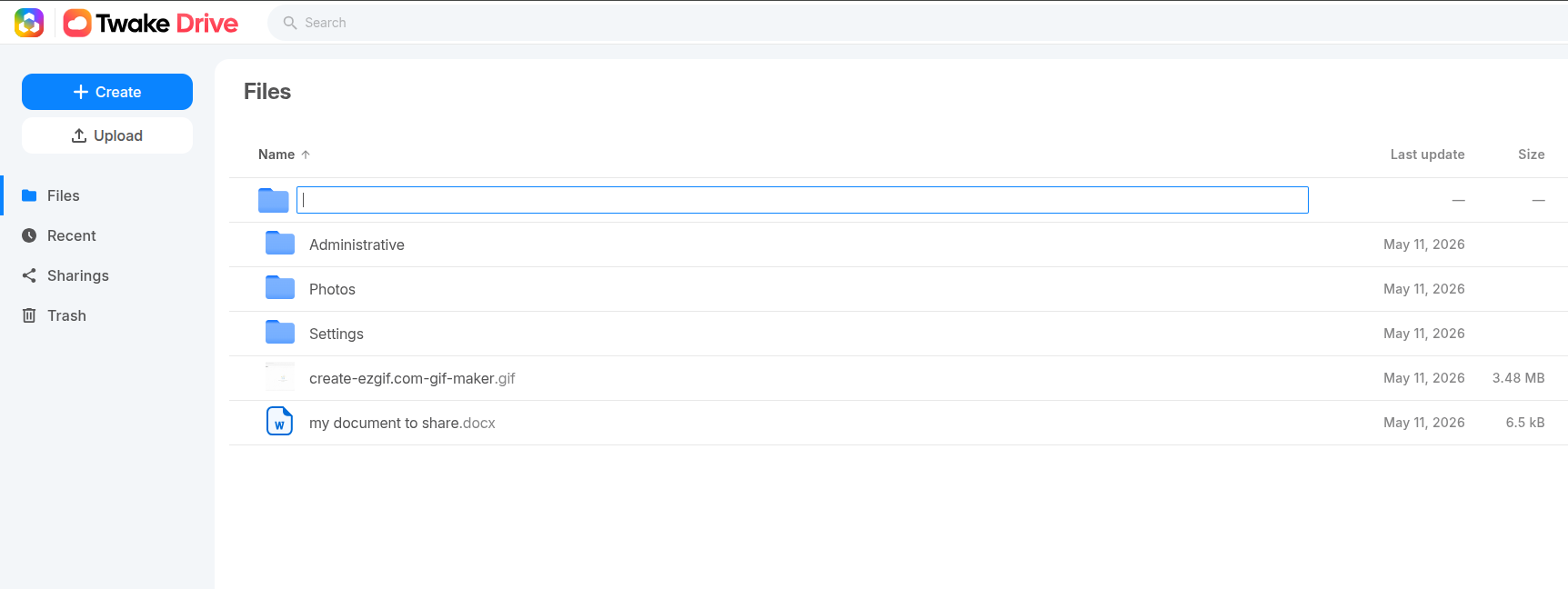
- Enter the folder name
- Press Enter (or click outside) to confirm. Your new folder will appear immediately in the file list. You can now open it and add files inside.
Upload a file
Method 1: Upload button
- Click Upload (left sidebar or top area) or right-click then select option :"Upload files"
- Select one or multiple files
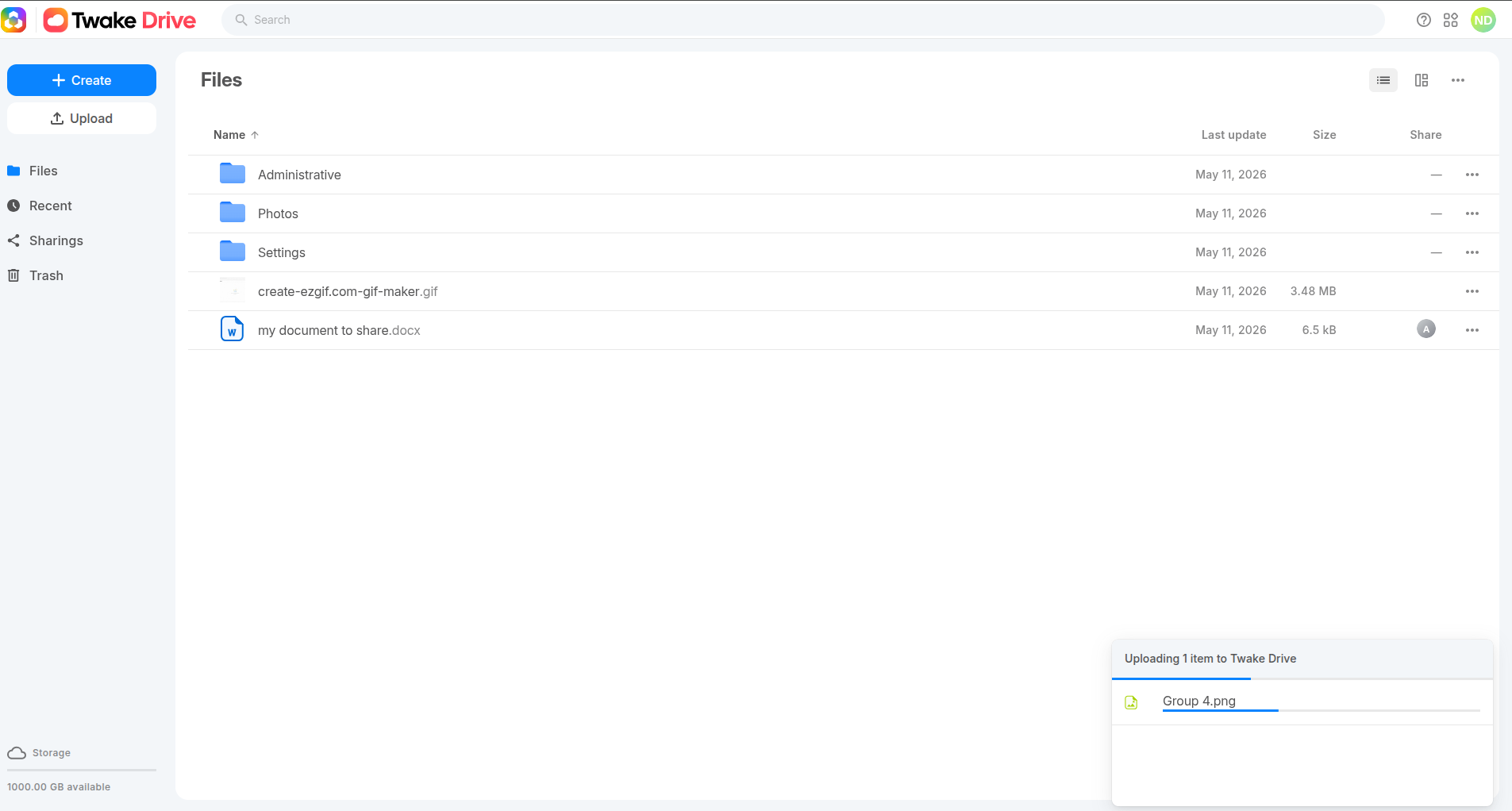
- Confirm → upload starts
👉 You’ll see an upload popup/progress bar (bottom-right)
👉 File appears in the list once uploaded
Method 2: Drag & drop
- Select one or multiple files on your computer
- Drag them into Twake Drive
- Drop it in the main area to upload file
Upload a folder
- Select one or multiple folders
- Drop it into Twake Drive:
- A folder with the same name is created for each uploaded folder
- All files and subfolders inside are uploaded
- Original structure is preserved
Create a note
- Click the ➕ Create button (top-left) then select Note from the drop-down menu or right-click then select option :"Note"
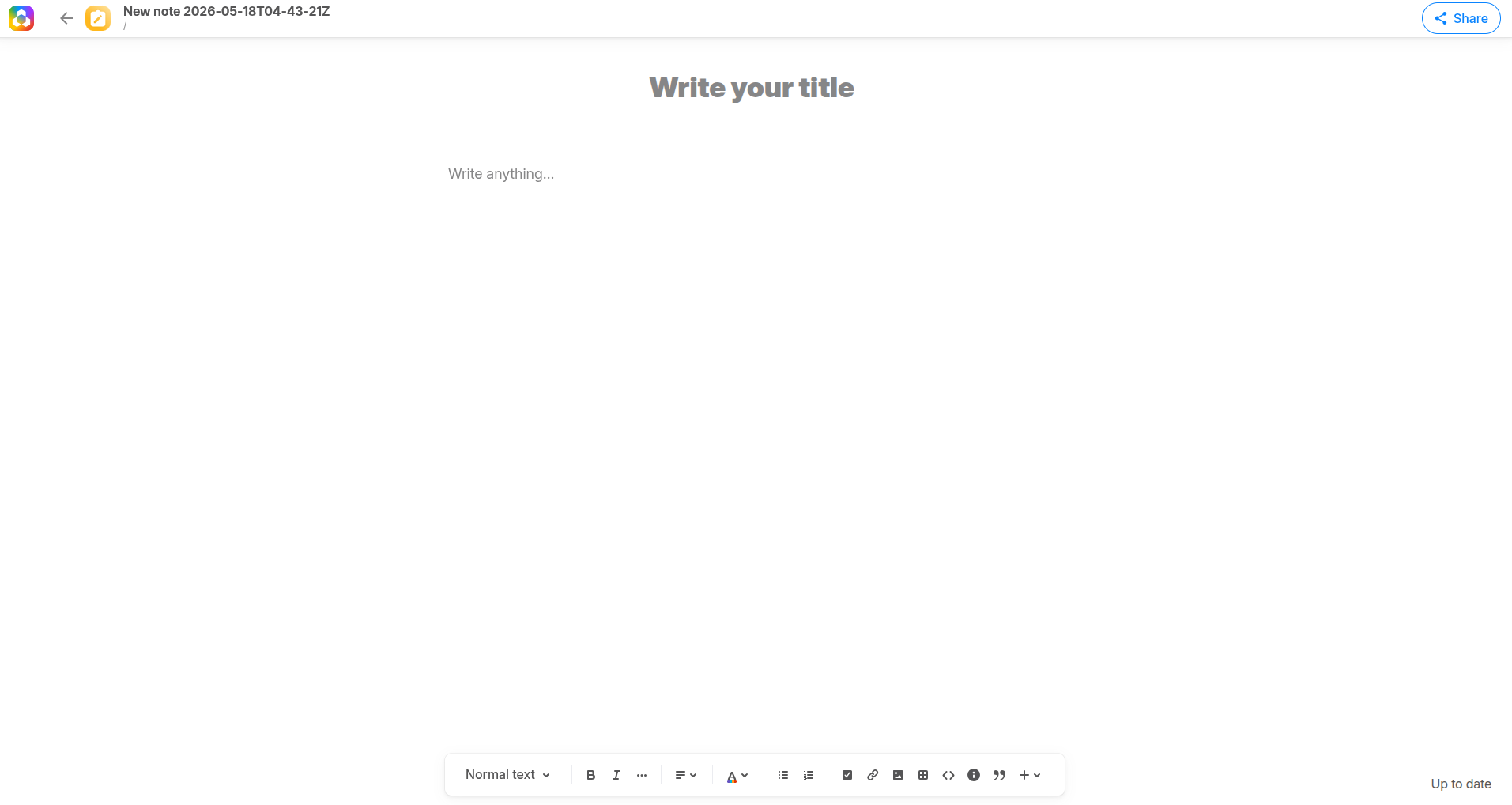
- A new note editor opens
- Write your note
- Enter a title at the top (“Write your title”)
- Start typing in the content area (“Write anything…”)
- Use the toolbar (bottom) to:
- Format text (bold, italic, headings)
- Add lists, links, images, etc.
- The note is saved automatically
- It appears in your Drive as a file
Create a shortcut
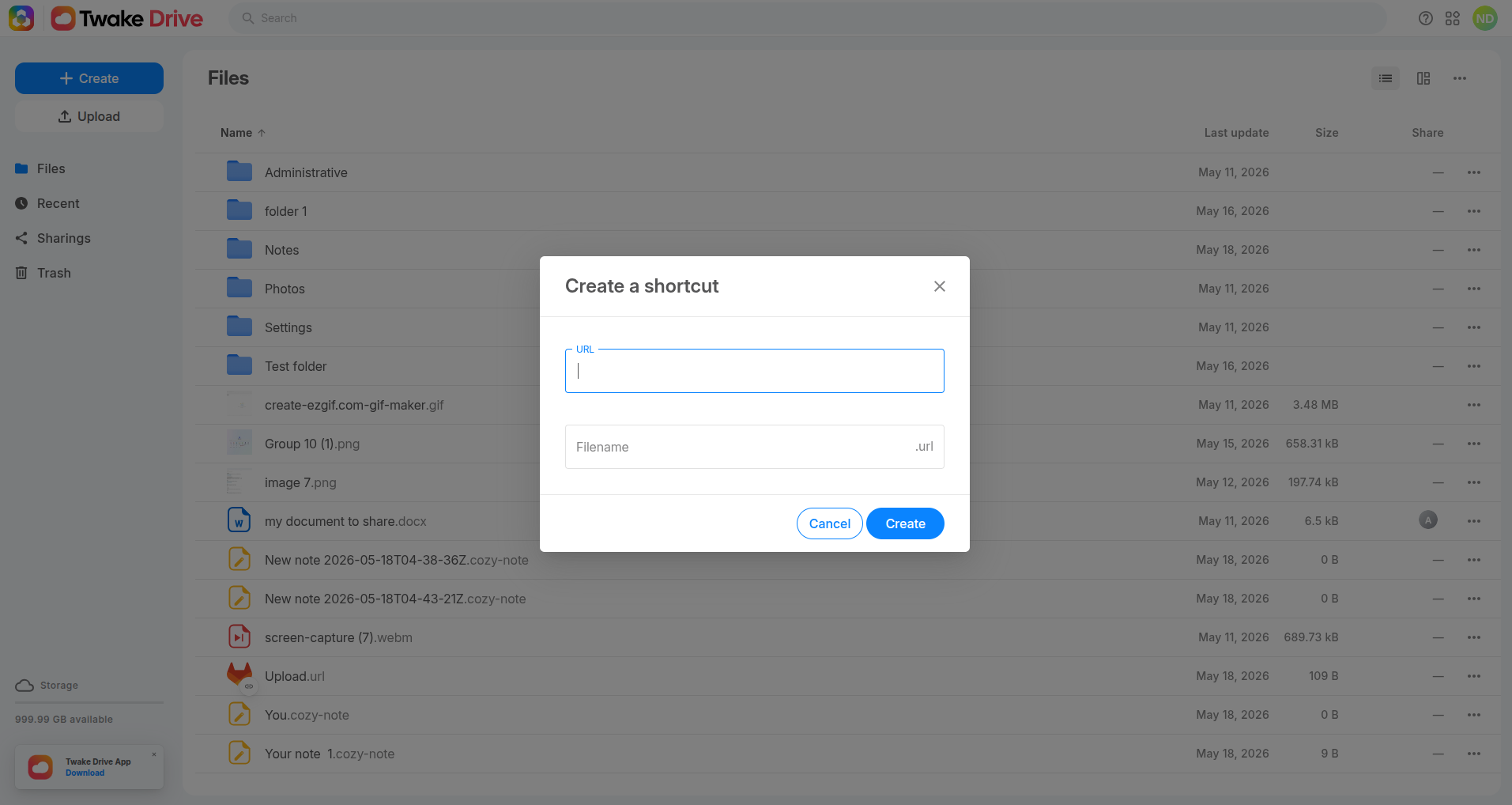
A shortcut lets you save a quick link (website, document, tool, etc.) directly inside your Drive — like a bookmark.
- Click the ➕ Create button (top-left) then select Shortcut from the drop-down menu or right-click then select option :"Shortcut"
- In the popup:
- URL → Paste the link
- Filename → Enter a name
- Click Create
- A
.urlfile is created in your Drive - Click it anytime to open the link
Create an Online Office file
Twake Drive lets you create online Office files (powered by OnlyOffice) directly in your Drive
- Go to a folder that you want to create an office file
- From the ➕ Create menu (or right-click), you can choose:
- Text document →
.docx(Word) - Spreadsheet →
.xlsx(Excel) - Presentation →
.pptx(PowerPoint)
- File is created in the current folder
File opens → start editing. The file is saved automatically.