
Multiple accounts on Twake Chat
Twake Chat lets you add and switch between multiple accounts from different homeservers without signing out of your current account. This is useful if you use separate accounts for personal and work communication.
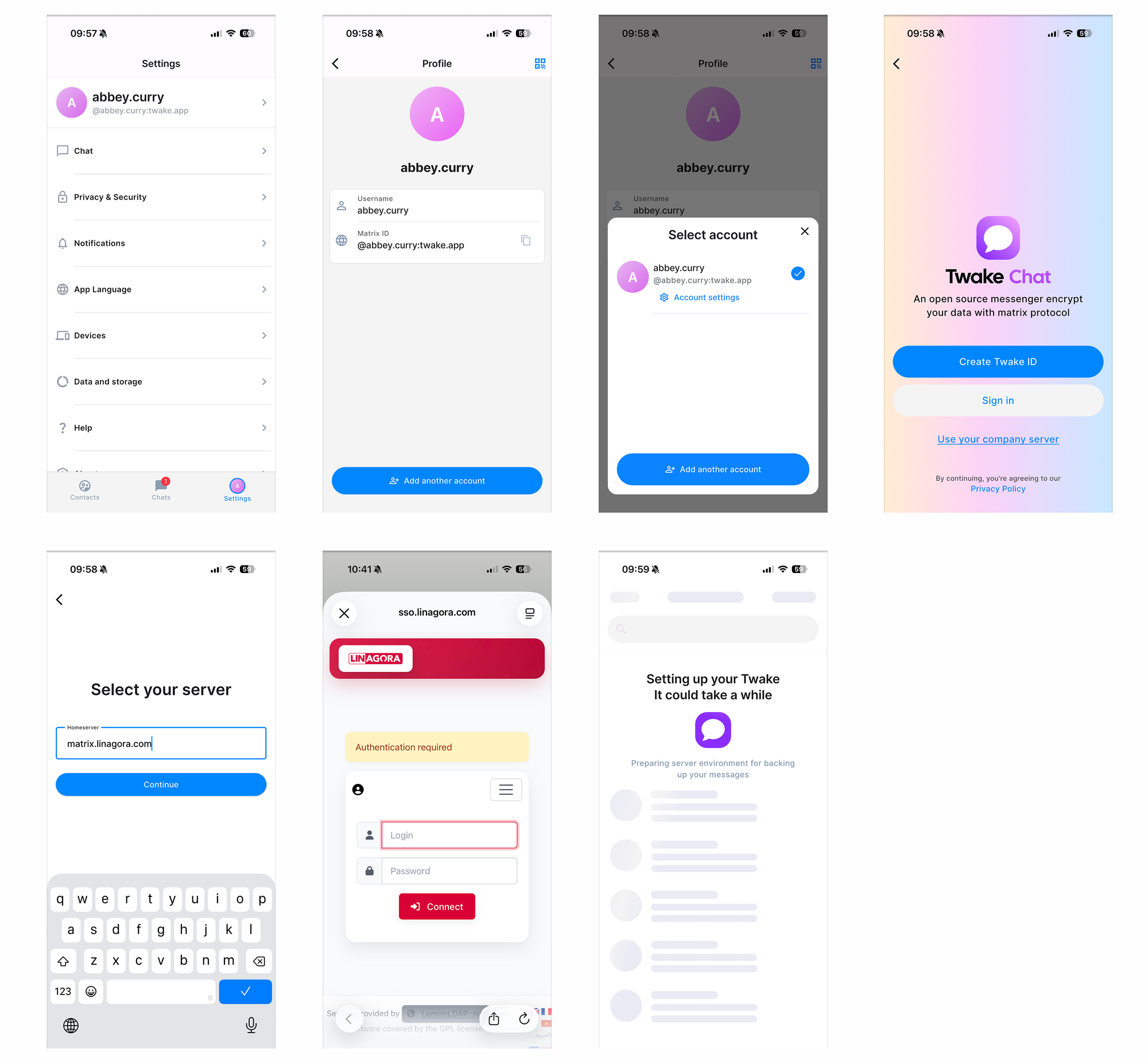
Add another account
- Open Settings.
- Tap your profile at the top of the screen.
- Tap Add another account.
- Choose one of the following:
- Sign in to an existing Twake account.
- Use your company server if your organization provides its own Matrix homeserver.
- If you're using a company server:
- Enter your homeserver address.
- Tap Continue.
- Complete the sign-in process with your organization's authentication page.
- Once setup is complete, your new account is added to the app and becomes your currently selected account.
Switch between accounts
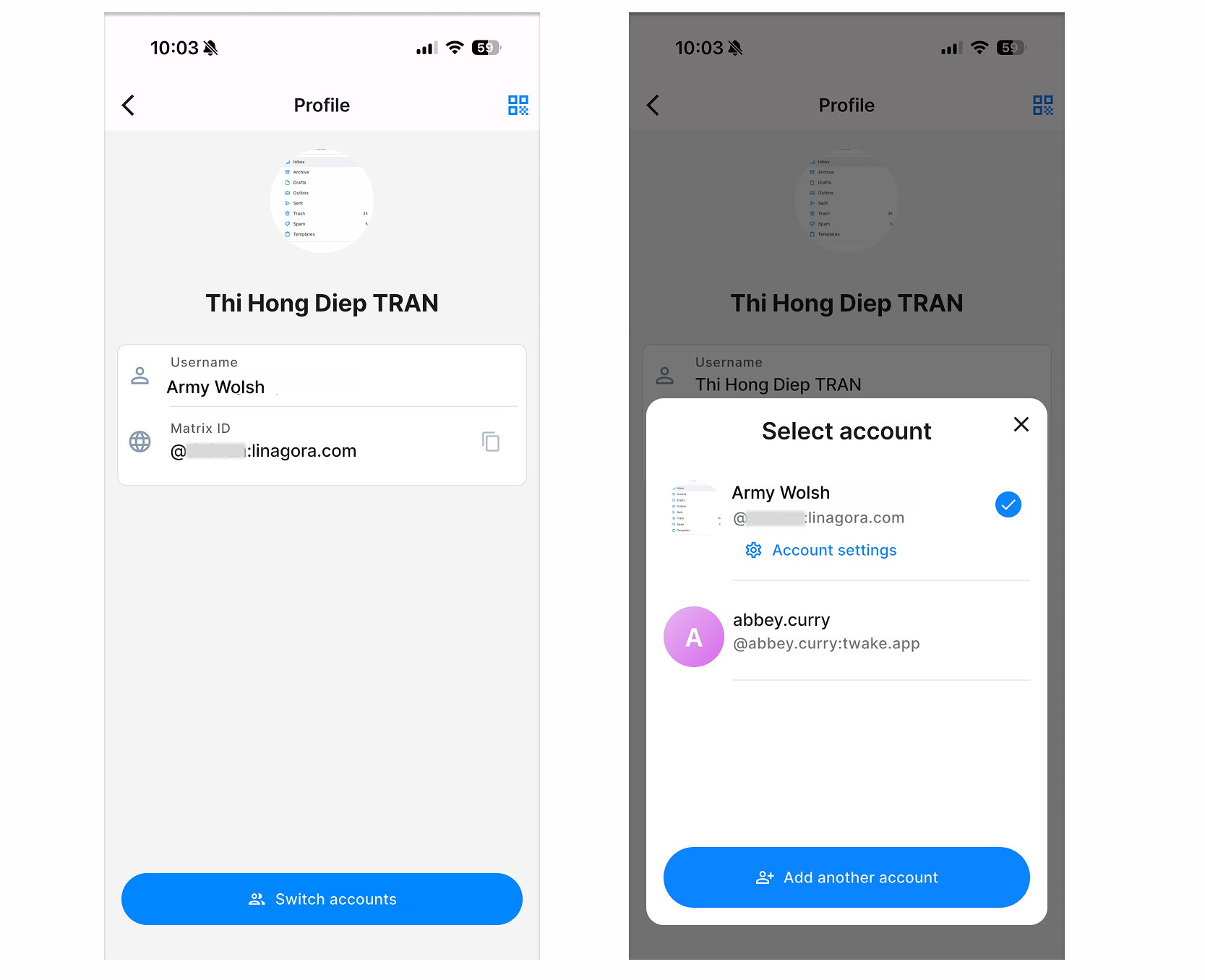
- Open Settings.
- Tap your profile.
- Tap Switch accounts.
- Select the account you want to use.
- Wait a few seconds while Twake Chat switches to the selected account.
Note: Twake Chat does not currently support multiple accounts on the same homeserver. If you try to add another account from the same homeserver, you'll see a message indicating that this isn't supported.