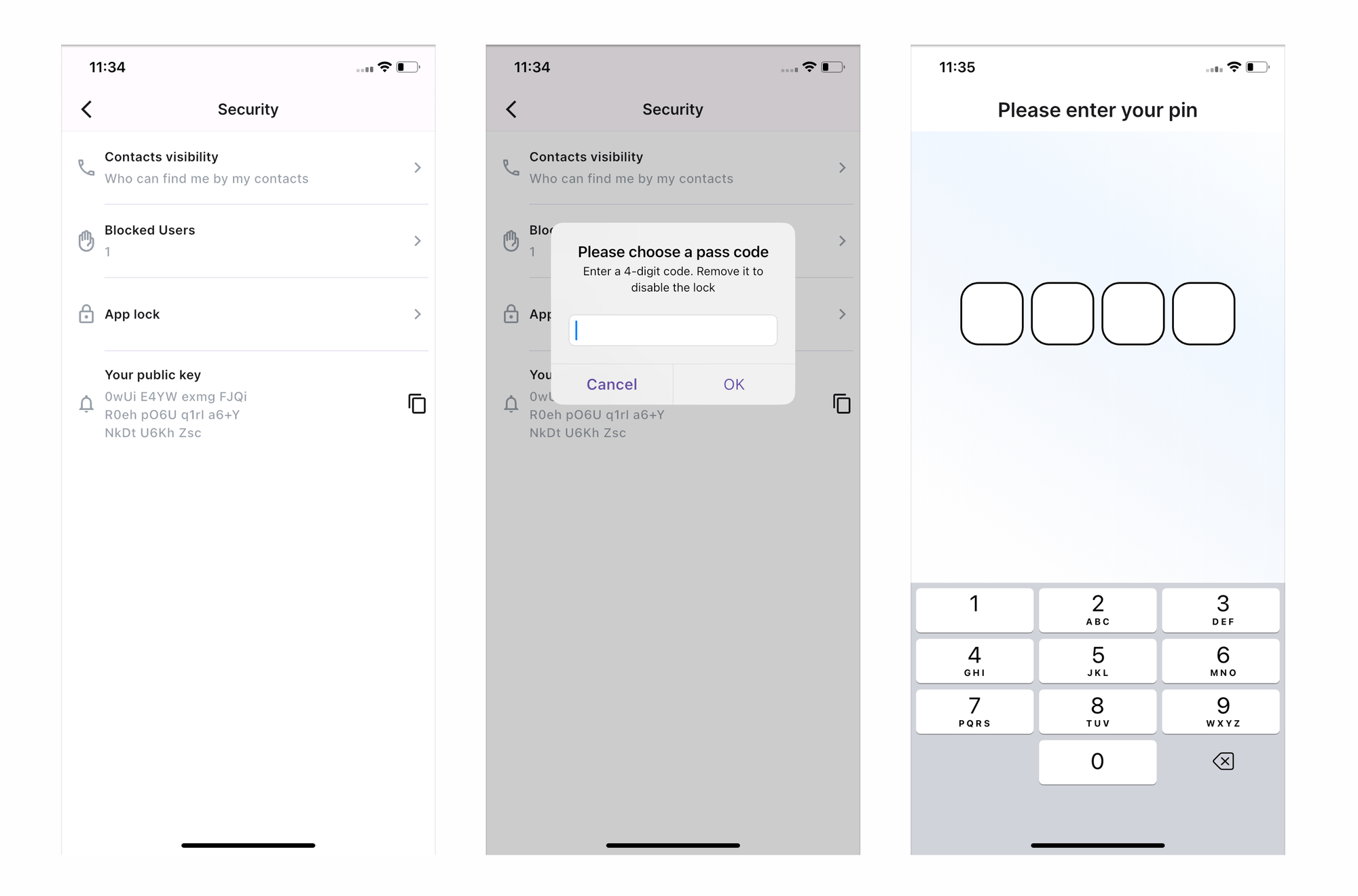
Lock/Unlock your Twake Chat app
Protect your conversations with a 4-digit PIN. When App Lock is enabled, you'll need to enter the PIN each time you open Twake Chat.
Note: App Lock is available only in the Twake Chat mobile app.
Enable App Lock
- Open Settings.
- Go to Privacy & Security.
- Tap App lock.
- Enter a 4-digit PIN.
- Tap OK.
App Lock is enabled immediately. The next time you open Twake Chat, you'll be asked to enter your PIN before accessing the app.
Disable App Lock
To remove the PIN:
- Go to Privacy & Security.
- Tap App lock.
- Enter your current 4-digit PIN, then popup to "Choose a pass code" is displayed. Leave the field blank and tap OK
App Lock is disabled, and you will no longer be prompted for a PIN when opening Twake Chat.