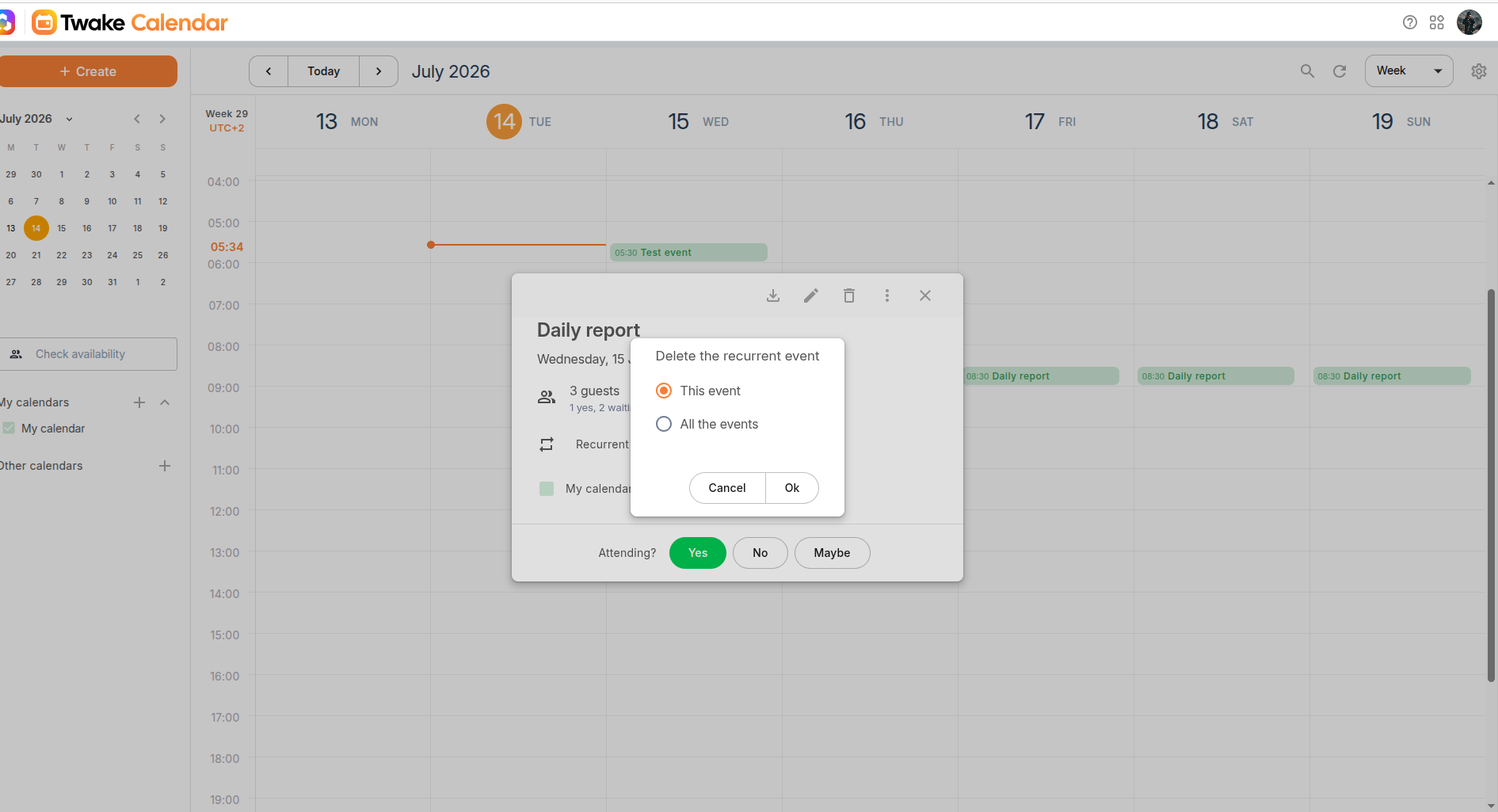
View/edit and delete an existing event
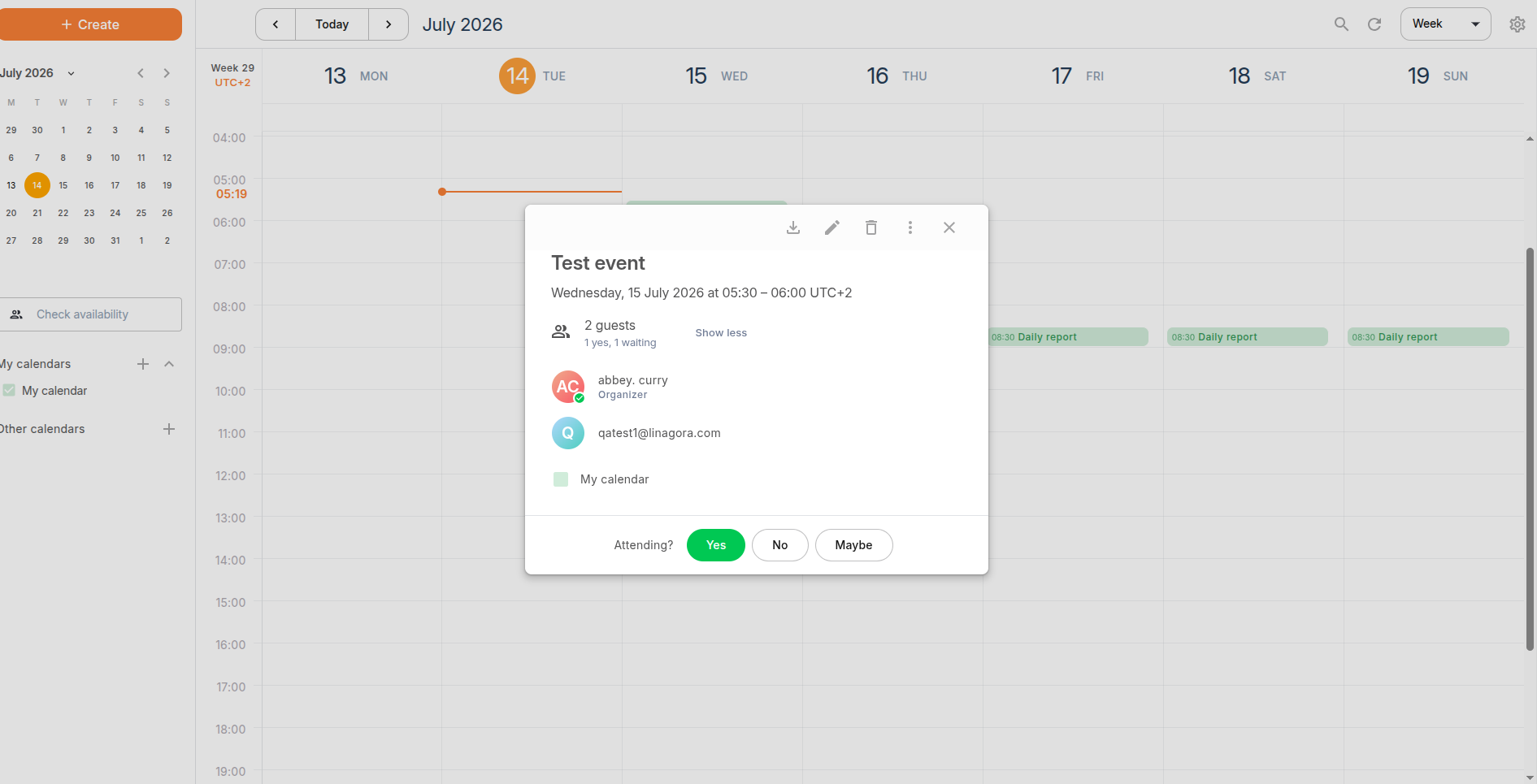
View an event
- In the calendar, click the event you want to view.
- An event summary opens, displaying key information such as: Event title, Date and time, Participants and their attendance status
From this view, you can also respond to the invitation by selecting Yes, No, or Maybe.
Edit an event
If you are the event organizer or have permission to edit the event:
- Click on the event.
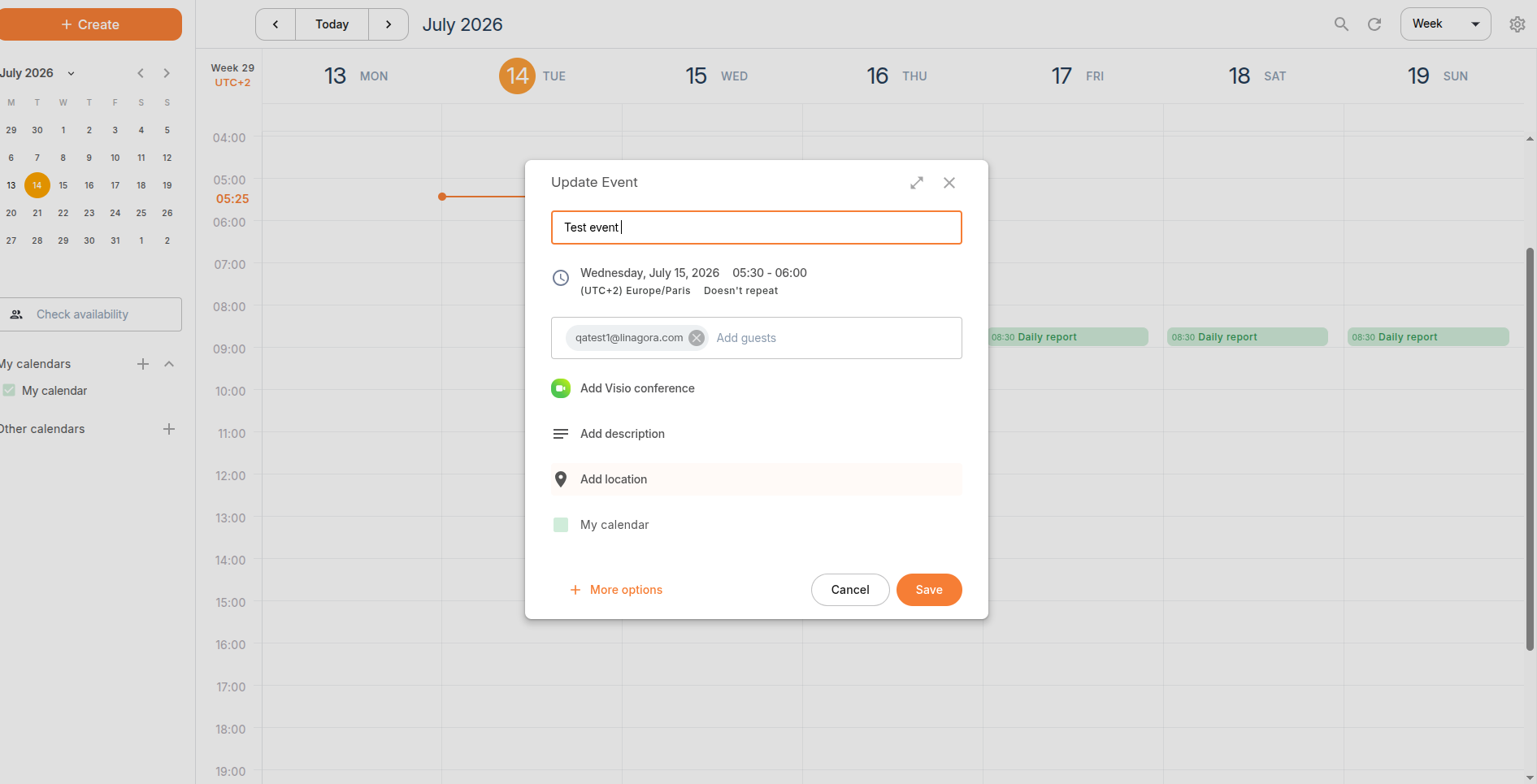
- Click the Pencil icon.
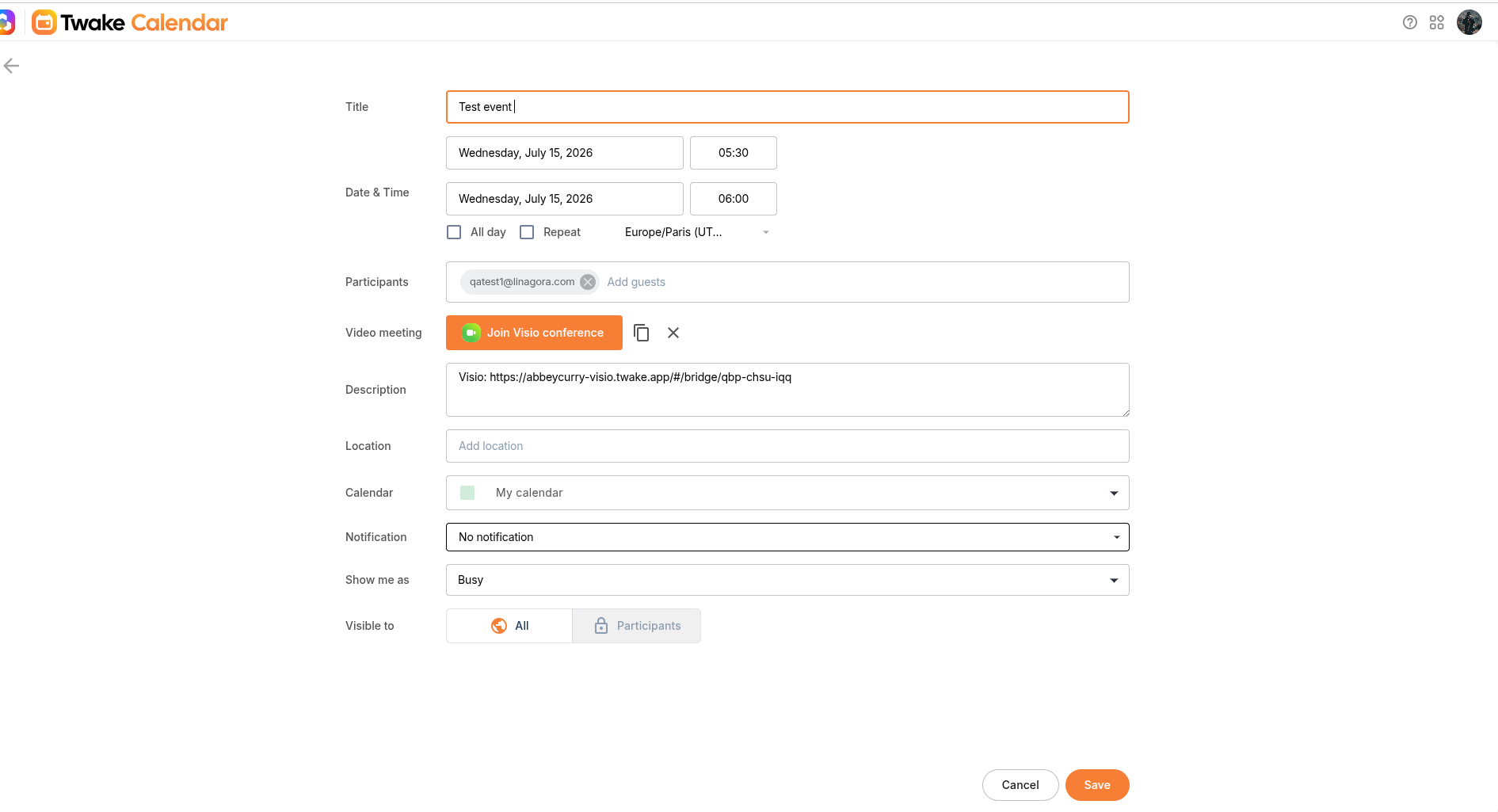
- Update any of the event details, such as: Title, Date and time, Participants, Video meeting, Description...
Tip: Click More options to open the full event editor, where you can access all available event settings.
- Click Save to apply your changes.
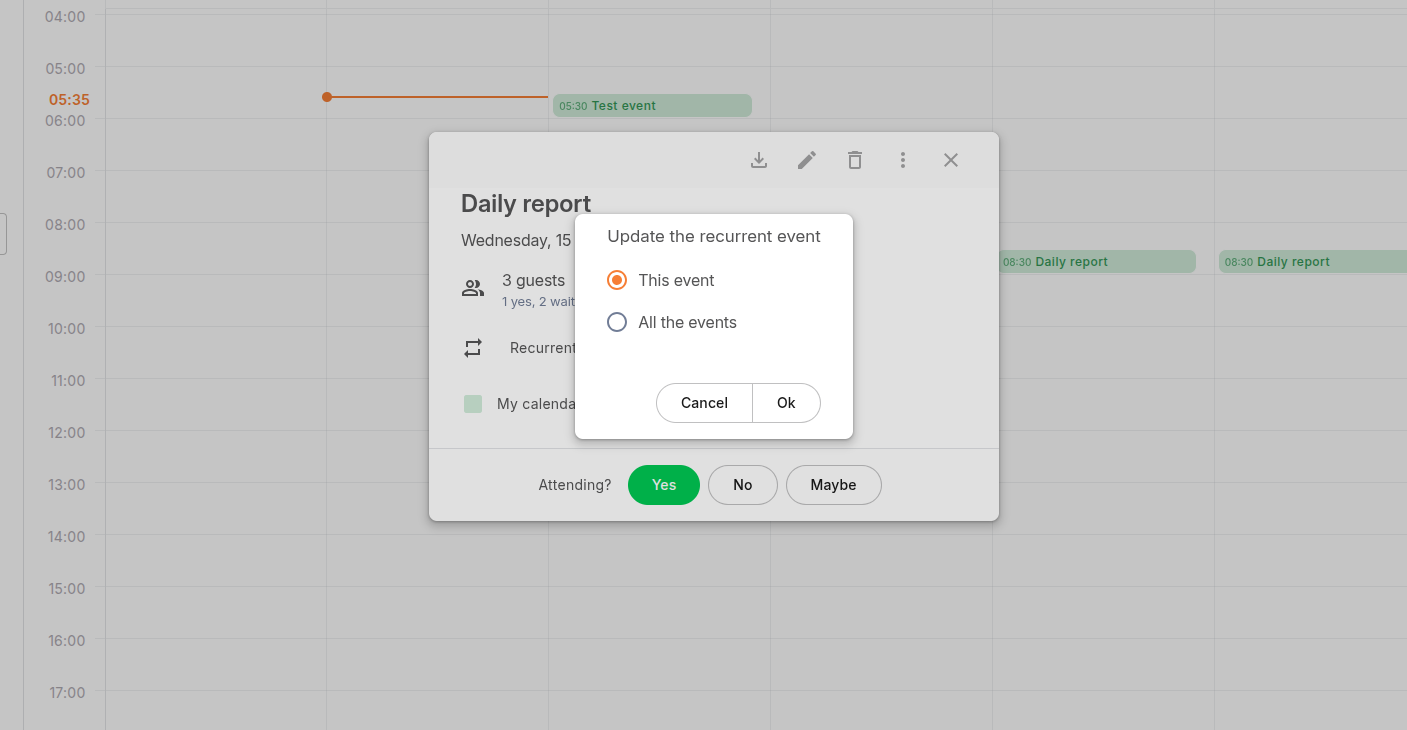
When you edit a recurring event, you can choose whether to update:
- This event – Applies the changes only to the selected occurrence. All other occurrences remain unchanged.
- All the events – Applies the changes to every event in the recurring series.
Delete an event
If you no longer need an event:
- Open the event.
- Click the Delete icon
If you delete a recurring event, you can choose whether to remove:
- This event – Deletes only the selected occurrence. The rest of the recurring events remain unchanged.
- All the events – Deletes the entire recurring event series, including all past and future occurrences
The event is removed from your calendar. If other participants were invited, they will receive a cancellation notification depending on your calendar settings.