
How to share files or folders with your Twake
Today, from your Twake's web interface, you can share your files and folders with a third party, who may or may not own a Twake.
1. Share a file or folder
- Go to the Twake Drive application and then to the file or folder you want to share.
- Select the file or folder by checking the box. An action bar is displayed at the top of your interface. Click on 3-dot button in the action bar then select option "Share"
- Or click on the Share button on the "..." at the end of the line.
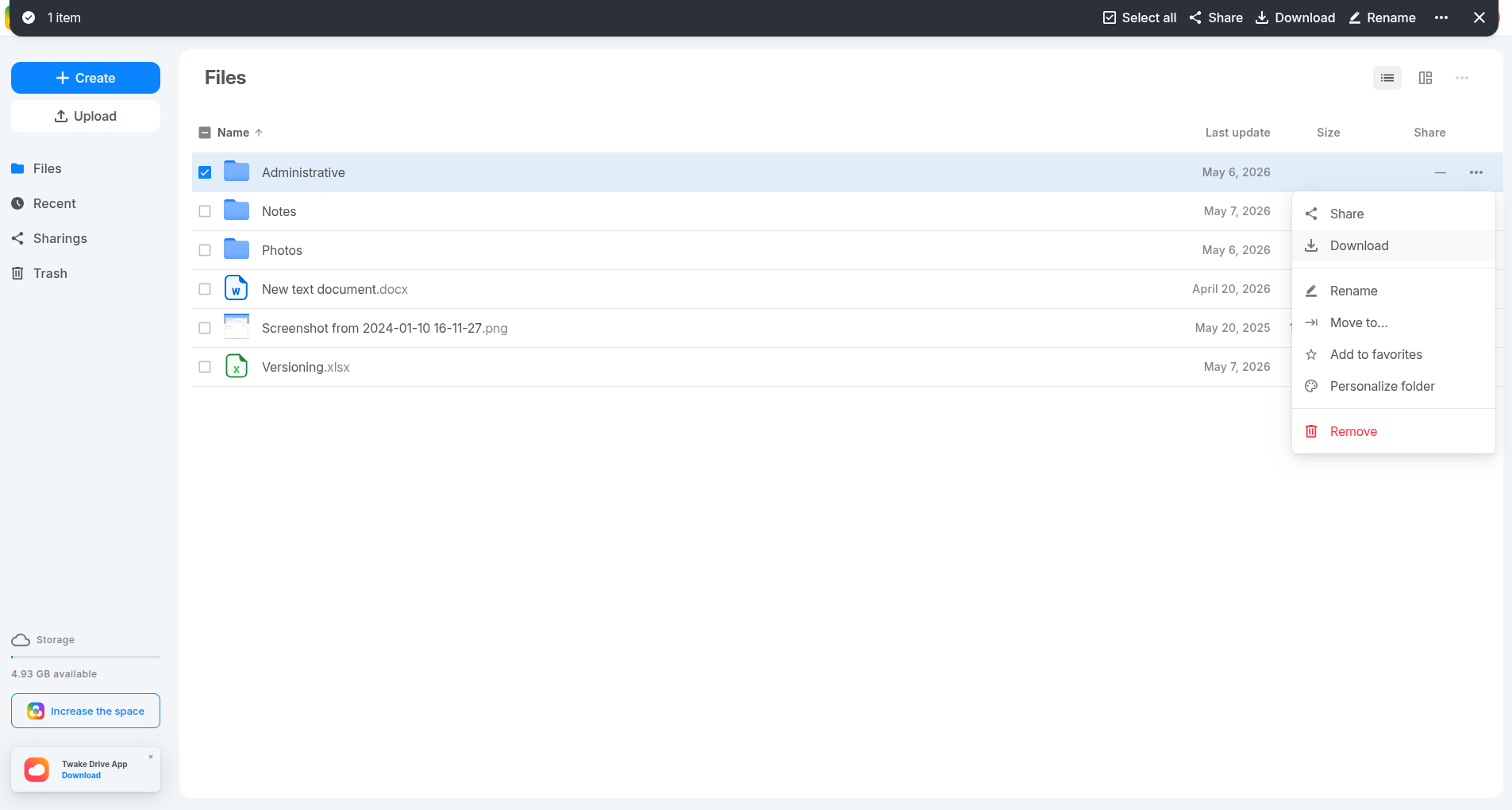
- Click "Copy link" button:
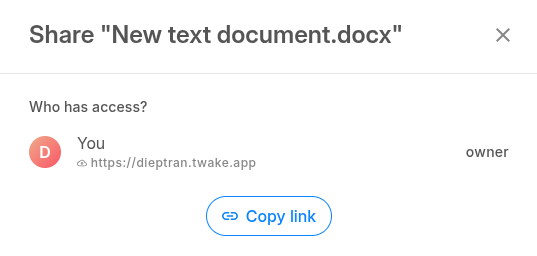
- The link is generated and copied to your clipboard:
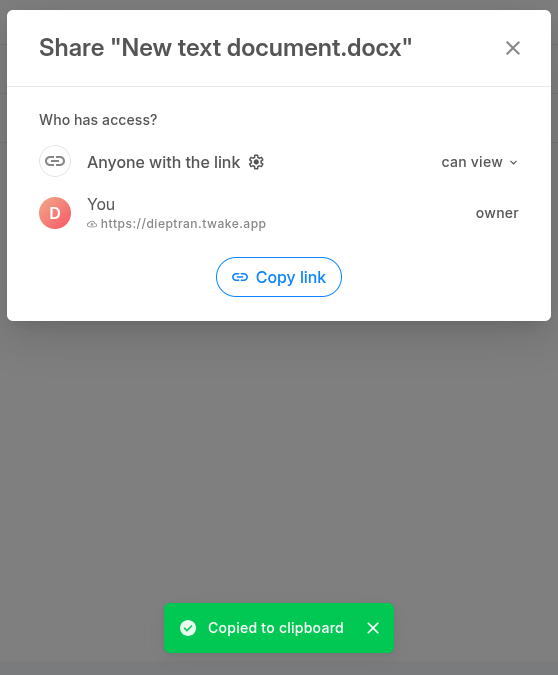
- You can choose whether your recipients will be able to modify or only view the content of the file/folder:
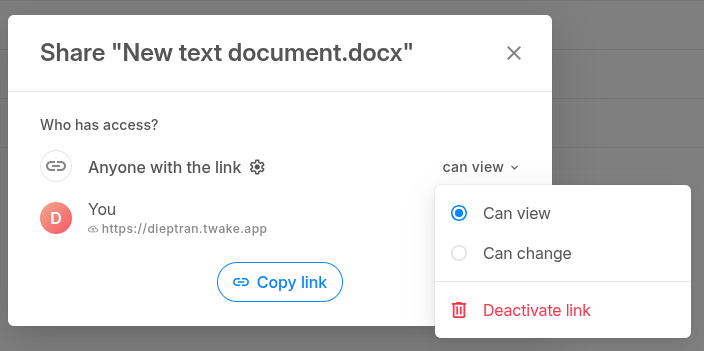
- You can click Setting icon to see the advanced settings:
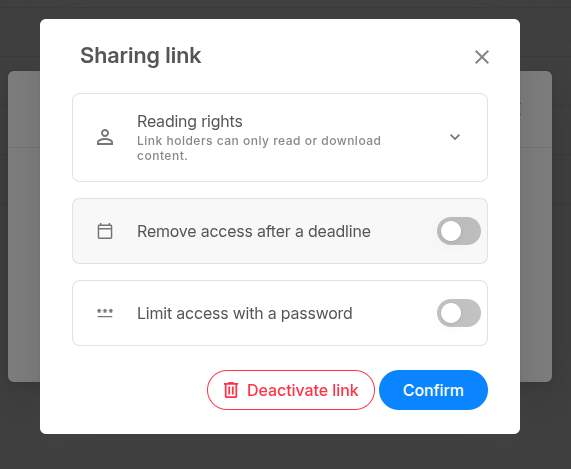
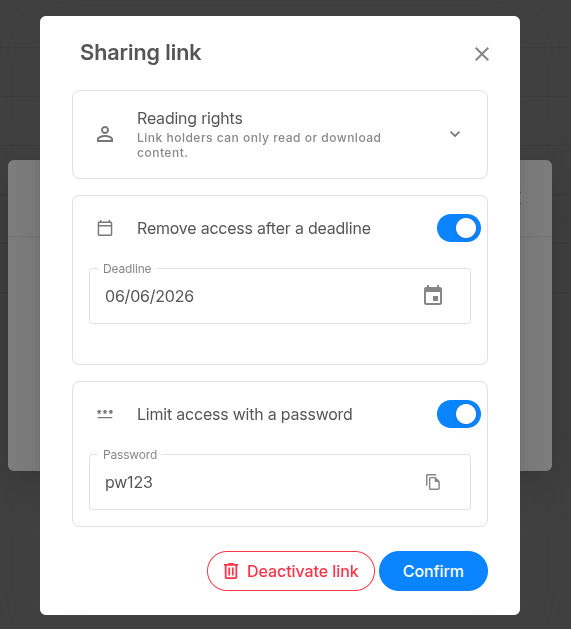
- Remove access after a deadline: Enable on this toggle then select the deadline date:
- Limit access with a password: Enable this toggle then enter a password for the shared note. The recipient will need this password to open the shared file/folder
- Then click button Confirm
- Just paste the link into an e-mail and share it with the desired person.
- The recipients of your link will be able to view or modify the shared file/folder.
- Sharing permissions
- You can change the rights of a shared link at any time from the link generation window
When you share a file or folder, you have two options: "Can modify", "Can view". These are the rights that the contact will have on the file or folder you share with them.
For a file:
| Features | "Can modify" | "Only can view" |
| View the contents of the file | ✅ | ✅ |
| Update the file of the contact's following one of your modifications. | ✅ | ✅ |
| Renommer le fichier The contact can rename and move the file, but this will not result in any changes to your Cozy. |
❌ | ✅ |
| Modify the content of the file | ❌ | ✅ |
| Delete the file The contact can rename and move the file, but this will not cause any changes to the Twake who shared the file with you. |
❌ | ✅ |
| Add other contacts to the sharing |
❌ | ✅ |
For a folder:
| Features | "Can modify" | "Only can view" |
| View the contents of the folder | ✅ | ✅ |
| Update the file of the contact's following one of your modifications. | ✅ | ✅ |
| Rename the folder The contact can rename and move the folder, but this will not result in any changes to your Twake |
✅ | ✅ |
| Modify the content of the folder | ❌ | ✅ |
| Delete the folder The contact can rename and move the folder, but this will not cause any changes to the Twake who shared the folder with you. |
❌ | ✅ |
| Add other contacts to the sharing |
❌ | ✅ |