
Admin settings - Twake Visio
Meeting organizers can use Admin settings to control participant permissions, room access, screen recording, and transcription.
Only meeting organizers can access these controls. Recording and transcription permissions are available only to on-premise customers.
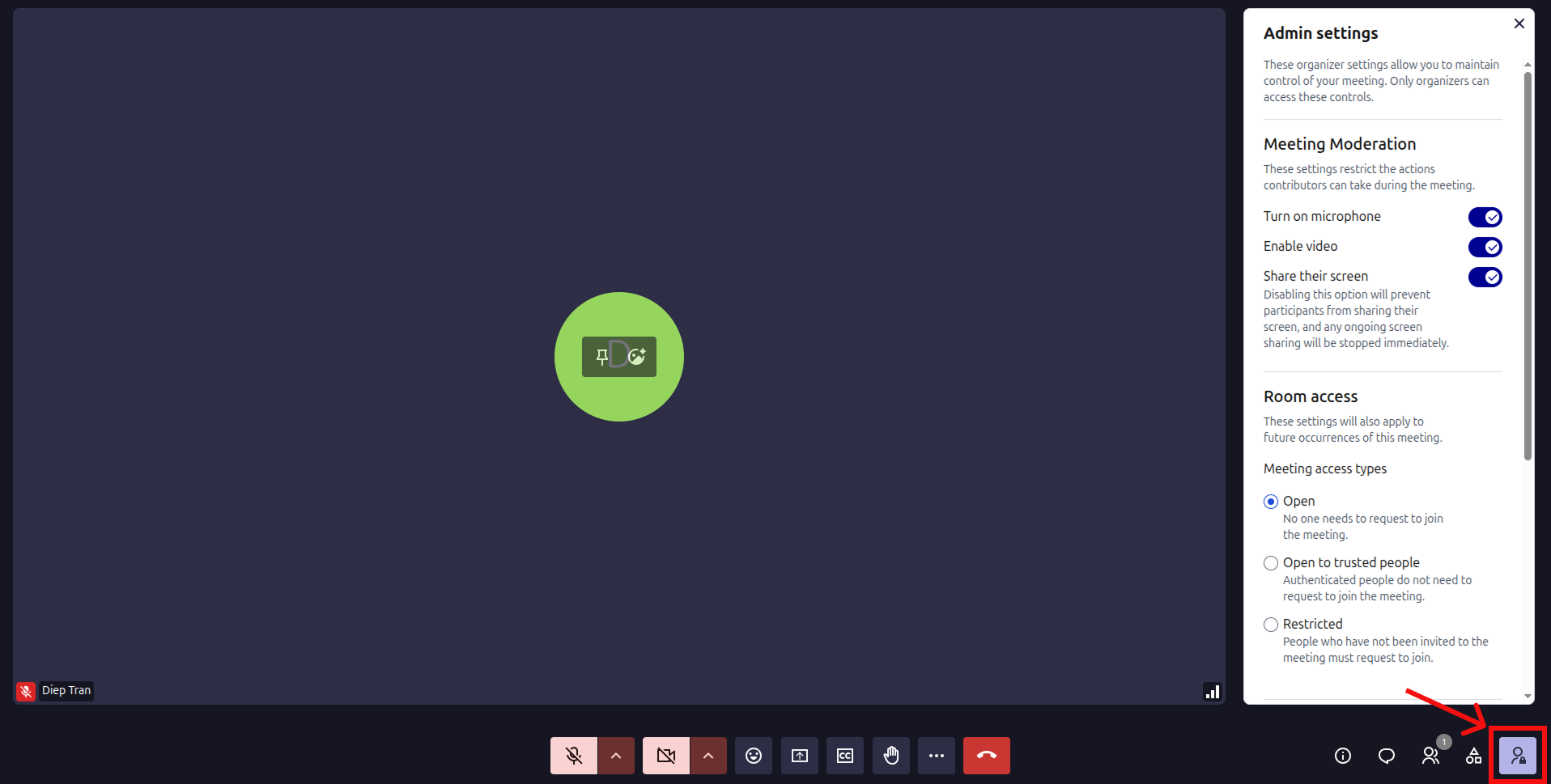
Open Admin settings
During a meeting:
- Select the Admin settings icon in the lower-right corner.
- The Admin settings panel opens on the right.
- Configure the required options.
- Select X to close the panel.
Changes are applied automatically
Manage participant permissions
Under Meeting Moderation, choose which actions participants are allowed to perform.
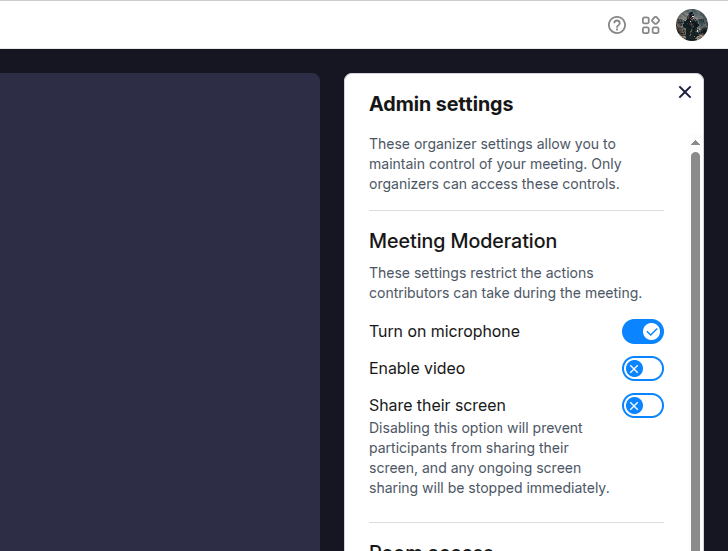
Turn on microphone
- Enabled: Participants can turn on their microphones.
- Disabled: Participants cannot turn on there microphones.
Use this setting when you want to prevent interruptions during a presentation or announcement.
Enable video
- Enabled: Participants can turn on their cameras.
- Disabled: Participants cannot enable their video.
Share their screen
- Enabled: Participants can share their screens.
- Disabled: Participants cannot start screen sharing.
If you disable this option while a participant is presenting, their ongoing screen sharing stops immediately.
Manage room access
Under Room access, choose who can enter the meeting without requesting permission.
Room-access settings also apply to future occurrences of the same meeting.
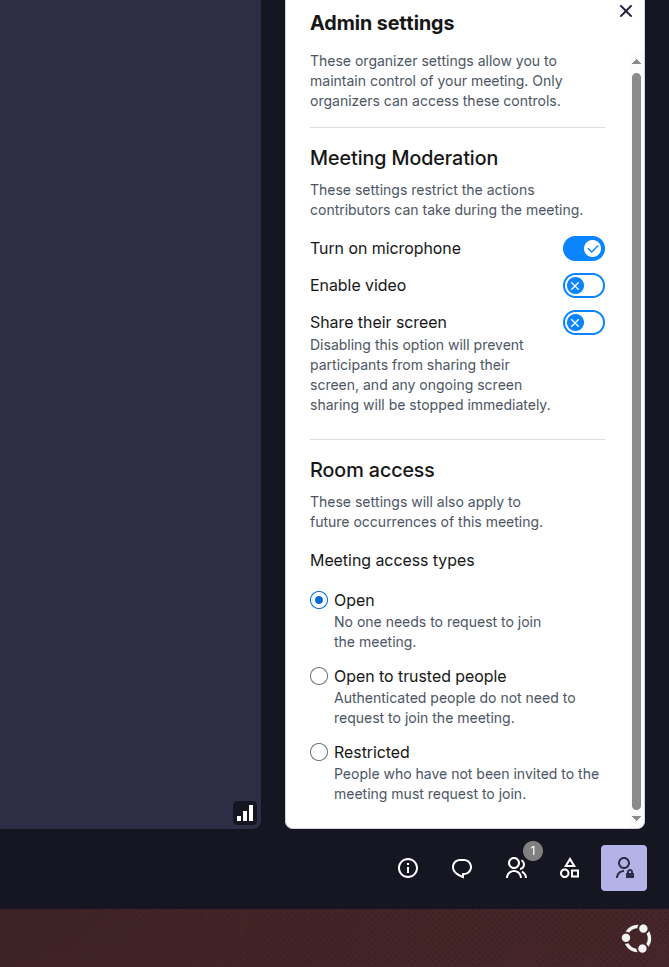
Open
Anyone with the meeting link can join directly without requesting permission.
Use this option for public or informal meetings where guests should be able to enter easily.
Open to trusted people
Authenticated users can join without requesting permission.
People who are not signed in need to request access before joining.
Use this option for meetings primarily intended for signed-in users.
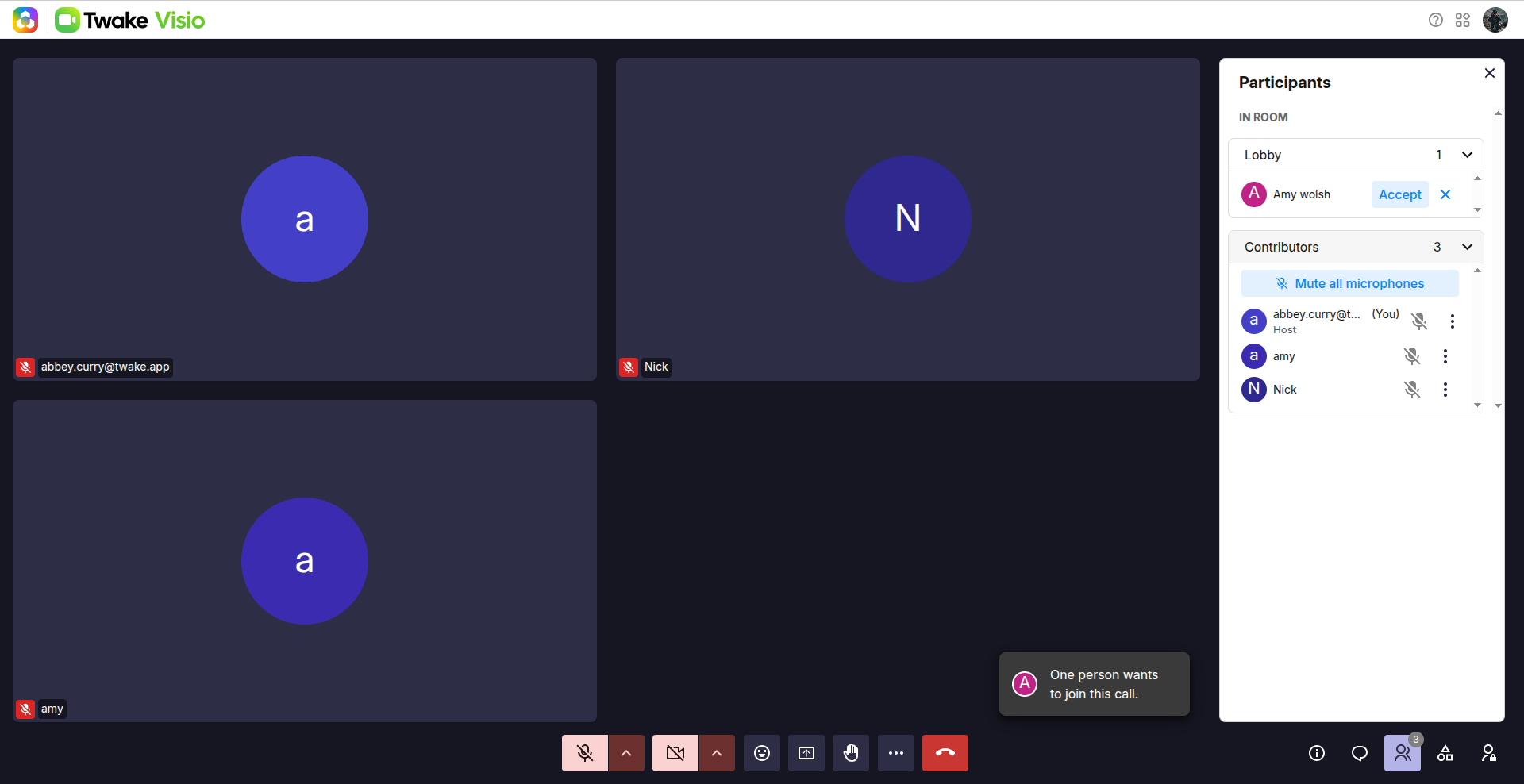
Restricted
Invited participants can enter the meeting. Anyone who has not been invited must request permission to join.
Use this option for private meetings or meetings containing sensitive information.
Manage recording permissions
On-premise only: Recording permissions are available only to organizations using an on-premise version of Twake Workplace.
Under Recording Permissions, organizers can decide who is allowed to start screen recording and transcription.
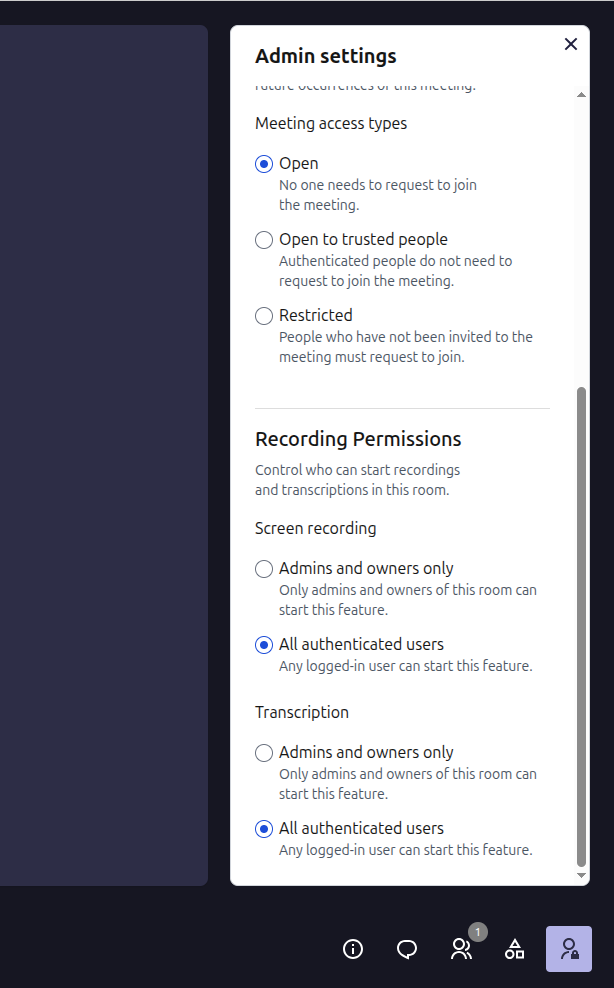
Screen recording
Choose who can start recording the meeting:
- Admins and owners only: Only administrators and meeting-room owners can start a recording.
- All authenticated users: Any participant who is signed in can start a recording.
Guests who are not signed in cannot start a recording.
Transcription
Choose who can start meeting transcription:
- Admins and owners only: Only administrators and meeting-room owners can start transcription.
- All authenticated users: Any signed-in participant can start transcription.
Guests who are not signed in cannot start transcription.
Transcription and live captions are available only to on-premise customers. They are not available in the Twake Workplace SaaS version.