
Twake Visio - Show Subtitles (Live caption)
Live captions convert spoken words into text during a meeting, making the conversation easier to follow.
On-premise only: Live captions and transcription are available only to on-premise customers. They are not available in the Twake Workplace SaaS version.
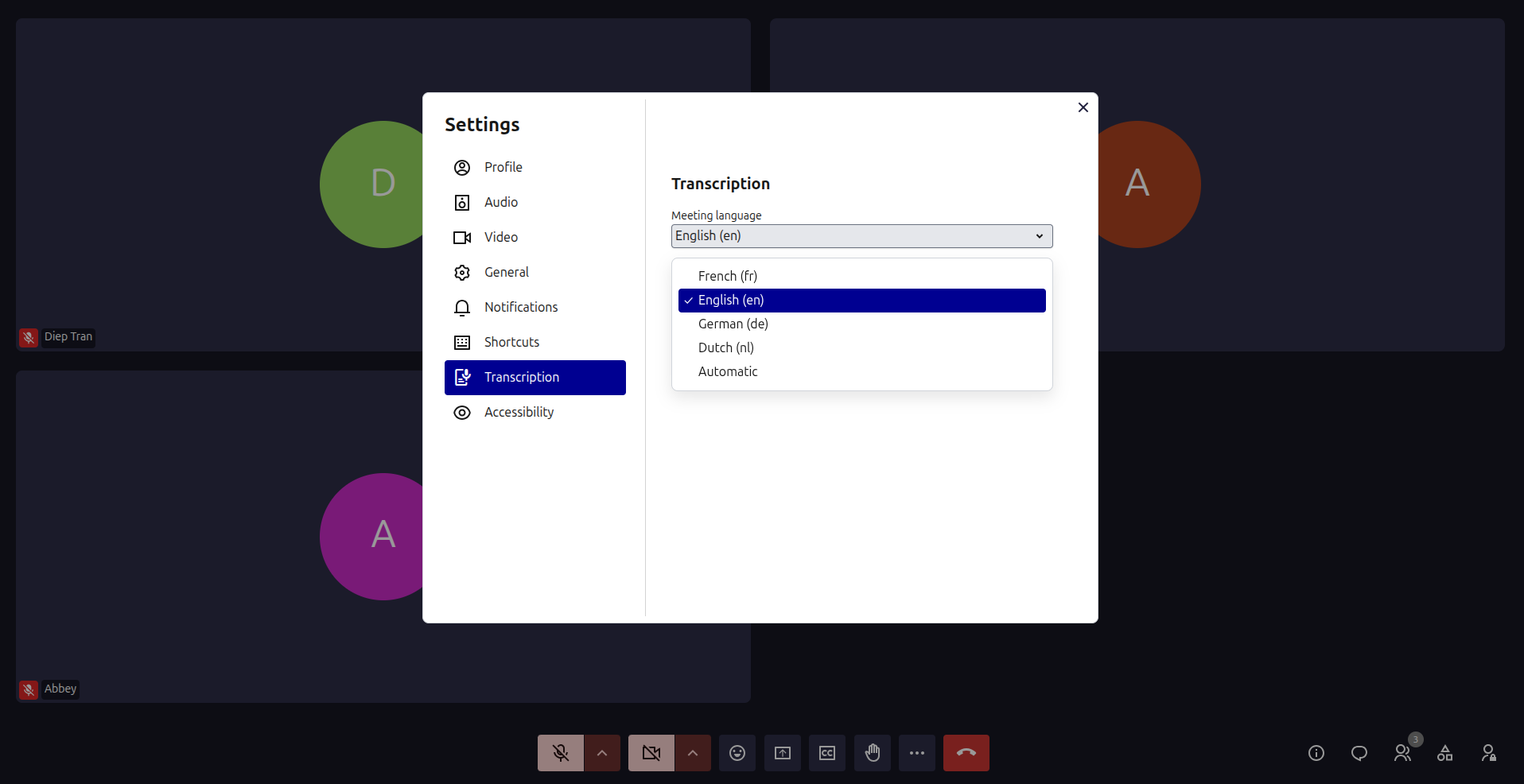
Select the transcription language
Before enabling captions, select the language spoken during the meeting:
- Select More actions (⋯) in the meeting toolbar.
- Select Settings.
- Open Transcription.
- Select the meeting language or choose Automatic.
- Select OK to save your changes.
Selecting the correct language can improve caption accuracy.
Show live captions
During the meeting:
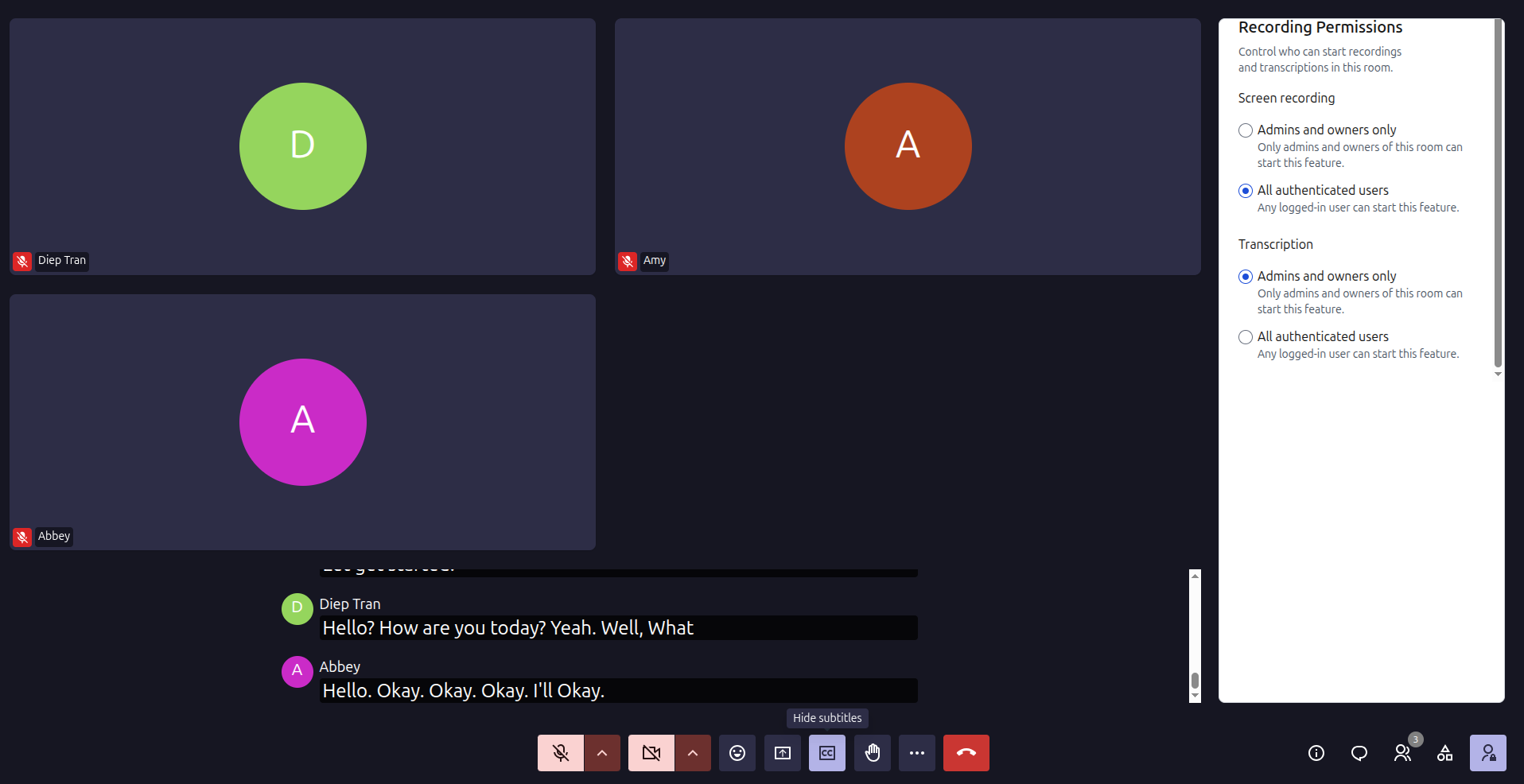
- Select Show subtitles (the CC icon) in the meeting toolbar.
- Continue the conversation normally.
- The spoken words appear as text at the bottom of the meeting window.
Captions display the participant’s name beside their transcribed speech, helping you identify who is speaking.
Hide live captions
To stop displaying captions, select the CC icon again.
The captions disappear from your meeting window.