Manage your meeting settings
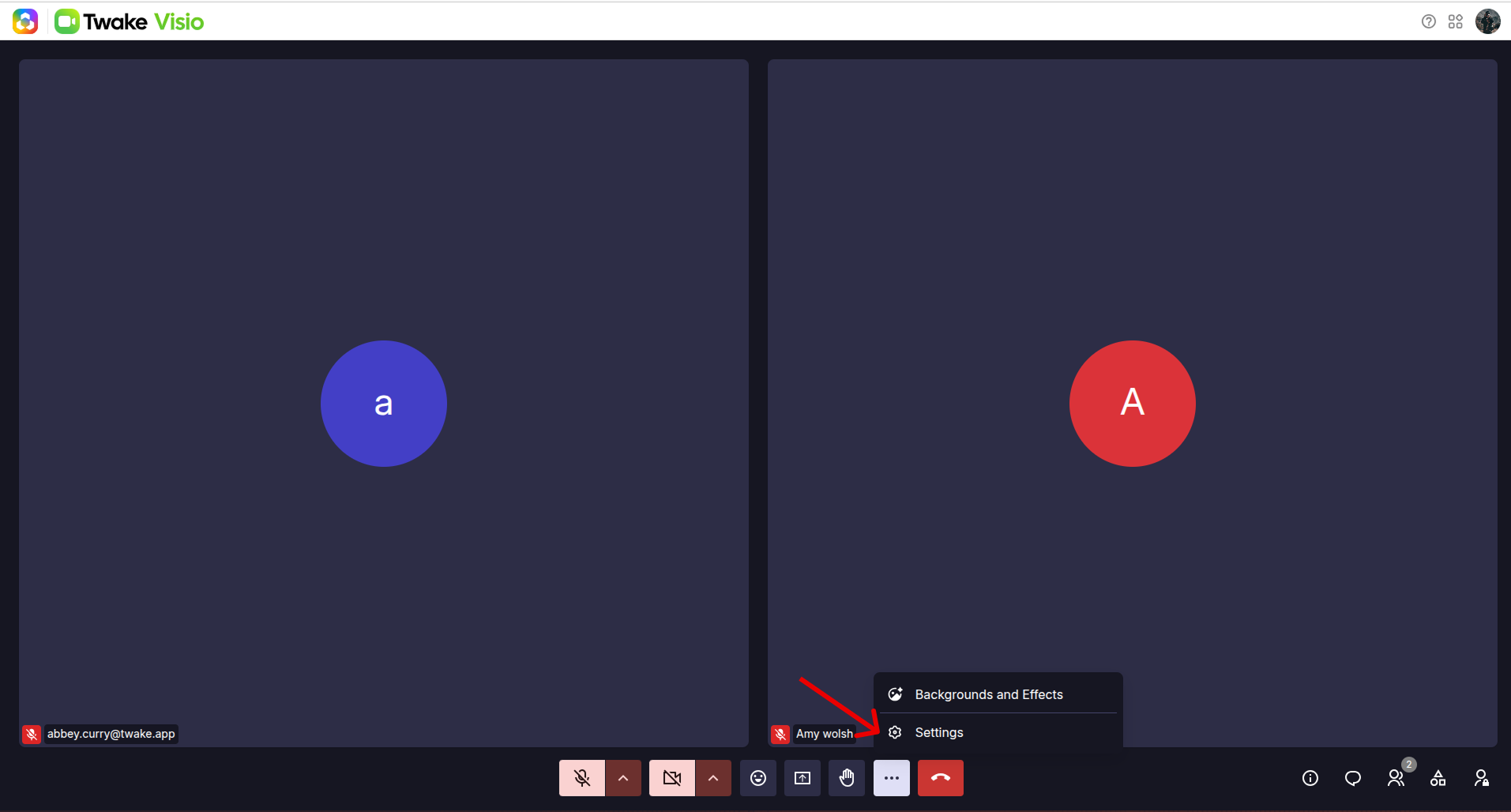
Open the Settings panel
During a meeting:
- Select More actions (⋯) in the meeting toolbar.
- Select Settings.
Manage your profile
The options displayed in the Profile section depend on whether you joined as a signed-in user or as a guest.
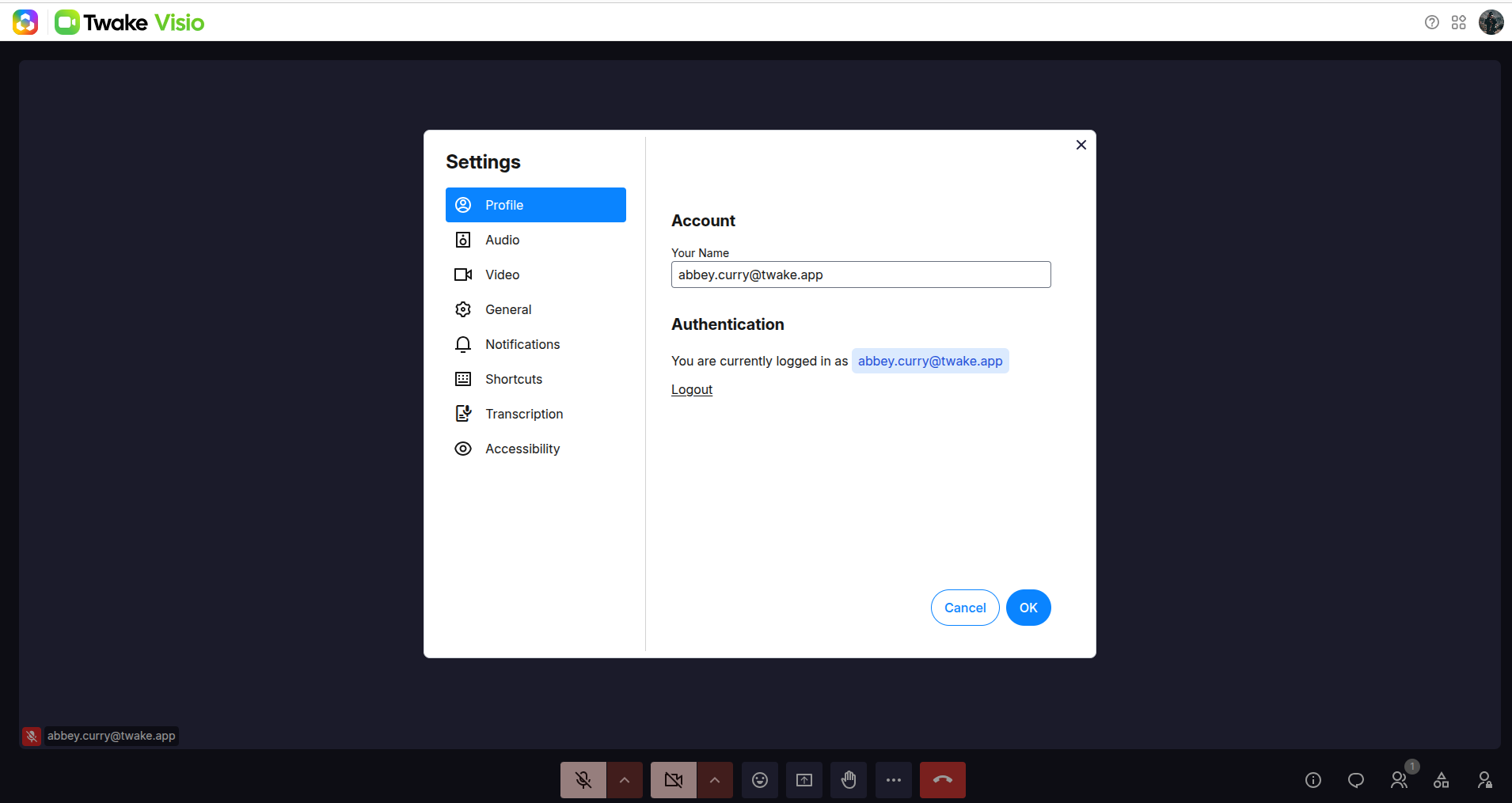
As a signed-in user
The Profile section displays your current Twake Workplace account.
From this section, you can:
- Review or update your display name.
- Check which Twake Workplace account is connected.
- Select Logout to sign out.
Twake Visio uses your Twake Workplace account. Other account and profile information is managed from the Twake Workplace platform.
As a guest
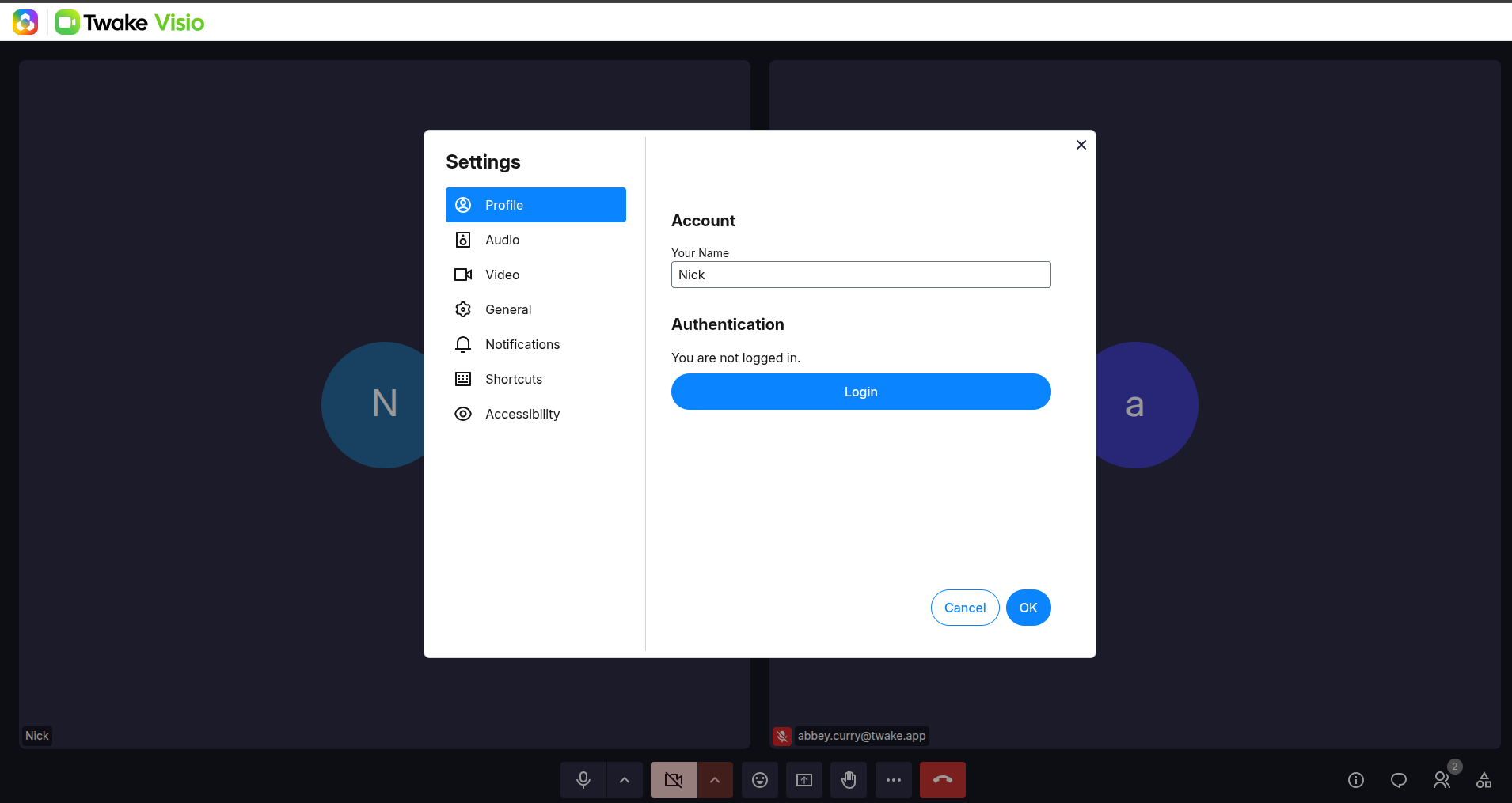
If you joined without signing in, the Profile section displays You are not logged in.
From this section, you can:
- Update the name displayed to other meeting participants.
- Select Login to sign in with your Twake Workplace account.
Guests can participate without signing in unless authentication is required by the meeting or organization.
After updating your name, select OK to save the change.
Configure audio settings
Select Audio to manage the devices used during meetings
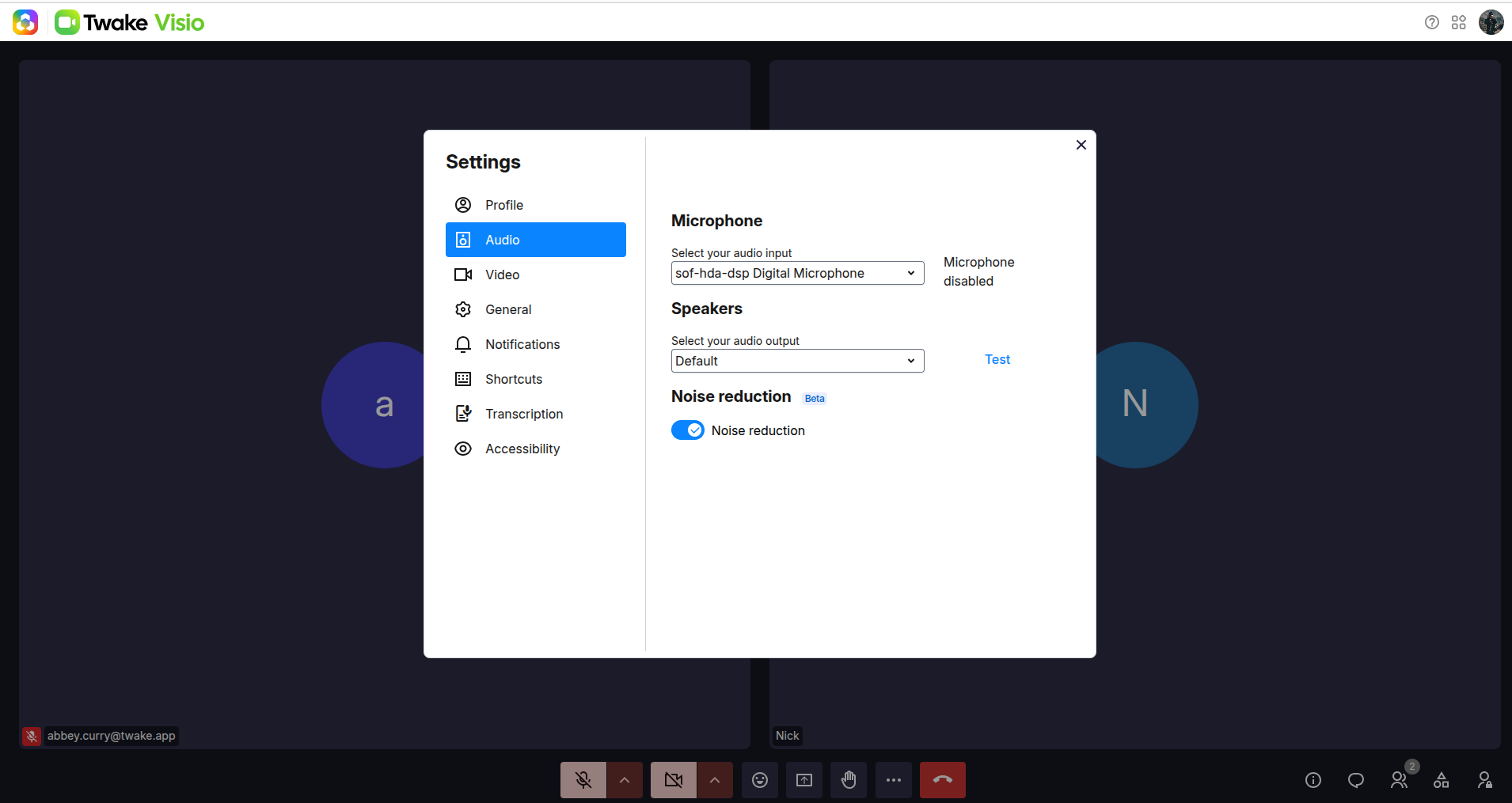
Select your microphone
Under Microphone, open Select your audio input, then choose the microphone you want to use.
The current microphone status appears beside the selection field. If Twake Visio cannot use the selected device, it may display Microphone disabled.
Select and test your speakers
Under Speakers:
- Open Select your audio output.
- Choose the speakers or headphones you want to use.
- Select Test to play a test sound.
Enable noise reduction
Enable Noise reduction to reduce background sounds picked up by your microphone.
Noise reduction is currently a beta feature. Its effectiveness may vary depending on your device and surroundings.
Configure video settings
Select Video to manage your camera and video quality.
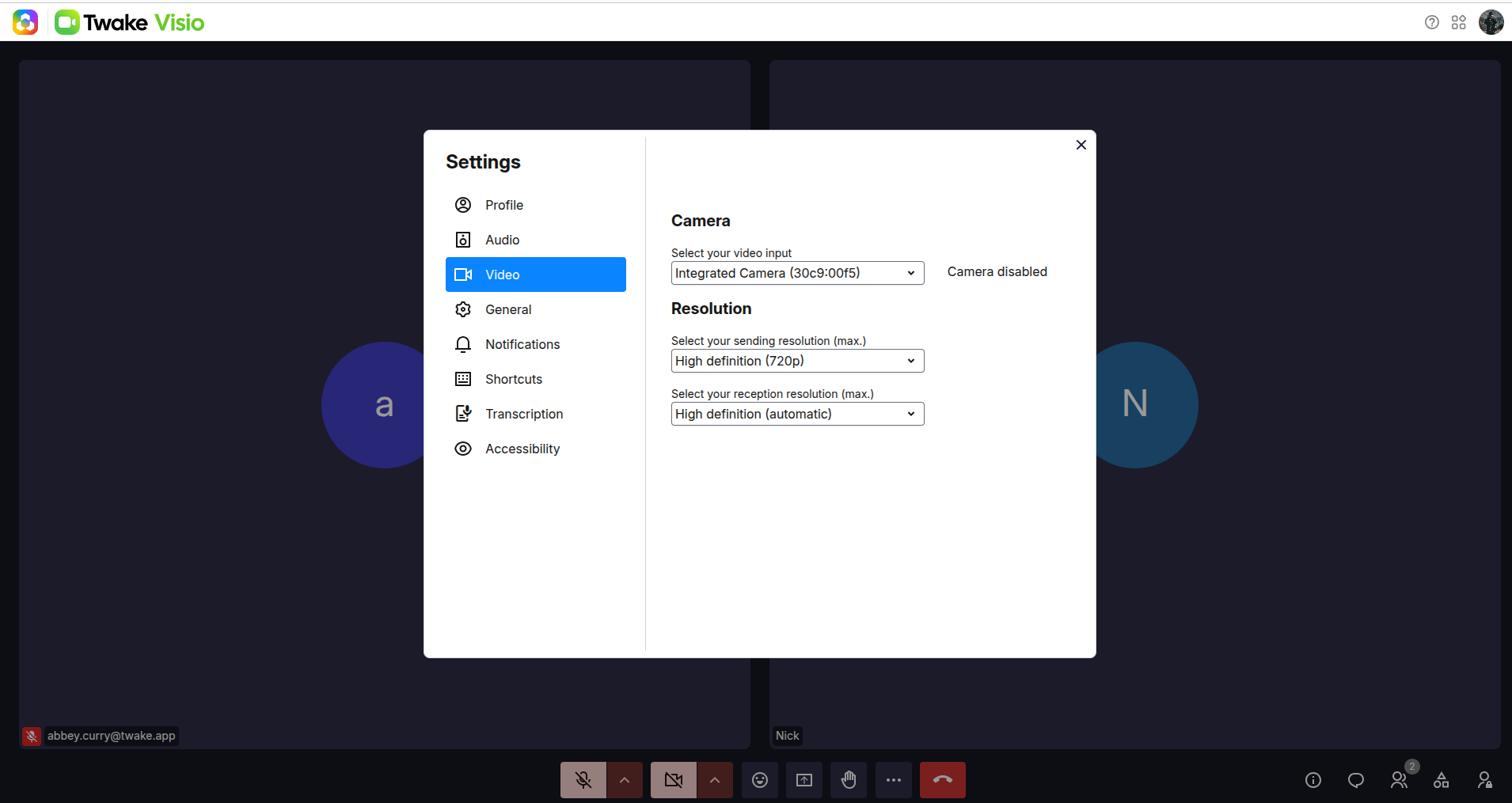
Select your camera
Under Camera, open Select your video input, then choose the camera you want to use.
The current camera status appears beside the selection field. If your camera is turned off, Twake Visio displays Camera disabled.
Select the sending resolution
The sending resolution controls the maximum quality of the video you send to other participants.
A higher resolution can provide a clearer image, but it may require a faster internet connection and use more device resources.
Select the reception resolution
The reception resolution controls the maximum quality of the video you receive from other participants.
If the meeting connection is unstable, selecting a lower sending or reception resolution may improve performance.
Manage general preferences
Select General to change the interface language and other meeting preferences.
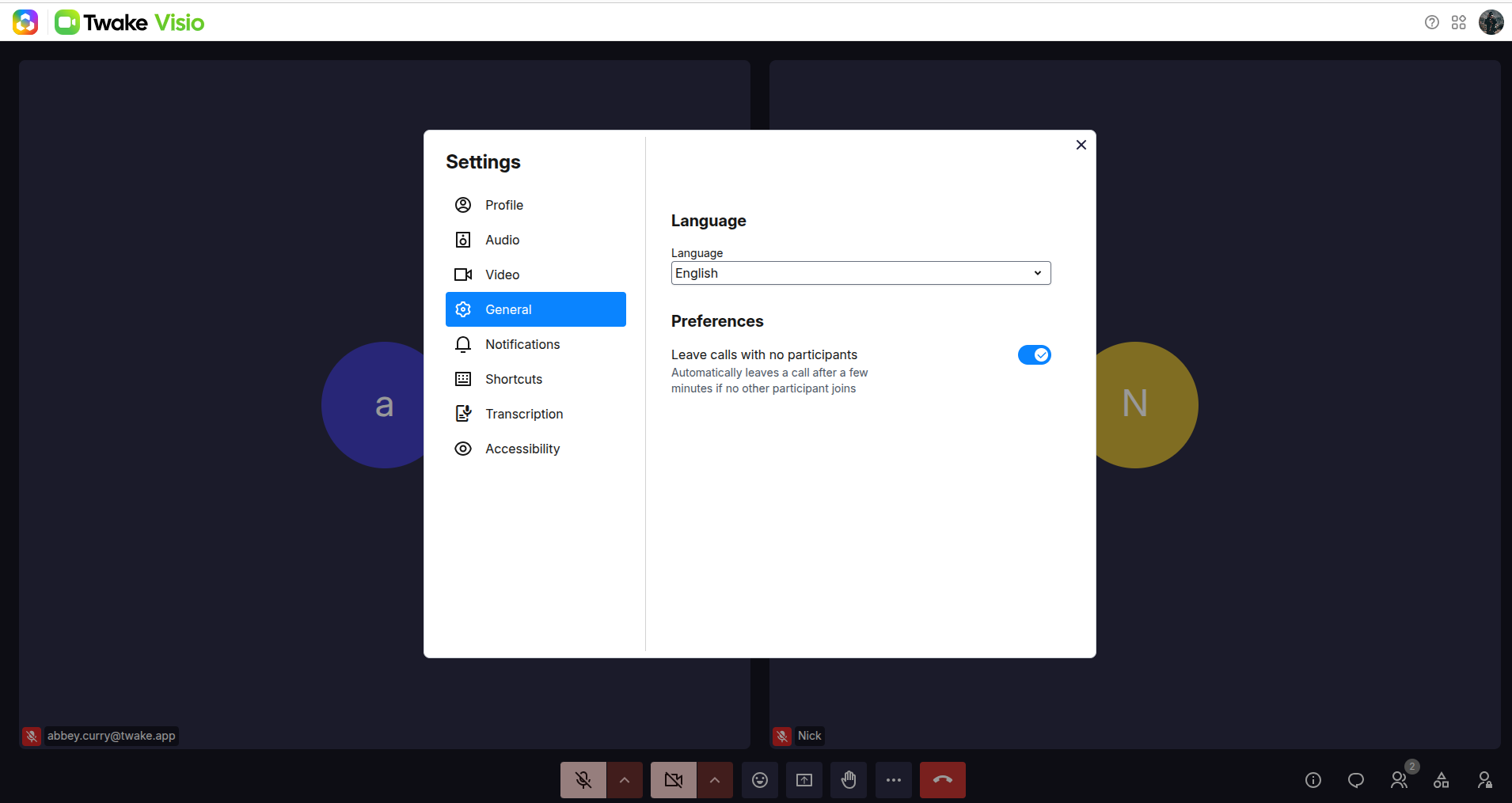
Change the language
Open the Language list, then select the language you want to use for the Twake Visio interface.
Leave calls with no participants
Enable Leave calls with no participants to leave a meeting automatically when no other participant joins after a few minutes.
Manage notification sounds
Select Notifications to choose which meeting activities play a sound.
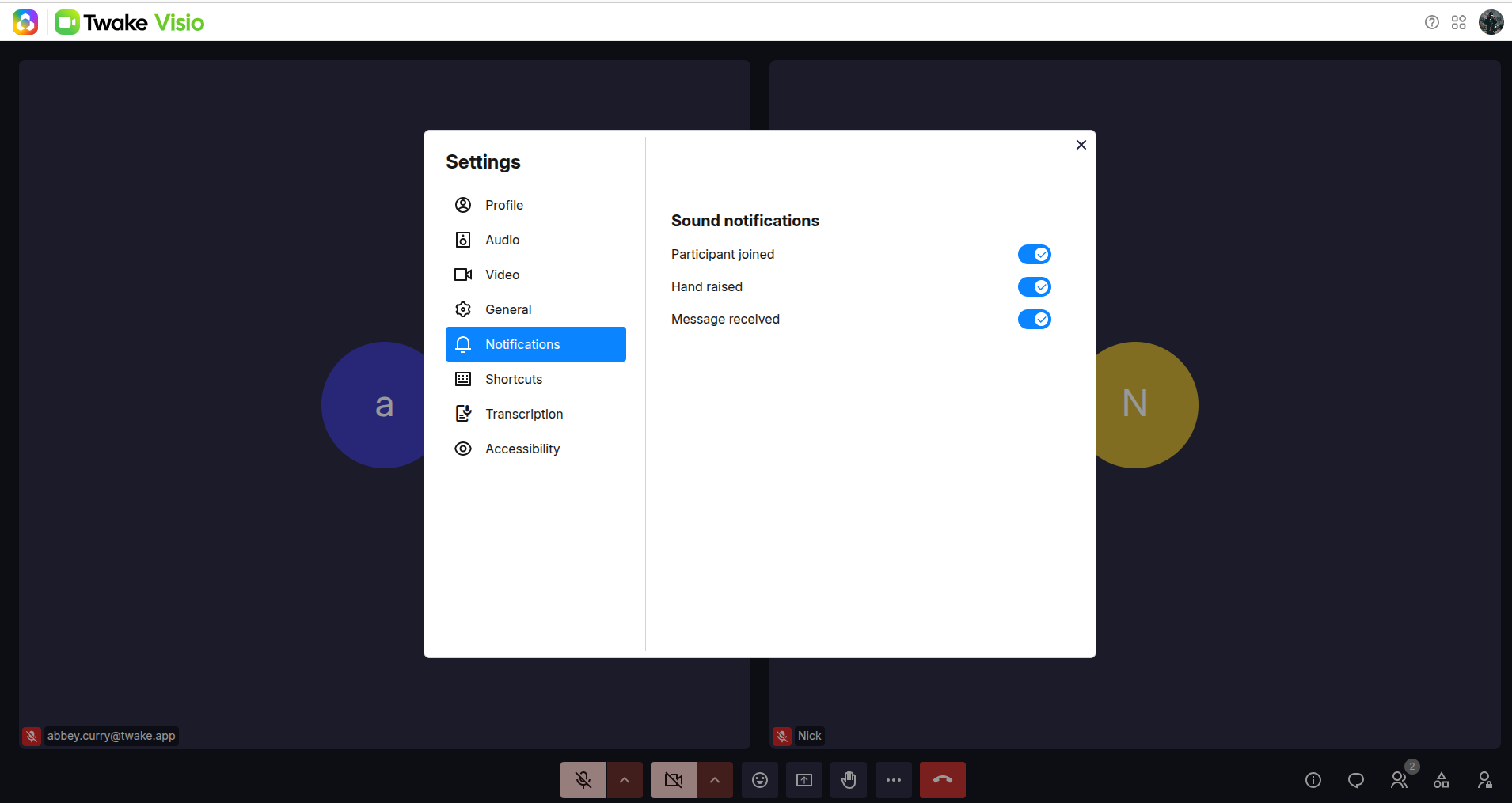
You can enable or disable sounds for:
- Participant joined: Plays a sound when someone enters the meeting.
- Hand raised: Plays a sound when a participant raises their hand.
- Message received: Plays a sound when a new chat message arrives.
These settings affect only the notification sounds you hear.
View keyboard shortcuts
Select Shortcuts to view the keyboard commands available during a meeting
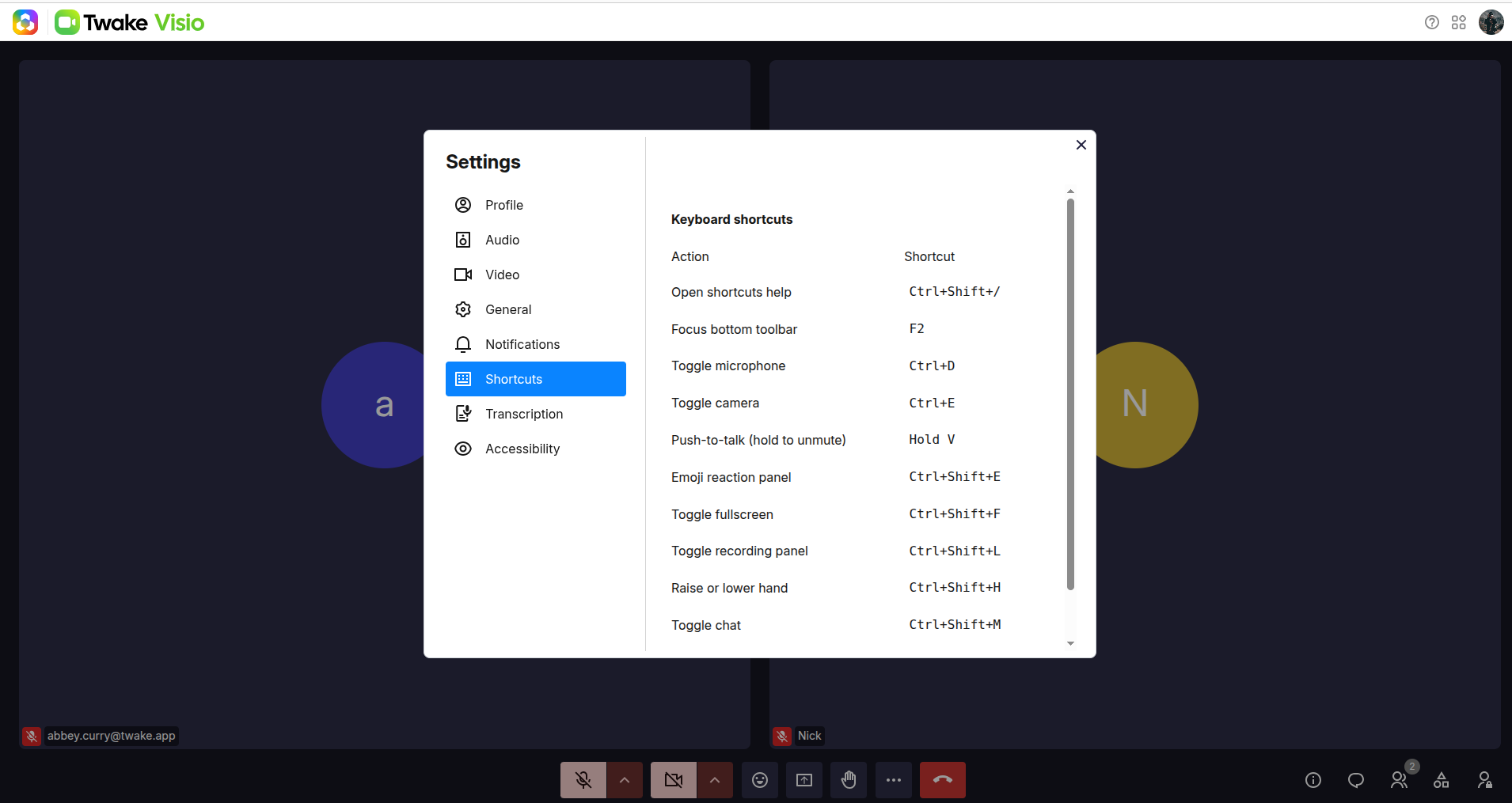
Select the transcription language
Select Transcription, then choose the language spoken during the meeting:
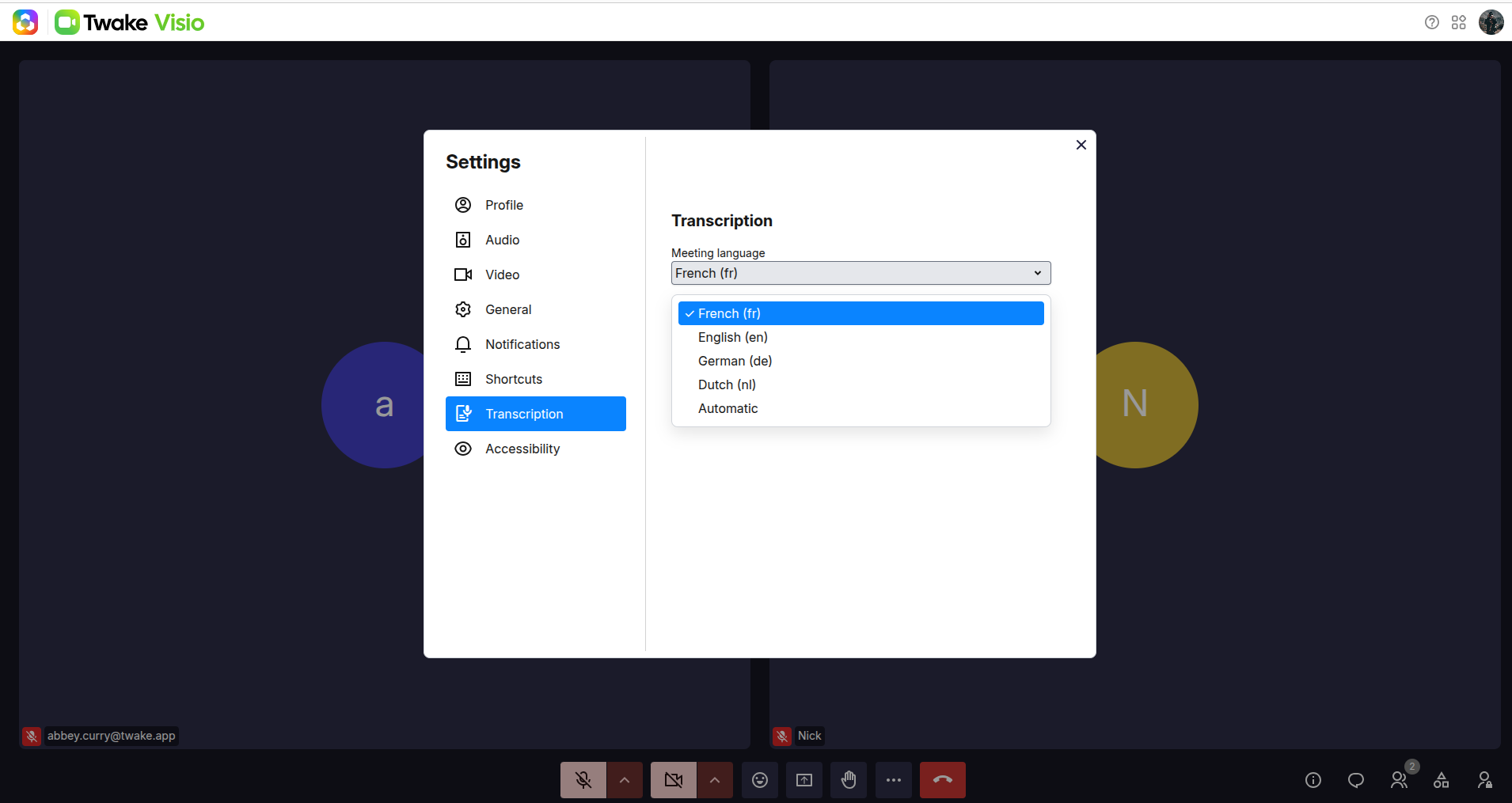
Available options include:
- French
- English
- German
- Dutch
- Automatic
Select Automatic to allow Twake Visio to detect the language when a supported transcription function is used.
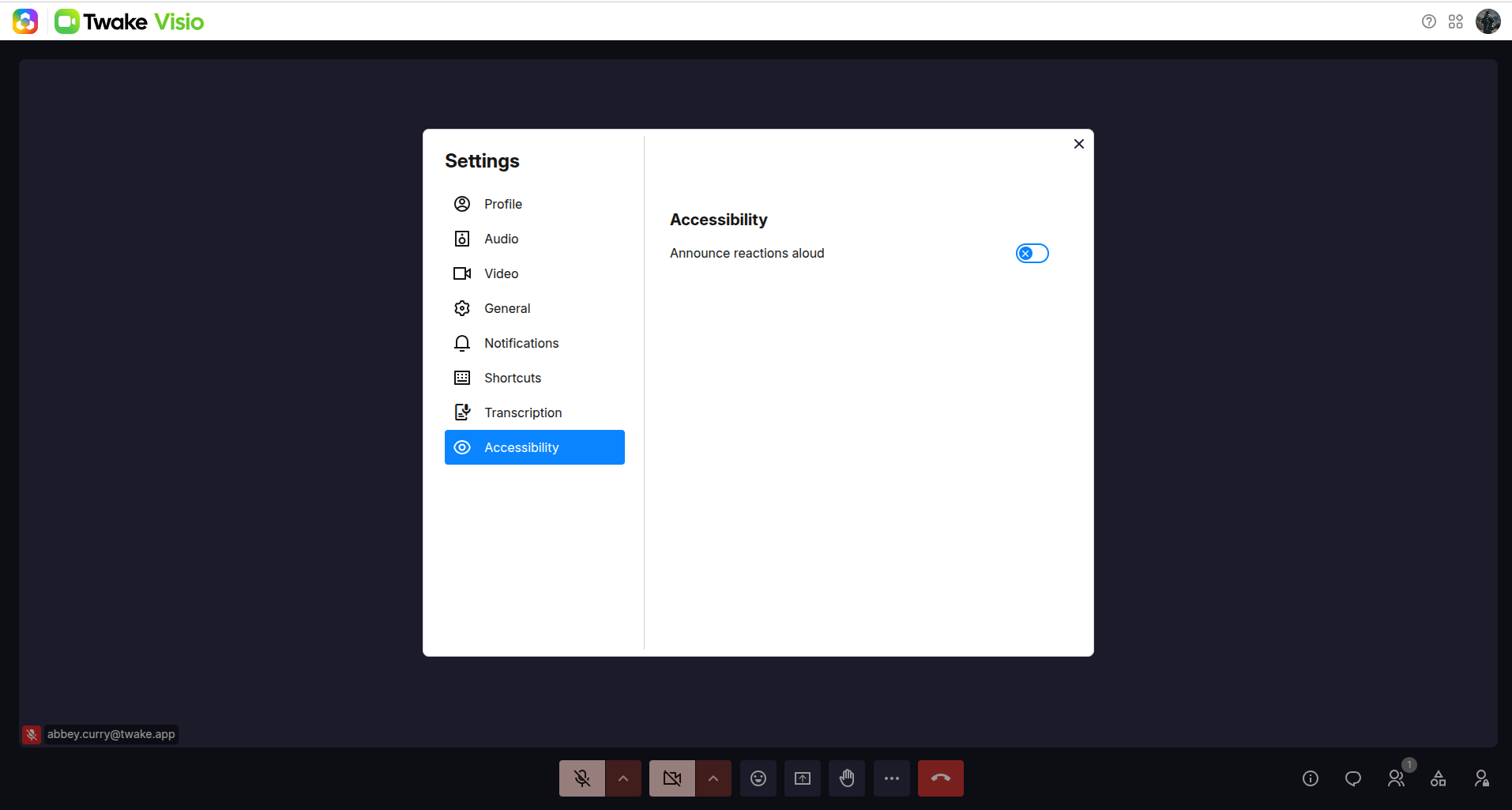
Manage accessibility settings
Select Accessibility to configure options that can make meeting activity easier to follow.
Enable Announce reactions aloud to hear supported reactions announced through audio. Disable it if you do not want reaction announcements.