Calendar Event in Twake Mail
When you receive a calendar invitation by email, Twake Mail displays the event details directly in the message.
Event Information in the Mail List
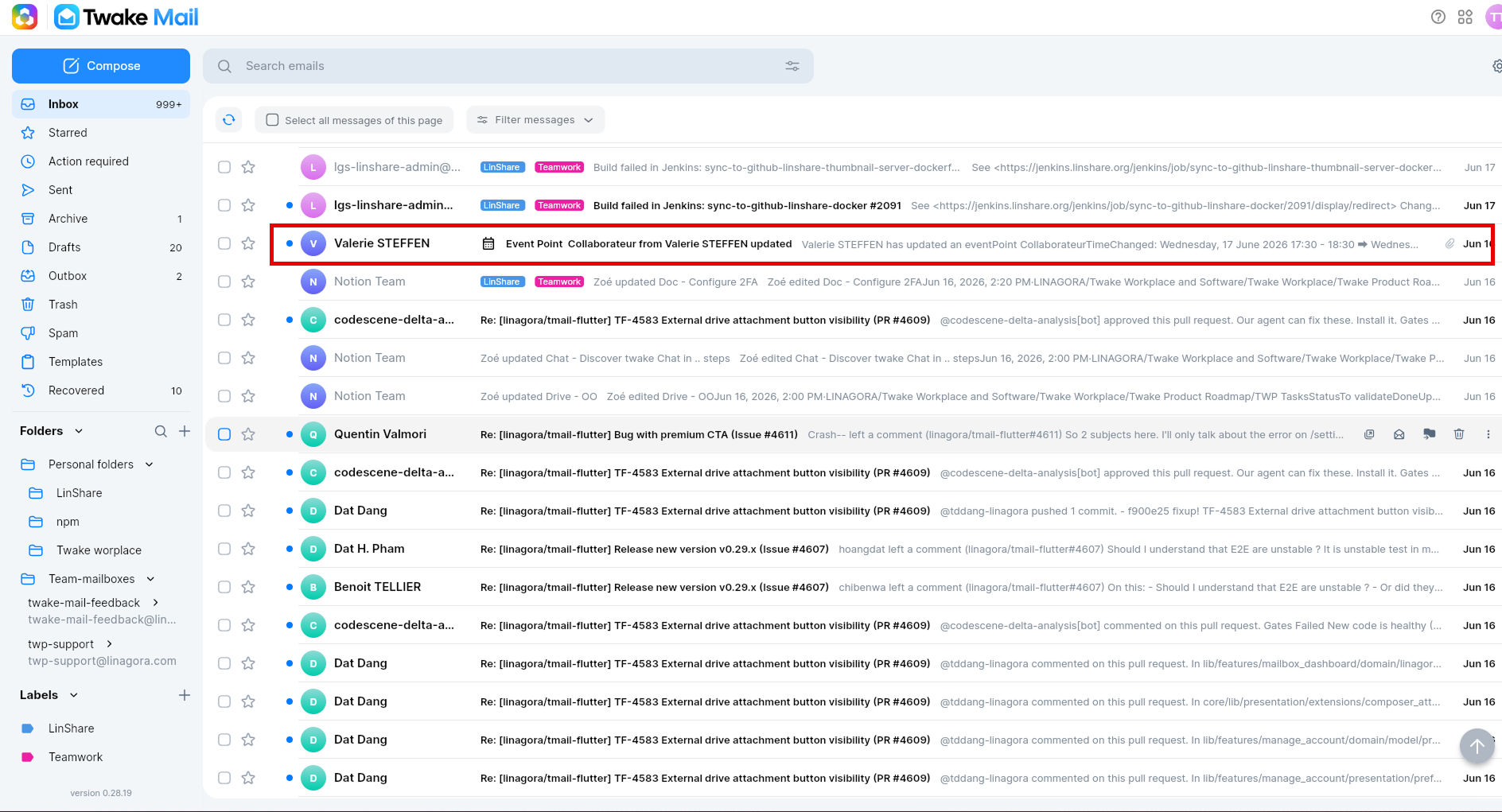
Calendar invitation emails can be identified directly from the mail list
The mail list displays:
- Event icon — Indicates that the email contains a calendar invitation.
- Event title — Displayed in the email subject.
- Event preview — A short summary of the event.
- Organizer — The person who created and sent the invitation.
- Event status — Indicates whether the event is New, Updated, or Canceled.
Event Information in the Email View
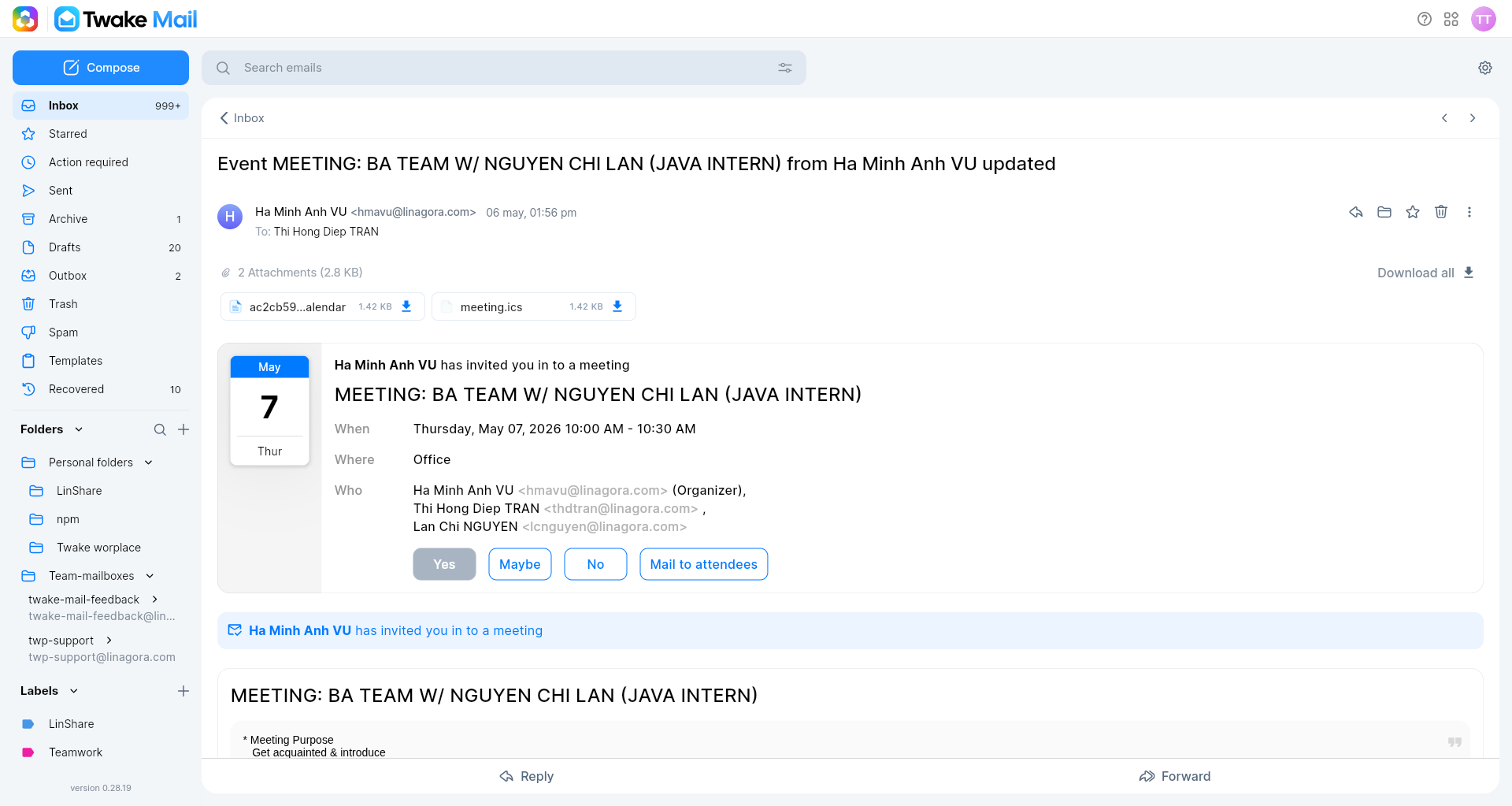
Open the invitation email to see the full event details.
The event card displays:
- Date and time
- Event summary — Key information such as:
- When the event takes place
- Who is invited
- Where the event will be held
- Response buttons — Choose how you want to respond to the invitation: Yes/No/Maybe or Mail to attendees - this opens a new email with all event attendees automatically added as recipients
- Event description — Additional details provided by the organizer, displayed in the email body.
Search Emails and Exclude Calendar Events
The search feature helps you quickly find emails using keywords and filters. If you want to search only regular emails, you can exclude calendar invitations and event notifications from the results.
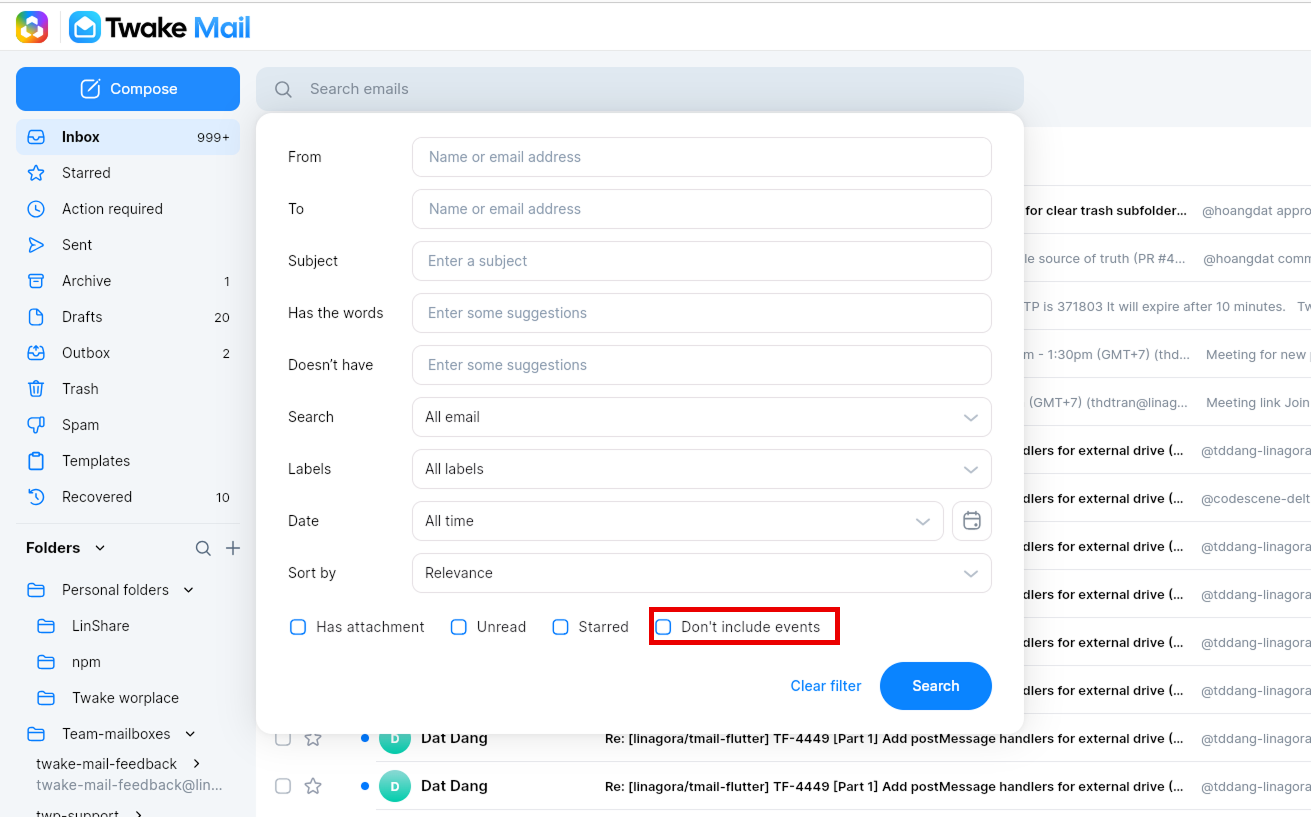
To remove calendar invitations and event-related emails from your search results:
- Open the Search filters panel.
- Enable the Don't include events option.
- Click Search.
Only regular email messages will be displayed in the search results. Calendar invitations, event updates, and canceled event notifications will be excluded:
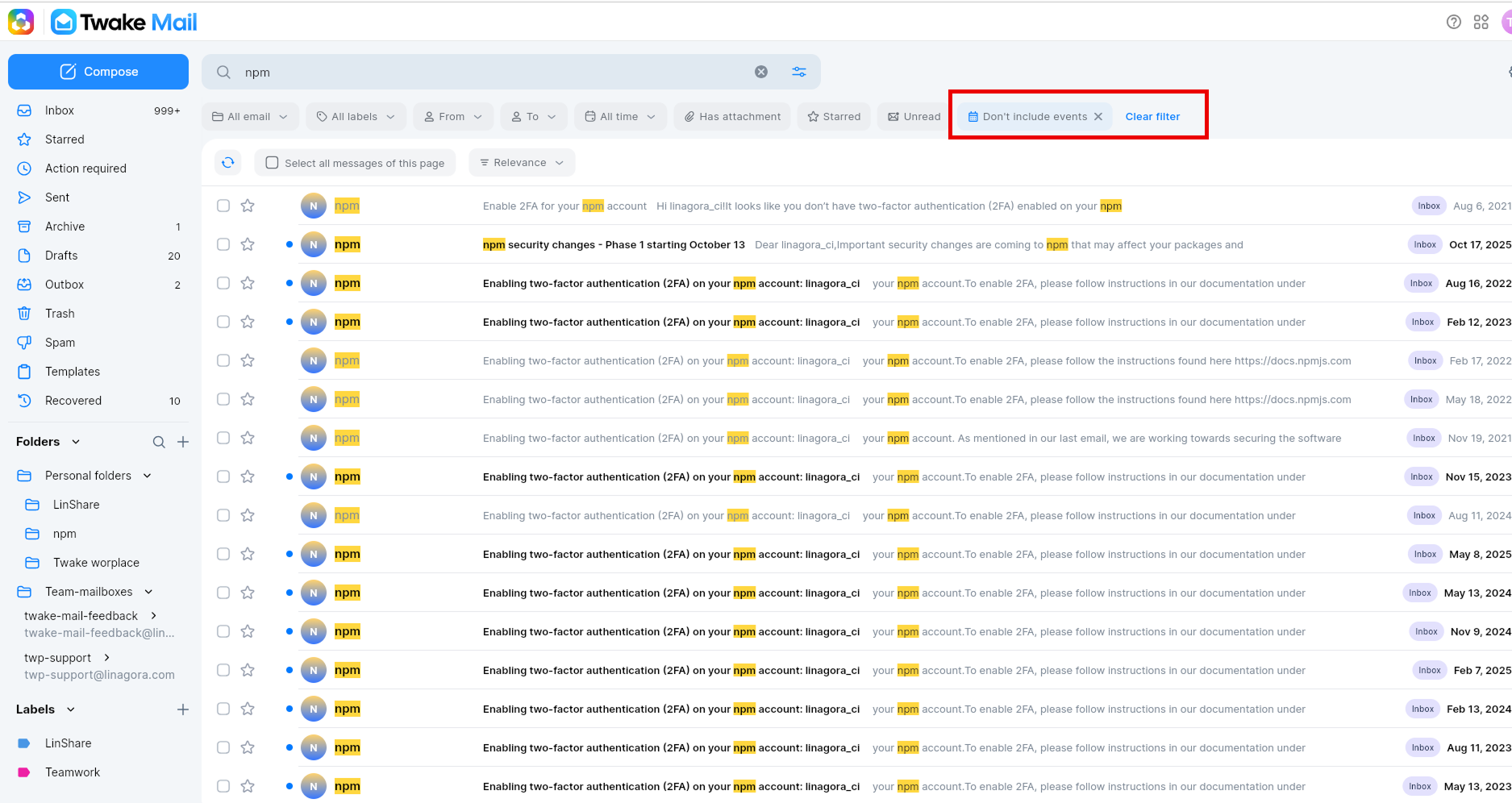
Identify Active Filters
After a search is performed, active filters are displayed below the search bar.
If Don't include events is enabled, a corresponding filter tag appears in the filter list. You can:
- Click the X on the filter tag to remove it.
- Click Clear filter to remove all active filters and return to a standard search