Change your password
Overview
You can update your password at any time from your account settings. Keeping your password up to date helps protect your account.
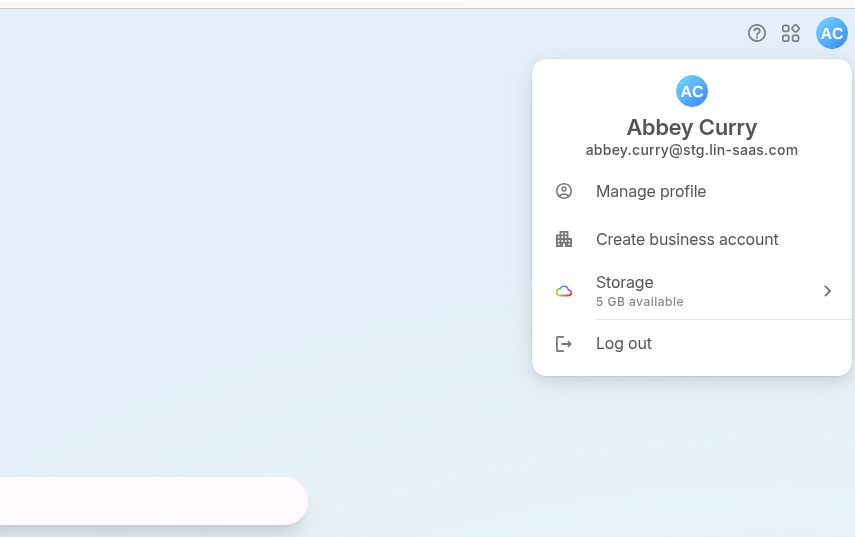
Step 1: Open Profile Settings
- Click your profile icon (top right)
- Select “Manage profile”
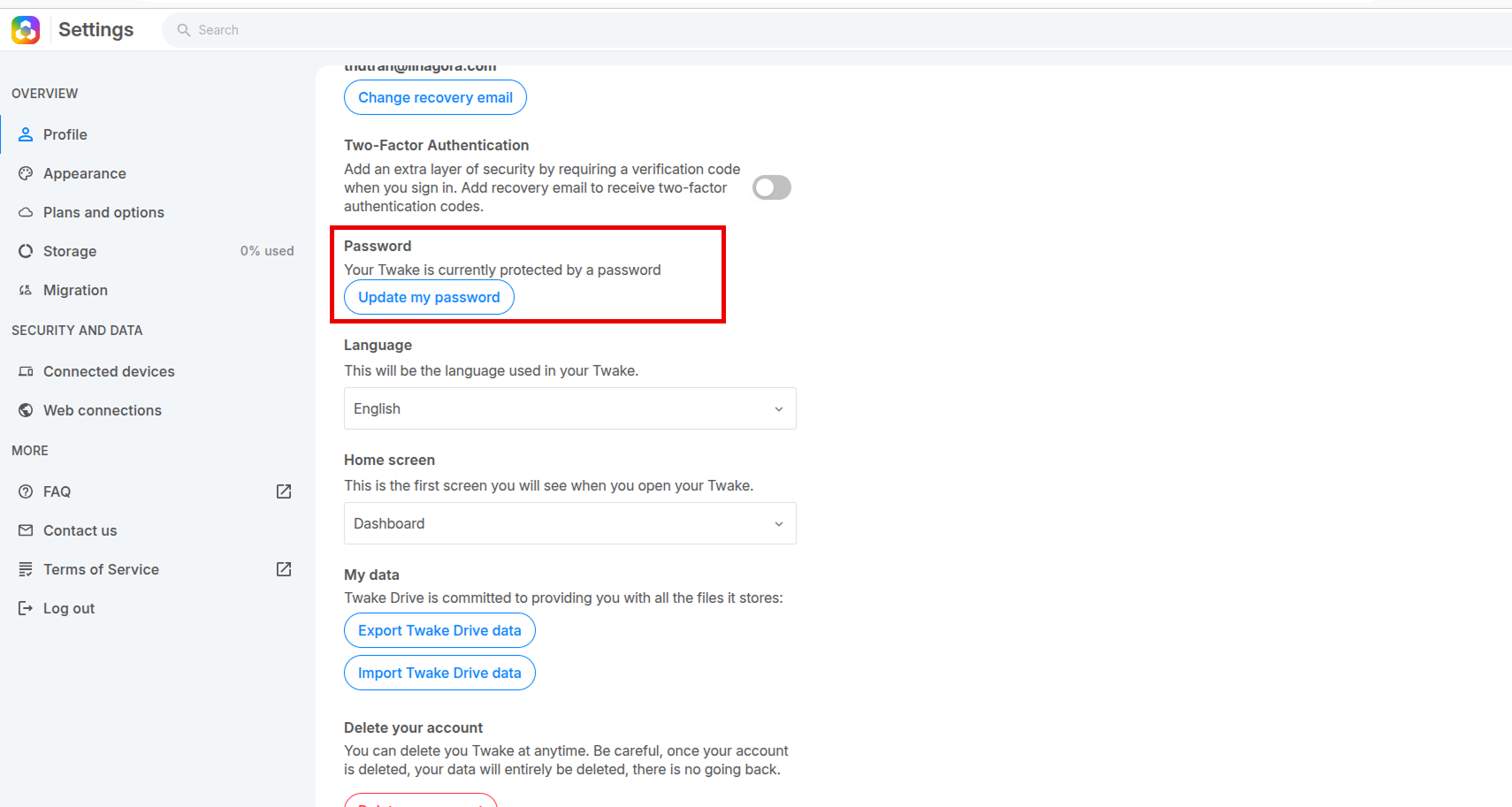
Step 2: Go to Password Settings
- In the Password section, click “Update my password”
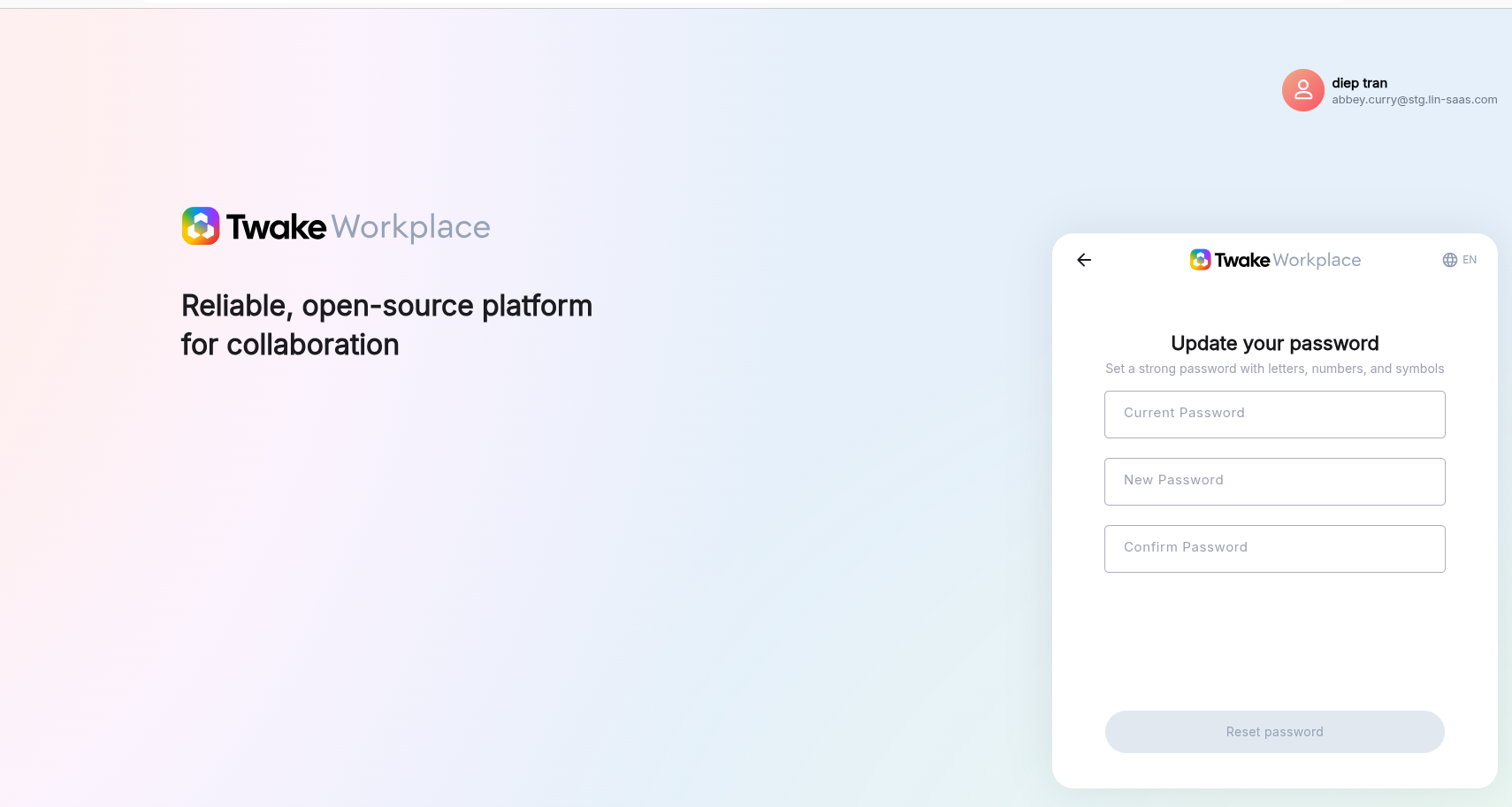
Step 3: Enter Your New Password
- Enter your Current Password
👉 Don’t remember your password?
If you don’t remember your current password, you’ll need to reset it first.
See: Reset my password
If you don’t remember your current password, you’ll need to reset it first.
See: Reset my password
- Enter your New Password
- Confirm your New Password
- Click “Reset password”
💡
Note:
Your new password must:
- Be at least 8 characters long
- Include uppercase and lowercase letters
- Include numbers
Your new password must be different from your current password
Your new password must:
- Be at least 8 characters long
- Include uppercase and lowercase letters
- Include numbers
Your new password must be different from your current password
Step 4: Verify Your Identity
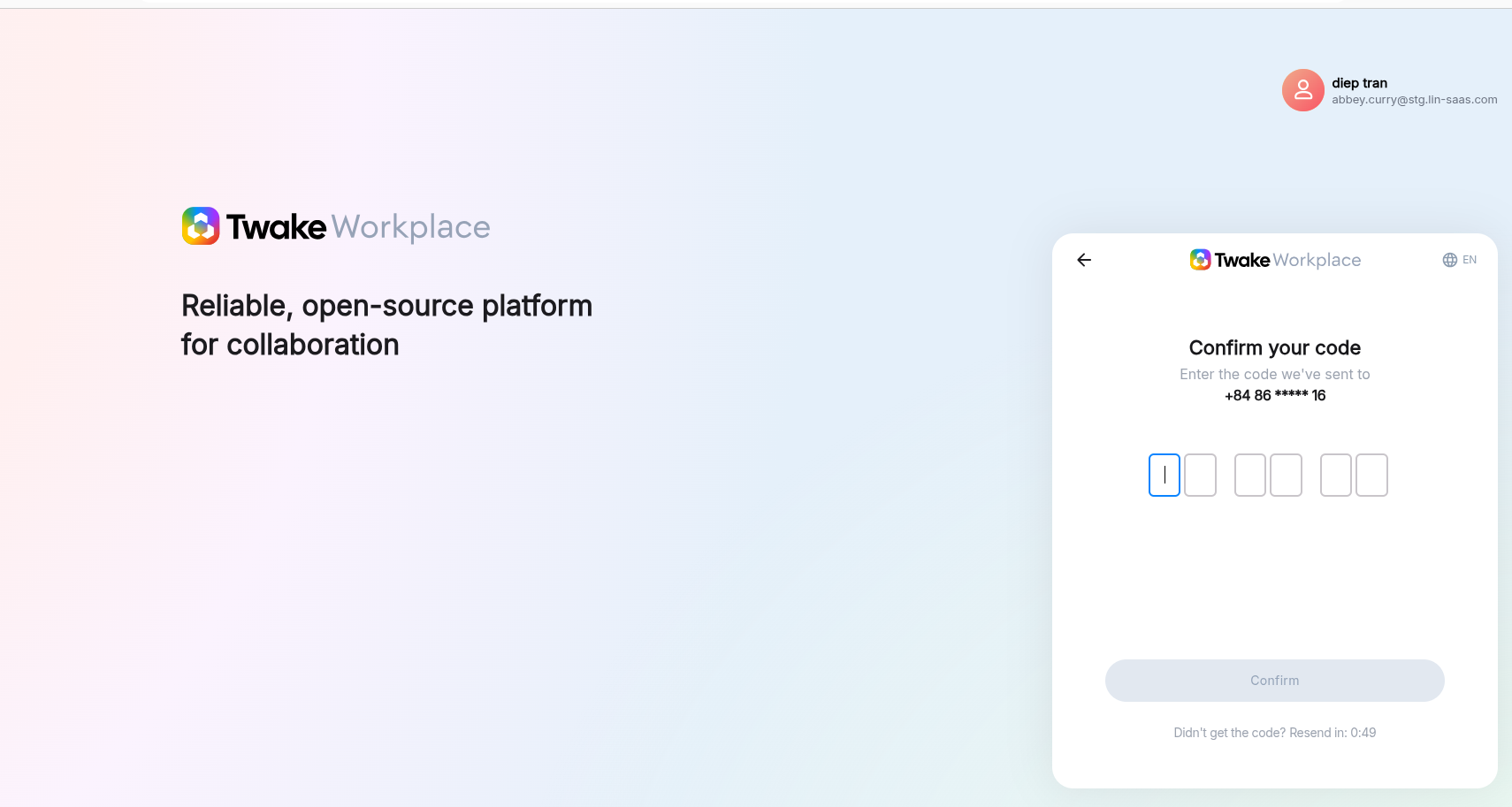
- Enter the 6-digit verification code sent to your phone
- Click Confirm
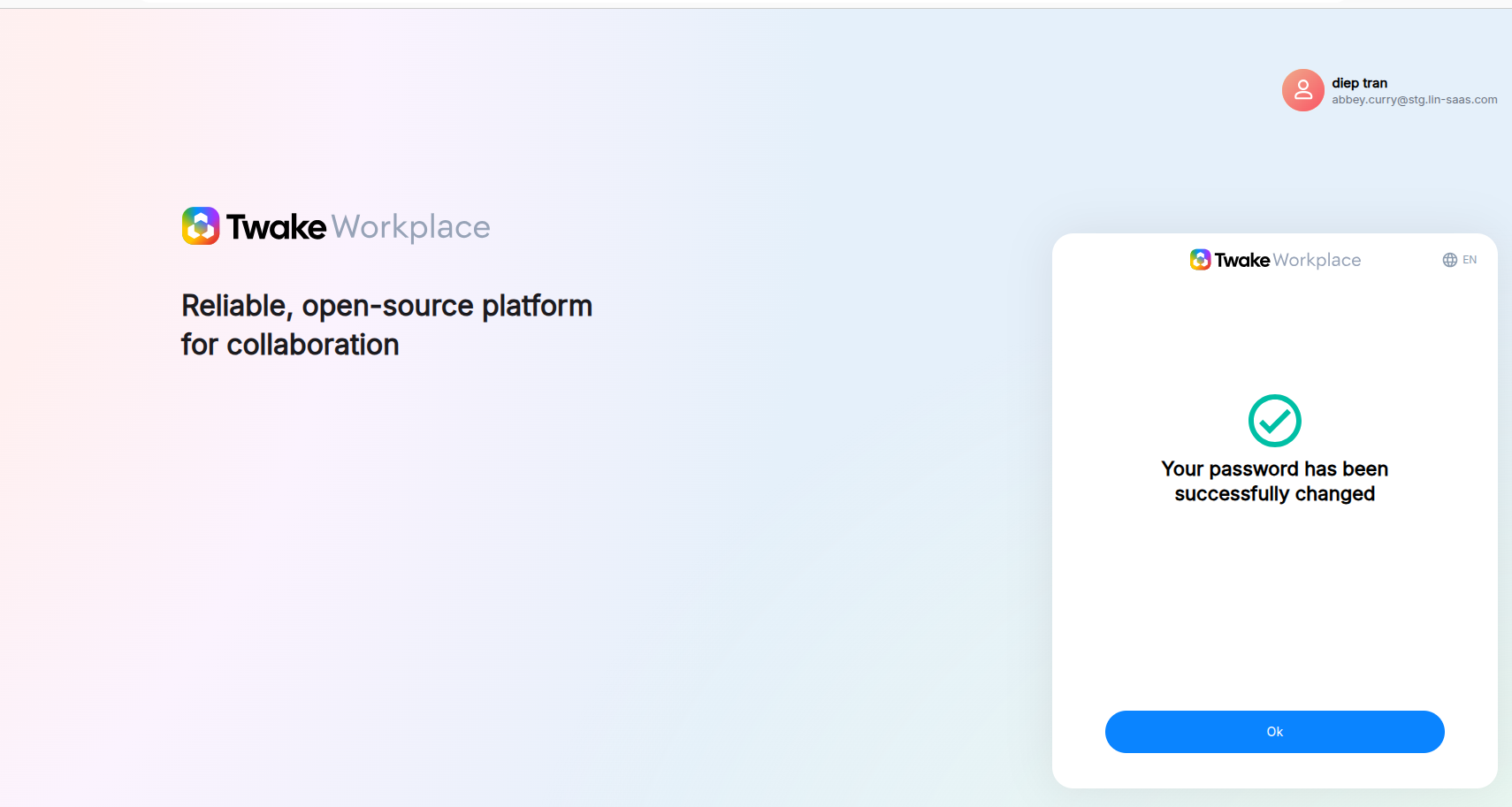
You will see a confirmation message:
“Your password has been successfully changed”