
Change your background and visual effects in Twake Visio
Use background effects during a meeting to blur your surroundings, apply a virtual background, or upload your own image.
- During a meeting, select More actions (⋯) in the meeting toolbar.
- Select Backgrounds and Effects.
The Backgrounds and Effects panel opens on the right side of the meeting room.
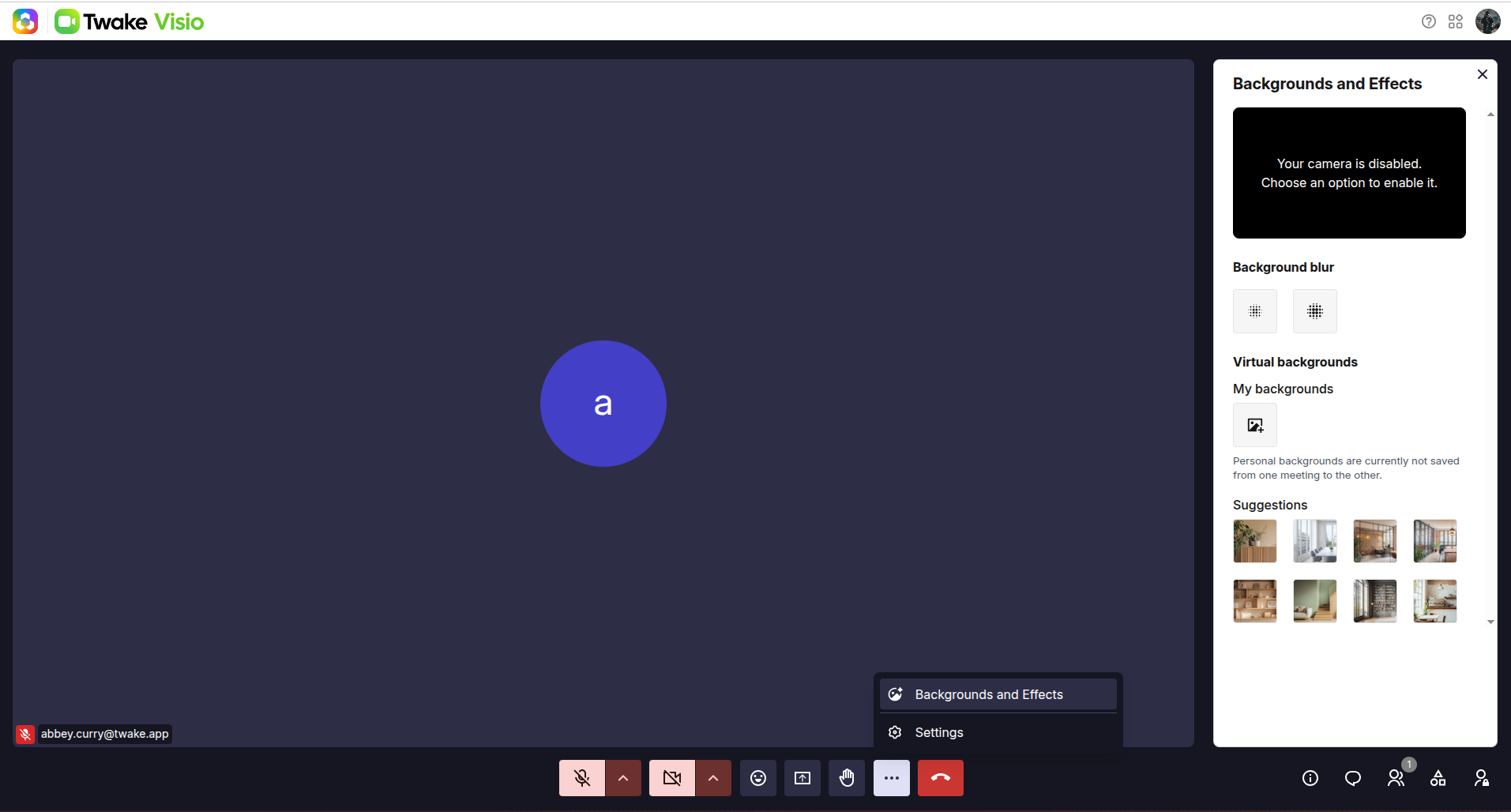
Blur your background
Under Background blur, select one of the available blur levels.
The effect is applied immediately, allowing participants to see you while making your surroundings less visible.
Apply a virtual background
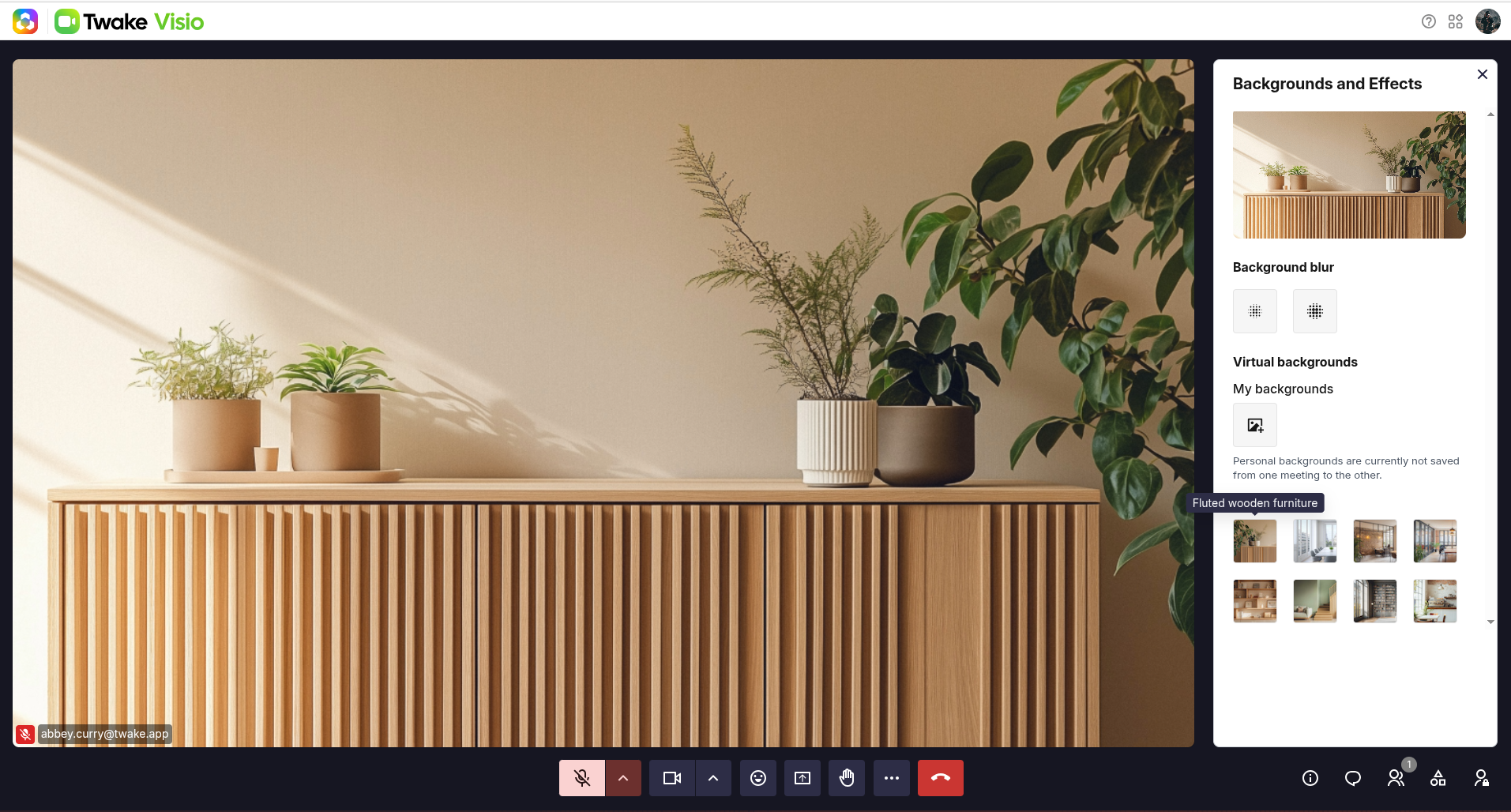
Under Suggestions, select one of the available background images.
The selected background is applied immediately and appears in the preview at the top of the panel:
Upload a personal background
To use your own image:
- Under My backgrounds, select the Upload image icon.
- Select an image from your device.
- The image is applied as your virtual background.
Personal backgrounds are not saved from one meeting to another. You may need to upload the image again in a future meeting.