Use chat and collaboration tools in Twake Visio
Use the meeting chat
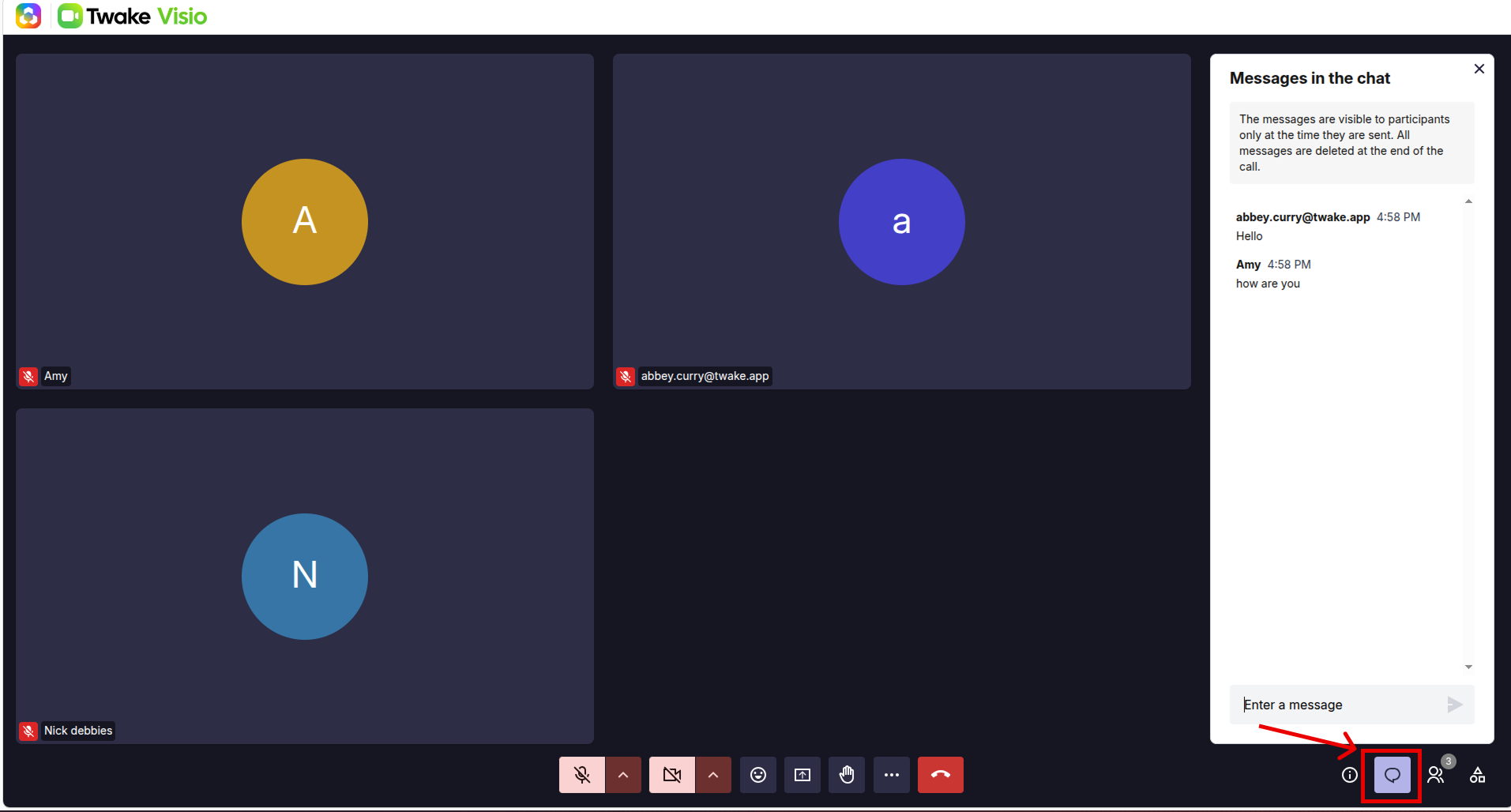
- Select the Chat icon in the lower-right corner.
- Enter your message in the Enter a message field.
- Select the Send icon.
Your message appears in the chat panel with your name and the time it was sent.
To close the panel, select X in the upper-right corner.
Raise or lower your hand
Raise your hand when you want to speak without interrupting another participant.
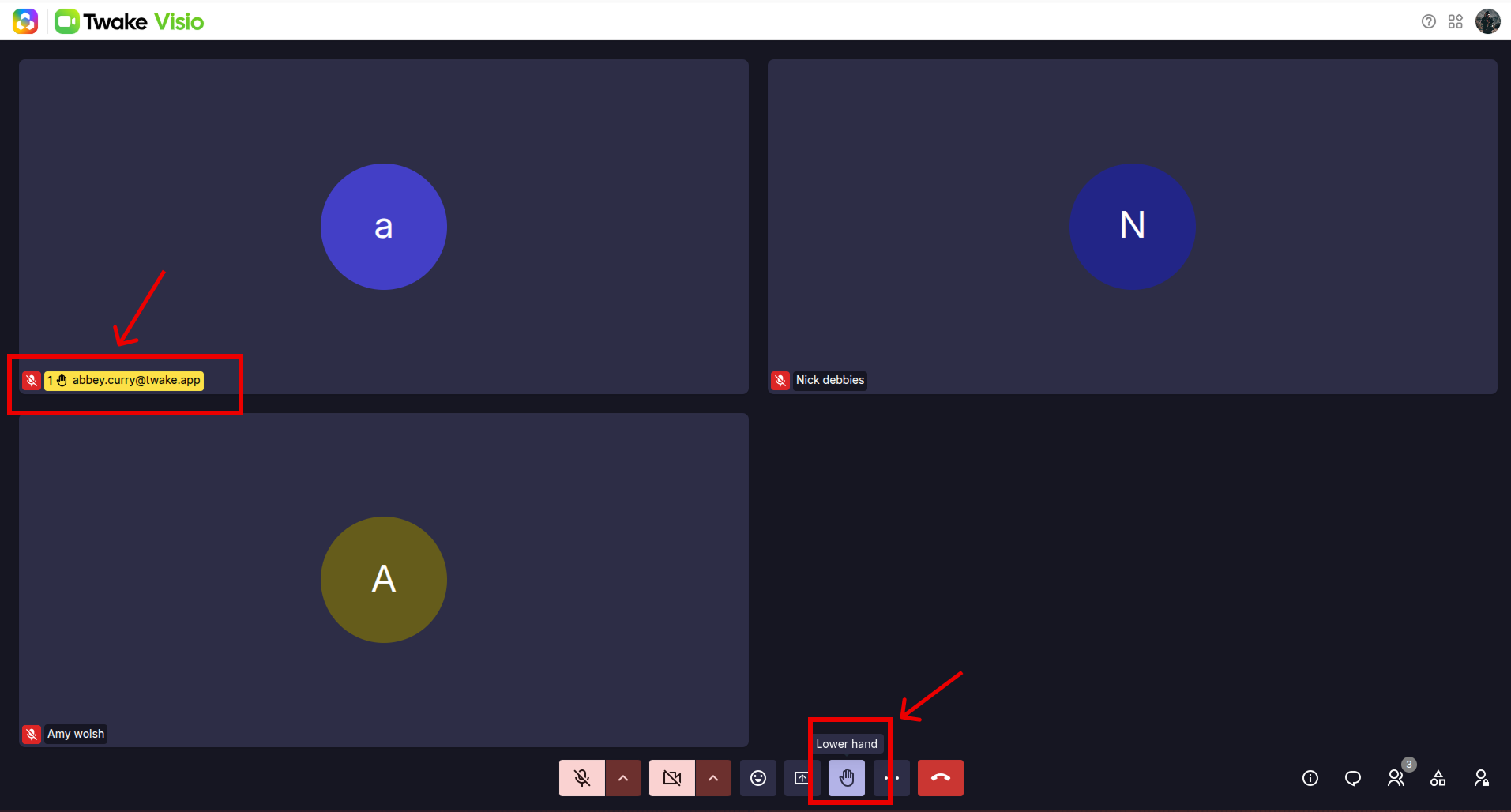
- Select the Raise hand icon in the meeting toolbar.
- A hand symbol appears beside your name, allowing the other participants to see that your hand is raised.
- Select the button again to lower your hand.
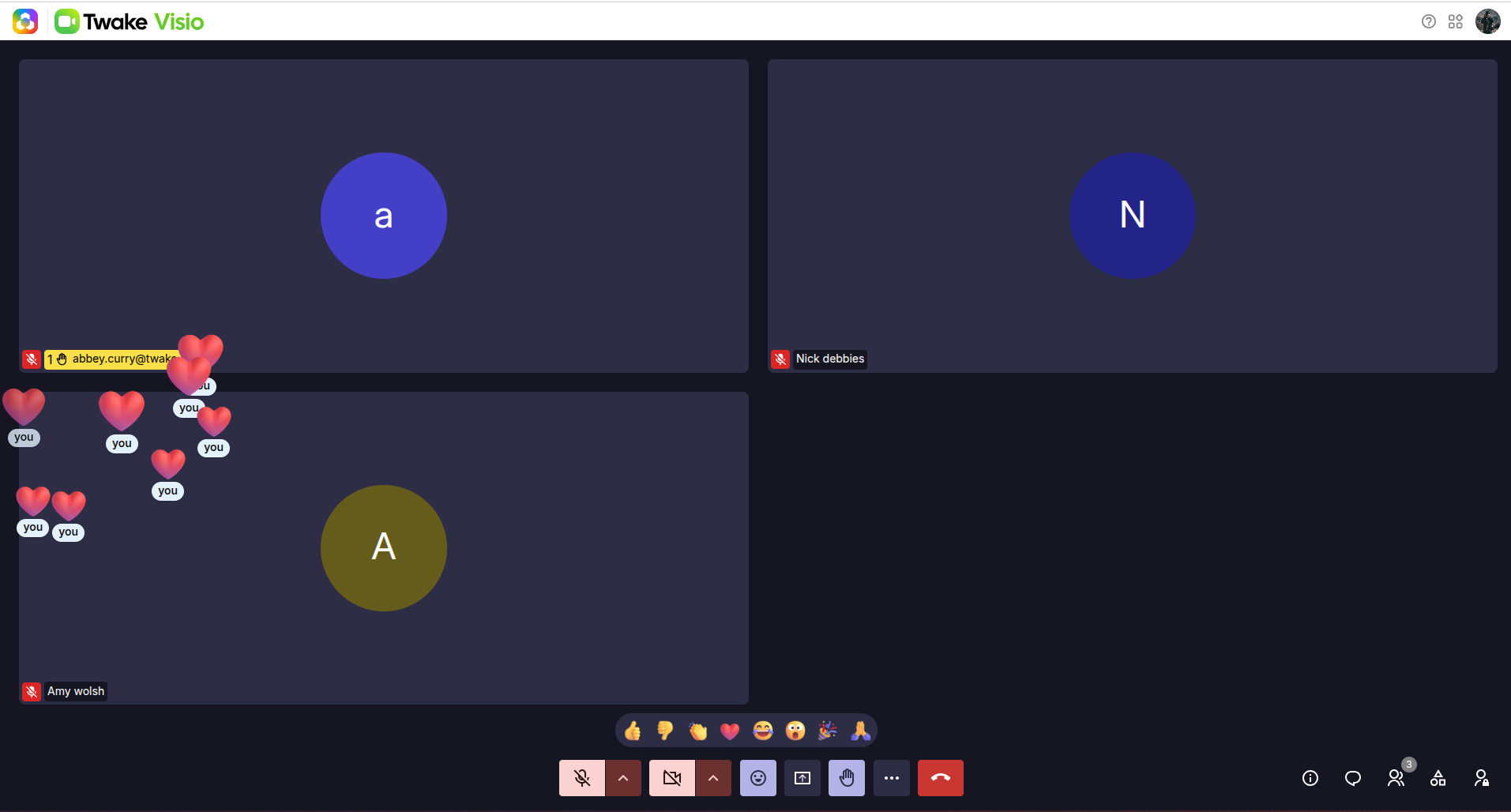
Send an emoji reaction
Use reactions to respond quickly without speaking.
- Select the Reactions icon in the meeting toolbar.
- Choose one of the available reactions
The selected emoji appears temporarily, where the other participants can see it.