Create/Import a calendar
Create multiple calendars to organize different areas of your work or personal life, such as Work, Projects, or Personal...You can also import an existing calendar from an .ics file.
Create a Calendar
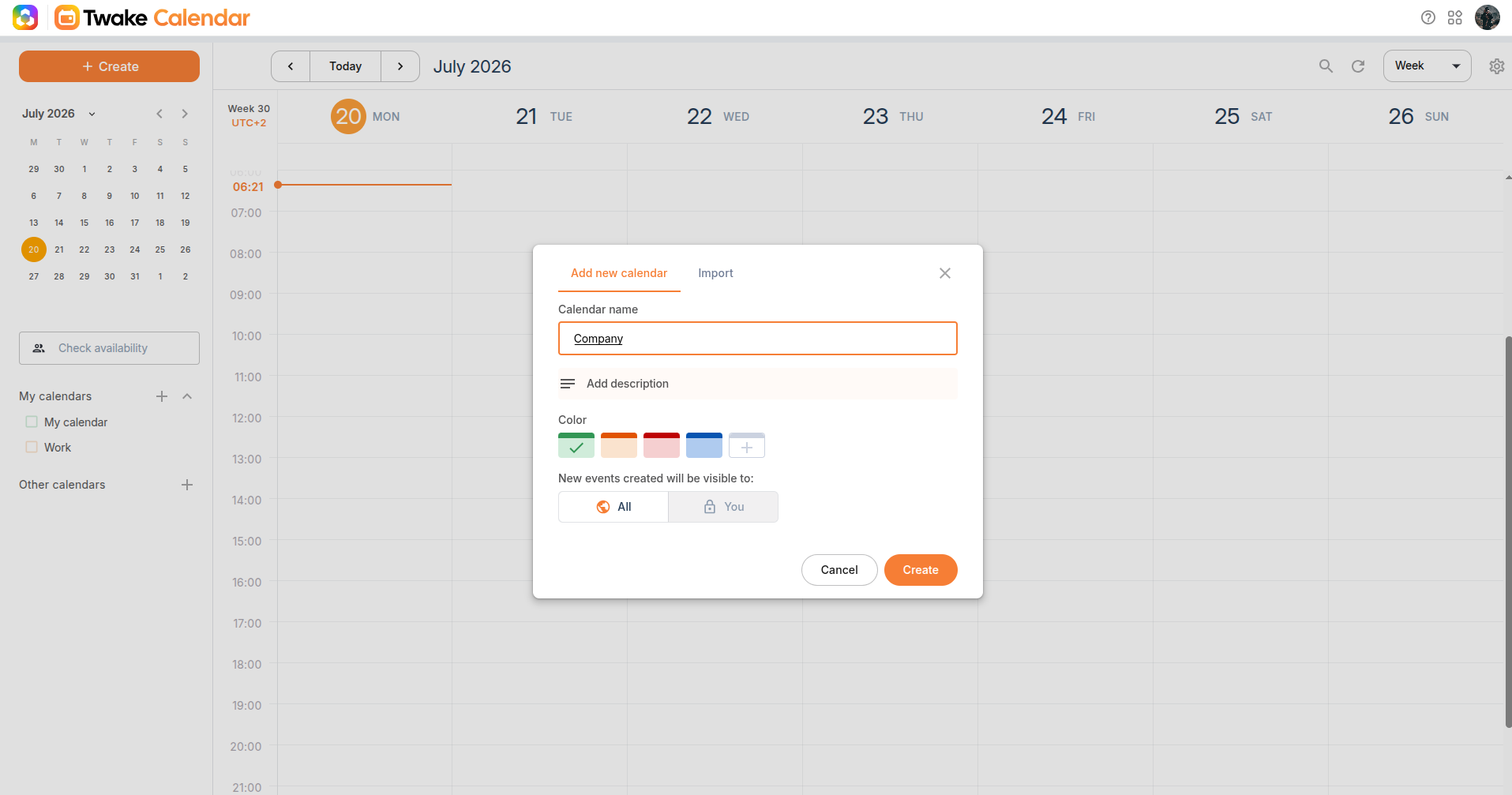
Create a new calendar to organize related events together. Each calendar can have its own name, color, and default visibility. To create a new calendar:
- In the left sidebar, under My calendars, click +.
- In the Add new calendar tab, enter a Calendar name.
- (Optional) Add a description.
- Choose a color for the calendar. You can click "+" button to select other color
- Select the default visibility for new events:
- All – Event details are visible to anyone with access to the calendar.
- You – Only you can view the event details.
- Click Create.
The new calendar appears under My calendars and is ready to use.
Tip: When creating an event, you can choose which calendar it belongs to. Each calendar uses its own color, making it easy to distinguish events at a glance.
Import a Calendar
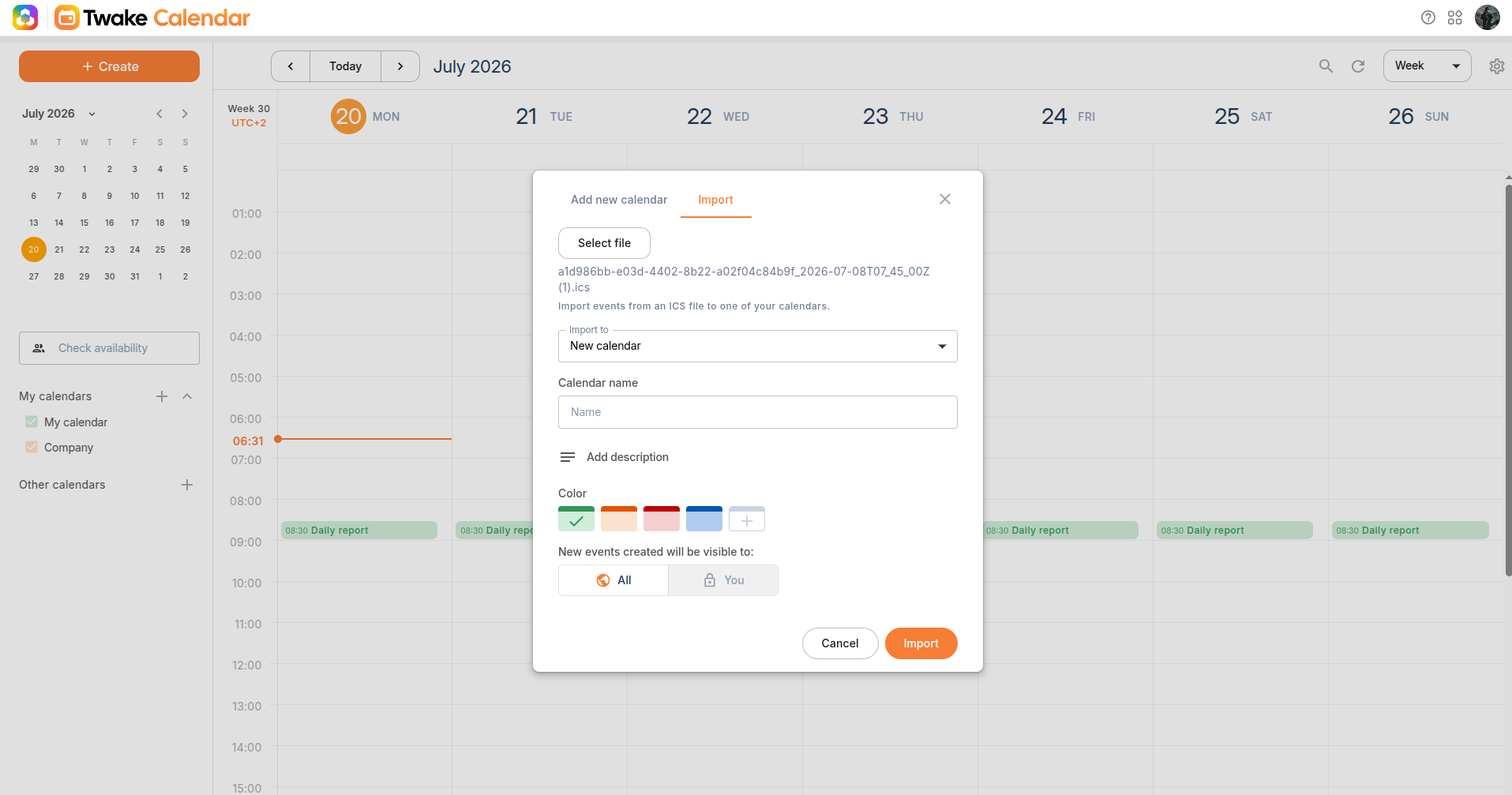
Import an existing calendar from an .ics file into Twake Calendar. You can import the events into an existing calendar or create a new calendar during the import.
- In the left sidebar, under My calendars, click +.
- Open the Import tab.
- Click Select file, then choose an .ics file from your device.
- Choose where to import the events:
- An existing calendar, or
- New calendar.
- If creating a new calendar:
- Enter a Calendar name.
- (Optional) Add a description.
- Choose a color.
- Select the default visibility for new events.
- Click Import.
The imported calendar or events are added to your calendar list.
Note: Importing events into an existing calendar does not replace its current events. The imported events are added alongside any existing events.
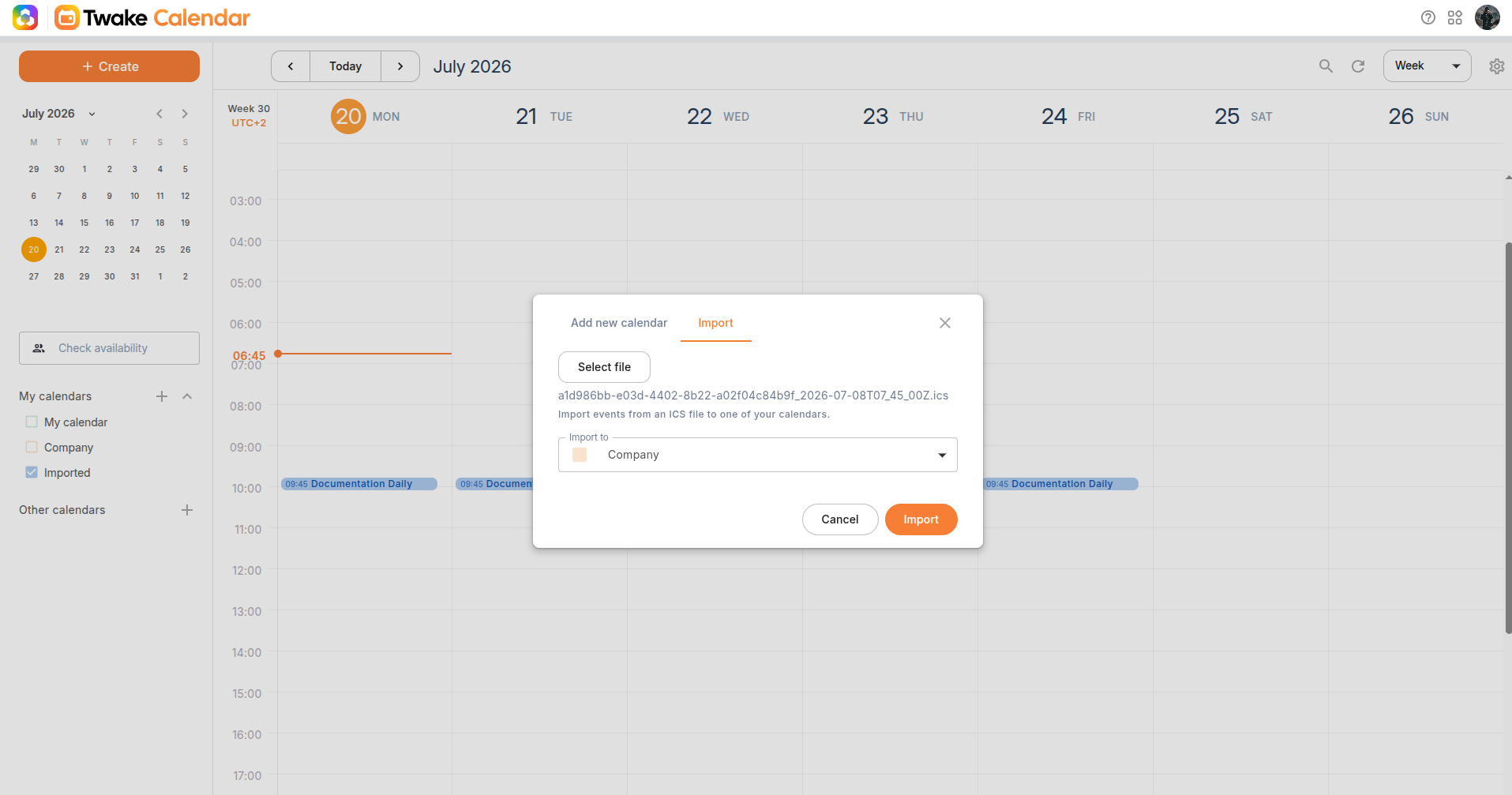
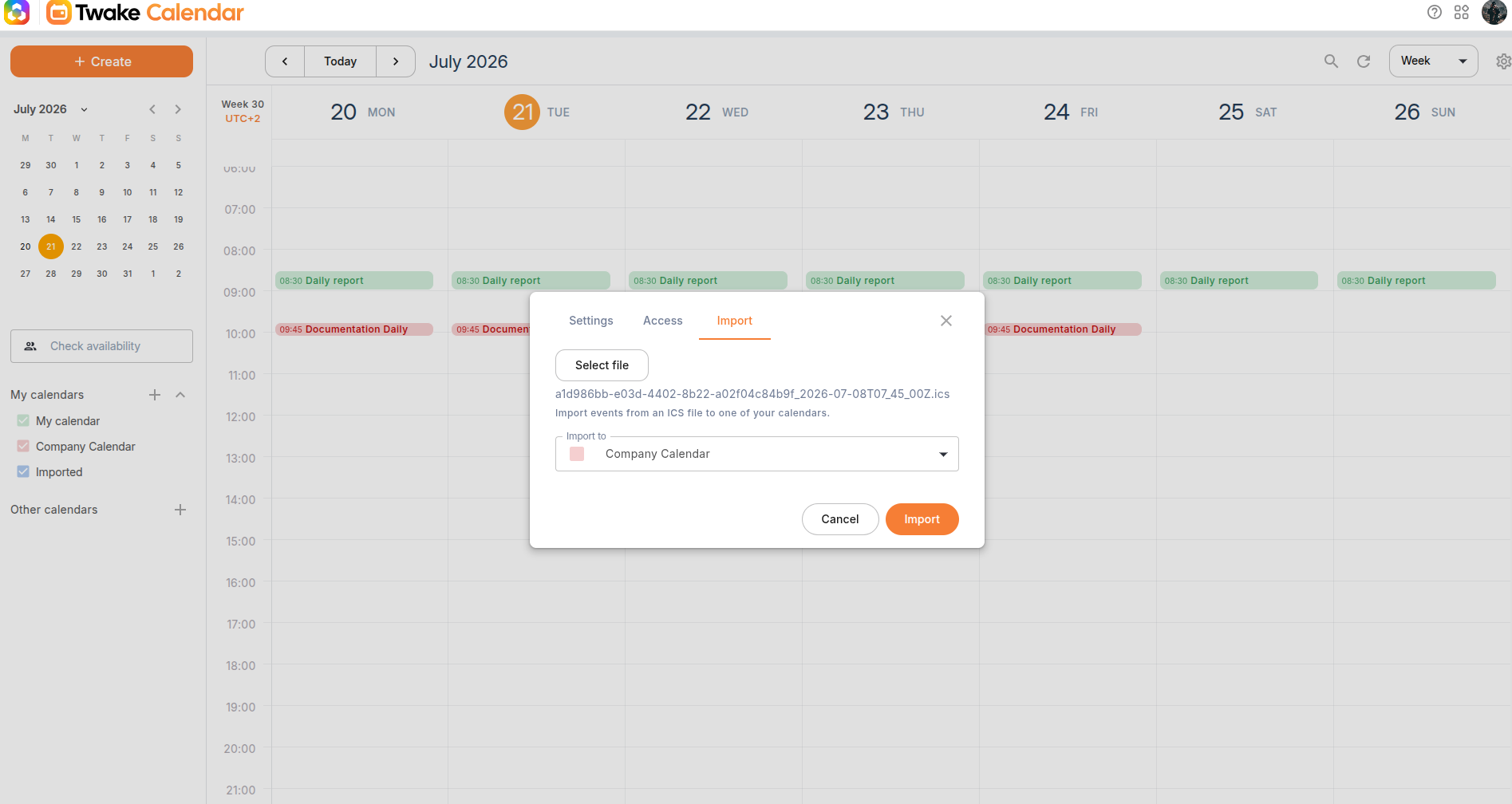
Import Events into an Existing Calendar
You can also import events into an existing calendar.
- Hover over the calendar you want to import.
- Click More actions (︙) > Modify.
- Open the Import tab.
- Click Select file and choose an .ics file.
- Click Import.