Respond to an event invitation
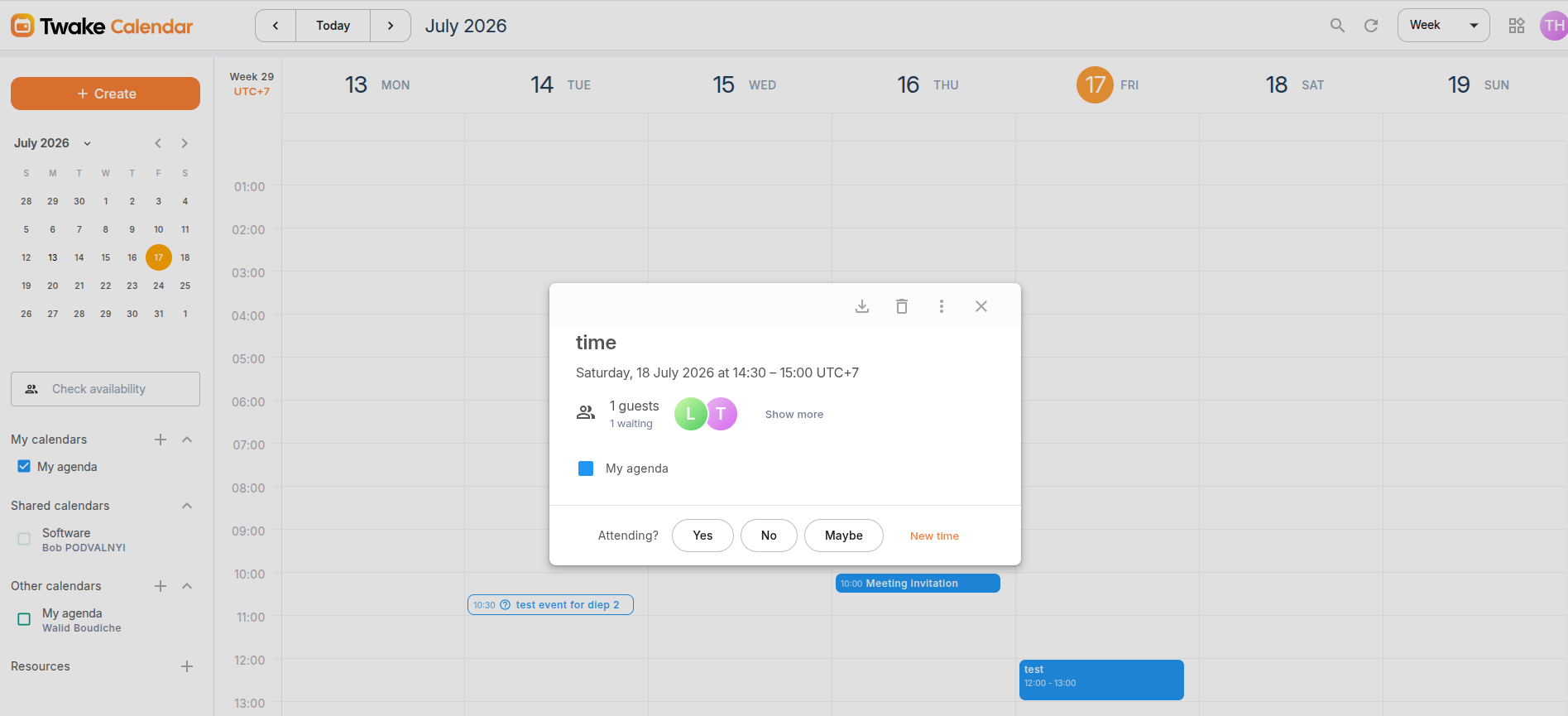
When you're invited to an event, you can let the organizer know whether you'll attend by updating your response status.
- Open the event from your calendar
- At the bottom of the event details, choose one of the following responses:
- Yes – You will attend.
- Maybe – You might attend.
- No – You will not attend.
Your response is saved automatically and shared with the event organizer.
Tip: You can update your RSVP at any time if your availability changes.
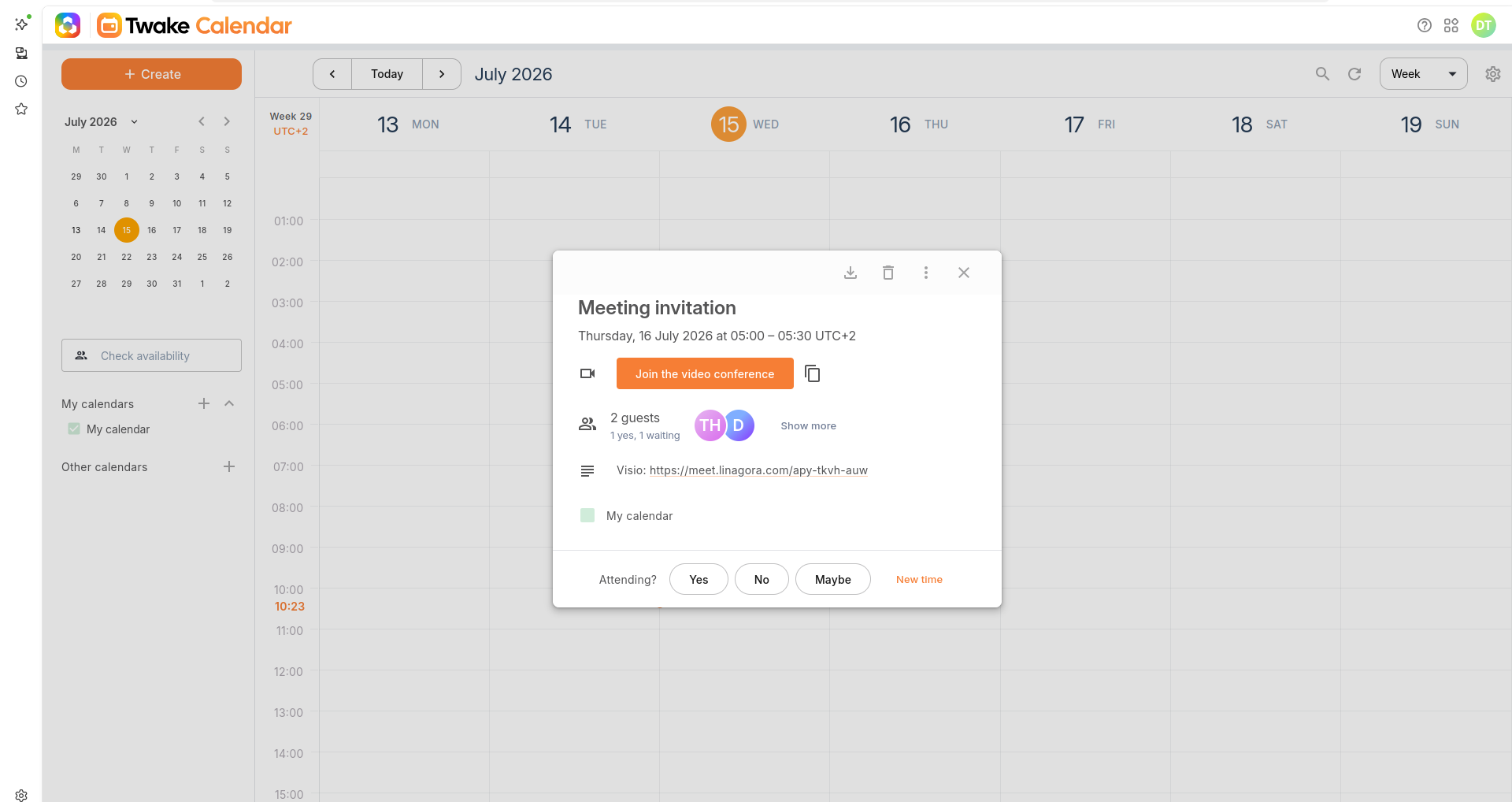
When someone sends you an invitation to an event, you will receive an email in your Twake Mail with the event details. This email also lets you respond to the event’s organizer about whether you will be attending.
Learn more: Calendar event in Twake Mail
Propose a new time
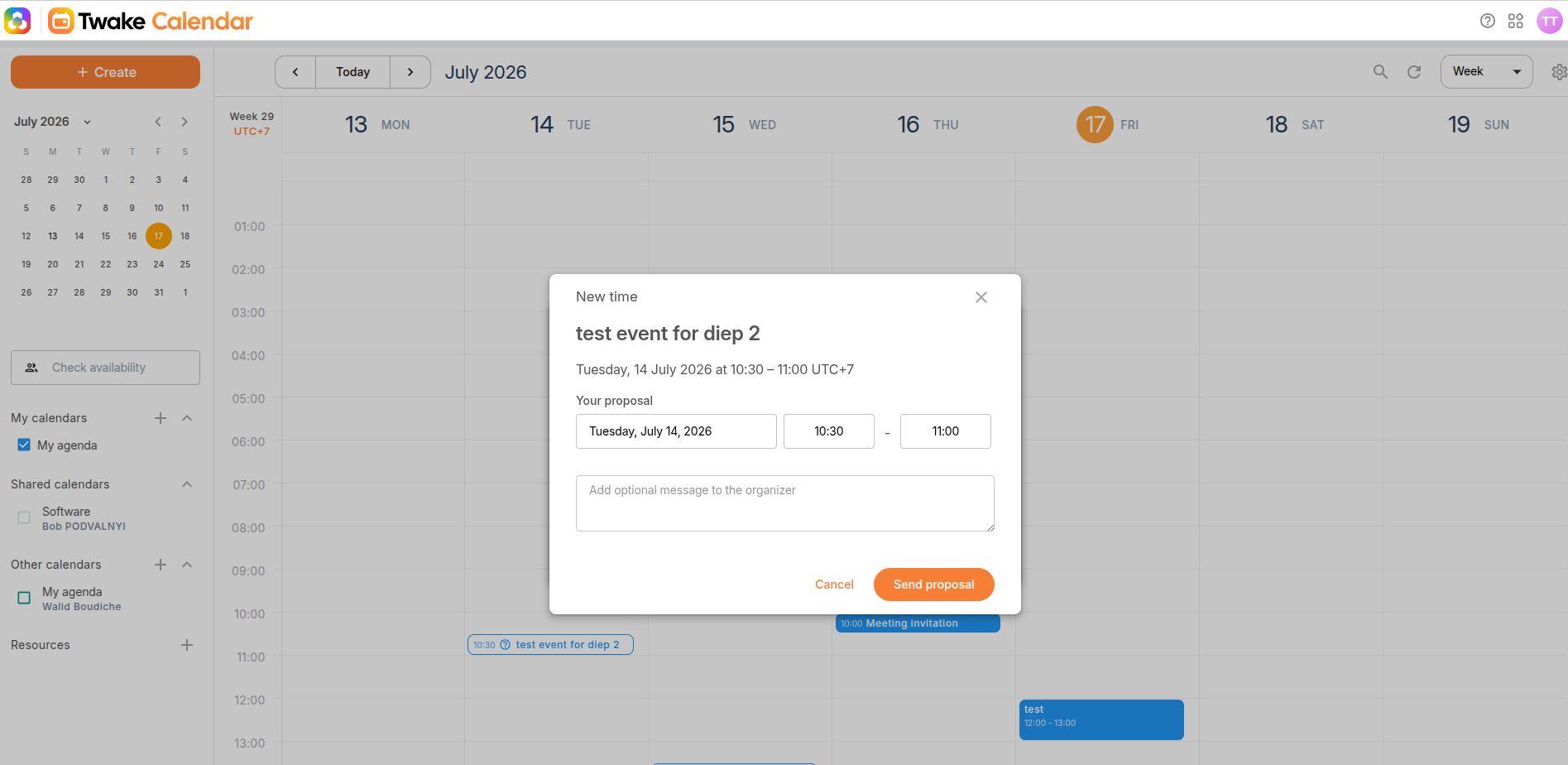
If you cannot attend an event at the scheduled time, you can suggest a different date or time to the organizer. The organizer can then review and accept or decline your proposal.
- Open the event invitation.
- Click New time.
- In the Your proposal section:
- Select a new date.
- Choose a new start and end time.
- (Optional) Enter a message to explain your proposal.
- Click Send proposal.
Your proposed time is sent to the event organizer for review.
Note: Proposing a new time does not change the event immediately. The event is updated only if the organizer accepts your proposal.