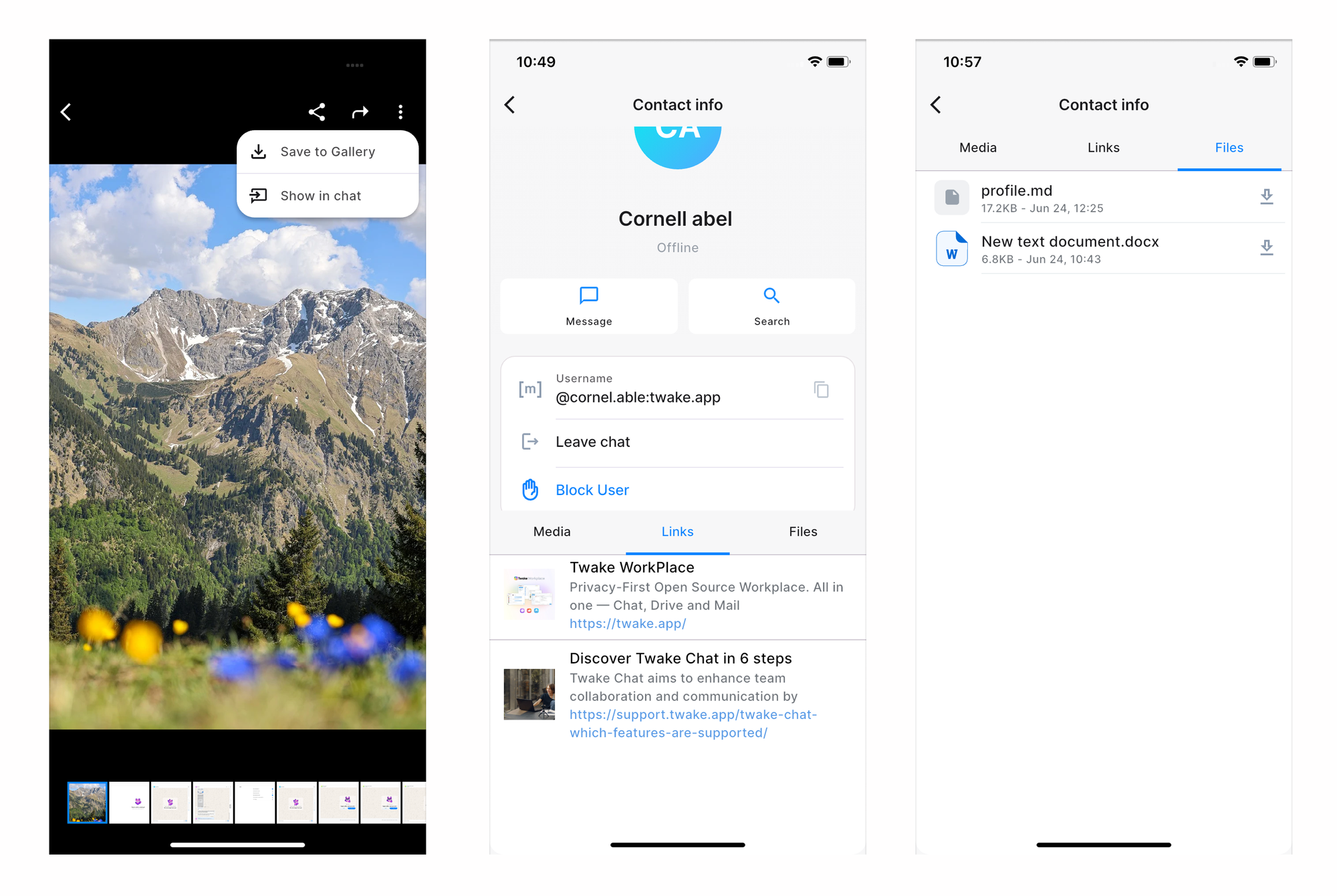
Find media, links and files in conservation
Twake Chat automatically collects media, links, and files shared in a conversation, making them easy to find without scrolling through the chat history.
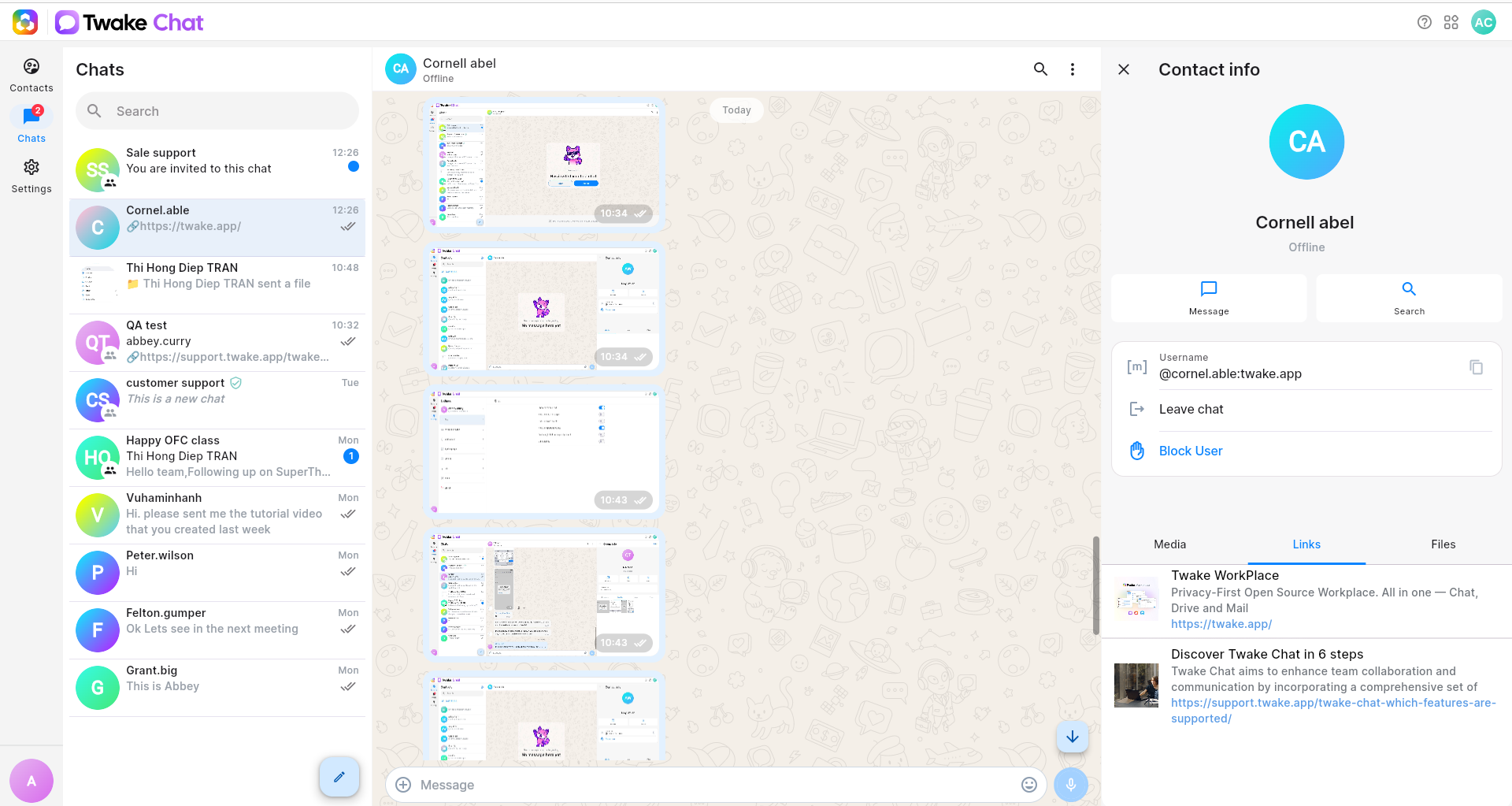
When you click the contact or group name at the top of the chat, the Contact Info or Group Info panel opens on the right side:
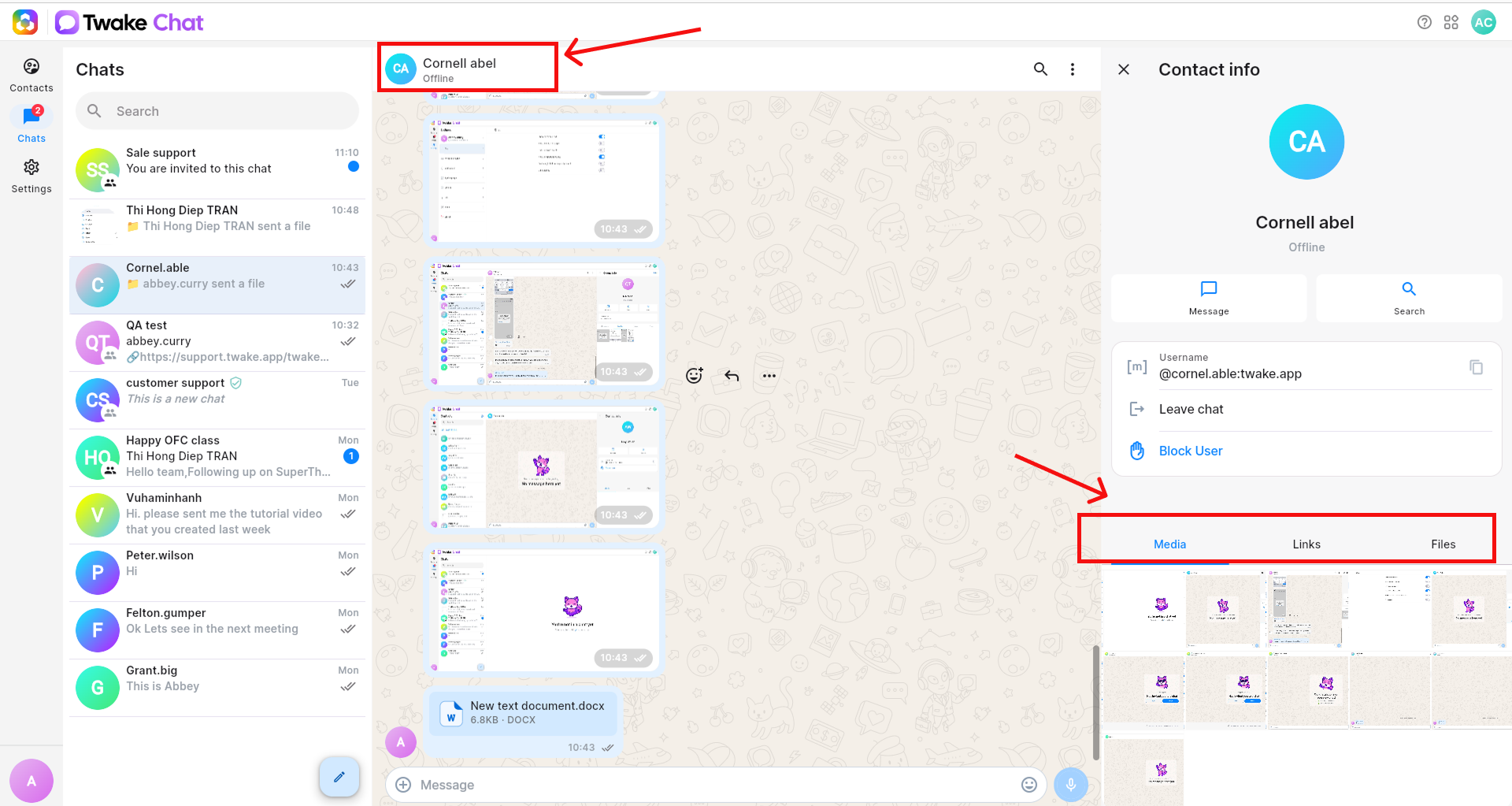
From this panel, you can:
- View shared media
- View shared links
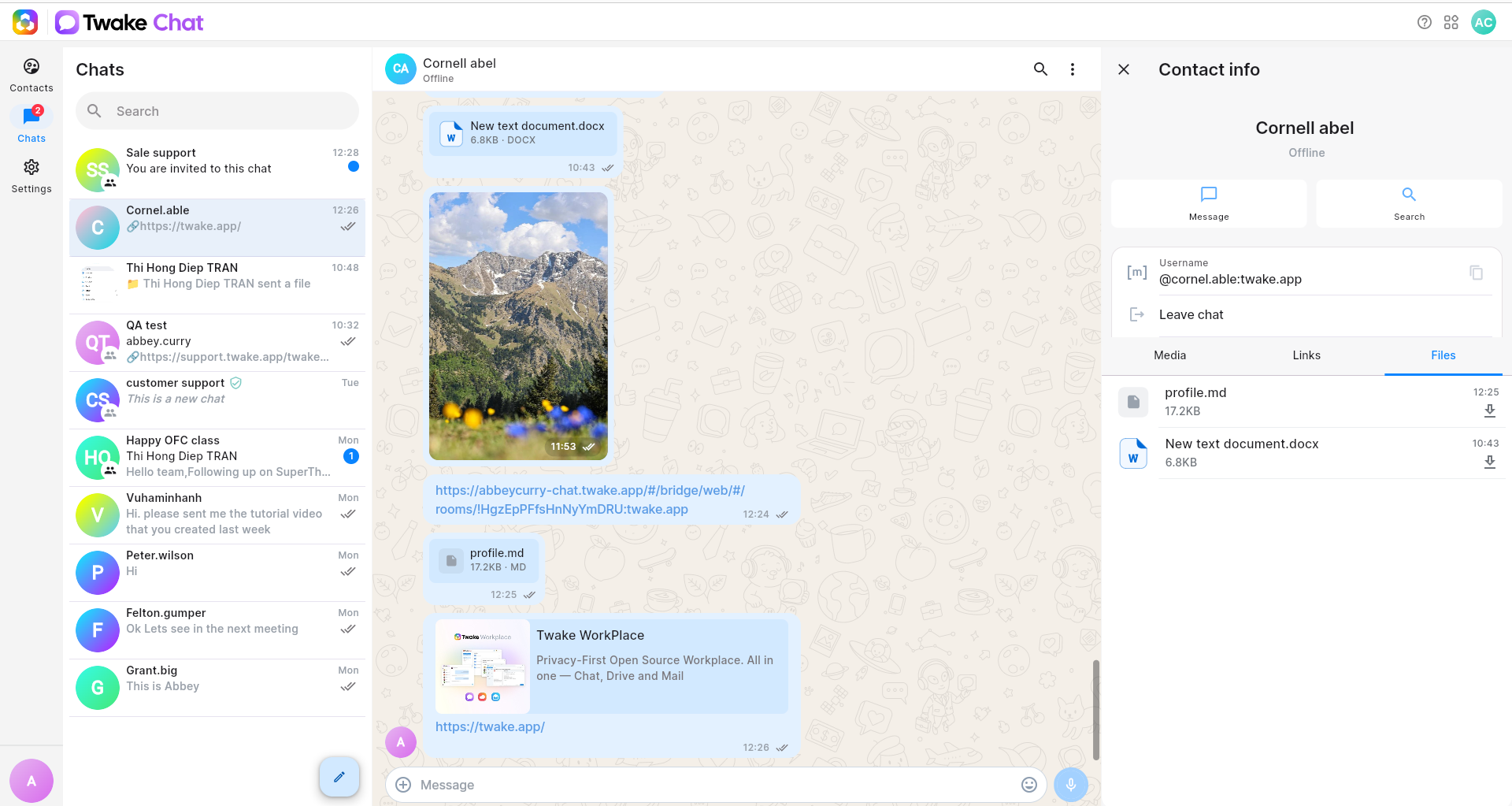
- View shared files
The Media tab displays images and videos that have been shared in the conversation.
When you select Media tab, all shared media files are displayed as thumbnails.
On mobile :
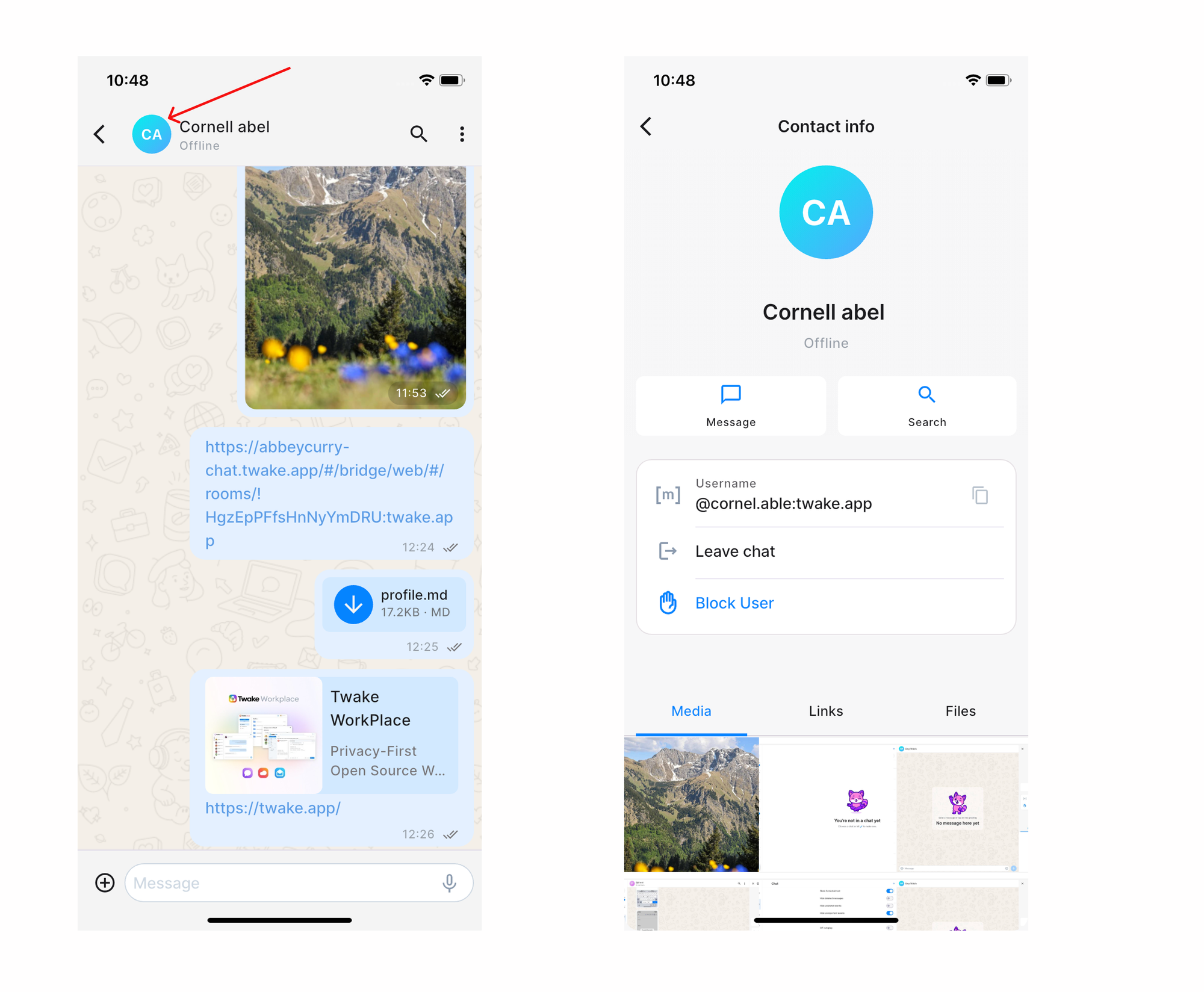
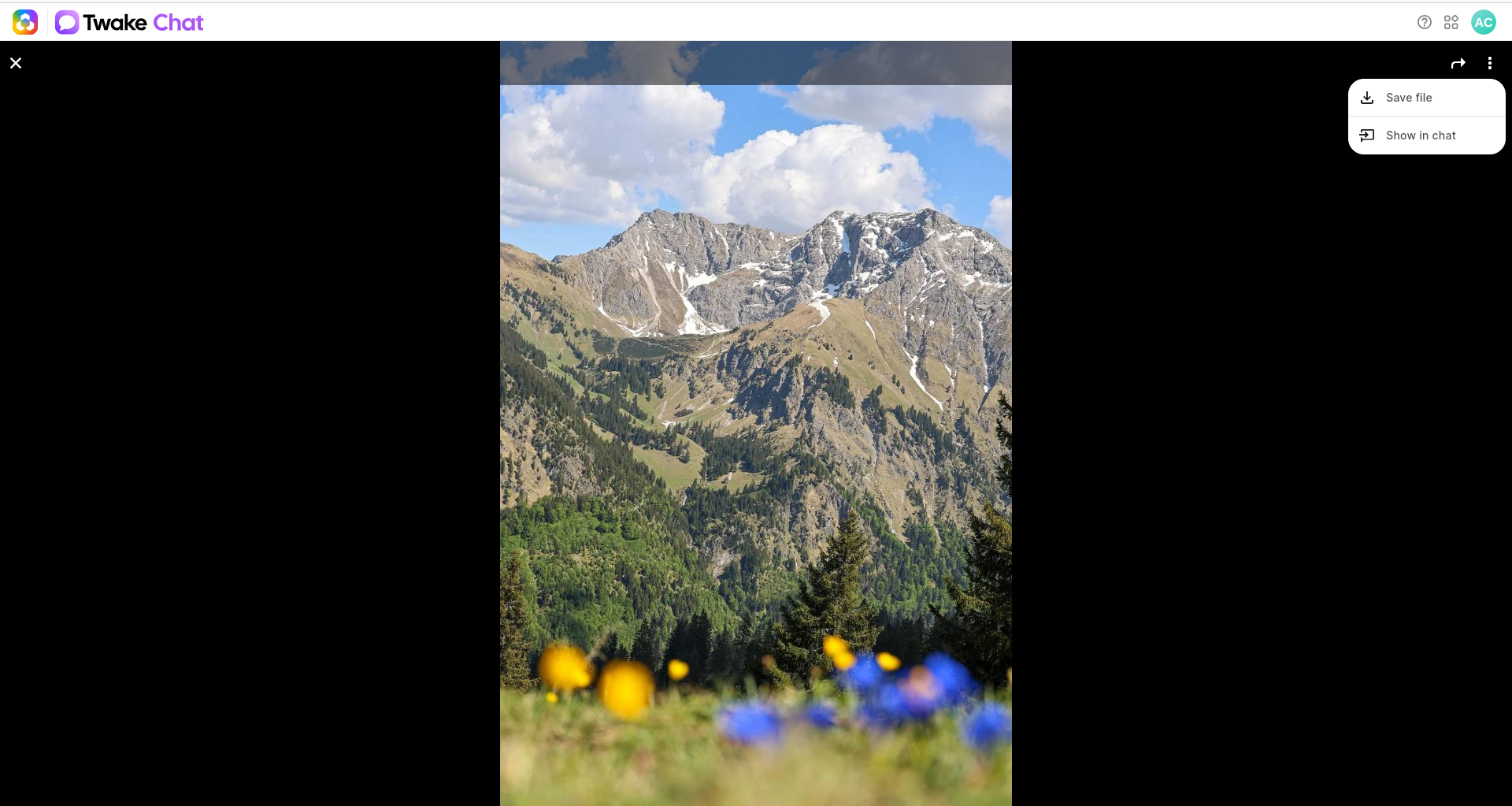
View a media file
- Click a thumbnail.
- The media opens in a larger view.
You can:
- Forward the image
- Download to your device
- Show in chat: Jump to the original message where the media was shared.
The Links tab gathers all web links shared in the conversation, click the link to open it in another tab:
The Files tab provides access to all files shared in the conversation. Click Download icon to save the file to your device:
On mobile: