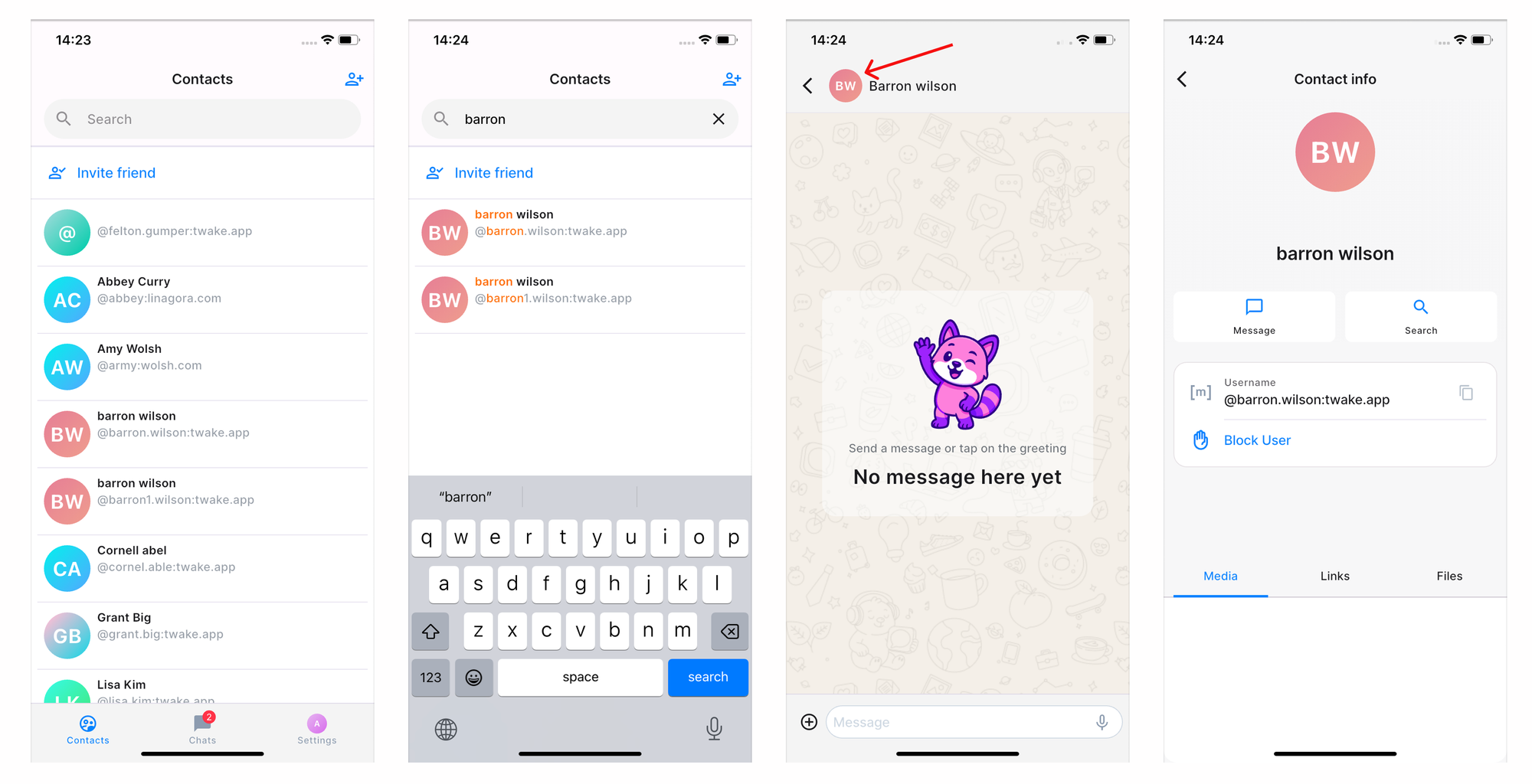
Find your personal contacts
Twake Chat lets you browse your personal contacts, search for a specific person, and open their contact information when you want to start or manage a conversation.
Open your contacts
- In the left sidebar, click Contacts.
- Your personal contacts list opens in the left panel.
From here, you can browse all available contacts and select someone to view or start chatting with them:
Search for a contact
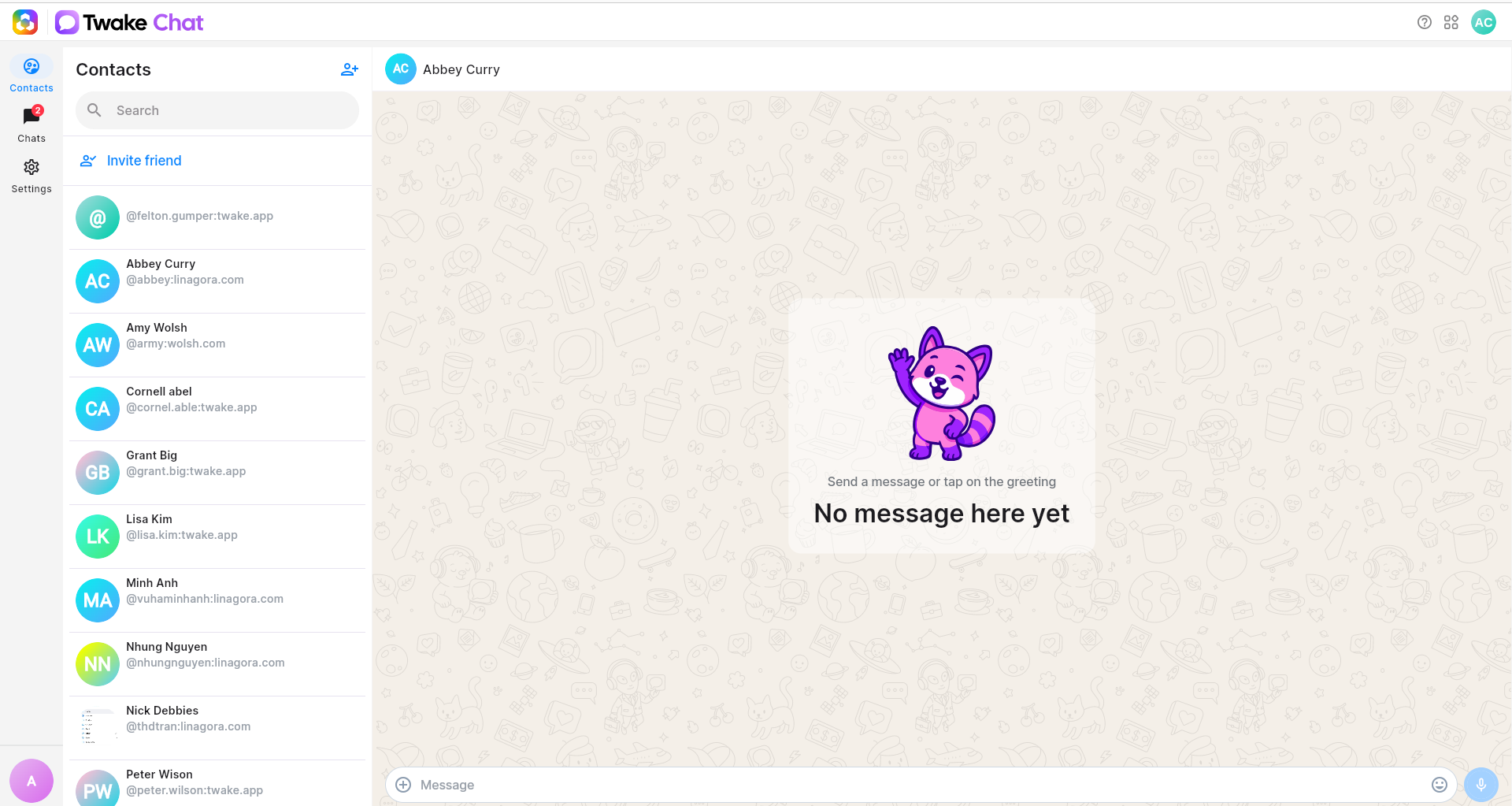
If you already know the person you want to find:
- Click the Search field at the top of the contact list.
- Type the contact’s name, username, or part of it.
Twake Chat filters the list as you type and shows matching contacts only. Click on the contact in matched results, the conversation opens in the center panel:
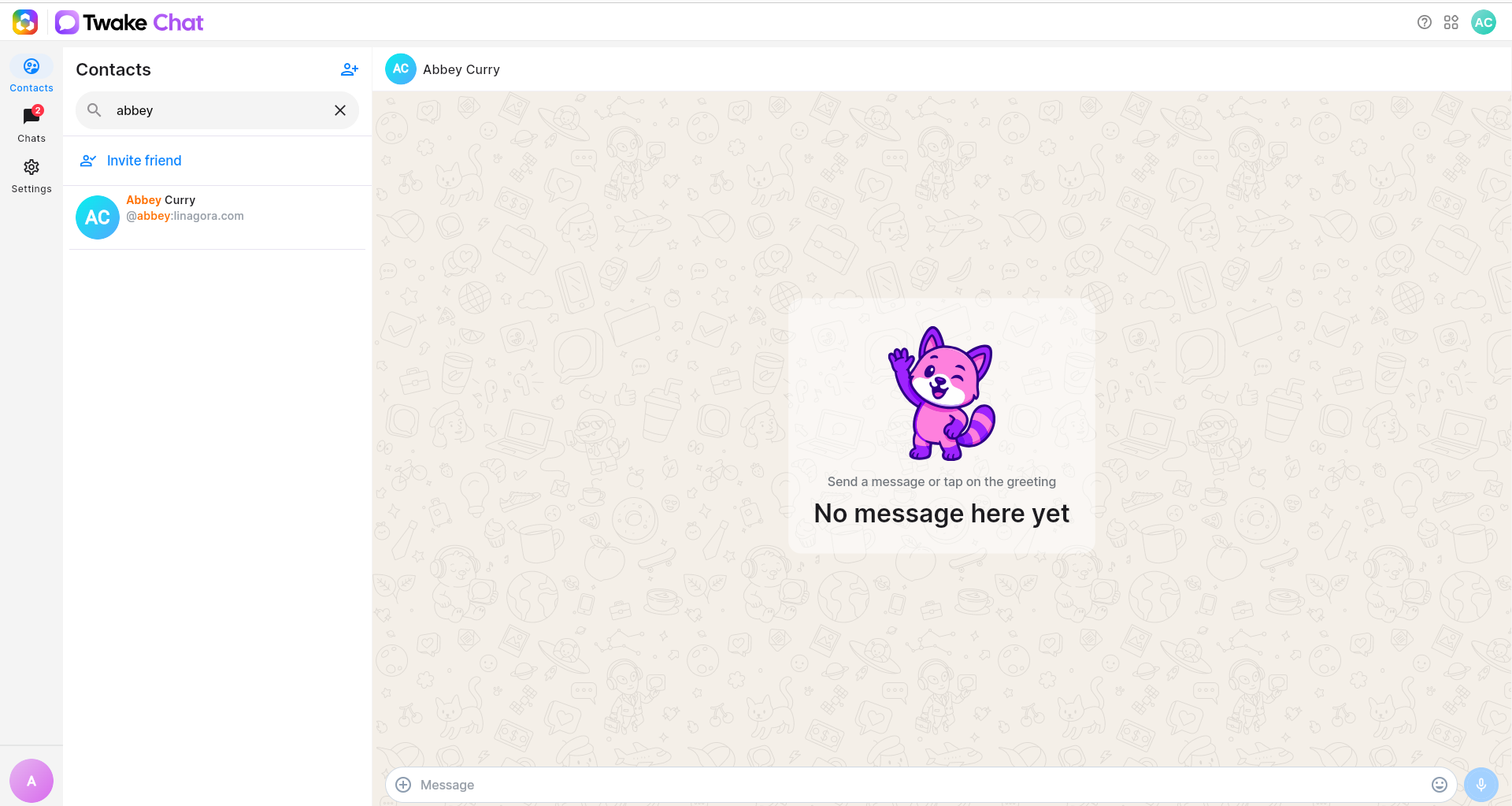
When you click on the contact's name, the Contact info panel opens on the right side of the screen. This panel gives you quick access to their details and available actions
You can see:
- Profile picture
- Contact name
- Username
- Message — start or continue a conversation with the contact
- Search — search within your conversation with that contact
- Block User — See Block the contact
At the bottom of the Contact info panel, you can browse content shared in your conversation with that contact. For more details, see Find media, links and files in conservation:
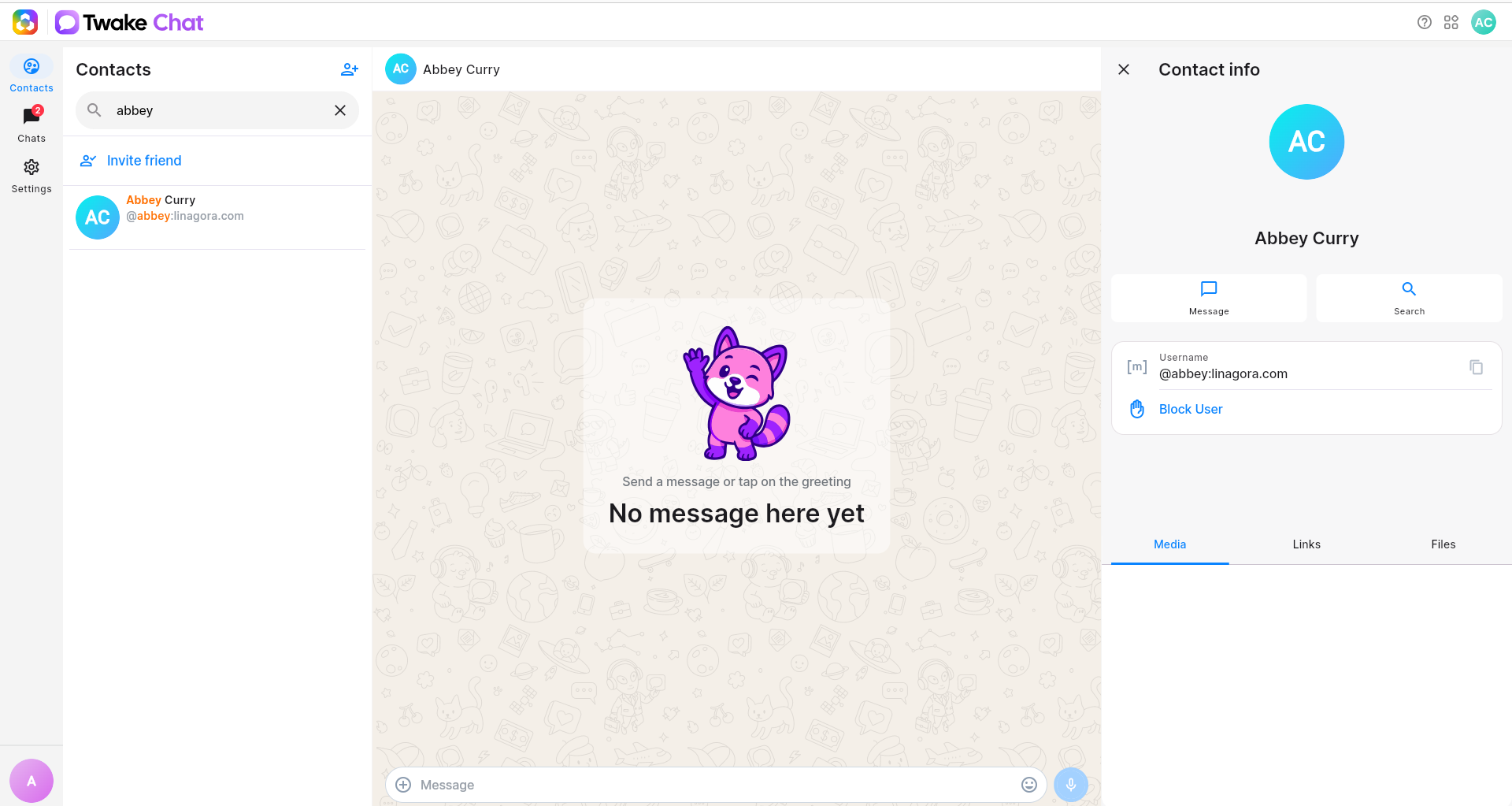
On mobile app: