How to block/unblock a contact
If you no longer want to receive messages from a contact, you can block them from the Contact info panel in Twake Chat.
Block a contact
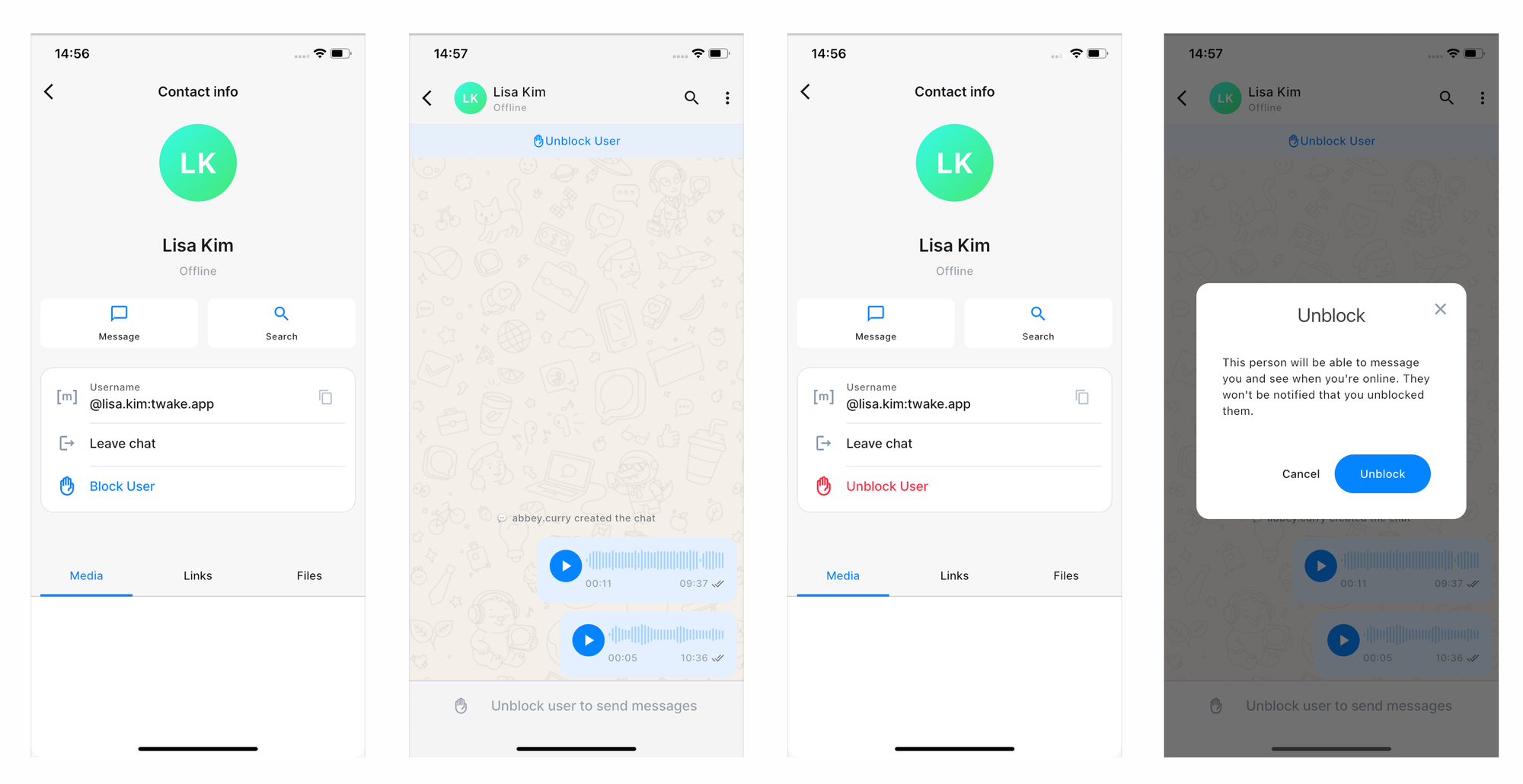
- Open the conversation with the contact you want to block.
- In the right-side Contact info panel, click Block User.
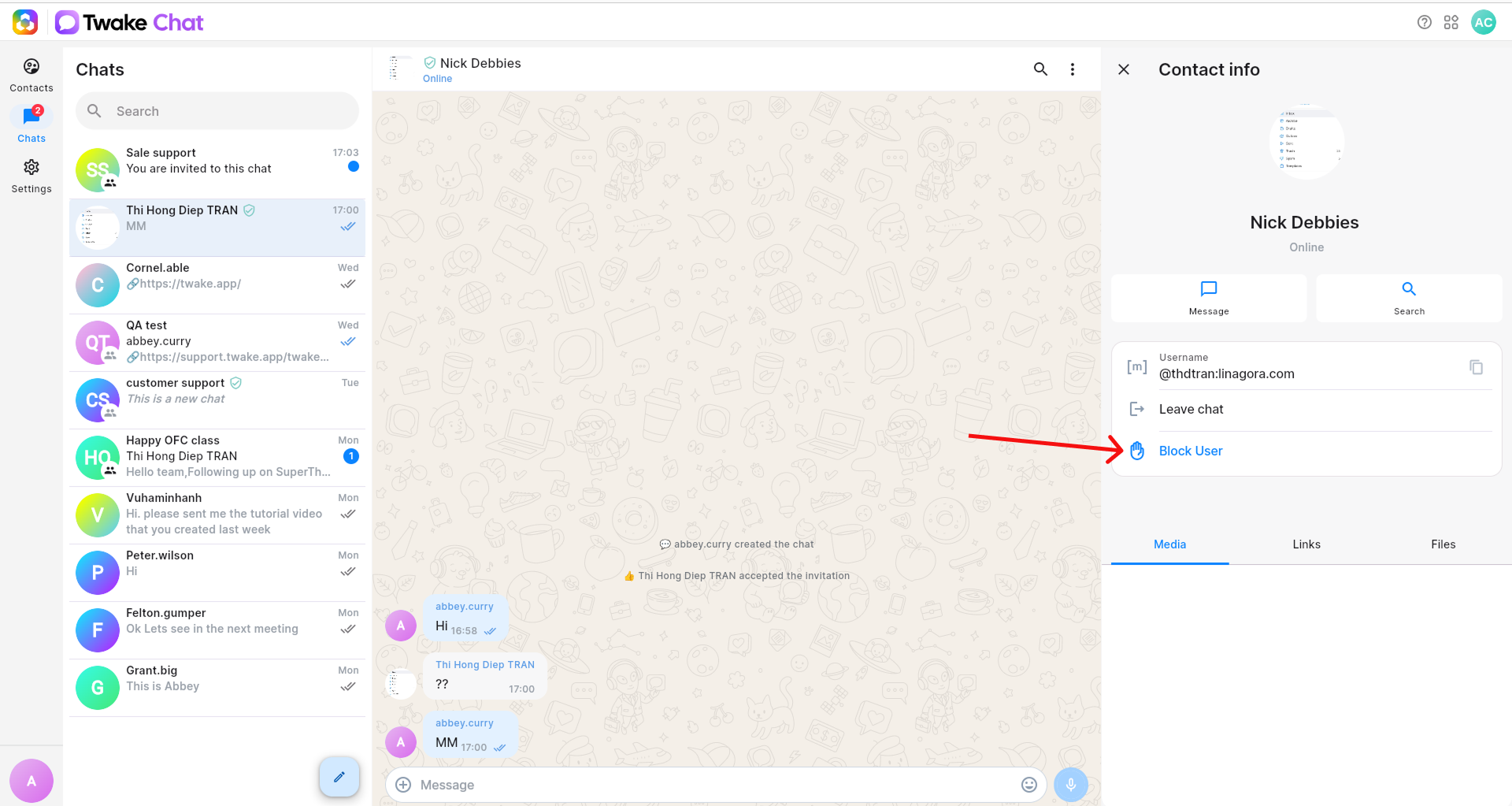
Once the contact is blocked, they will no longer be able to send you messages. After blocking a contact:
- The Block User action changes to Unblock User
- A notice appears in the conversation area indicating that the user is blocked
- You will not be able to exchange messages with that contact unless you unblock them
Unblock a contact
If you want to allow the contact to message you again:
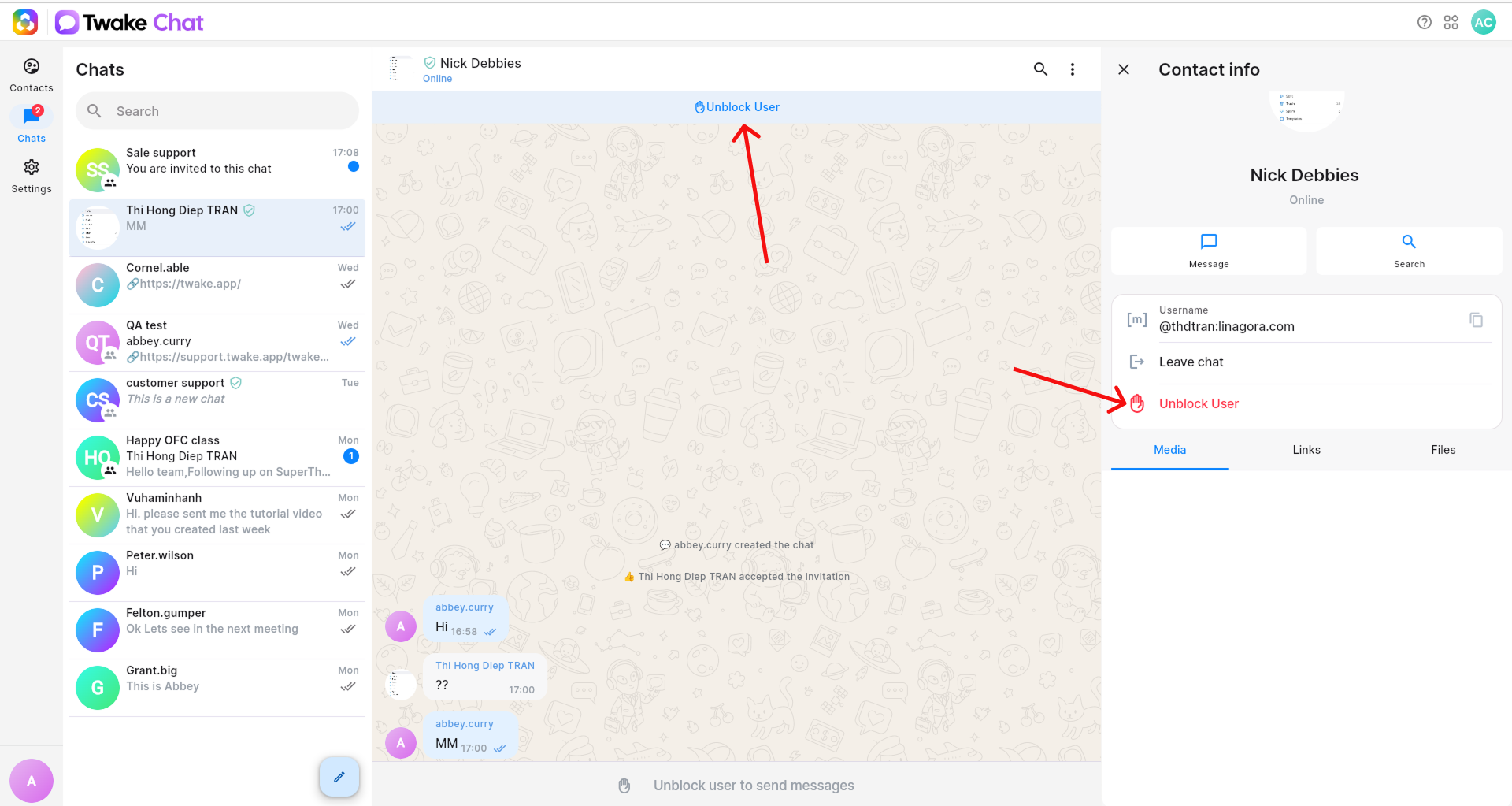
- Open the conversation with the blocked contact.
- In the Contact info panel, click Unblock User.
- Confirm by clicking Unblock.
After that, the contact can message you again and see when you are online.
Note: The contact is not notified when you block or unblock them.
On mobile app: