Manage members of a group chat
Group owners and moderators can manage the members of a group chat.
Add members to a group
- Open the group chat.
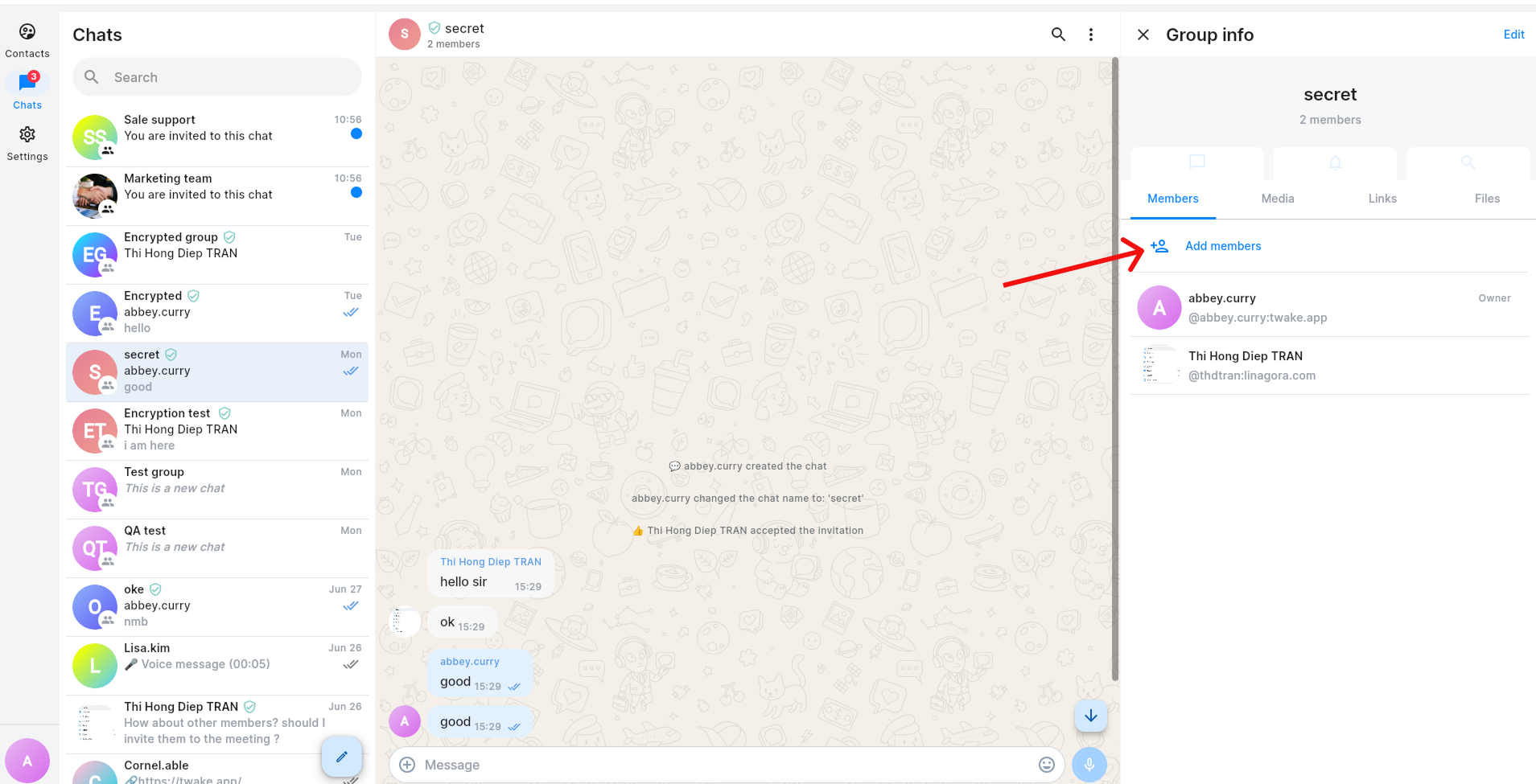
- Click the group name at the top of the conversation to open Group info.
- On the Members tab, click Add members.
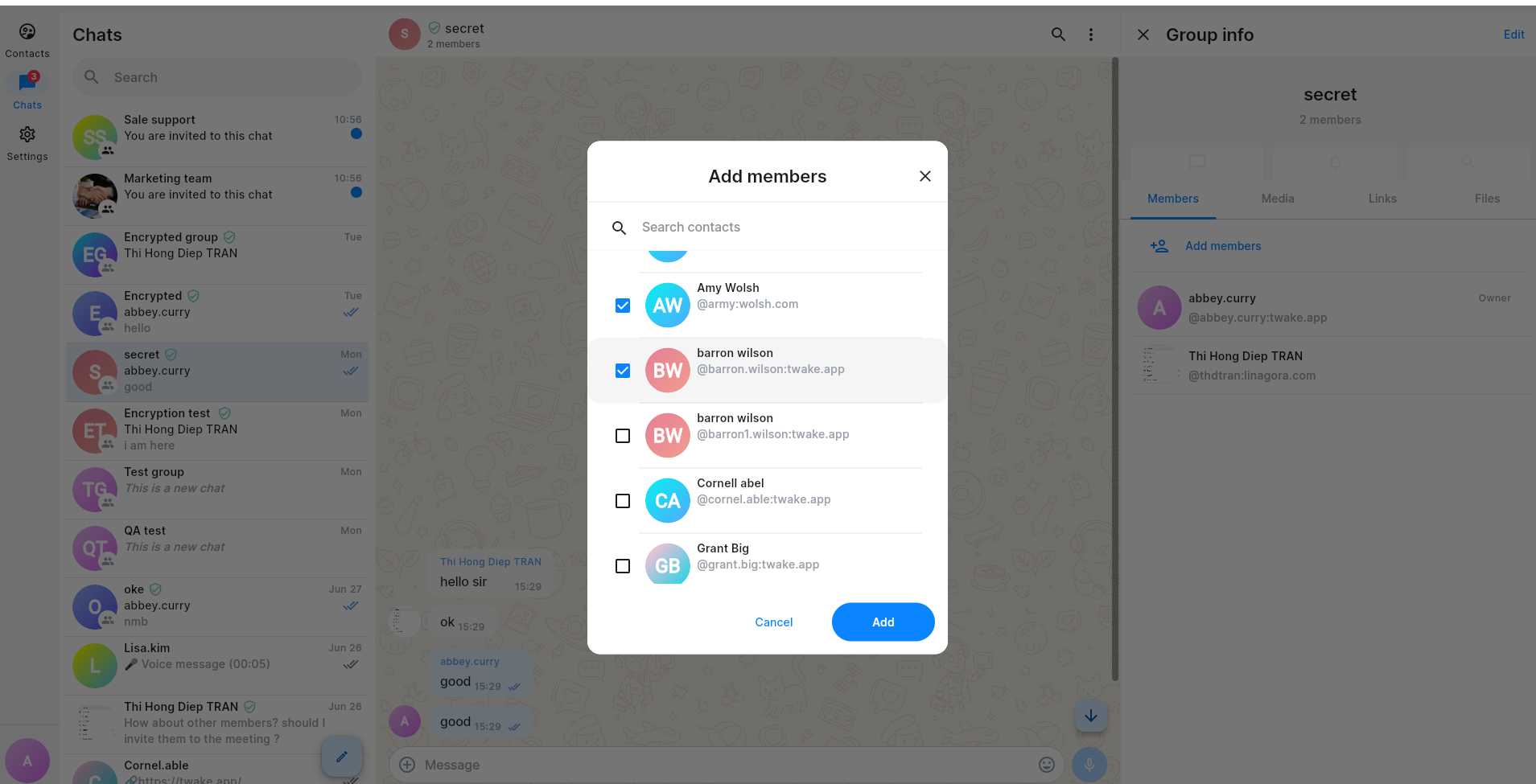
- Search for a contact or browse the contact list.
- Select one or more contacts by checking the box next to their names.
- Click Add.
The selected contacts are invited to join the group. A confirmation message appears when the invitation is sent.
Note: Message history depends on the chat’s encryption settings:
- Unencrypted chats: New members can view messages sent before they joined.
- Encrypted chats: New members can only access messages sent after they join. They cannot view earlier conversation history.
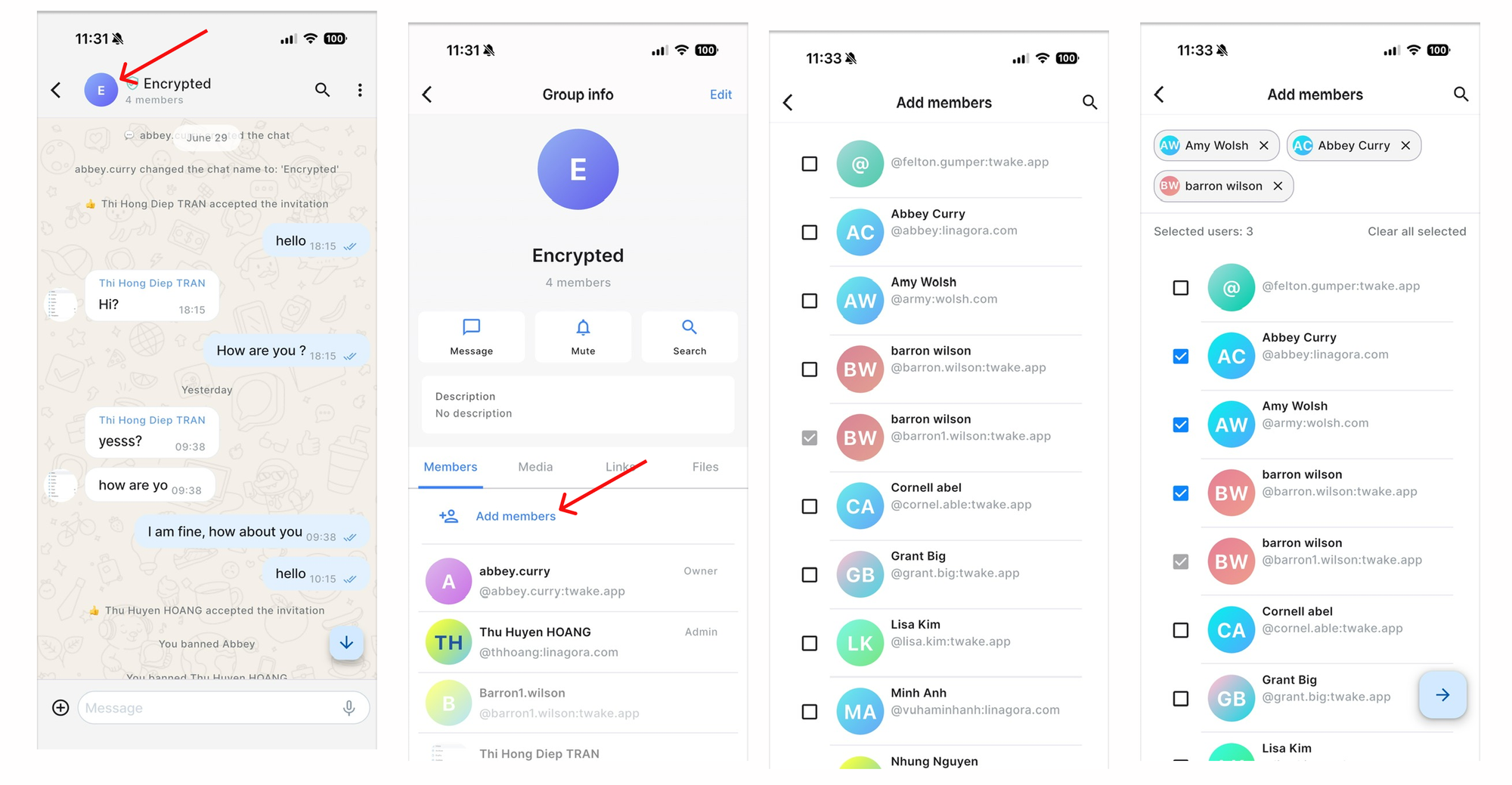
On mobile app:
Remove a member from a group
- Open the group chat.
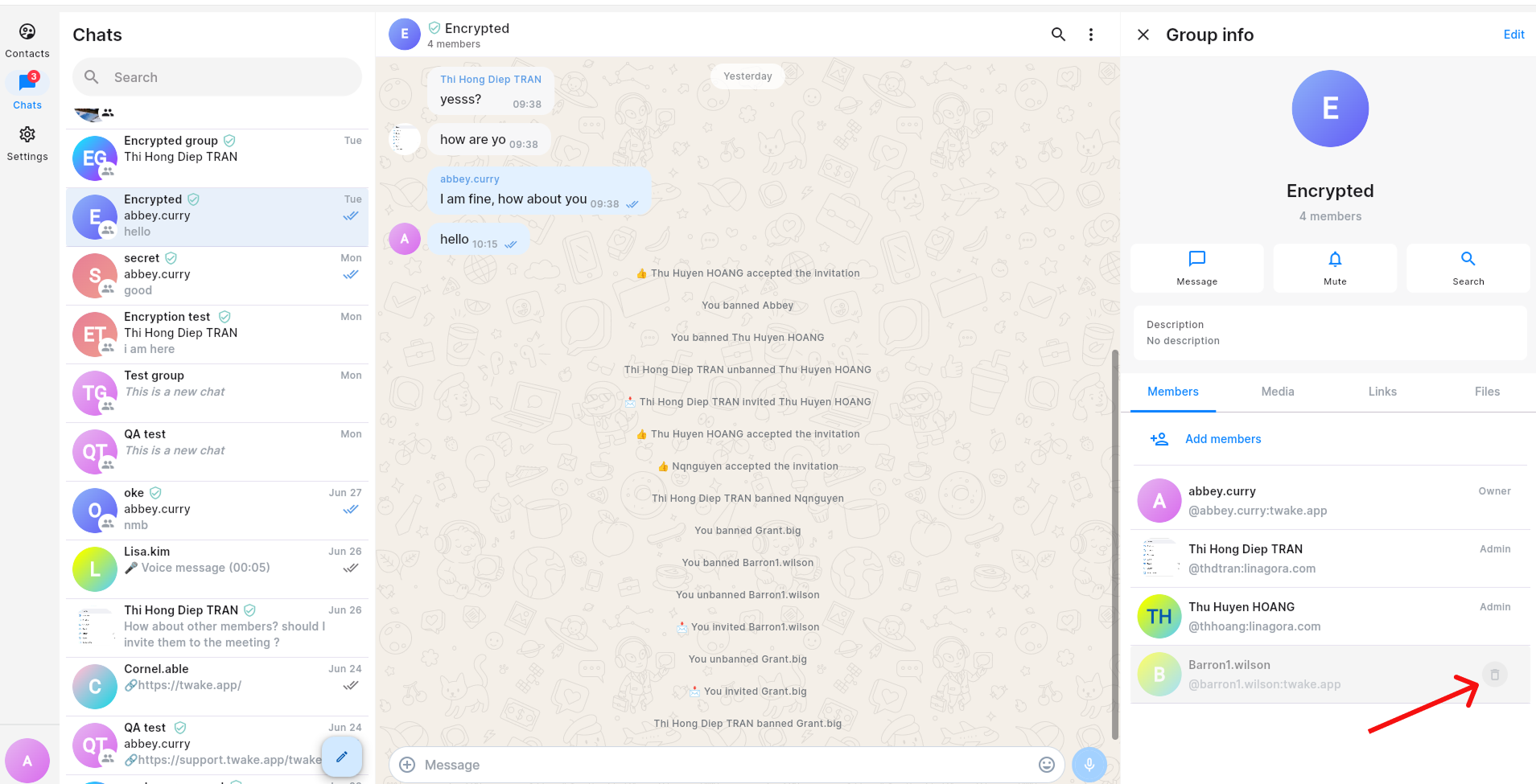
- Open Group info and select the Members tab.
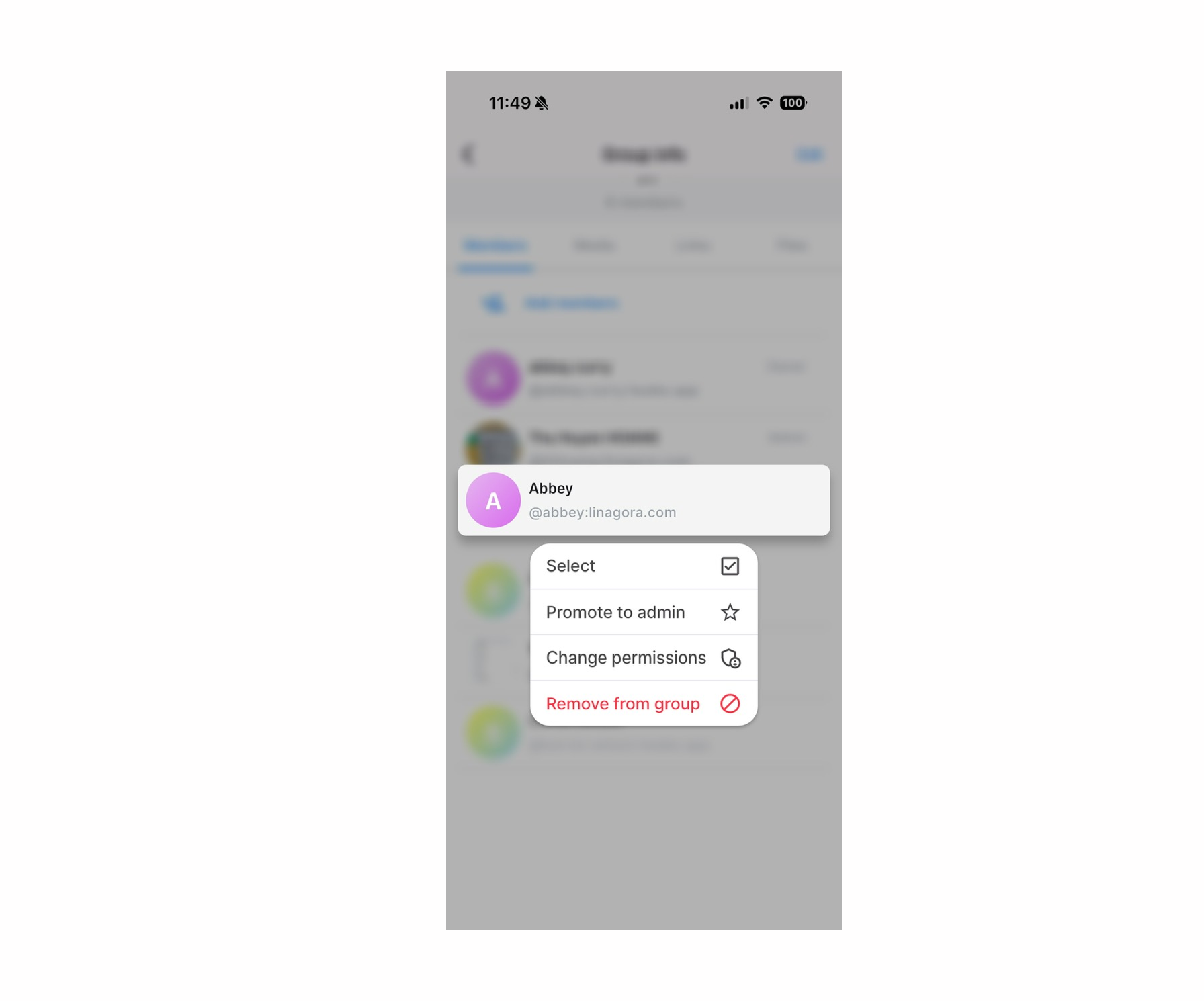
- Hover over the member you want to remove then click the Remove icon. Or you can right-click on the member then select option "Remove from group"
The member is removed from the group immediately and will no longer receive or send messages in that conversation.
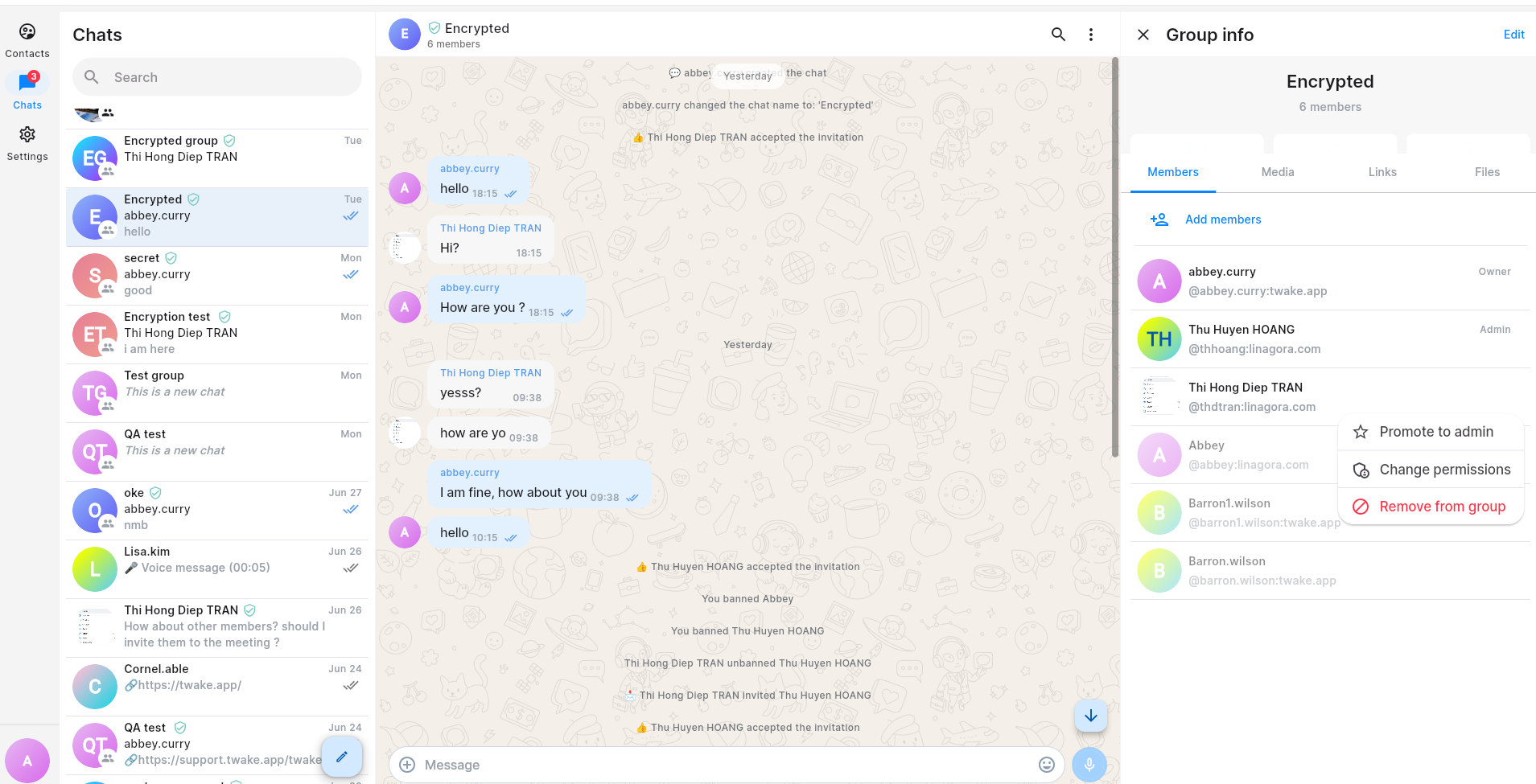
On mobile app, you need to long-press on the member then select option "Remove from group":