How to change your phone number
Overview
You can update your phone number in your account settings.
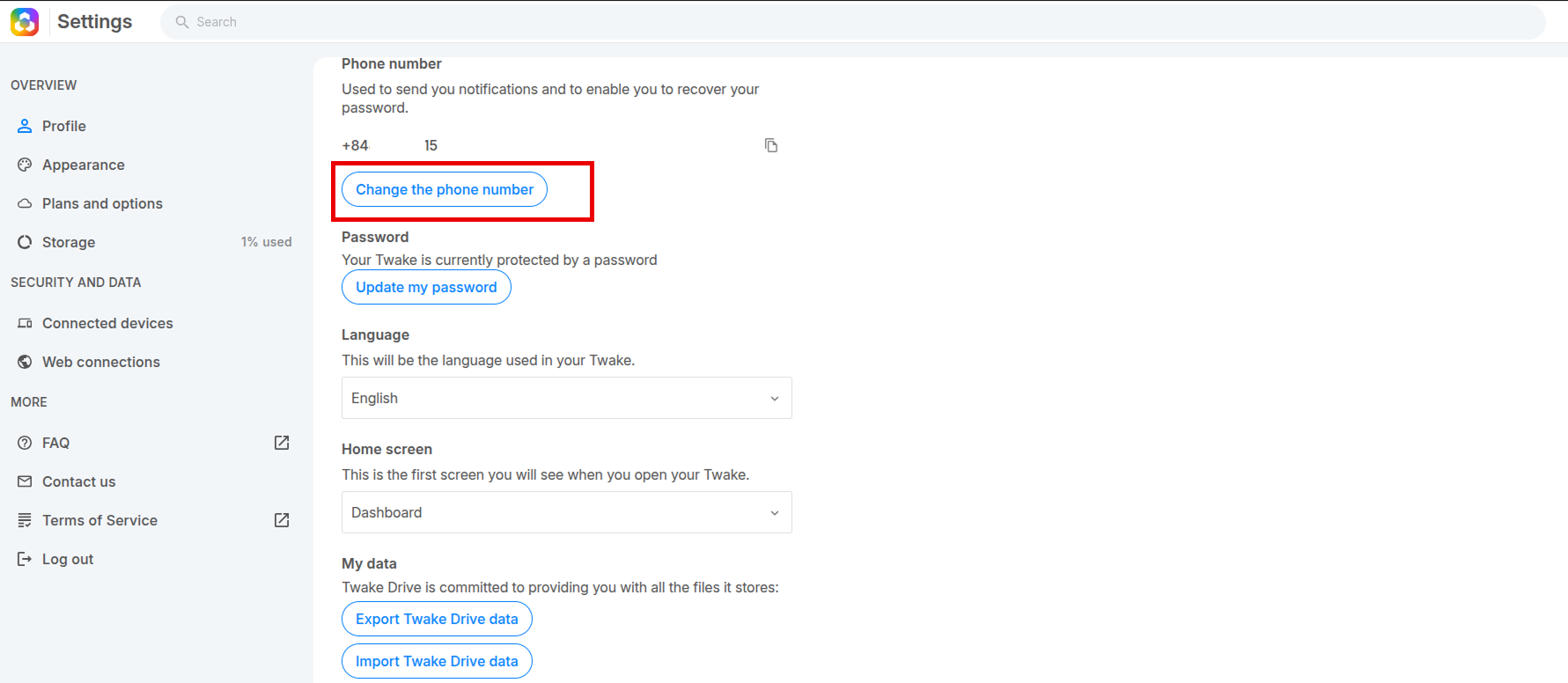
Step 1: Go to Settings
- Open Settings
- Go to Profile
- In the Phone number section, click “Change the phone number”
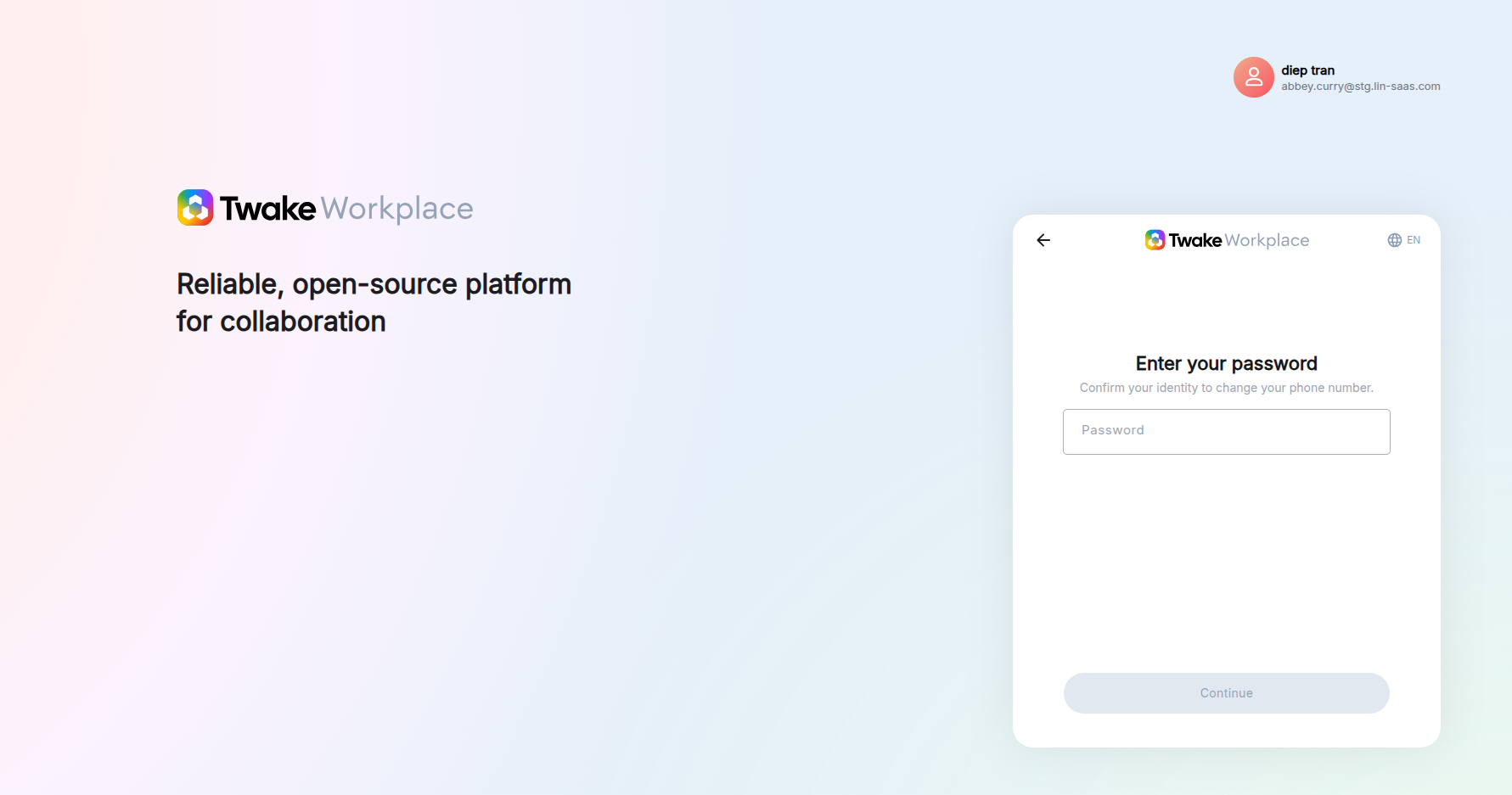
Step 2: Confirm Your Identity
- Enter your current password
- Click “Continue”
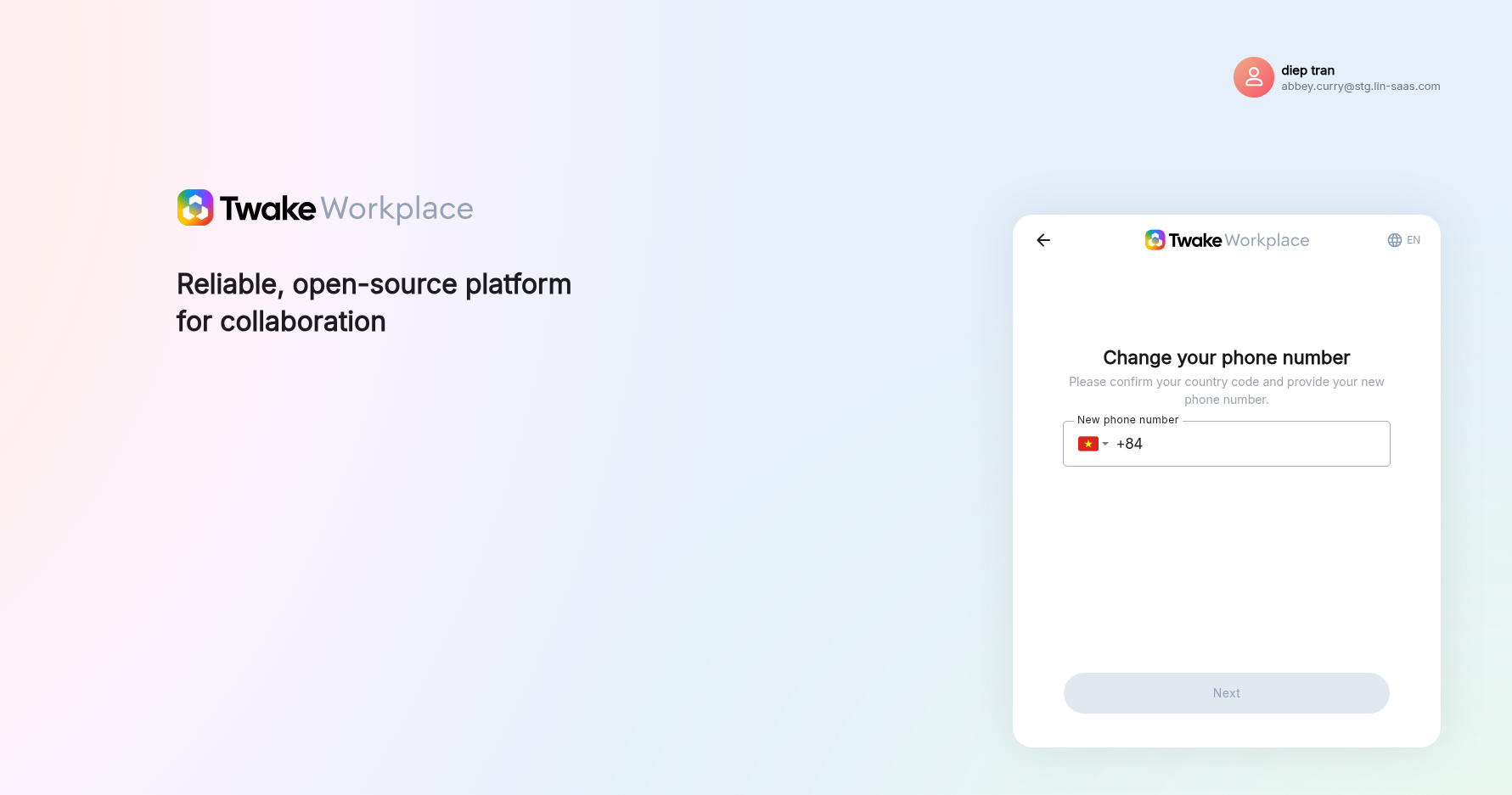
Step 3: Enter New Phone Number
- Select your country code
- Enter your new phone number
- Click “Next”
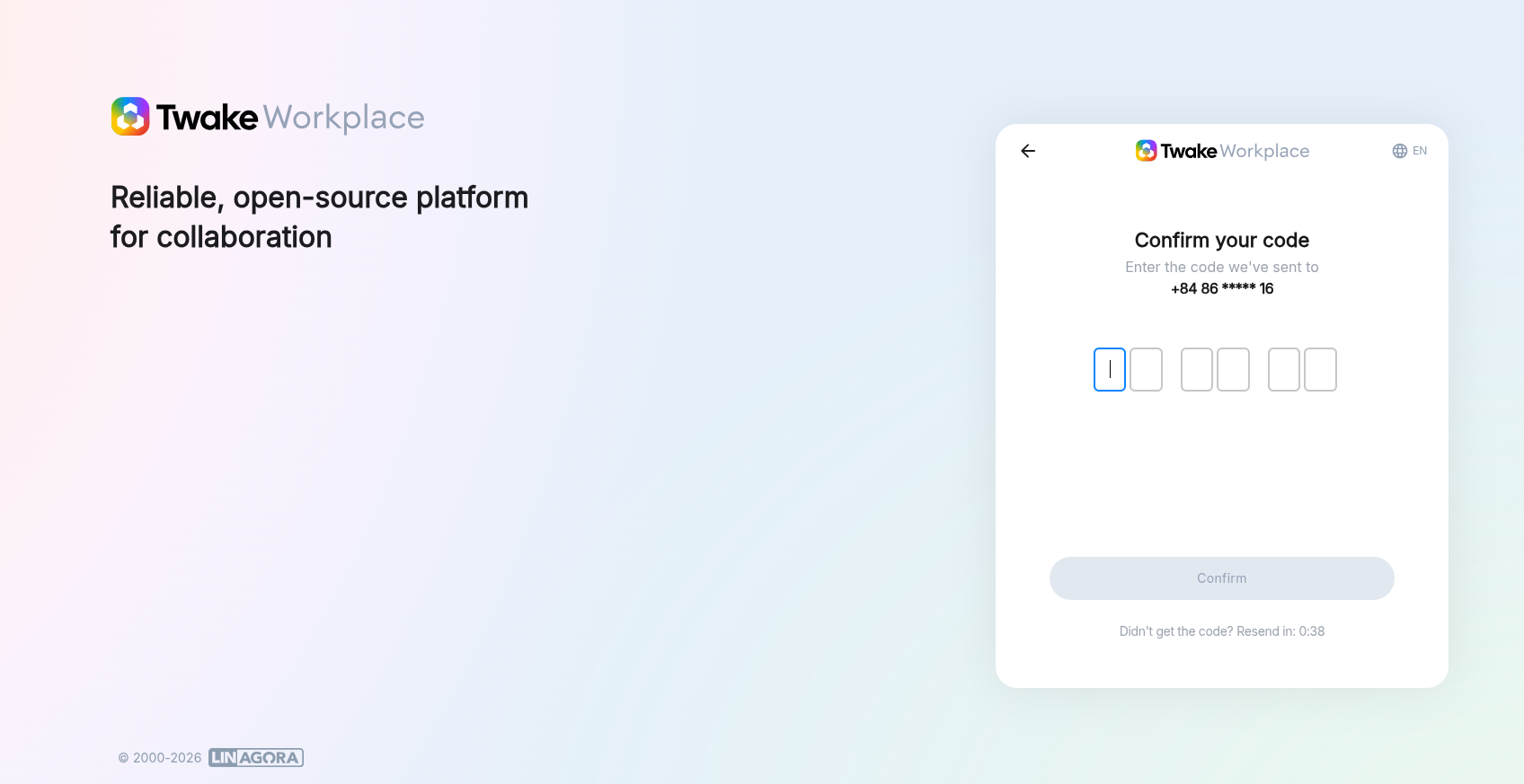
Step 4: Confirm Verification Code
- Enter the 6-digit code sent to your new phone number
- Click “Confirm”
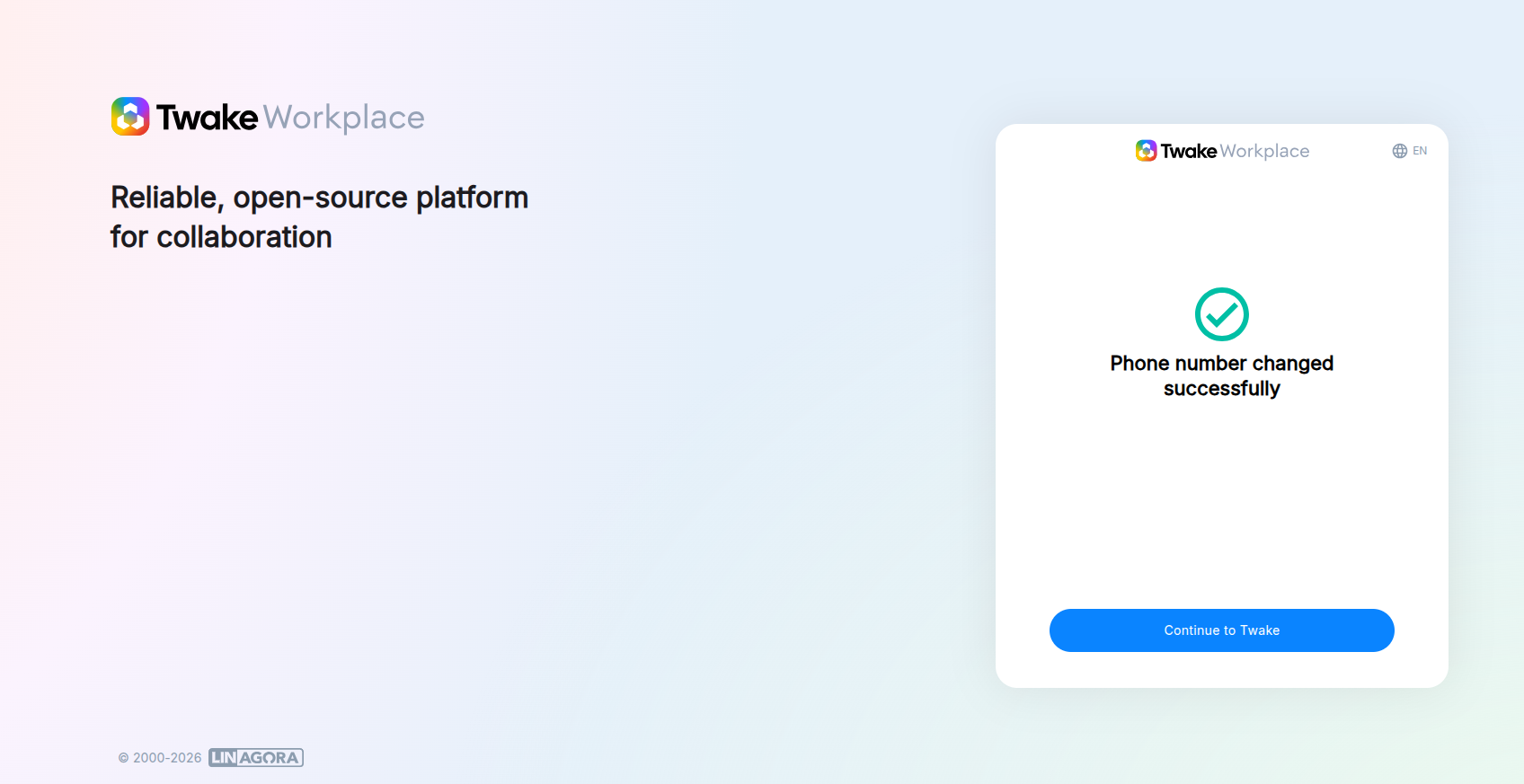
You will see a message “Phone number changed successfully”