How to recover your password
Overview
If you forgot your password, you can reset it using:
- Your phone number, or
- Your recovery email
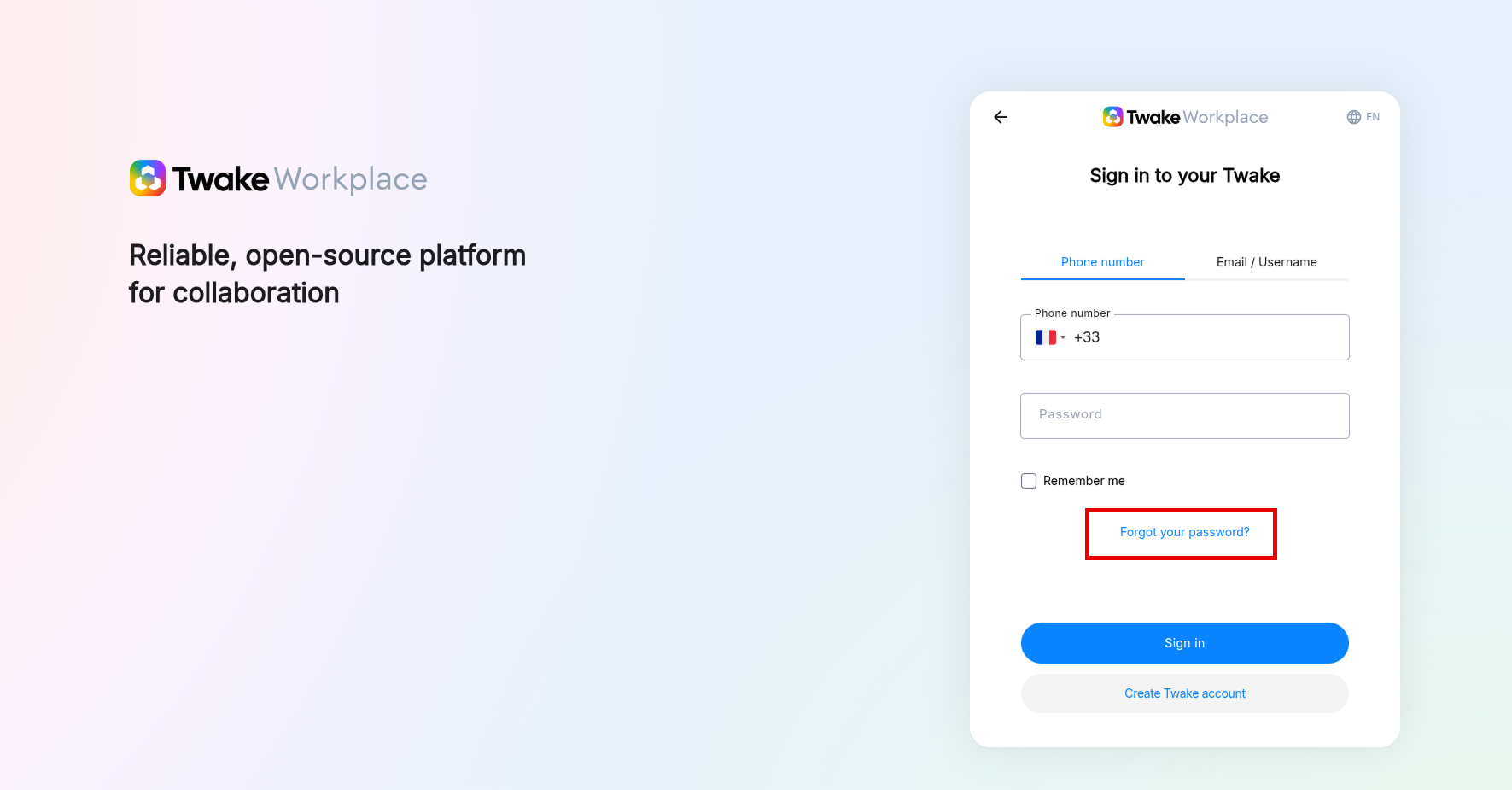
Step 1: On sign-in page, click "Forgot your password?"
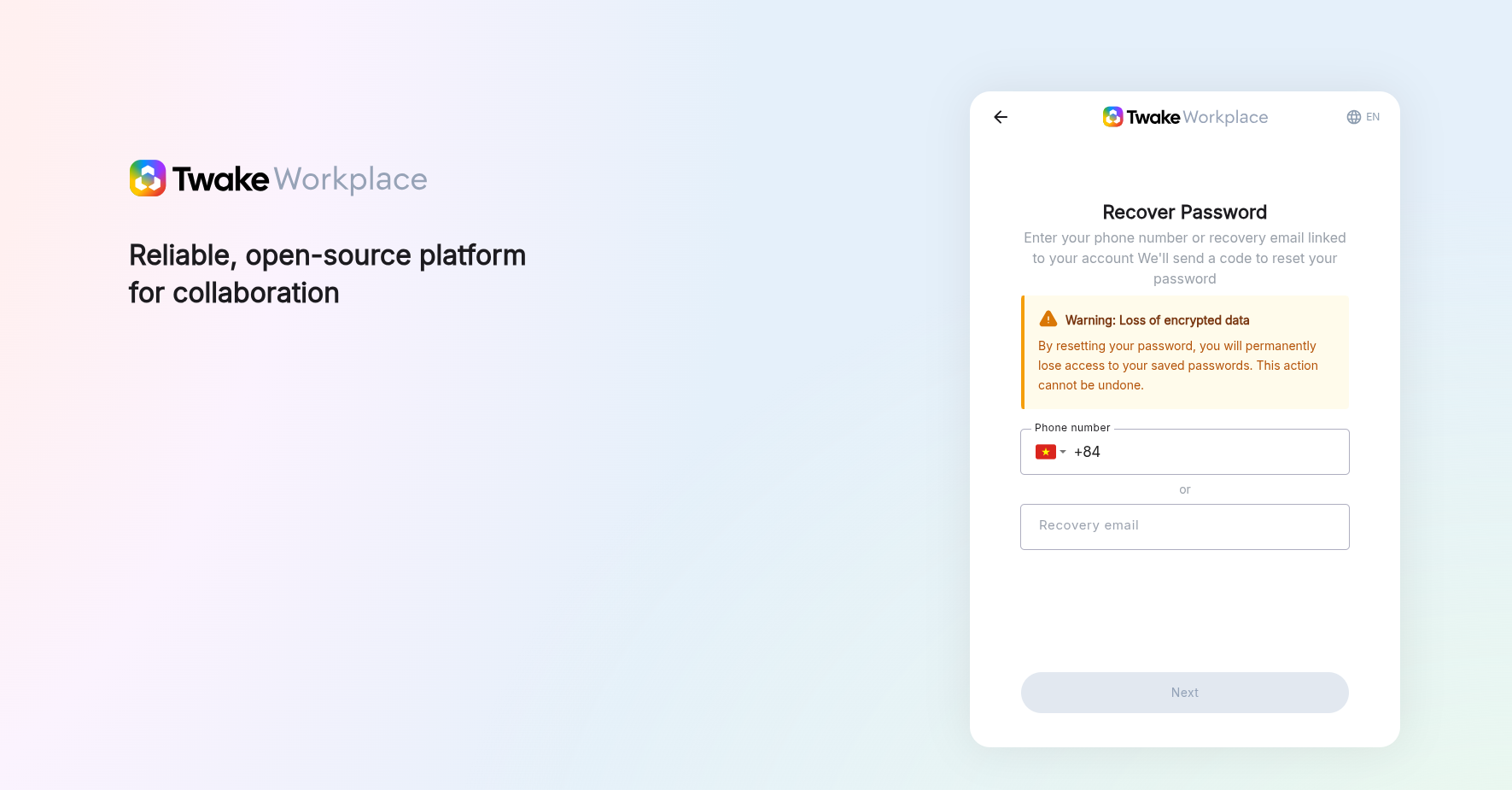
Step 2: Enter Account Information
- Enter your:
- Phone number, or
- Recovery email
💡
Your recovery email is a separate email address that you add to your account to help you recover access if you forget your password.
- This is NOT your Twake email (e.g.
- It must be a personal or external email address (e.g. Gmail, Outlook, company email)
- This is NOT your Twake email (e.g.
@twake.app)- It must be a personal or external email address (e.g. Gmail, Outlook, company email)
- Click “Next”
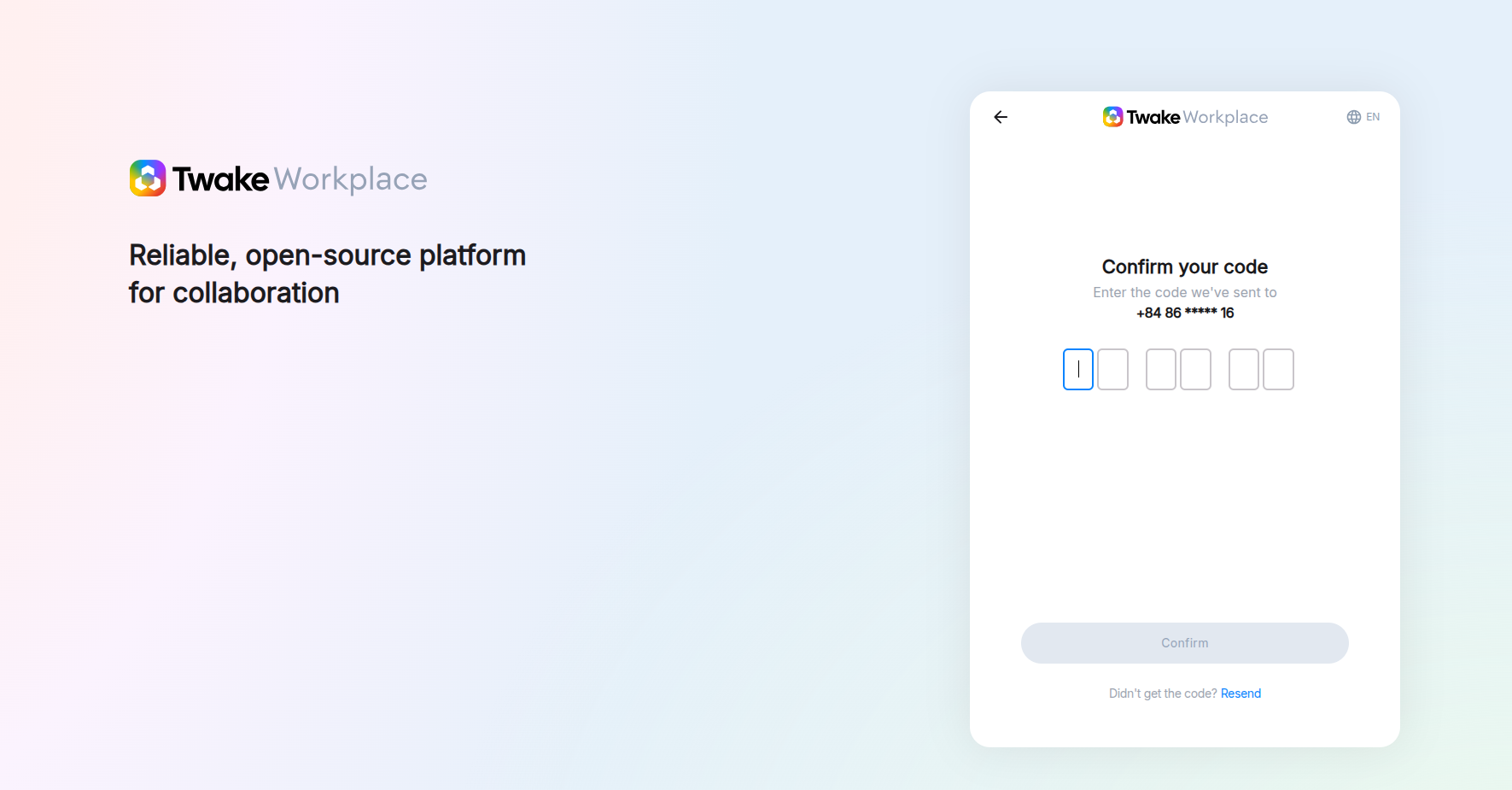
Step 3: Confirm Verification Code
- Check your phone or email for the verification code
- Enter the 6-digit code
- Click “Confirm”
💡
Tips
- Wait for the countdown to finish if you want to resend the code
- Make sure you enter the code correctly and completely
- Wait for the countdown to finish if you want to resend the code
- Make sure you enter the code correctly and completely
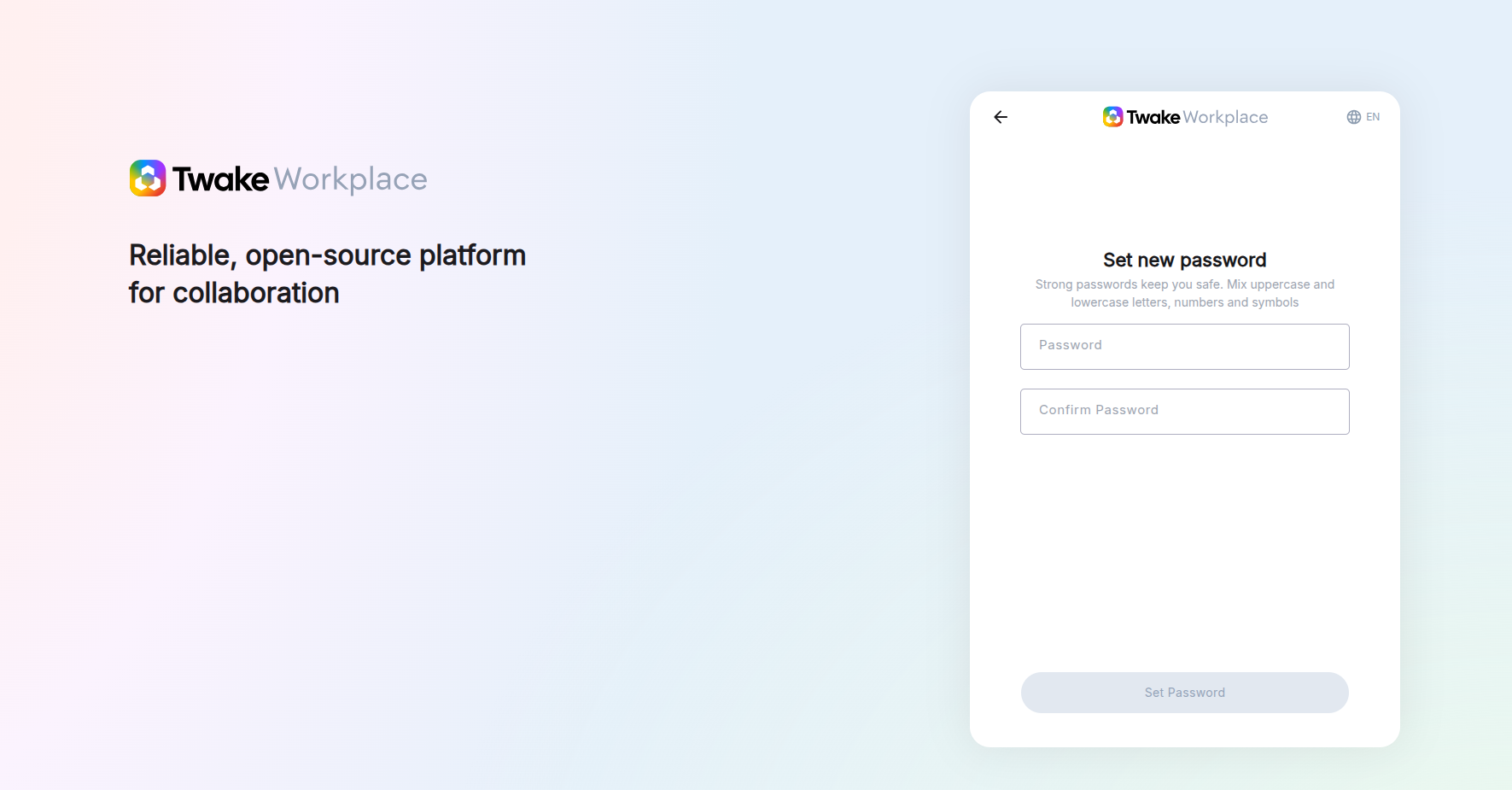
Step 4: Create a New Password
- Enter a new password
- Confirm your new password
- Click button "Set password"
💡
Note: Your new password must:
- Be at least 8 characters long
- Include uppercase and lowercase letters
- Include numbers
- Be at least 8 characters long
- Include uppercase and lowercase letters
- Include numbers
Step 5: Confirmation
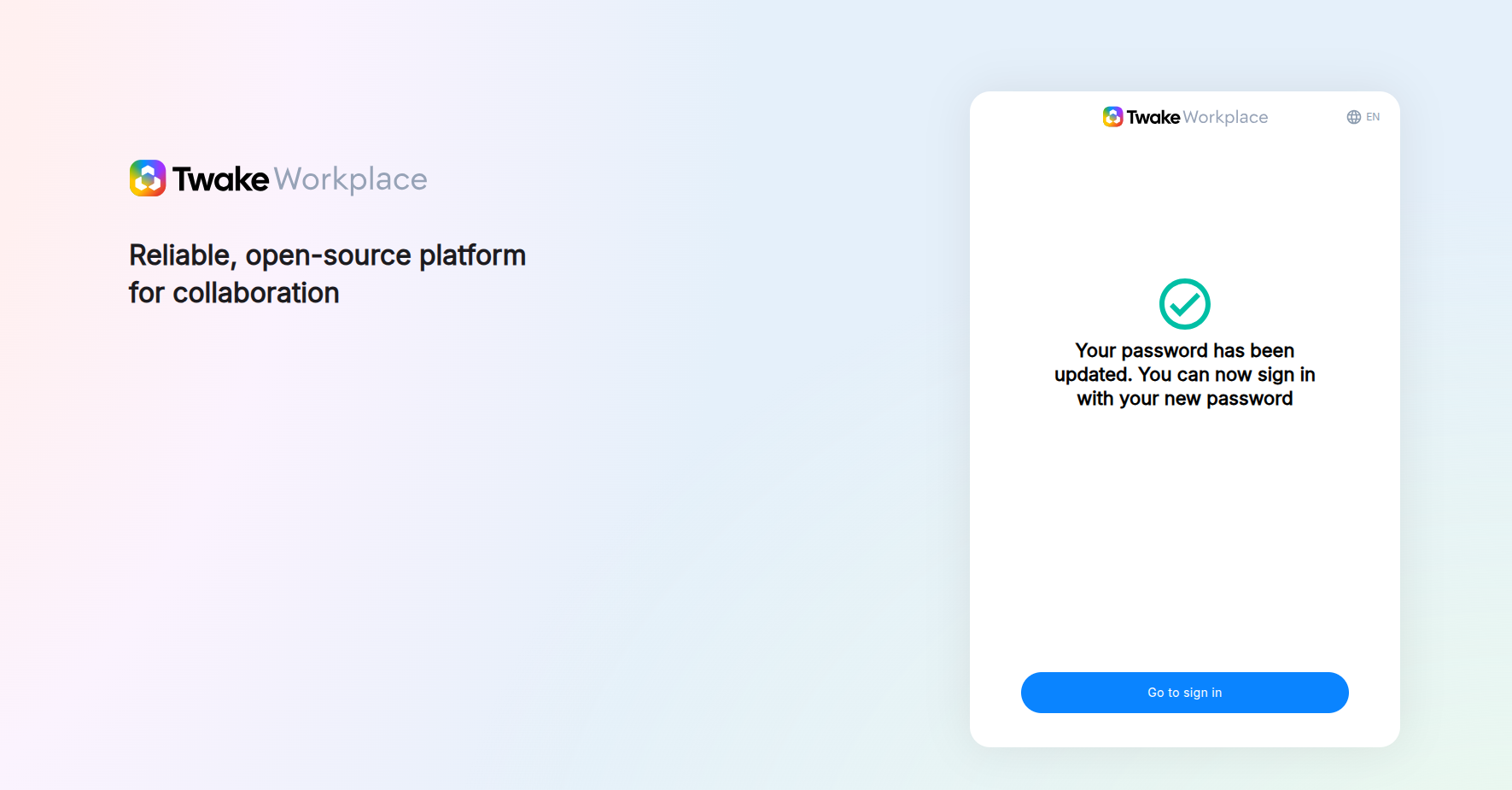
- You will see:
“Your password has been updated. You can now sign in with your new password” - Click “Go to sign in”