How to recover deleted messages
This guide explains how to recover deleted messages in Twake Mail.
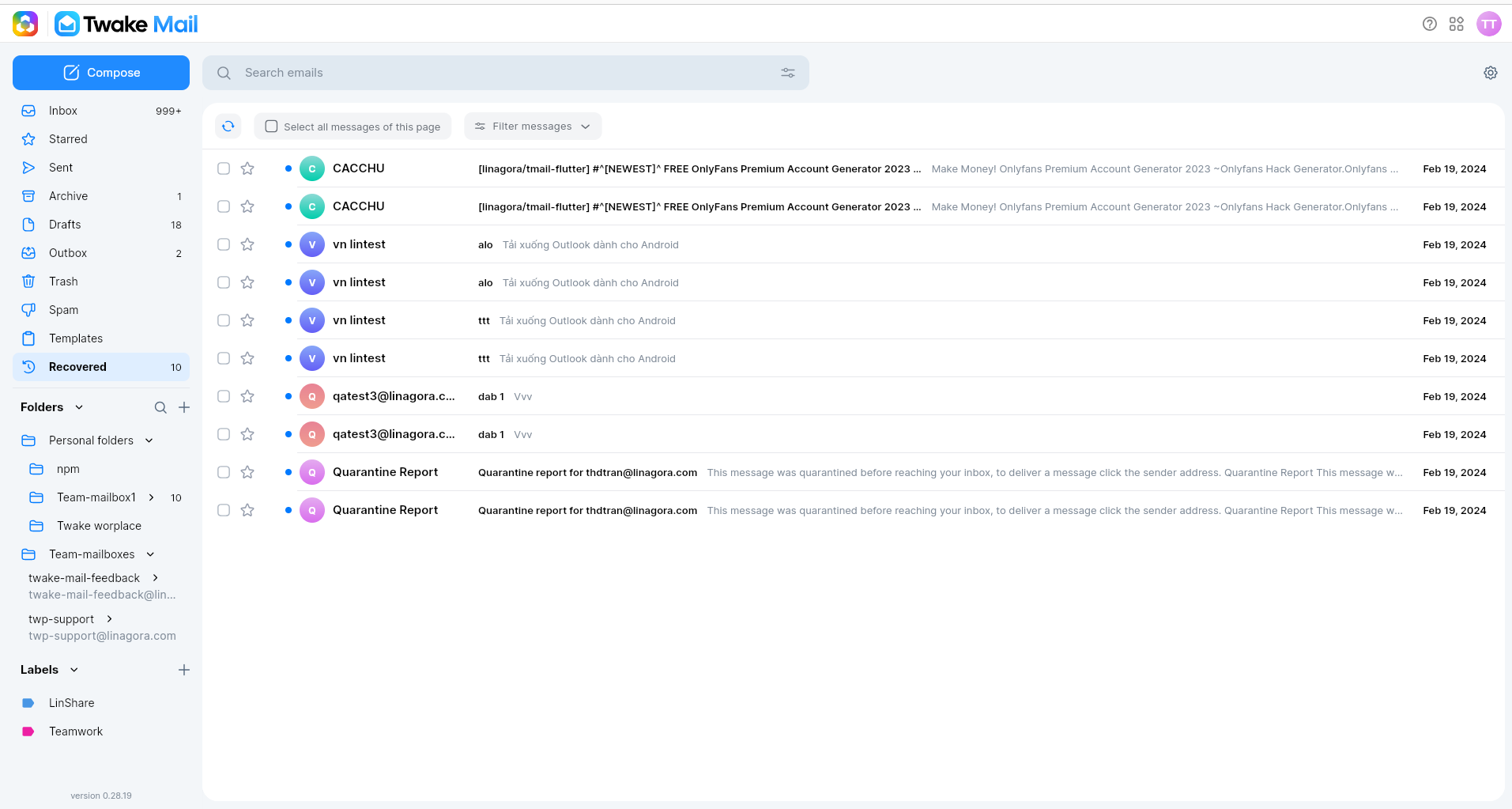
Use Recover deleted messages when you need to restore messages that were deleted from Trash. Recovered messages are saved in the Recovered folder.
How Recovery Works
The recovery action lets you search for deleted messages by criteria, then restore matching messages.
Keep these limits in mind:
| Limit | Description |
|---|---|
| Recovery period | You can recover messages deleted within the last 15 days |
| Recovery destination | Recovered messages are saved in the Recovered folder |
| Maximum messages | Each recovery can restore up to 5 messages |
1. Open Recover Deleted Messages
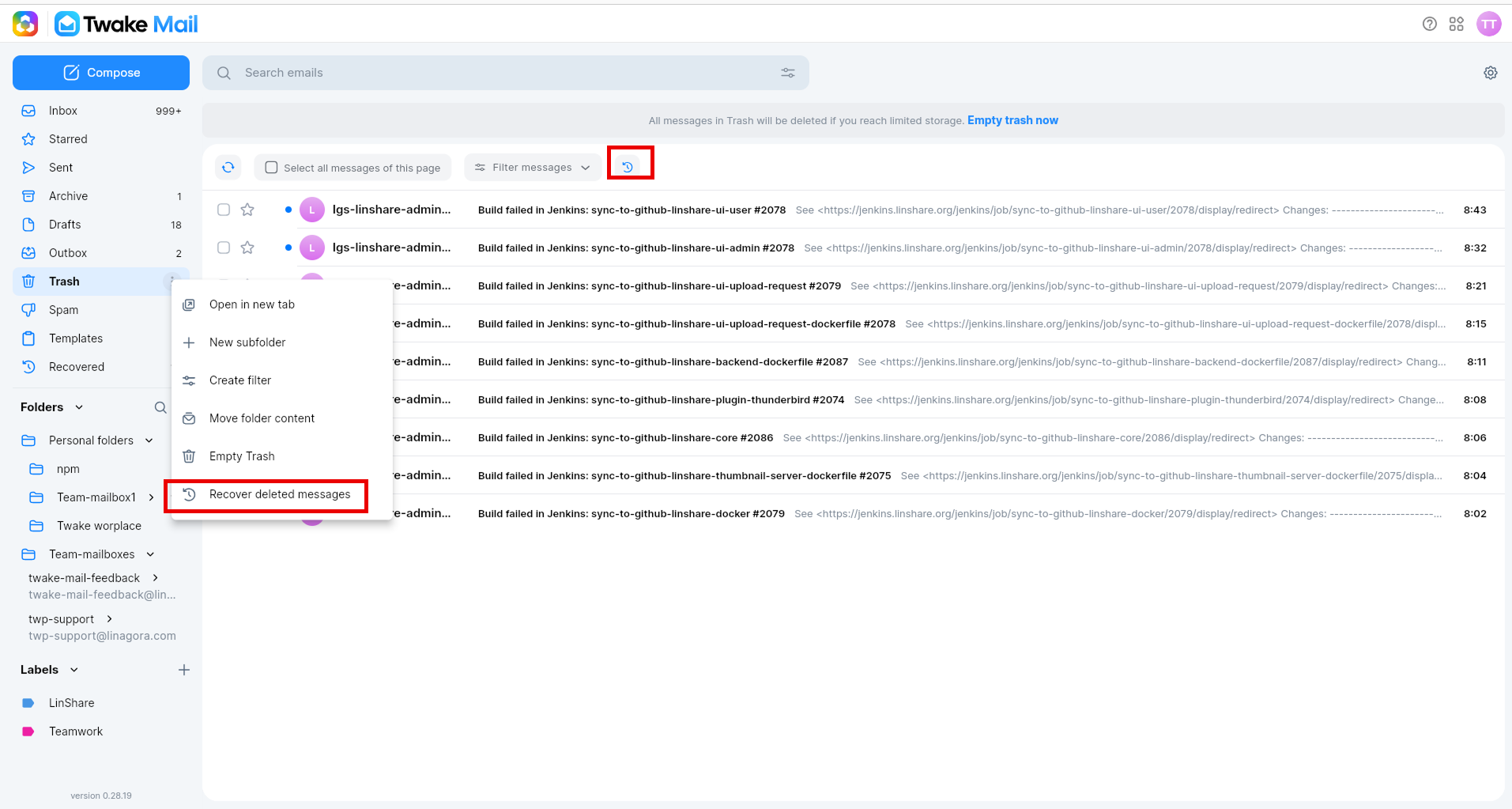
The recovery action is available from the Trash folder actions menu
To open the recovery screen: Click 3-dot button of Trash folder, actions menu is opened then select Recover deleted messages.
Or Open Trash folder and click icon Recover at the top bar:
2. Enter Recovery Criteria
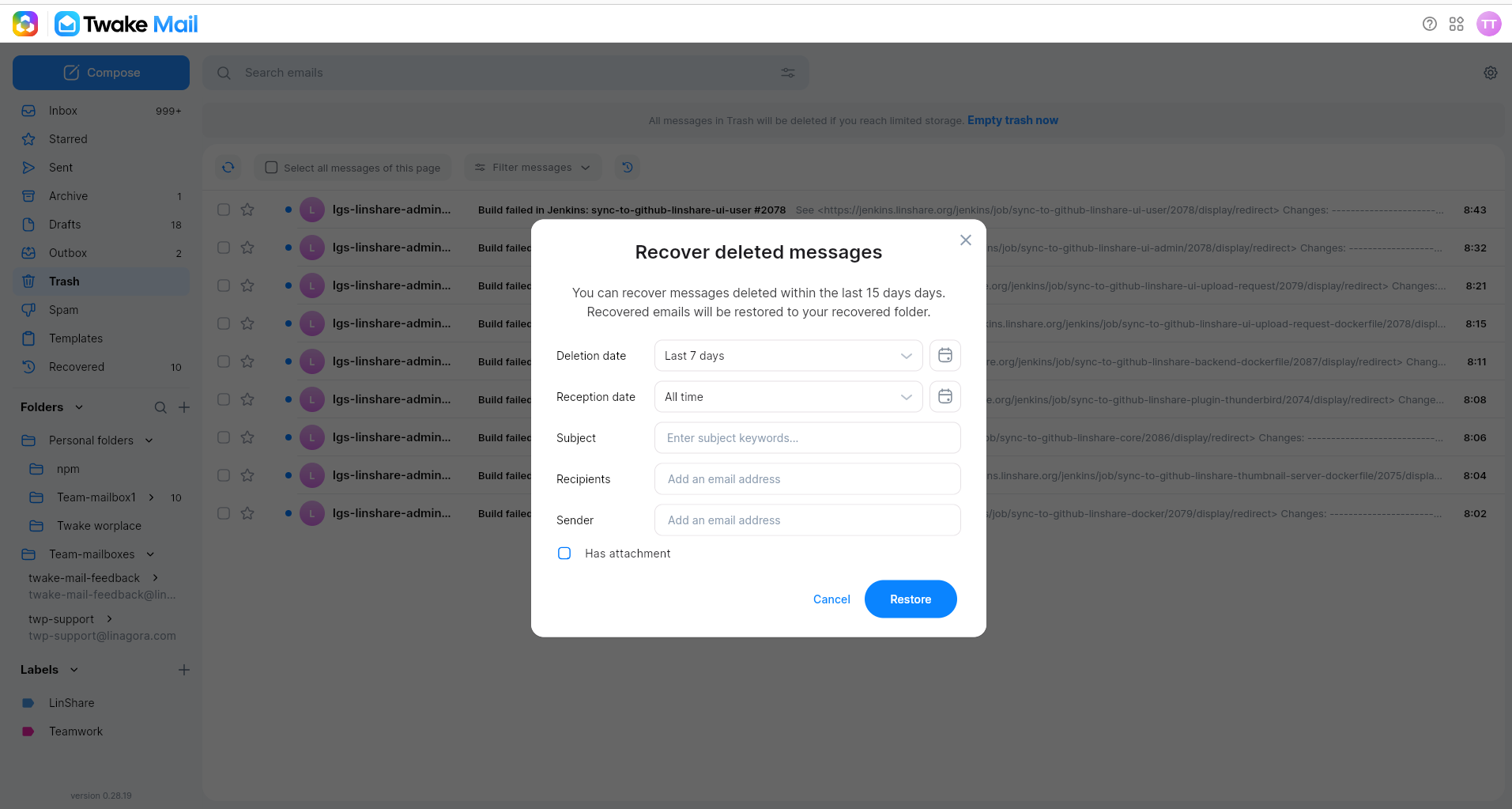
After you select Recover deleted messages, Twake Mail opens a recovery screen.
Use the criteria to help Twake Mail find the deleted messages you want to restore:
- Choose the Deletion date.
- Add any other criteria you know, such as Subject, Recipients, or Sender.
- Select Has attachment if you only want messages with attachments.
- Select Restore.
3. Wait for Recovery to Finish
After you select Restore, Tmail starts the recovery.
You can continue using Twake Mail while the recovery is in progress. - If more than 5 messages may match, run multiple recoveries with narrower criteria.
4. Open the Recovered Folder
When matching messages are recovered, they are saved in the Recovered folder.