Twake Mail - How to use folders, labels and Team-mailboxes
This guide explains how to use folders, labels, and team mailboxes in Twake Mail.
Use folders to organize where emails are stored. Use labels to group emails by topic without moving them. Use team mailboxes to access shared mailbox content with other team members.
Understand the Left Sidebar
Folders, labels, and team mailboxes are available from the left sidebar.
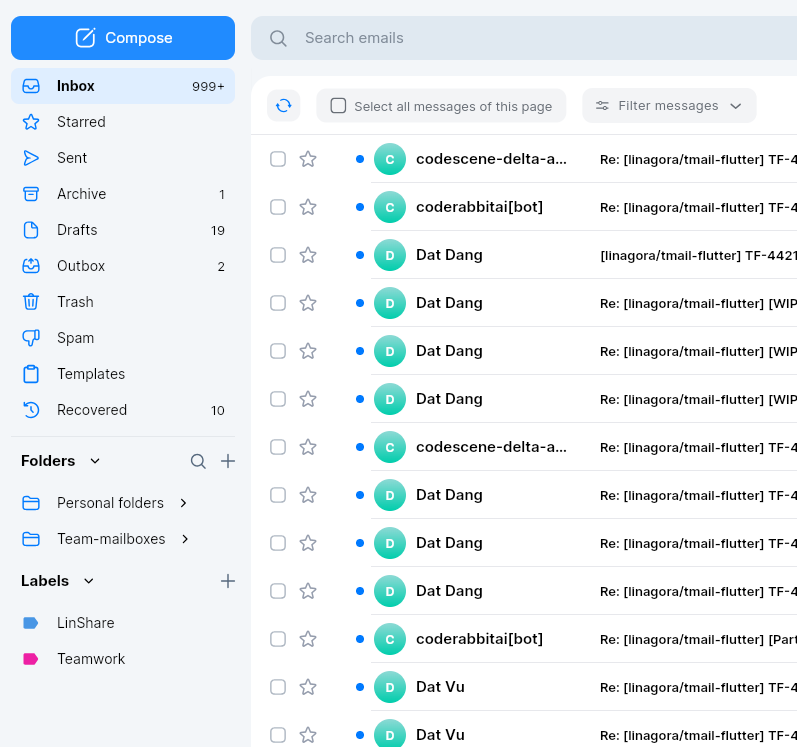
The sidebar can include:
| Section | What it is used for |
|---|---|
| Default folders | Standard folders such as Inbox, Starred, Sent, Archive, Drafts, Outbox, Trash, Spam, Templates, and Recovered |
| Personal folders | Folders you create to organize your own emails |
| Team mailboxes | Shared mailboxes that your team can access |
| Labels | Colored categories that help you group related emails |
Select any folder, team mailbox, or label to open its email list.
Use Default Folders
Default folders are created by Twake Mail and help you find emails by status.
Default folders include:
| Folder | What it contains |
|---|---|
| Inbox | Emails you receive |
| Starred | Emails marked with a star |
| Sent | Emails you have sent |
| Archive | Emails you archived |
| Drafts | Emails you started but have not sent |
| Outbox | Emails waiting to be sent |
| Trash | Deleted emails |
| Spam | Emails identified as unwanted or suspicious |
| Templates | Saved email templates |
| Recovered | Emails restored through recovery |
To open a default folder:
- Go to the left sidebar.
- Select the folder you want to open.
- Review the emails shown in the mail listing view.
- Select an email to open it.
Some folders show a number on the right. This number indicates how many messages are in that folder or need attention (unread).
Use Personal Folders
Personal folders help you organize emails in your own mailbox.
To open a personal folder:
- Go to Folders in the left sidebar.
- Expand Personal folders if needed.
- Select the folder you want to open.
Create a Folder
Create a folder when you want a new place to store related emails.
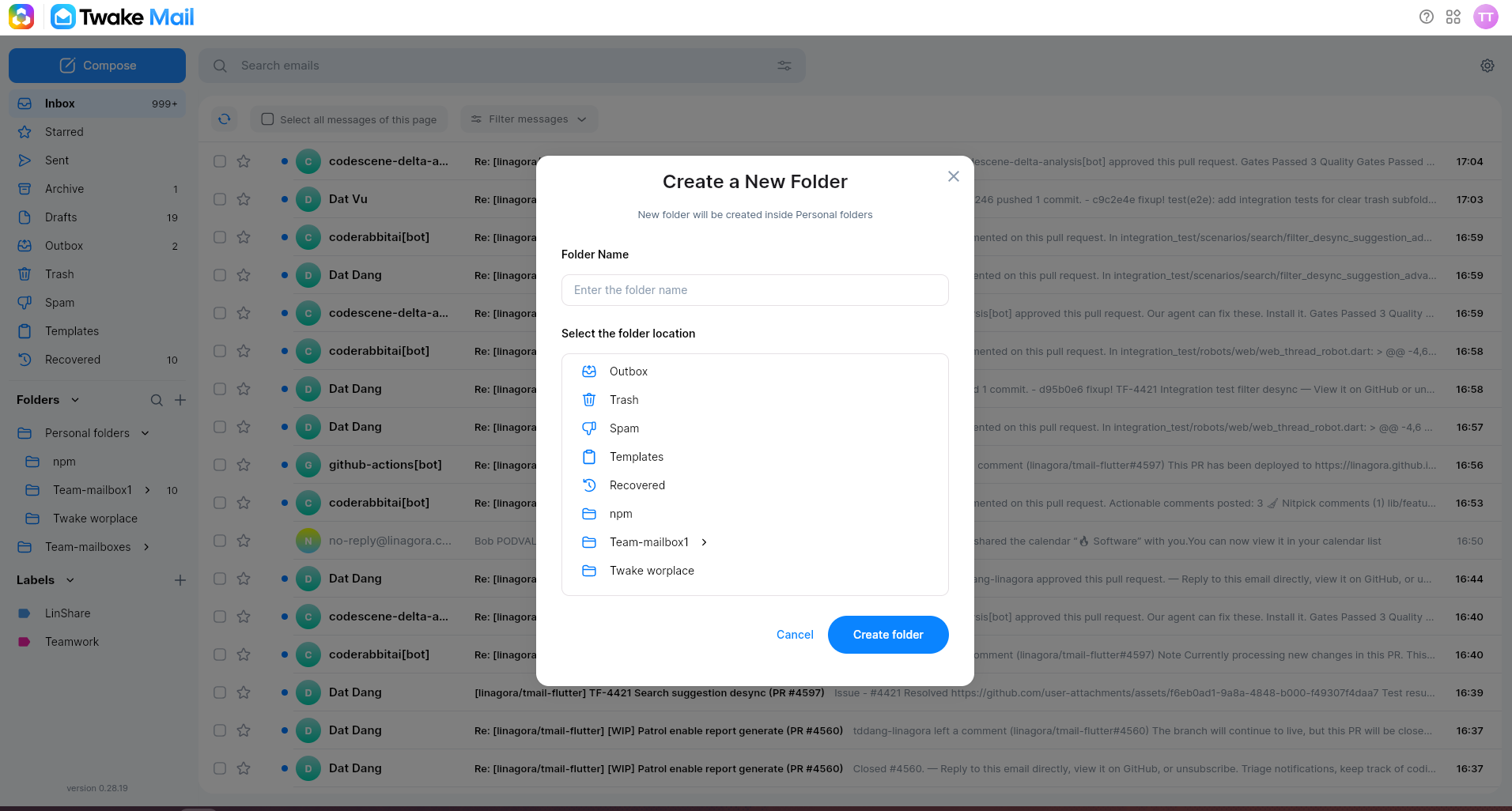
To create a folder:
- Go to the Folders section.
- Select the + icon.
- Enter the folder name.
- Choose the folder location.
- Select Create folder.
The new folder appears under the selected folder location.
Manage a Folder
Folder actions are available from the folder menu.
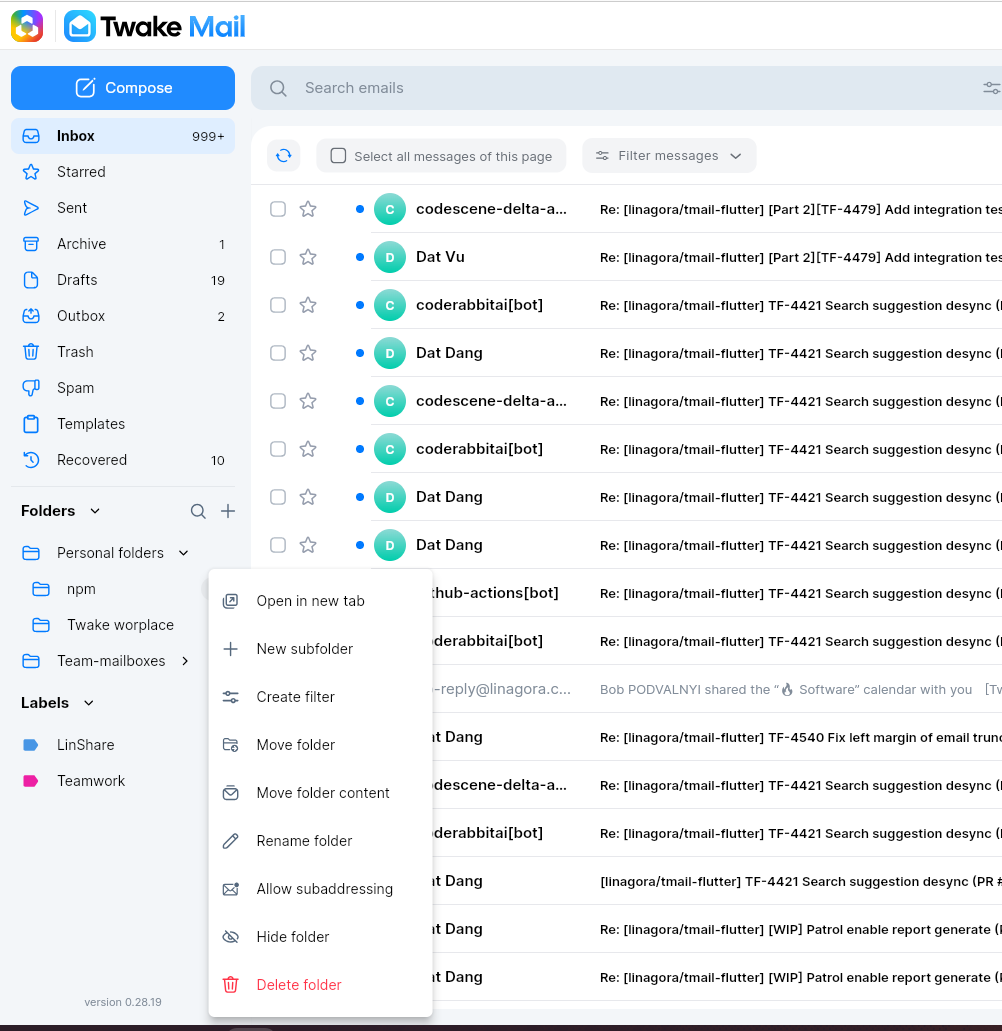
Available folder actions can include:
| Action | What it does |
|---|---|
| Open in new tab | Opens the folder in a separate browser tab |
| New subfolder | Creates a folder inside the selected folder |
| Create filter | Creates a rule for emails related to this folder |
| Move folder | Moves the folder to another location |
| Move folder content | Moves emails from the selected folder to another folder |
| Rename folder | Changes the folder name |
| Allow subaddressing | Allows anyone to send emails directly to this folder |
| Hide folder | Hides the folder from the sidebar |
| Delete folder | Deletes the folder |
Some actions may not be available for every folder.
Use Labels
Labels help you group emails by topic, project, customer, or workflow. Unlike moving an email to a folder, applying a label helps you find related emails without changing the folder where the email is stored.
To open a label:
- Go to the Labels section in the left sidebar.
- Select a label
- Review the emails linked to that label.
Create a Label
Create a label when you want a new category for related emails.
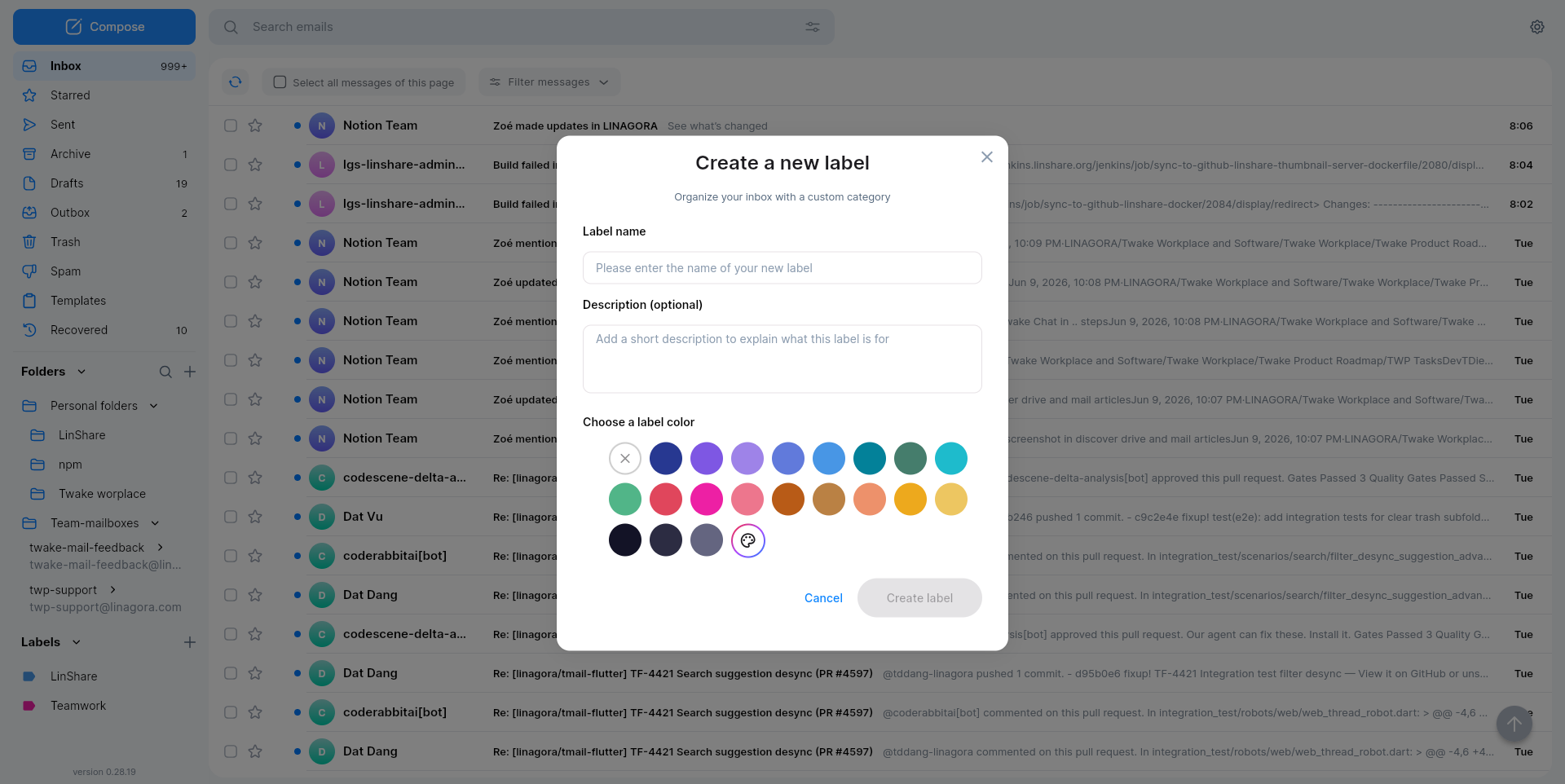
To create a label:
- Go to the Labels section.
- Select the + icon.
- Enter the label name.
- Add a description if needed.
- Choose a label color.
- Select Create label.
The new label appears in the Labels section.
Manage a Label
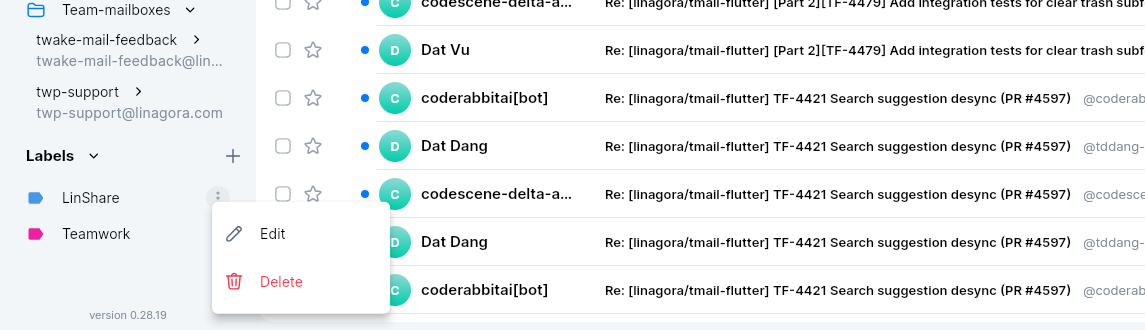
Use the label menu to update or remove a label.
Available label actions include:
- Edit: Changes the label name, description, or color
- Delete: Deletes the label
Deleting a label removes the label from emails. It does not delete the emails.
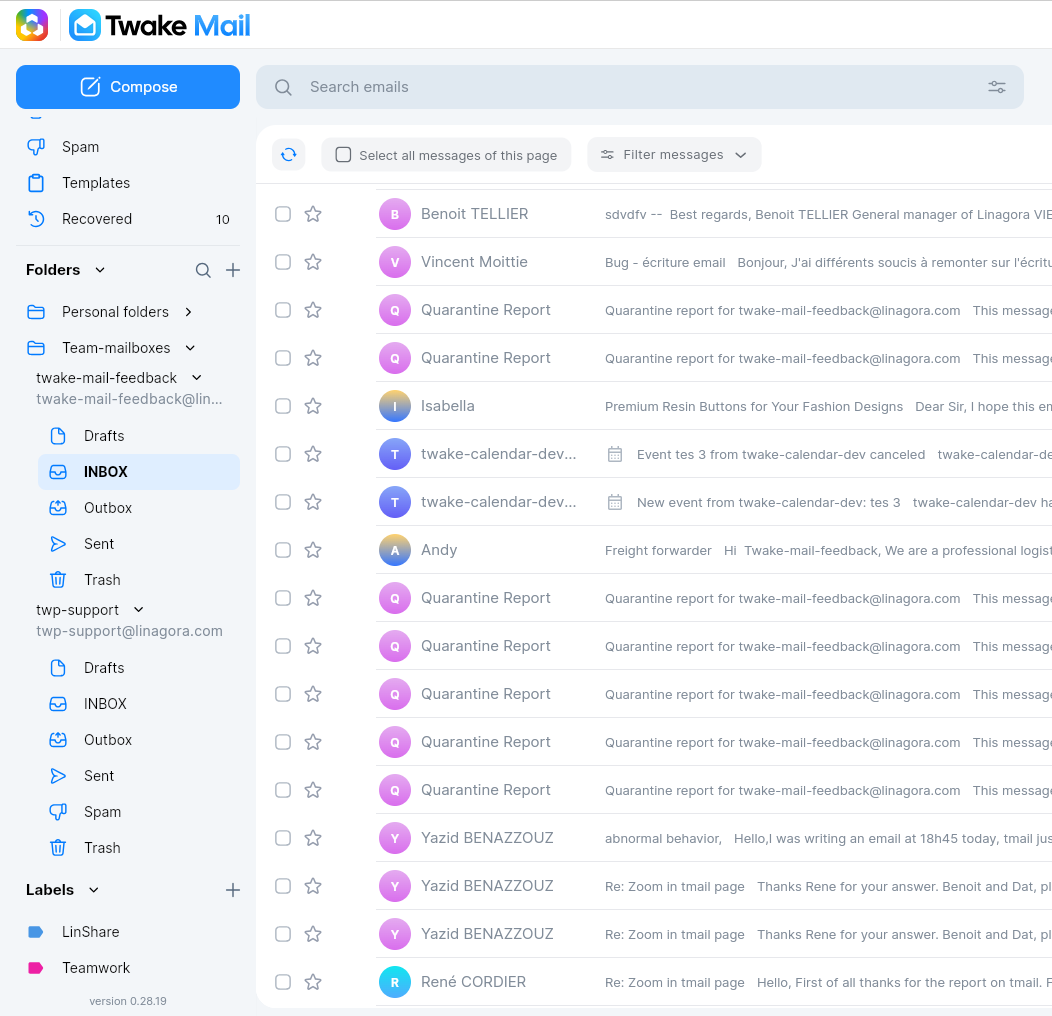
Use Team Mailboxes
"Team mailbox" typically refers to a shared mailbox or a collaborative inbox that multiple users or team members can access. A team mailbox is useful for managing emails collectively, allowing multiple team members to view, respond to, and manage emails in a shared space.
The owner of the shared mailbox needs to grant permissions to other team members. This can usually be done through the mailbox settings by the administrator.
Once permissions are set, team members can see the team-mailbox on foldet-tree on left panel. Each team-mailbox will contains:
(1) Team-mailbox name
(2) Email address of the team-maiilbox
Each team mailbox can contain its own folders, including:
| Folder | What it contains |
|---|---|
| INBOX | Emails received by the team mailbox |
| Drafts | Draft emails created in the team mailbox |
| Outbox | Emails waiting to be sent from the team mailbox |
| Sent | Emails sent from the team mailbox |
| Spam | Emails marked as spam in the team mailbox |
| Trash | Deleted emails from the team mailbox |
Team mailbox folders work like regular folders, but the emails belong to the shared mailbox instead of only your personal mailbox.
Depending on your permissions, you may be able to:
- Read emails in the team mailbox and perform actions on email as read/unread, mark star/unstar...other members having access to the team-mailbox will see the message being read/unread or star/unstar as well.
- Send or reply from the team mailbox.
- Move emails between team mailbox folders.
- Organize team mailbox folders.
If you cannot see or manage a team mailbox, contact your administrator or workspace owner to check your access.