Install Twake Mail mobile application
This guide explains how to install the Twake Mail app on your devices.
Android devices
How to install the app from the store
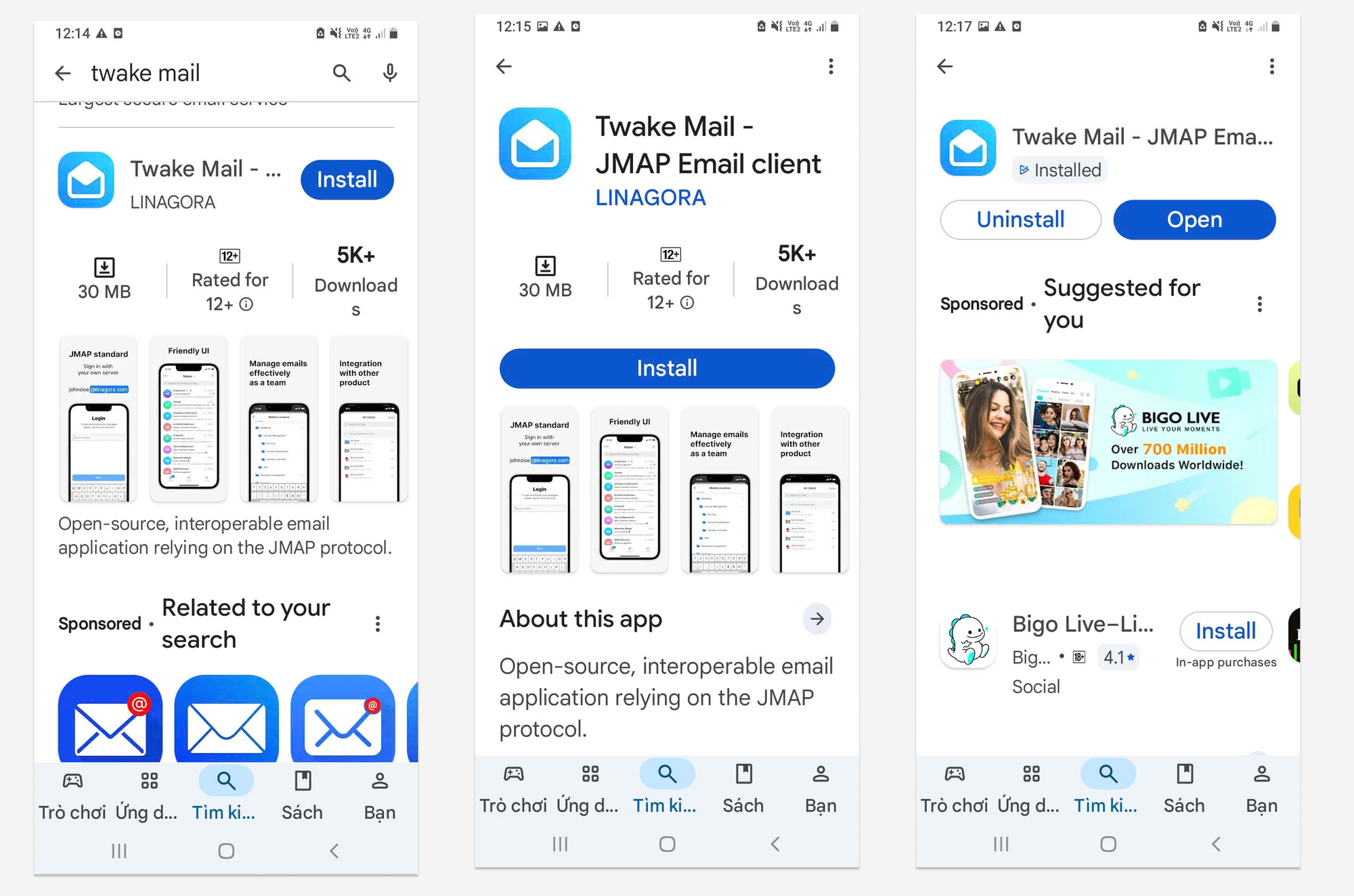
- Open Google Play Store: Open the Google Play Store app on your Android device. It usually has a shopping bag icon with a colorful triangle.
- Search for the App: Use the search bar at the top to search for Twake Mail application
- Select the App: When you find the app, tap on it to open its details page.
- Install the App: On the app's details page, tap the "Install" button.
- Wait for Download and Installation: The app will download and install automatically. Once it's installed, the "Install" button will change to "Open."
- Open the App: You can open the app by tapping "Open" on the app's page or finding its icon in your app drawer.
Which rights the application needs and why?
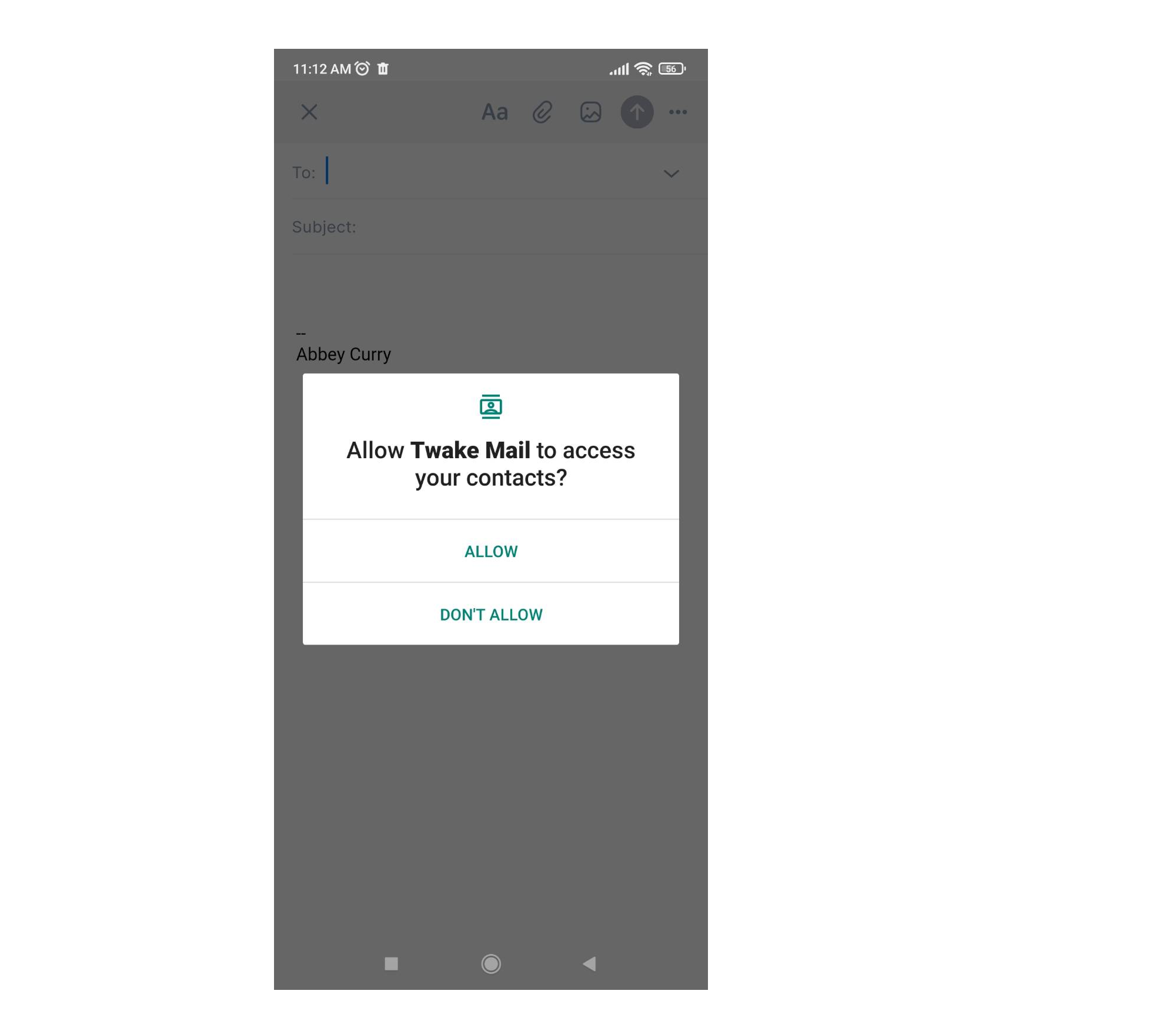
- Contacts
- When you open Twake Mail app for the first time,and you click Compose button, you will be asked to grant permission for Contacts. When you compose an email, Twake Mail will search your phone contacts and suggest the appropriate recipients
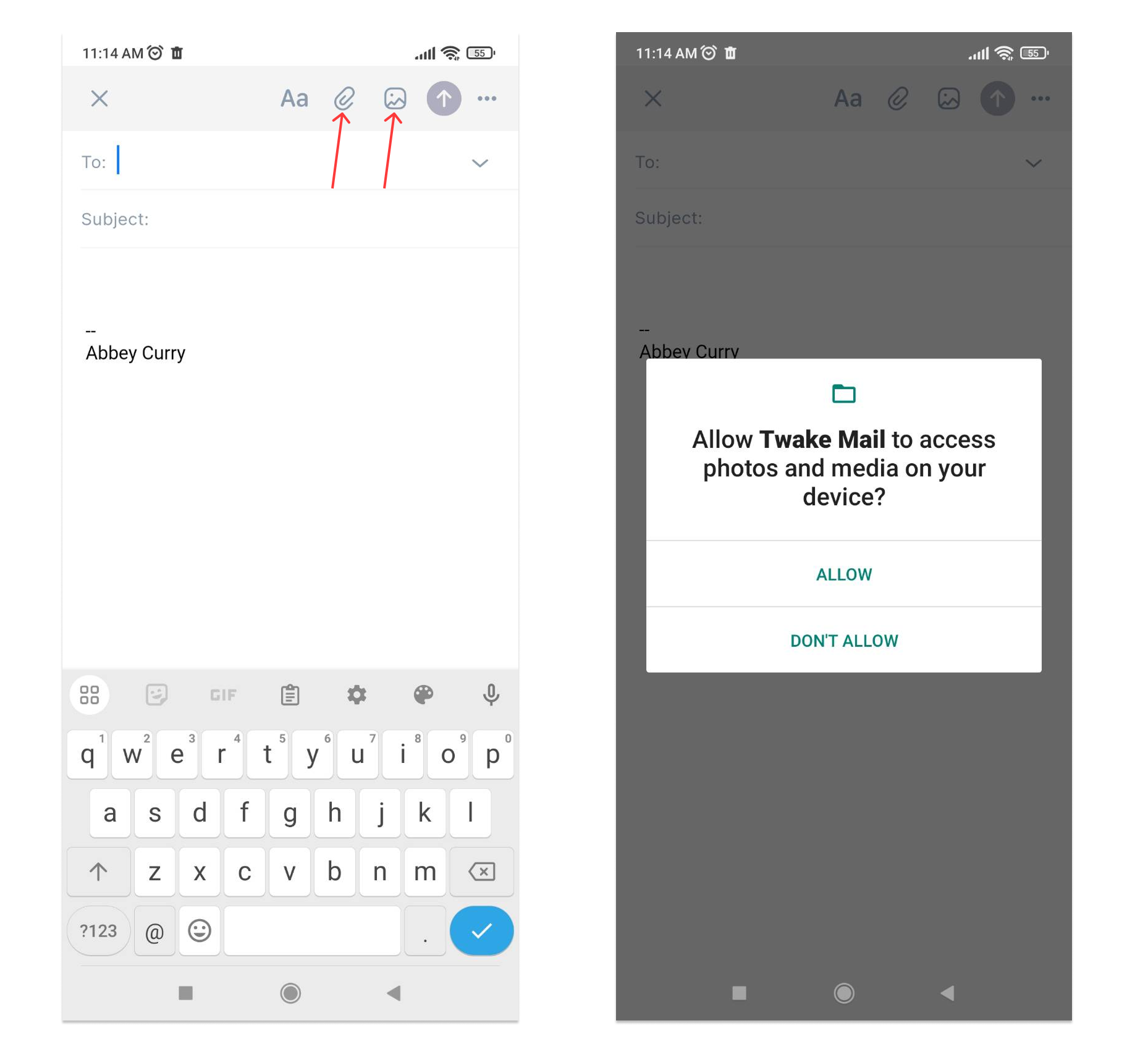
- Storage:
- When you are composing an email and you click on icons to attach a file or picture from your phone, you will be asked to grant permission for Storage:
Where to manage rights of the application?
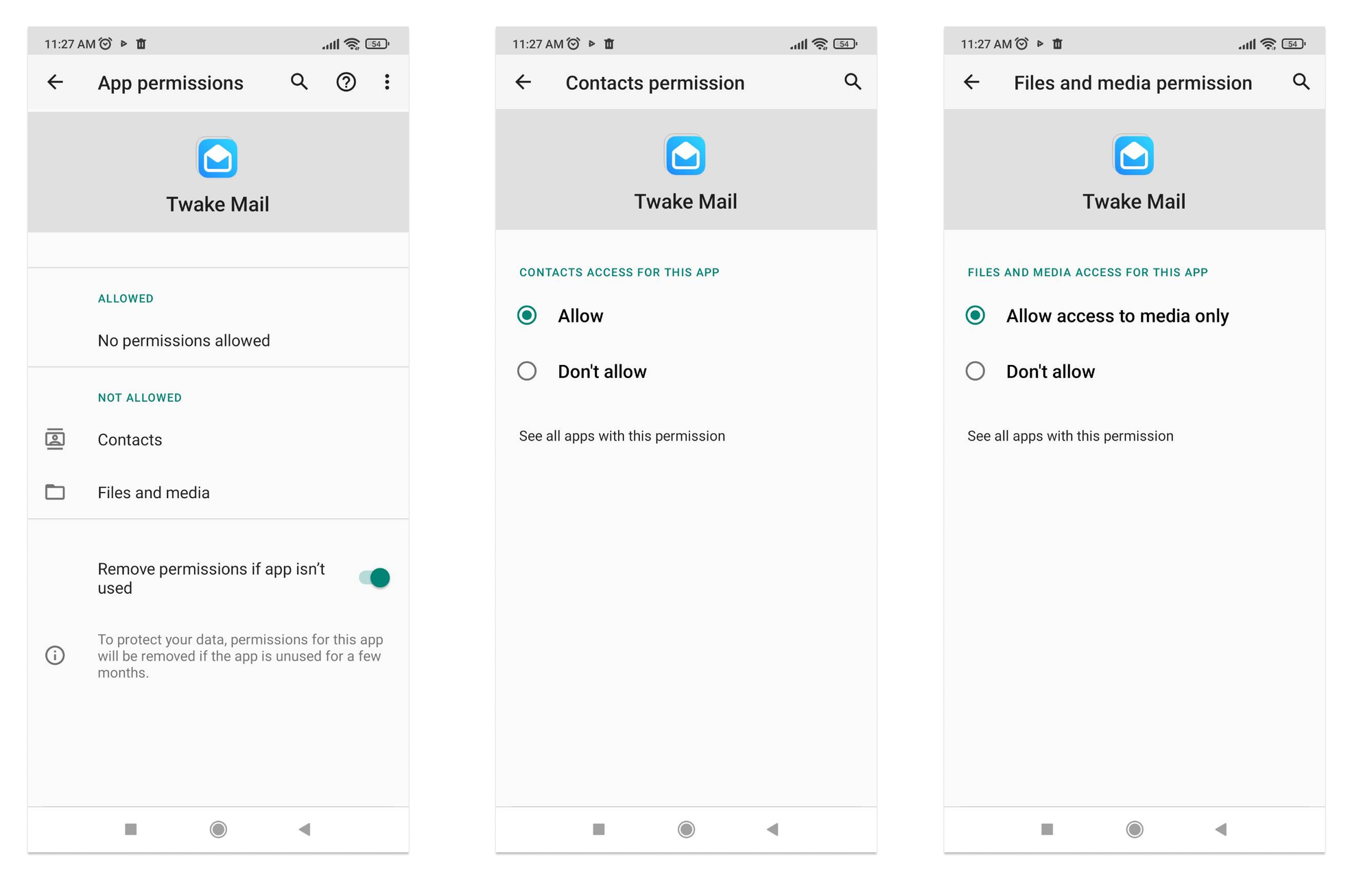
- Open Settings: Go to the "Settings" app on your Android device.
- Apps or Application Manager: Scroll down and look for an option like "Apps," "Applications," or "Application Manager." Tap on it.
- Select the App Twake Mail:
- Look for an option called "Permissions" or "App Permissions" within the app settings. This will display a list of permissions that the app has requested or been granted. You can toggle individual permissions on or off, depending on your preferences:
IOS devices
How to install the app from the store
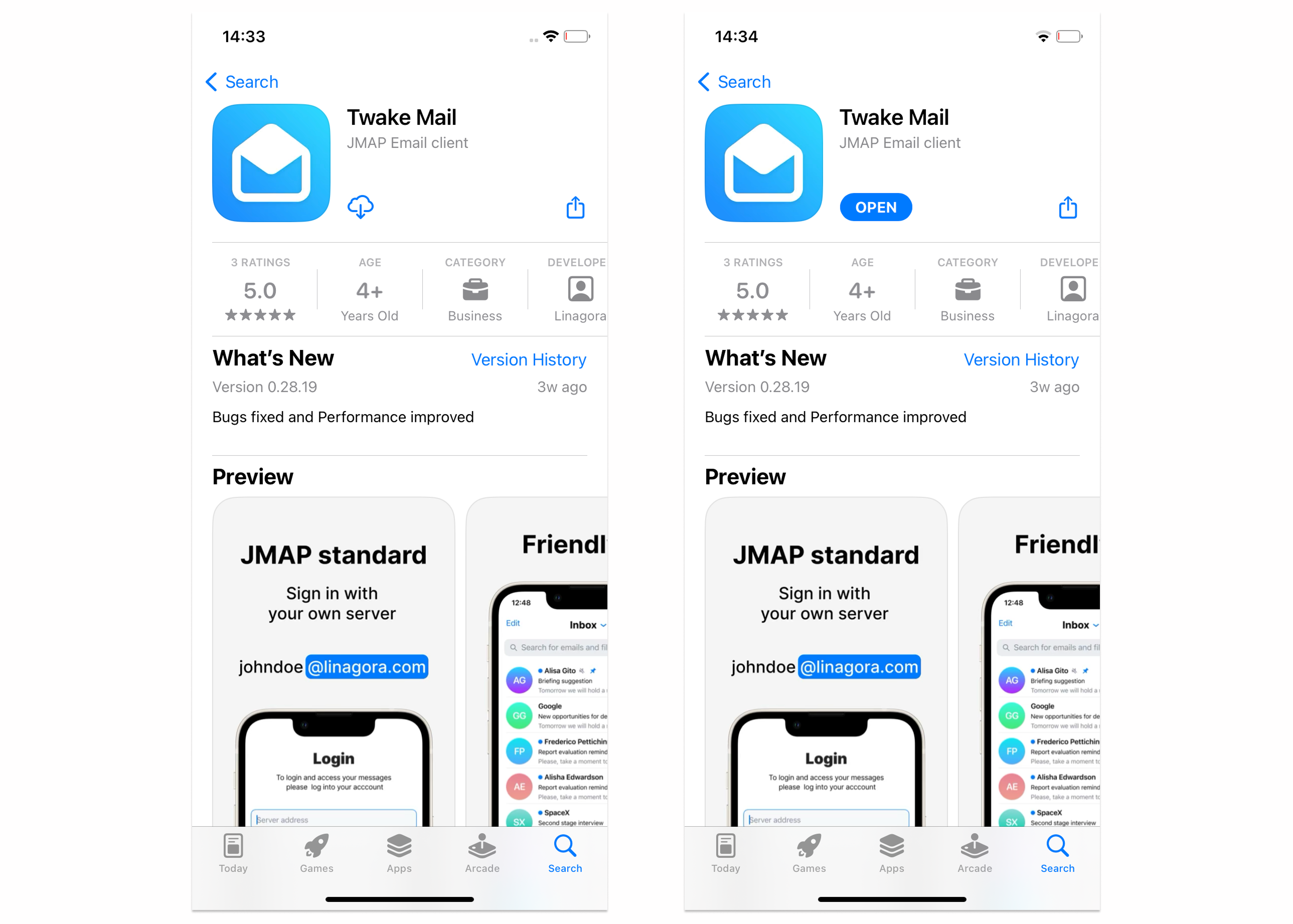
- Open the App Store: Tap on the App Store icon on your device's home screen.
- Search for the App: Use the search bar at the top to search for Twake Mail application
- Select the App: Once you've found the app, tap on its icon to open its details page.
- Install the App: On the app's details page, you'll see an "Install" button. Tap on it. You might be prompted to enter your Apple ID password or use Face ID/Touch ID for confirmation.
- Wait for Download and Installation: The app will download and install automatically. Once it's installed, the "Install" button will change to "Open."
- Open the App: You can now open the app by tapping "Open" on the app's page or by finding its icon on your home screen.
Which rights the application needs and why?
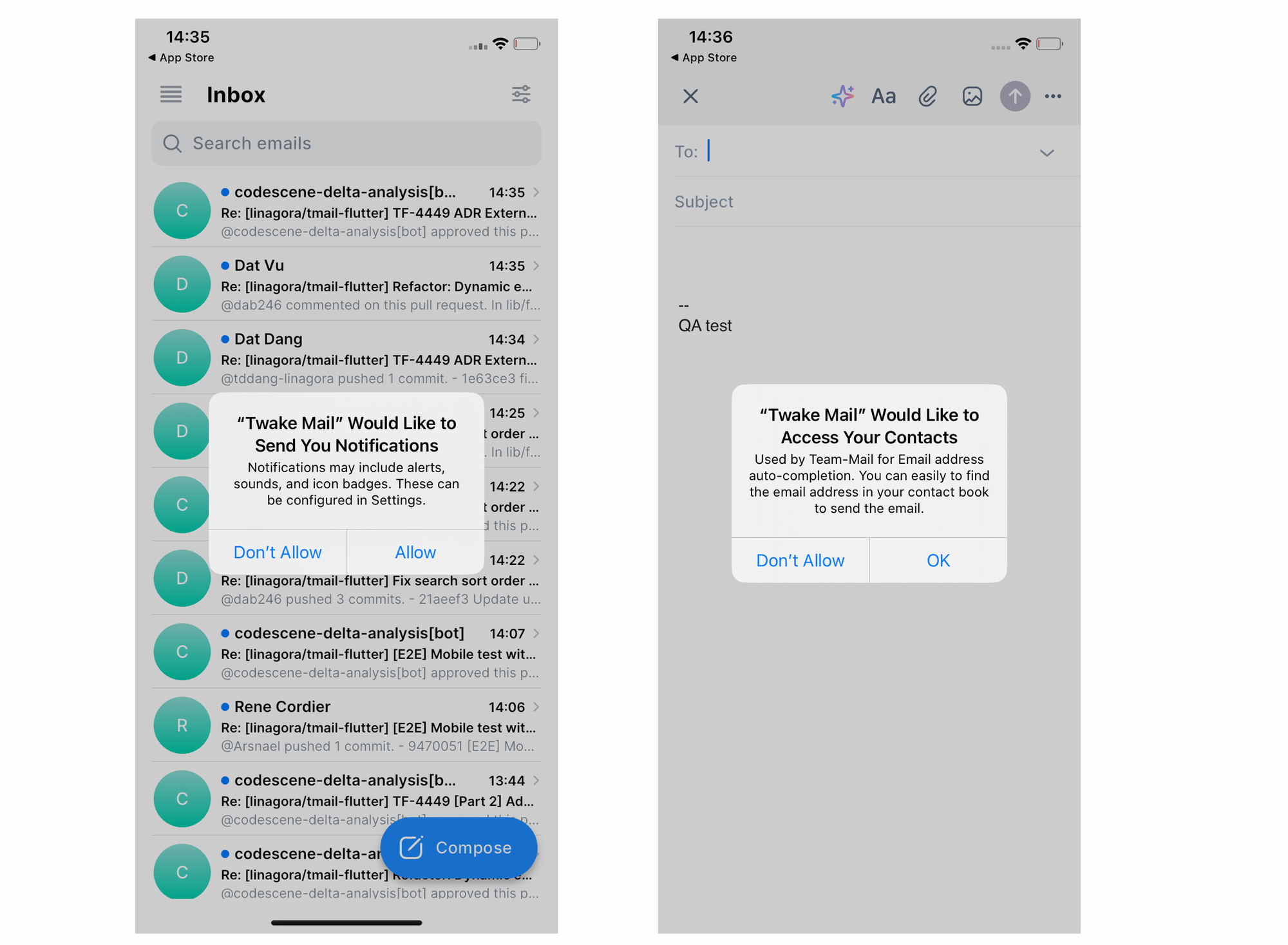
- Notification
- When you open Twake Mail app for the first time, you will be asked to grant permission for Notifications:
- Contacts
- When you open Twake Mail app for the first time and you click Compose button, you will be asked to grant permission for Contacts. When you compose an email, TwakeMail will search your phone contacts and suggest the appopriate recipients
Where to manage rights of the application?
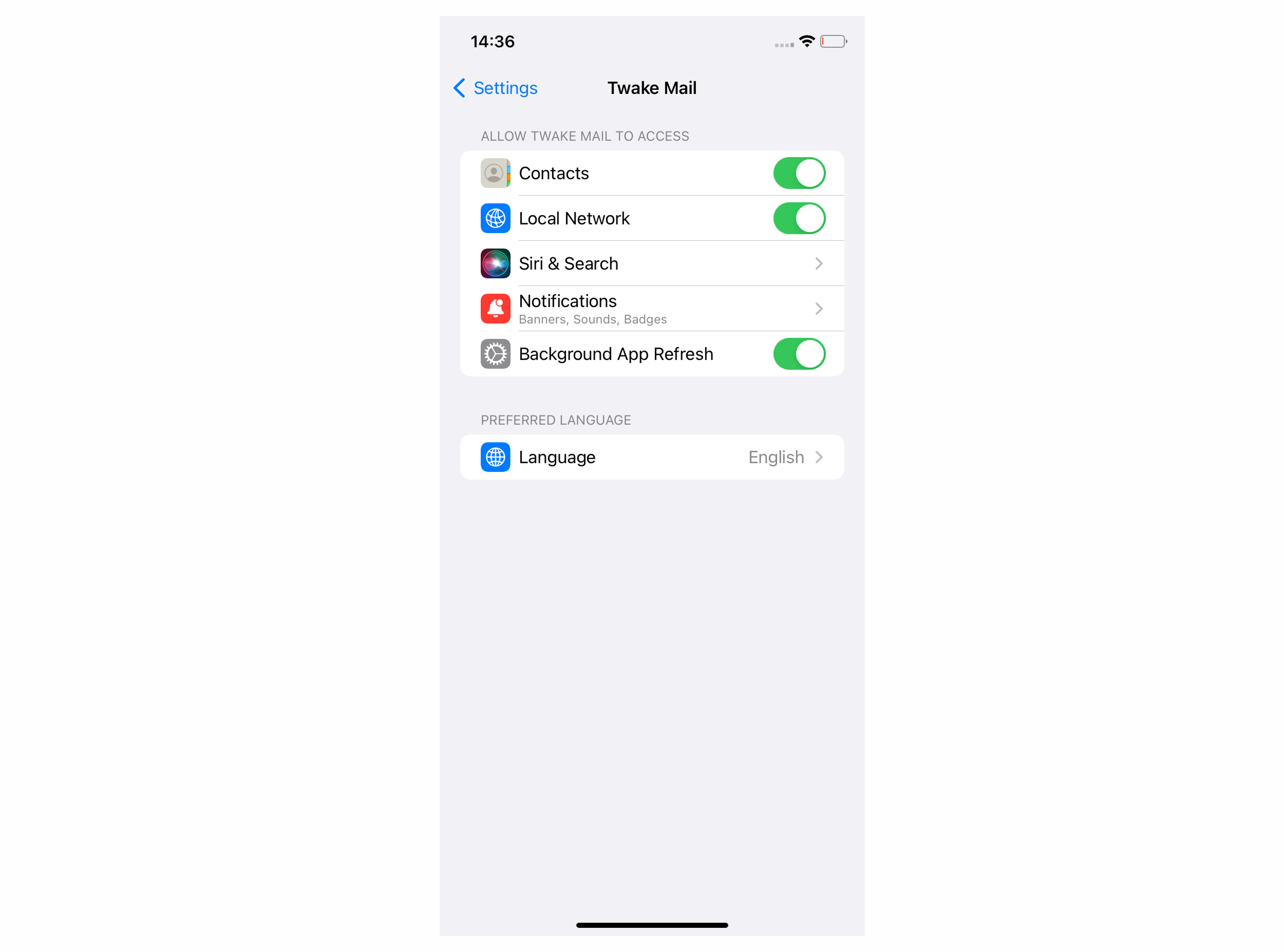
- Open Settings: Go to the "Settings" app on your iOS device.
- Scroll down and Select the App TwakeMail:
This will display a list of permissions that the app has requested or been granted. You can toggle individual permissions on or off, depending on your preferences.