Start your conversation
Direct messages allow you to have one-to-one conversations with other users.
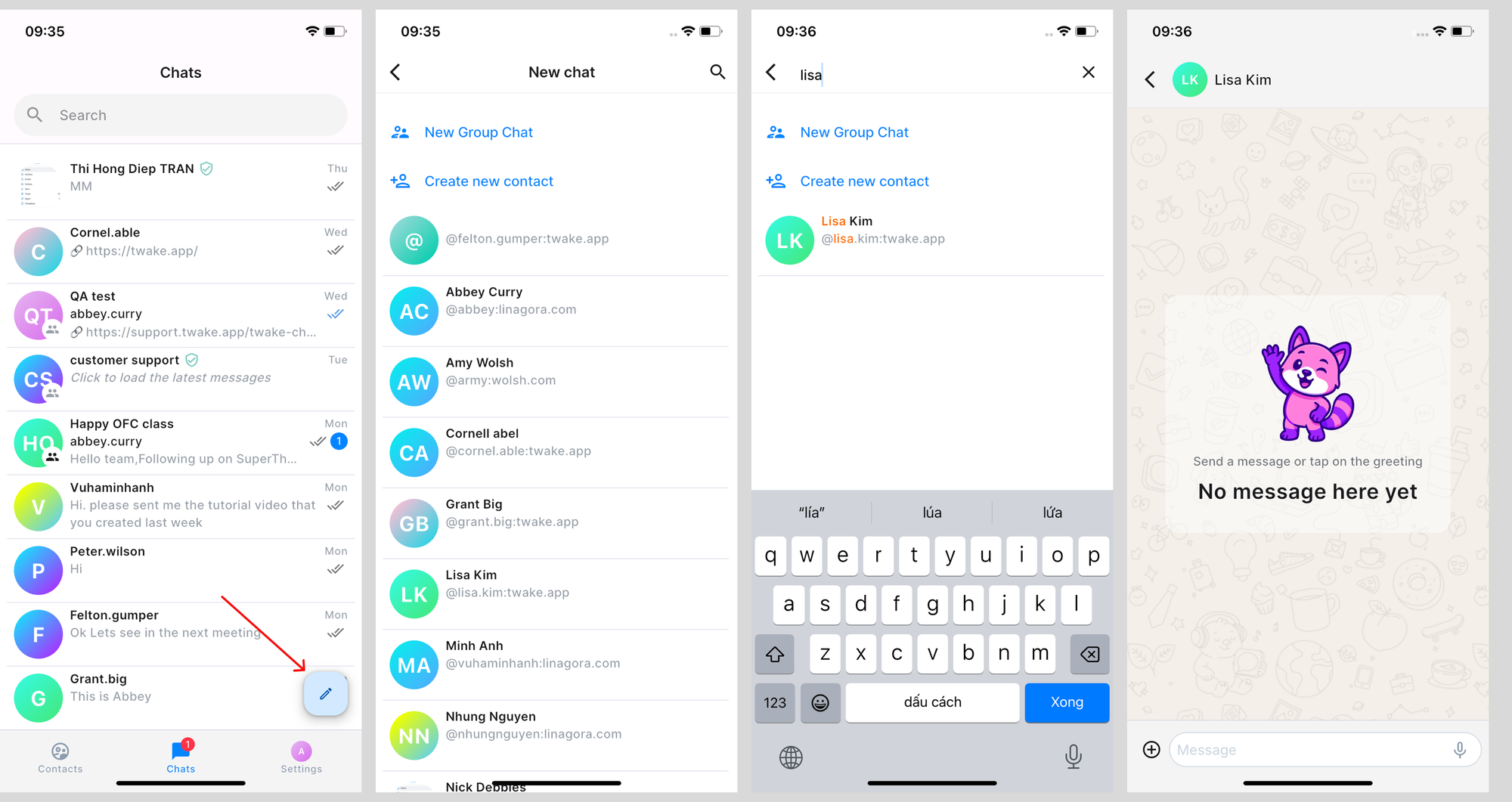
Start a new direct message
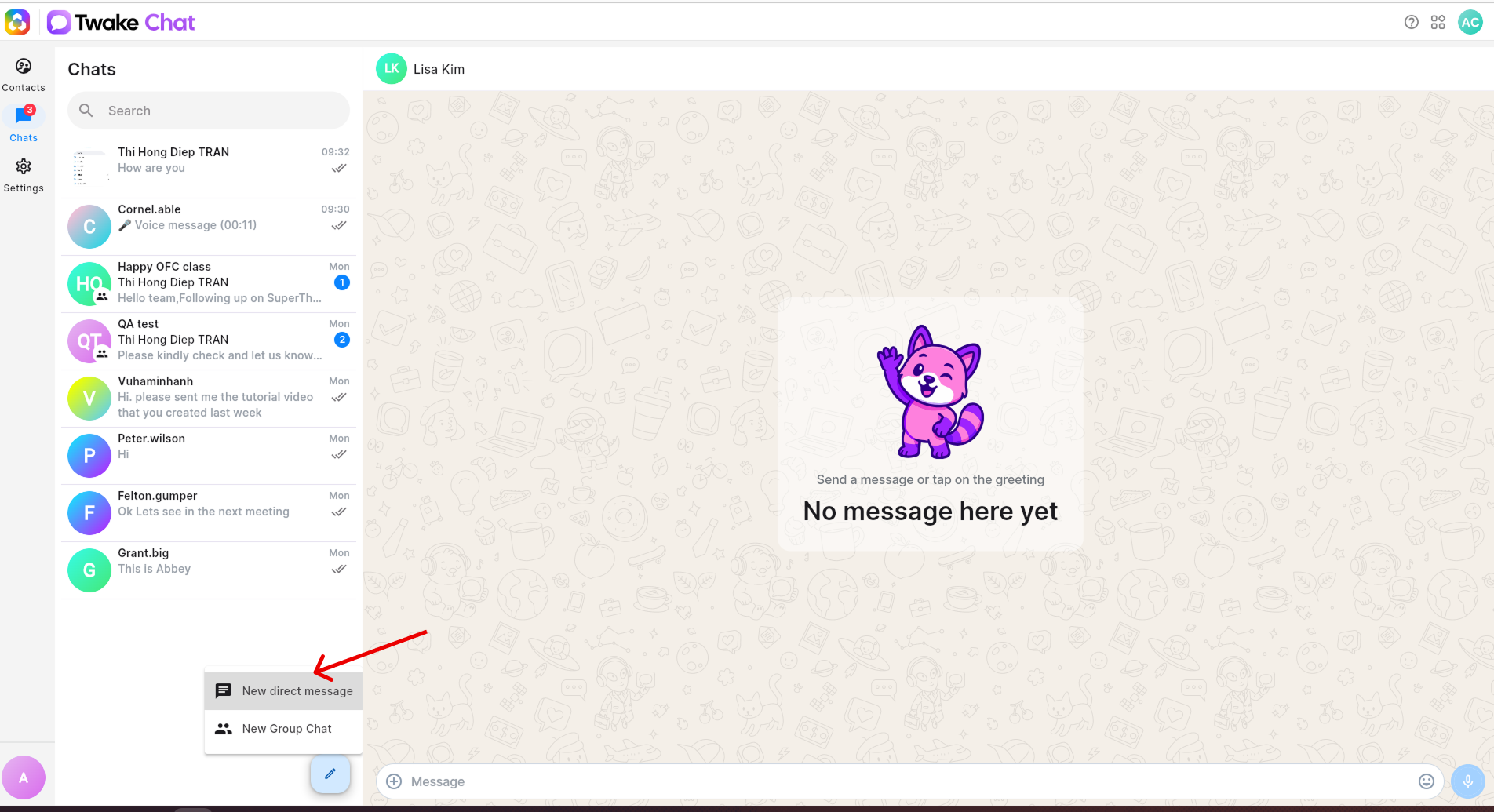
- In the Chats section, click the New Chat button.
- Select New direct message.
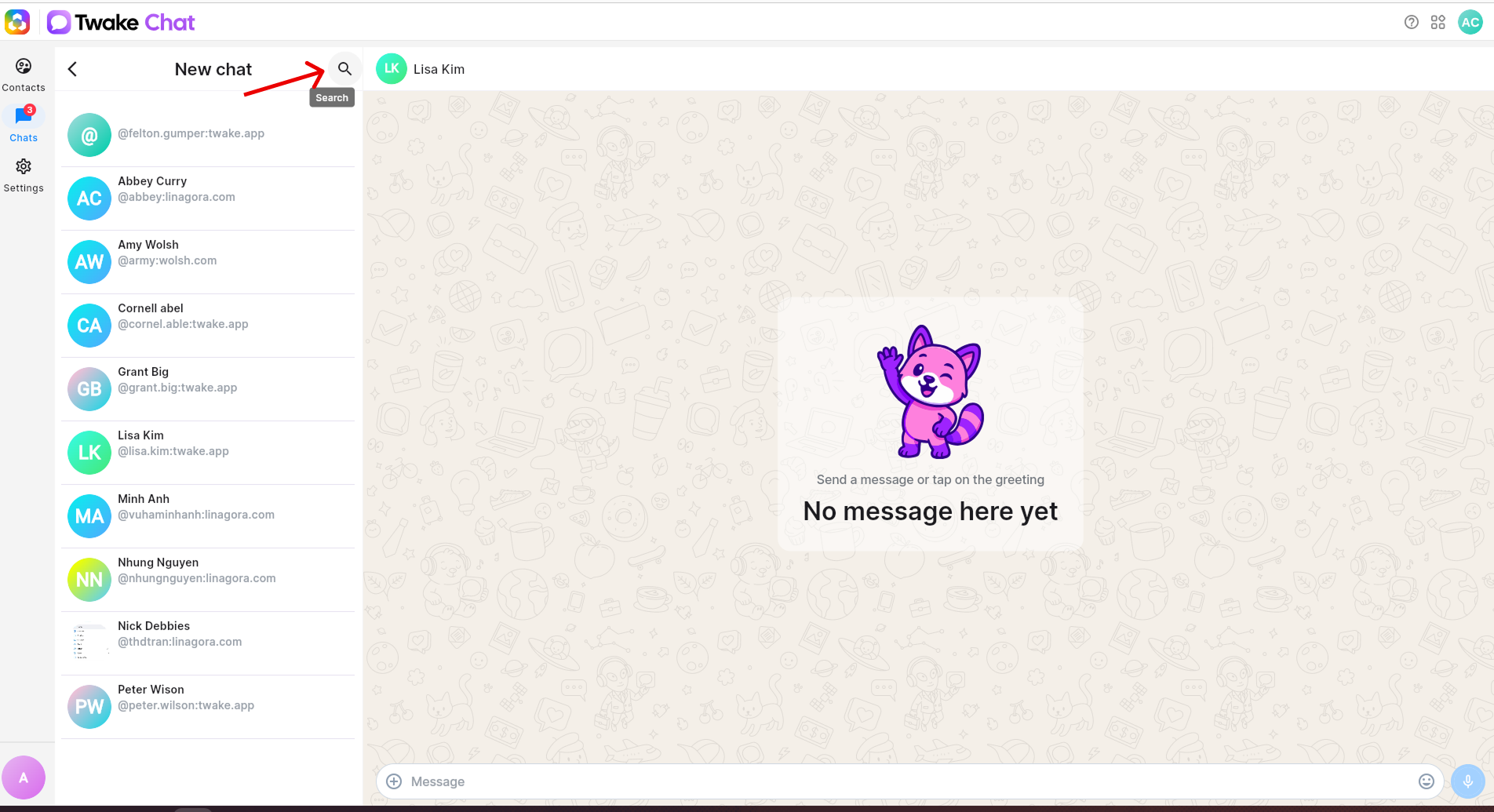
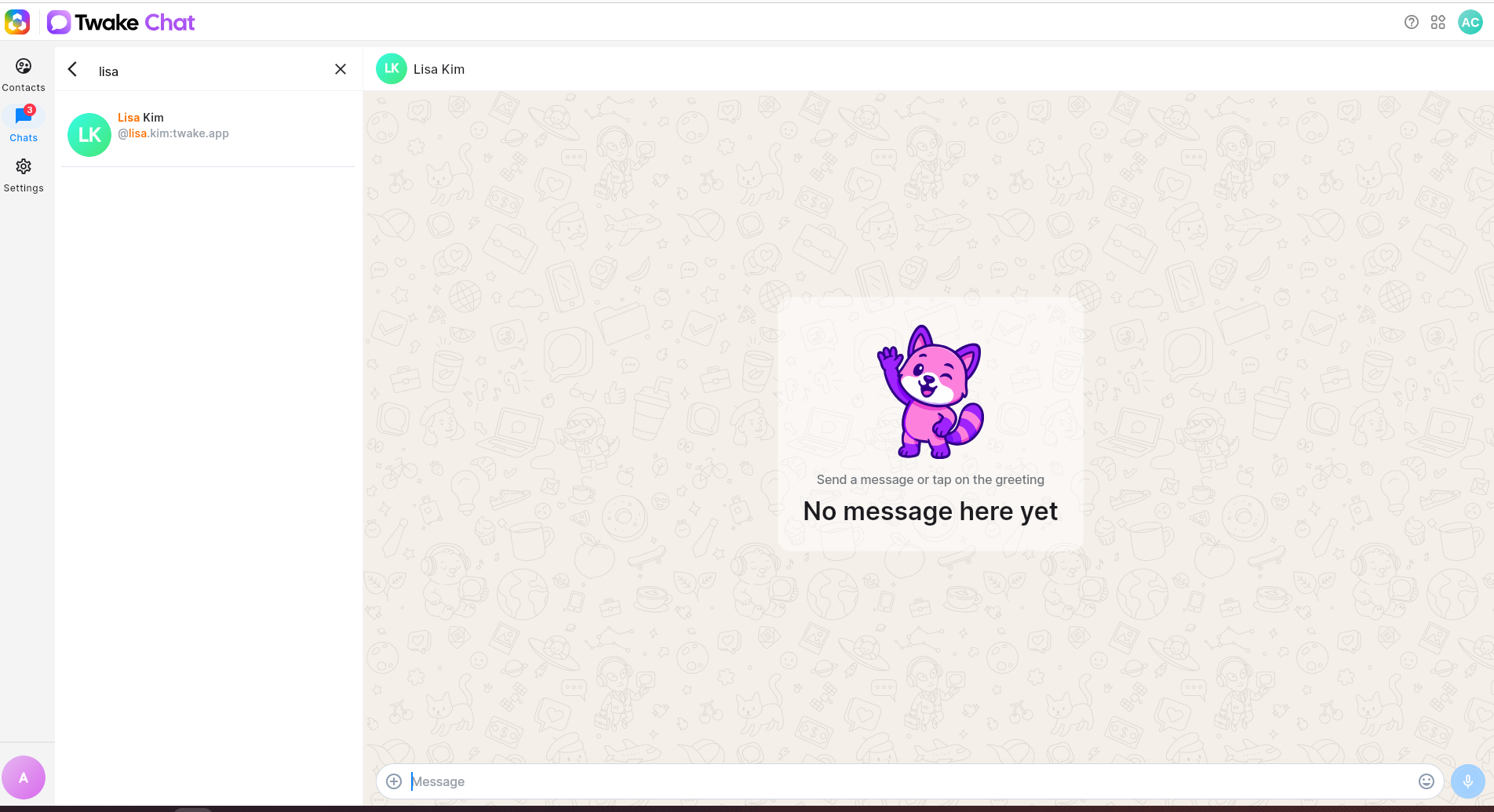
- Search for the person you want to contact.
- Select the contact from the results list.
- Type your message in the message box.
- Press Enter or click Send.
A new conversation is created and appears in your chat list.
On mobile app:
Send a Voice Message
Voice messages let you quickly send audio recordings.
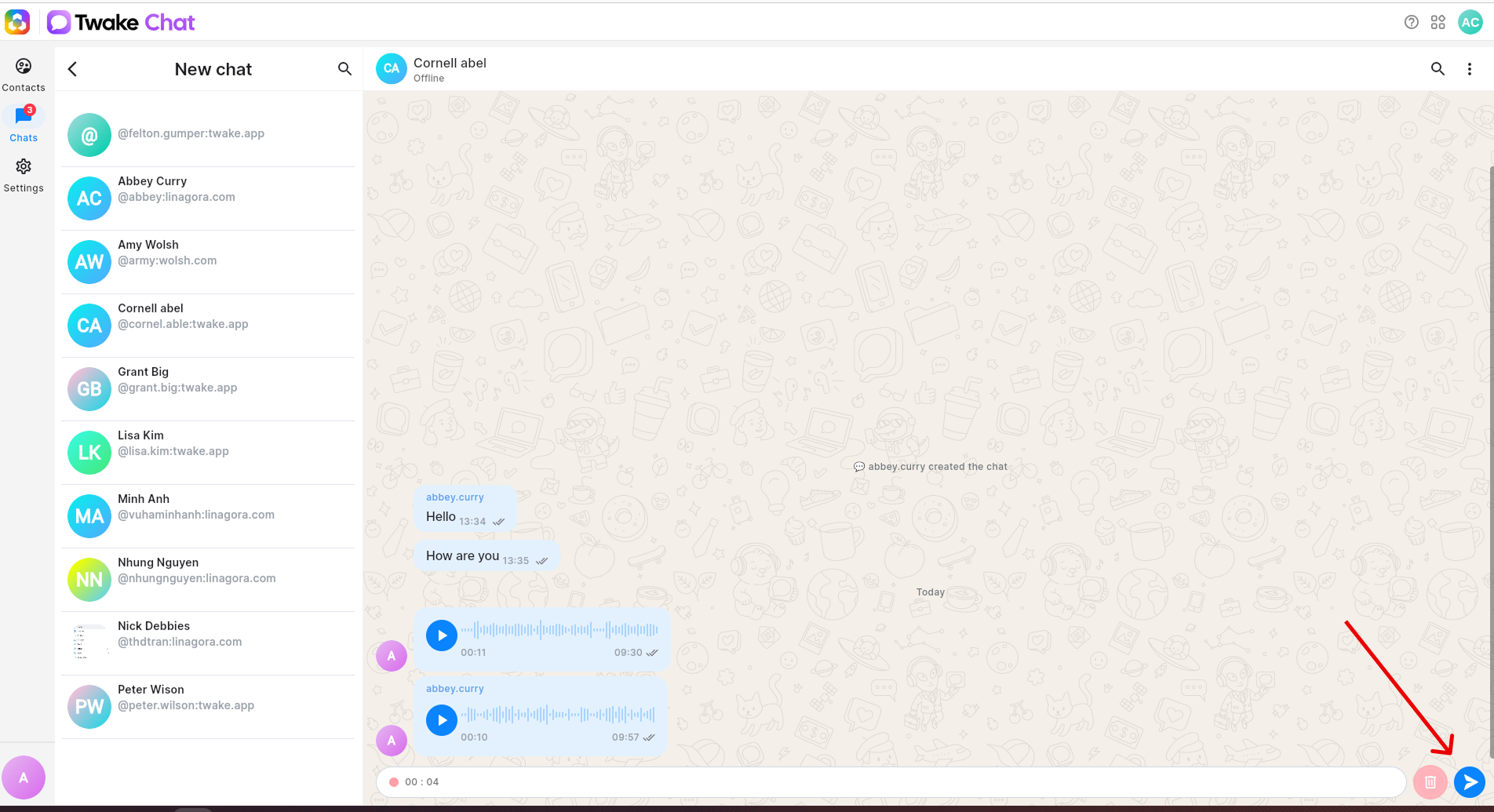
Record a voice message
- Open a conversation.
- Click the Microphone button beside the message field.
- Speak your message.
- Click Send button to share the recording, or click Delete button to dismiss the record
The voice message is added to the conversation and can be played directly in the chat.
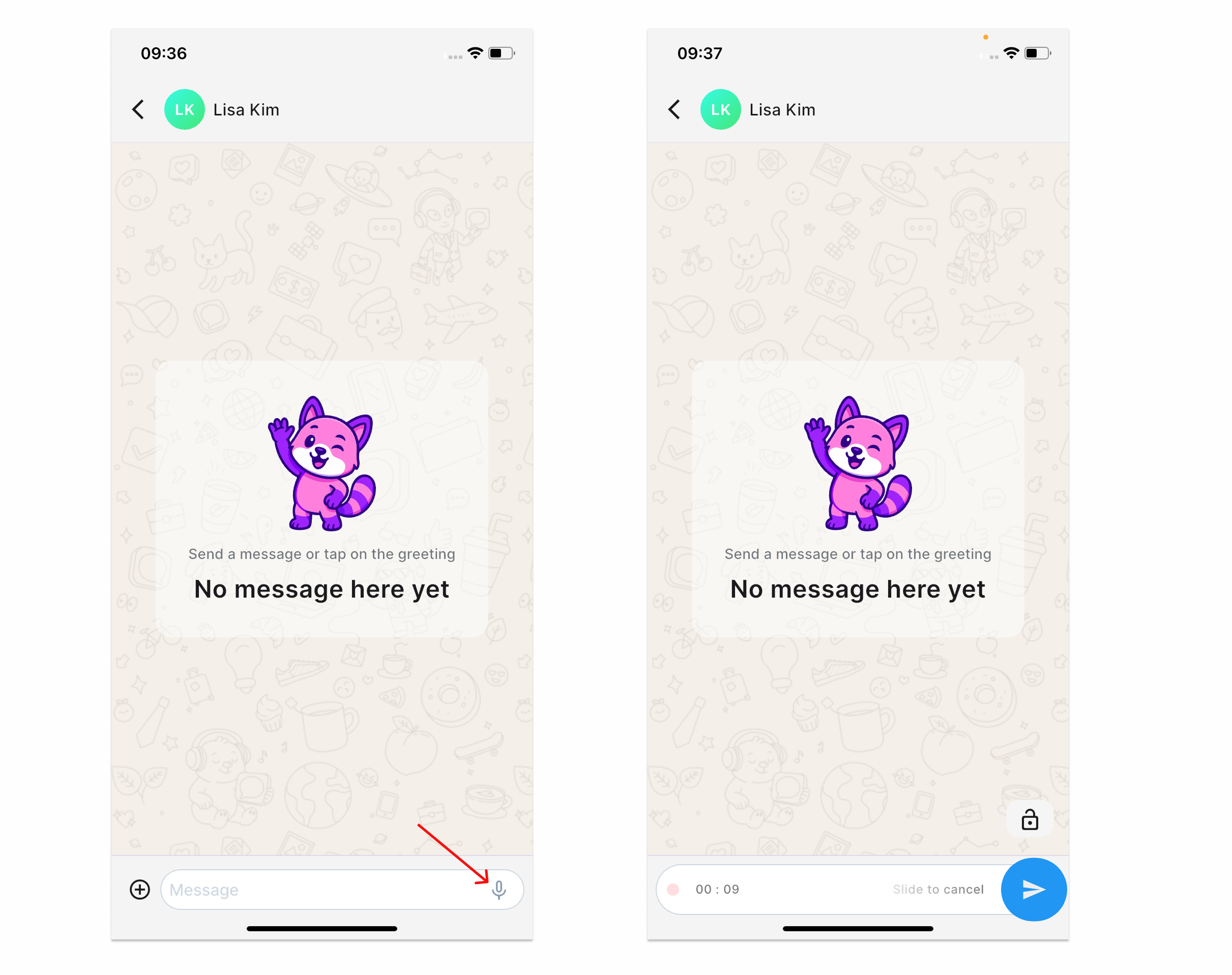
On mobile devices, tap and hold the Microphone button while speaking to record a voice message. When you're finished, release the button to send the message, or slide your finger to the left before releasing to cancel the recording:
Send Pictures/Files
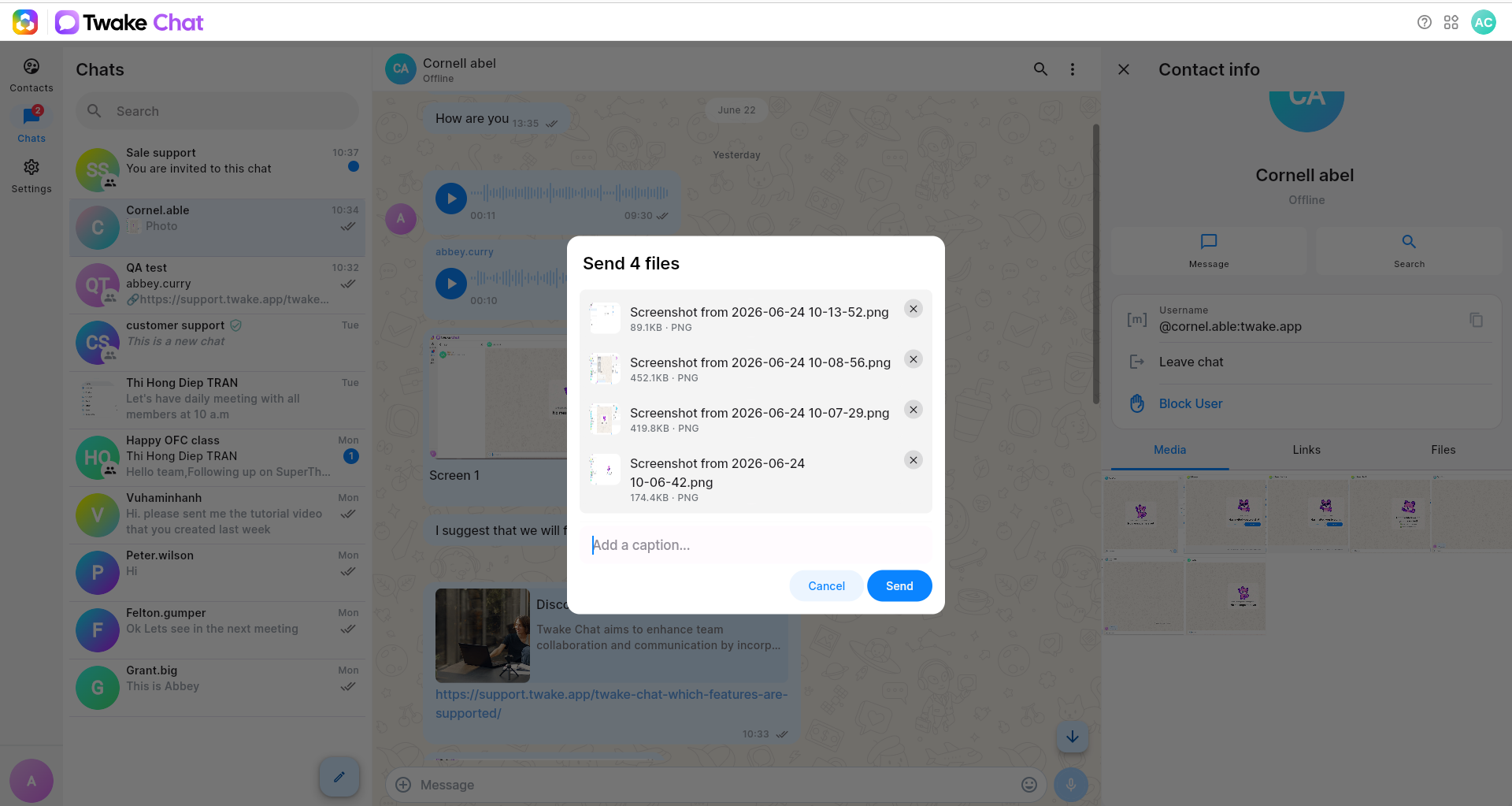
You can share images/files with other users directly from a conversation.
- Open a conversation.
- Click the Add attachment (+) button beside the message field.
- Select one or multiple images/files from your device.
- (Optional) Add a caption.
- Click Send.
The image(s) appears directly in the conversation.
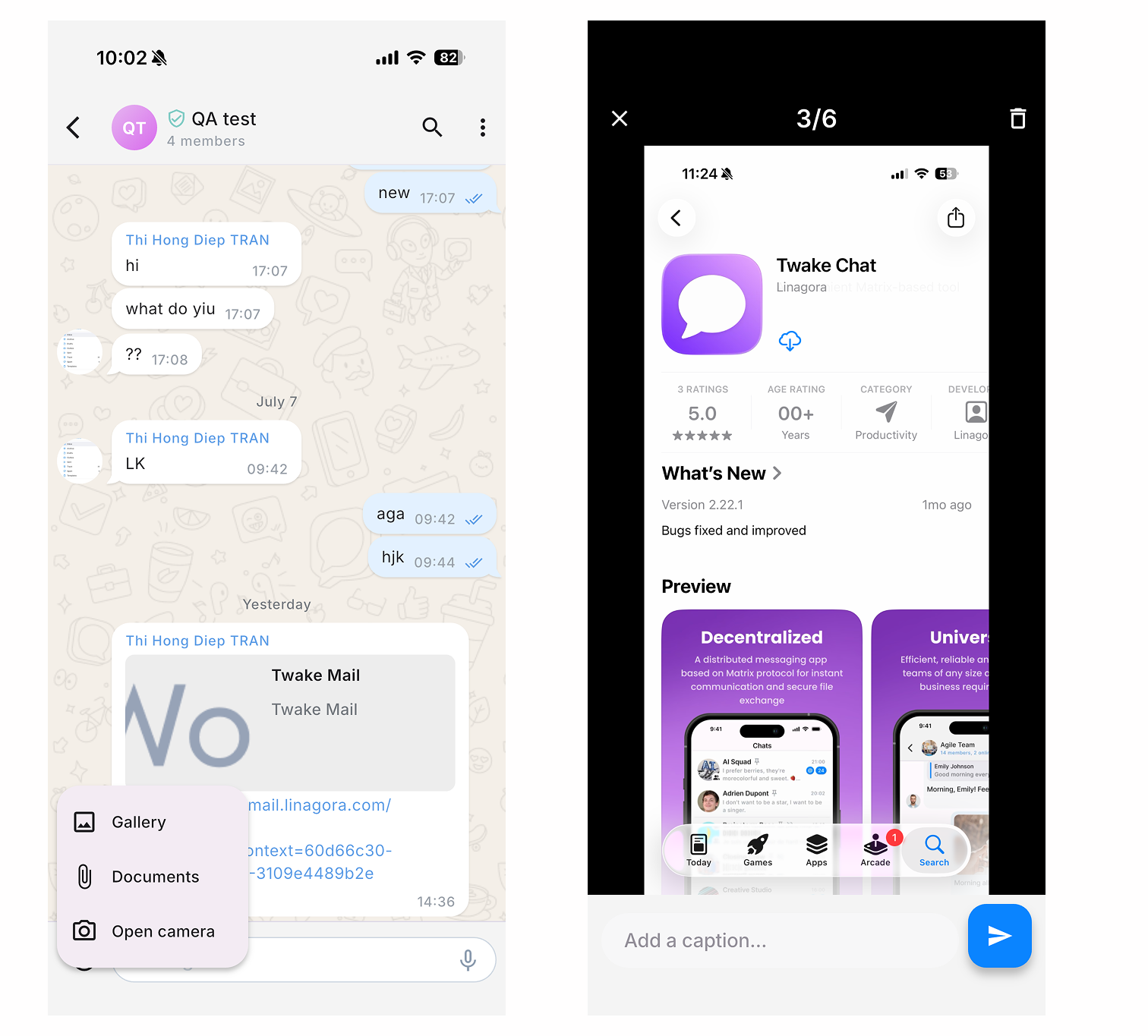
In mobile app, when you tap the (+) button beside the message field, there will be a popup with options:
- Gallery: Select image(s) from your gallery
- Documents: Browse and select files
- Open camera: Take picture or video and send
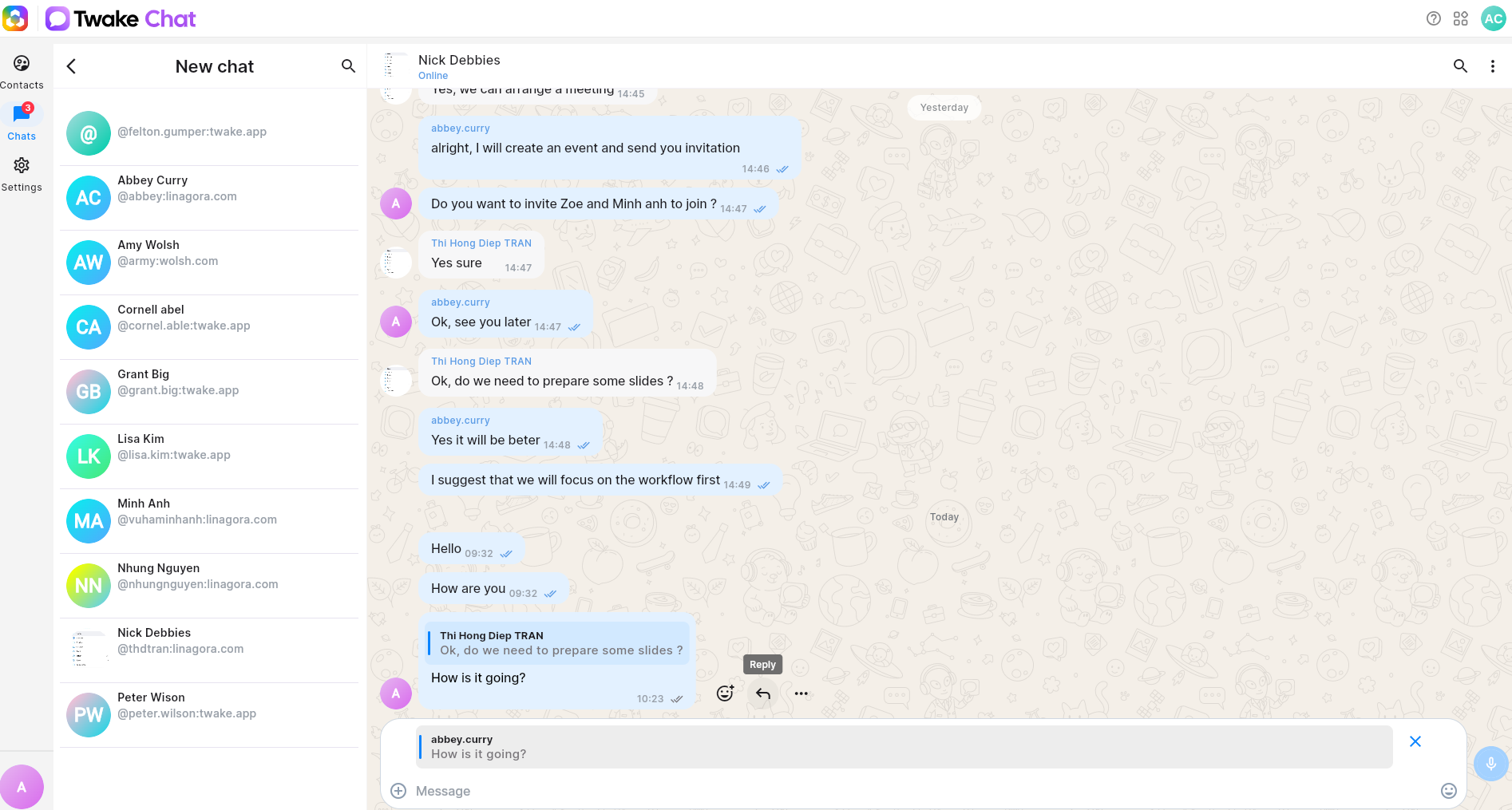
Reply to a Message
- Hover over the message you want to reply to.
- Click the Reply icon.
- Enter your response.
- Send the message.
Your reply is linked to the original message.
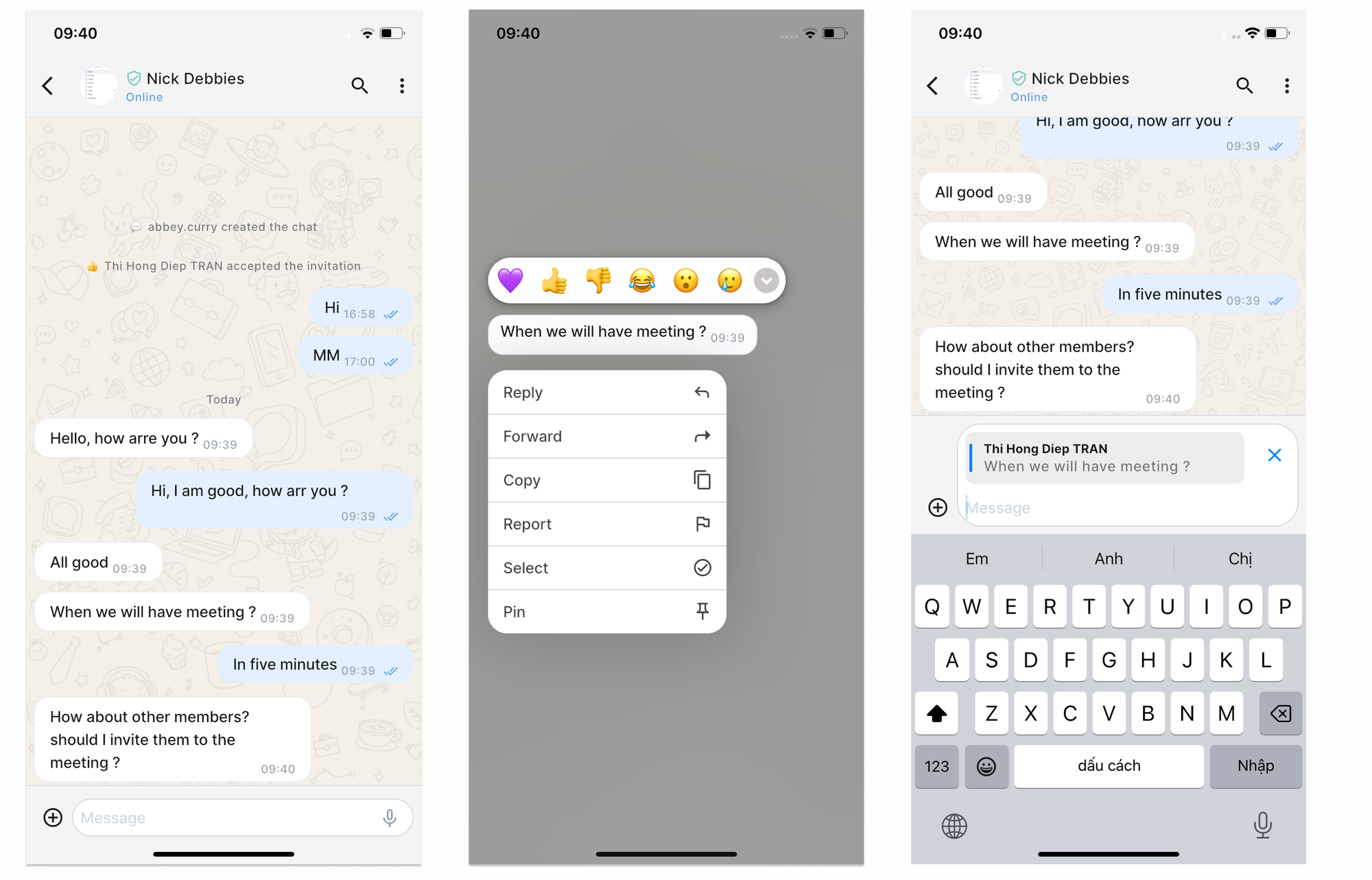
On mobile:
- Tab and hold the message you want to reply to
- The selected message is displayed with an action menu
- Select option Reply
- Enter your response and send
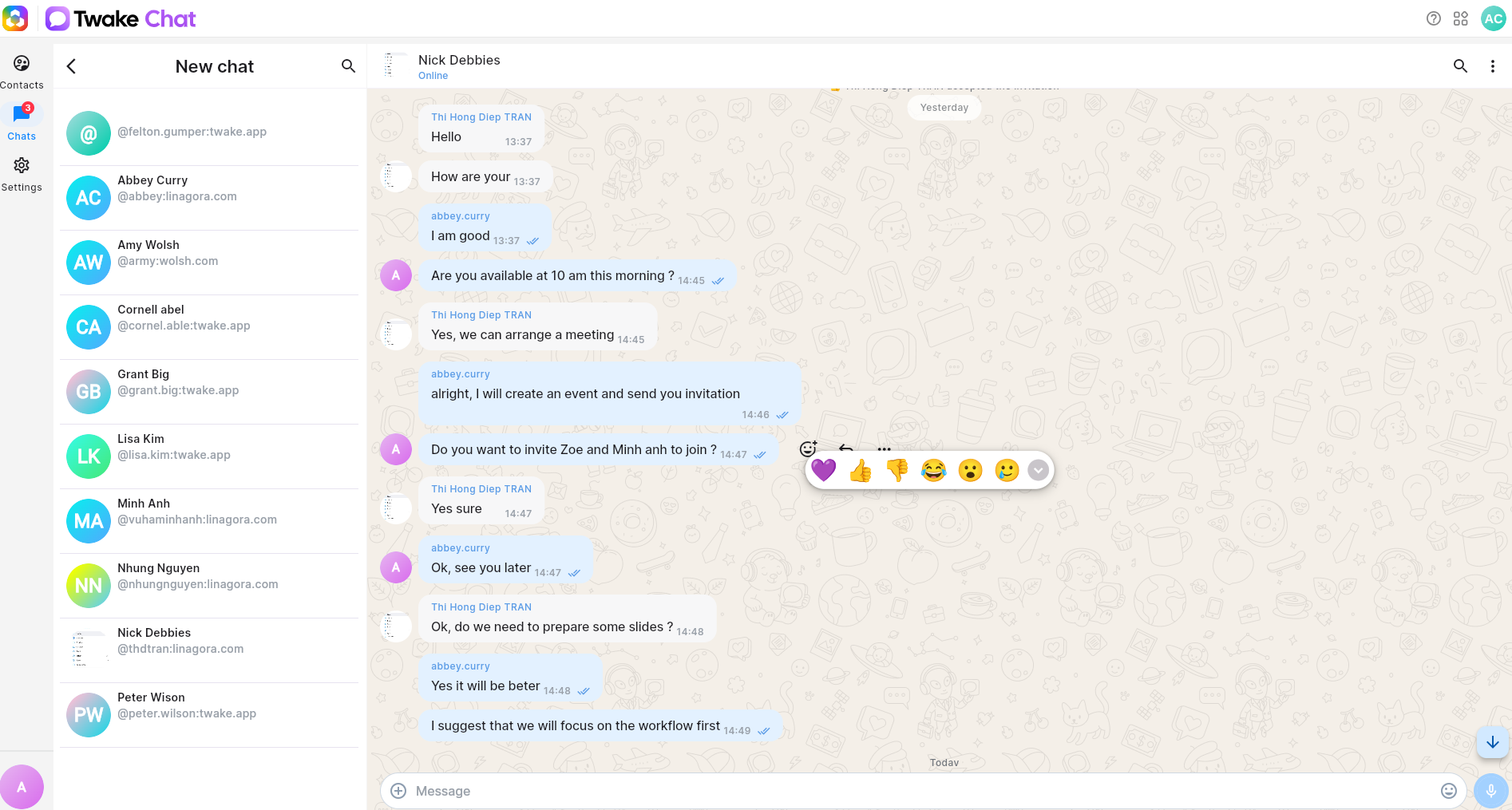
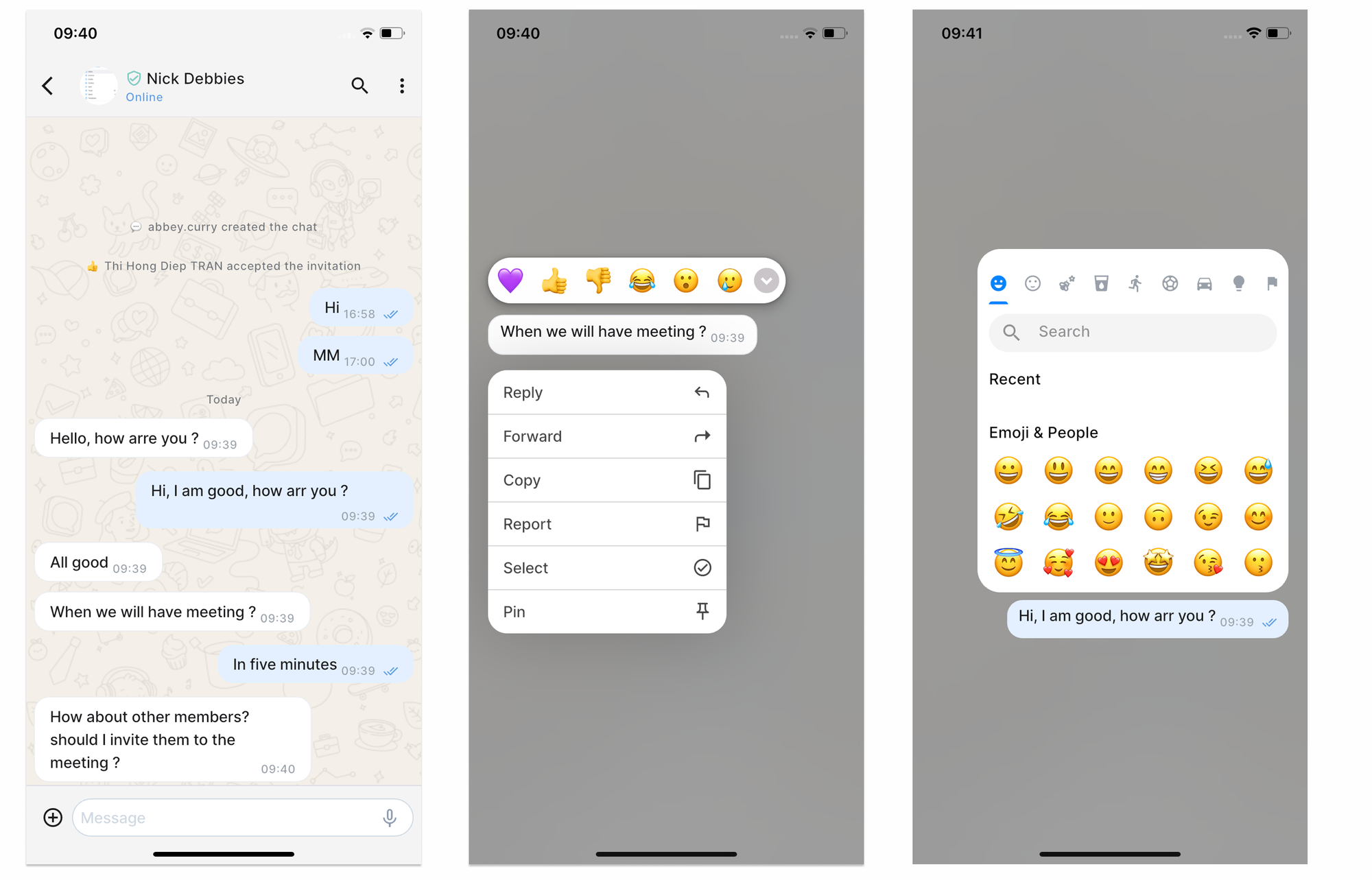
React with Emojis
To add an emoji reaction:
- Hover over a message.
- Click the Emoji icon.
- Select an emoji.
The reaction appears below the message
On mobile:
- Tab and hold the message you want to reply to
- The selected message is displayed with an action menu
- Expand Emoji menu and select one
Edit a Message
If you made a mistake, you can edit a message after sending it.
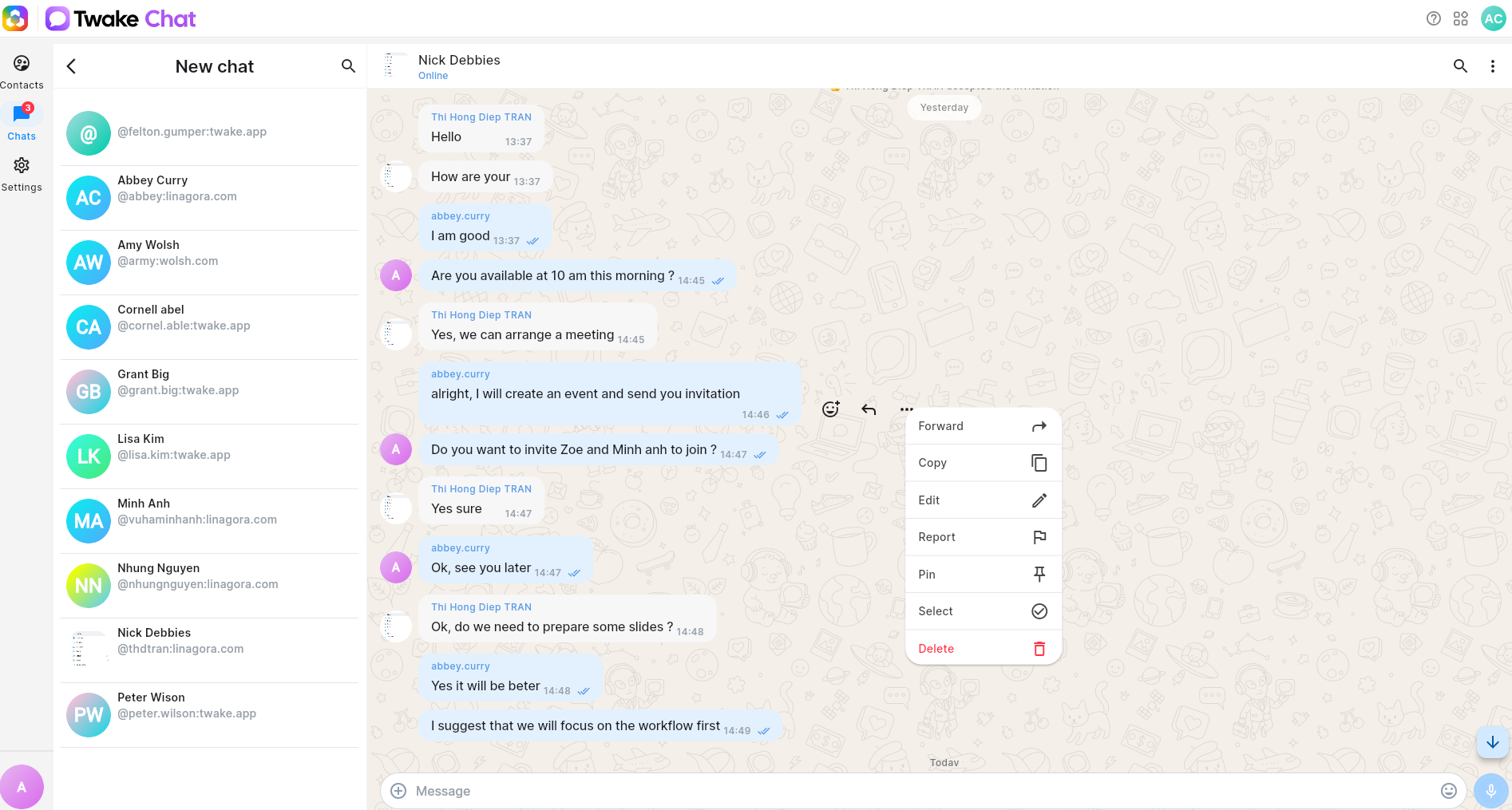
- Hover the message, then click 3-dot button to open the message options menu.
- Select Edit.
- Update the message content.
- Click Send or press Enter.
The message is updated in the conversation. You can only edit your own messages
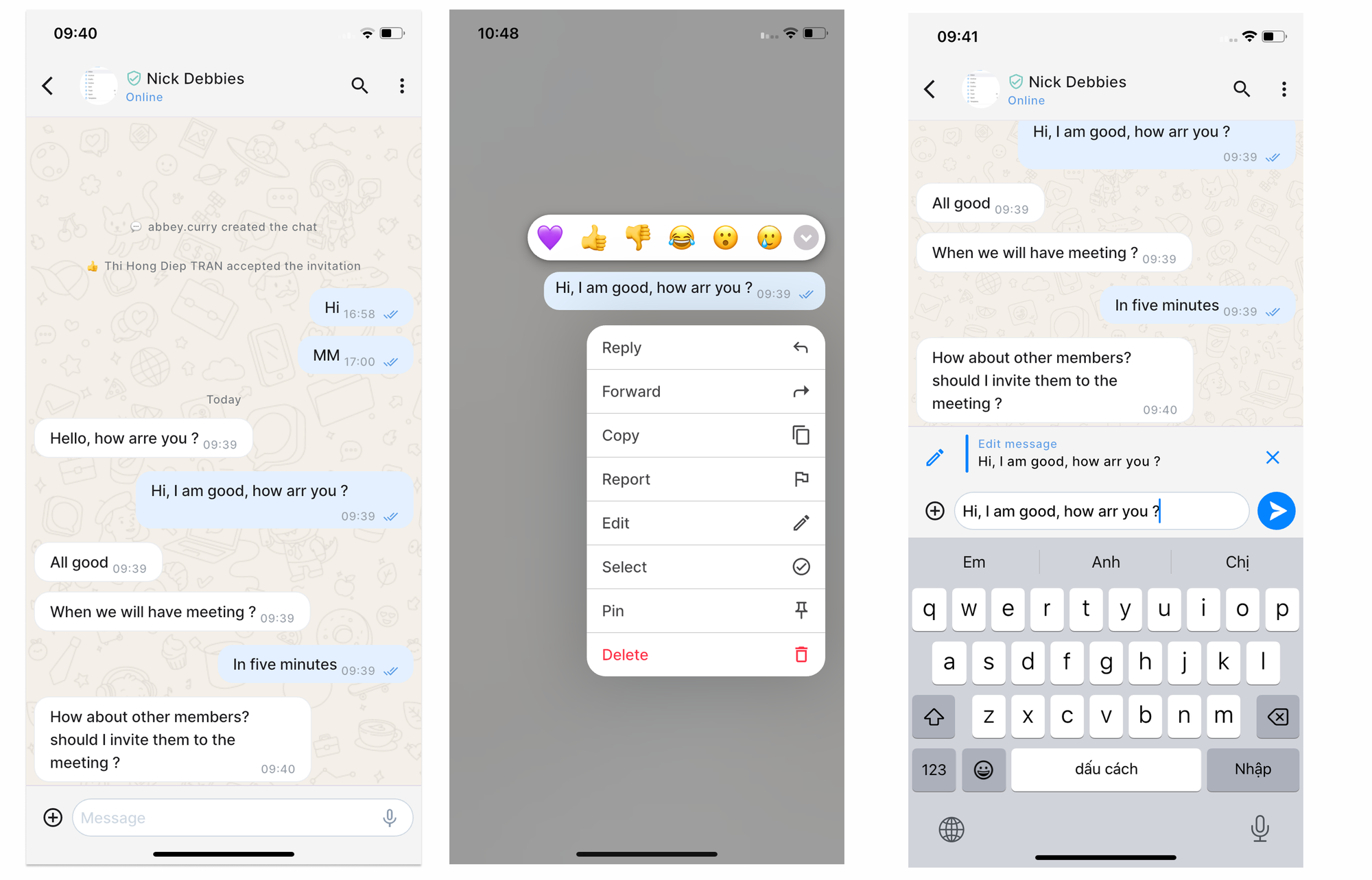
On mobile:
- Tab and hold the message you want to reply to
- The selected message is displayed with an action menu
- Select Edit
- Update the message content then click Send
Delete a Message
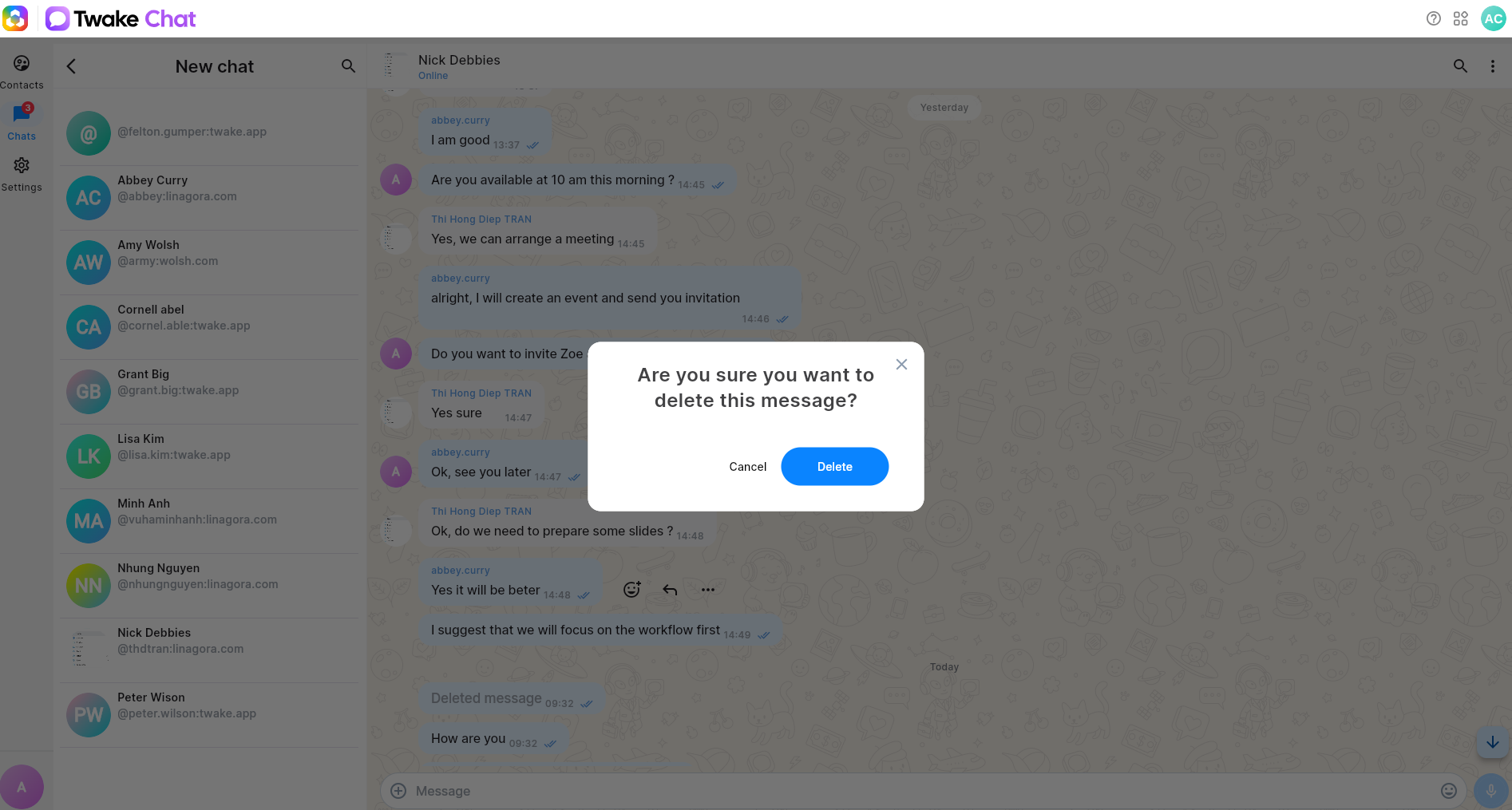
- Hover the message, then click 3-dot button to open the message options menu.
- Select Delete.
- Confirm the deletion.
The message is removed from the conversation. You can only delete your own messages
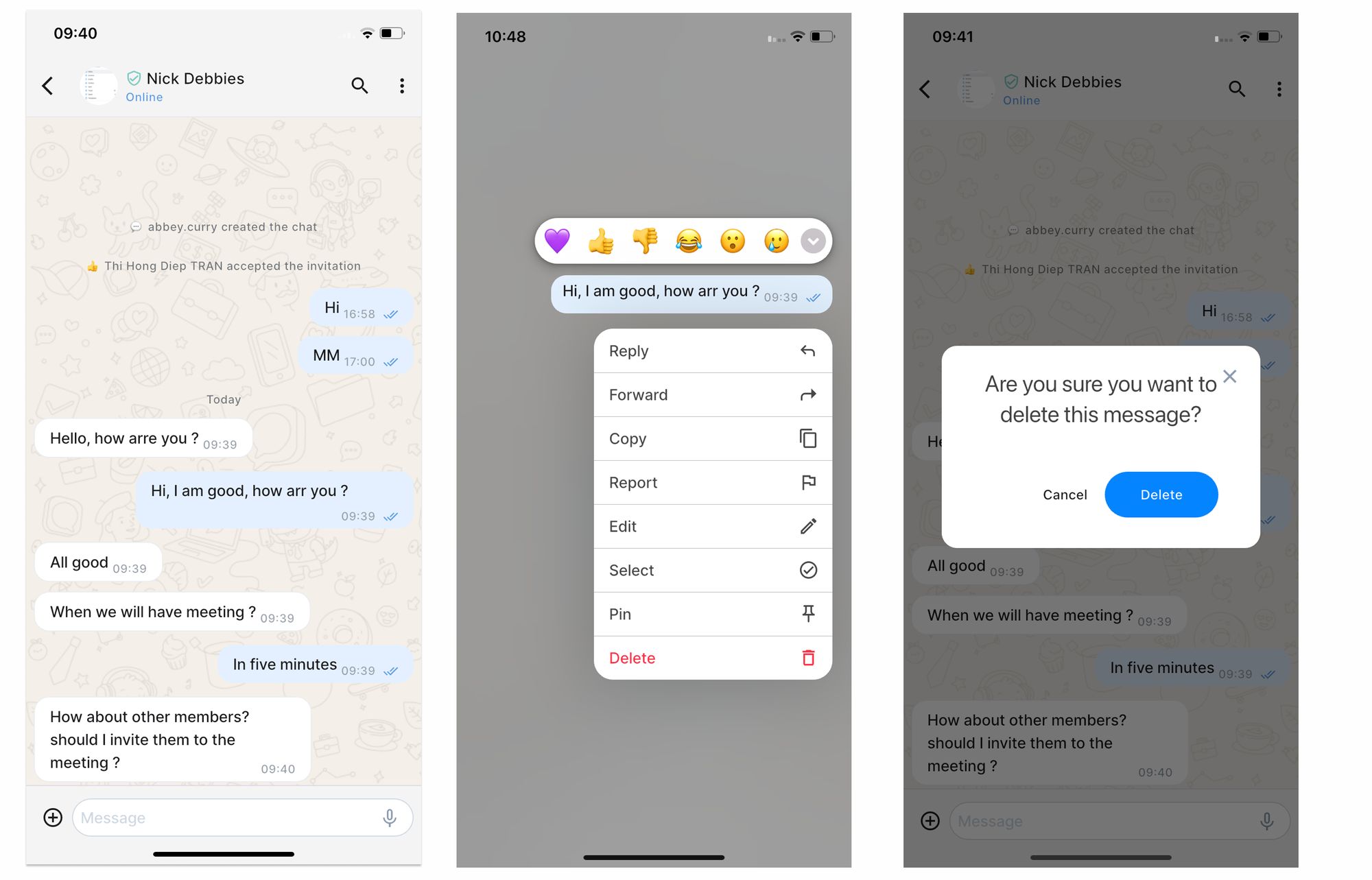
On mobile:
- Tab and hold the message you want to reply to
- The selected message is displayed with an action menu
- Select Delete and confirm:
Pin a Message
Pinned messages make important information easy to find later.
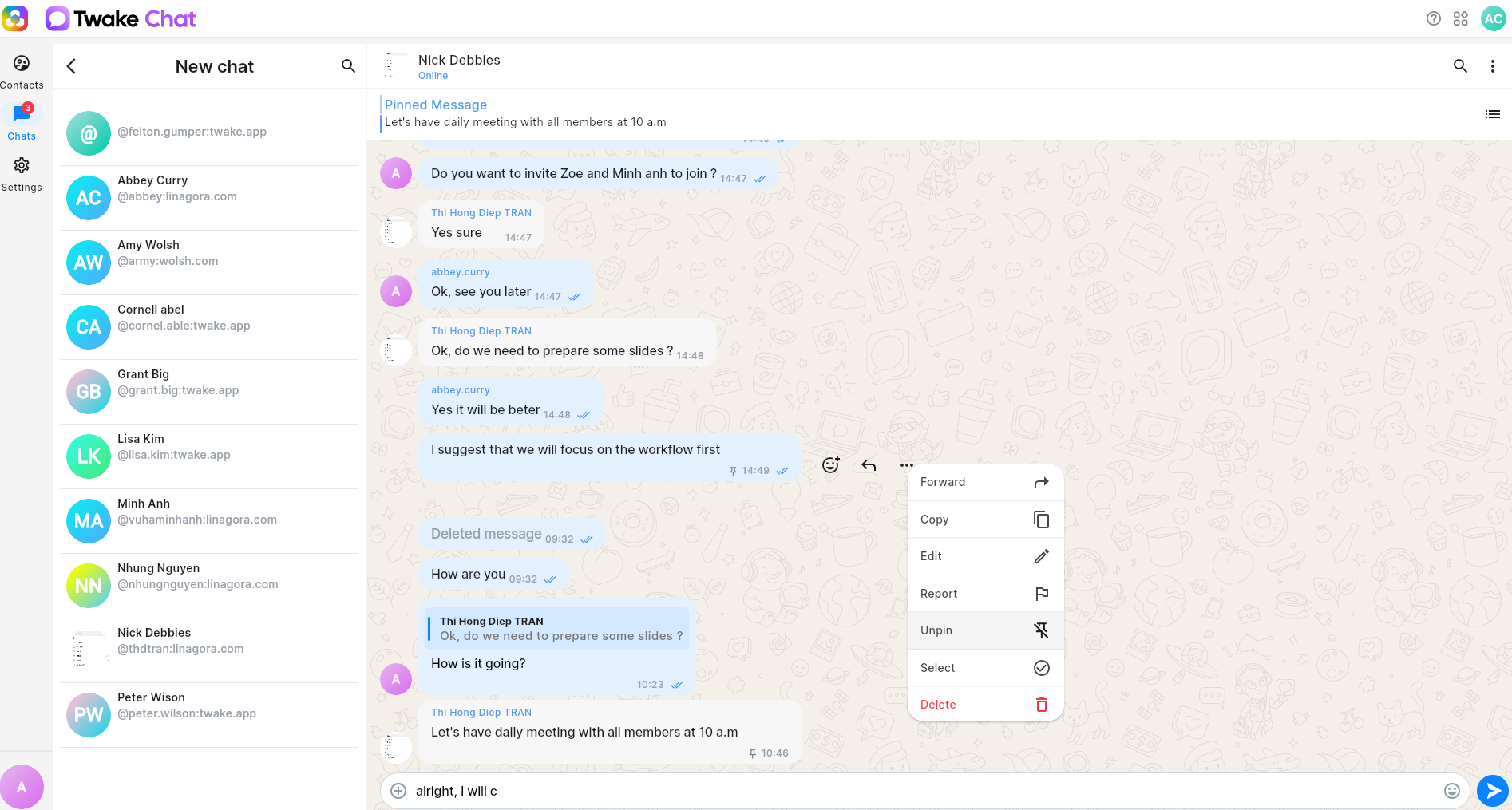
- Hover the message, then click 3-dot button to open the message options menu.
- Select Pin.
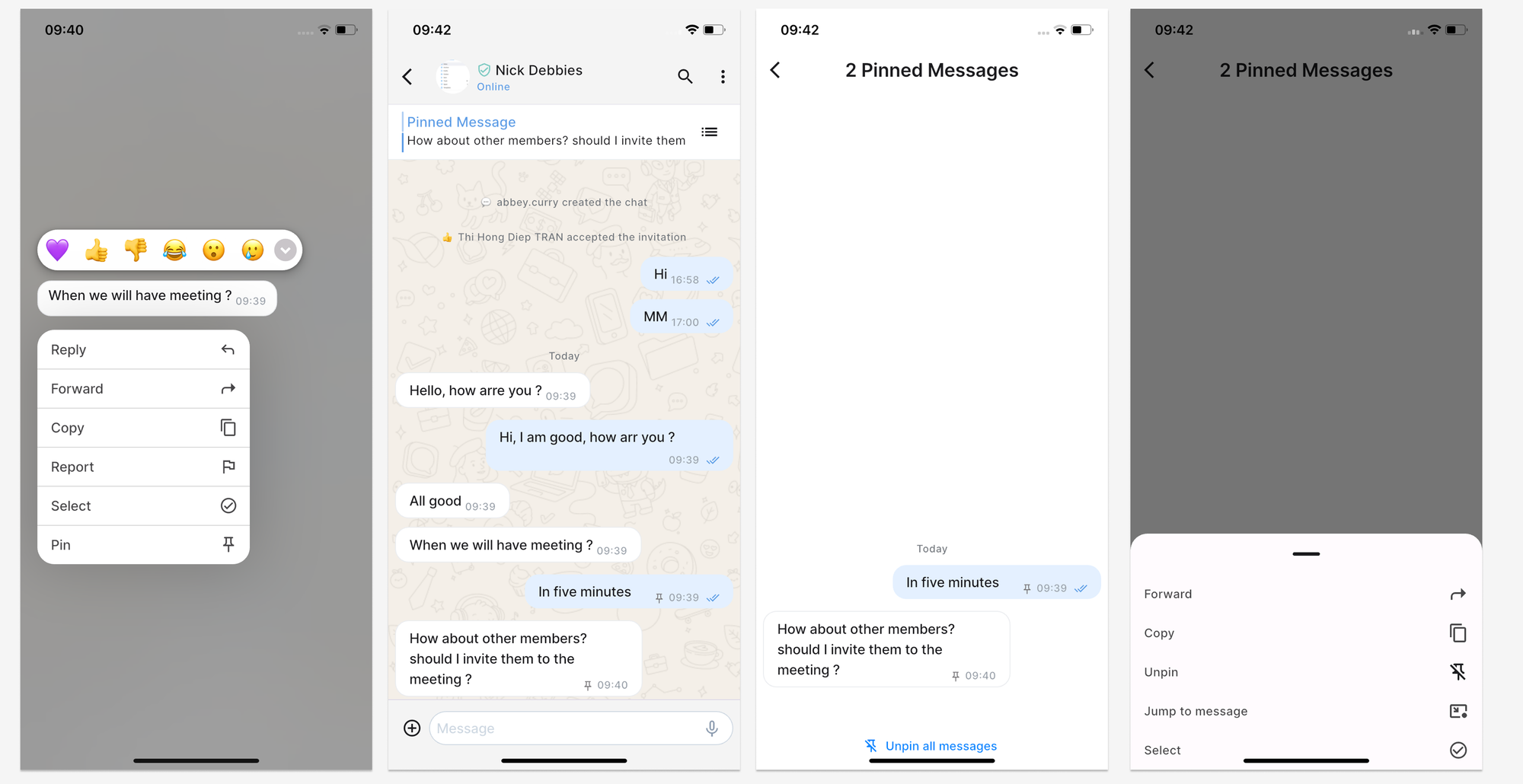
The message is added to the list of pinned messages for the conversation. The pinned message will have an "pin" icon. To unpin the message, open the options menu of that message and click "unpin".
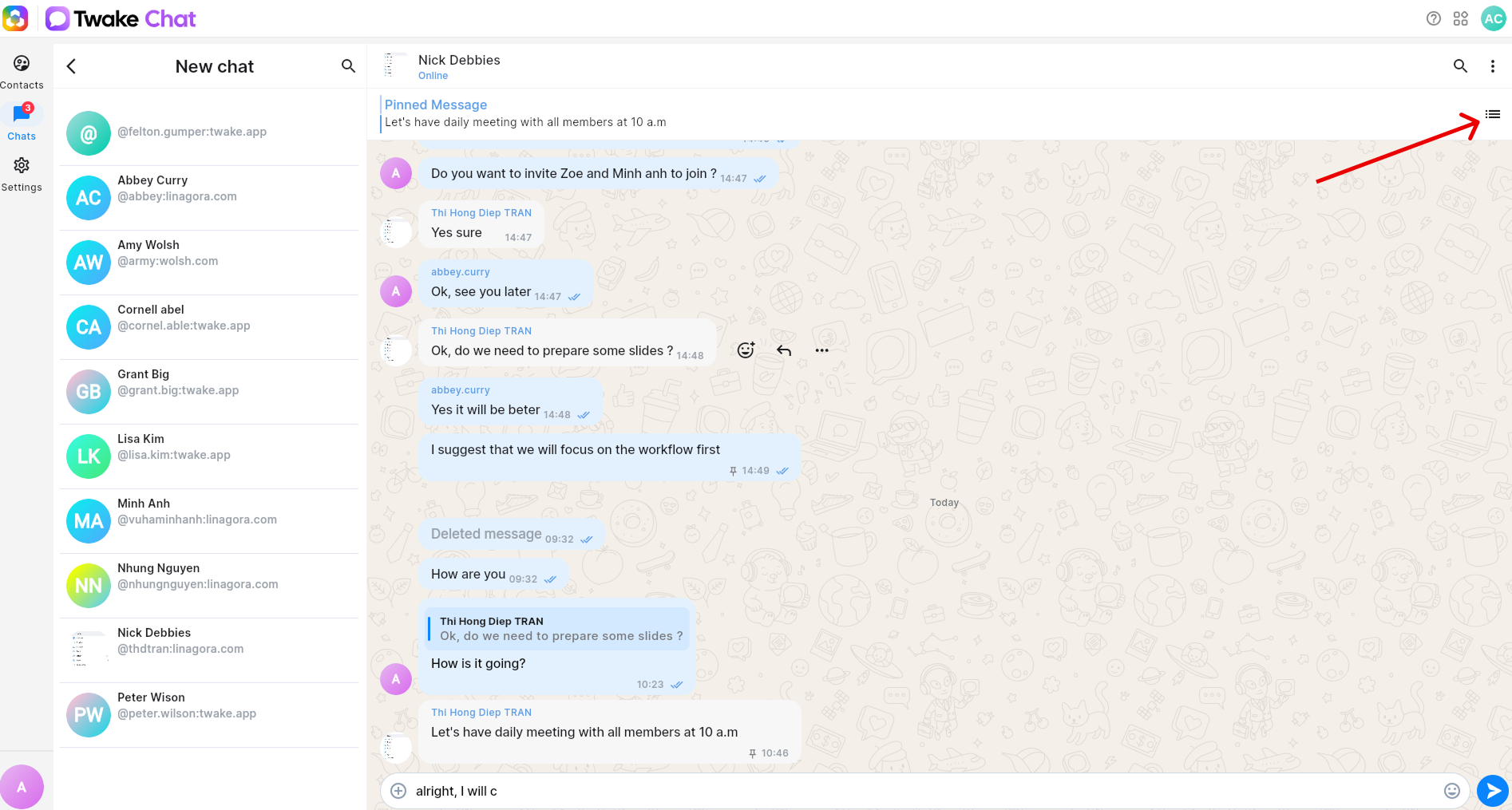
To view all pinned messages of a conversation, Click the Pinned Messages banner at the top of the conversation:
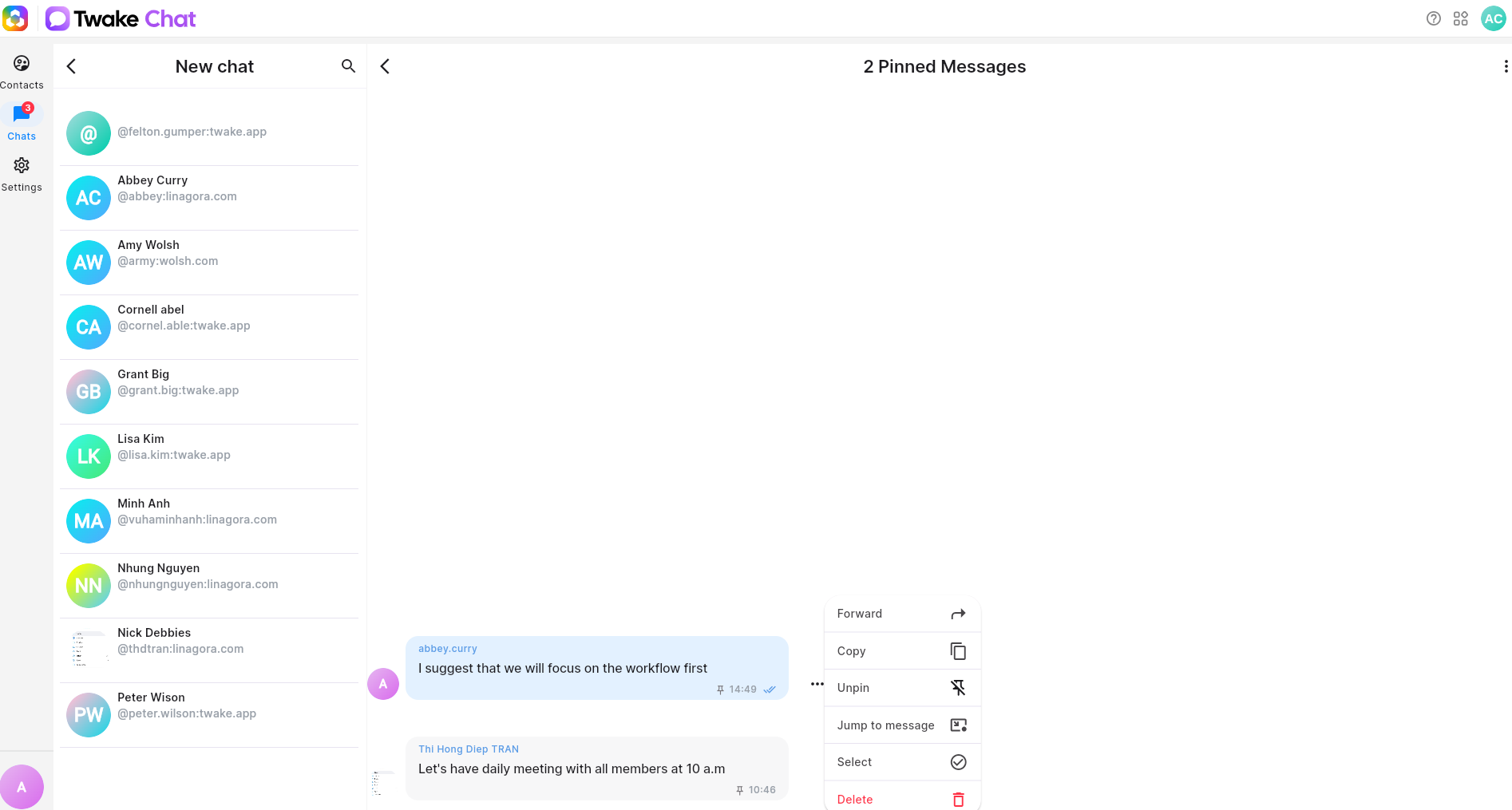
From the Pinned Messages page, open the message options menu to perform the following actions: Forward, Copy, Unpin, Jump to message, Select, Delete (only visible if it is your own message)
On mobile:
Forward a Message
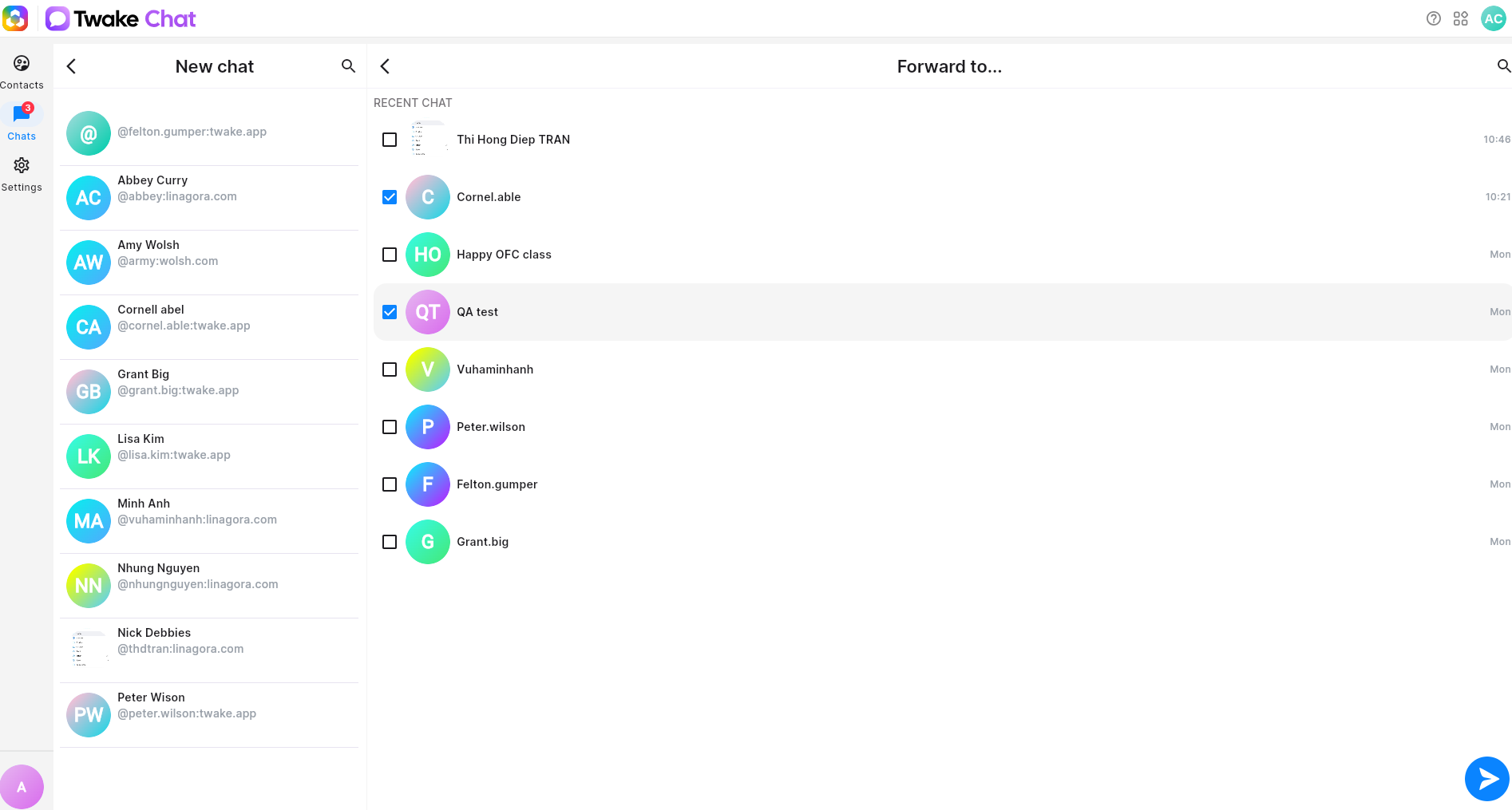
To forward a message:
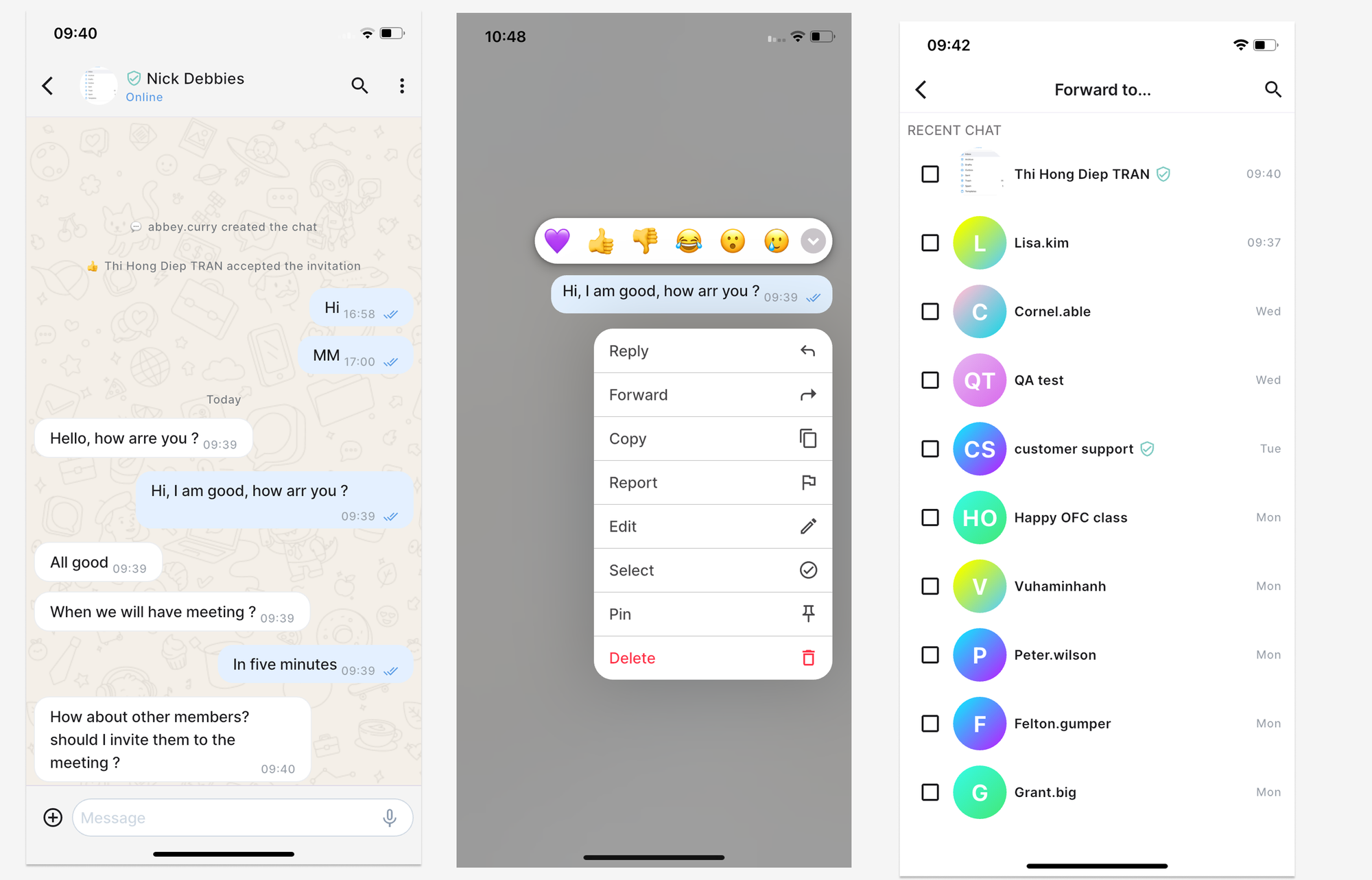
- Open the message options menu.
- Select Forward.
- Select one or more conversations.
- Confirm the forwarding action.
The selected message is sent to the chosen conversations.
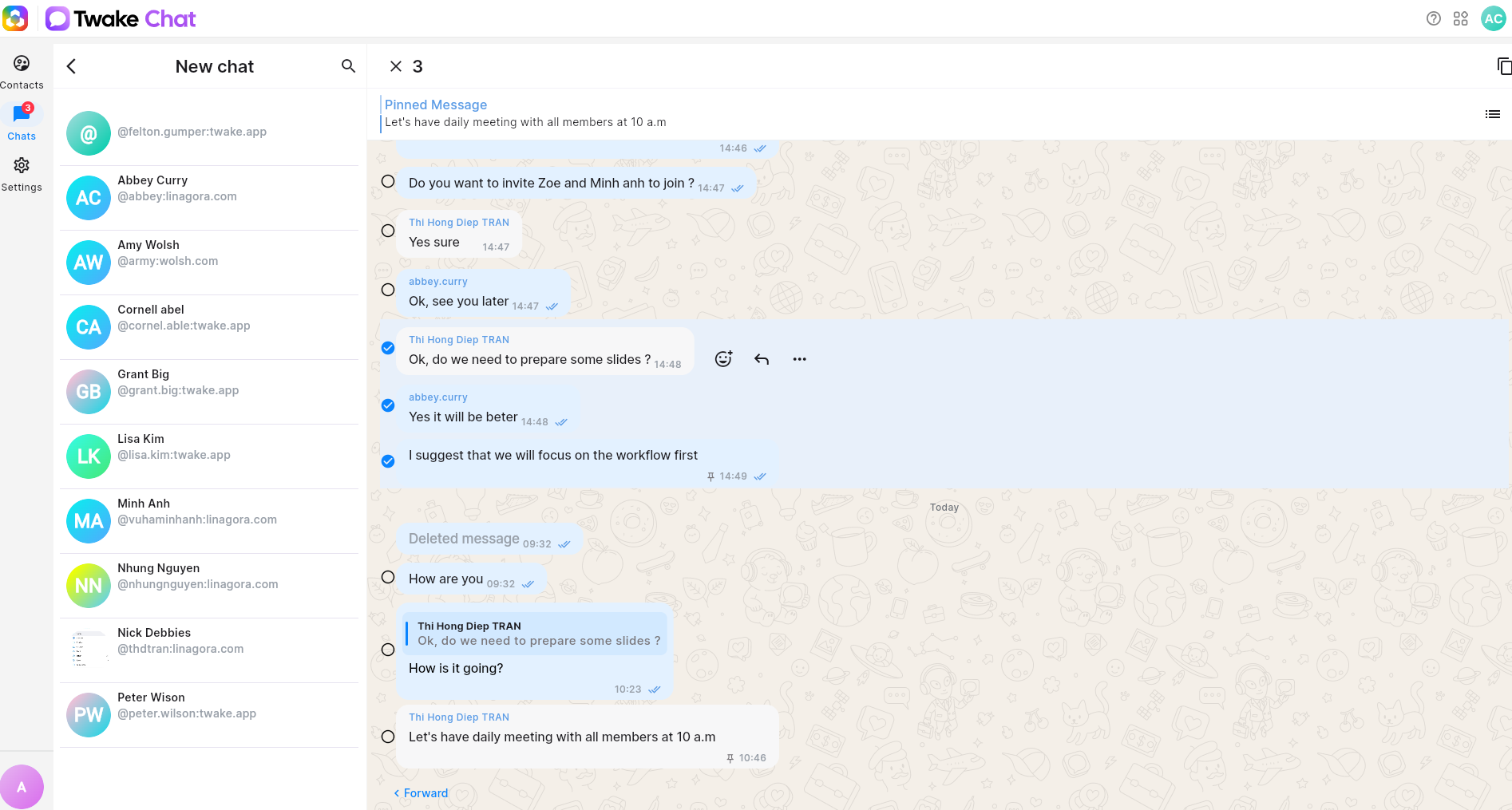
You can select multiple messages in a conversation then forward.
On mobile:
Report a Message
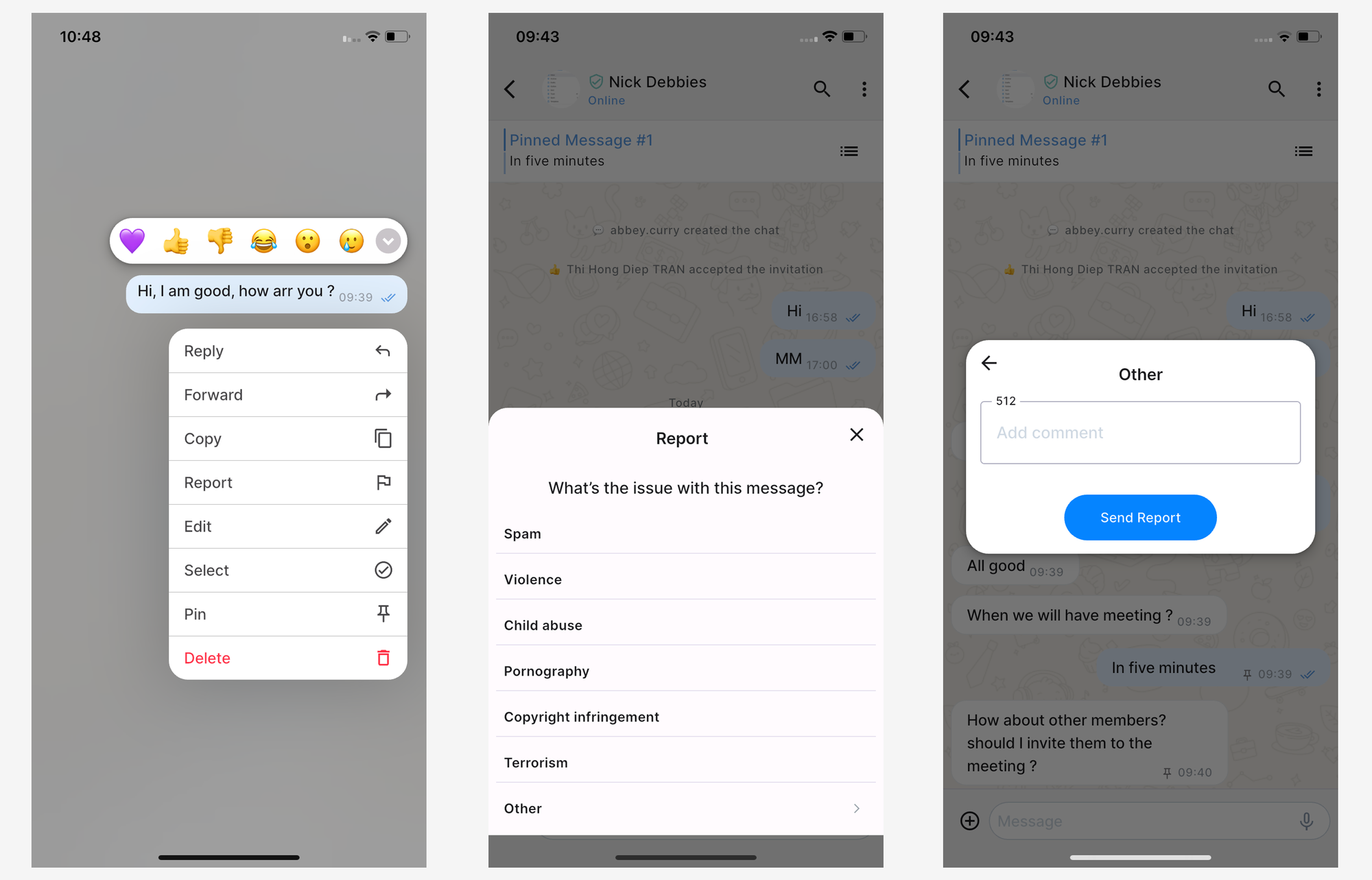
If you encounter inappropriate or unwanted content, you can report it. To report a message:
- Open the message options menu.
- Select Report.
- Choose the reason for the report. If you choose "Other", there will be a text field to input the reason.
- Submit the report.
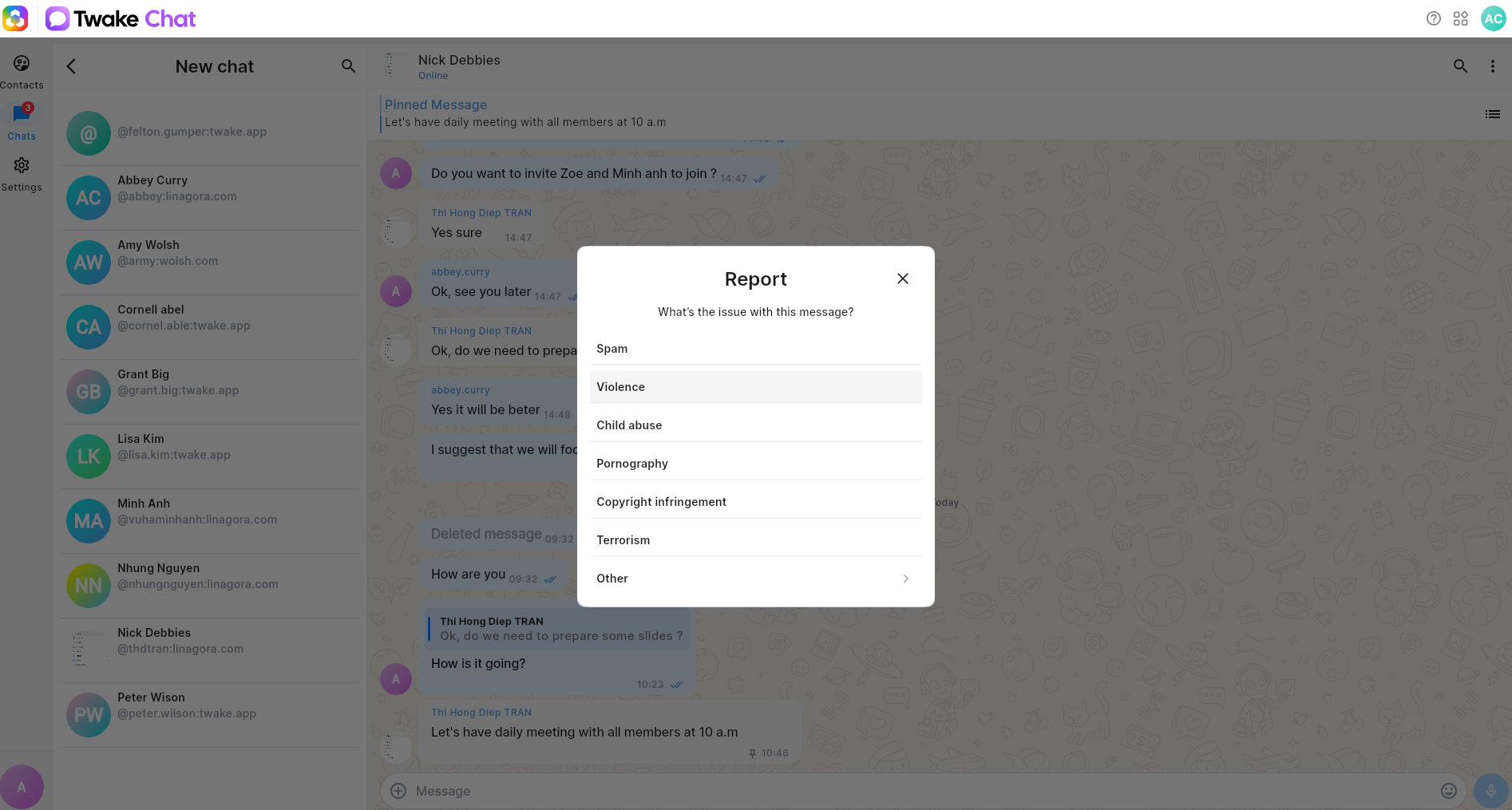
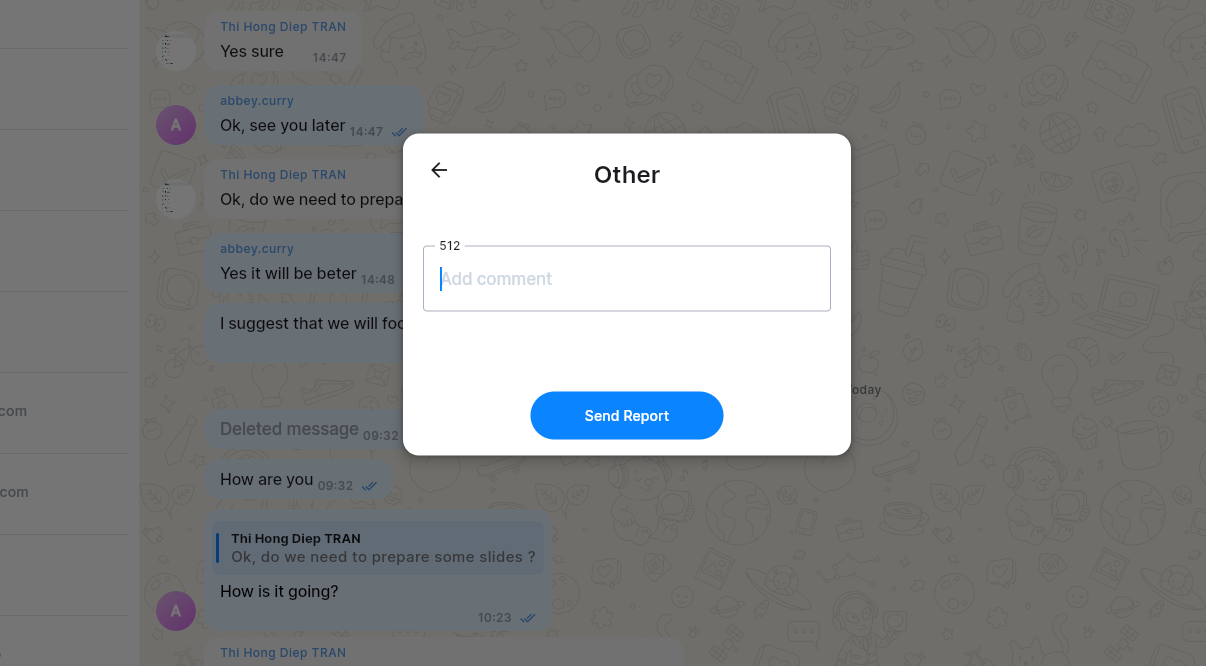
The report is sent for review.
On mobile: