
Join a Twake Visio meeting using a link or meeting code
You can join a Twake Visio meeting by entering its 10-letter meeting code on the Visio home page or by opening the complete meeting link directly in your browser.
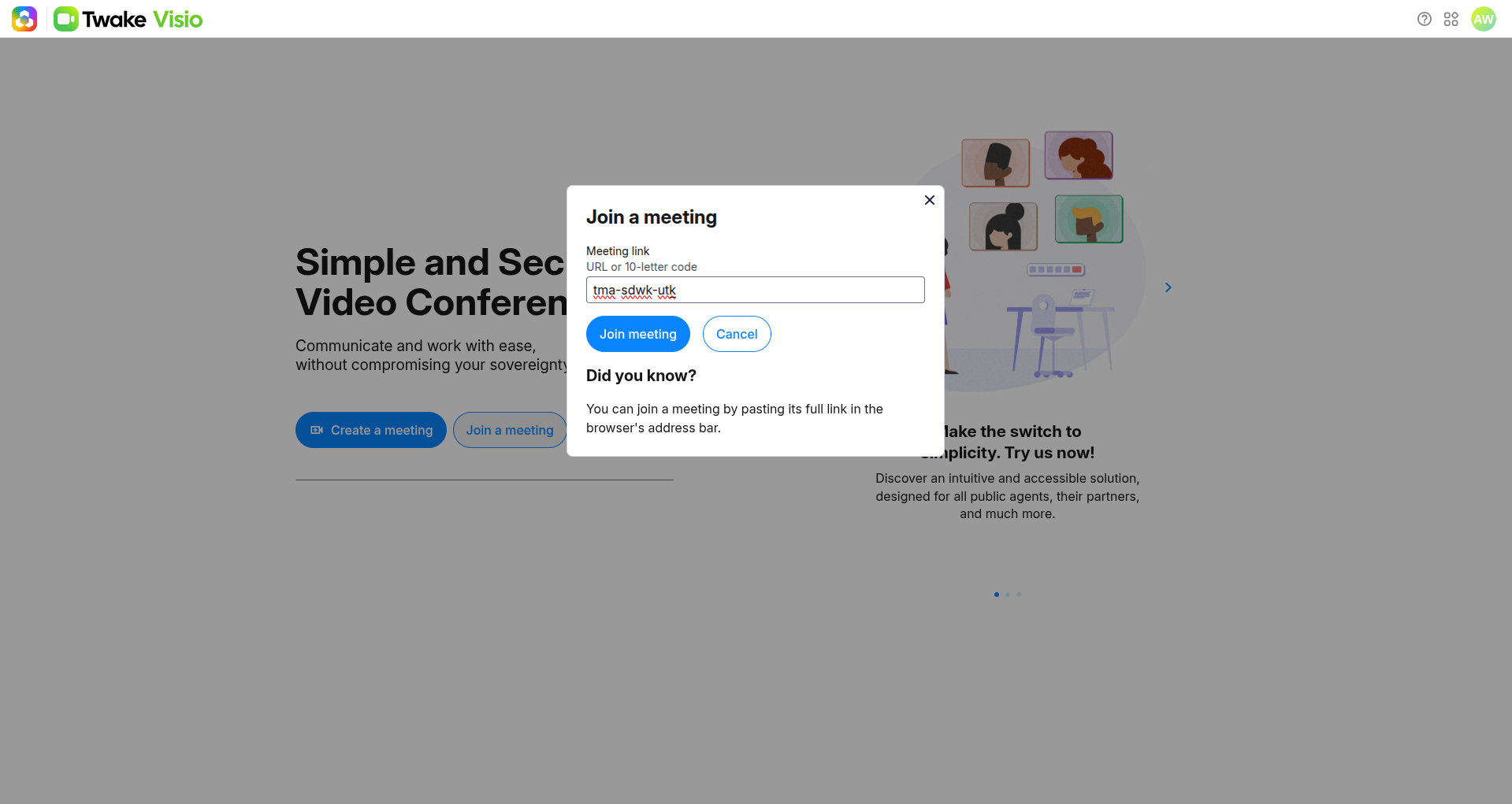
Join using a meeting code
- Open the Twake Visio home page.
- Select Join a meeting.
- Enter the 10-letter meeting code, or example,
lxe-hxzw-rzj. - Select Join meeting.
The Join a meeting field currently accepts the meeting code only. Do not paste the complete meeting URL into this field.
Join using a meeting link
If you receive a complete meeting link:
- Copy the link.
- Paste it into your browser’s address bar.
- Press Enter.
The link takes you directly to the pre-meeting screen.
Prepare before joining
Before entering the meeting, you can:
- Enter or update your display name.
- Turn your microphone on or off.
- Turn your camera on or off.
- Select the microphone, speaker, and camera you want to use.
- Check your camera preview.
If you are signed in, your name may be automatically filled in using your Twake Workplace account information.
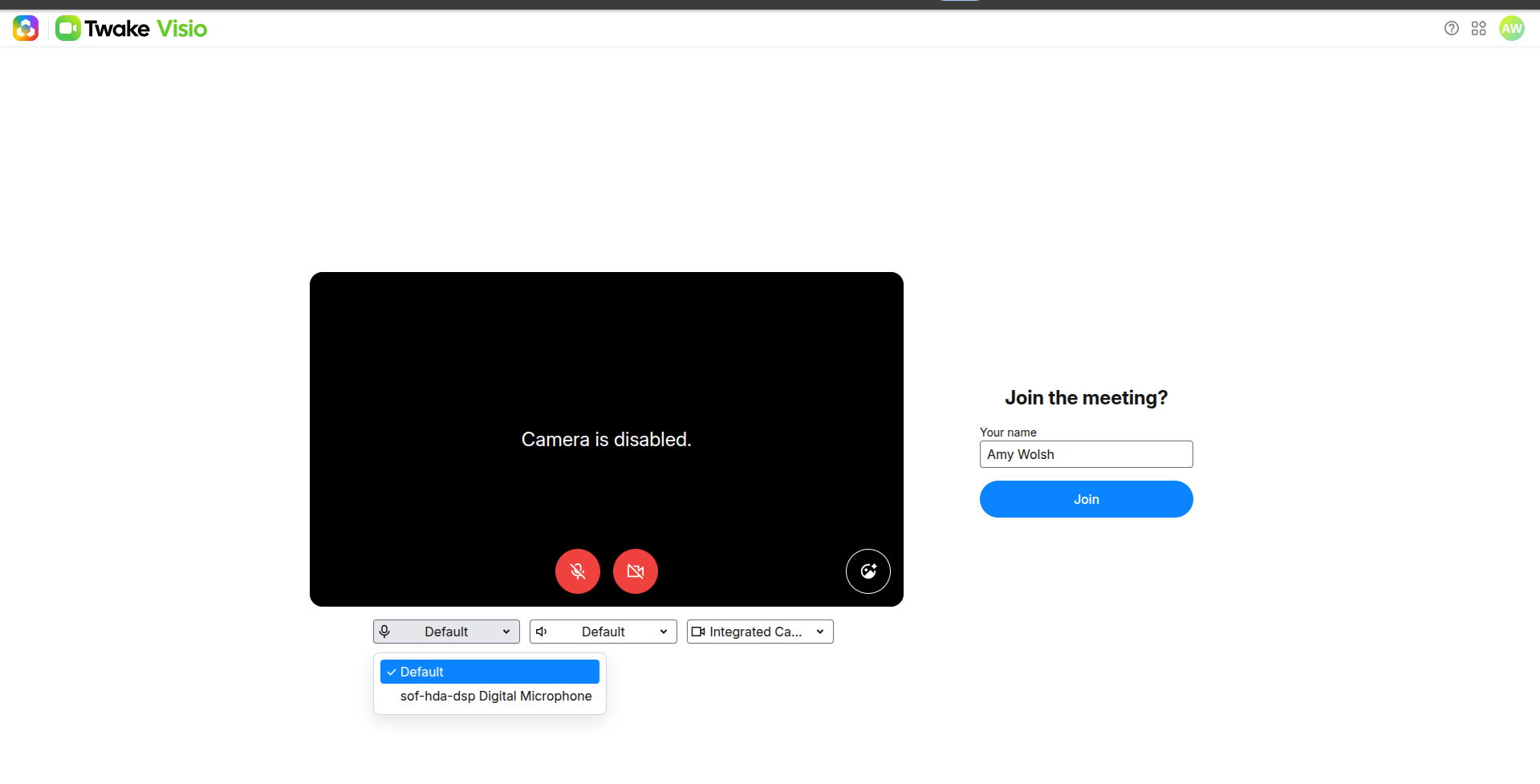
Select Join, you are then connected to the meeting room.