Keyboard Shortcuts
Keyboard shortcuts help you perform common actions more quickly without using your mouse.
To view available keyboard shortcuts:
- Click your profile avatar in the top-right corner.
- Select Manage account.
- Click Keyboard shortcuts from the left menu.
The Keyboard Shortcuts page organizes shortcuts into different categories:
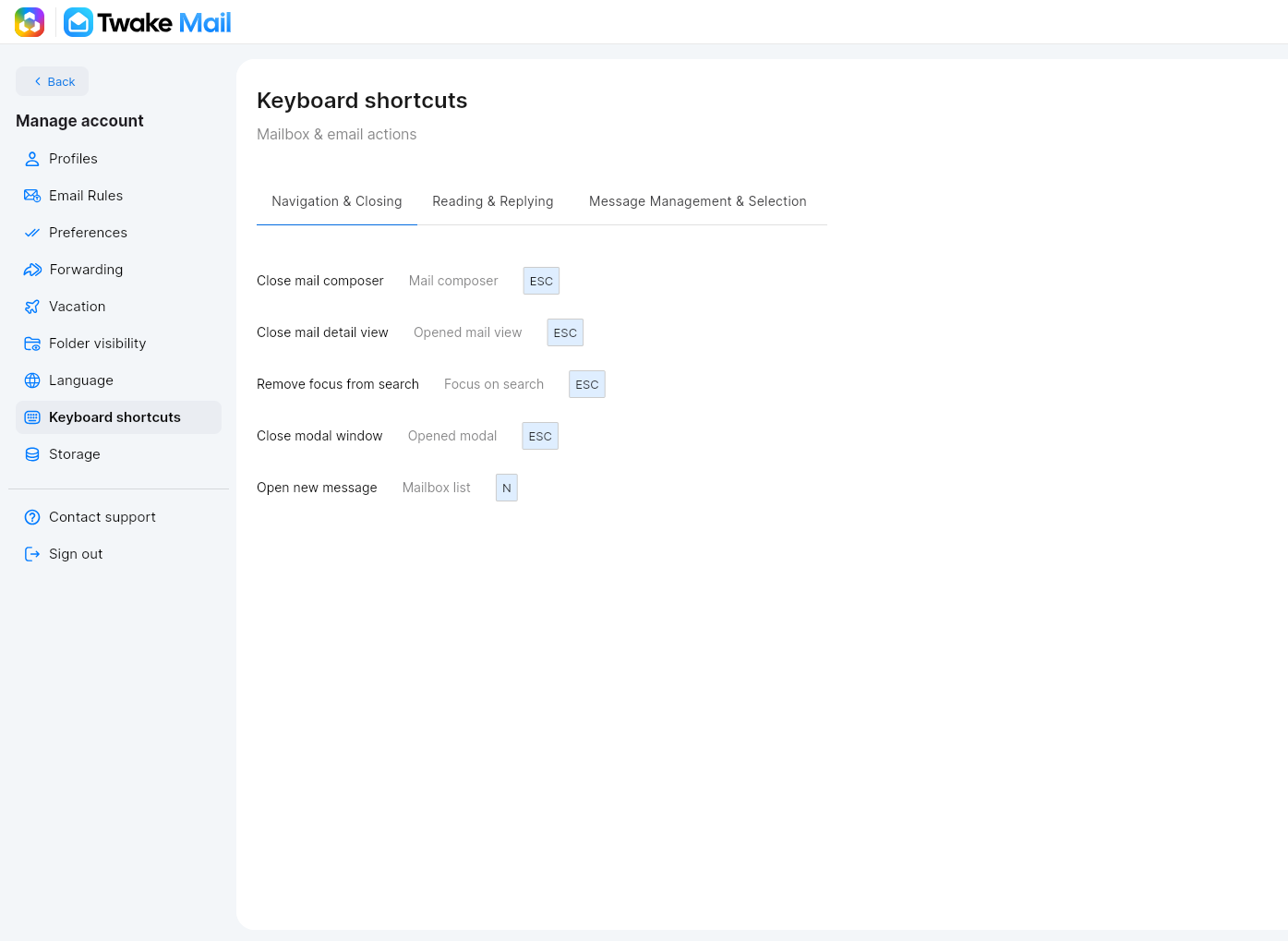
Navigation & Closing
These shortcuts help you navigate the mailbox and close,open views.
Each keyboard shortcut is associated with a specific context. A shortcut only works when you are in the corresponding area of Twake Mail. Context is discribed in grey text
Examples
Close mail detail view (ESC)
- Context: Opened mail view => Works only when an email is open.
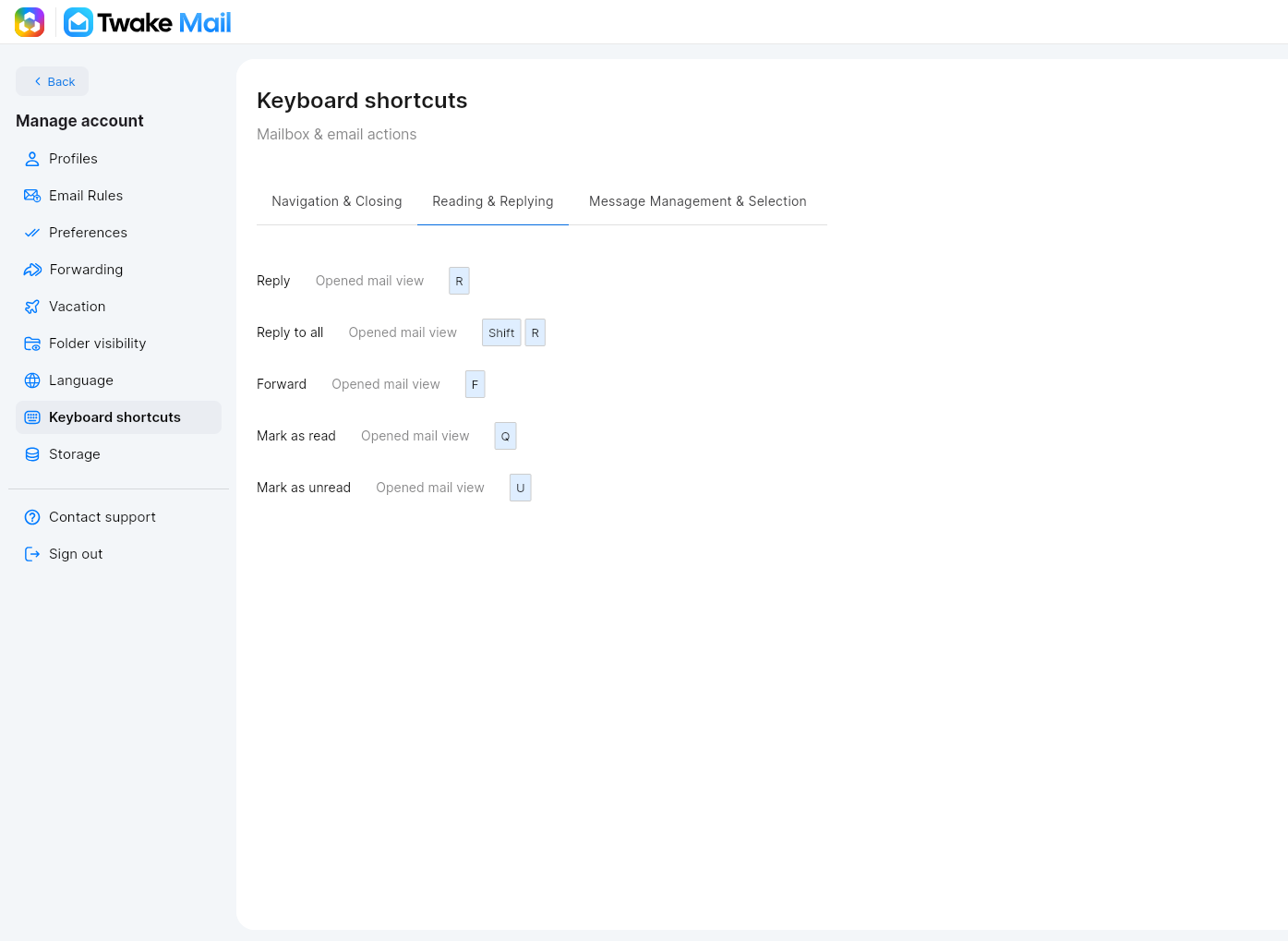
Reading & Replying
Select the Reading & Replying tab to view shortcuts related to replying to, forwarding, mark as read/unread
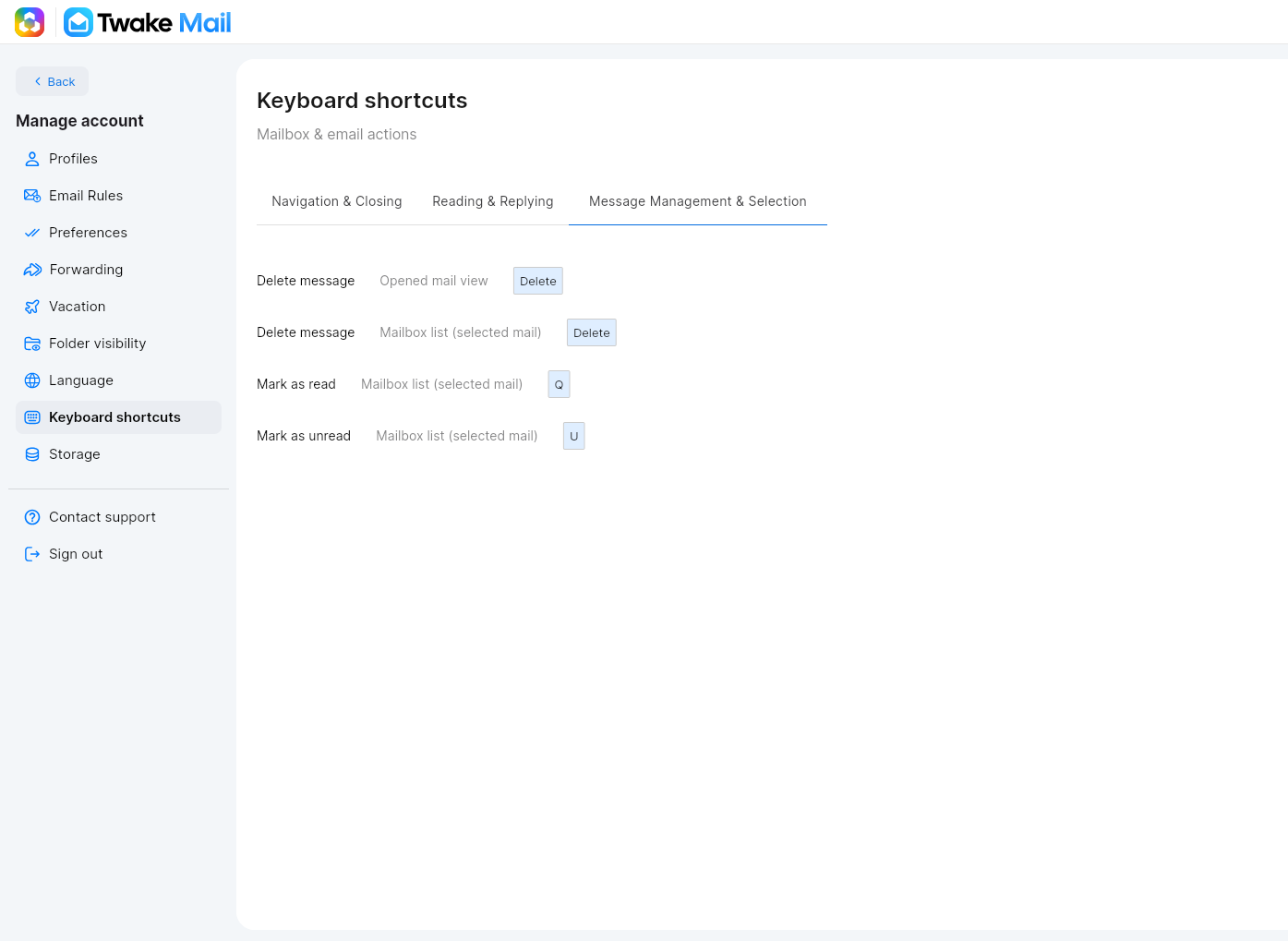
Message Management & Selection
Select the Message Management & Selection tab to view shortcuts related to delete message and mart as read/unread