
Manage a shared calendar with assigned permissions
When another user shares a calendar with you, it appears under Shared calendars in the left sidebar. The actions available to you depend on the permission assigned by the calendar owner. See Share a calendar
Select or clear the checkbox next to the shared calendar to show or hide its events in your calendar view.
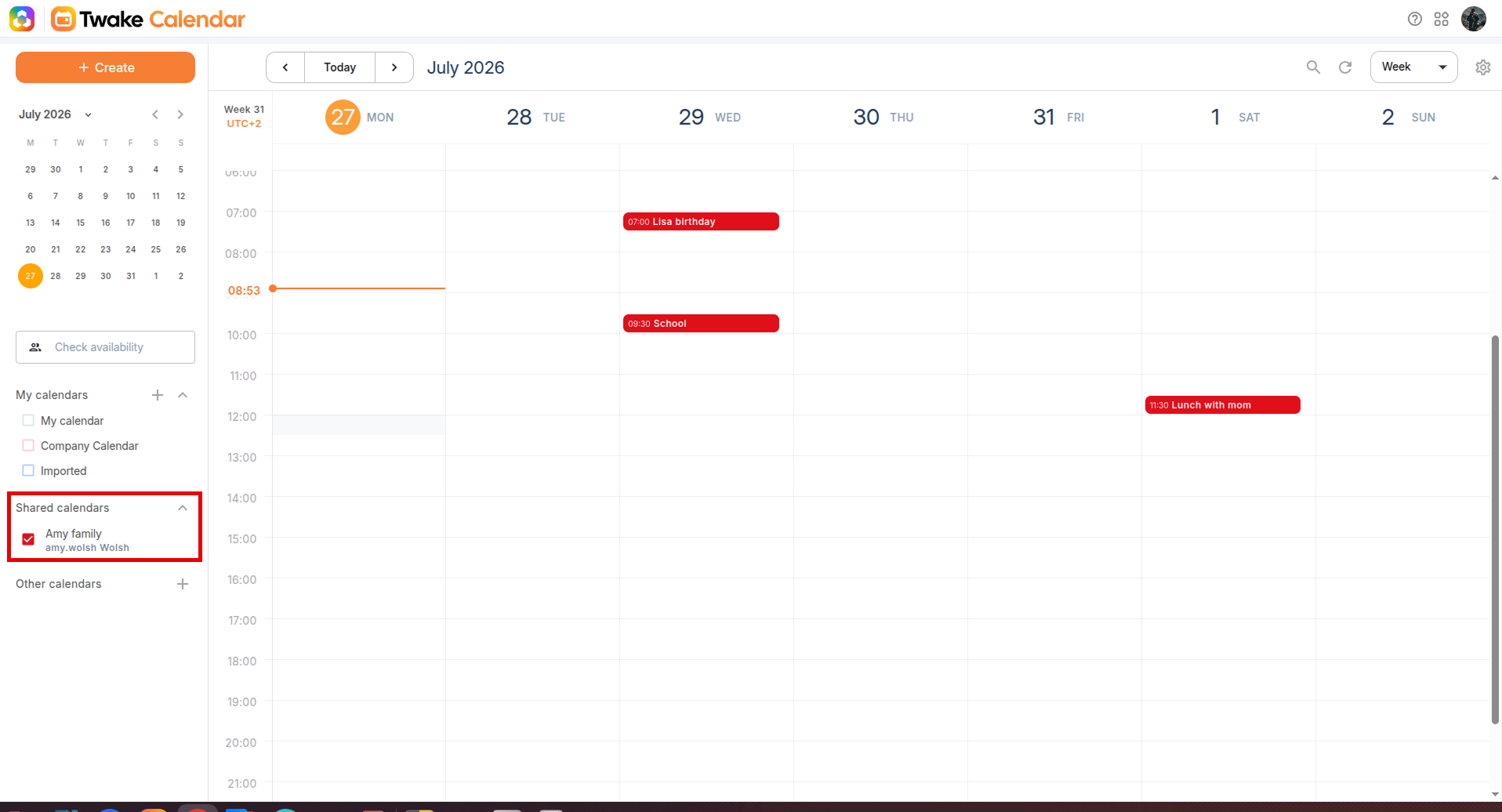
View events
Click an event to view its available details.
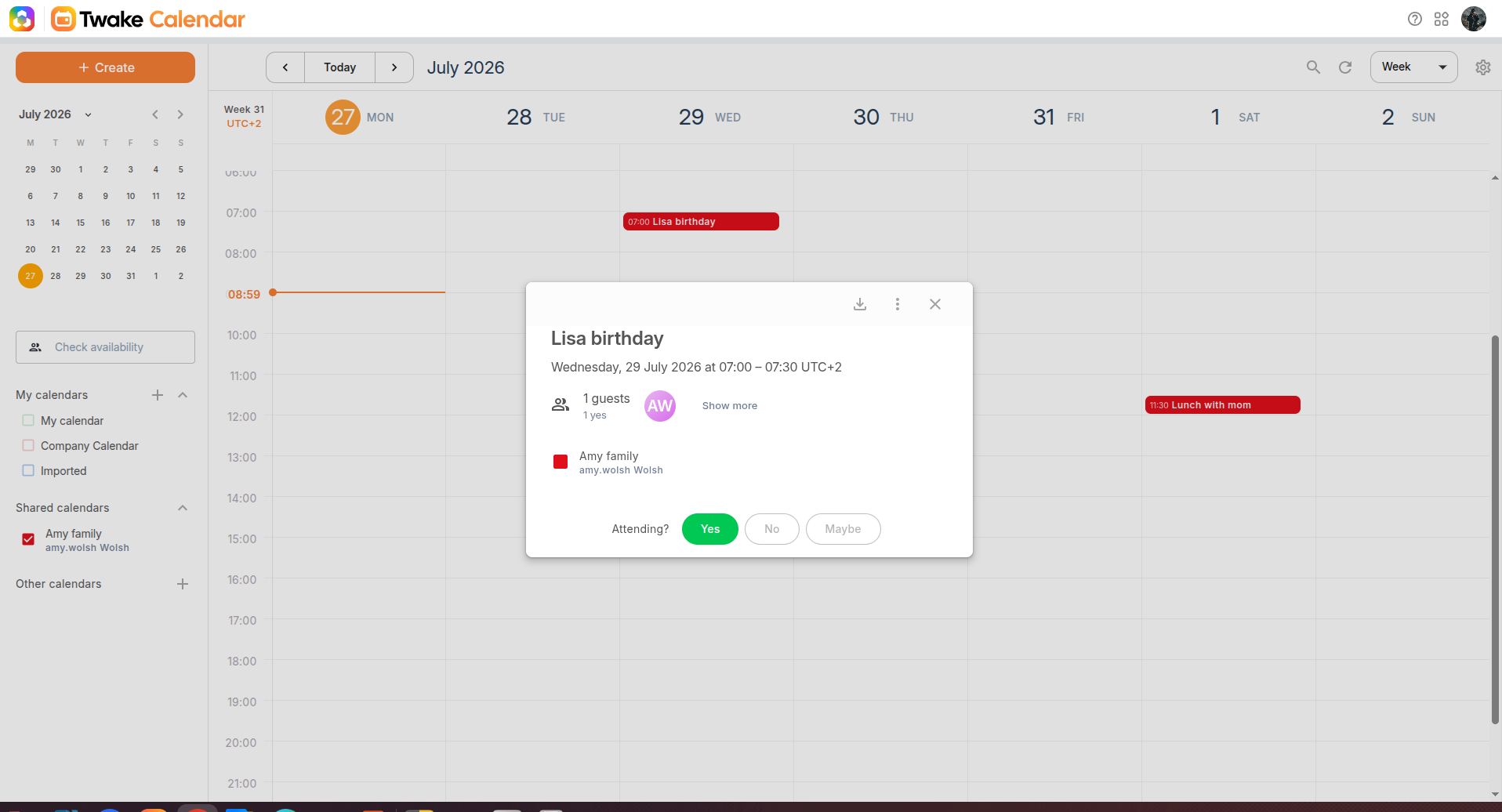
Create an event
If you have Editor or Administrator permission:
- Click Create or select a time slot.
- Enter the event details.
- In the Calendar field, select the shared calendar.
- Click Save.
The event is added to the shared calendar and is visible to users who have access to it. The organizer is the owner of the shared calendar.
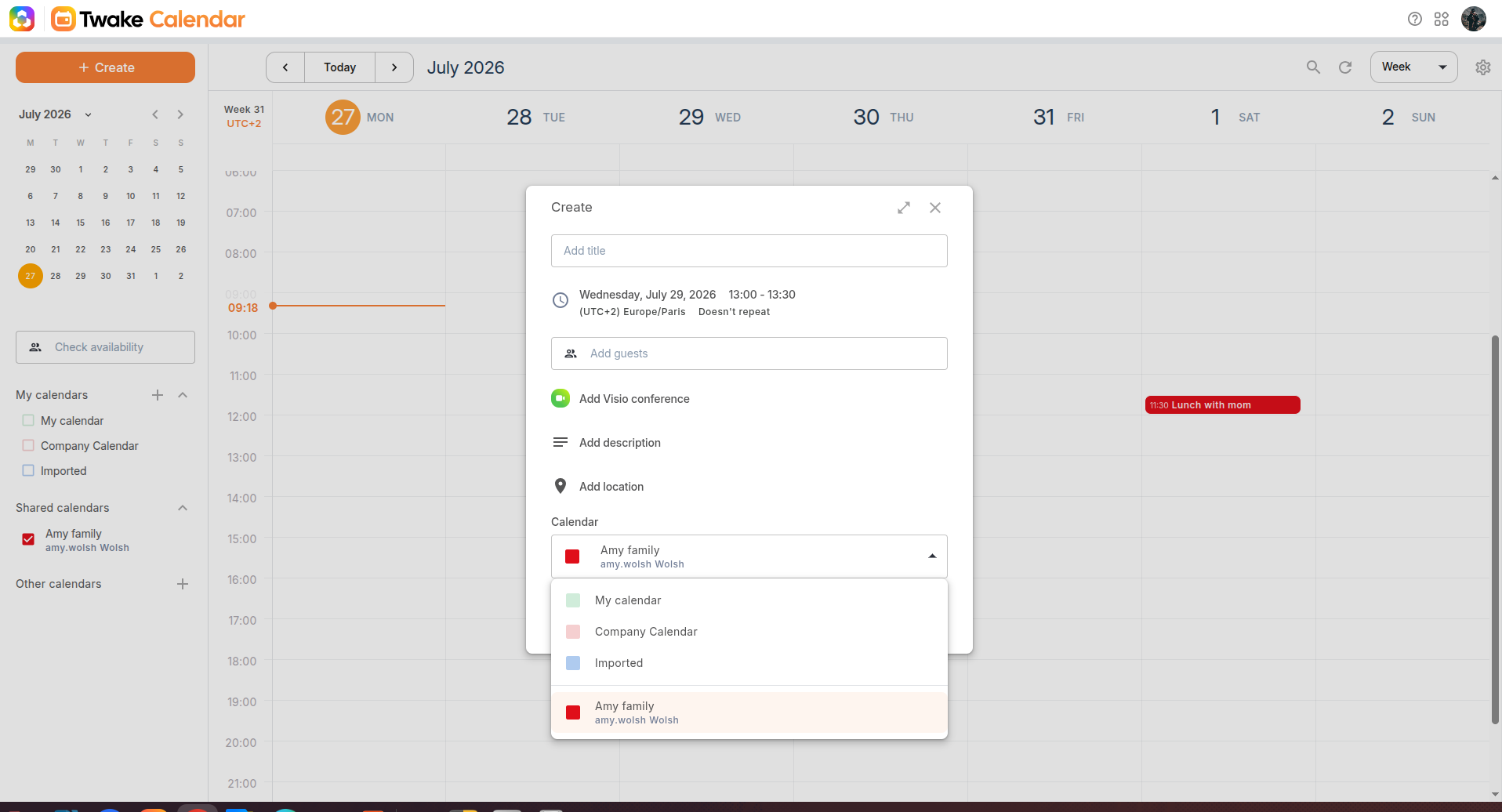
Edit or delete an event
If you have Editor or Administrator permission:
- Open the event.
- Click Edit to update it, or open the event menu and select Delete.
- Save or confirm the action.
Your changes apply to the shared calendar and may affect other users who can access the event.
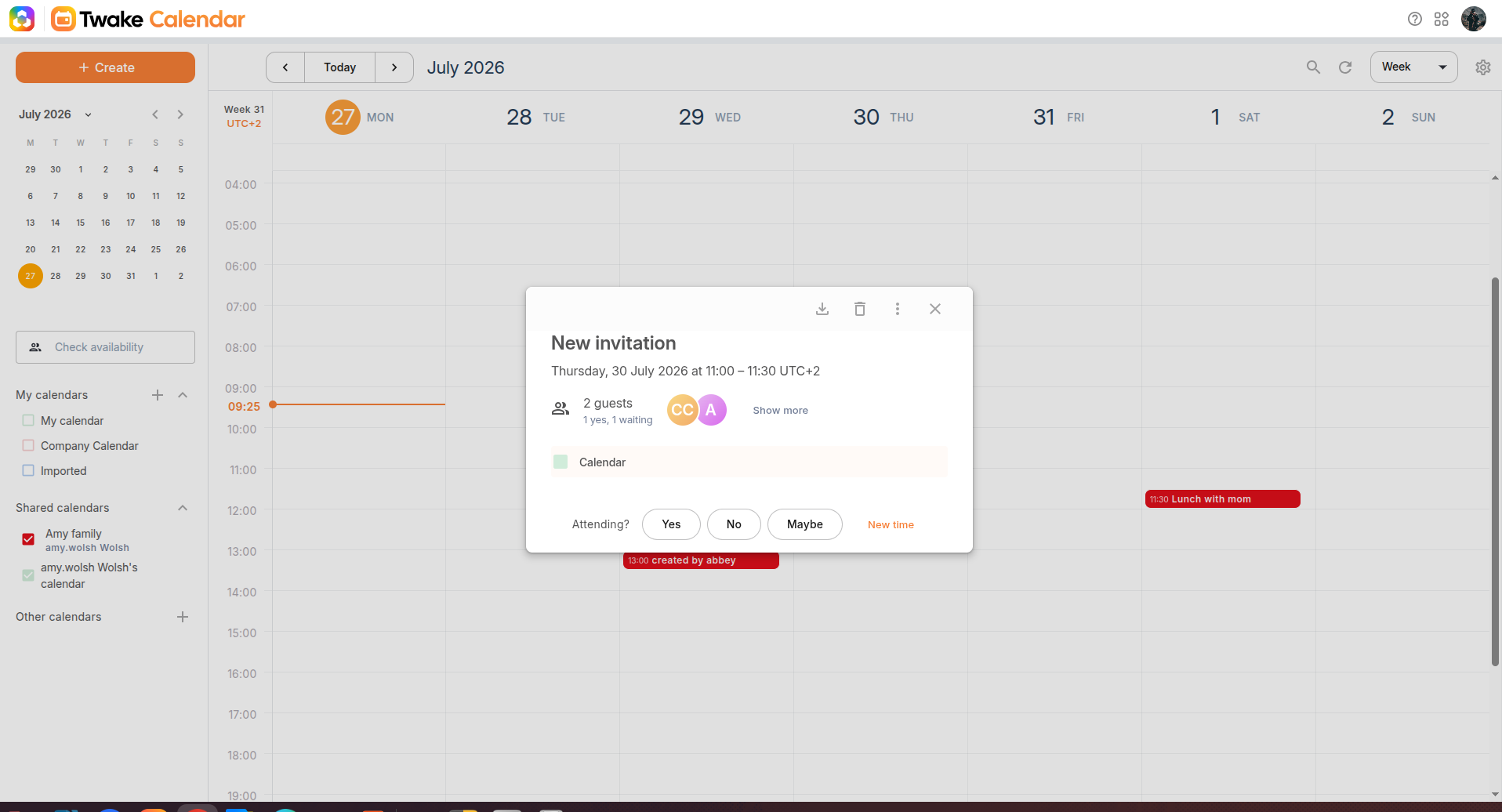
You can also respond to an invitation on behalf of the calendar's owner:
Manage access permissions
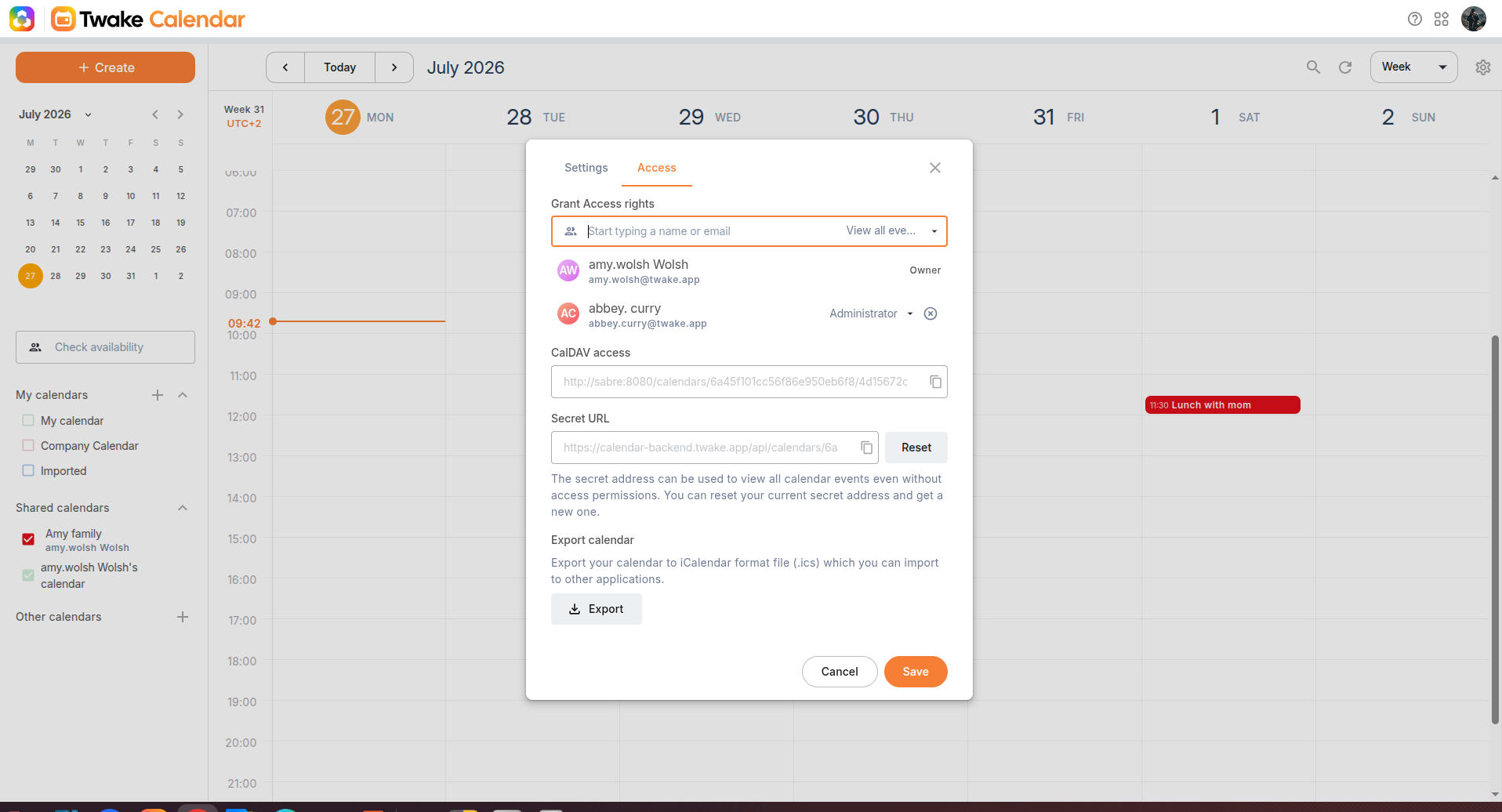
If you have Administrator permission, you can also manage who has access to the calendar:
- Open the menu next to the calendar under Shared calendars.
- Select Modify.
- Open the Access tab.
- Add a user, change an existing permission, or remove access.
- Click Save.
What each permission allows
| Your permission | Available actions |
|---|---|
| View all events | View the calendar and its events |
| Editor | View, create, edit, and delete events |
| Administrator | Manage events and the calendar’s access permissions |
The calendar owner retains full control of the calendar and can change or remove your access at any time.