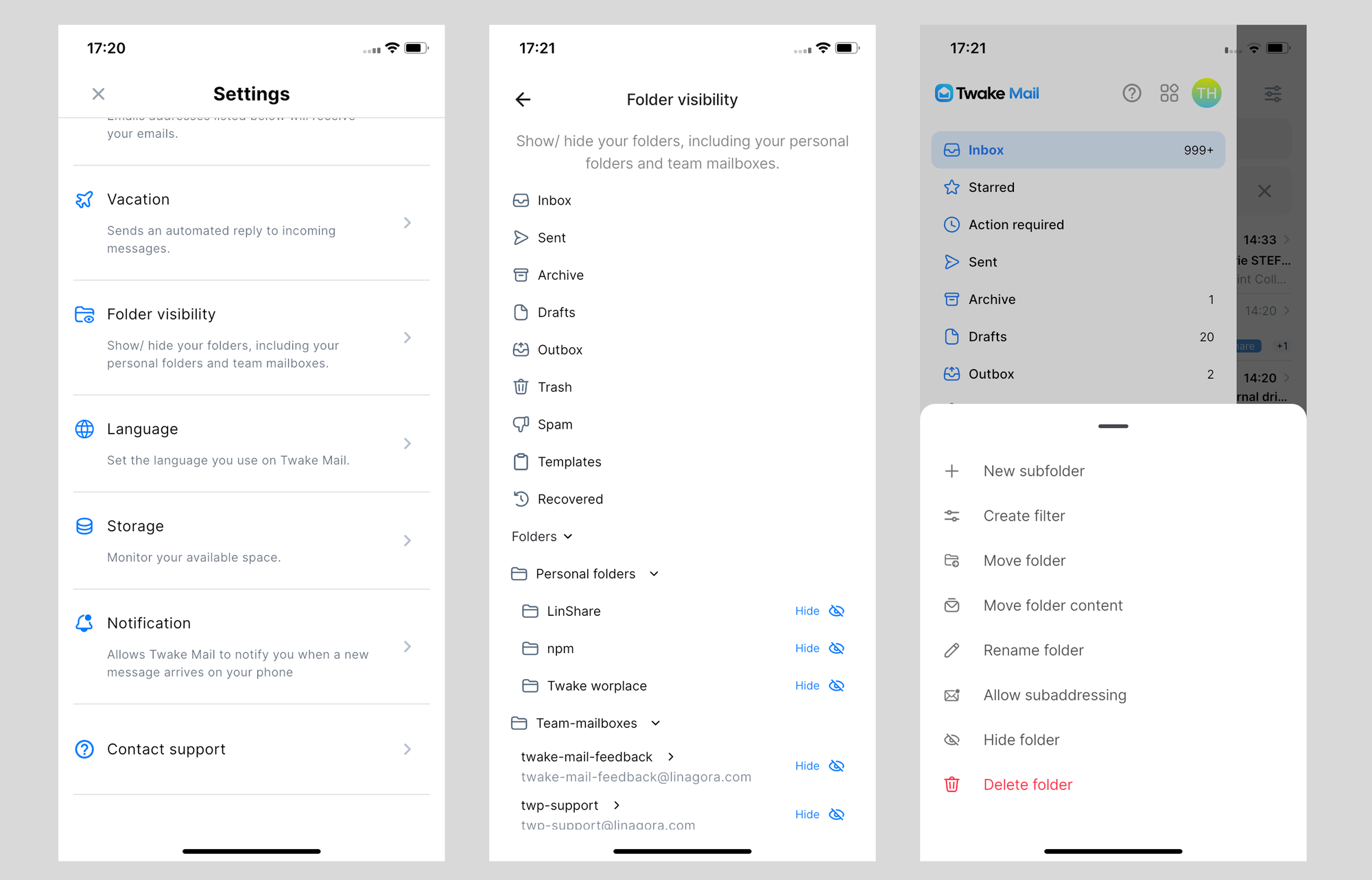
Manage folder visibility
Folder Visibility allows you to control which folders are displayed in the folder list of your mailbox. This helps keep your workspace organized by showing only the folders you use regularly.
To access Folder Visibility settings:
- Click your profile avatar in the top-right corner.
- Select Manage account.
- Click Folder visibility from the left menu.
The Folder Visibility page displays all folders available in your mailbox, including personal folders and team mailboxes:
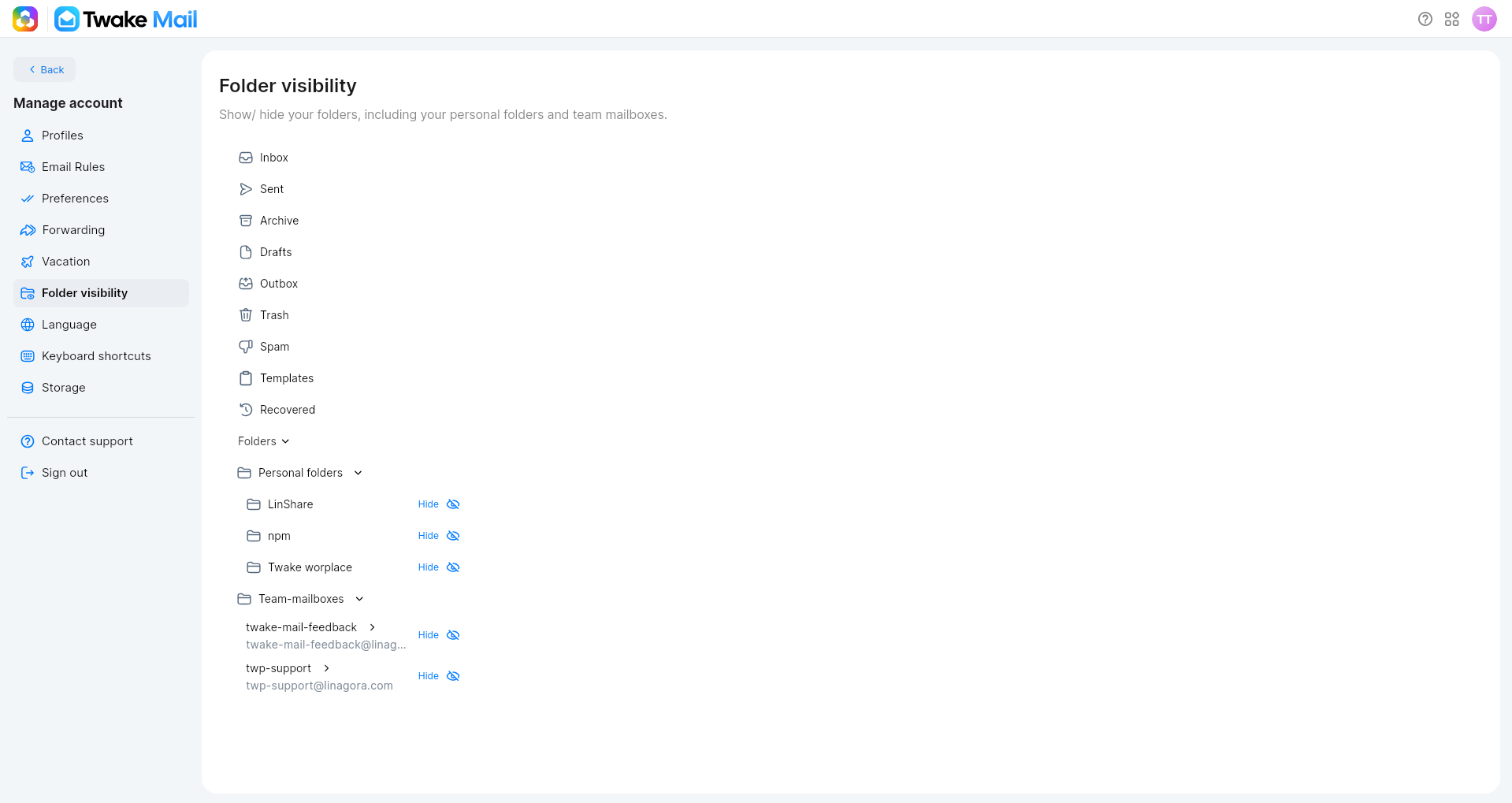
System folders are always visible and cannot be hidden. These folders include: Inbox, Sent, Archive, Drafts, Outbox, Trash, Spam, Templates, Recovered.
These folders are required for normal mailbox operation and therefore cannot be hidden.
Hide/Show a Folder
You can hide personal folders and team mailbox folders that you do not use frequently.
There are 2 ways to hide a folder:
- Open the Folder visibility page.
- Expand the desired folder section if necessary.
- Locate the folder you want to hide.
- Click Hide next to the folder name.
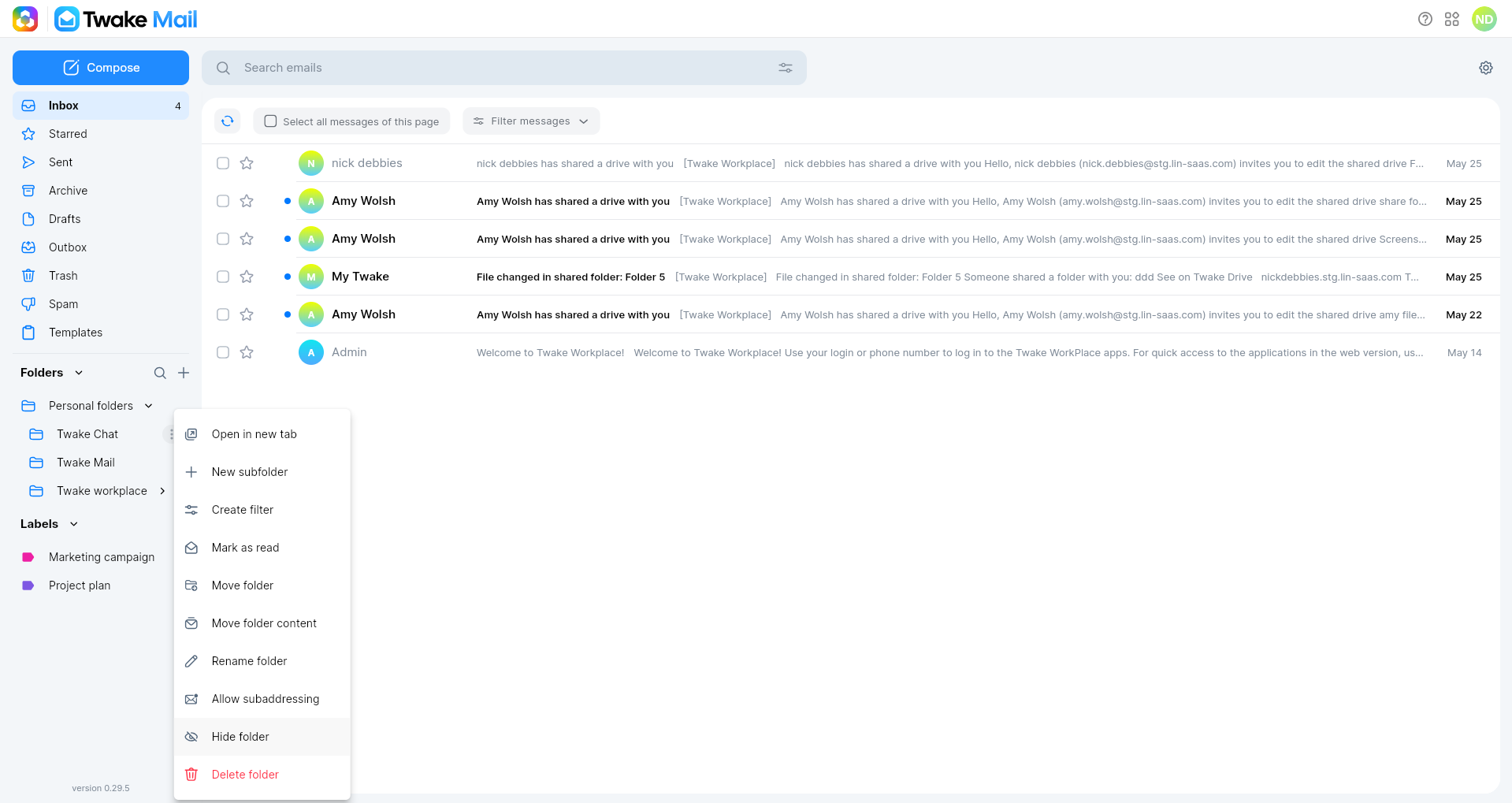
Or you can open the action menu of the folder then select "Hide folder"
The folder will immediately disappear from your mailbox folder list.
Note
Hiding a team mailbox folder only affects your own mailbox view. Other users will continue to see the folder according to their own visibility settings.
Show a Hidden Folder
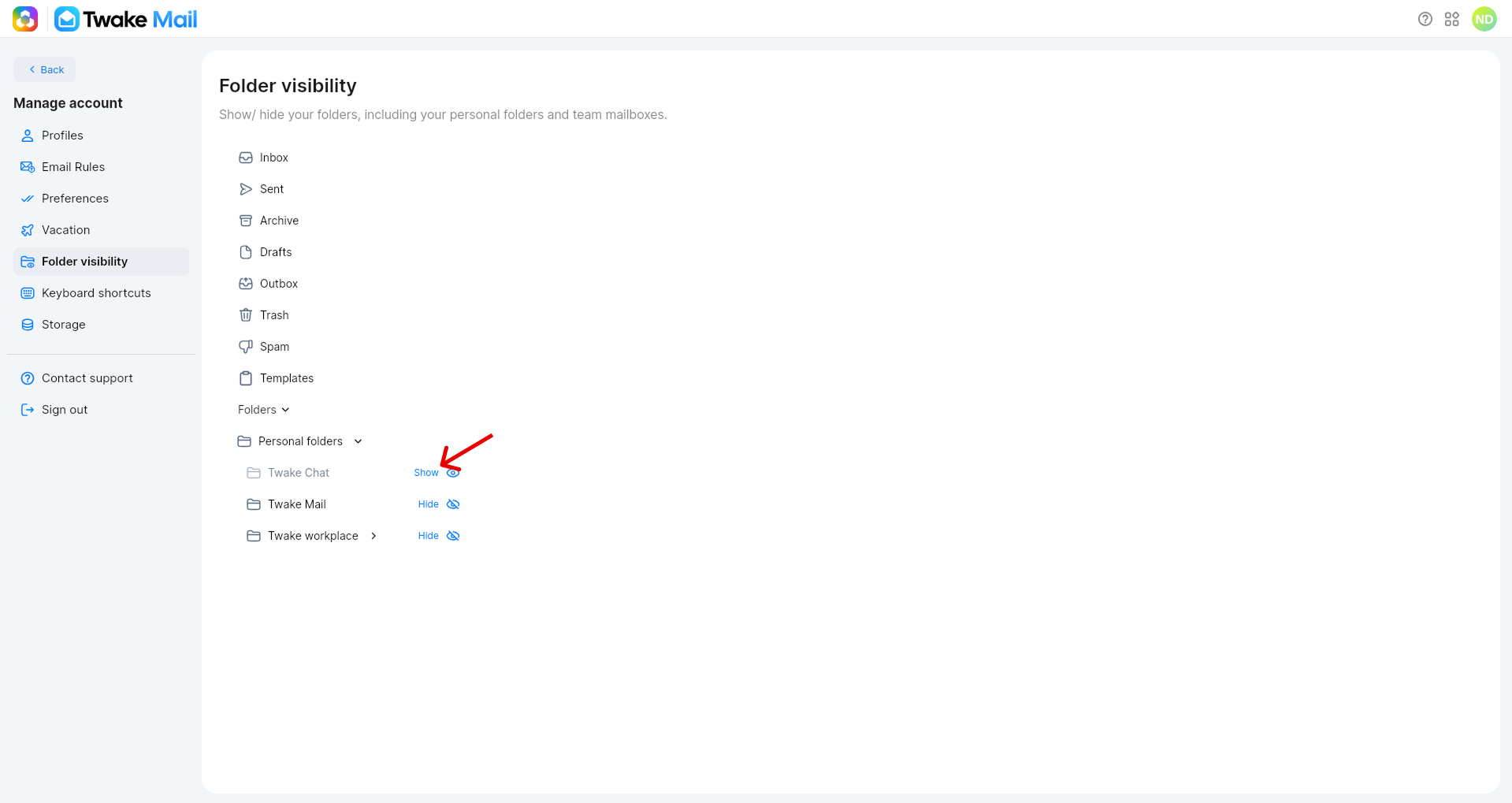
If a folder has been hidden, you can make it visible again.
- Open the Folder visibility page.
- Locate the hidden folder.
- Click Show next to the folder name.
The folder will immediately reappear in your mailbox folder list.
On mobile app: