
Vacation mode
Vacation Mode automatically sends an out-of-office reply to people who email you while you are away. This helps inform senders that you may not be able to respond immediately.
To access Vacation settings:
- Click your profile avatar in the top-right corner.
- Select Manage account.
- Click Vacation from the left menu.
Enable Vacation Mode
- Open the Vacation page.
- Enable Automatically reply to messages when they are received.
- Configure the vacation settings:
- Start date – The date when automatic replies begin.
- Start time – The time when automatic replies begin.
- Subject – The subject line of the automatic reply.
- Message – The content of the automatic reply.
- Click Save changes.
Once enabled, Twake Mail will automatically send your vacation response to incoming emails during the configured period:
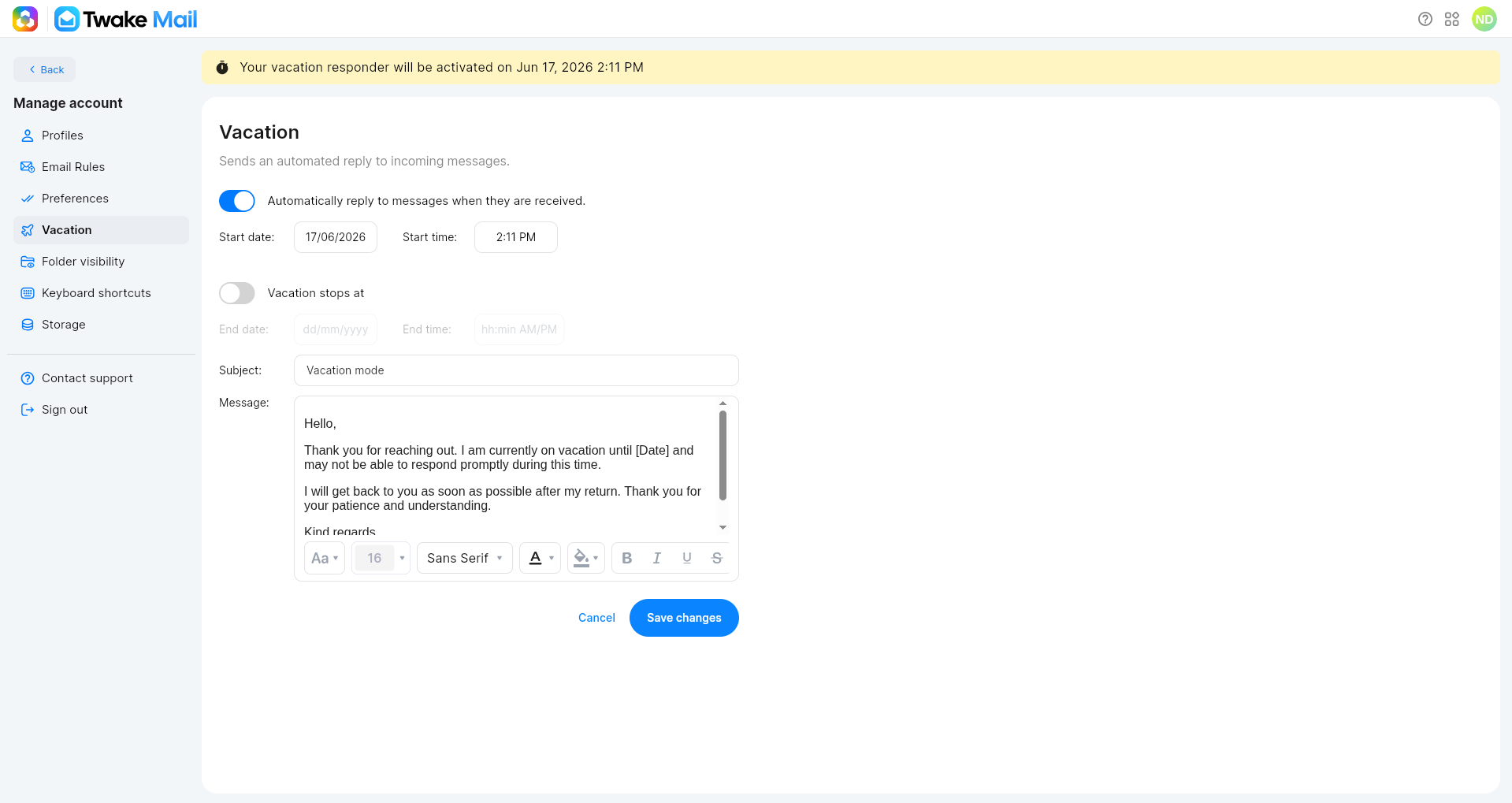
If you want Vacation Mode to stop automatically:
- Enable Vacation stops at.
- Enter:
- End date
- End time
- Click Save changes.
Vacation Mode will automatically be disabled after the specified date and time.
If you leave Vacation Mode without an End Date, it will remain active until you manually disable it.
Vacation banner
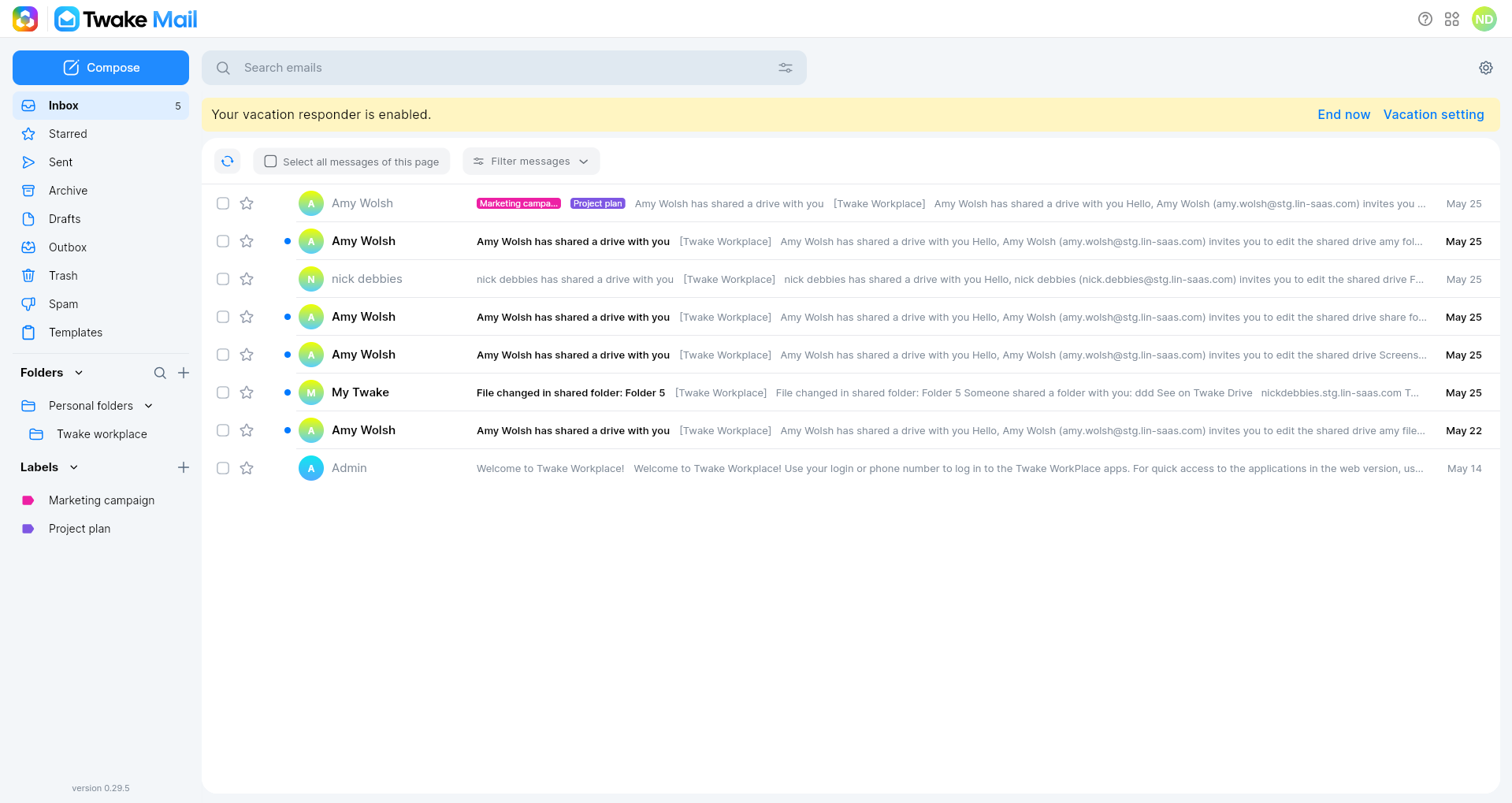
When the vacation is enabled, there will be a vacation banner in every screen until the vacation ends or until you turn it off :
- When you click on button End now on the banner, the vacation responder is disabled immediately and the banner disappears
- When you click on Vacation setting, it will open vacation setting page.
Edit Your Vacation Message
You can update your automatic reply at any time.
- Open the Vacation page.
- Modify the Subject and Message fields.
- Use the formatting toolbar to customize the message if needed.
- Click Save changes.