Install Twake Chat mobile app
Twake Chat is available for both iOS and Android. After installing the app, sign in with your Twake account or your company server, then grant the required permissions to enjoy the full chat experience.
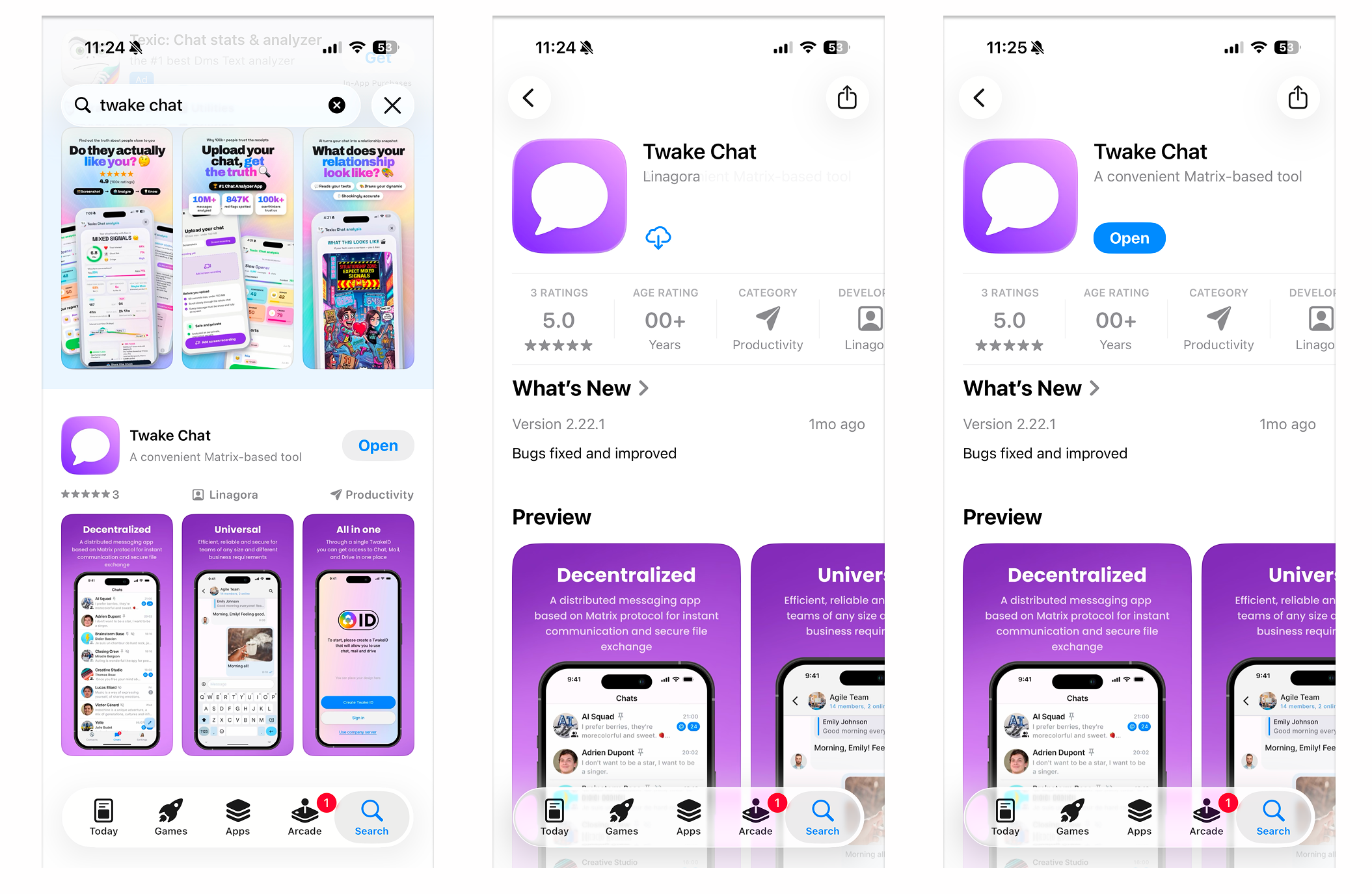
How to install the app?
- Open the App Store (iPhone) or Google Play (Android).
- Search for Twake Chat. Once you've found the app, tap on its icon to open its details page.
- Tap Install button. For IOS device, you might be prompted to enter your Apple ID password or use Face ID/Touch ID for confirmation.
- When the installation is complete, tap Open.
Sign in
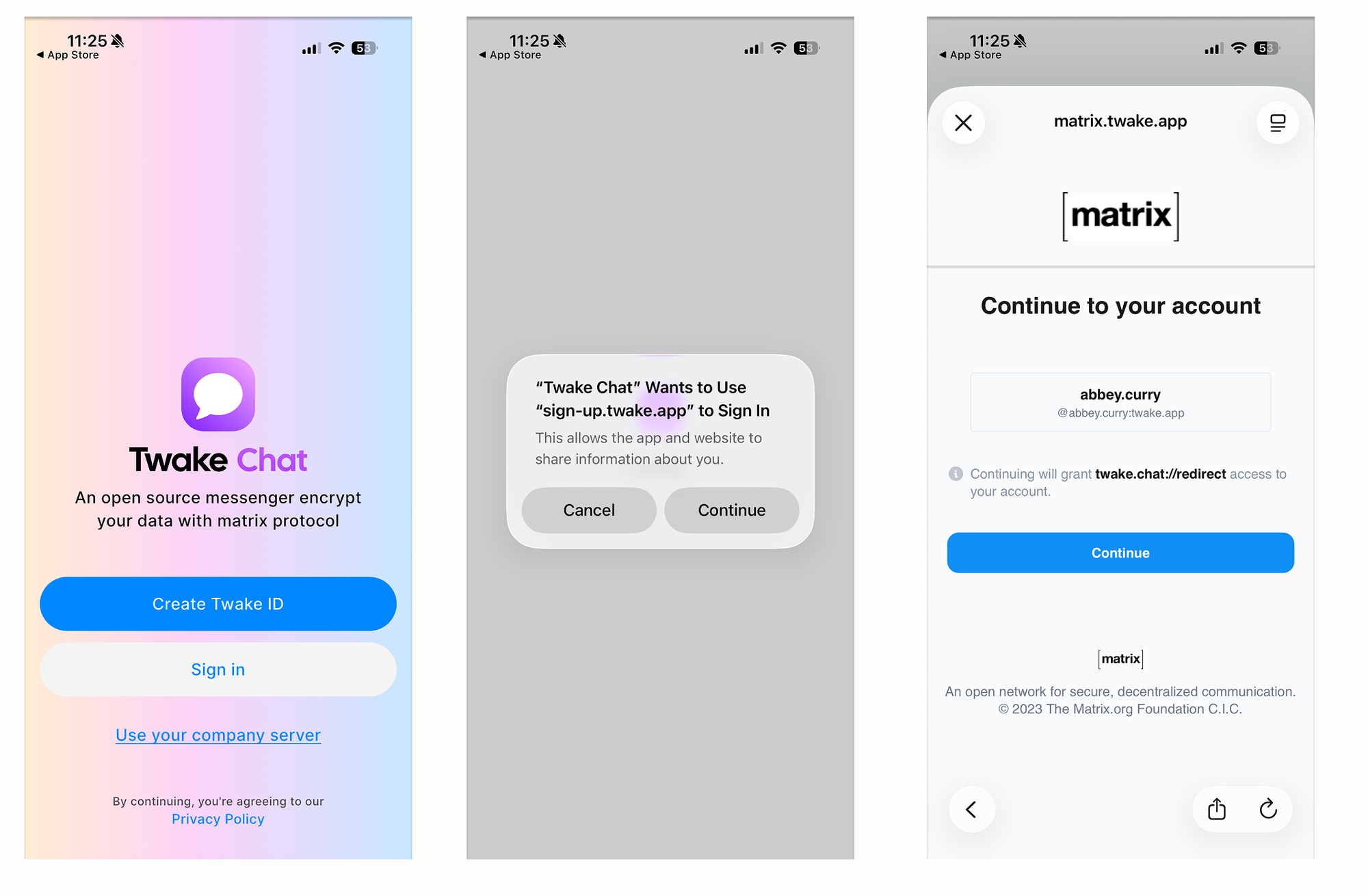
When you launch the app for the first time:
- Tap Sign in.
- If you use a Twake ID, sign in with your account:
- If your organization provides its own Matrix server, tap Use your company server instead:
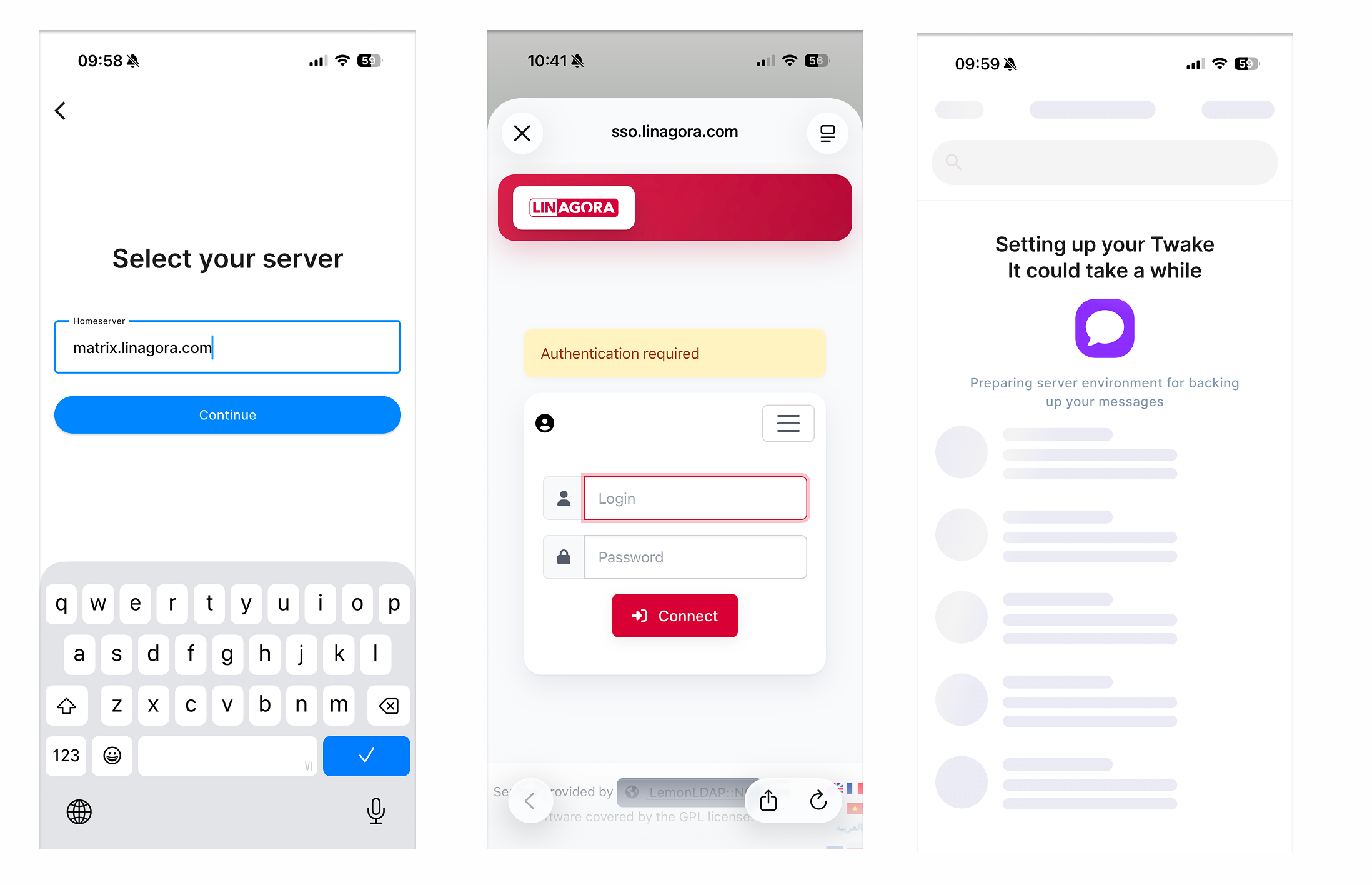
- Wait while Twake Chat sets up your account. This may take a few moments.
Which permissions the application needs and why?
To provide the best experience, Twake Chat may request permission to access certain features on your device. You can allow or deny these permissions and change them later in your device settings.
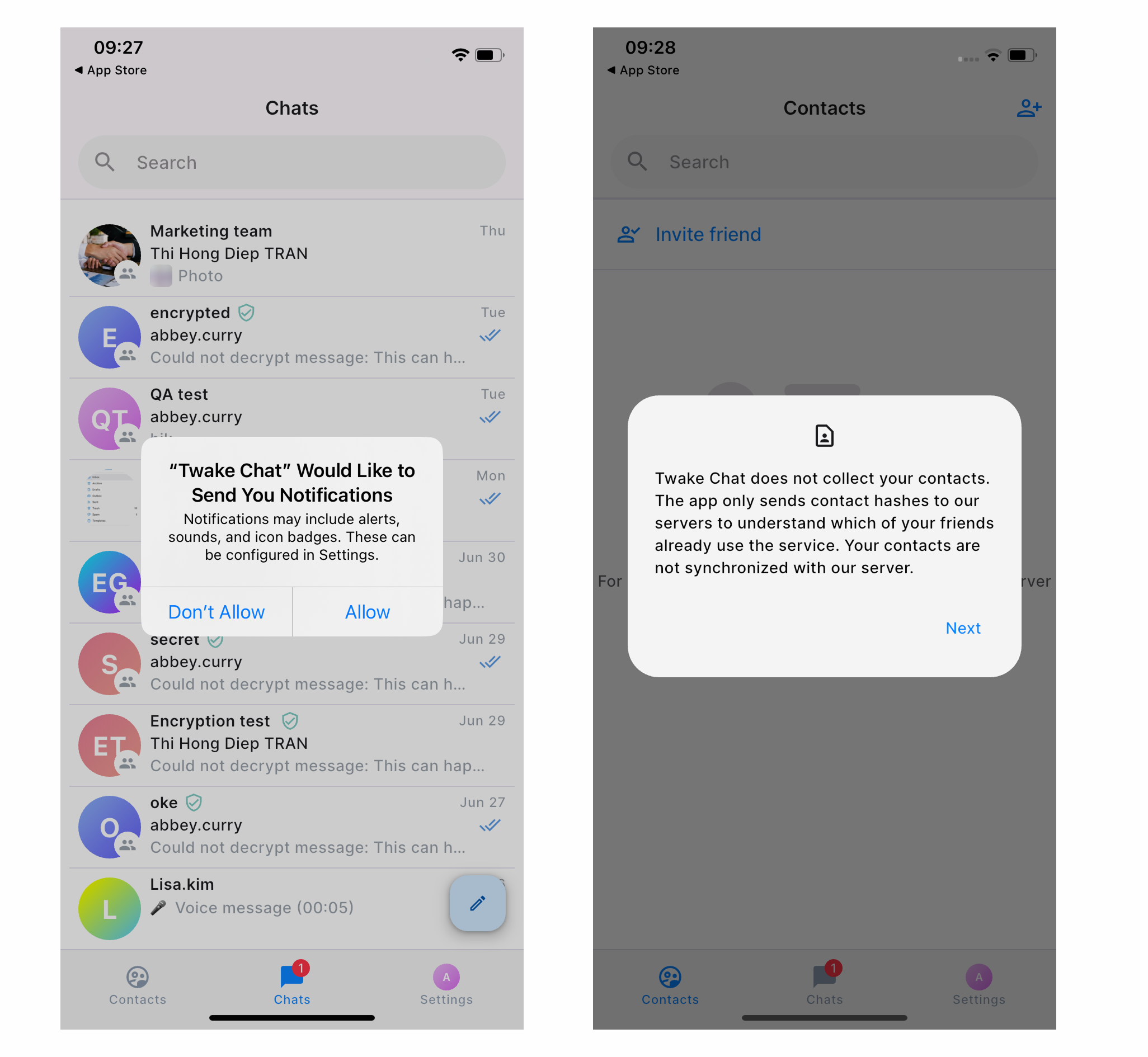
- Notification
- When you open Twake Chat app for the first time, you will be asked to grant permission for Notifications
- Contacts
- When you open Twake Chat app for the first time then select Contact menu, you will be asked to grant permission for Contacts. Twake Chat can use your contacts to help you discover friends who already use the service.
- Your privacy is protected:
- Your contact list is not uploaded to Twake servers.
- Only hashed contact information is used to check whether your contacts already have a Twake account.
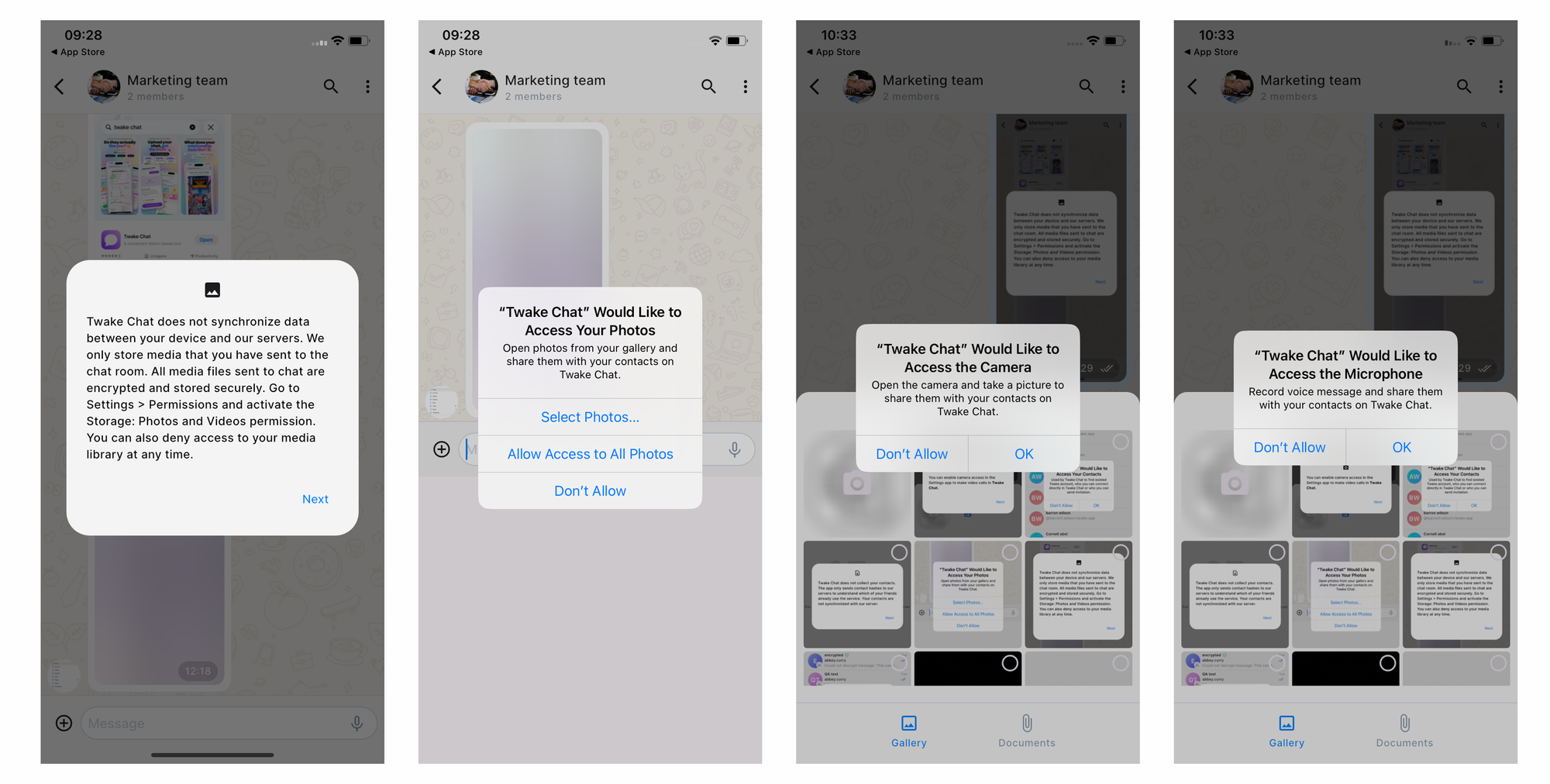
- Photos and Videos
The first time when you send media, Twake Chat askes for access to your photo library.
- Microphone and Camera
The first time you take a photo or a video to send message, Twake Chat asks for permission to access your camera and microphone.
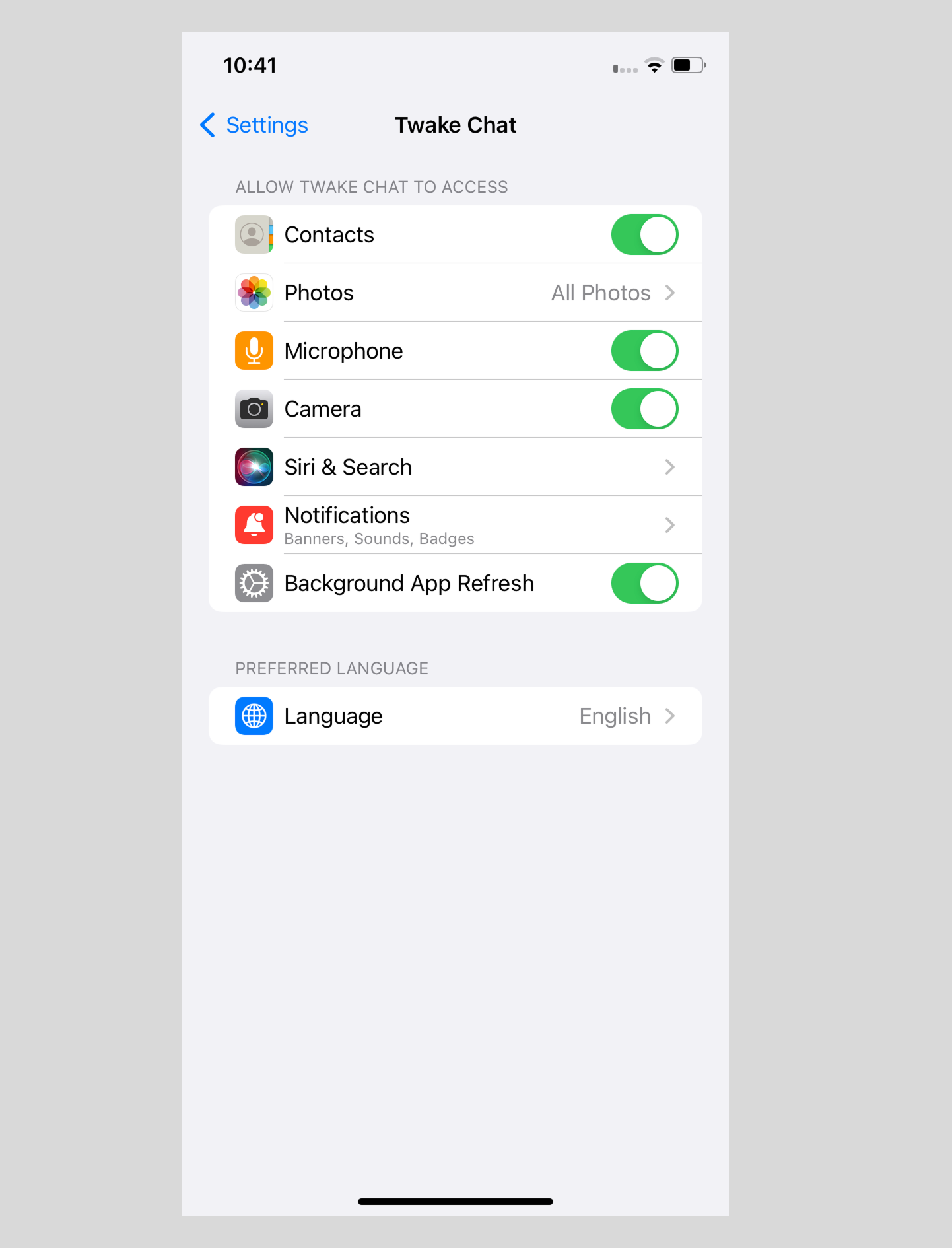
Where to manage rights of the application?
- Open Settings: Go to the "Settings" app on your iOS device.
- Scroll down and Select the App Twake Chat:
This will display a list of permissions that the app has requested or been granted. You can toggle individual permissions on or off, depending on your preferences.