
Create a recurring event
Recurring events help you schedule meetings or activities that happen regularly without creating each event individually.
- Click button Create a new event then click "More options" to open the full event editor.
- Enter the event details, such as the title, date, time, participants, and location.
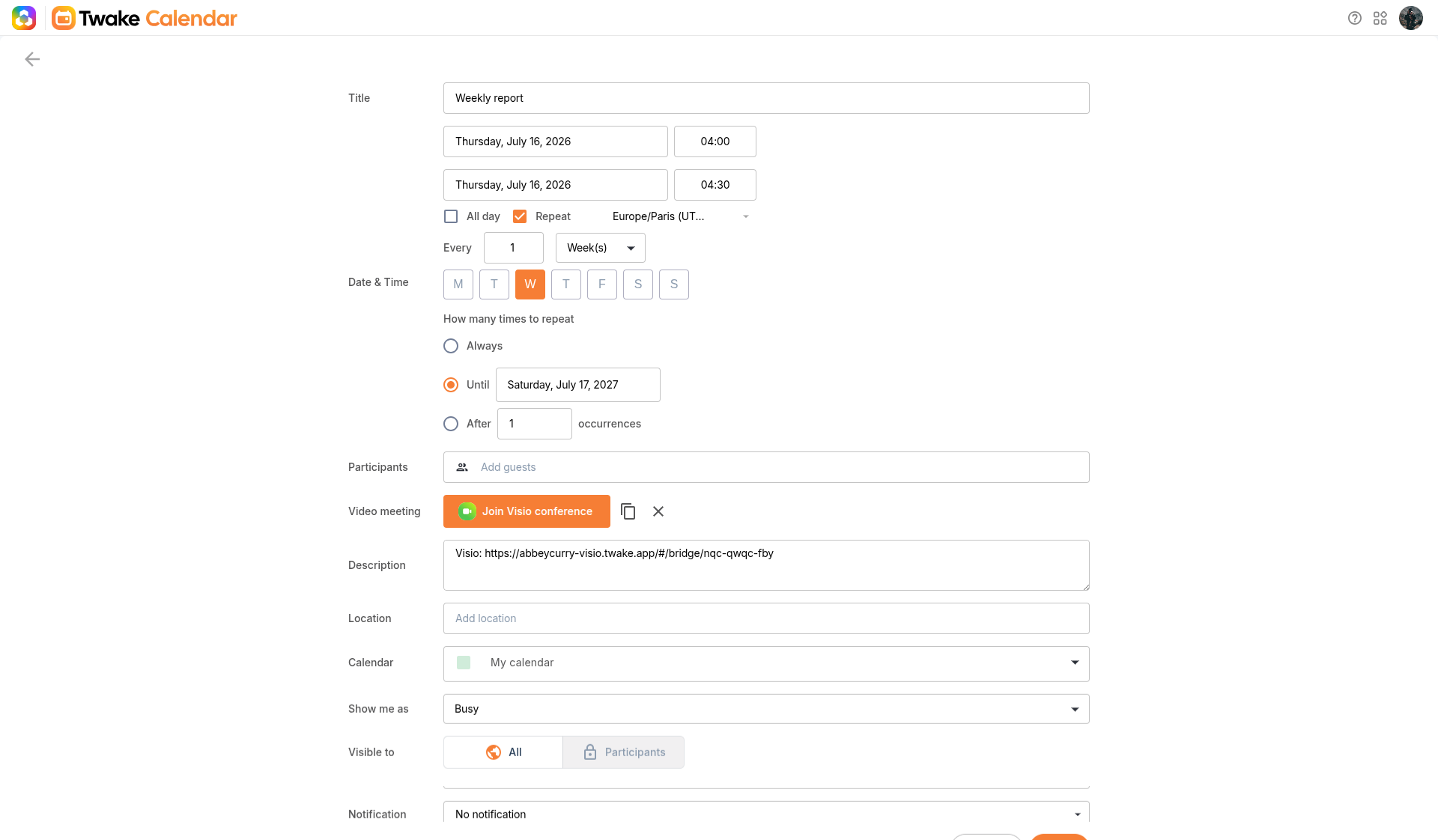
- Select the Repeat checkbox.
- Configure the recurrence:
- Enter how often the event repeats (for example, every 1 week).
- Choose the recurrence interval:
- Day(s) – Repeat every specified number of days.
- Week(s) – Repeat on selected day(s) of the week.
- Month(s) – Repeat every specified number of months.
- Year(s) – Repeat every specified number of years.
- For weekly recurring events, select one or more days of the week.
- Choose when the recurrence ends:Always – Continue repeating indefinitely.Until – Repeat until a specific date.After – Repeat for a specified number of occurrences.
- Complete any remaining event details.
- Click Save.
Example
To create a weekly team meeting every Wednesday:
- Enable Repeat.
- Set Every to 1 Week(s).
- Select Wednesday.
- Choose Always, Until, or After depending on when you want the series to end.
- Click Save.
Tip: After a recurring event is created, you can edit or delete either a single occurrence or the entire series. See View, Edit, or Delete an Event for more information.