
Twake Mail - Search
This guide explains how to find emails in Twake Mail using the search bar and filters on web and mobile.
Search on Web
Search for an Email
The search bar is available at the top of Twake Mail. Use it when you want to find an email by entering a name, email address, subject, or keyword.
To search for an email:
- Select the Search emails field.
- Enter a name, email address, subject, or keyword.
- Press Enter.
- Review the matching emails in the mail listing view.
- Select an email to open it.
Use Search Suggestions
When you select the search bar, Twake Mail displays quick suggestions and recent searches.
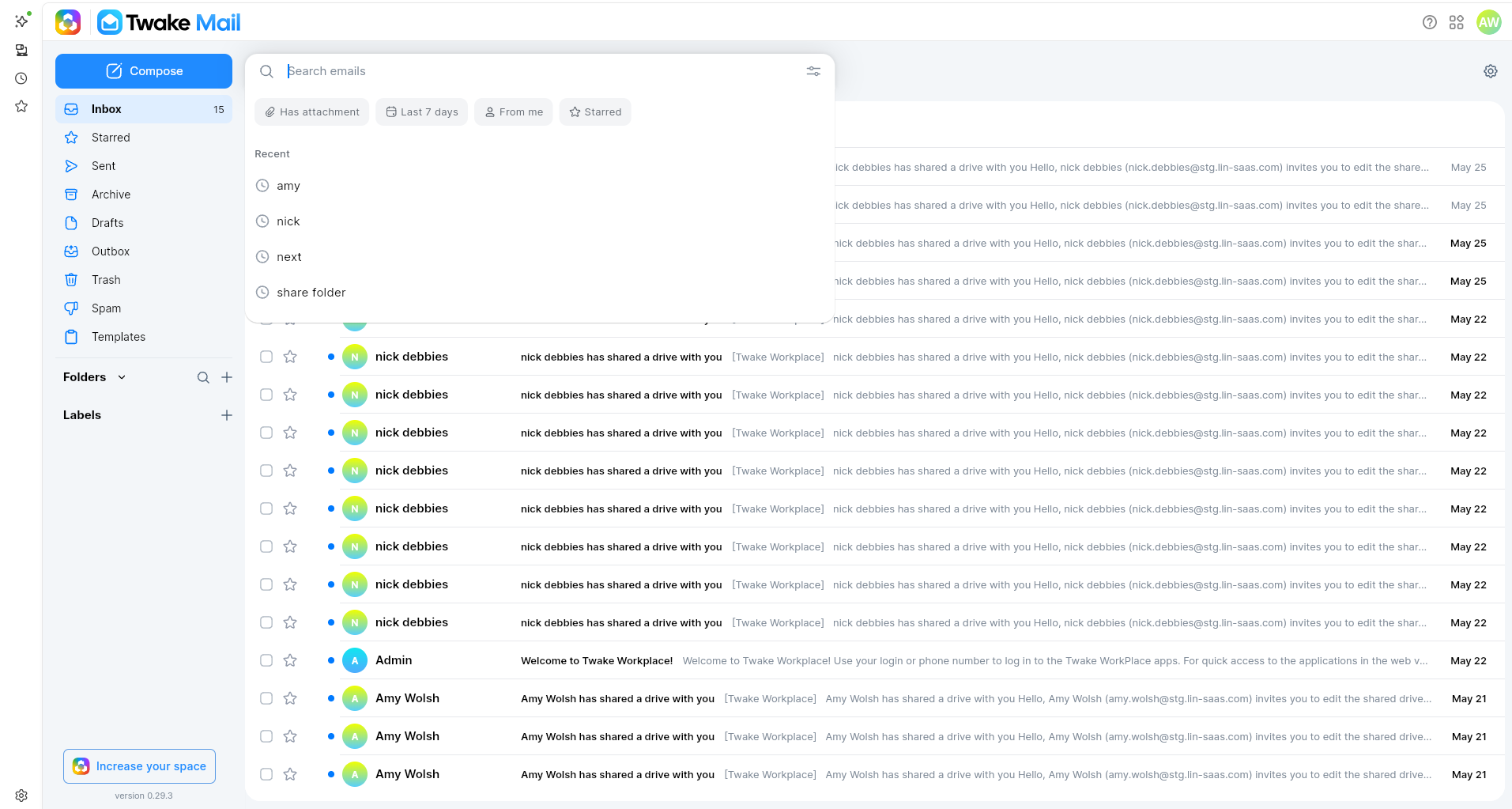
Quick suggestions help you narrow the results without completing the advanced-search form.
| Suggestion | What it shows |
|---|---|
| Has attachment | Emails that include one or more files |
| Last 7 days | Emails from the last seven days |
| From me | Emails sent by you |
| Starred | Emails marked with a star |
To use a quick suggestion:
- Select the Search emails field.
- Select a suggestion, such as Has attachment or Starred.
- Review the matching emails.
Use a Recent Search
Recent searches appear below the quick suggestions.
To repeat a recent search:
- Select the Search emails field.
- Go to the Recent section.
- Select the search you want to run again.
Use Advanced Search
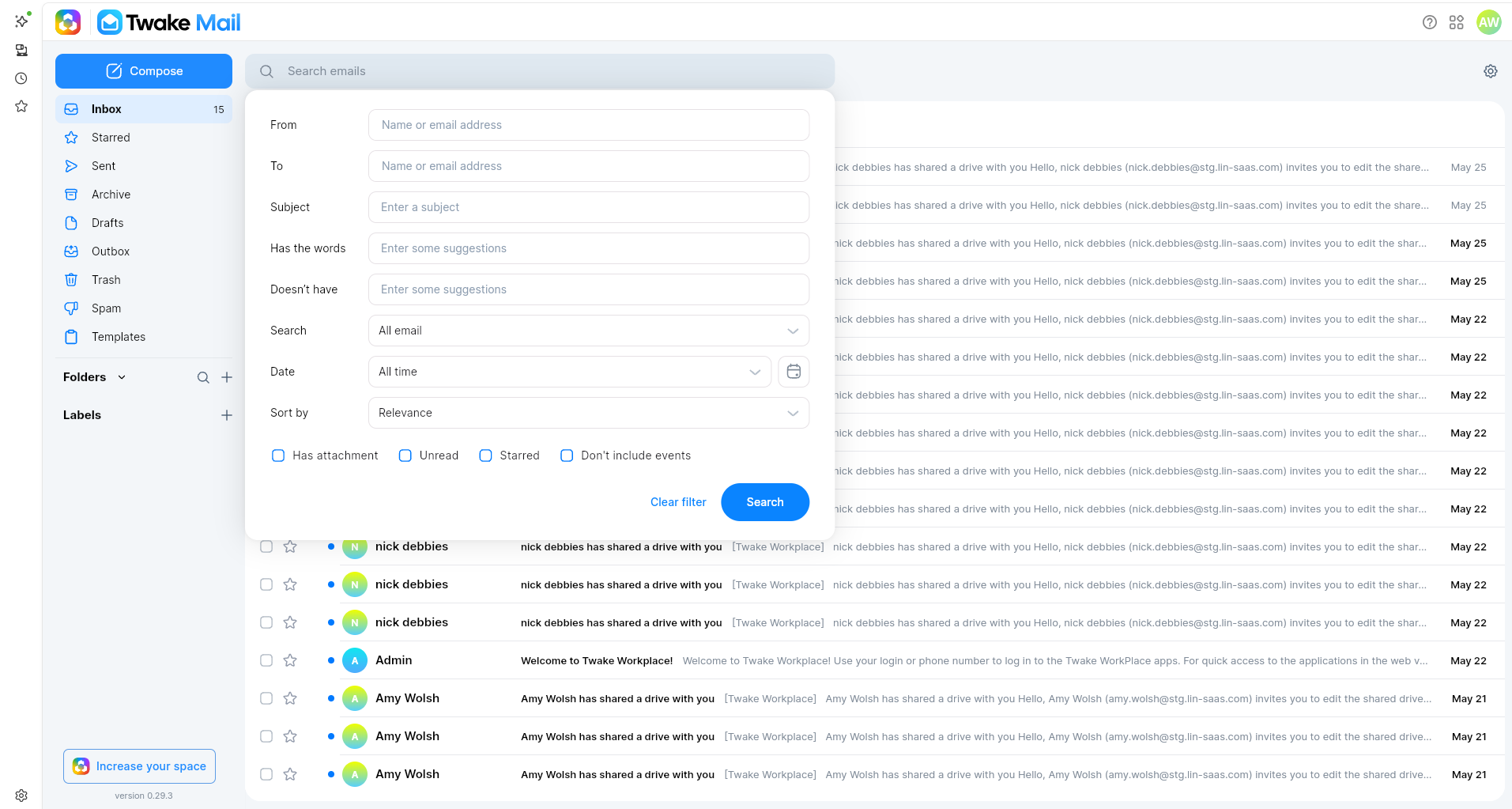
Use advanced search when you want to combine several conditions, such as the sender, subject, date, label, or attachment status.
To open advanced search:
- Select the sliders icon on the right side of the Search emails field.
- Complete one or more filter fields.
- Select Search.
- Review the matching emails in the mail listing view.
You do not need to complete every field. Use only the filters that help narrow your search.
Advanced Search Fields
| Field | What it searches |
|---|---|
| From | Emails from a specific name or email address |
| To | Emails sent to a specific name or email address |
| Subject | Emails with matching text in the subject |
| Has the words | Emails that include the entered words |
| Doesn't have | Emails that do not include the entered words |
| Search | Selects the email scope to search, such as All email |
| Labels | Selects a label to search |
| Date | Selects a time period or date |
| Sort by | Changes the order of the search results, such as Relevance |
You can also select one or more checkboxes:
| Filter | What it shows |
|---|---|
| Has attachment | Emails that include one or more files |
| Unread | Emails you have not opened yet |
| Starred | Emails marked with a star |
| Don't include events | Excludes calendar-event emails from the results |
Review Search Results
The search results appear in the mail listing view.
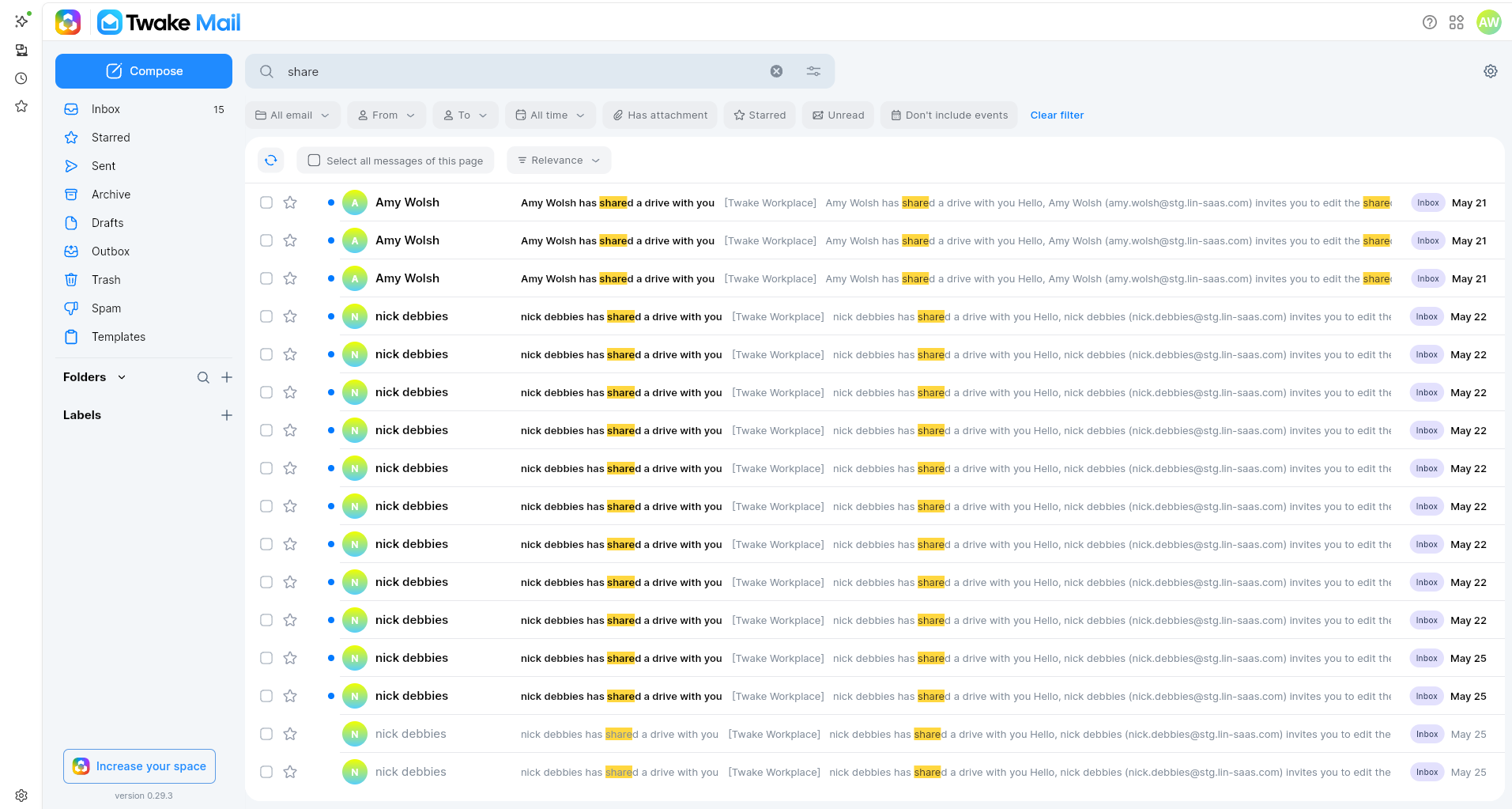
In the results:
| Item | Description |
|---|---|
| Highlighted text | Shows where the search term appears in the email subject or preview |
| Folder | Shows where the email is stored, such as Inbox |
| Filter bar | Displays filters that you can use to narrow the results |
| Sort menu | Changes the order of the results, such as Relevance |
| Clear filter | Removes the selected filters |
To refine the results:
- Select one or more filters above the mail listing view.
- Review the updated results.
- Select Clear filter when you want to remove the filters.
Search on Mobile
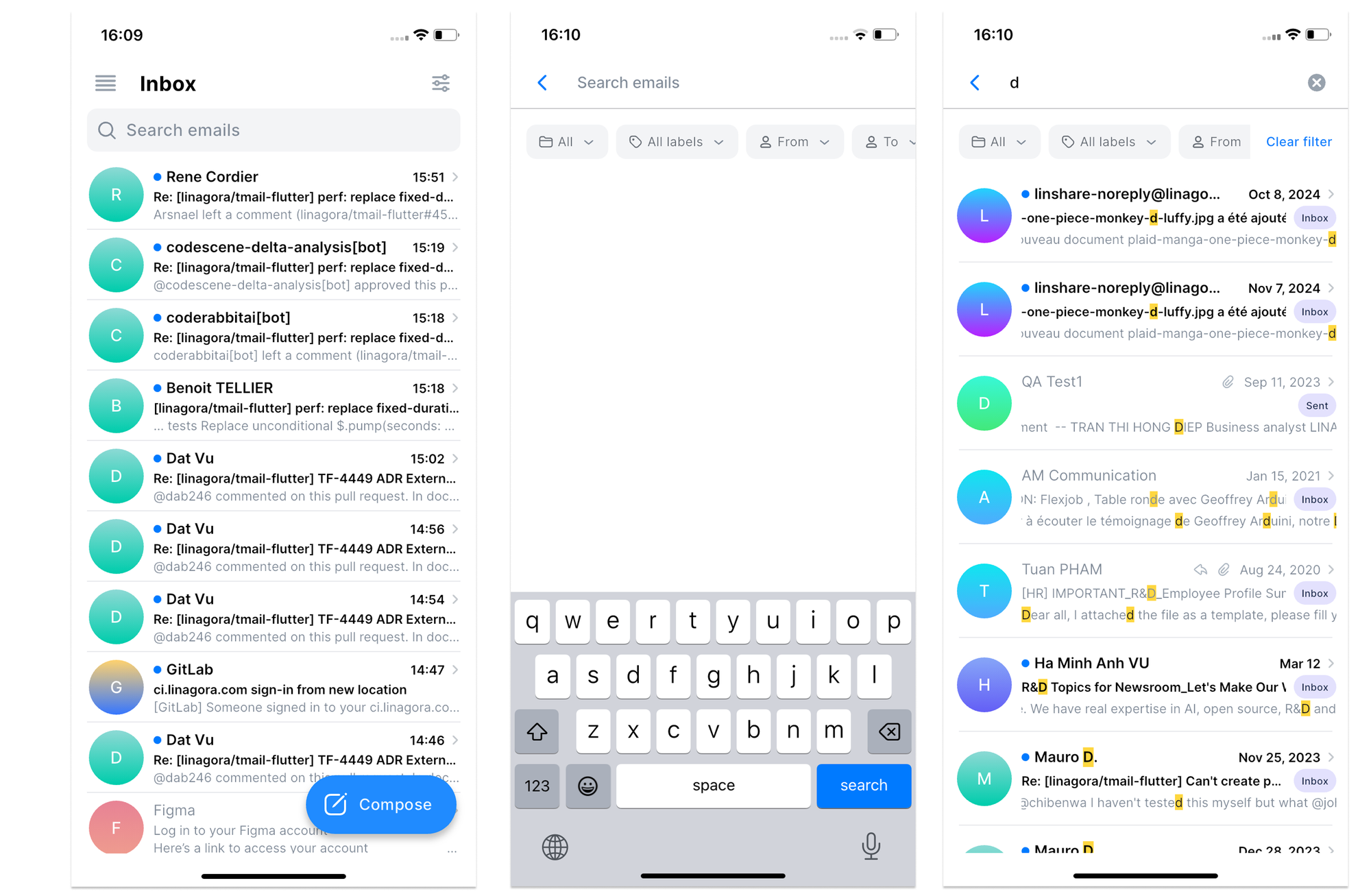
On mobile, use the Search emails field at the top of the folder view to find messages.
Search for an Email
To search for an email:
- Open a folder, such as Inbox.
- Tap the Search emails field.
- Enter a name, email address, subject, or keyword.
- Tap search on the keyboard.
- Review the matching emails.
- Tap an email to open it.
Matching text is highlighted in the results. Each result can also show the folder where the email is stored, such as Inbox or Sent.
Narrow the Search Results
The mobile search screen displays filter options below the search field. Swipe horizontally to view the available options.
To narrow the results:
- Tap the filter you want to use.
- Select or enter the filter value.
- Enter a search term if needed.
- Review the matching emails.
To remove the selected filters, tap Clear filter.
Filter Emails in the Current Folder
You can filter the emails shown in the current folder without entering a search term.
To filter emails:
- Open a folder, such as Inbox.
- Tap the sliders icon in the top-right corner.
- Select a filter.
- Review the filtered email list.
The available filters include: With attachments/Unread/Starred.