
Settings - Manage your devices
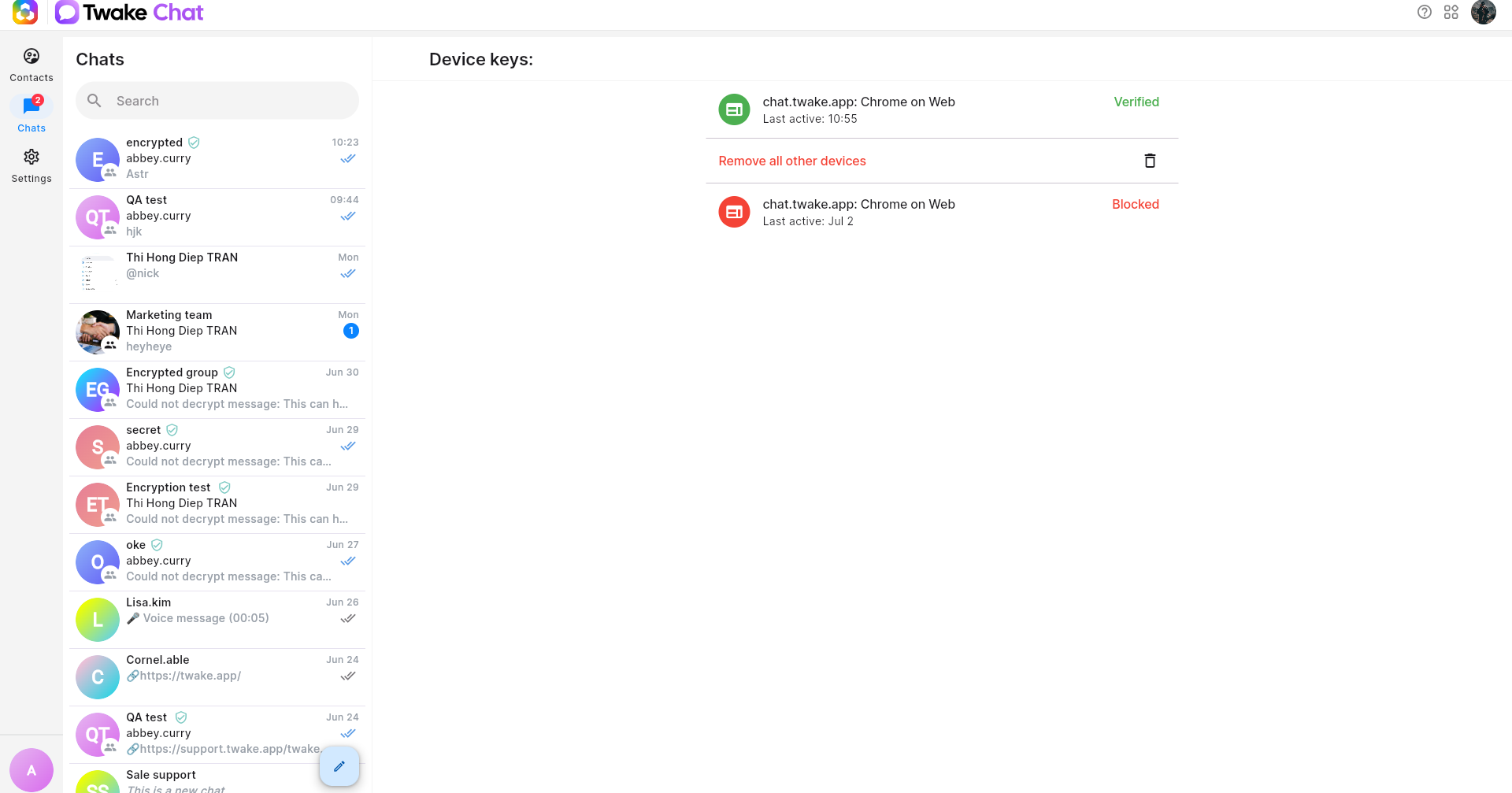
The Devices setting lets you manage all devices that are signed in to your Twake Chat account. You can view active sessions, rename a device, verify trusted devices for encrypted chats, block or delete devices, or sign out from other devices.
View Your Devices
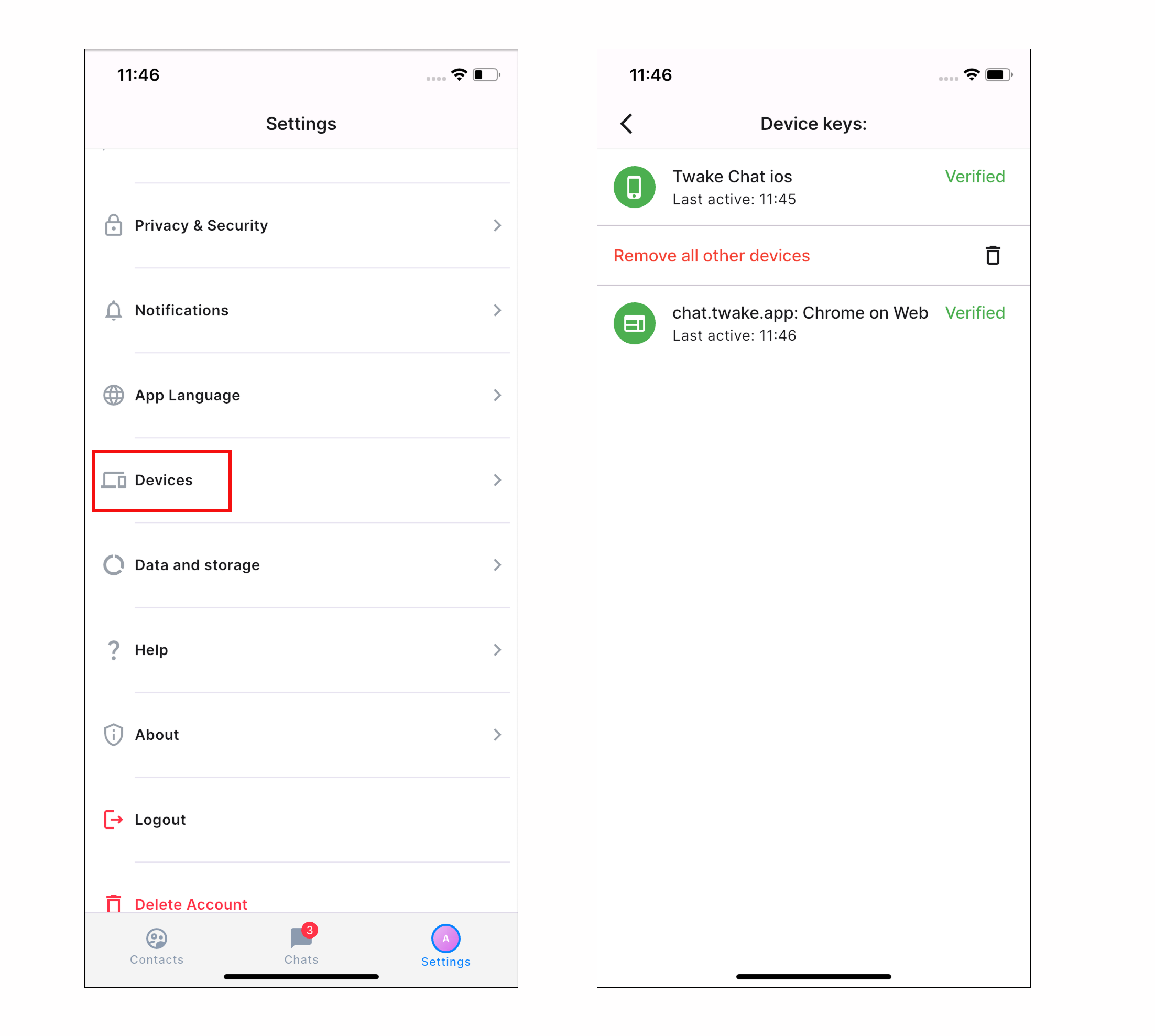
To open the device list:
- Open Settings.
- Select Devices.
The page displays all devices currently associated with your account. For each device, you can see:
- Device name (for example, Chrome on Web or Twake Chat iOS)
- Last active time
- Verification status:
- Verified – The device is trusted and can access encrypted messages.
- Unverified – The device has not been verified yet.
- Blocked – The device has been blocked and is no longer trusted.
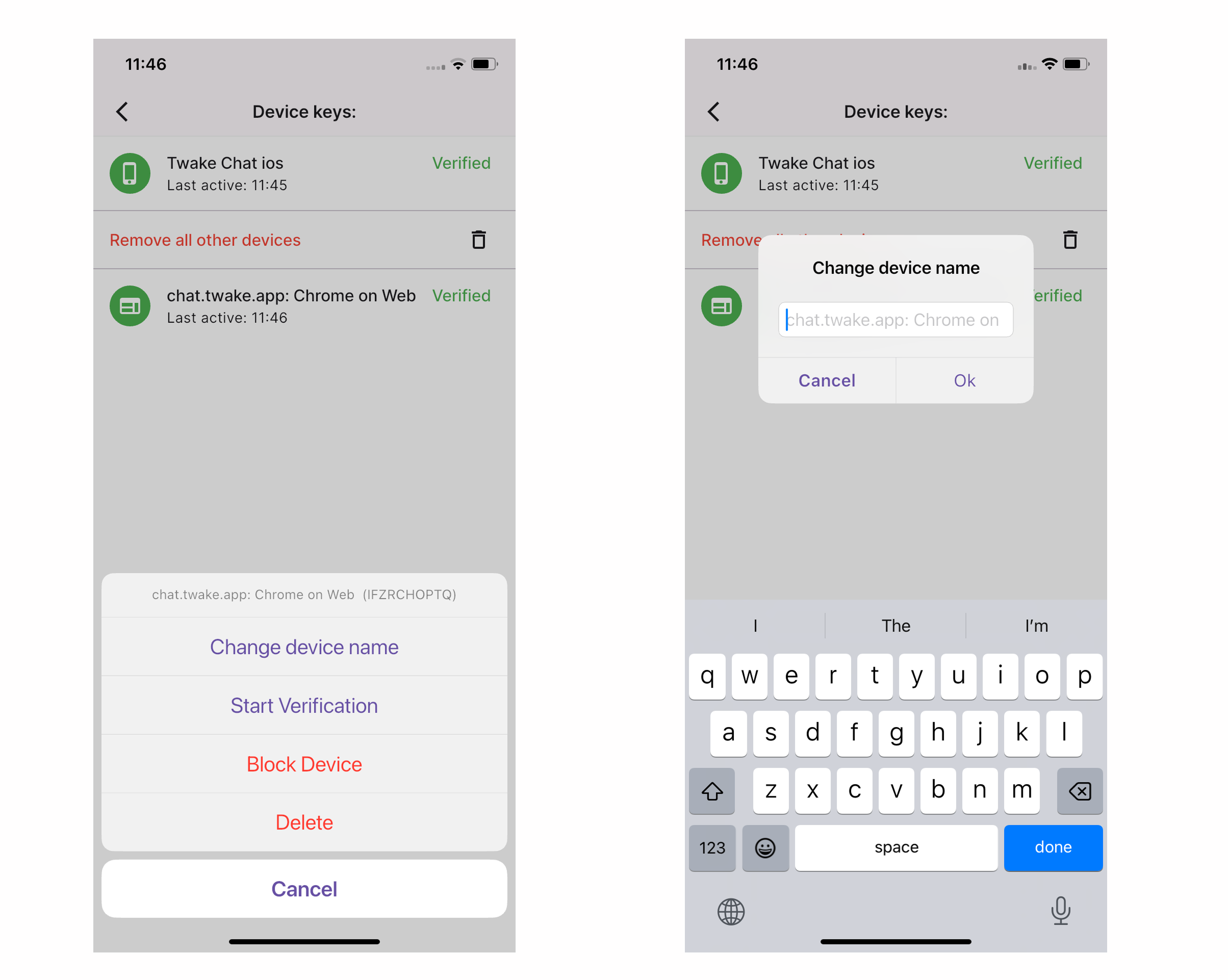
Change Device name
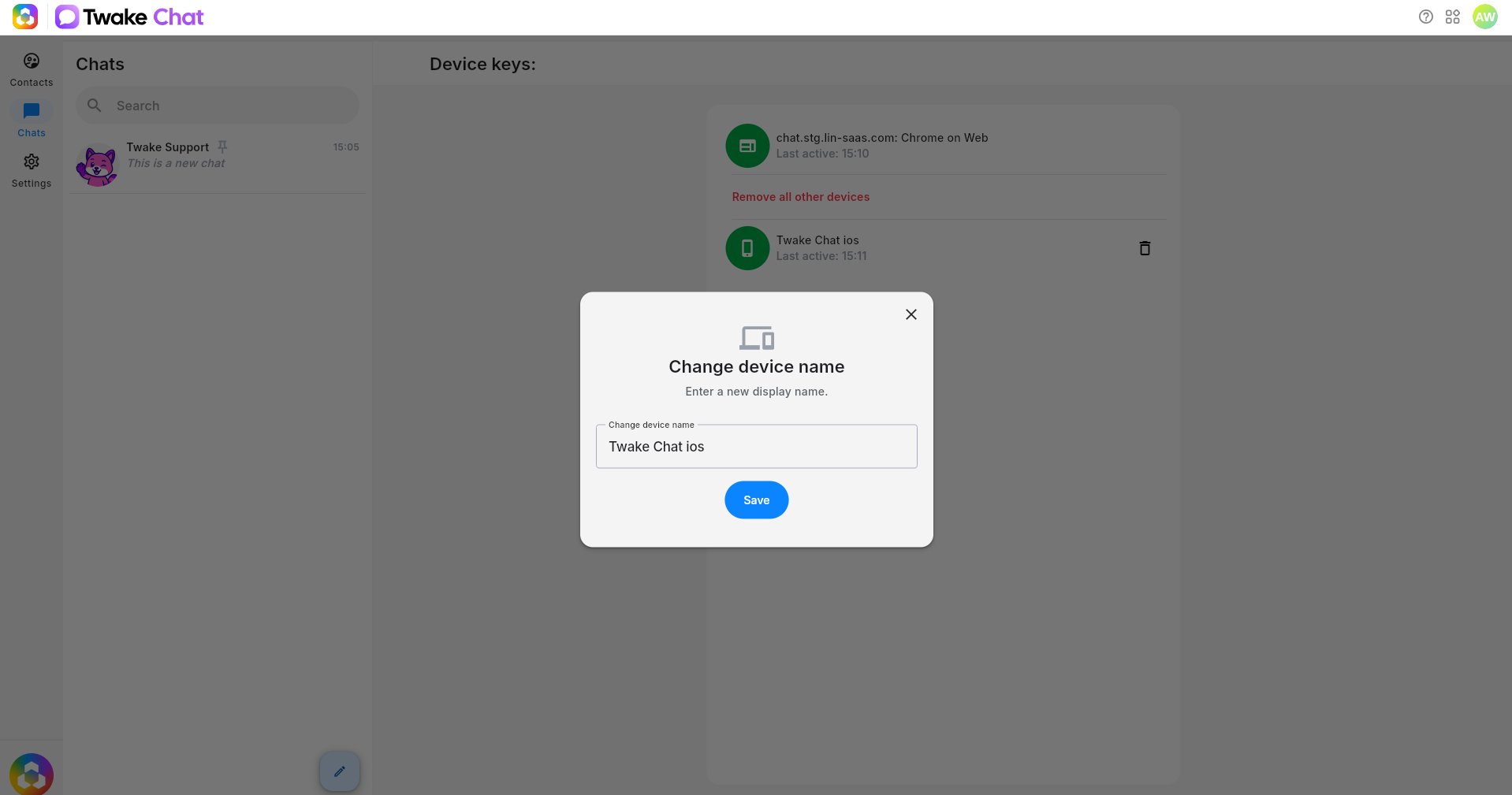
Renaming a device makes it easier to identify, especially if you use Twake Chat on multiple devices.
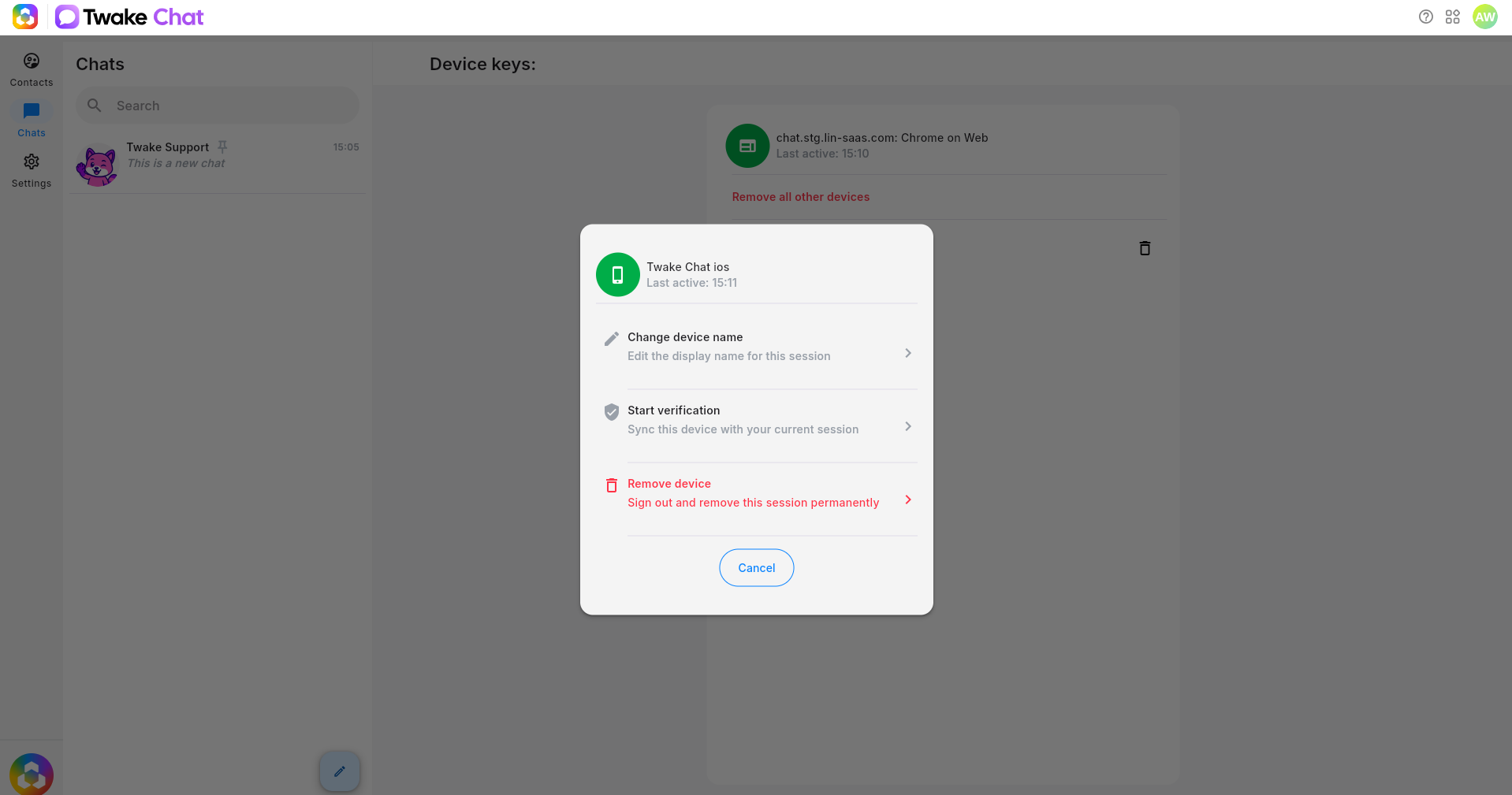
- On the device list, click the device you want to rename.
- Select option Change device name.
- Enter a new name.
- Click OK to save the change
Verify a Device
Once verified, the device is trusted to access end-to-end encrypted conversations.
For more details, see Encrypted chat
Verify another one of your devices
- On the device list, click the unverified device.
- Select Start Verification.
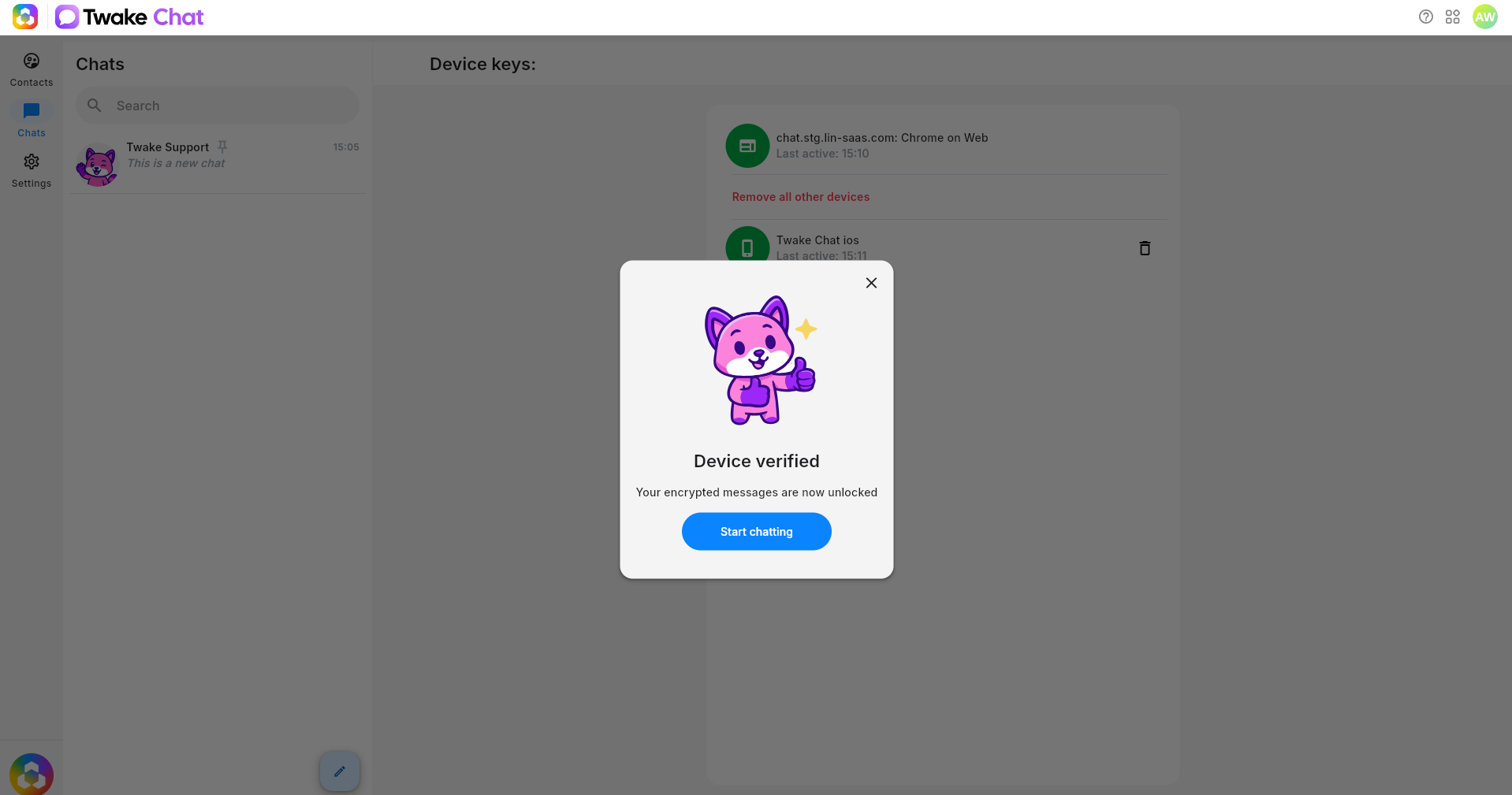
- On the unverified device, accept the verification request.
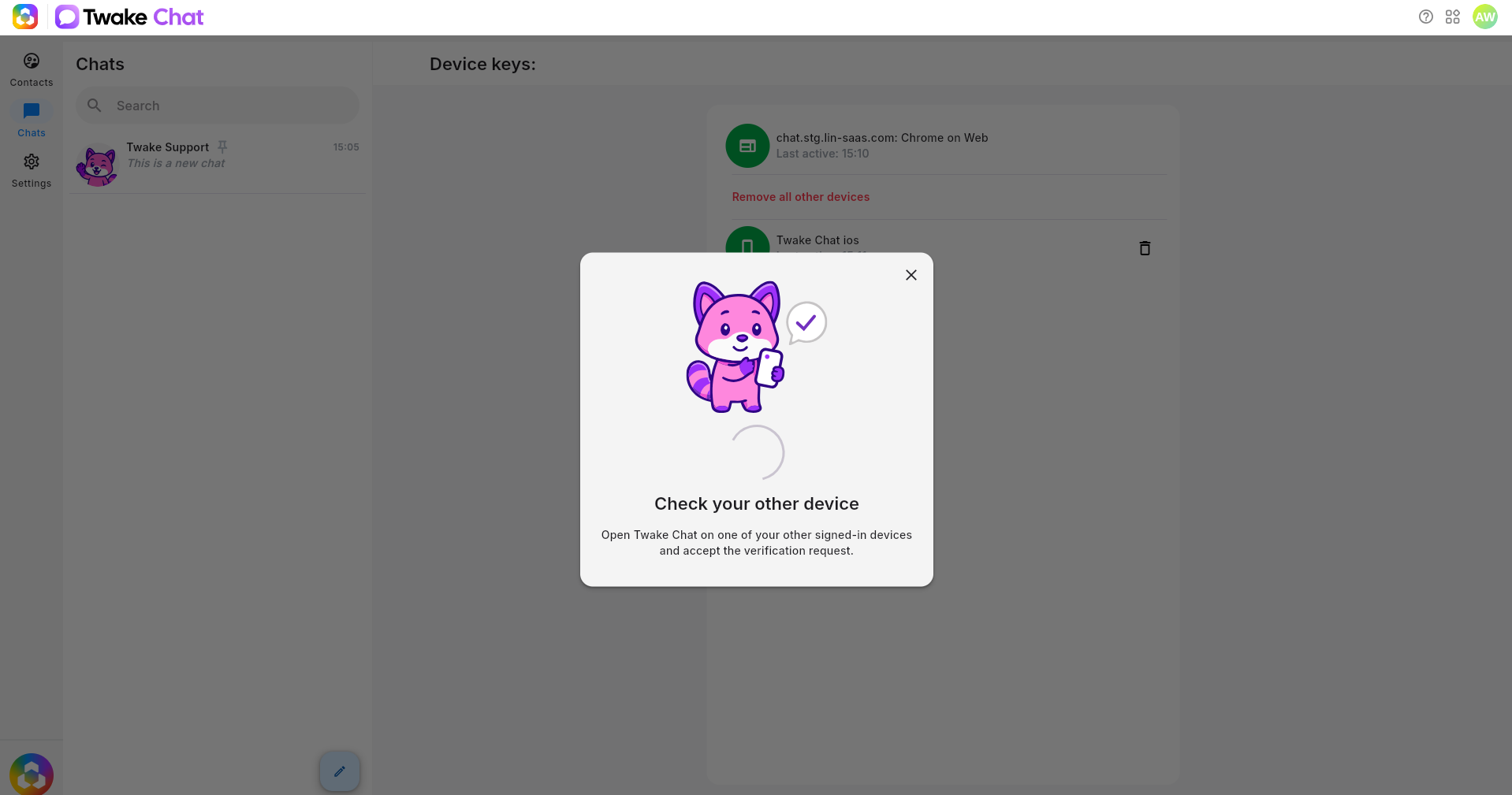
- Click Match on the popup, then confirm the emoji matches on the unverified device to complete the secure connection
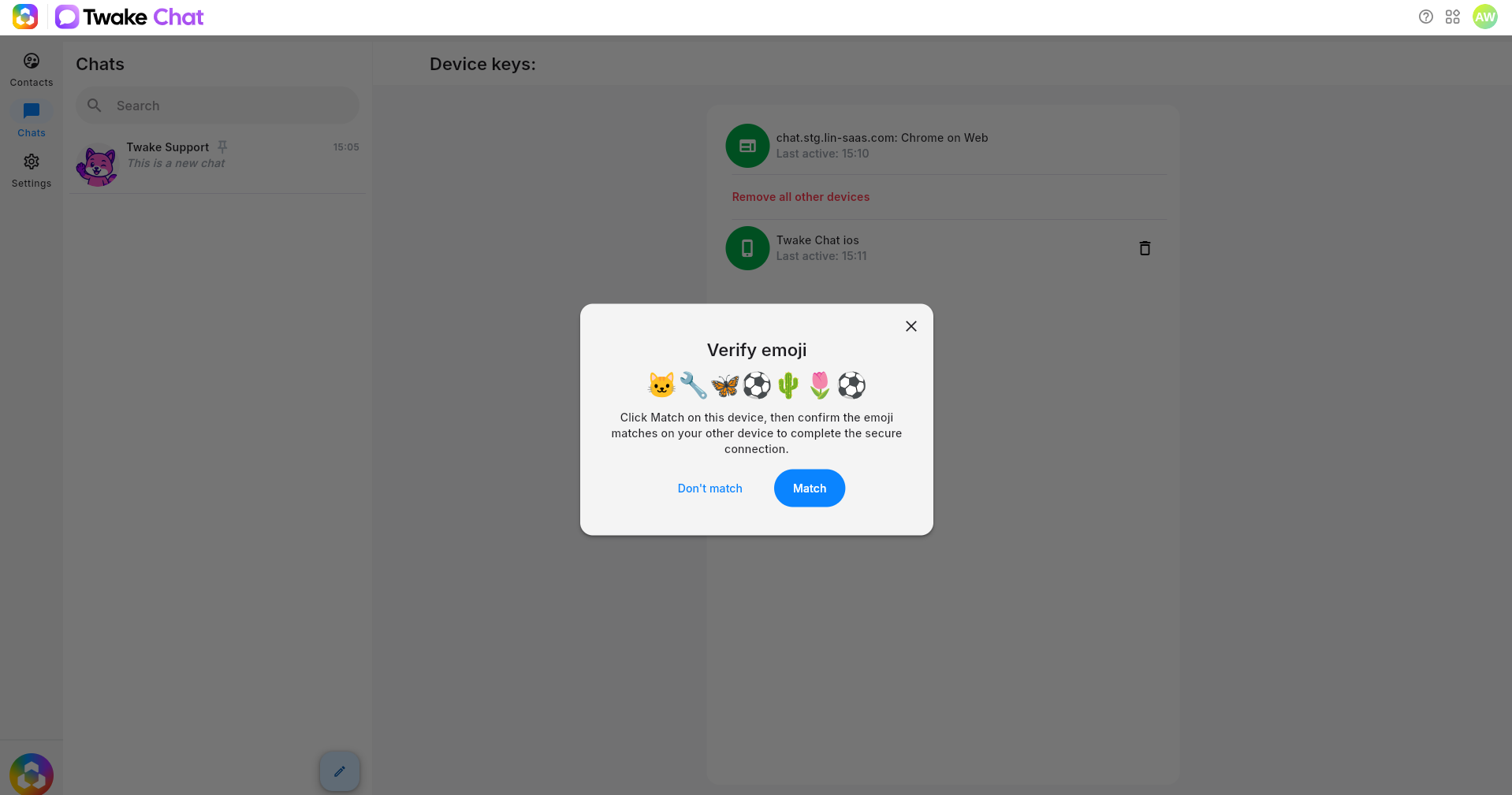
- A confirmation message appears when verification is complete.
Block a Device
Block a device if you no longer trust it or believe it may have been compromised.
- Open Settings > Devices.
- Select the device.
- Click Block Device.
After blocking a device:
- The device is marked as Blocked.
- It is no longer considered trusted for encrypted communication.
- You can unblock and verify the device again later if needed.
Delete a Device
Delete a device to remove it from your account.
- On the device list, click the device
- Select option Delete.
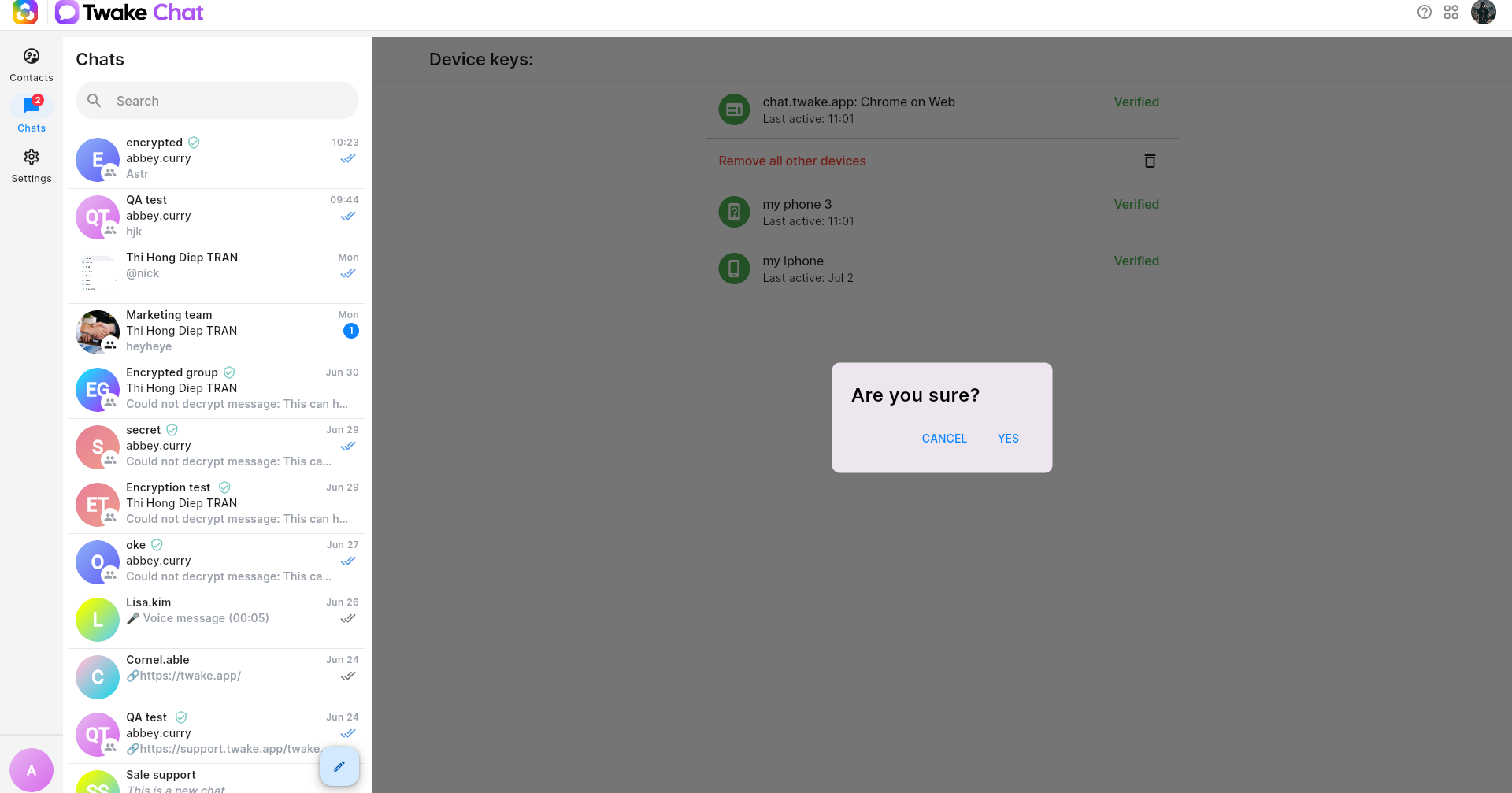
- Confirm the action.
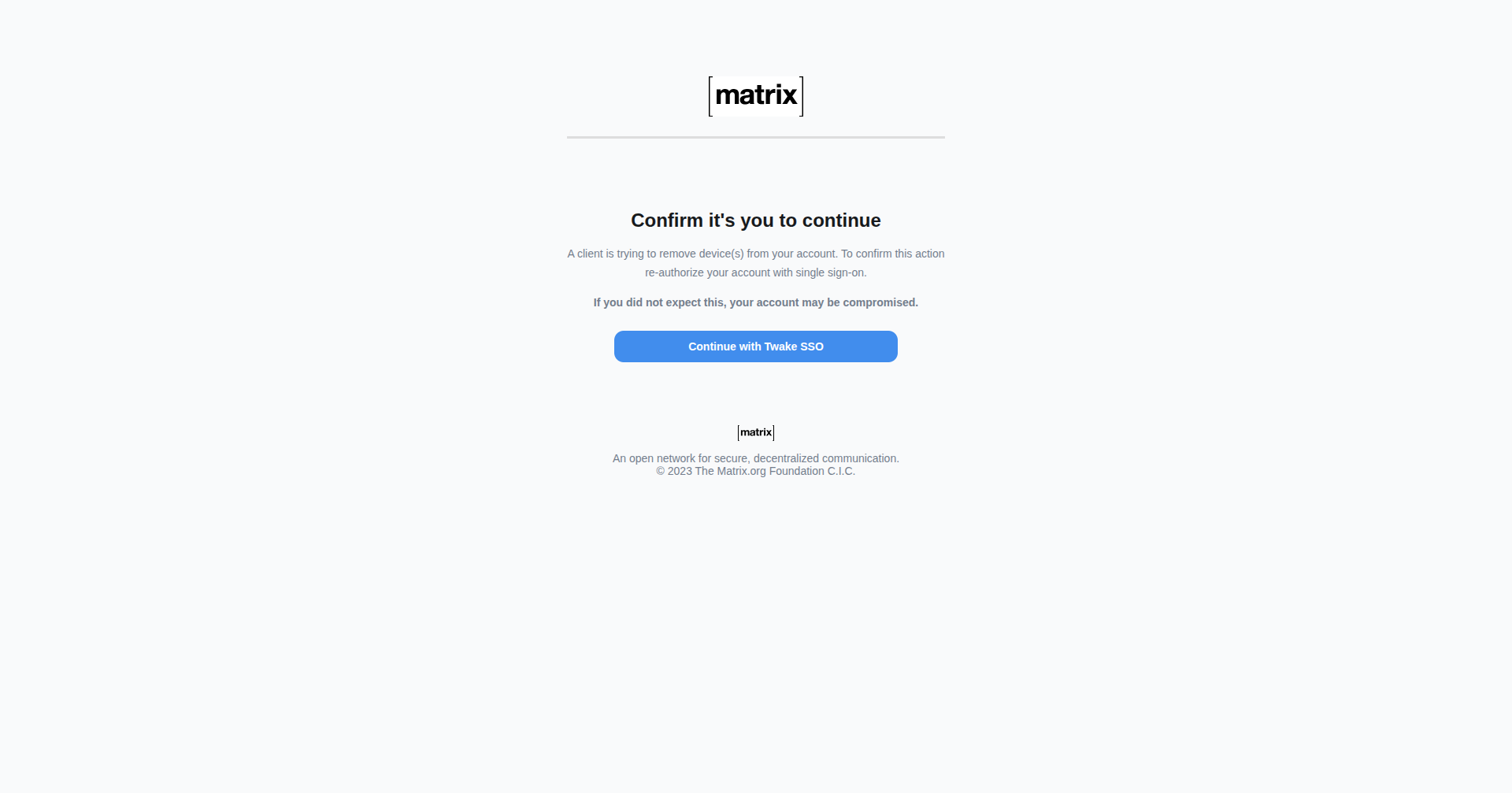
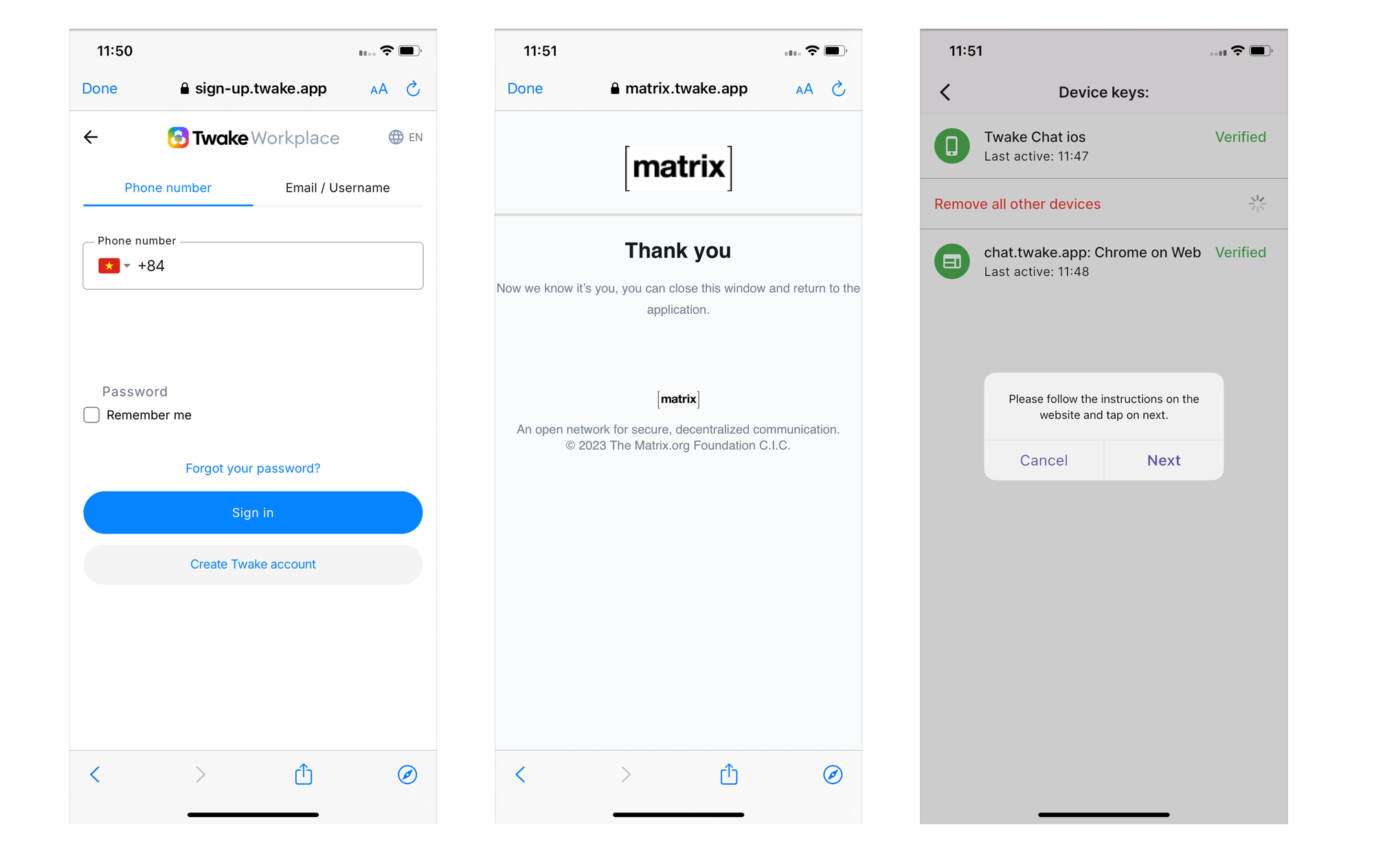
- A new tab will be opened : When prompted, click Continue with Twake SSO to verify your identity.
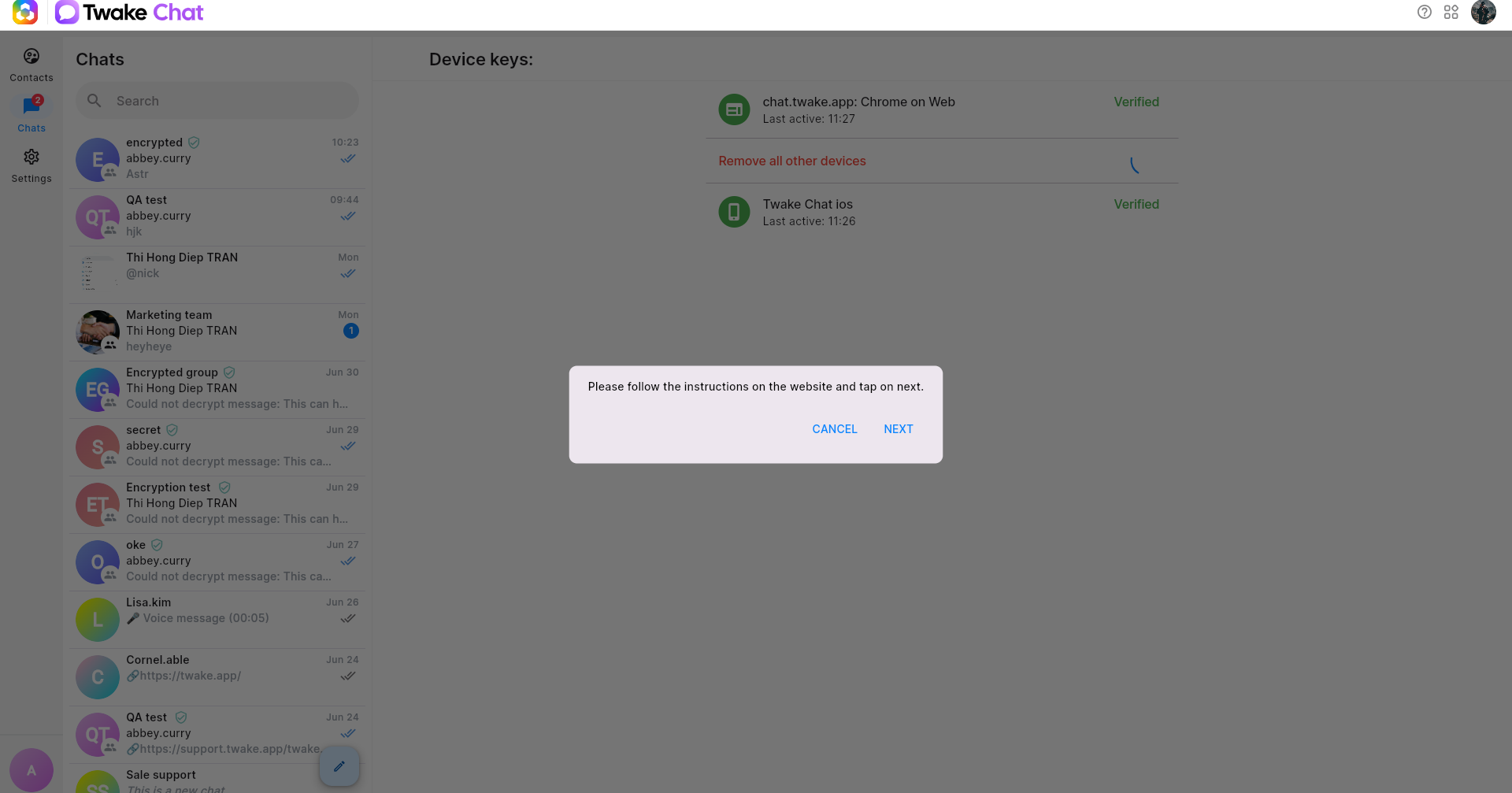
- After the verification is successful, return to Twake Chat. Click Next, the selected device is removed from your account:
Note: Deleting a device signs it out and removes its association with your account.
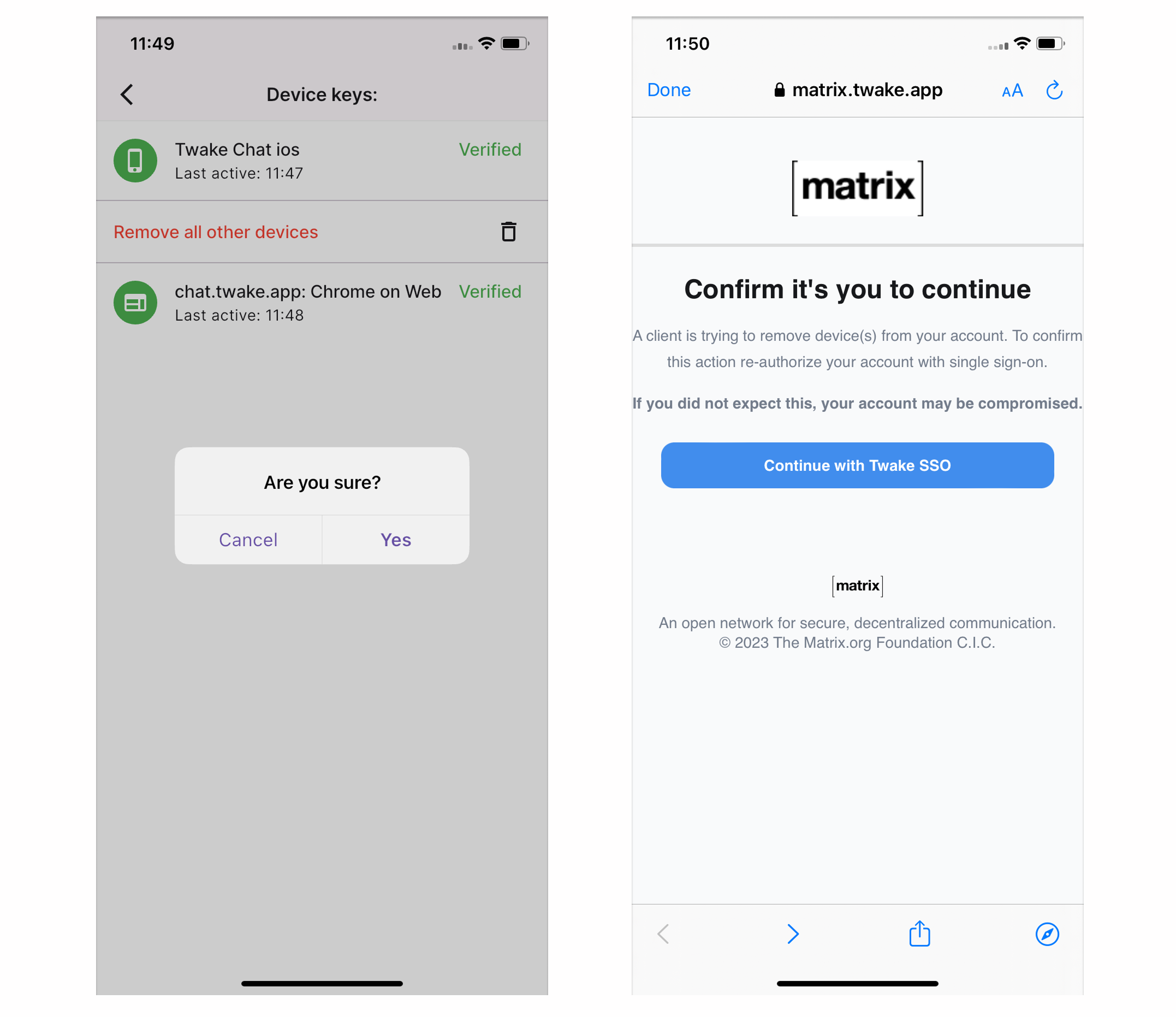
On mobile app, you need to log-in again after click "Continue with Twake SSO"
Remove All Other Devices
If you've signed in on multiple devices and want to keep only your current device active:
- On Devices listing screen, click Remove all other devices.
- Confirm the action.
- A new tab will be opened : When prompted, click Continue with Twake SSO to verify your identity.
- After the verification is successful, return to Twake Chat. Click Next, all other signed-in devices will be removed, while your current device remains signed in.