
Settings - Chat display
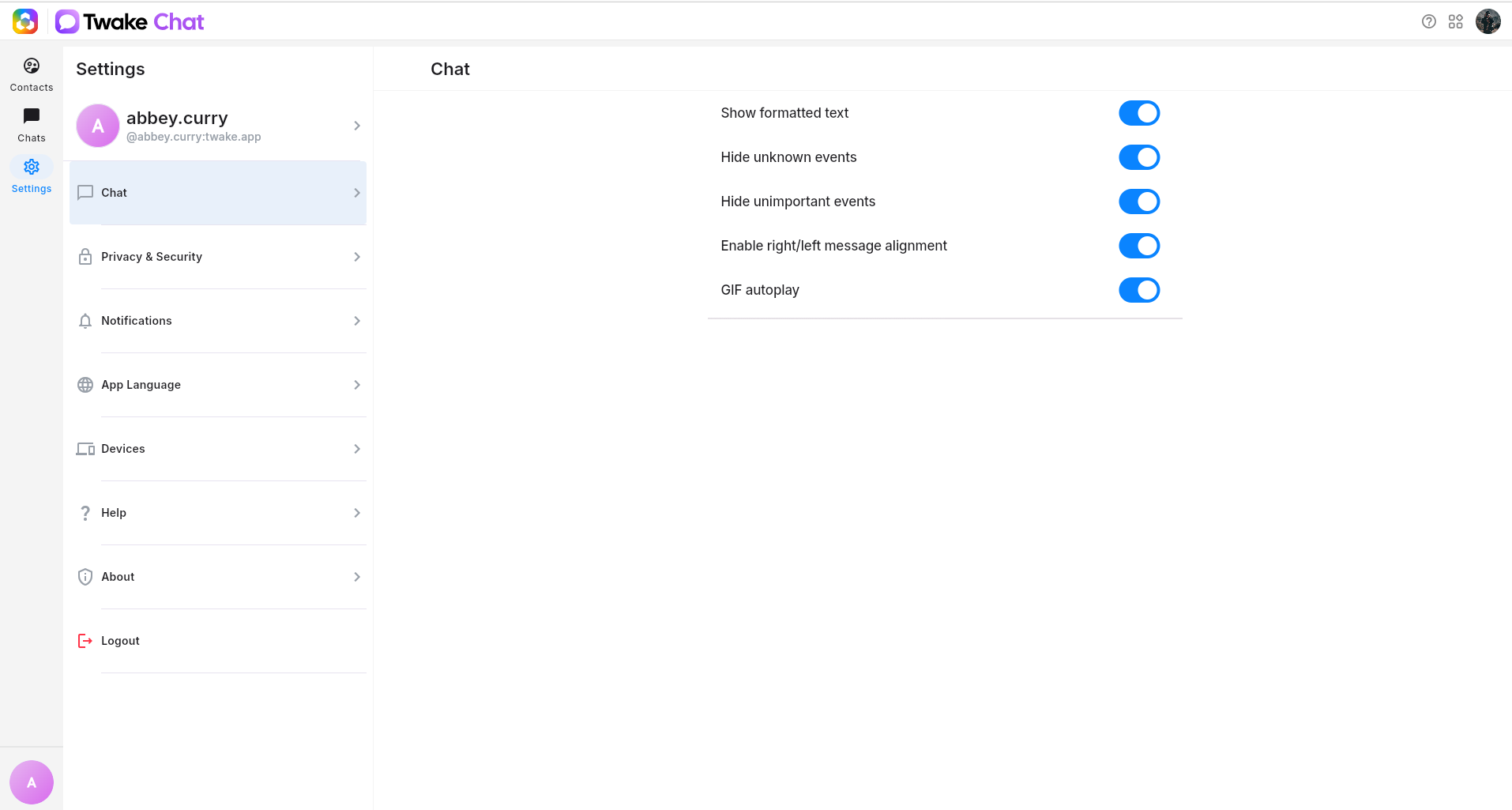
Chat settings let you customize how messages and events are displayed in Twake Chat.
- Click Settings in the left sidebar.
- Select Chat.
From here, you can enable or disable the following options
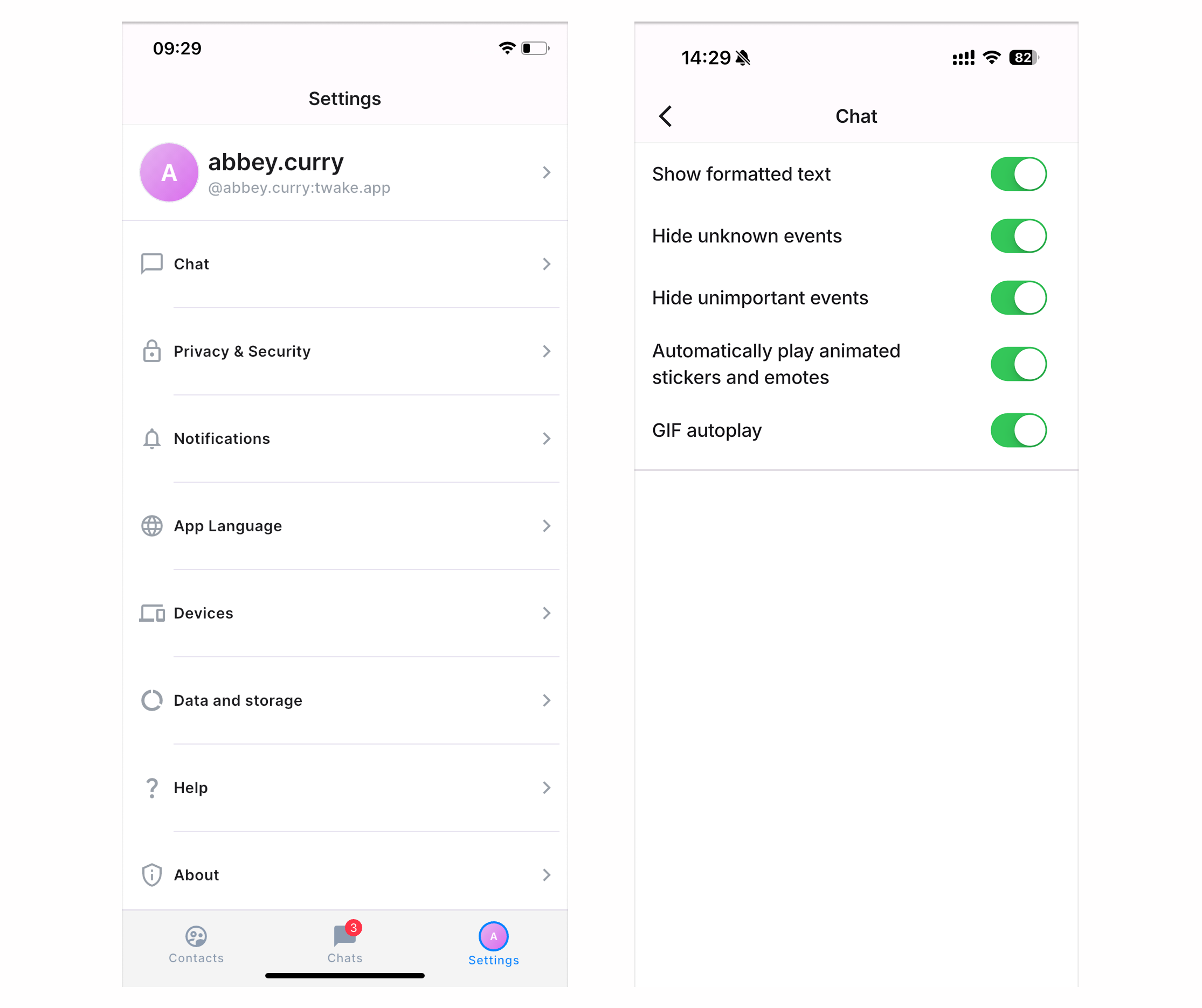
On mobile app:
Show formatted text
Display messages with rich text formatting, such as bold, italic, lists, code blocks...
- Enabled: Formatted messages are displayed as intended.
- Disabled: Messages are displayed as plain text.
Hide unknown events
Unknown events are generated automatically when Twake Chat receives an event it does not recognize. Most users will never encounter them during normal use.
- Enabled: Unknown events are not displayed.
- Disabled: Unknown events remain visible in the conversation timeline.
Hide unimportant events
Hide non-essential system events, such as routine membership or room updates.
- Enabled: Only important events are shown.
- Disabled: All chat events are displayed.
Enable right/left message alignment
Display messages on opposite sides of the conversation based on the sender.
- Enabled: Your messages are displayed on the left side side and other participants' messages are displayed on the other side.
- Disabled: All messages use the default alignment.
GIF autoplay
Automatically play animated GIFs in conversations.
- Enabled: GIFs start playing automatically.
- Disabled: GIFs remain static until you interact with them.
Automatically play animated stickers and emotes
This setting controls whether animated stickers and emotes play automatically in your conversations.
- Enabled: Animated stickers and emotes play automatically.
- Disabled: They remain still until you select them.
💡
Note: Available options may differ between the web and mobile apps.