
Settings - Personalize your chat experience
Twake Chat lets you customize how conversations are displayed, how notifications behave, and how your account is secured. These settings help you create a chat experience that matches your preferences while protecting your account across all your devices.
From Settings, you can manage your chat display, privacy, notifications, language, connected devices, and access helpful resources.
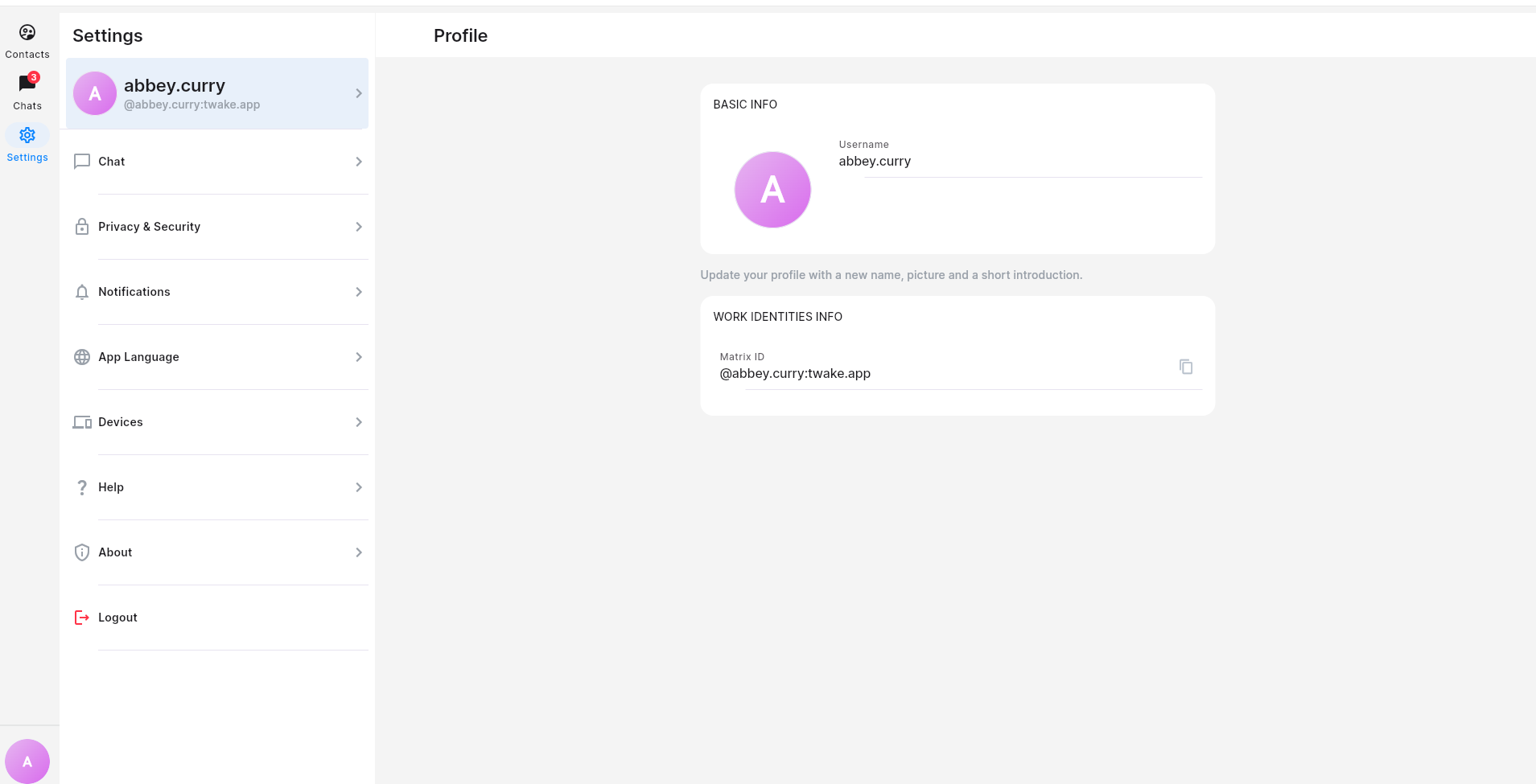
Profile
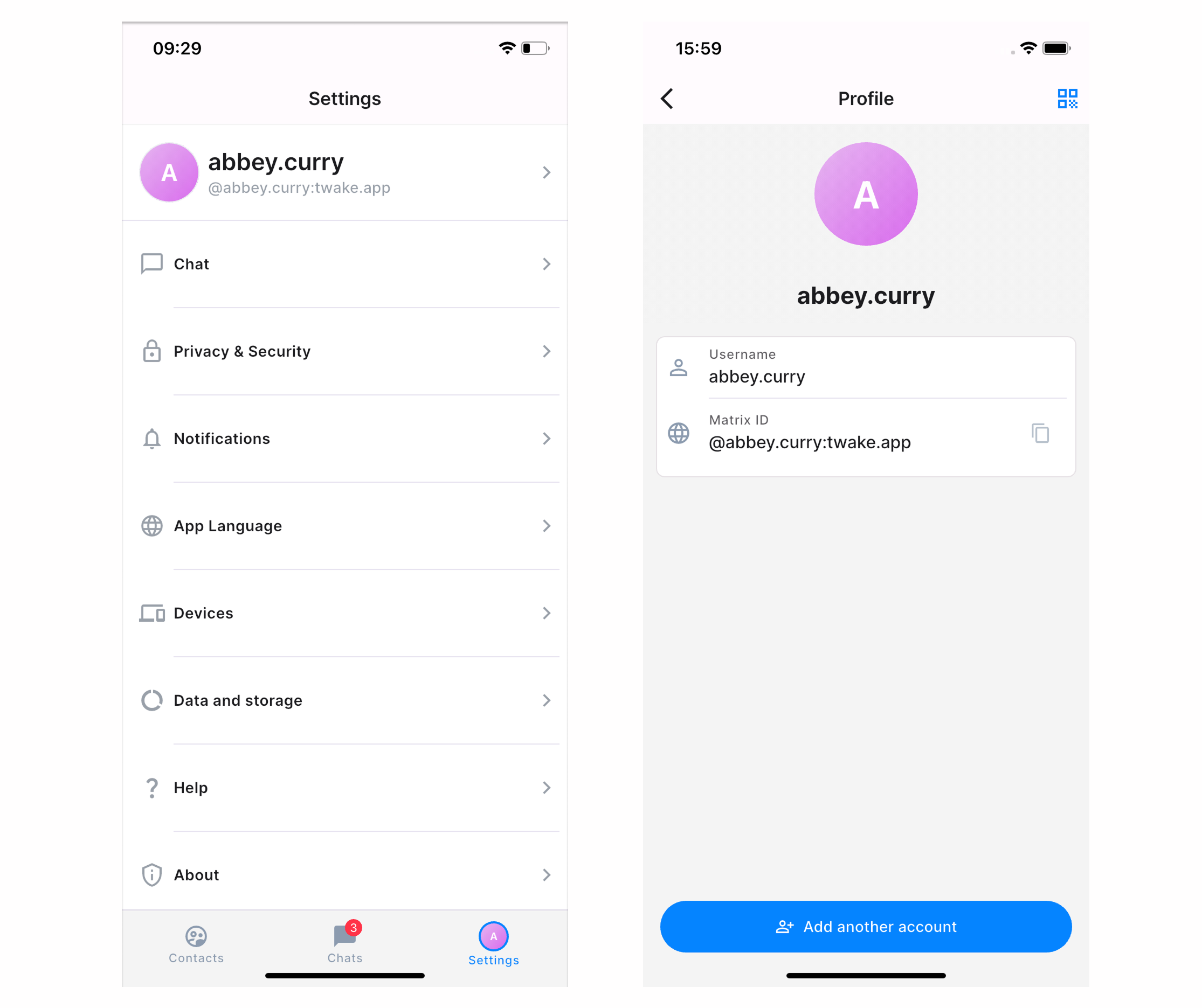
The Profile page contains your basic account information, including your profile picture, username, and Matrix ID. Your Matrix ID is your unique identifier on the Matrix network. Other users can use it to find or contact you.
On mobile app:
Chat
Customize how messages and chat events are displayed.
Notifications
Control how and when Twake Chat notifies you about new activity.
App Language
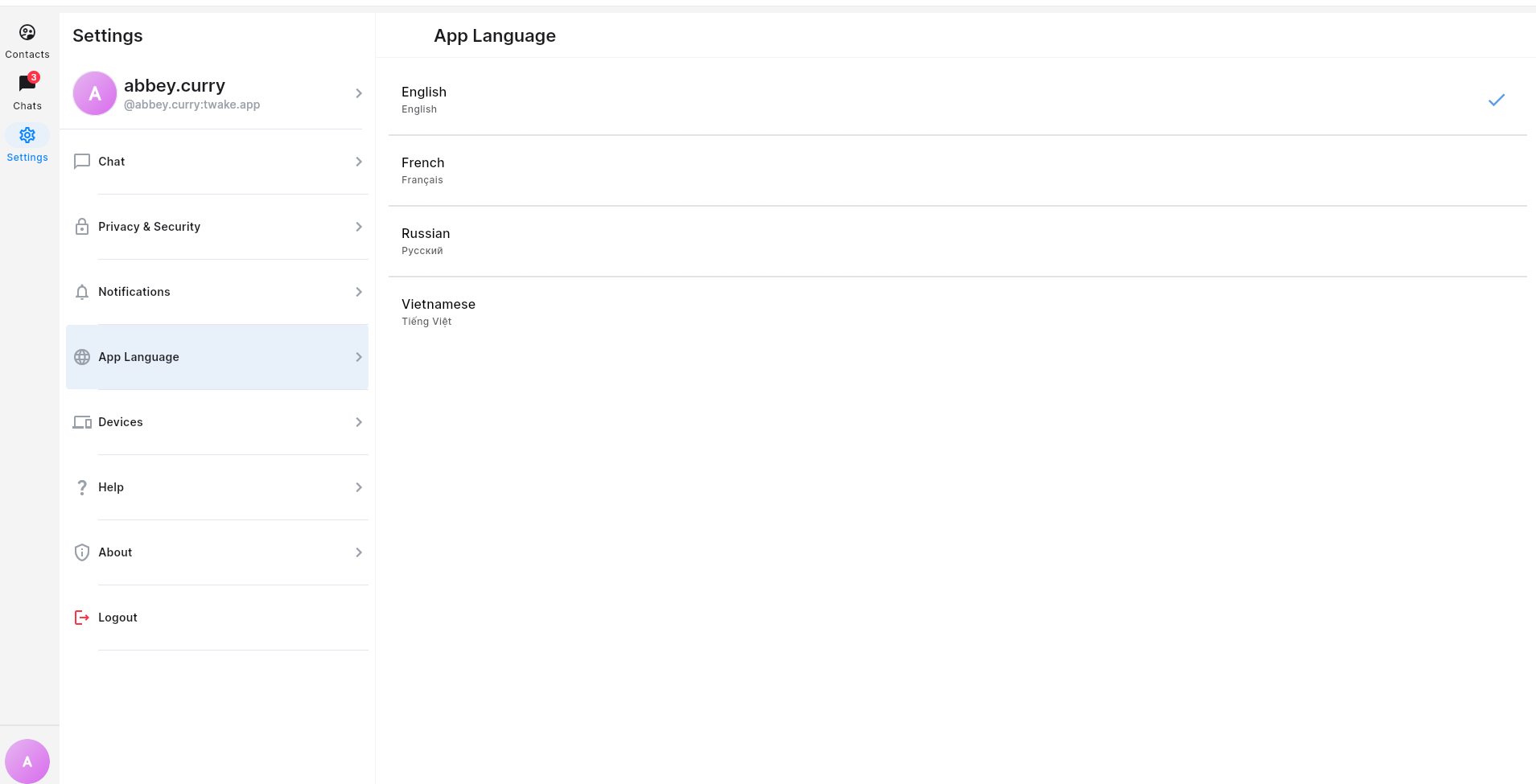
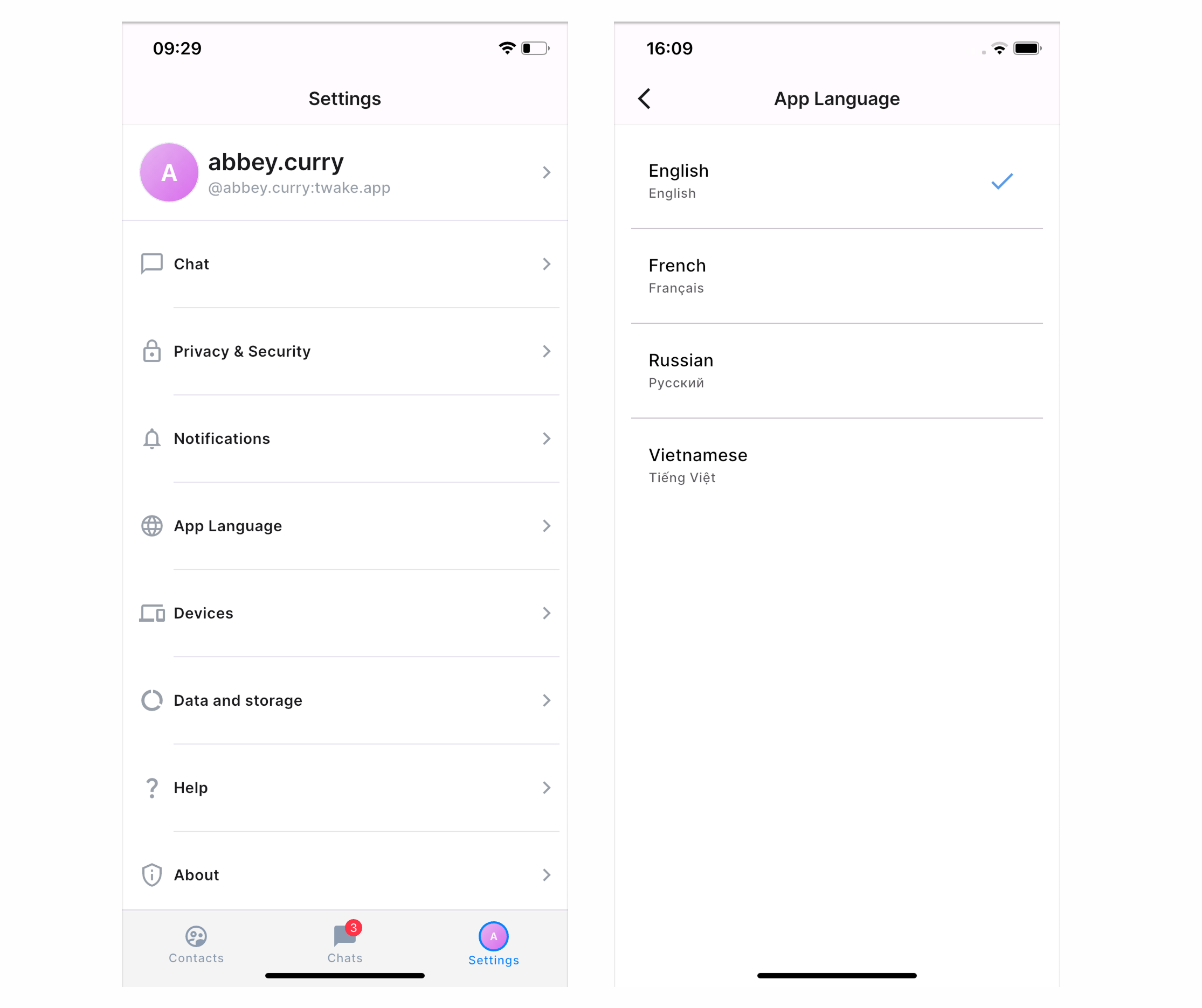
You can change the display language of Twake Chat at any time. The selected language is applied immediately across the application. To change the language:
- Open Settings.
- Select App Language.
- Click the language you want to use.
- The selected language is marked with a ✓ checkmark and Twake Chat immediately switches to that language.
Note: the language change will only apply to Twake Chat application. To change Twake Workplace account language, avatar and display name, see Configuration settings
On mobile app:
Devices
View and manage devices connected to your account.
Help
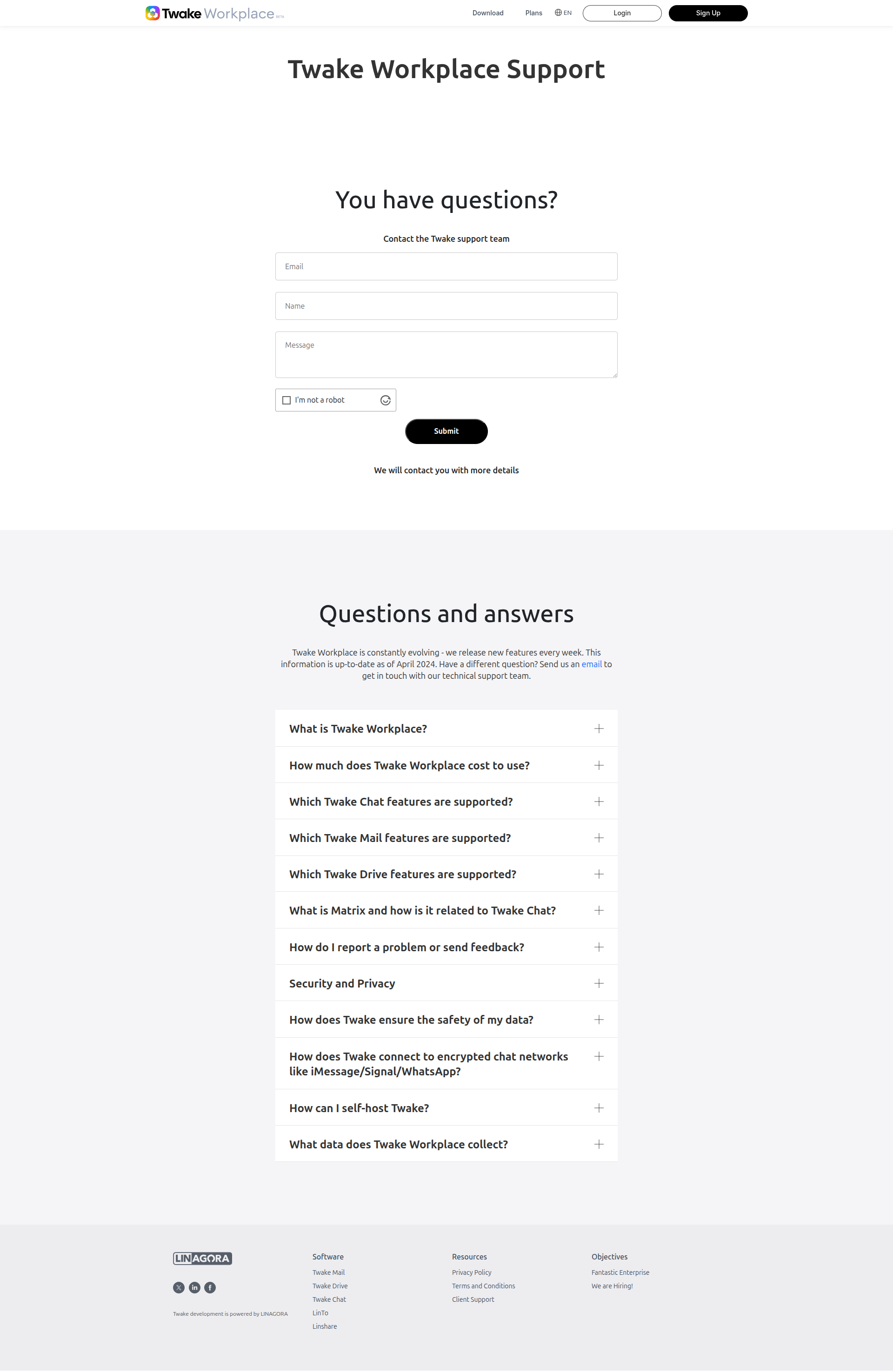
The Help section provides quick access to the Twake Support Center, where you can find documentation, browse frequently asked questions, or contact the support team.
From the Help Center, you can:
- Search for answers to common questions.
- Read frequently asked questions (FAQs).
- Contact the Twake Support team.
About
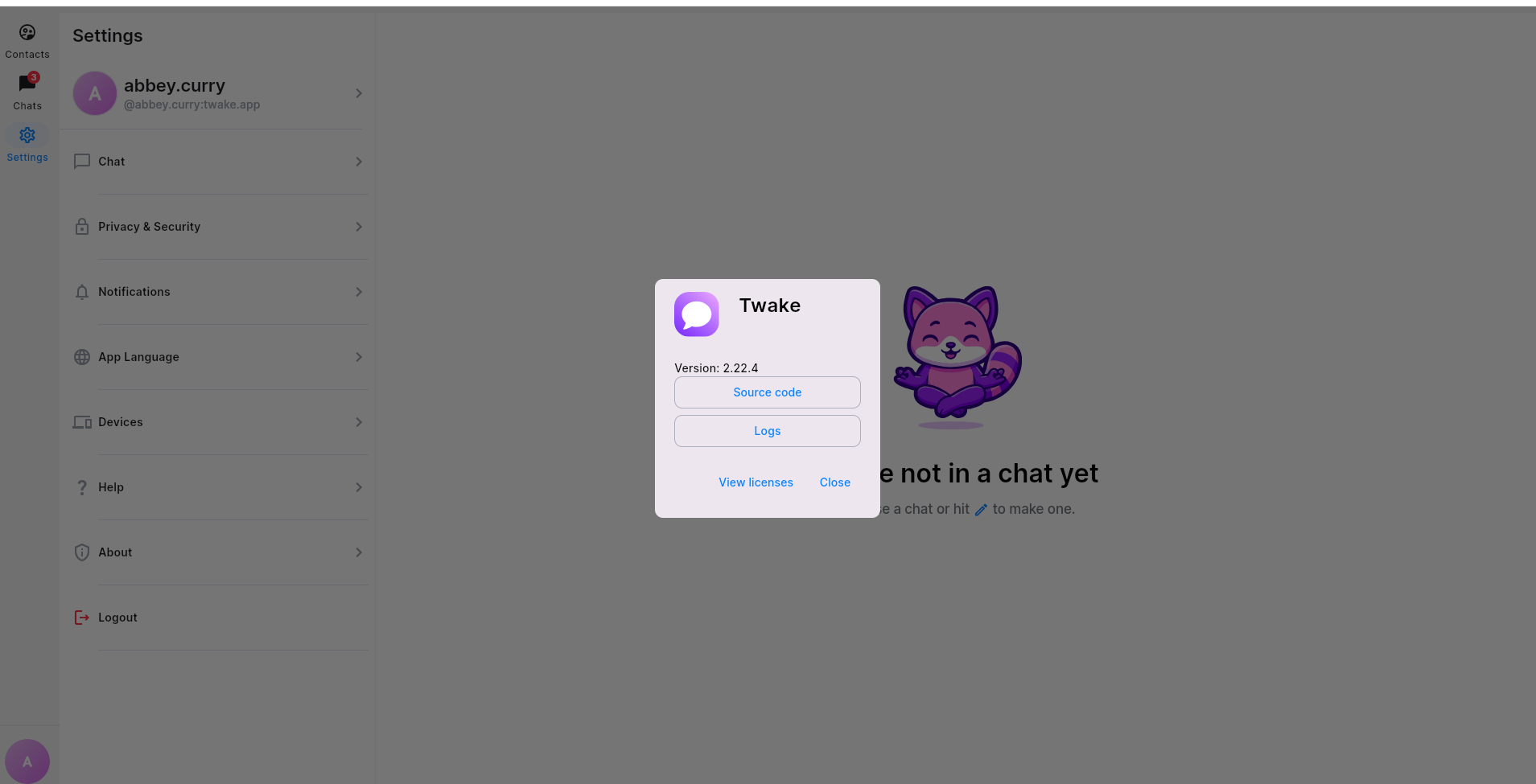
View information about your current Twake Chat version and licensing information.
The About section provides information about your installed version of Twake Chat and gives access to technical resources related to the application.
On mobile app:
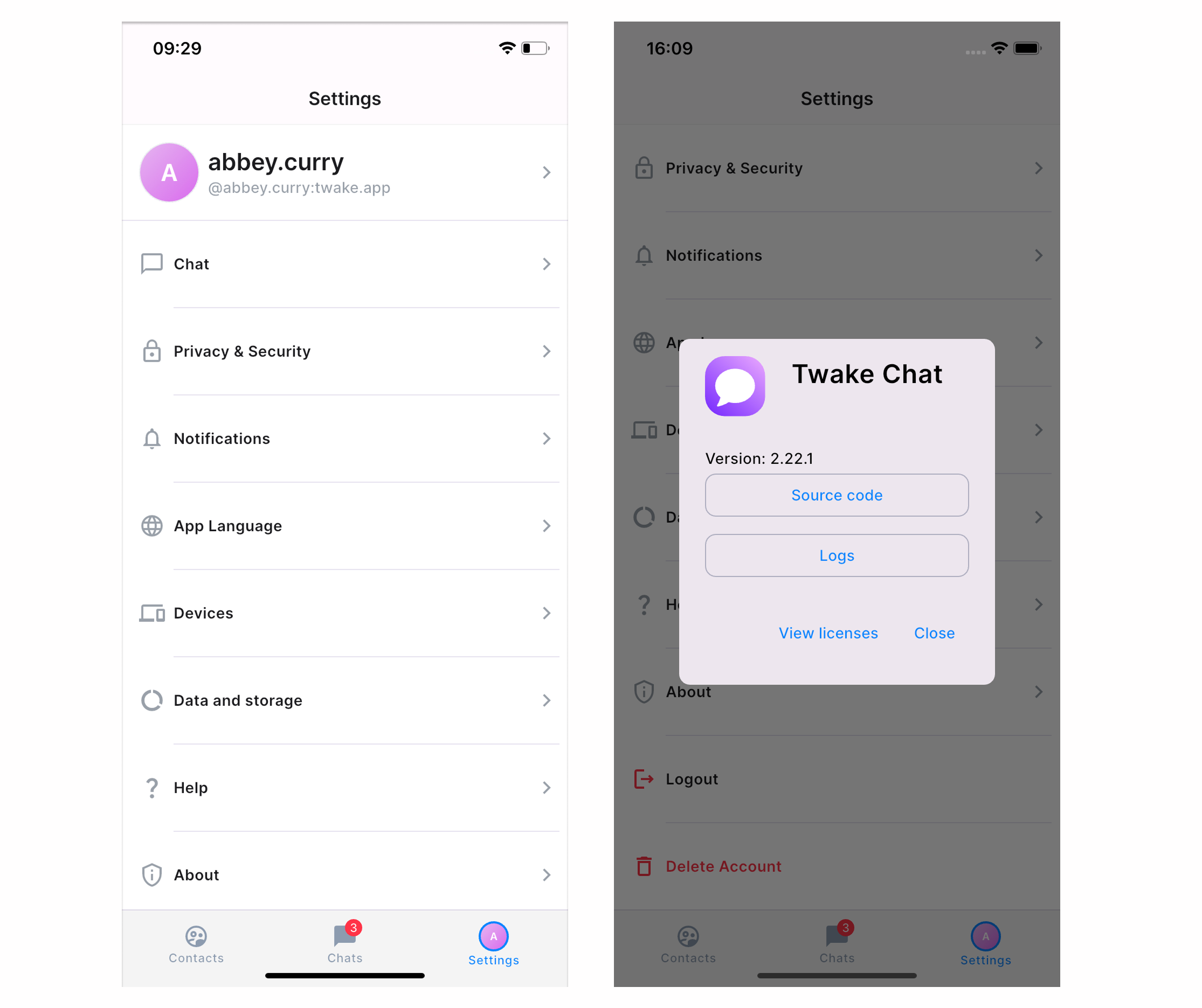
The Version field shows the version number currently installed on your device.
Click Source code to open the Twake Chat source code repository in your web browser.
Click Logs to view the application's diagnostic logs. Logs can help identify technical issues and may be requested by the support team when troubleshooting a problem.
Click View licenses to display the open-source software licenses used by Twake Chat.
Logout
Sign out of your Twake Workplace account on the current device.