
Share files/folders with Twake Drive
Overview
Twake Drive lets you share files and folders in two simple ways: by sending a public link, or by giving access to specific Twake users.
This guide explains when to use each option, how permissions work, what recipients see, and how to manage shared access after sending it.
Choose the Right Sharing Option
| Sharing option | Use it when | Twake account required? |
|---|---|---|
| Link sharing | You want to share quickly with anyone who has the link | No |
| Email sharing | You want to share with specific Twake users | Yes |
You can use both options on the same file or folder. For example, you can share a folder with selected colleagues and also create a link for external access.
Understand Sharing Permissions
Twake Drive offers two permission levels when sharing files or folders.
| Permission | What the recipient can do |
|---|---|
| Viewer | View and download the shared content |
| Editor | View, download, upload, edit, rename, delete, and manage sharing access |
Users with Editor permission can also add or remove members and change other members' permissions.
Share with a Link
Link sharing is the fastest way to share a file or folder. Anyone with the link can access the content, and they do not need a Twake account.
Create and Copy a Link
- Open Twake Drive.
- Select the file or folder you want to share.
- Open the sharing options from:
- Action bar or
- Click 3-dot button
- Right - click
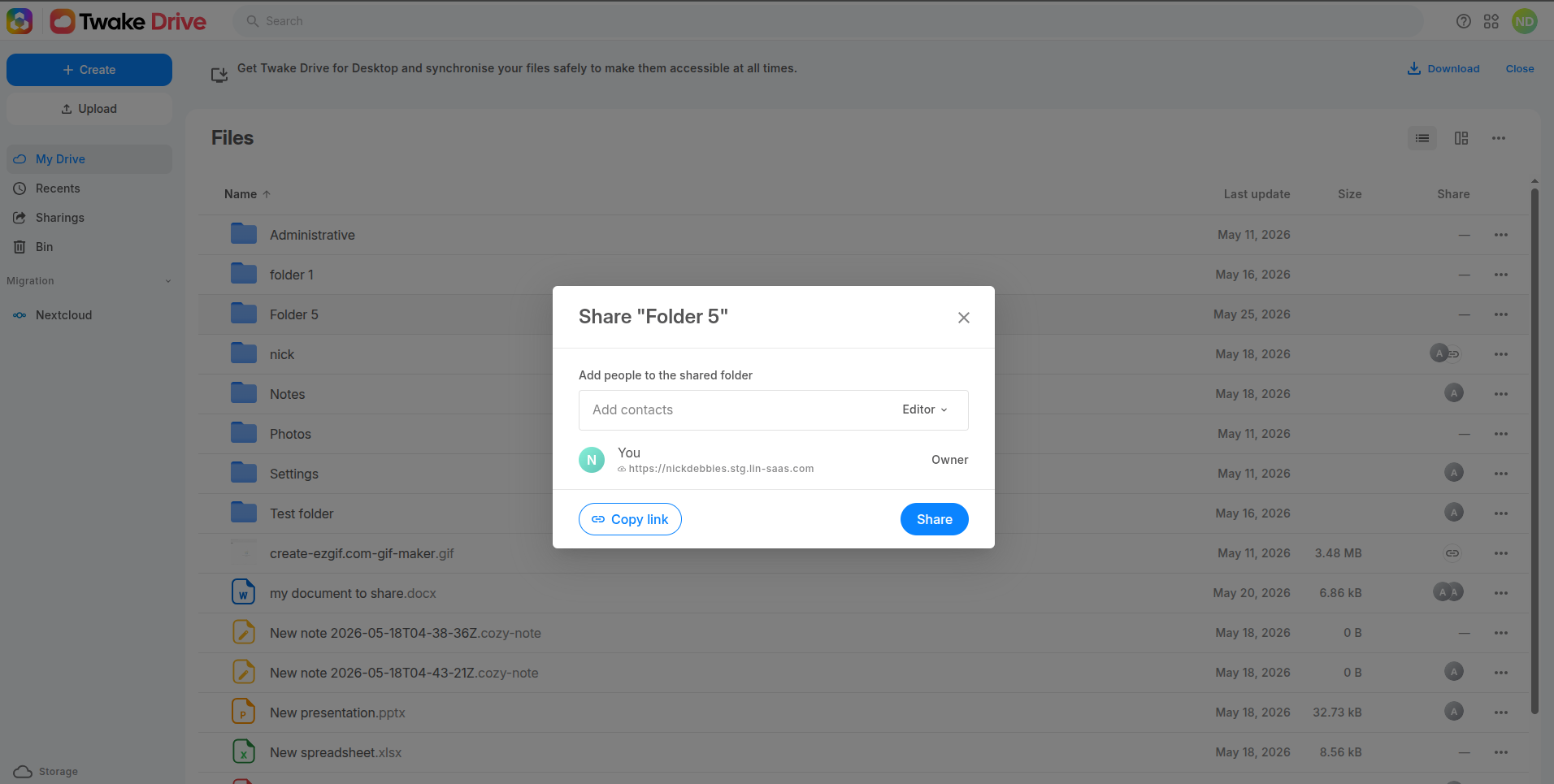
- In the link sharing screen, click "Copy link"
- Choose the permission: Viewer or Editor.
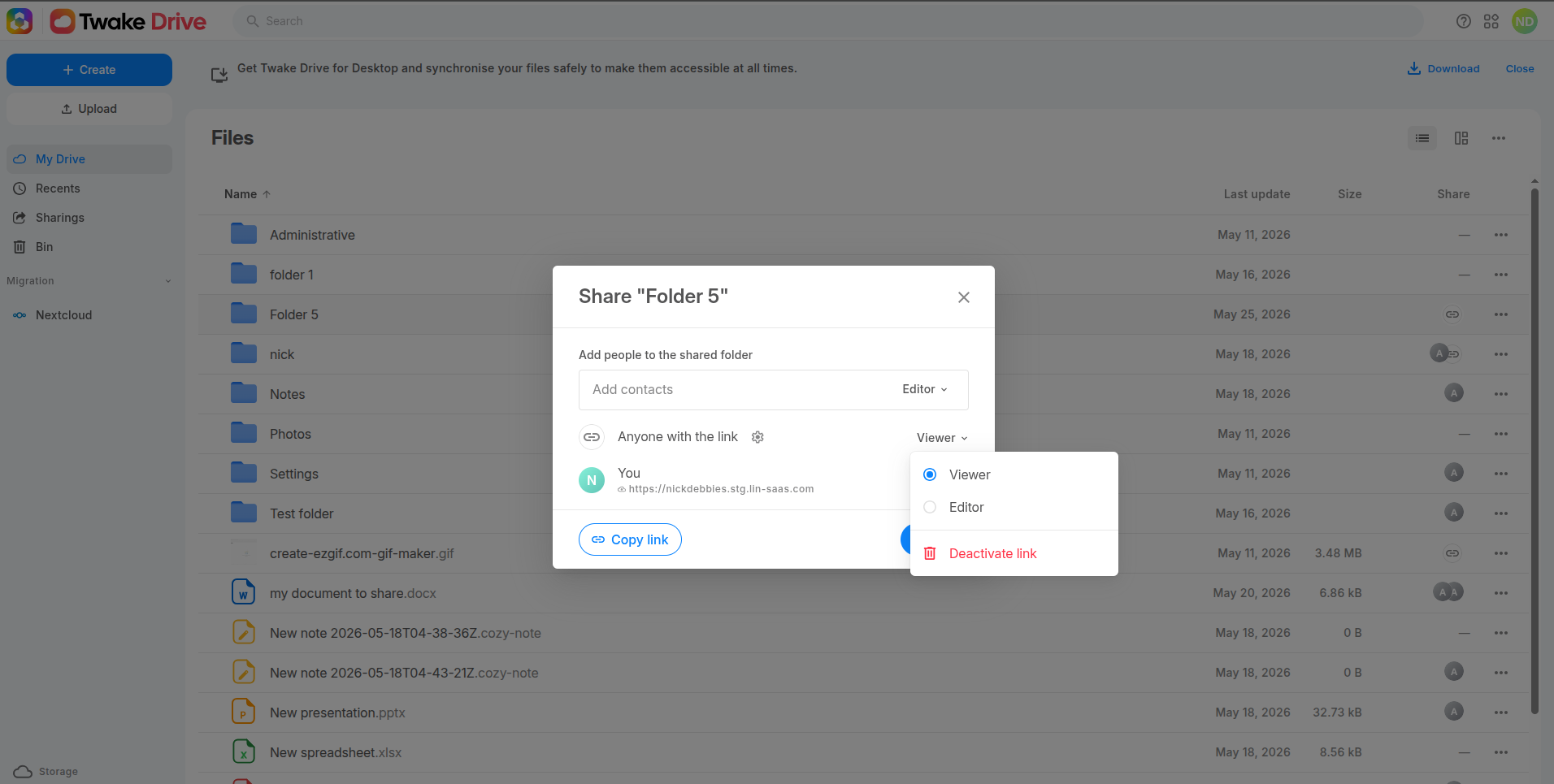
- Send the link to the people who need access.
Anyone who has the link can access the shared content according to the permission you selected.
Protect a Shared Link
You can add extra protection to a shared link by setting an expiration date or password.
Add an Expiration Date
Use an expiration date when access should only be available for a limited time.
- Open the sharing screen of the file or folder.
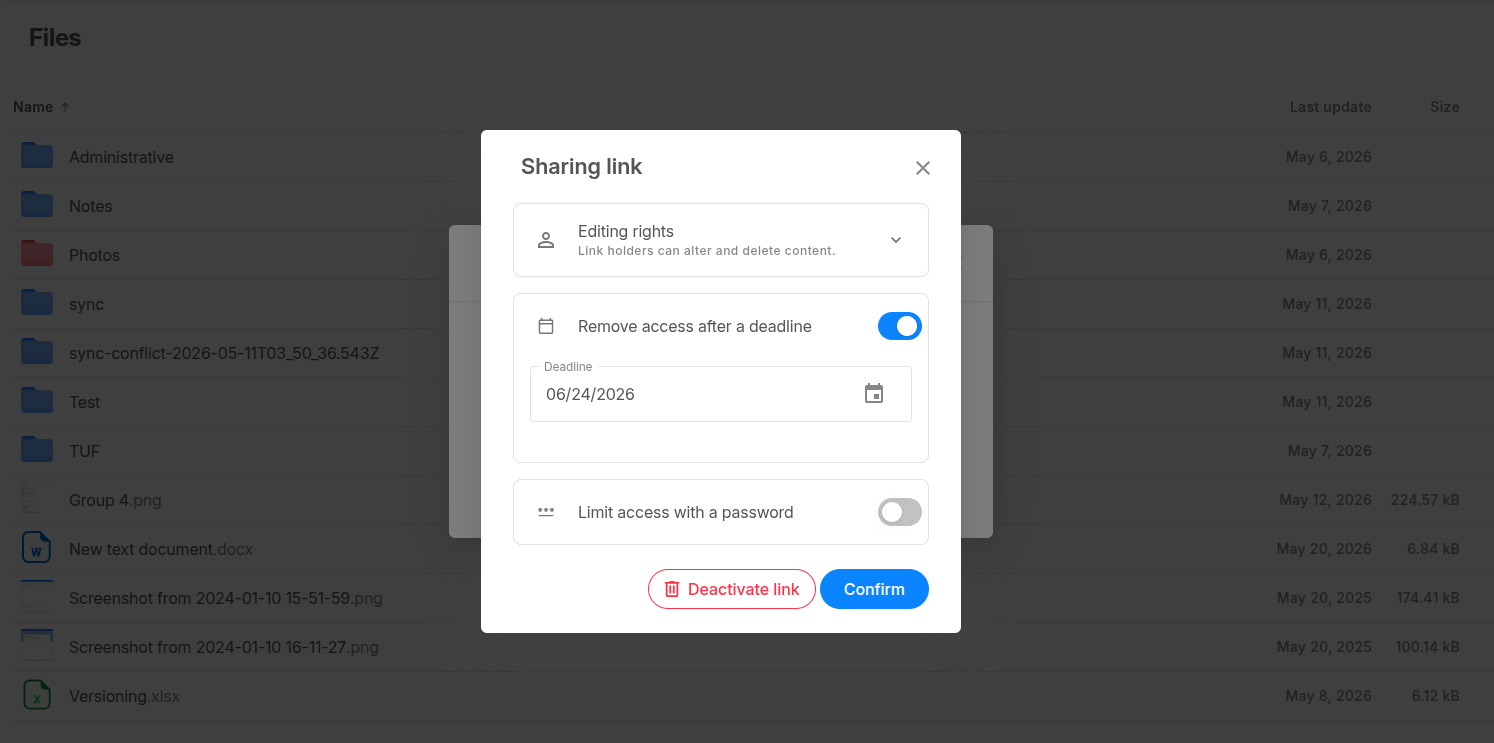
- Open the link settings (⚙ icon)
- Enable Remove access after a deadline.
- Choose the expiration date.
- Click Confirm
After the expiration date, the link stops working. Anyone who opens it will see an error page.
Add a Password
Use password protection when you want to limit access to people who have both the link and the password.
- Open the sharing screen of the file or folder.
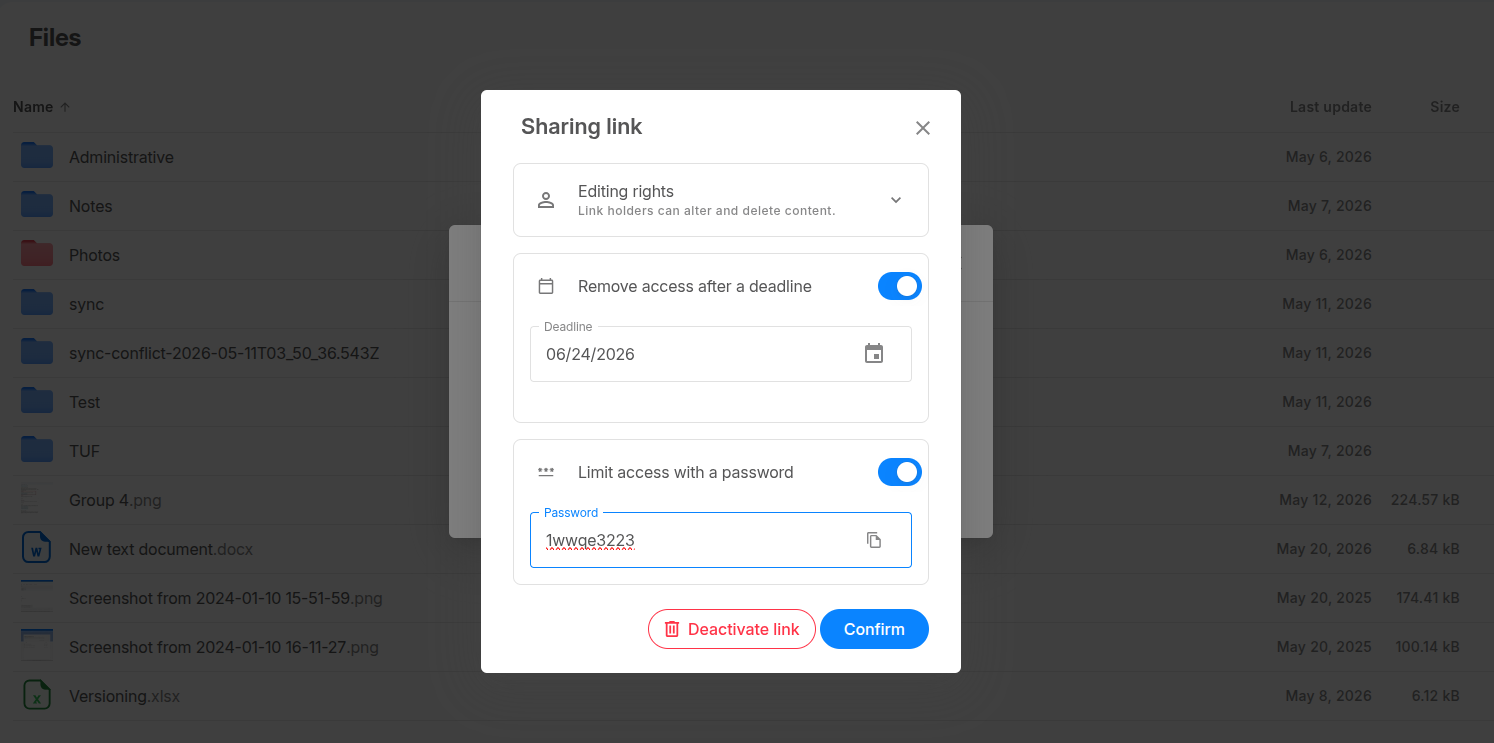
- Open the link settings (⚙ icon)
- Enable Limit access with a password.
- Enter a password.
- Click Confirm
- Send the password to recipients separately.
Disable a Link
You can stop a shared link from working at any time.
- Open the sharing screen for the file or folder.
- Open the link settings.
- Select Deactivate link.
Access is revoked immediately for everyone using that link.
If you enable link sharing again later, Twake creates a new link. The old link will not work anymore, so you must send the new link to recipients.
Share with Specific People (email sharing)
Share by user's email
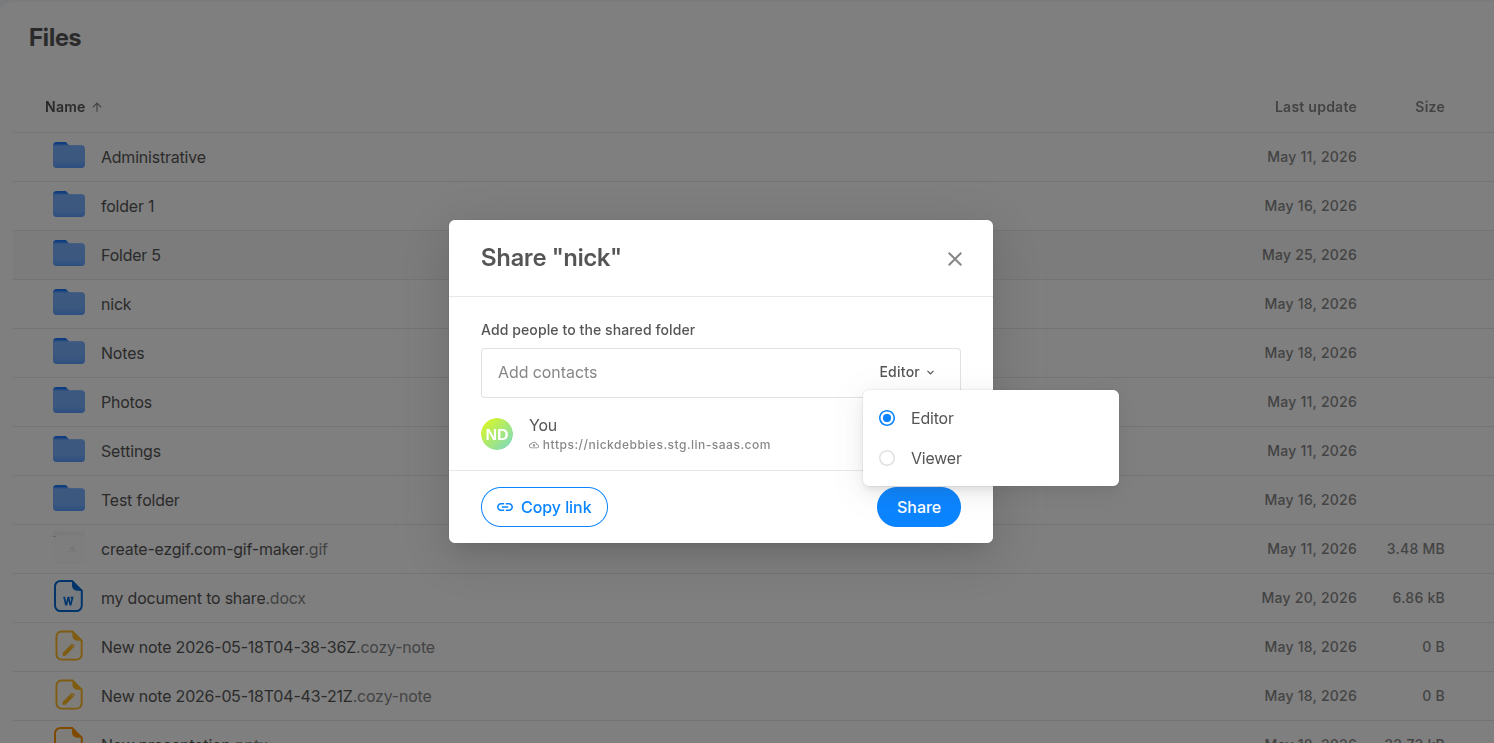
Email sharing is useful when you want specific Twake users to access a file or folder from their own Twake Drive.
- Open Twake Drive.
- Select the file or folder you want to share.
- Open the sharing options from:
- Action bar or
- Click 3-dot button
- Right - click
- In Add contacts, search for the people you want to invite.
- Select one or more recipients.
- Choose a permission for each recipient: viewer or Editor.
- Select Share.
Open a File or Folder shared with you or shared by you
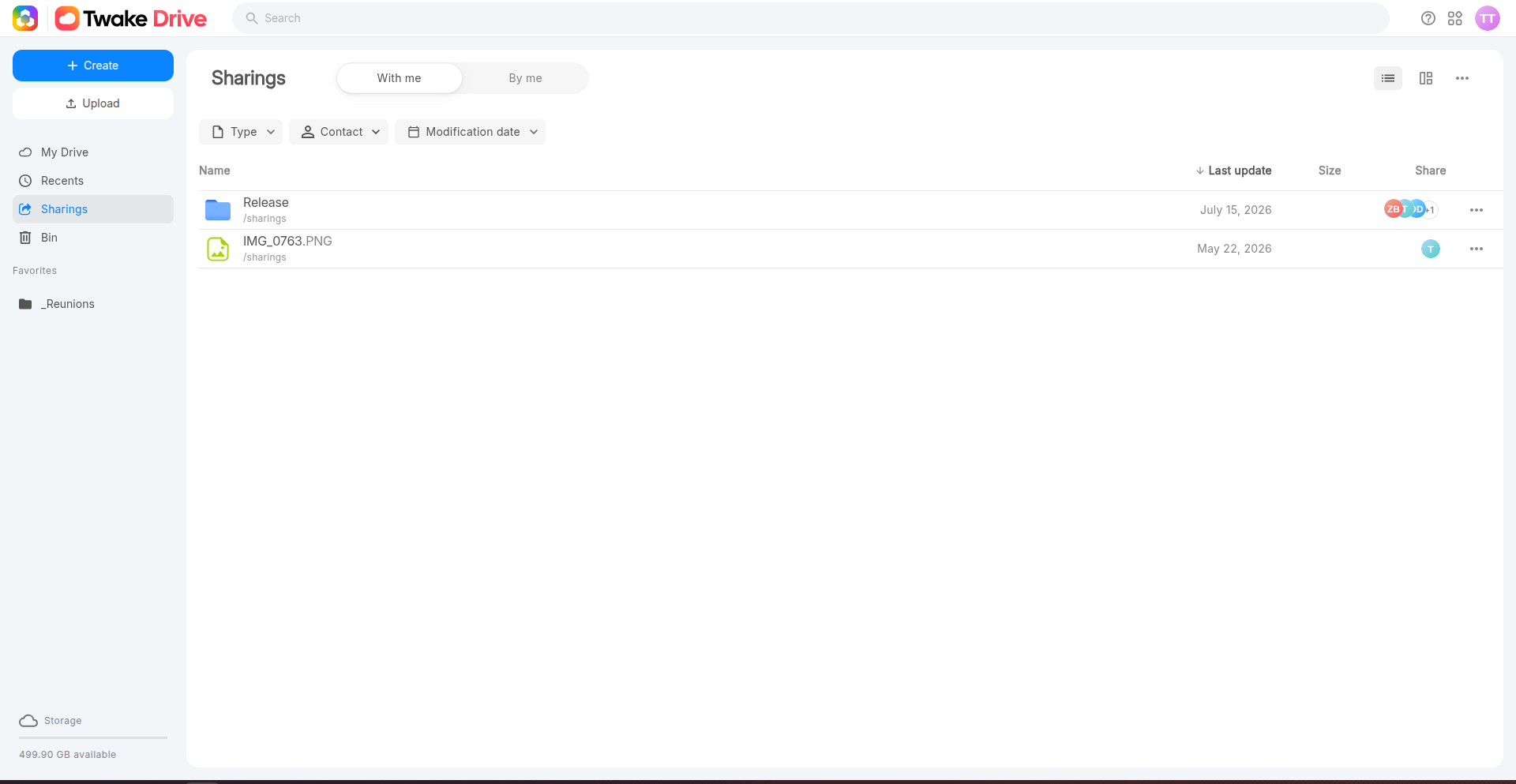
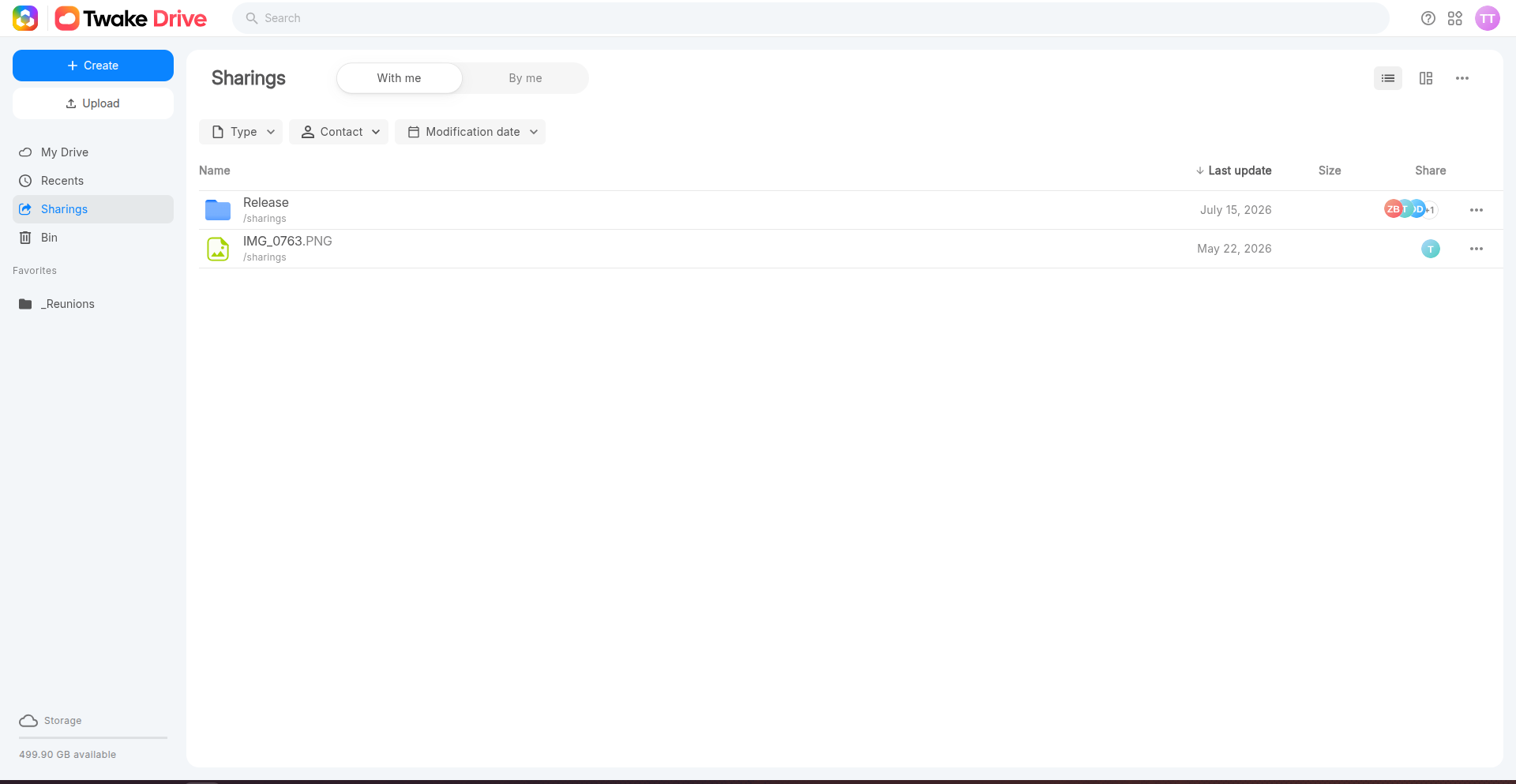
The Sharings tab contains files and folders that you have shared or that other people have shared with you.
- Open Twake Drive and select Sharings.
- Choose one of the following tabs:
- With me: Content other people have shared with you.
- By me: Content you have shared with other people or through a link.
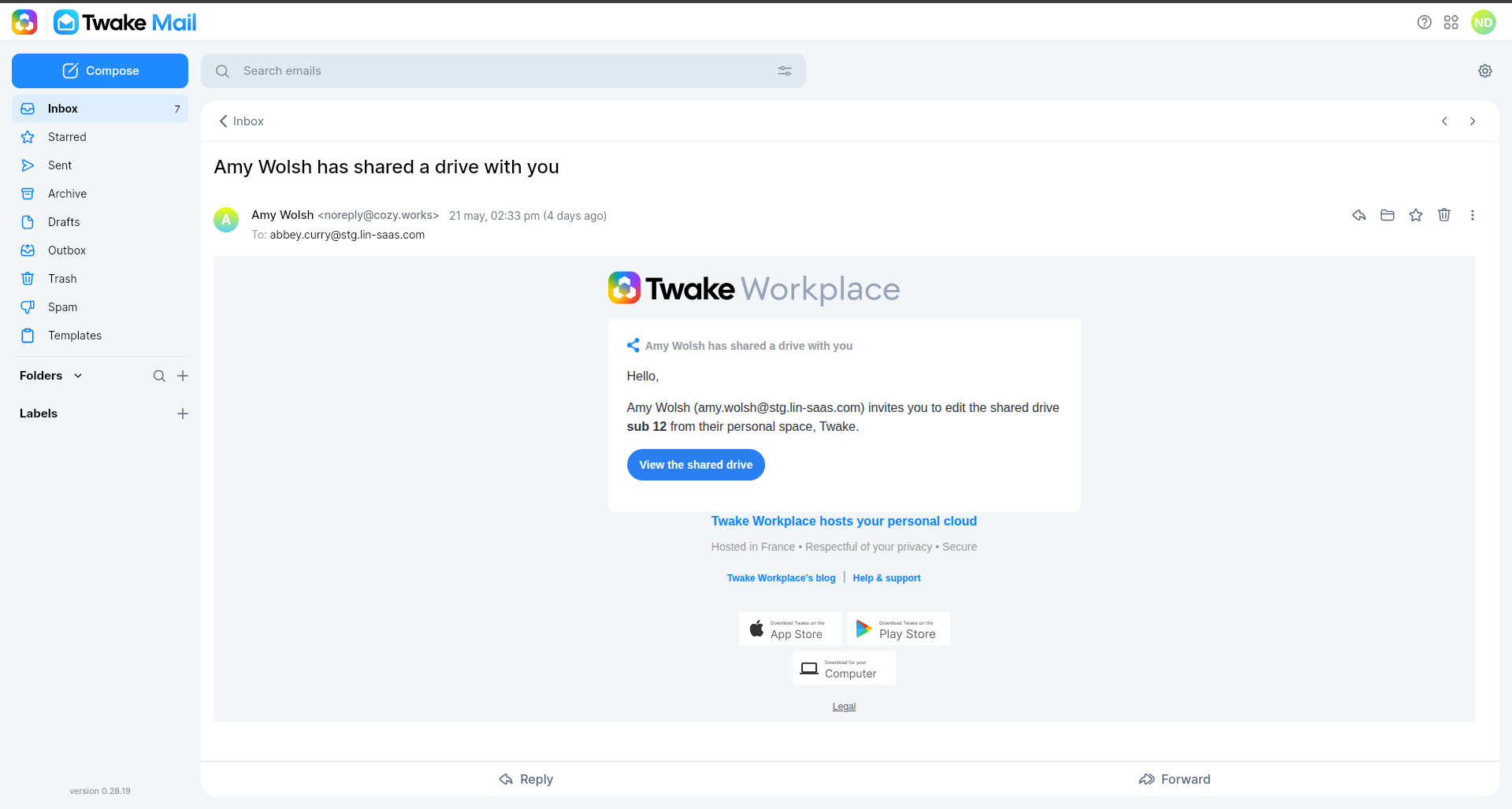
If you receive an email invitation:
- Open the invitation email.
- Select View the shared drive
- Log in to your Twake account if prompted.
- Go to the Sharings on the left sidebar and select tab: "With me"
- Open the shared file or folder.
The actions available to you depend on the permission you were given.
| Your permission | What you can do |
|---|---|
| Can view | View and download the shared content |
| Can edit | View, download, edit, upload, delete, and share with others |
Shared content with you does not appear in your personal file tree. It remains available from the Sharings tab only.
Shared content by you remains available from both Sharings tab and your personal drive
Find shared files and folders
You can use the available filters to find an item more quickly.
- Optionally, select Type to display only a specific type of content: Folders, Documents, Spreadsheets, Presentations...
- Select Contact to filter items which is shared with/by one person
- Select Modification date to filter items by when they were last updated:
- Today
- Last 7 days
- Last month
- This year
You can combine the Type and Modification date filters to narrow the results further.
If no shared items match the selected filters, change or clear one of the filters to display more results.
Manage Share members
Owners and editors can manage sharing access at any time.
Change Someone's Permission
- Open the sharing screen for the shared file or folder.
- Find the member.
- Change their permission to Viewer or Editor.
The change takes effect immediately.
Add More People
- Open the sharing screen.
- Add new contacts.
- Choose their permissions.
- Select Share.
New recipients follow the same access flow as the original recipients.
Remove Someone's Access
- Open the sharing options.
- Find the member.
- Click Remove button
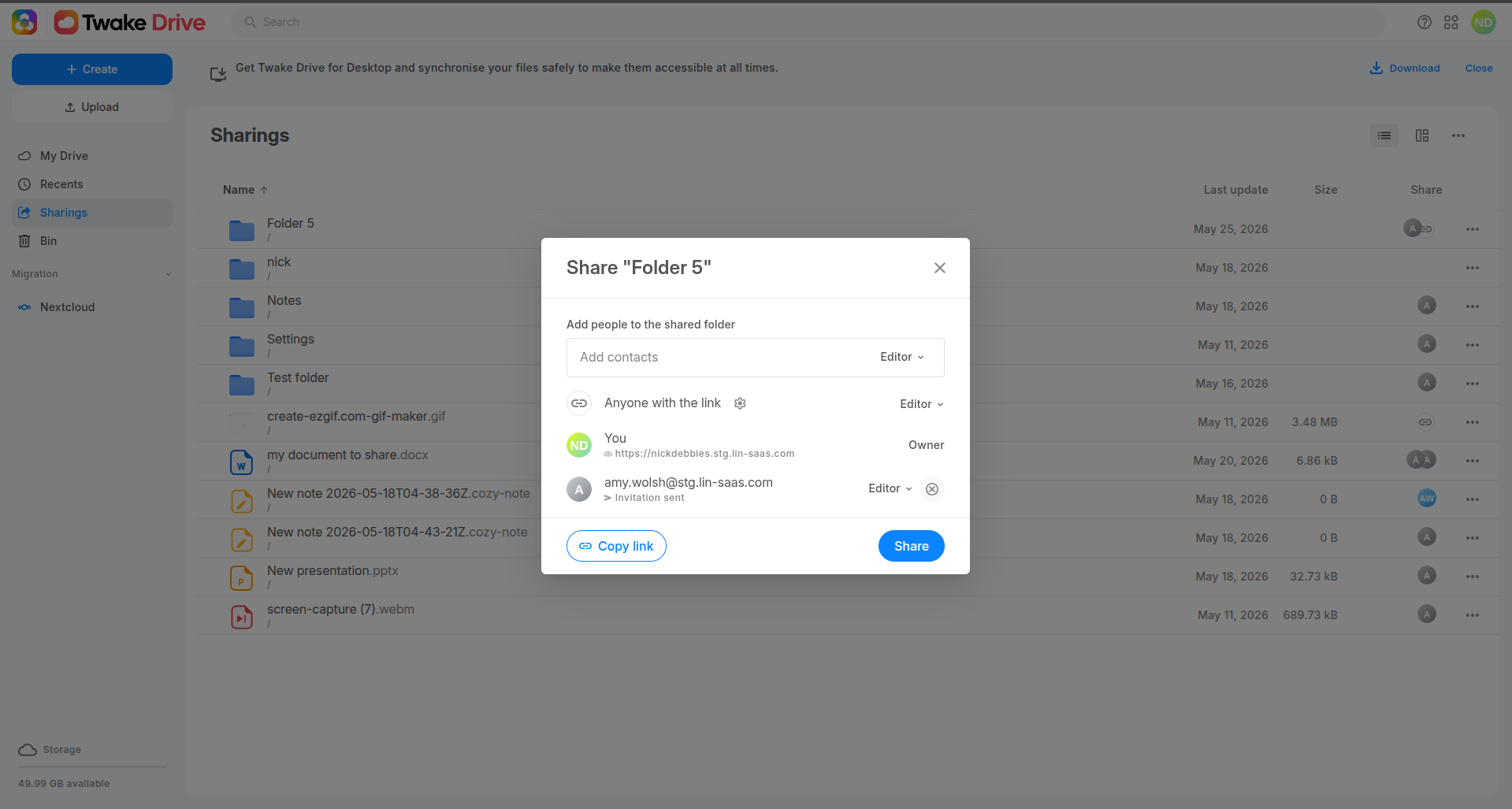
Access is removed immediately. The shared item disappears from the removed member's Sharing tab.
Twake does not send a notification when access is removed.
Leave a Shared Folder
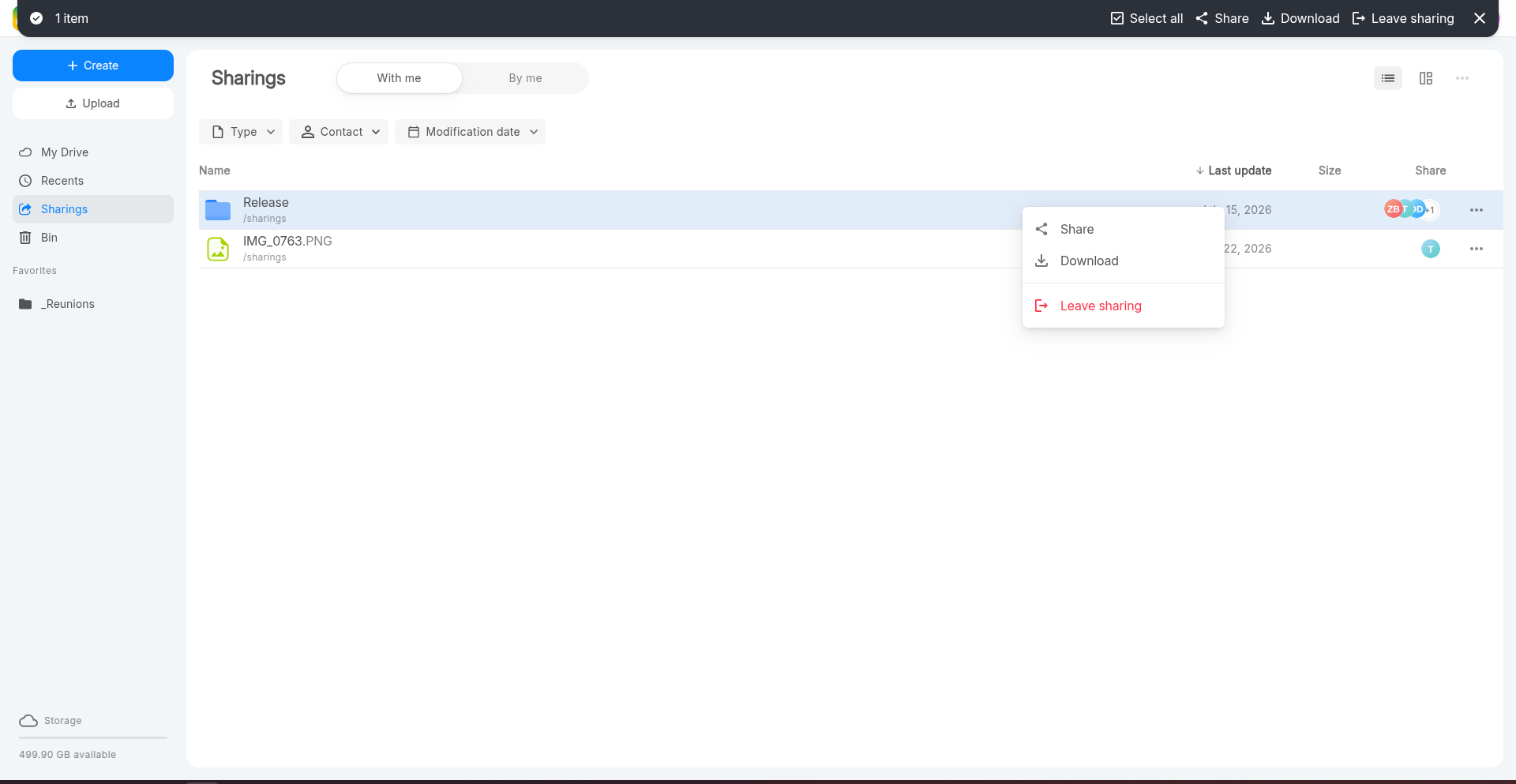
If someone shared a file or folder with you, you can remove it from your own Sharings tab.
- Go to the Sharings from left side bar then select tab "With me"
- Open the menu for the shared item.
- Select Leave sharing.
This removes your access to the shared content:
Work in a Shared Folder
Changes made inside a shared folder are applied directly to the owner's Drive. Twake does not create a separate copy for each recipient.
Users with Editor permission can:
- Upload new files.
- Edit files.
- Rename files or folders.
- Delete files.
- Add or remove share members.
- Change member permissions.
Users with Viewer permission can open and download content, but they cannot modify it.
If an editor deletes a file inside a shared folder, the file is moved to the owner's trash. Other members immediately lose access to that file.
What Happens When Access Changes
Twake Drive keeps sharing notifications simple.
| Event | What happens |
|---|---|
| Someone shares a file or folder with you | It appears in your Sharings tab |
| You are removed from a share | The item disappears from your Sharings tab |
| A link expires or is disabled | The link stops working |
| The owner deletes the shared file or folder | The item disappears for all recipients |
In most cases, Twake does not send extra notifications when access changes or content is deleted.
Important Limitations
Before sharing, keep these points in mind:
- A sub-folder cannot be shared by email if its parent folder is already shared by email.
- Received shared files and folders are available in the Twake Drive web interface only.
- Shared content stays in the owner's Drive. Recipients access it, but they do not get a separate copy.