
Start an instant meeting in Twake Visio
Start an instant meeting when you want to begin a video conference immediately. Once the meeting room opens, you can share its link with other participants.
Start the meeting
- Open the Twake Visio home page.
- Select Create a meeting.
- Select Start an instant meeting.
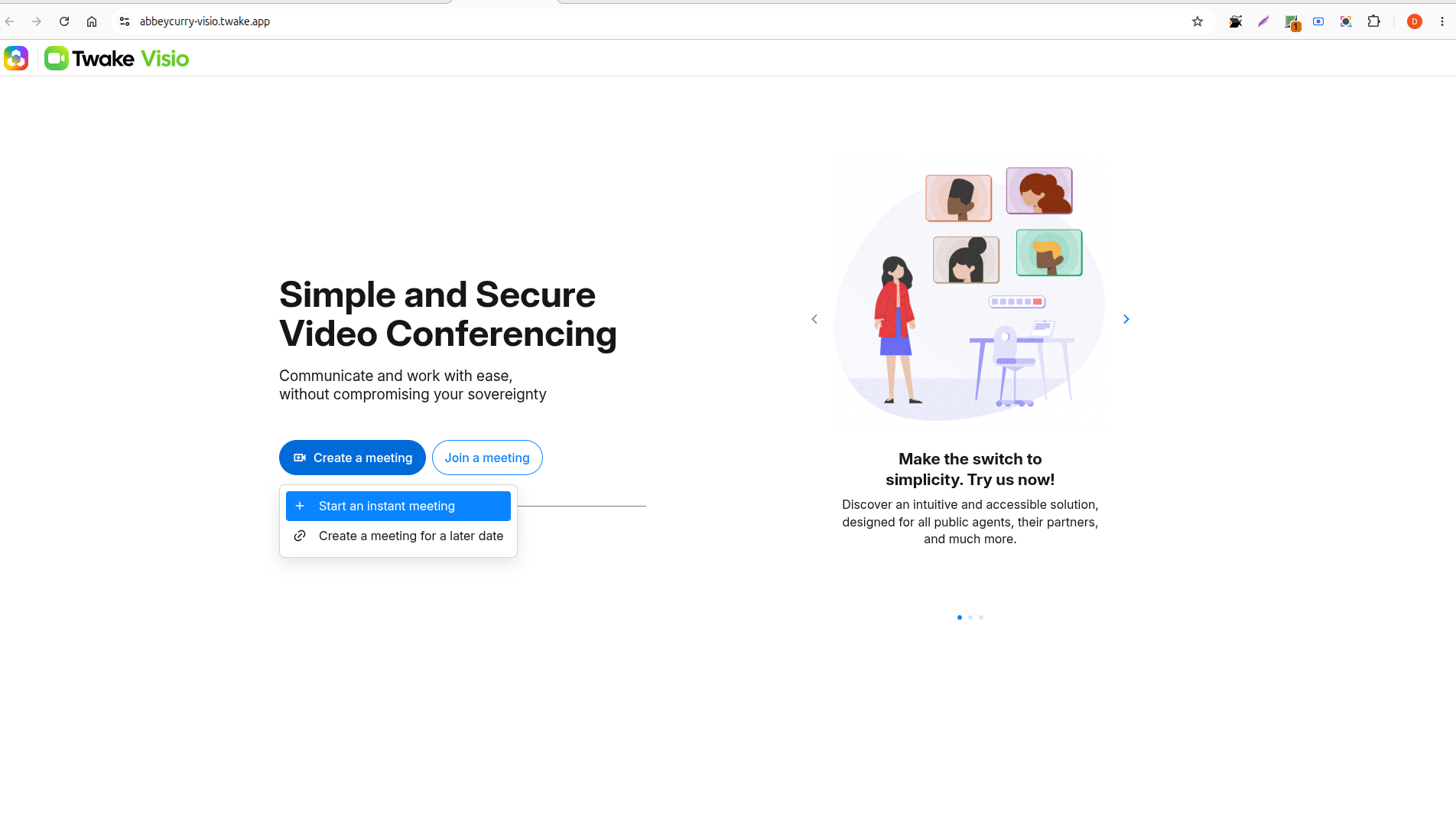
Twake Visio creates the meeting and opens the meeting room immediately.
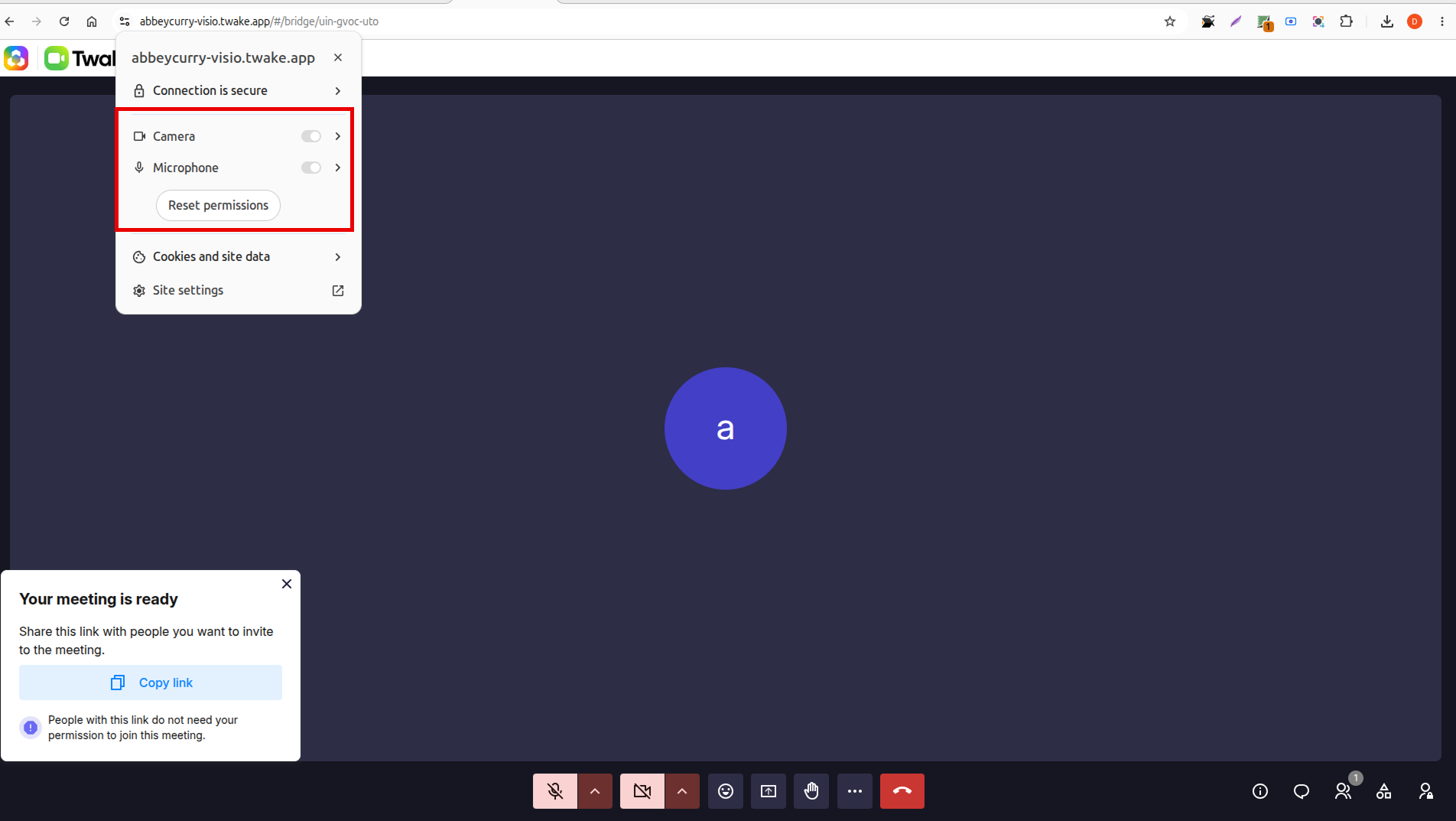
When you start a meeting for the first time, your browser may ask for permission to use your devices: Select allow microphone and camera
Invite participants
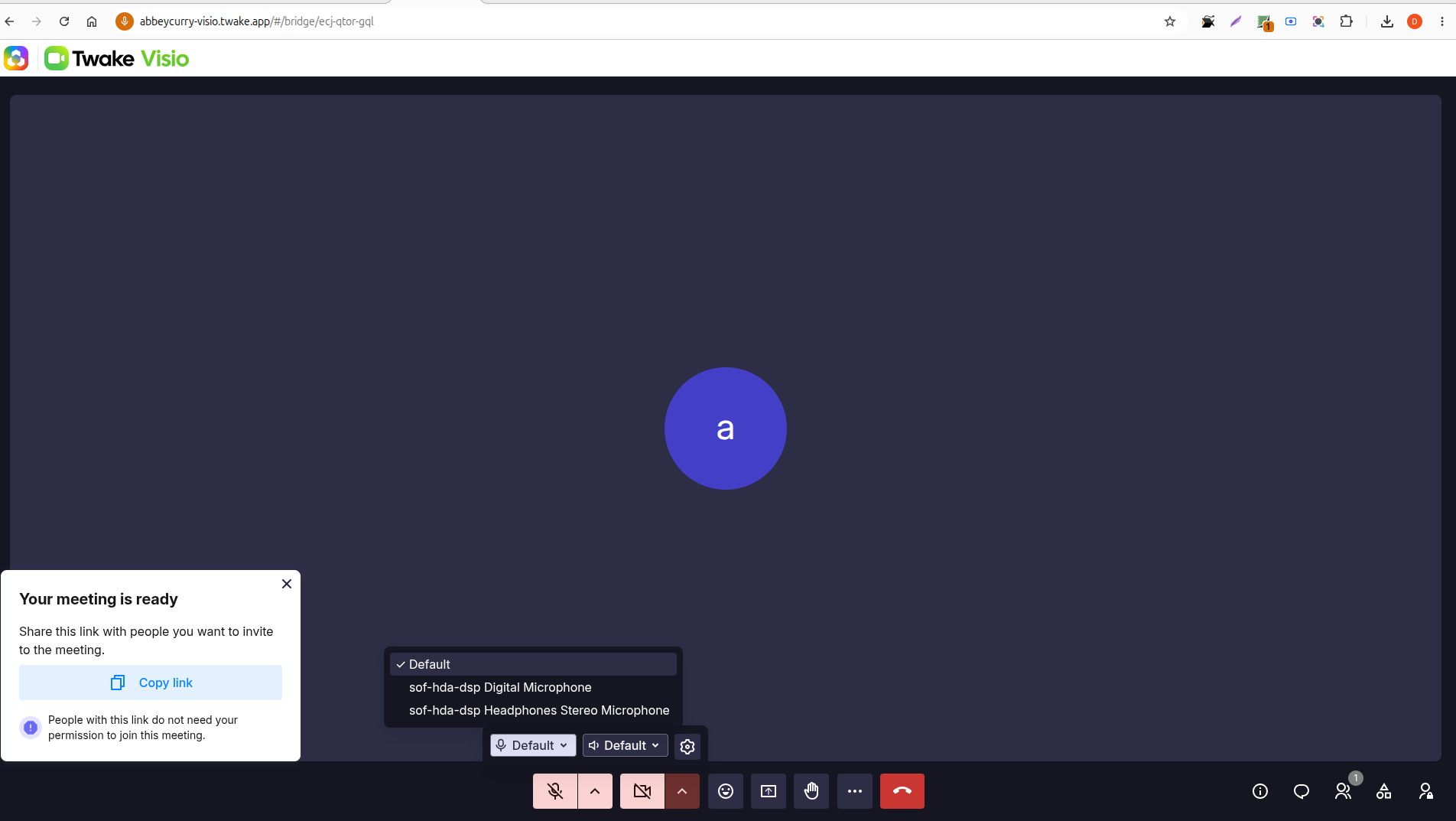
After the meeting opens, the Your meeting is ready window displays the invitation option.
- Select Copy link.
- Share the copied link with the people you want to invite.
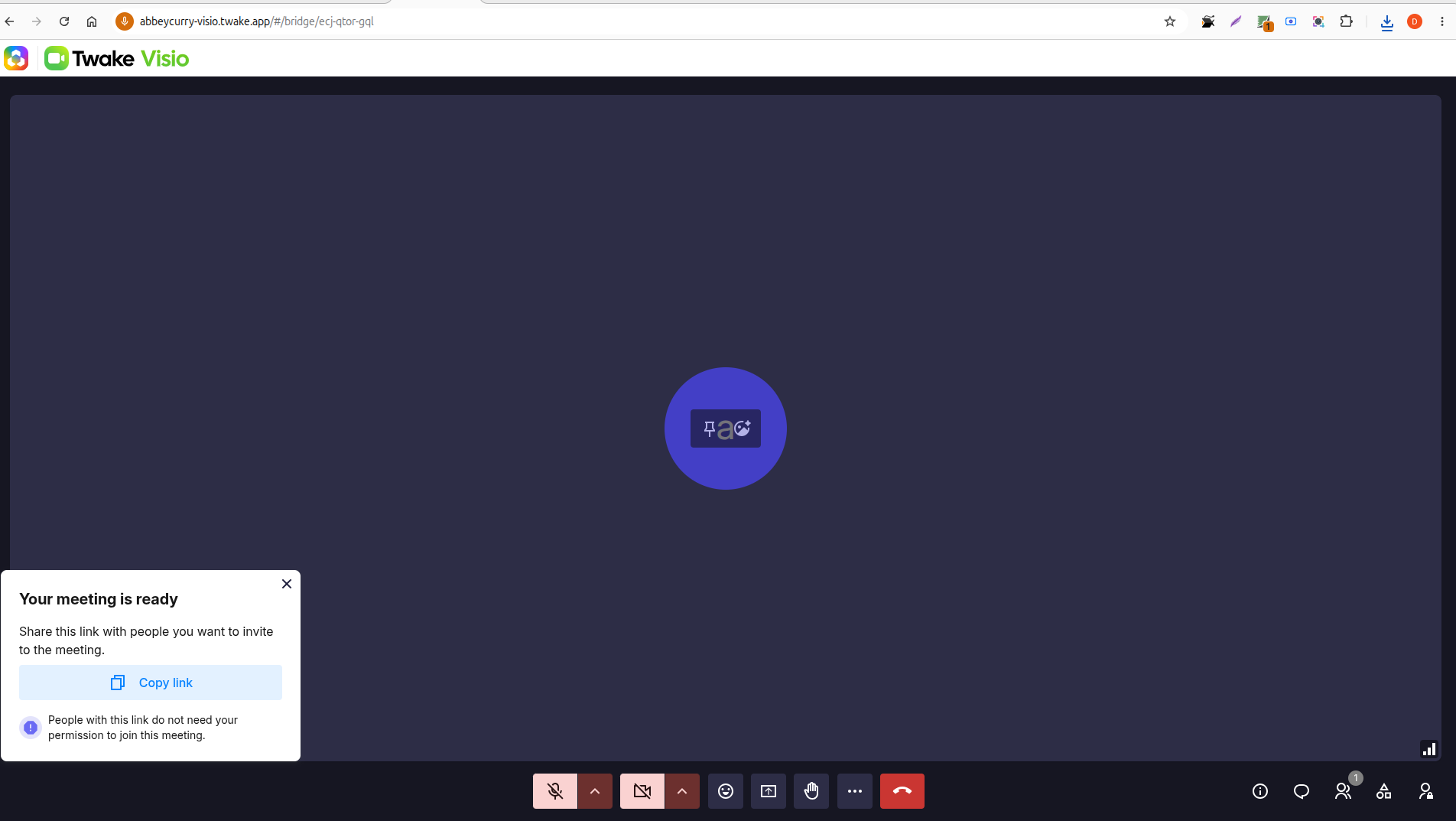
Depend on the admin settings people who has the link can join the meeting with or without requesting your permission.
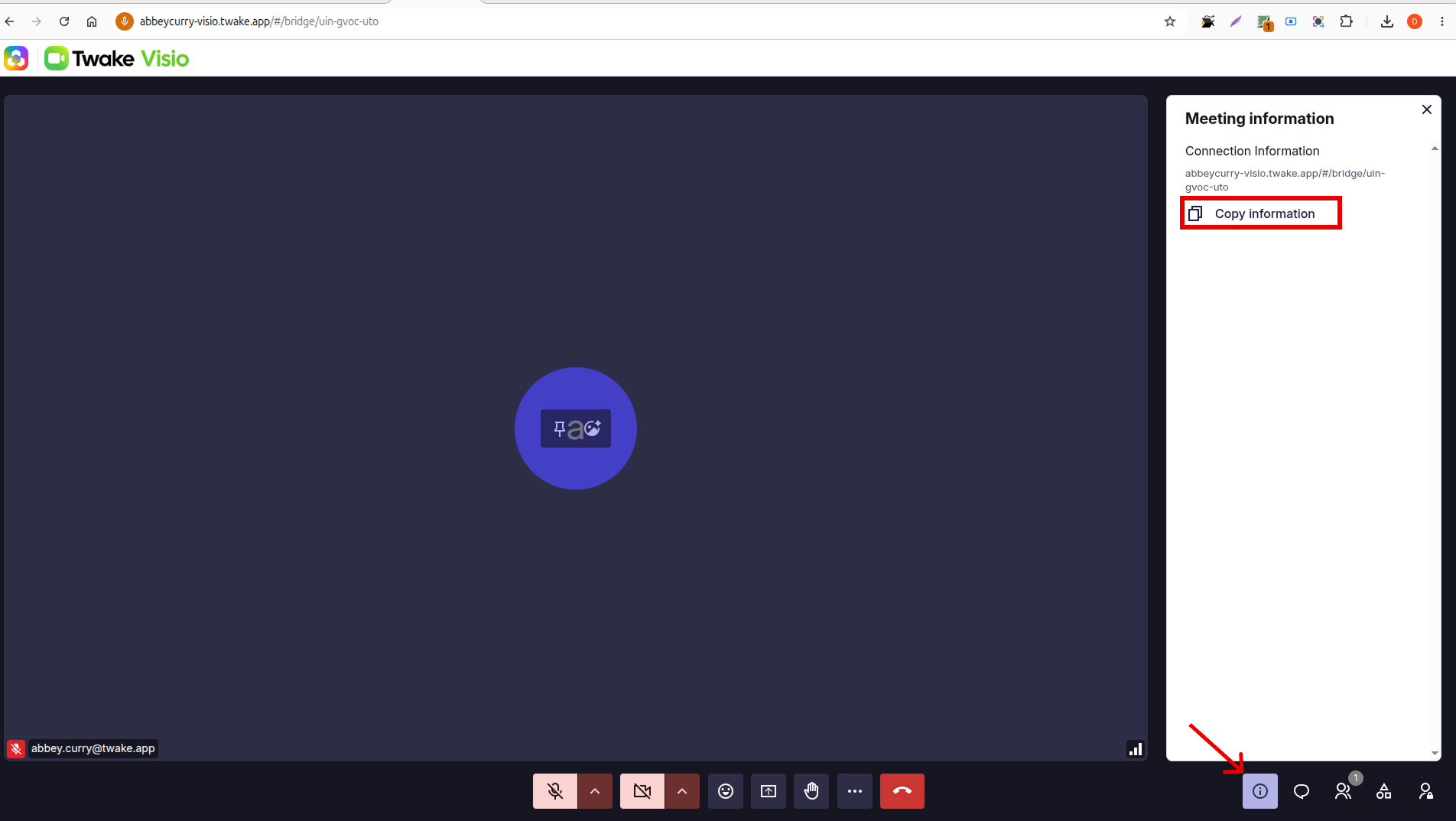
You can close the invitation window by selecting X. To access the meeting link again, use the meeting information or invitation option in the meeting toolbar:
Configure your microphone and camera
Use the controls at the bottom of the meeting room to:
- Turn your microphone/camera on or off.
- Select another microphone or camera using the arrow beside the corresponding button.
A crossed-out microphone or camera icon means that the device is currently turned off.
Leave the meeting
Select the red telephone button in the meeting toolbar when you want to leave the meeting.
Leaving the room does not prevent other participants from continuing the meeting, even when you are the owner of the meeting.