
Storage Management in Twake Drive
Where storage information is displayed ?
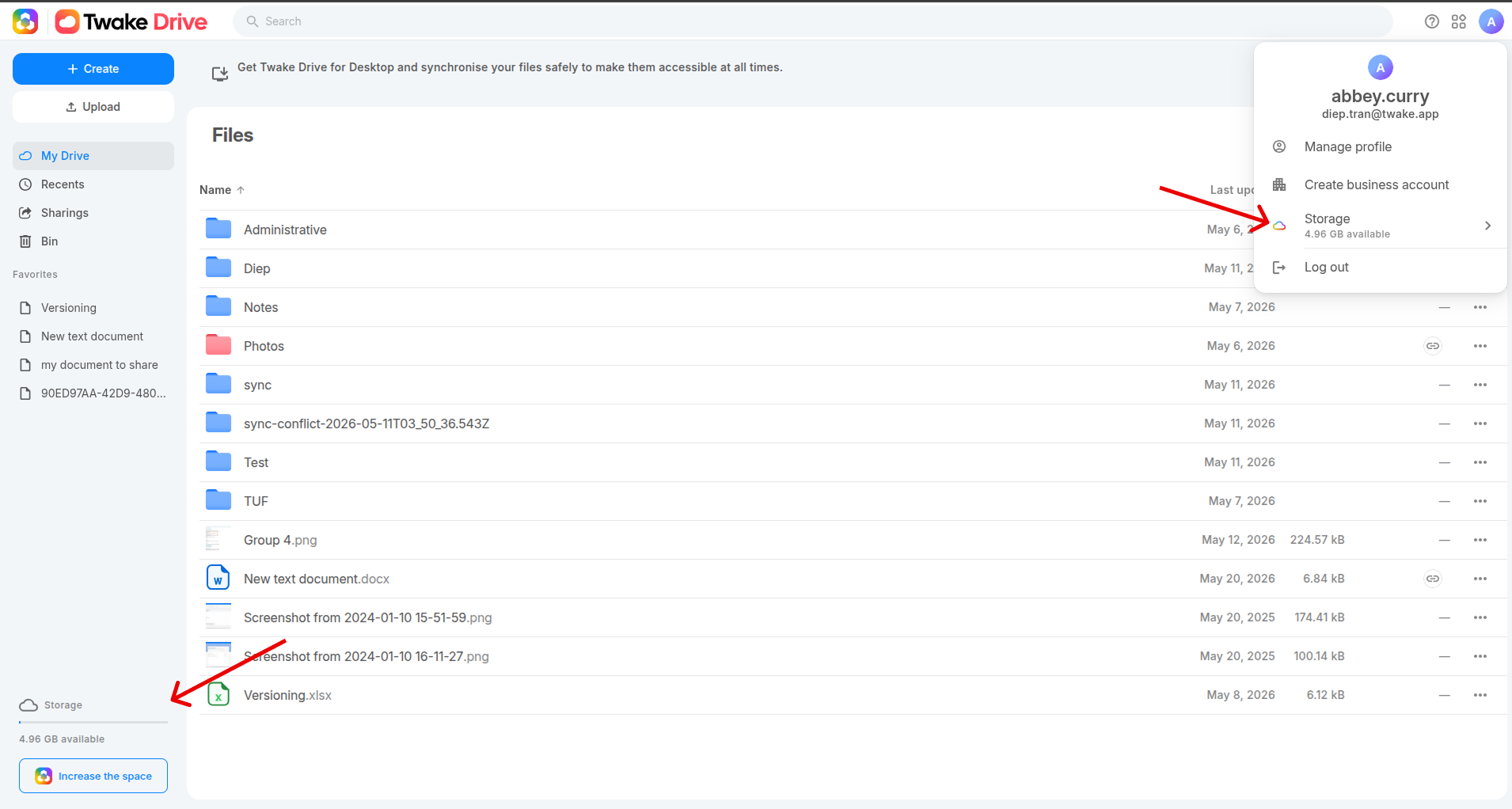
You can view your storage usage in several places within Twake Drive:
From the bottom-left corner of the screen
You can quickly view:
- Available storage space
- Storage usage indicator
You can also click Increase the space to upgrade your storage plan.
From the user menu
- Click your profile icon in the top-right corner.
- Select Storage.
You can quickly see:
- Used storage
- Available storage space
From Settings
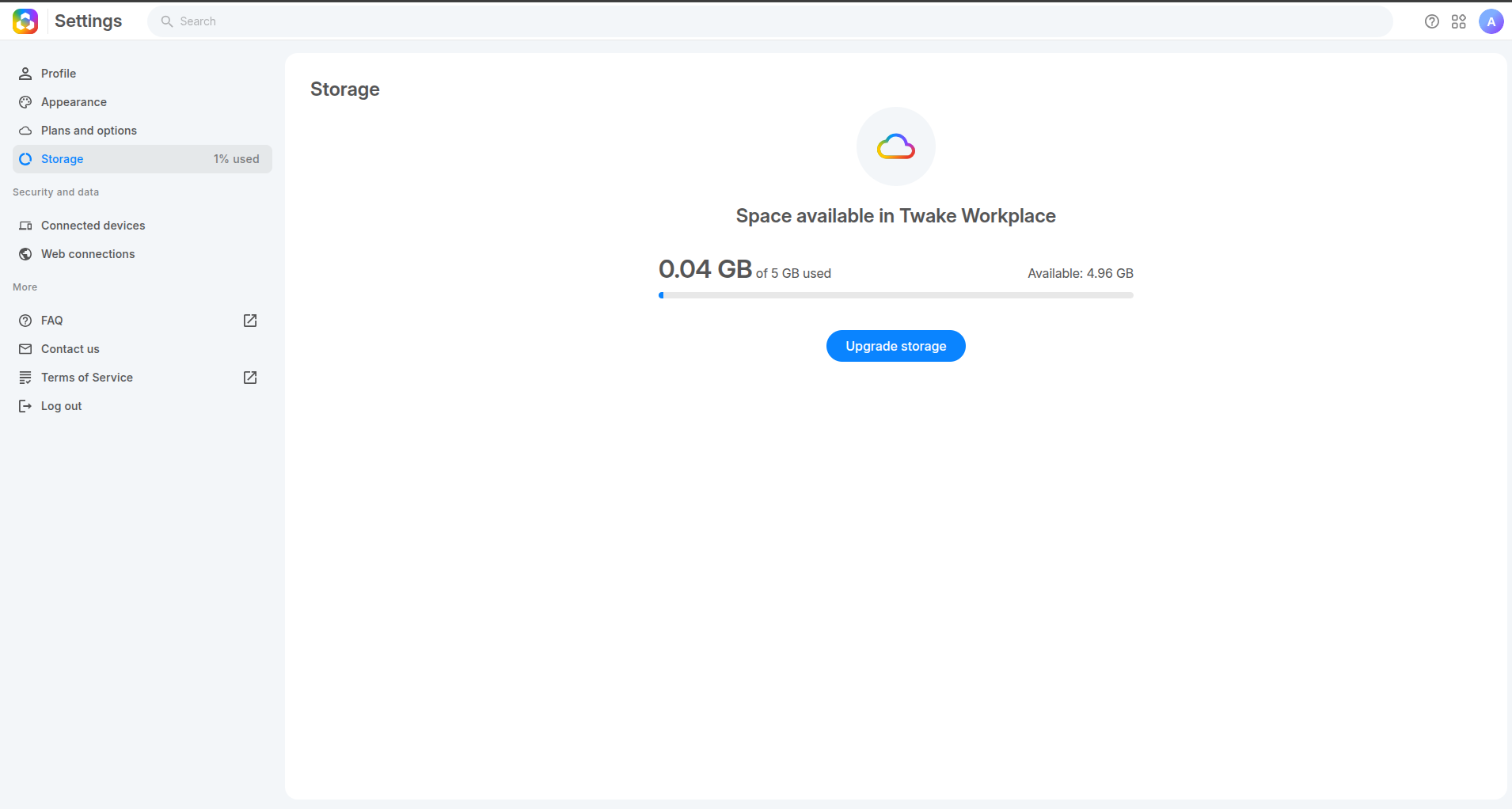
- Open Settings.
- Select Storage from the left sidebar.
The Storage page displays:
- Total storage capacity
- Used space
- Available space
- Current storage usage percentage
- Upgrade options
What Uses Storage Space
Your storage usage may include:
- Files and folders stored in Twake Drive
- Shared documents and uploads
- File versions: Twake Drive automatically keeps last 20 versions of files.
- Items in Trash/Bin:
- Files moved to Trash/Bin still count toward your storage usage until they are permanently deleted.
- To free storage space: Delete files permanently or empty the Trash.
Upgrade Your Storage Plan
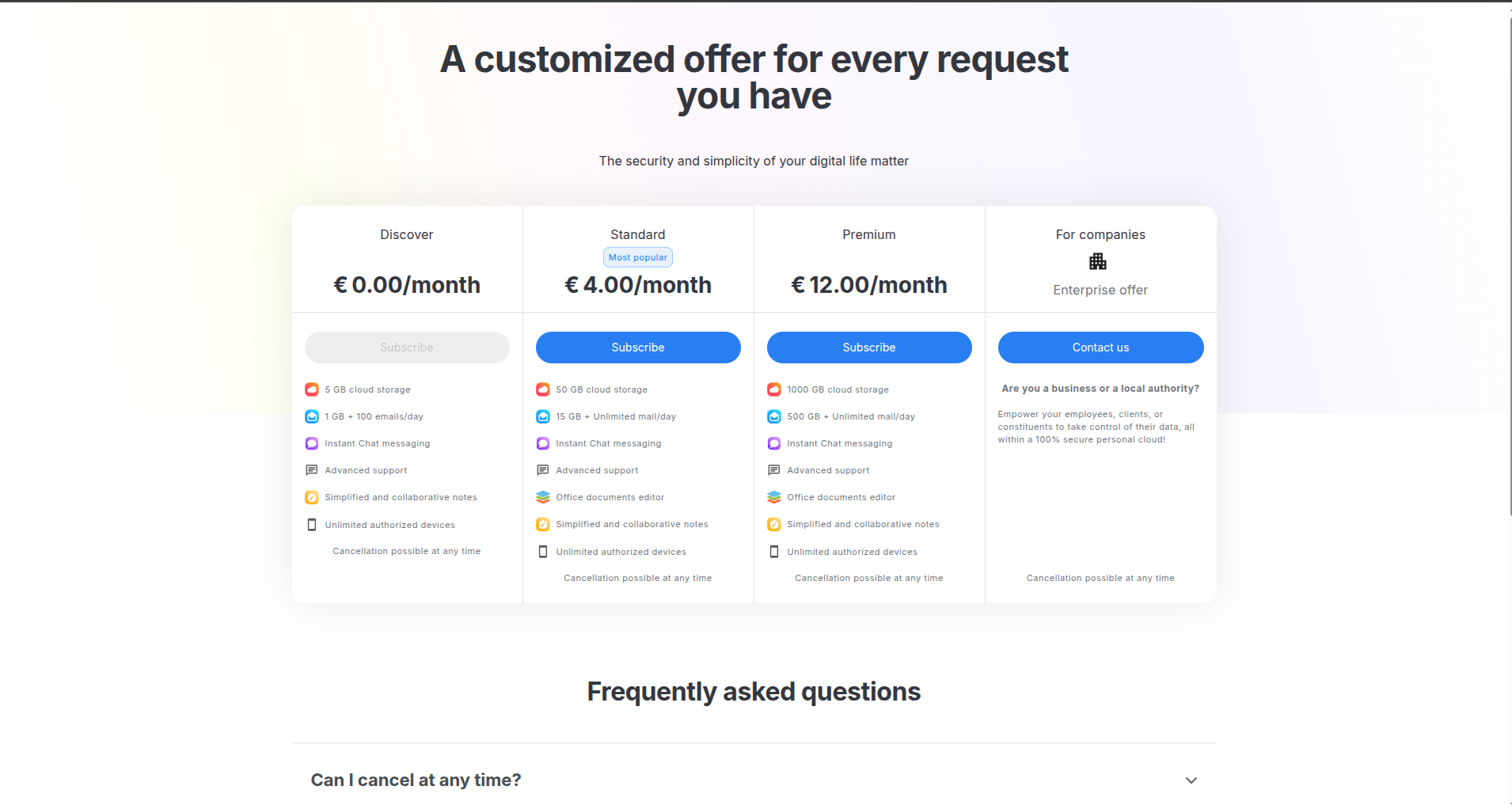
If your storage is almost full, you can upgrade your subscription plan.
How to upgrade
- Open Settings → Storage.
- Click Upgrade storage.
- Select the desired subscription plan.
- Complete the subscription process.
Available plans can provide:
- More cloud storage
- Additional email capacity
- Premium features
- Advanced support
Frequent Asked Questions
Why is my storage full even after deleting files?
Deleted files may still be stored in the Trash/Bin. Permanently delete them to free space.
What happens when I reach the storage limit?
You may no longer be able to:
- Upload new files
- Create documents
- Synchronize files
Until storage space is freed or the plan is upgraded.
Can I increase my storage capacity?
Yes. You can upgrade your current plan to obtain additional storage.