
Transcribe or record a Twake Visio meeting
Twake Visio can convert a meeting into a written transcript or save the call as a video. You can also start both features at the same time.
On-premise only: Transcription and meeting recording are available only to on-premise customers. They are not available in the Twake Workplace SaaS version.
Before you begin
Your ability to start a transcription or recording depends on the meeting’s Admin settings. The organizer can make each feature available to:
- Admins and meeting owners only; or
- All authenticated users.
If an option is unavailable, contact the meeting organizer or your organization’s administrator.
Open the transcription and recording tools
During a meeting, you can access the tools in either of the following ways:
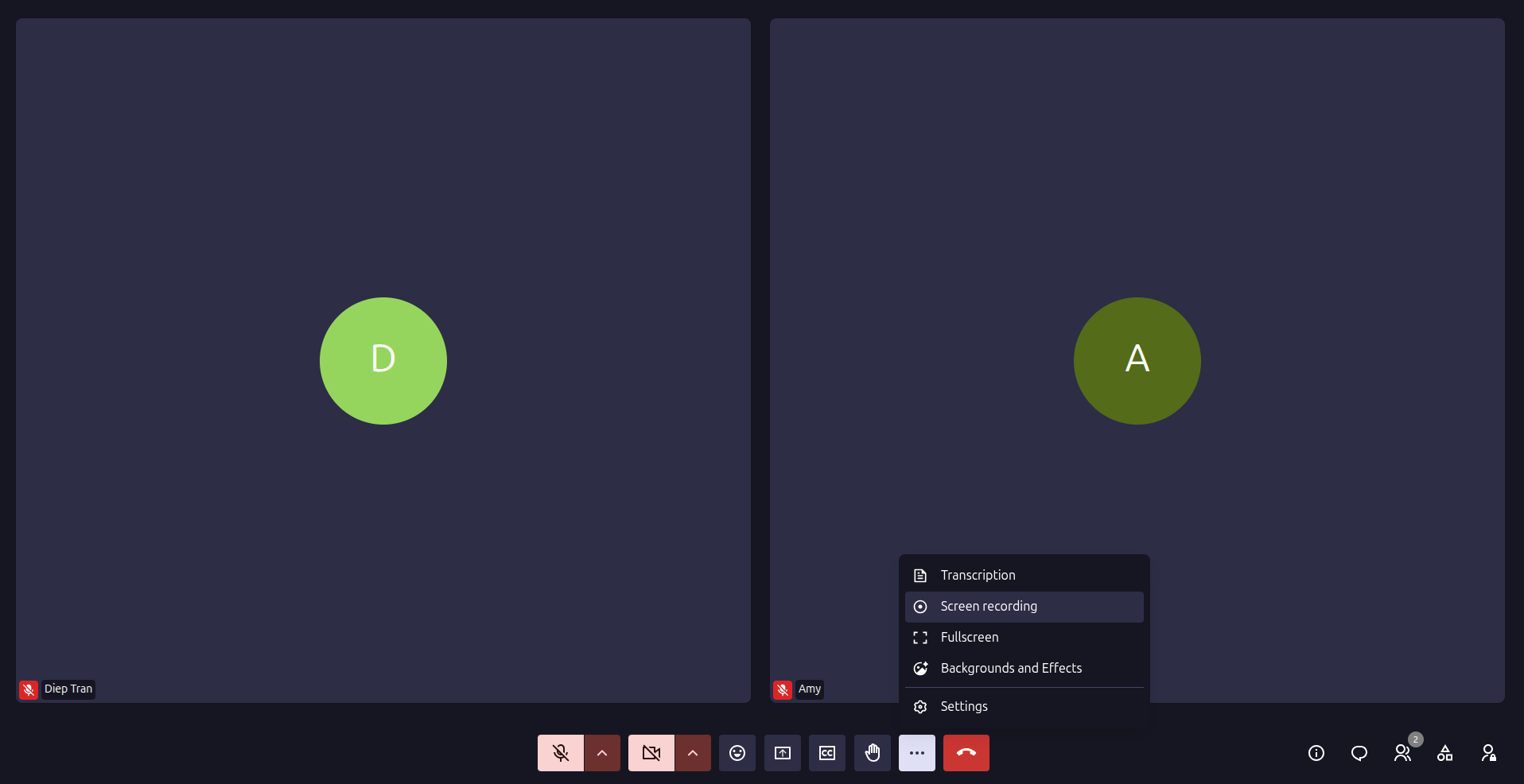
From More actions
- Select More actions (⋯) in the meeting toolbar.
- Select Transcription or Screen recording.
From More tools
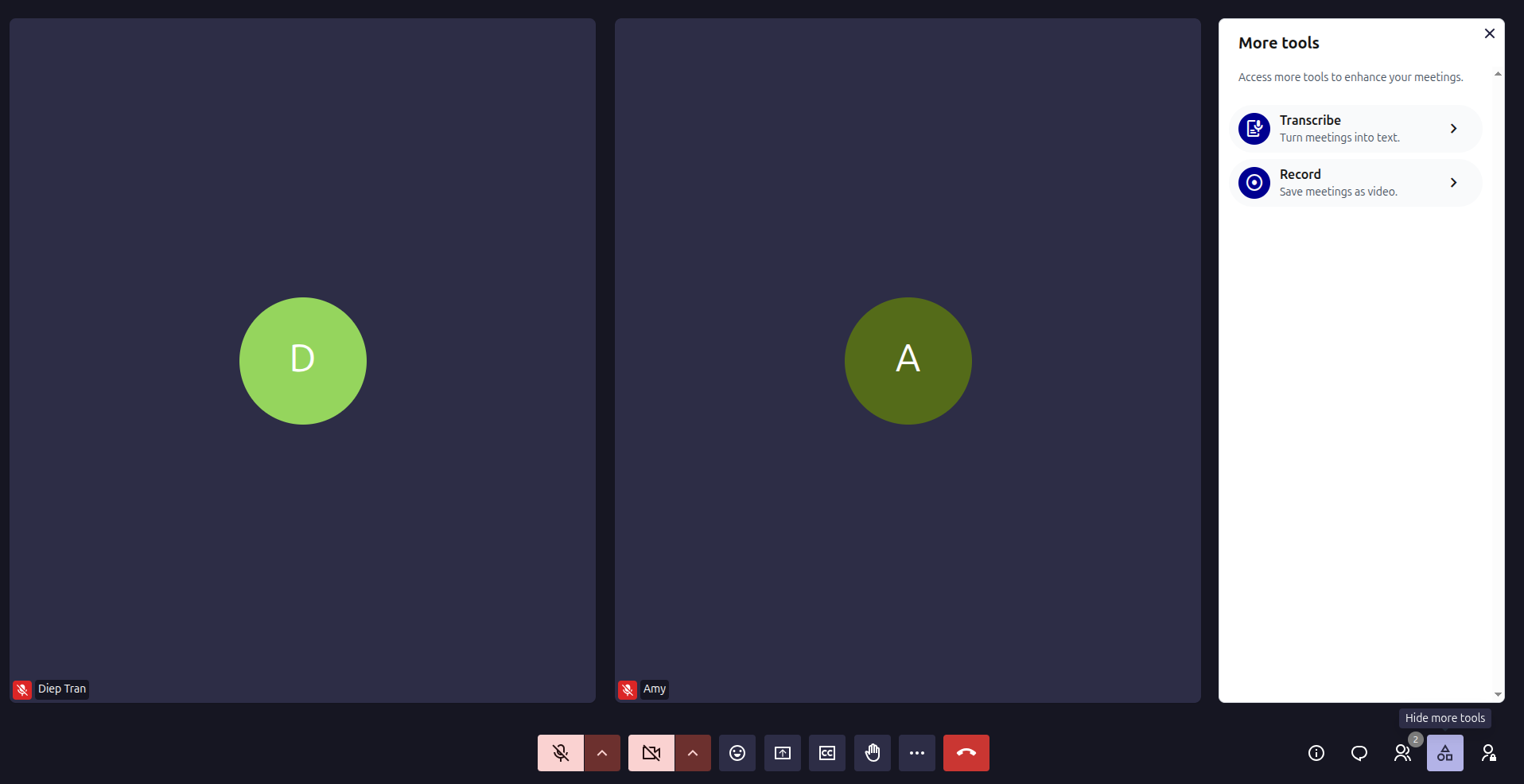
- Select More tools in the lower-right corner.
- Choose:
- Transcribe to turn the meeting into text.
- Record to save the meeting as a video.
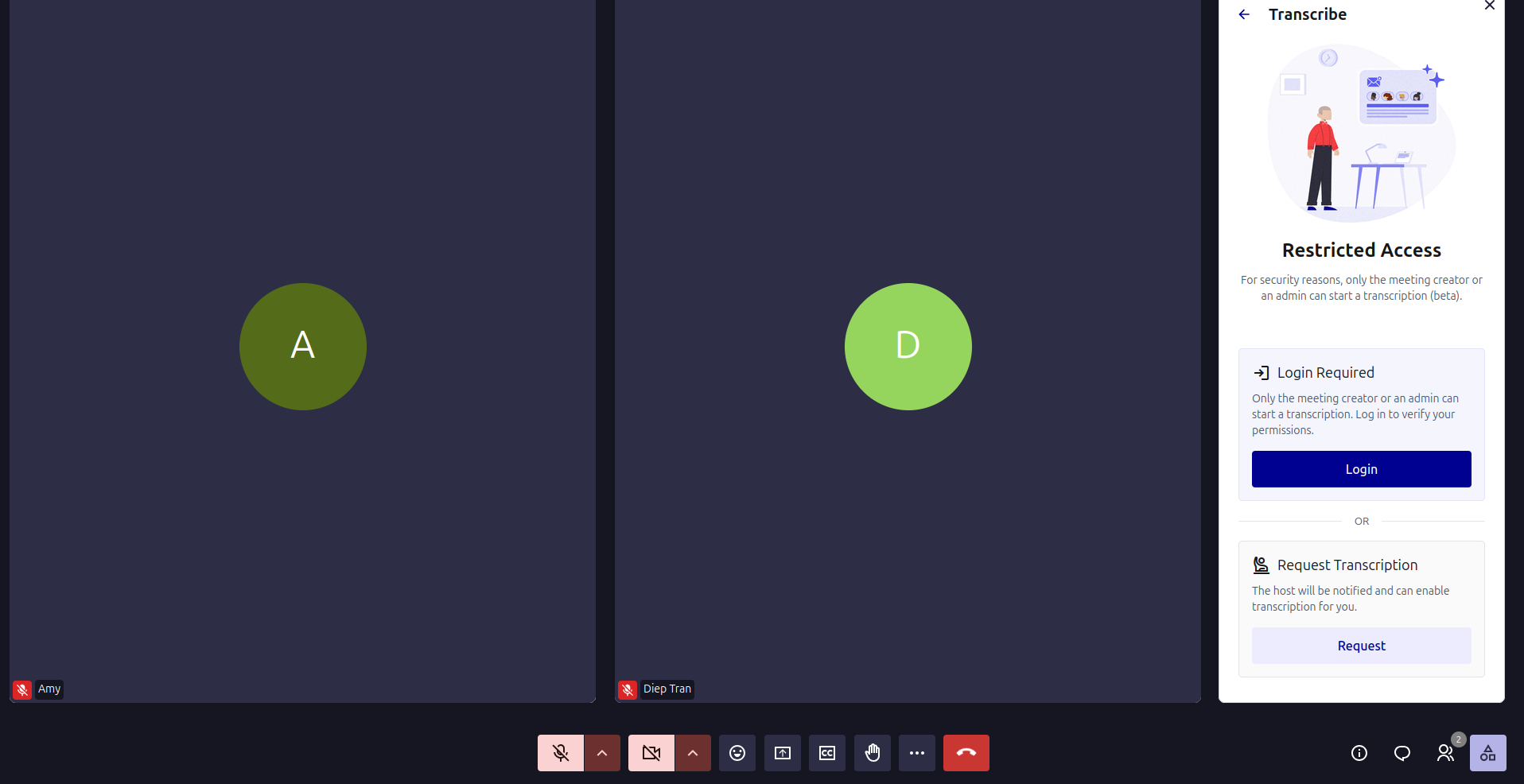
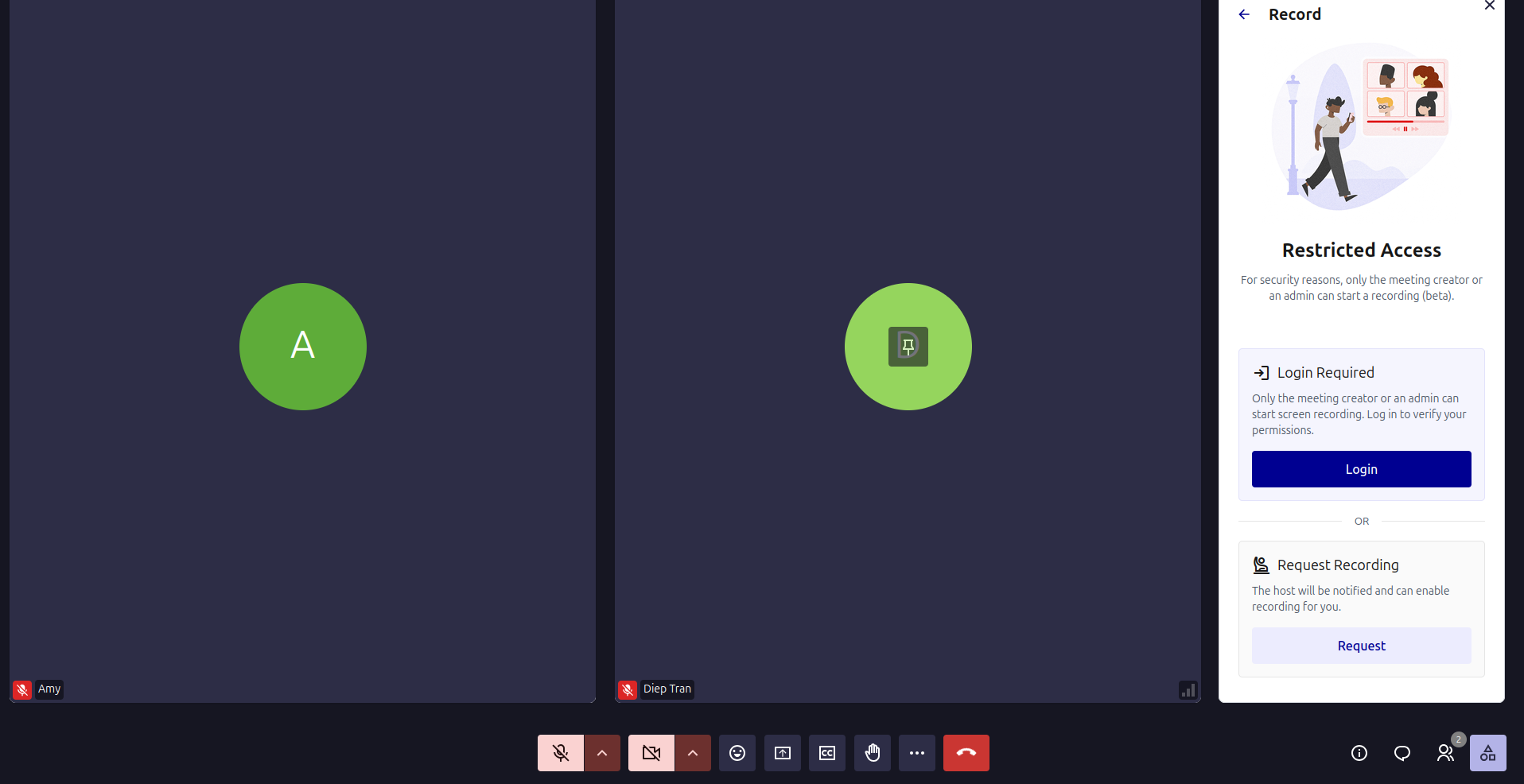
You must be signed in to start a transcription or recording.
If you joined as a guest, or if the host has restricted the feature to meeting owners and administrators:
- Open Transcribe or Record.
- Select Request.
The host receives a notification indicating that you want to start the transcription or recording. The host can then enable the feature for you.
Sending a request does not start the feature automatically. Wait for the host to approve it.
Transcribe a meeting
Transcription uses the AI Assistant to convert the meeting conversation into text. A meeting can be transcribed for up to six hours.
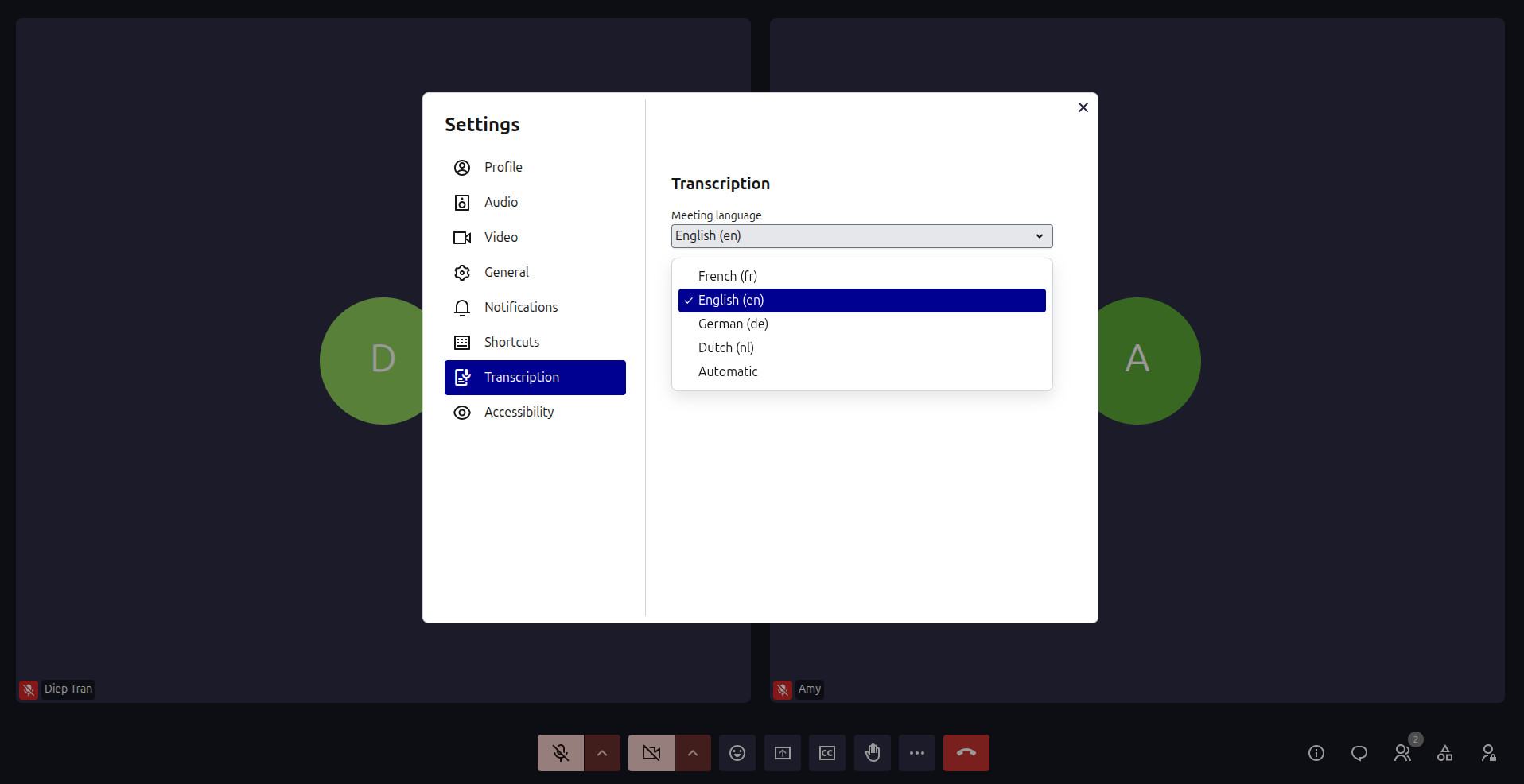
Select the transcription language
Before starting, check that the correct meeting language is selected:
- Select More actions (⋯).
- Select Settings.
- Open Transcription.
- Select the language spoken during the meeting or choose Automatic.
- Select OK.
Selecting the appropriate language can improve transcription accuracy:
Start transcription
- Open Transcription or select Transcribe from More tools.
- Review the meeting language displayed in the panel. You can click on it to select another language
- To create a video recording at the same time, enable Also start a recording.
- Select Start transcribing the meeting.
A red Transcribing indicator appears in the upper-left corner, informing participants that transcription is active.
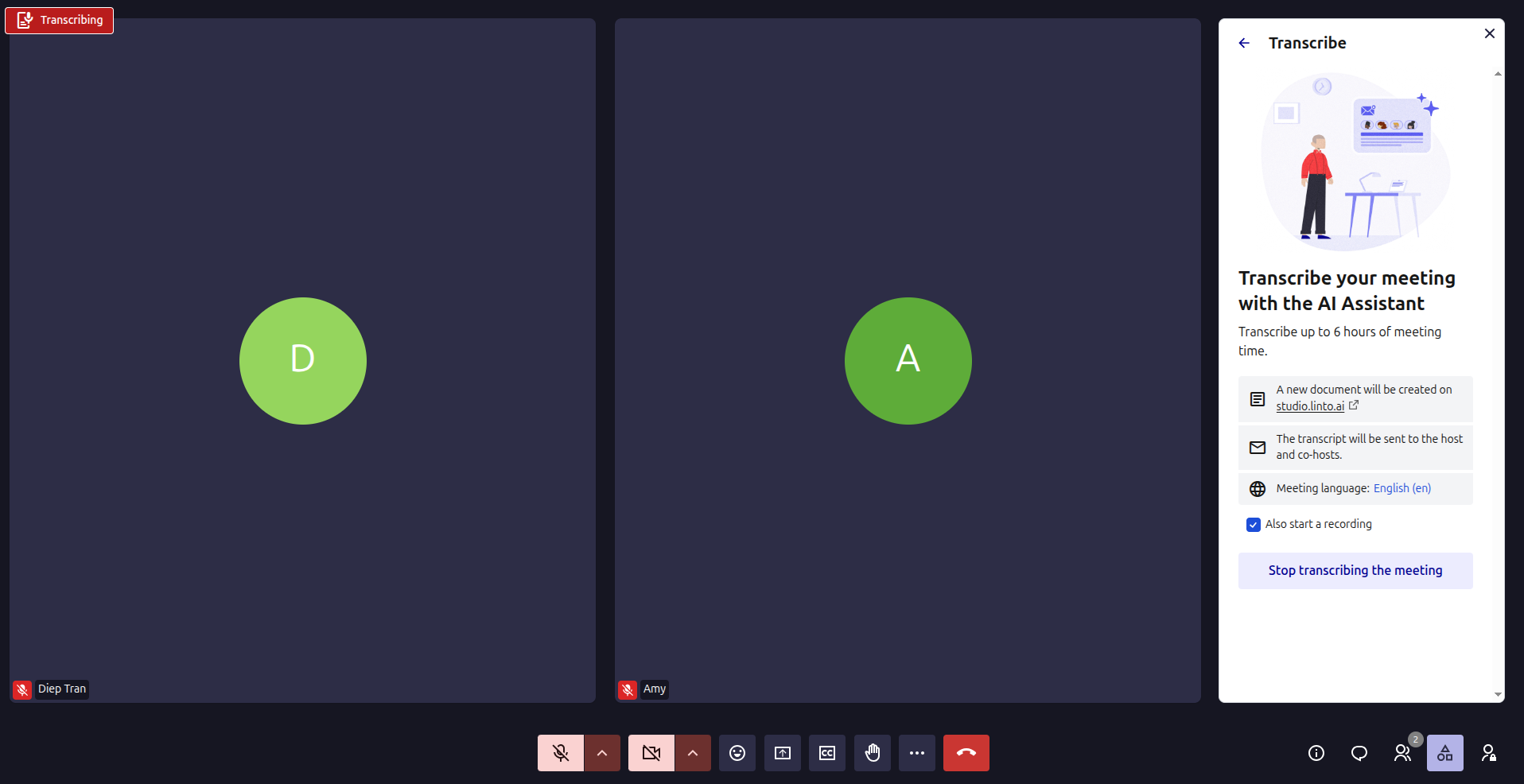
A new transcription document is created through the configured transcription service. When it is ready, the host receives a notification by email.
Stop transcription
- Reopen the Transcribe panel if necessary.
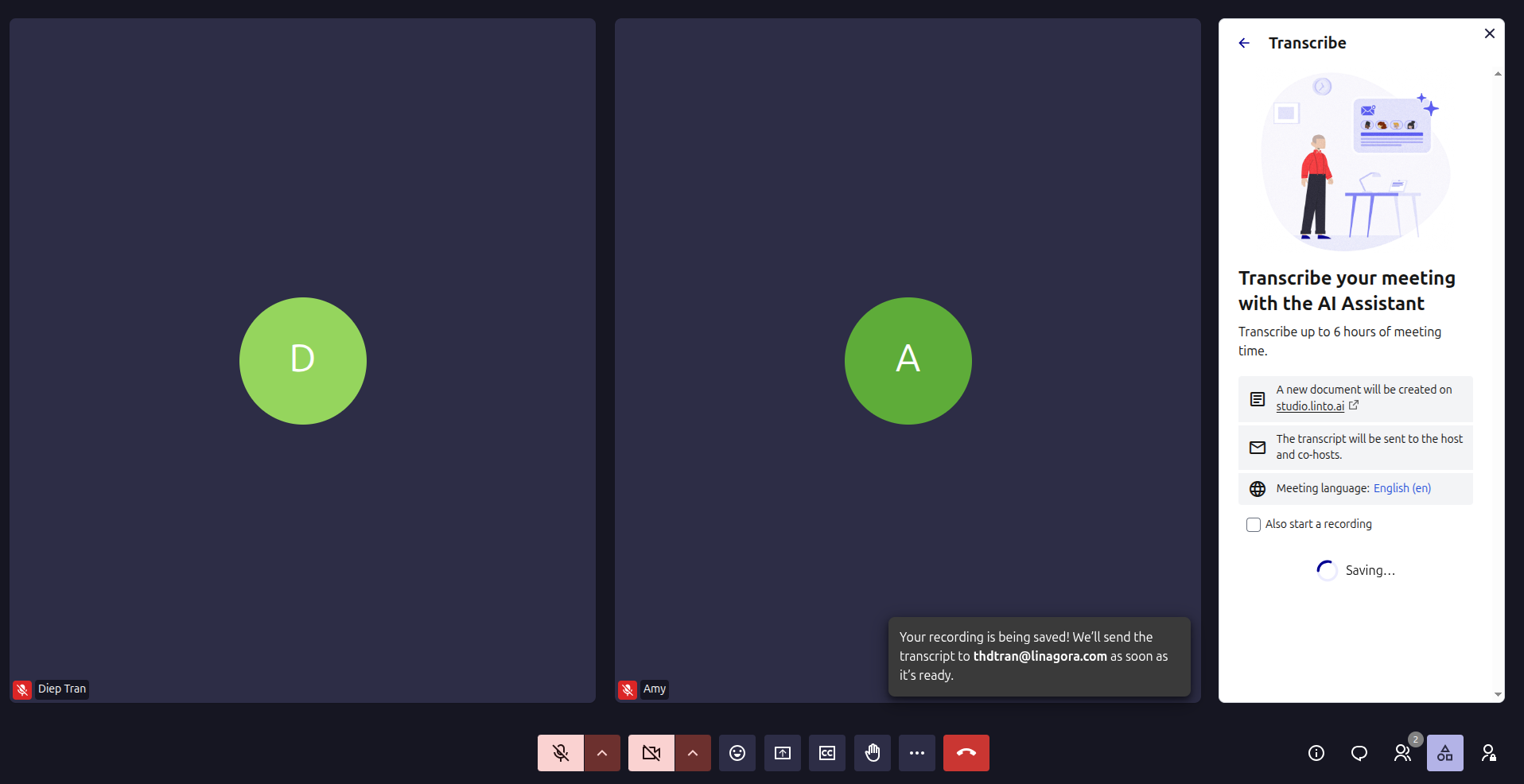
- Select Stop transcribing the meeting.
- Wait while Twake Visio saves and processes the transcript.
A confirmation message indicates that the file is being prepared. Processing may take some time.
Access the completed transcript
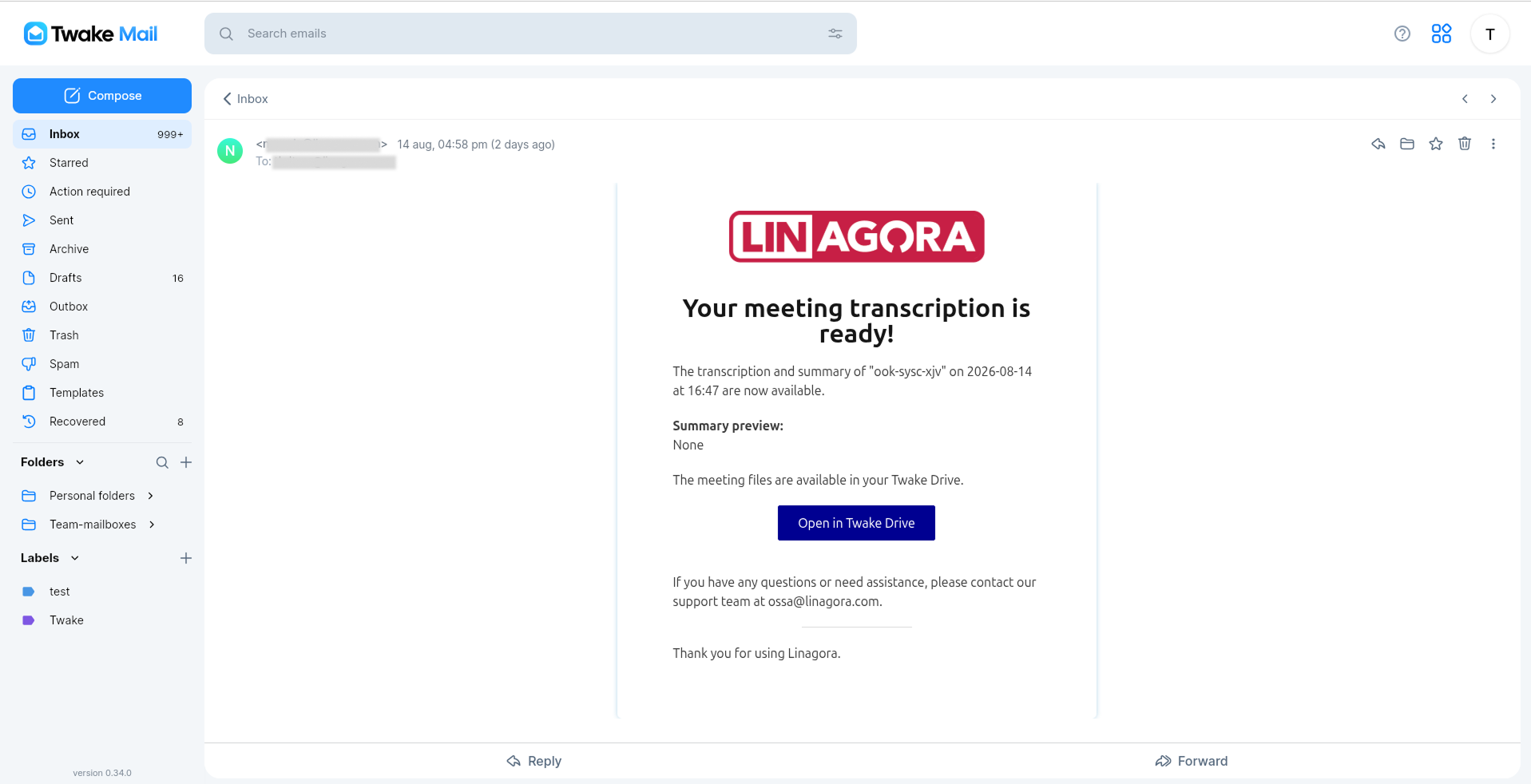
When the transcript is ready, the host receives an email containing a link to the meeting files.
Select Open in Twake Drive to access the transcription.
Record a meeting
The recording feature saves the meeting as a video for later use. A meeting can be recorded for up to six hours.
Start recording
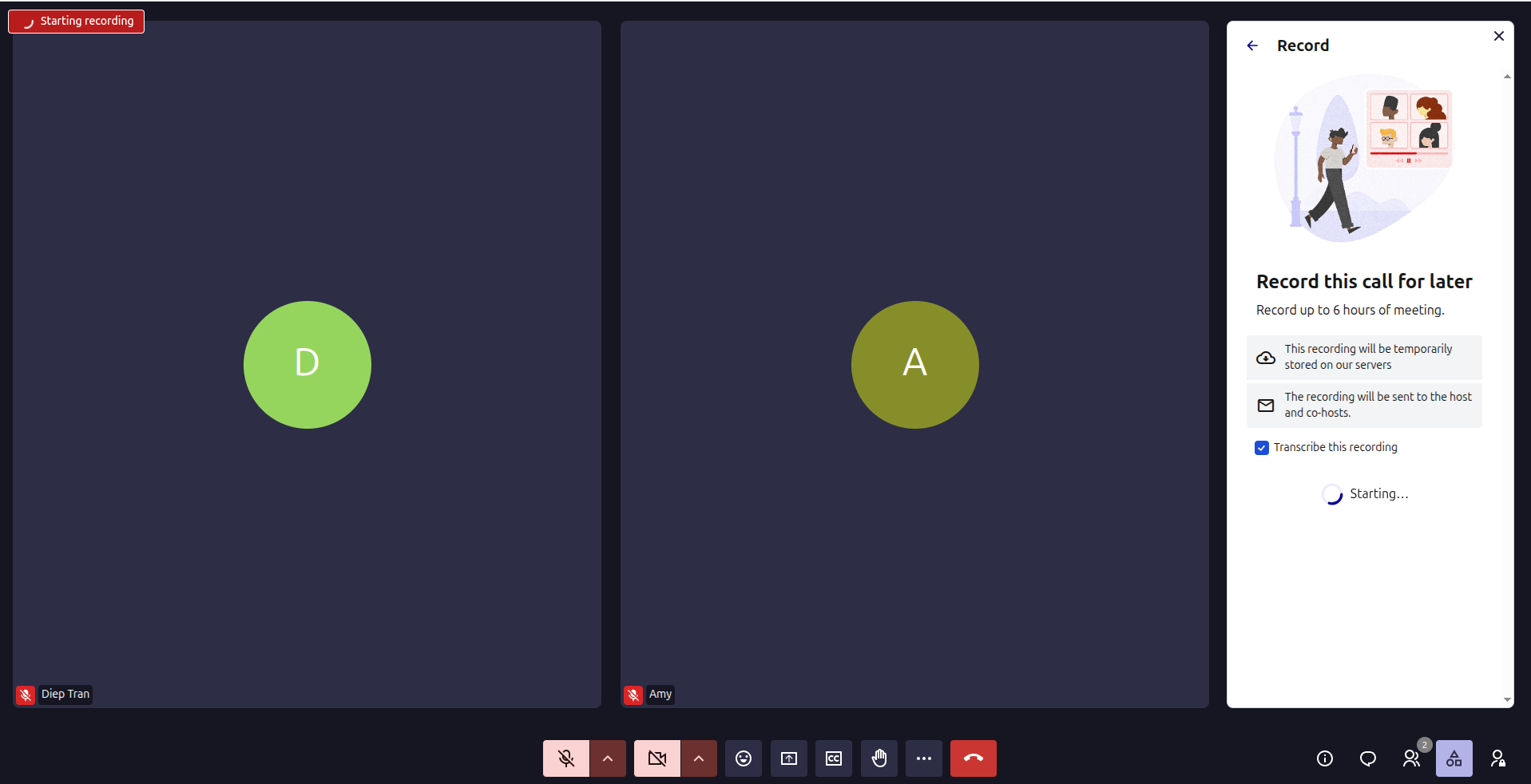
- Open Screen recording or select Record from More tools.
- To create a written transcript at the same time, enable Transcribe this recording.
- Select Start recording the meeting.
A red Recording in progress indicator appears in the upper-left corner, letting participants know that the meeting is being recorded.
Stop recording
- Reopen the Record panel if necessary.
- Select Stop recording the meeting.
- Wait while Twake Visio saves and processes the video.
A confirmation message indicates that the recording is being saved. You can continue using the meeting while the file is being processed.
Access the completed recording
When the recording is ready, the host receives an email containing a link to the meeting files.
Select Open in Twake Drive to access the recording.
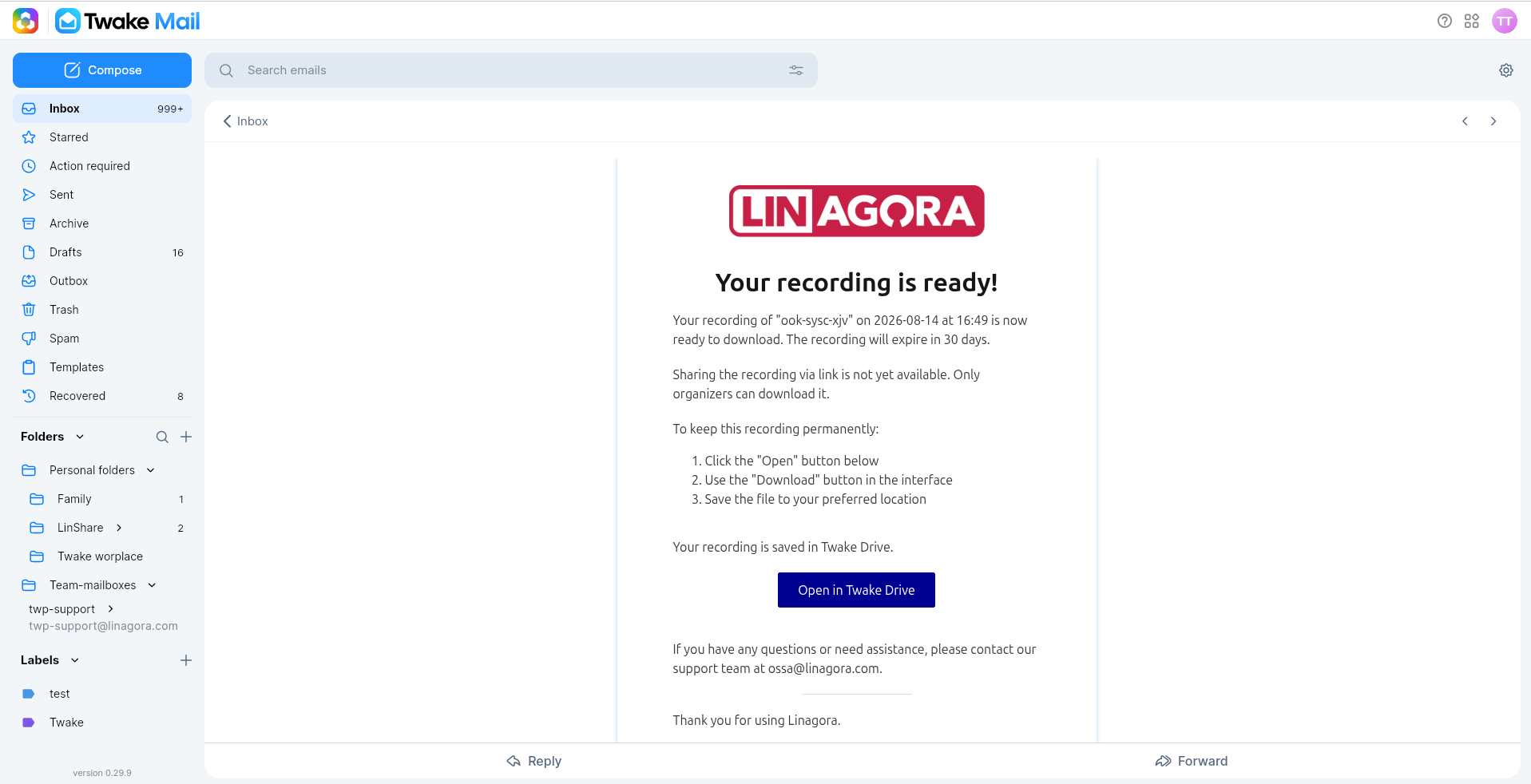
The recording expires after 30 days. Download and save the file before the expiration date if you need to keep it.
Only organizers can download the recording. Sharing the recording through a public link is not be available.