
Discover Twake Chat in 6 steps
Twake Chat aims to enhance team collaboration and communication by incorporating a comprehensive set of chat features. Twake Chat supports all the essential functionalities such as sending/receiving messages, managing contacts, creating public and private group chats, and sharing images/videos.
Additionally, for more integrated communication, Twake Chat provides file sharing directly in the chat, customisable notifications, and powerful search capabilities to locate specific discussions and files.
For comprehensive collaboration needs, Twake Chat also supports integrations with other digital workplace tools, enhancing its utility. Advanced features like video calls and secure messaging options ensure that all communication needs are met within a single platform.
Step 1 — Find your conversations
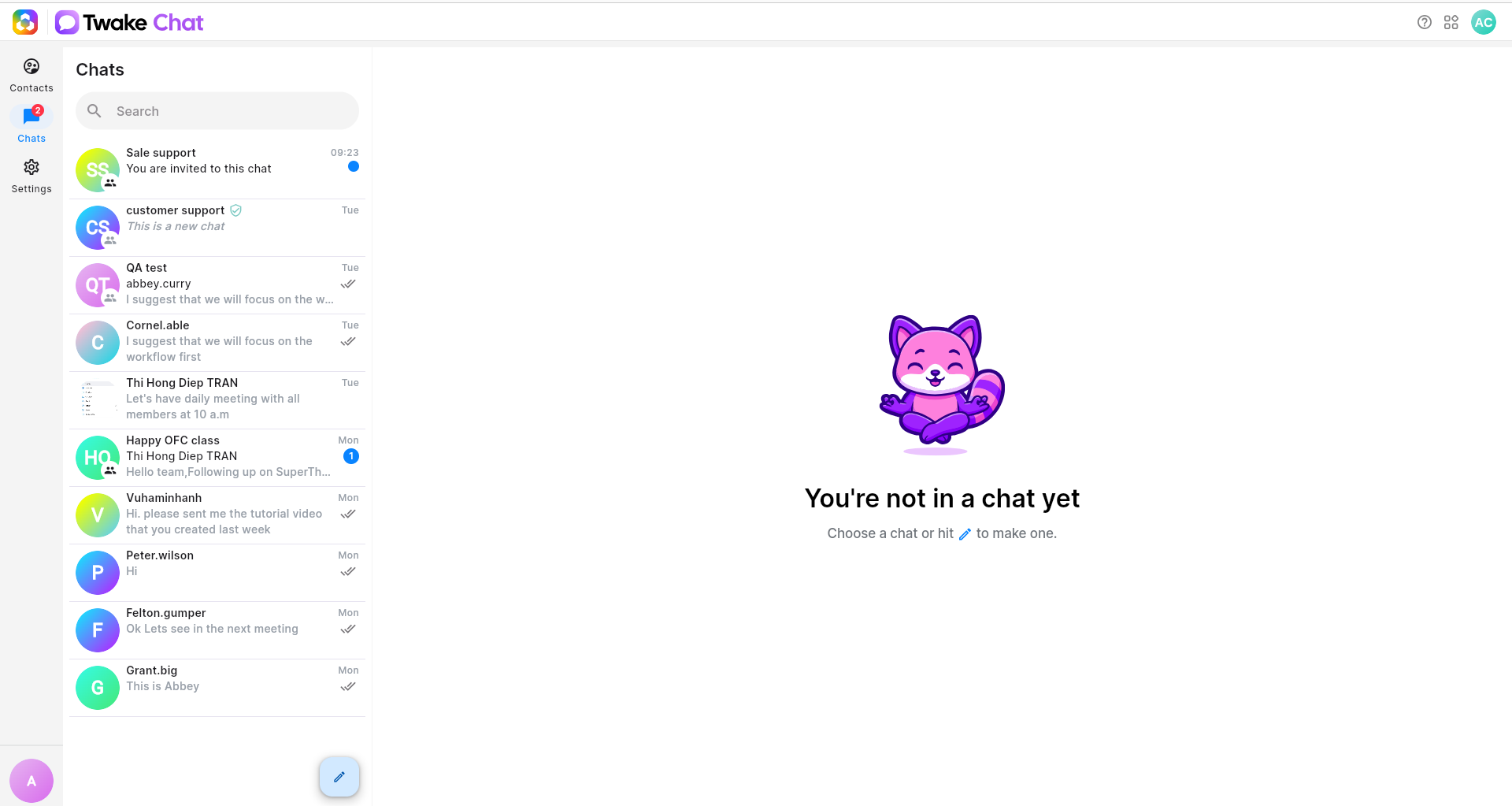
When you open Twake Chat, you'll land on the Chats section.
Here you can:
- View your recent conversations
- See unread messages
- Search for people, groups, or discussions
- Access direct messages and group chats
Navigation is simple: use the left sidebar to switch between Contacts, Chats, and Settings.
💡 Use the search bar to quickly find a conversation without scrolling through your chat list.
Step 2 — Connect with your colleagues
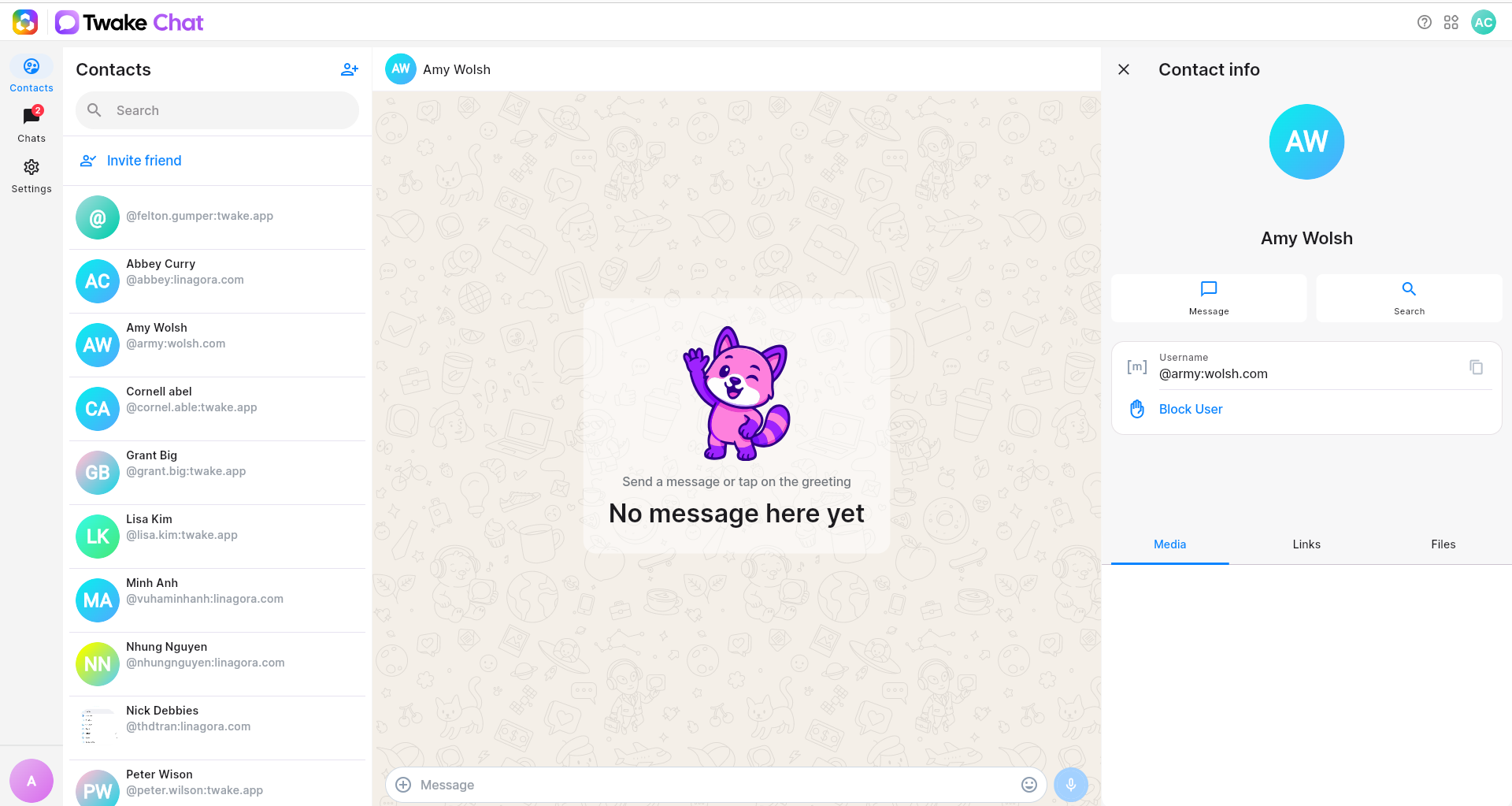
Open the Contacts section to browse your organization's directory.
From here, you can:
- Search for team members
- View contact information
- Start a direct conversation
- Invite new users to join Twake Chat
This makes it easy to find the right person and begin collaborating instantly.
Step 3 — Create a group chat
Need to collaborate with several colleagues at once?
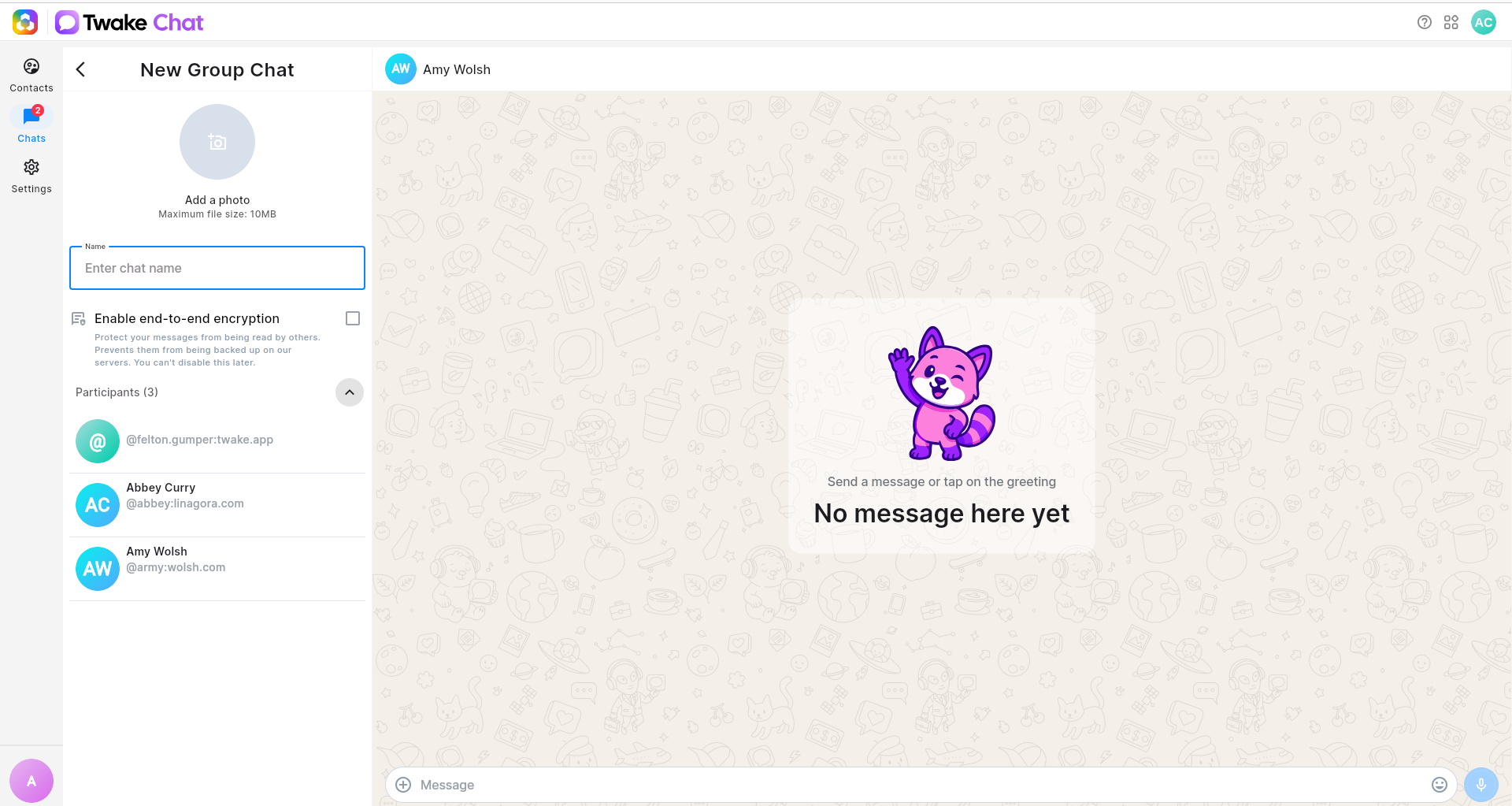
- From Chats section, click compose icon => New group chat
- Selecting participants
- Defining the group settings:
- Add a group name
- Upload a group avatar
- Enable end-to-end encryption for enhanced privacy
Group chats are perfect for projects, departments, and team discussions.
💡 End-to-end encryption protects messages from being read by anyone other than chat participants.
Step 4 — Share files directly in conversations
Twake Chat allows you to exchange files without leaving your discussion.
To share a file:
- Open a conversation
- Click the attachment button
- Select a file from your device
- Send it directly to the chat
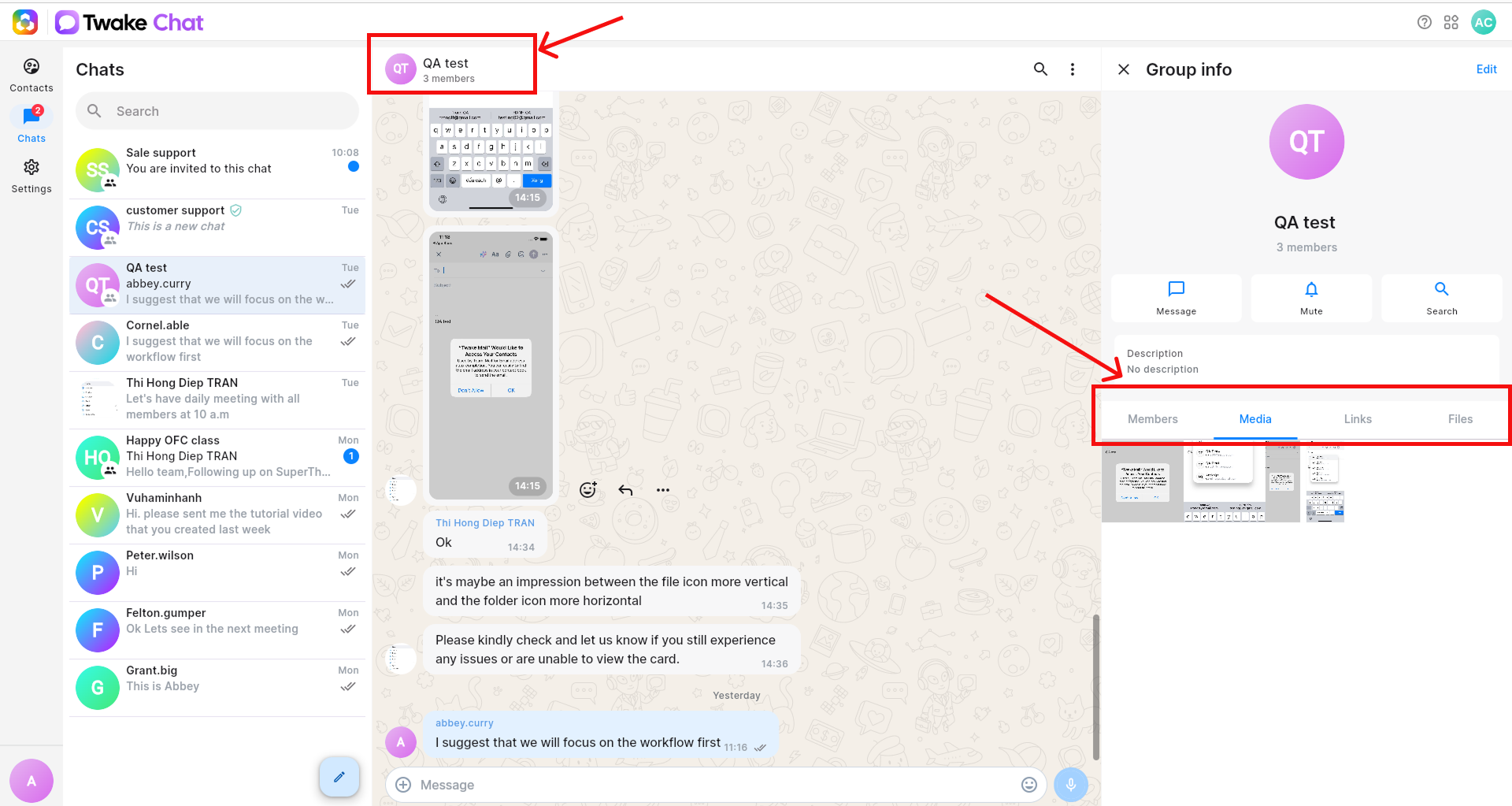
You can share: Documents/Images/Videos/Other file types. This keeps conversations and related files together in one place.
To see the list of shared files/images/link... in a conservation, click on the contact name or group name:
Step 5 — Personalize your chat experience
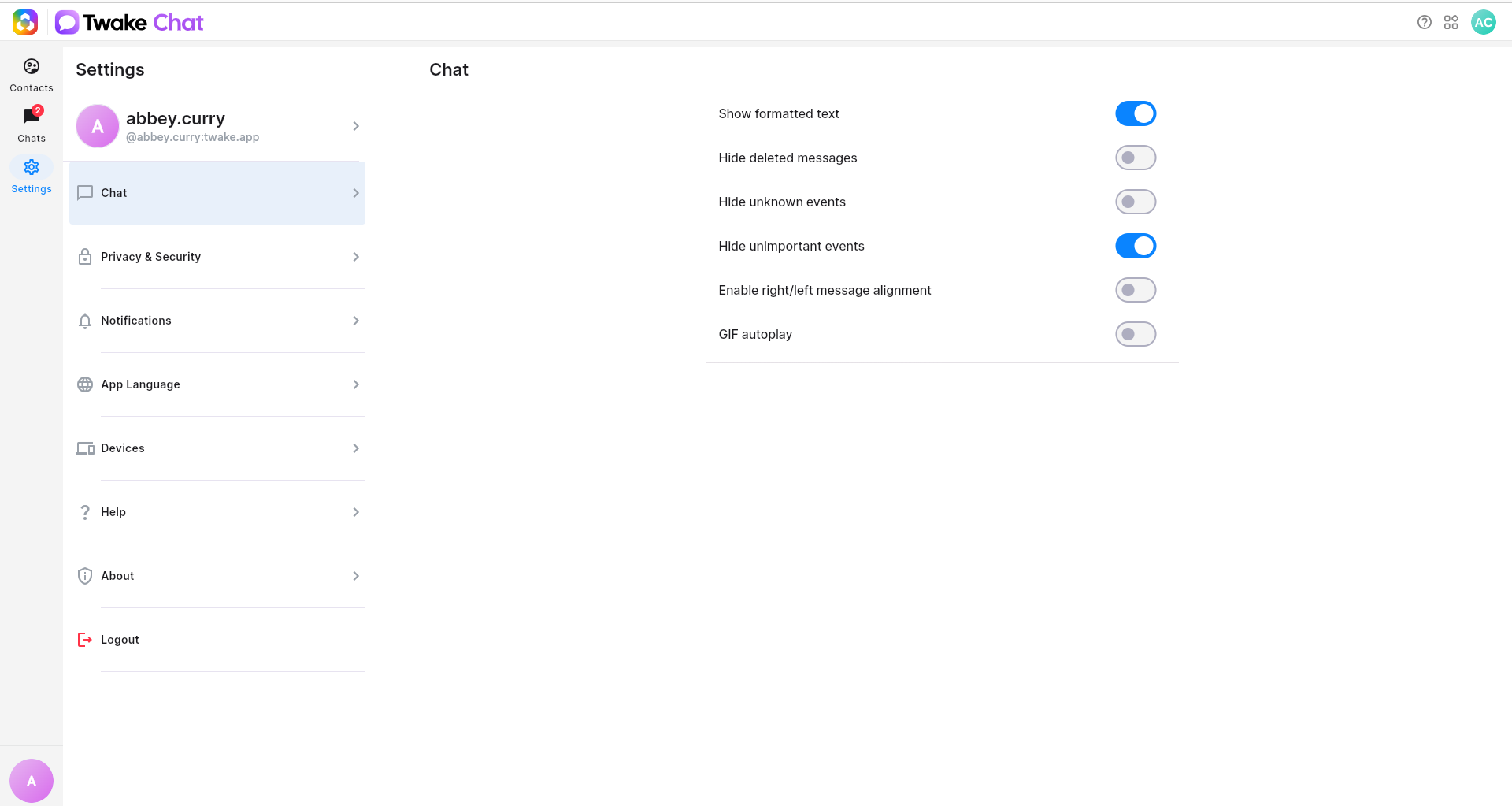
Twake Chat provides several settings to customize the application according to your preferences.
Available options include:
- Chat display preferences
- Privacy and security settings
- Notification management
- Application language
- Connected devices
Adjust these settings to create a communication experience that fits your workflow
Step 6: Understand your data security
Twake Chat is designed with privacy and security in mind:
- End-to-end encryption available for sensitive conversations
- Secure authentication through your Twake account
- GDPR-compliant infrastructure
- Open-source technology for transparency and trust
Your conversations remain protected while your team collaborates efficiently.
For a detailed list of all supported features and capabilities, you can refer to Twake Chat's official web page.