Twake Mail - Compose email
This guide explains how to write, format, save, and send emails in Twake Mail on web and mobile.
Compose a New Email on Web
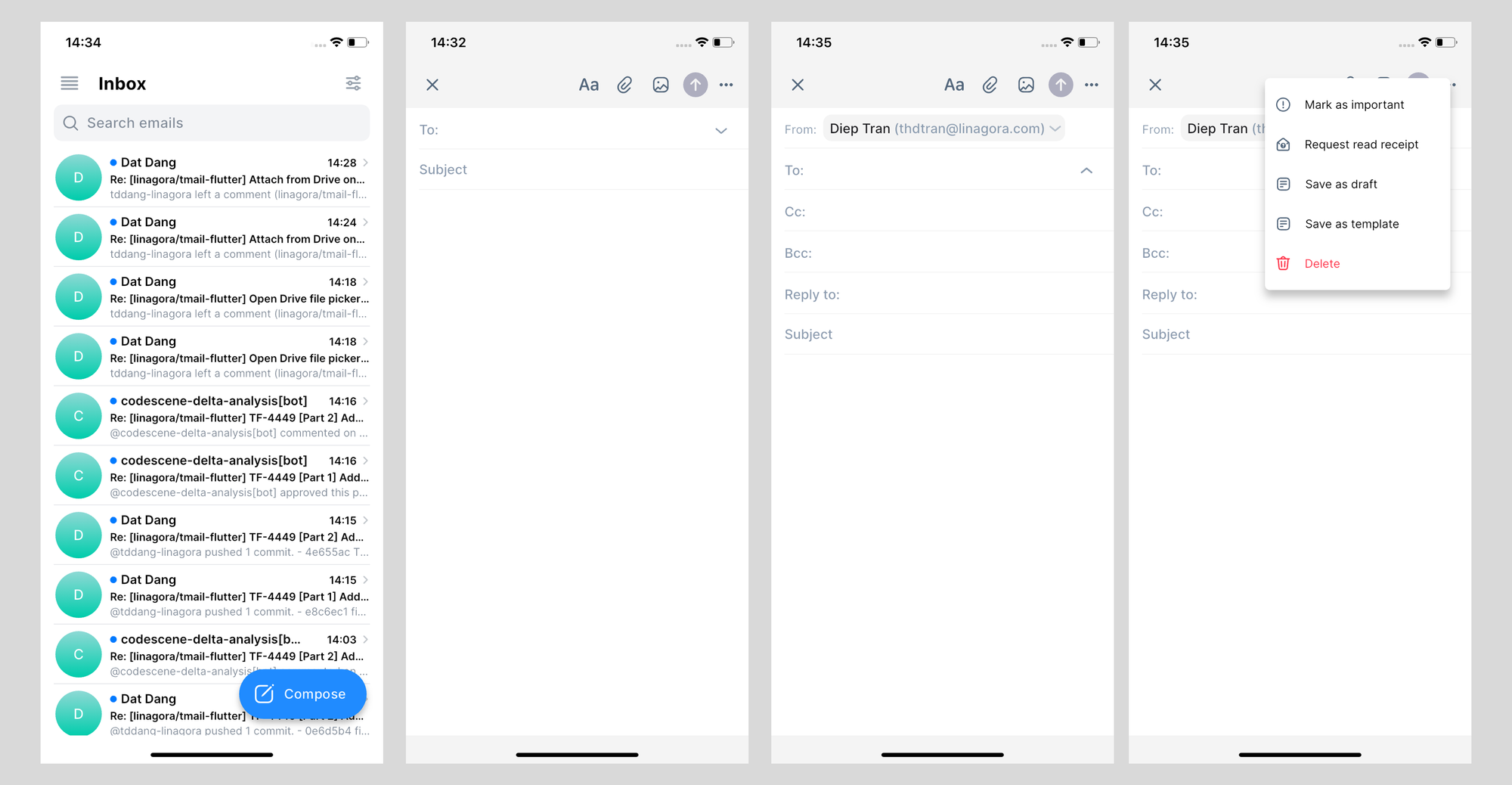
To create a new email:
- Select Compose.
- Check the From field.
- Add one or more recipients in the To field.
- Enter a subject.
- Write your message.
- Select Send.
After the email is sent, it appears in the Sent folder.
Change the Composer Window Size
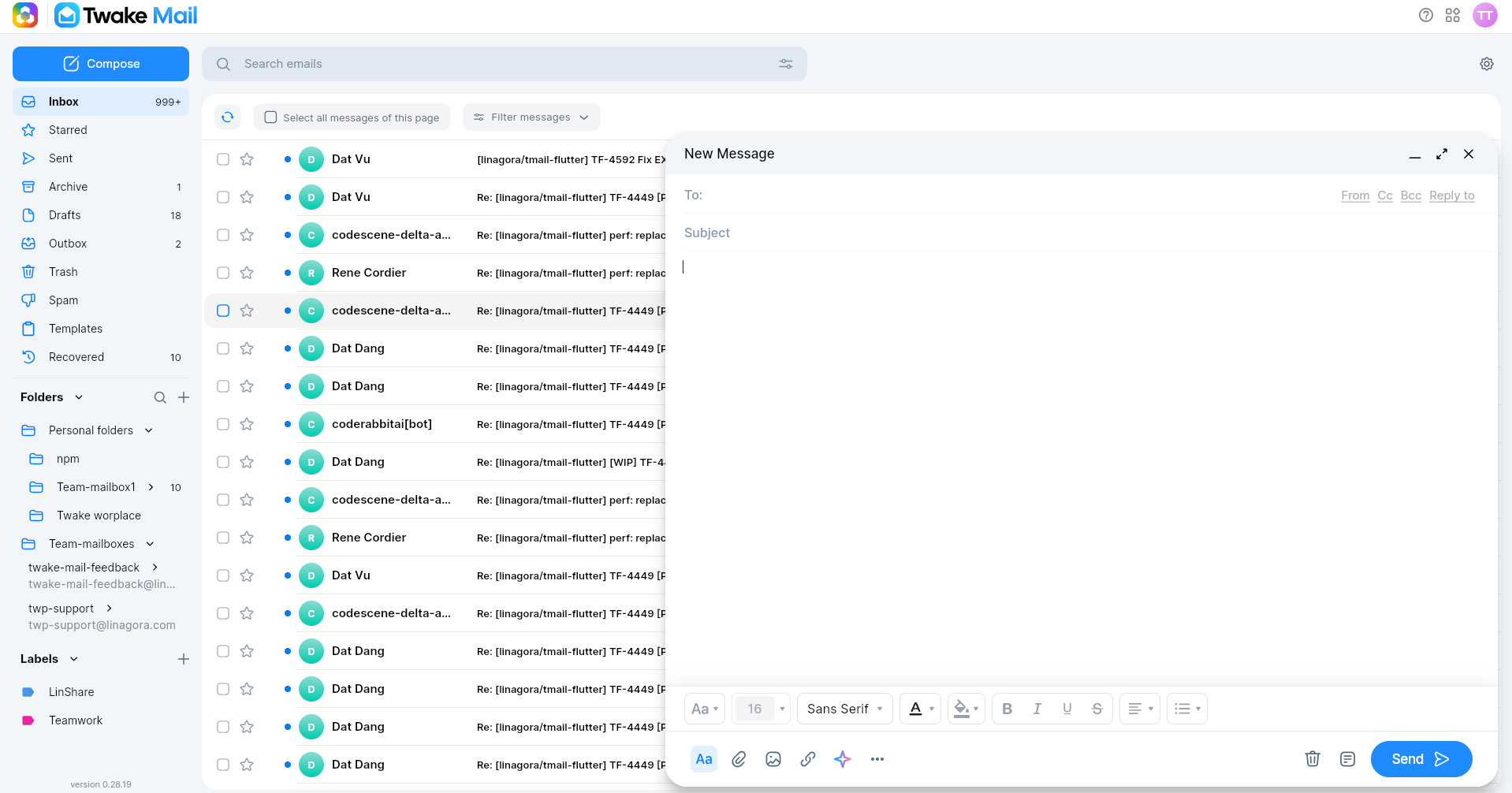
Use the window controls in the top-right corner of the composer to change how much space the composer uses.
| Control | What it does |
|---|---|
| Minimize | Collapses the composer into a small bar at the bottom of the screen |
| Expand | Opens the composer in a larger view |
| Close | Closes the composer and may ask whether to save or discard the draft |
Work with Multiple Composers
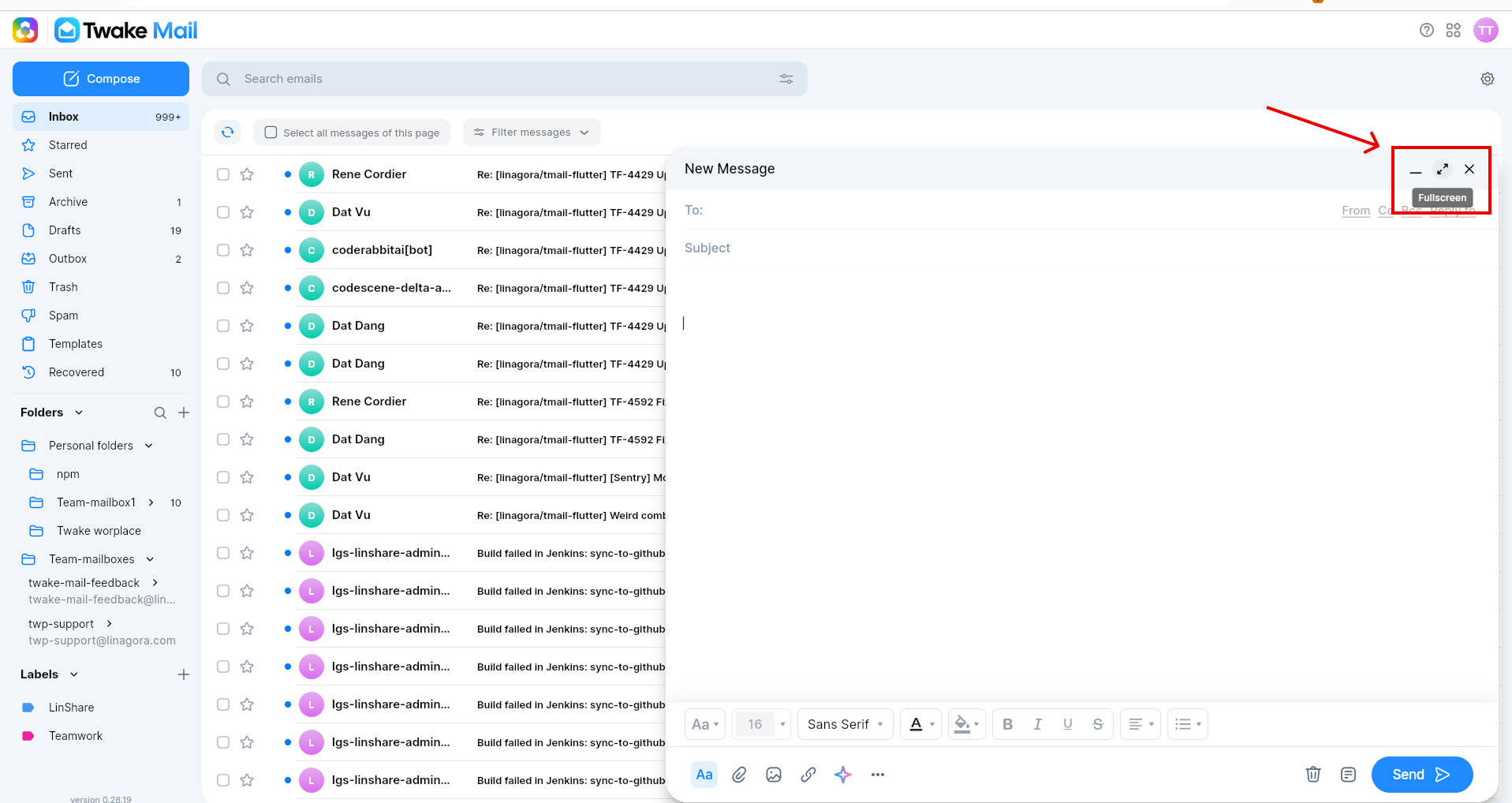
You can open more than one composer at the same time. This is useful when you need to write several emails without losing your work.
To open another composer:
- Keep the current composer open.
- Select Compose again.
- Write the second email in the new composer window.
Each composer keeps its own recipients, subject, message body, and attachments.
Choose the Sender
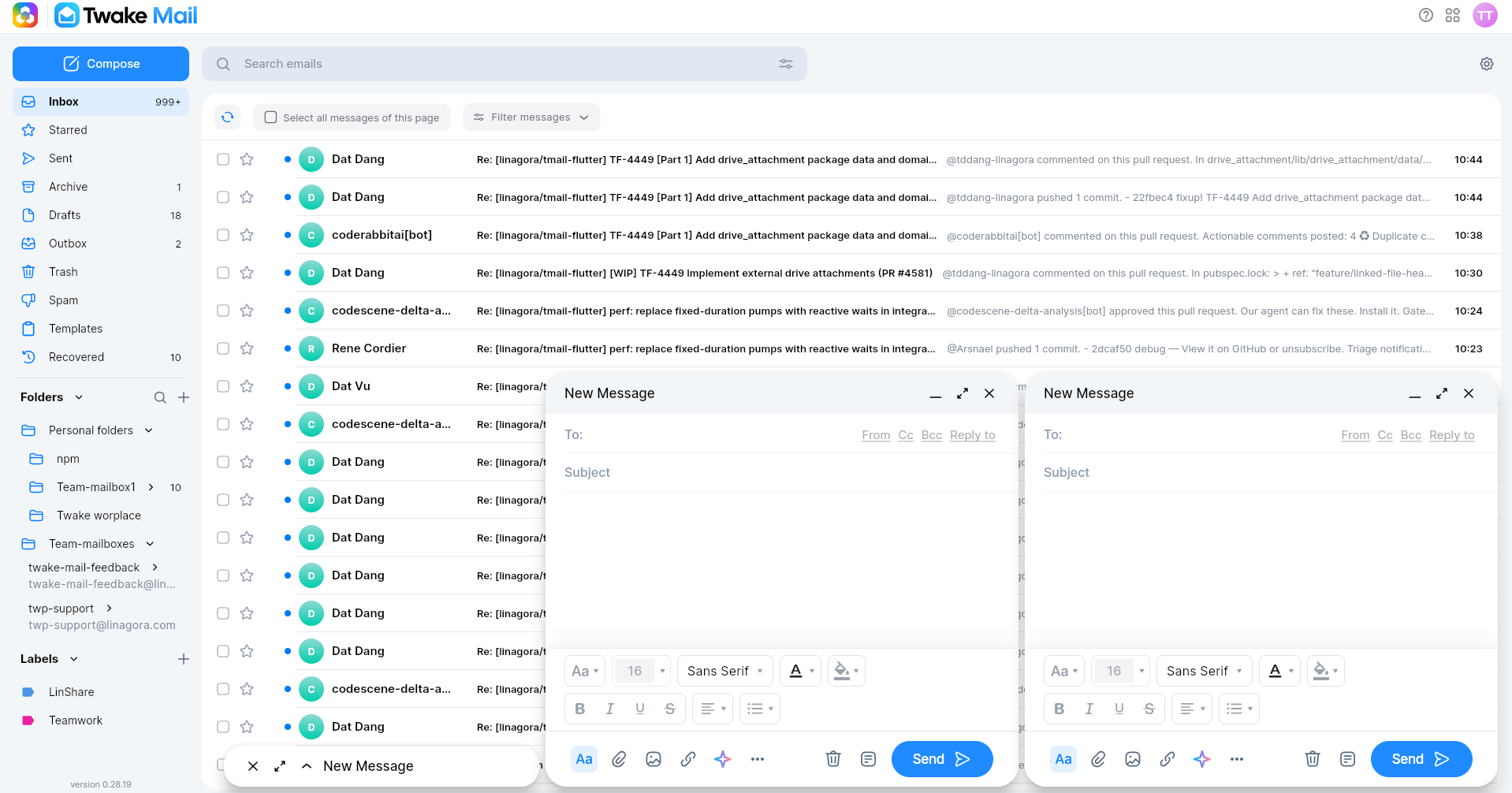
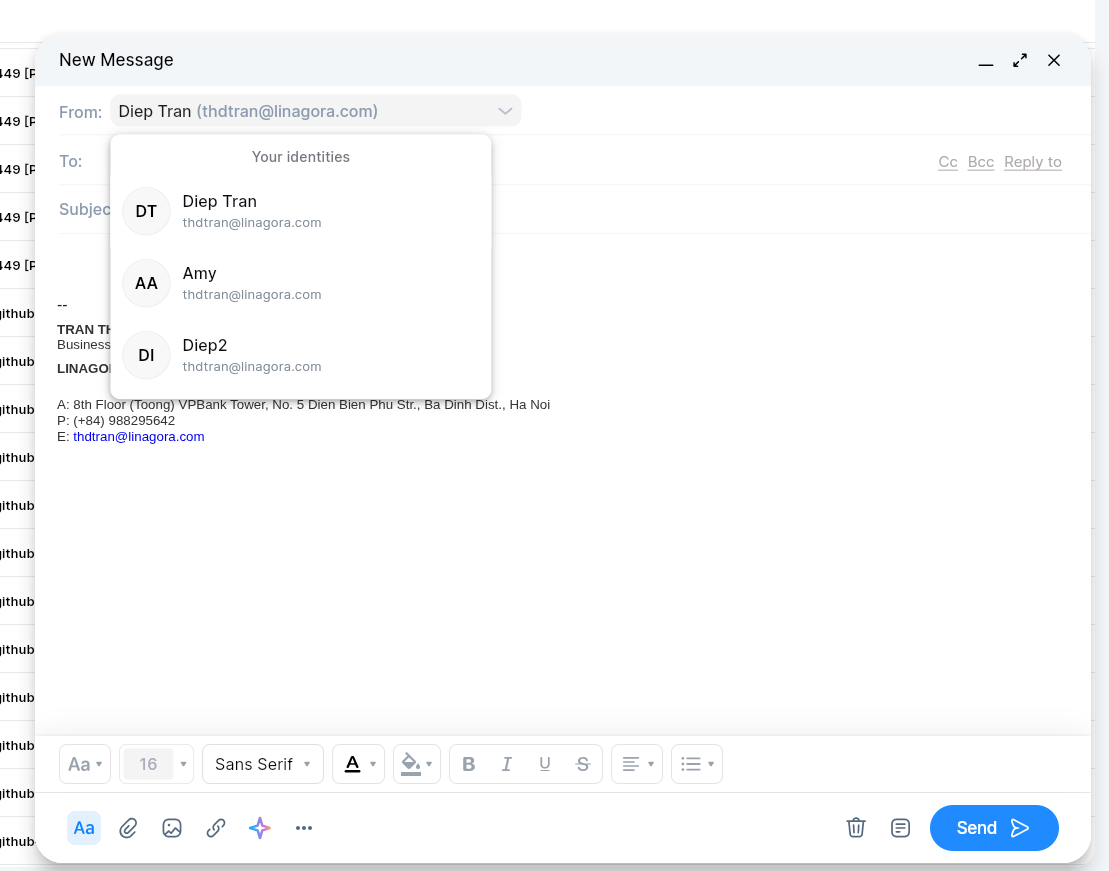
The From field shows the identity used to send the email.
By default, Twake Mail uses your default identity. If you have more than one identity, select the From field and choose the identity you want to use.
Sender identities can be managed from your profile settings.
Add Recipients
Use the recipient fields to decide who receives the email.
| Field | Use it for |
|---|---|
| To | Main recipients of the email |
| Cc | People who should receive a visible copy |
| Bcc | People who should receive a hidden copy |
| Reply-to | The address that receives replies to your email |
You can add multiple recipients. Recipients in To and Cc can see each other. Recipients in Bcc are hidden from other recipients.
Use Reply-to when replies should go to a different address from the sender address.
Use a Signature
If your identity has a signature, Twake Mail can include it in the email.
Use the signature button to show or hide the signature in the composer.
If you need to change the signature, update it from your profile settings.
Format the Email Text
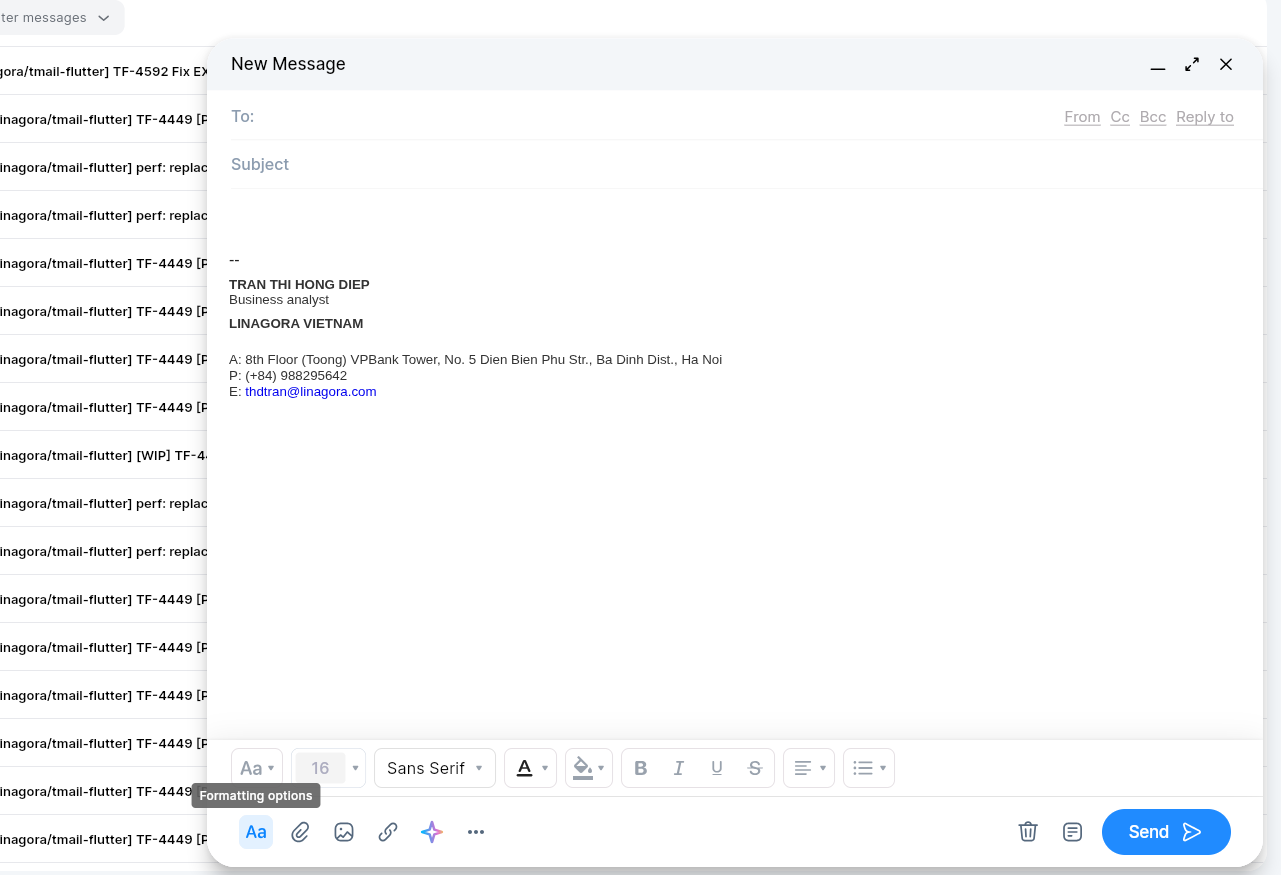
Use formatting tools when you want to make the message easier to read.
Formatting options can include:
| Option | What it does |
|---|---|
| Text size | Changes the size of selected text |
| Style | Applies a text style |
| Font family | Changes the font |
| Text color | Changes the text color |
| Background color | Adds a background color behind text |
| Bold | Makes text bold |
| Italic | Makes text italic |
| Underline | Underlines text |
| Strikethrough | Adds a line through text |
| Paragraph | Changes paragraph formatting |
| Ordered list | Creates a numbered list |
Select the text you want to change, then choose the formatting option.
Add Attachments
Use attachments when you want to send files with your email.
To attach a file:
- Select the attachment icon.
- Choose the file you want to attach.
- Wait for the file to be added to the email.
Review the attachment list before sending the email.
Insert an Image in the Message Body
Use inline images when you want an image to appear inside the email body instead of only as an attachment.
To insert an image:
- Select the image icon.
- Choose the image you want to insert.
- Confirm that the image appears in the message body.
Insert a Link
Use the link option when you want to add a clickable link to the email body.
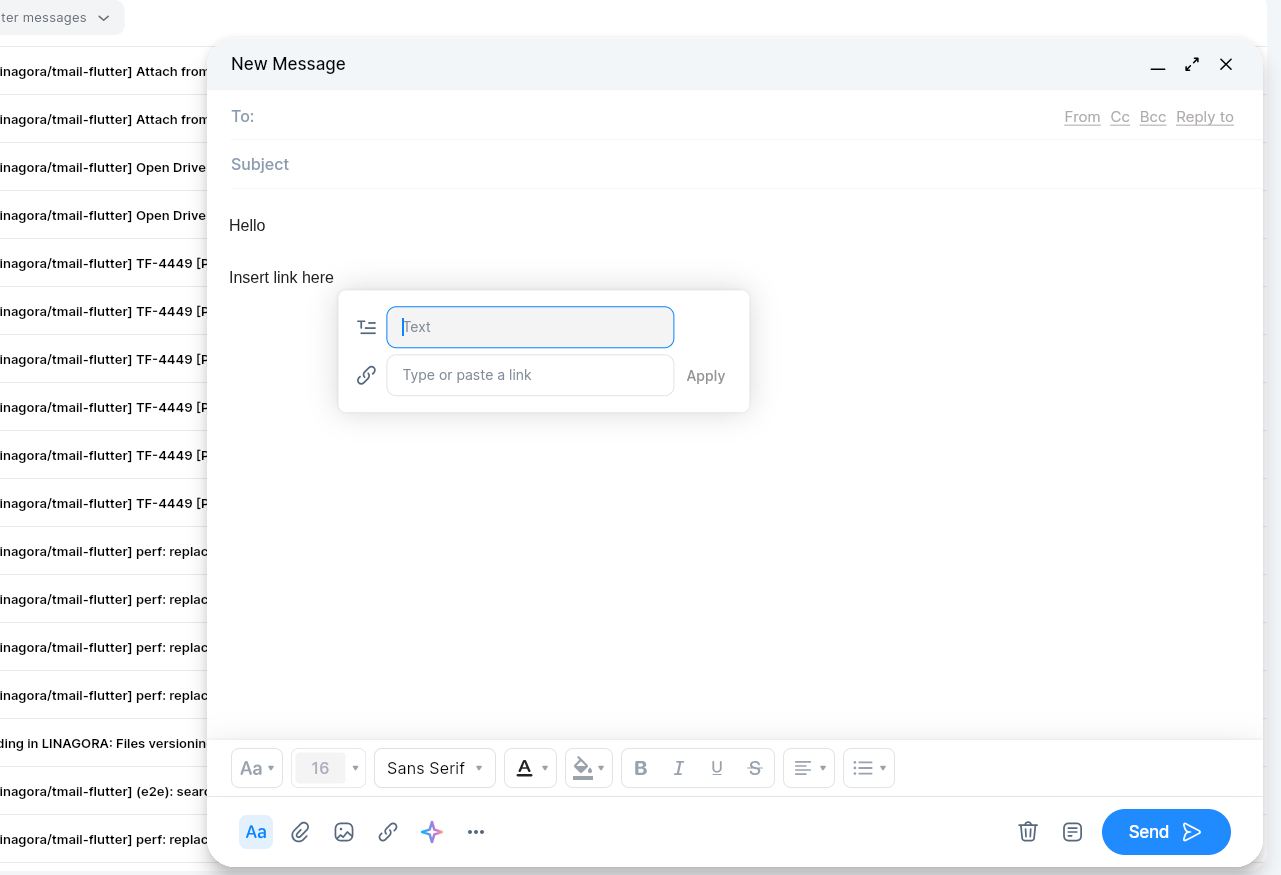
To insert a link:
- Select the link icon in the composer toolbar.
- In Text, enter the text that recipients will click.
- In Type or paste a link, enter the URL.
- Select Apply.
The link is inserted into the email body.
Use the AI Assistant
Use the AI assistant when you want help writing or improving email content.
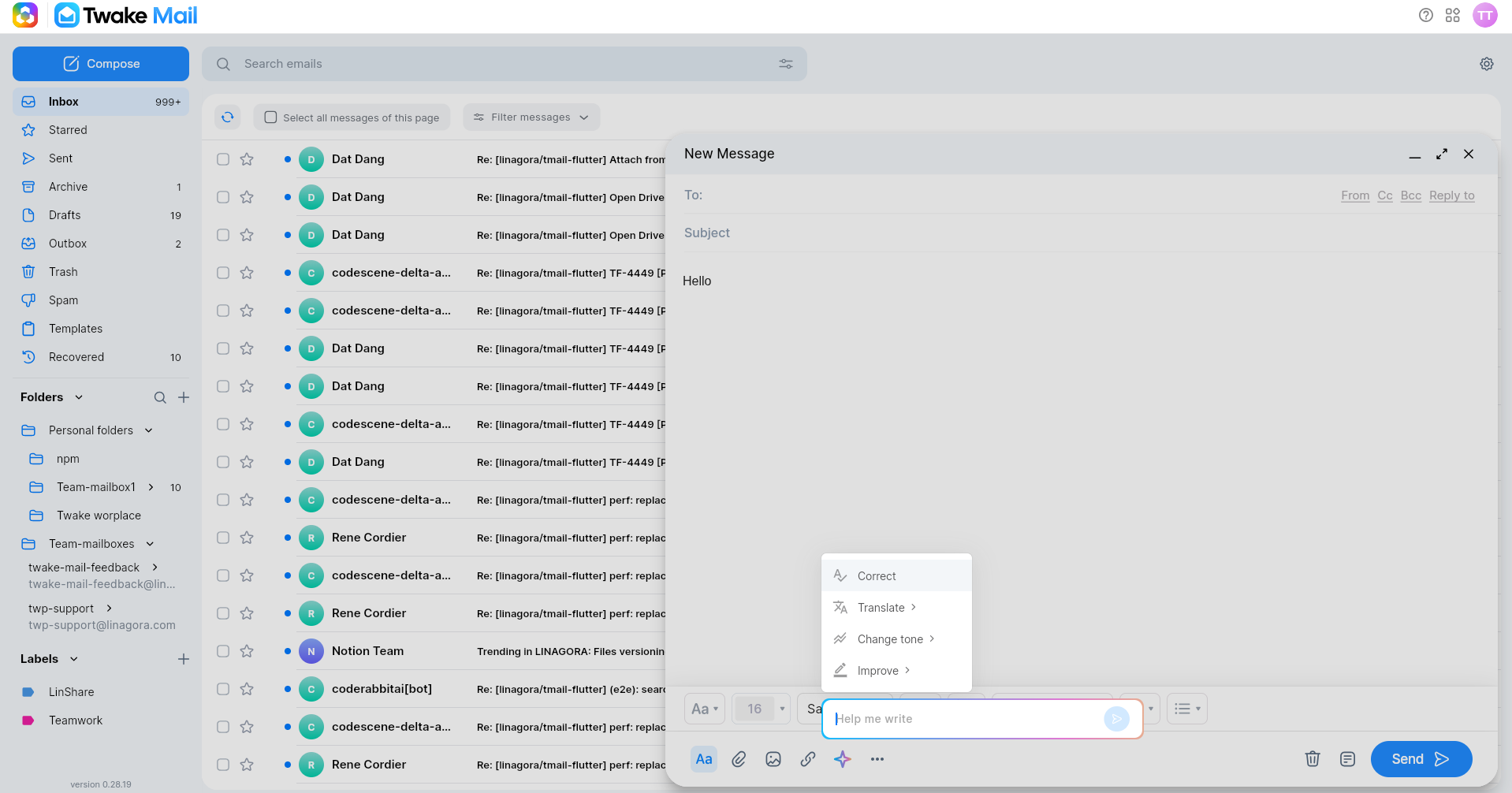
To open the AI assistant:
- Open the composer.
- Select the AI assistant icon in the composer toolbar.
- Choose an action or enter a request in Help me write.
The AI assistant options can include:
| Option | What it helps with |
|---|---|
| Help me write | Generates text from your instruction |
| Correct | Corrects spelling or grammar |
| Translate | Translates selected or drafted text |
| Change tone | Rewrites text with a different tone |
| Improve | Improves the selected or drafted text |
Review AI-generated text before sending the email.
Mark an Email as Important
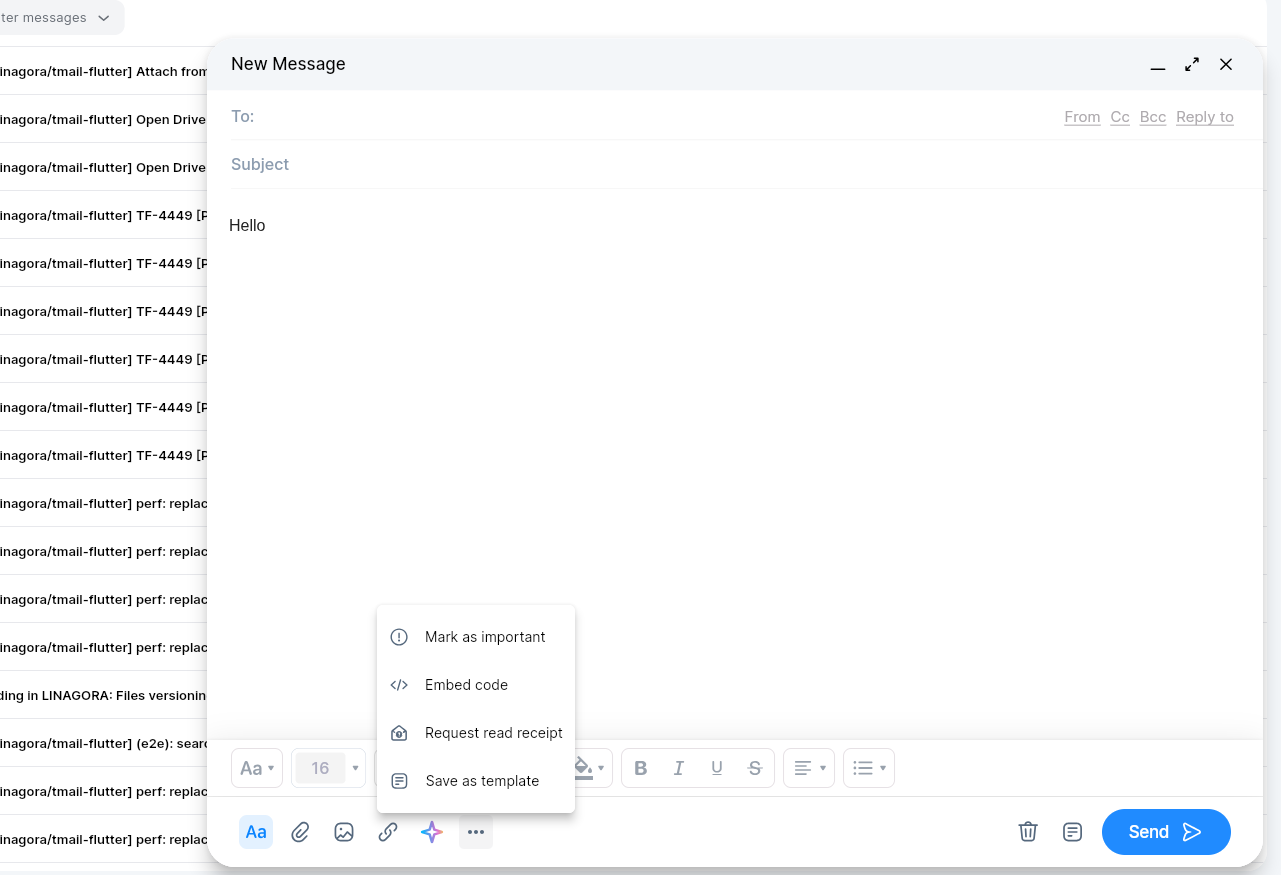
Use the important option when you want to recognize the email as important.
To mark the email as important:
- Select the More options icon.
- Select the important option in the composer. You can turn it on or off before sending.
Embed Code
Use Embed code when you need to insert HTML embed content into the email.
When you select Embed code, the email body switches to HTML mode.
Only use embed code when you trust the content and understand how it will appear to recipients.
Request a Read Receipt
Use a read receipt when you want to know whether the recipient opened the email.
To request a read receipt:
- Select the More options icon.
- Select Request read receipt.
- Send the email.
When a recipient opens the email, their email app may ask whether they want to send the read receipt. The recipient can choose to send or decline it.
If the recipient sends the receipt, you receive a confirmation that the email was opened.
Save an Email as a Template
Use Save as template when you want to reuse the same email content later.
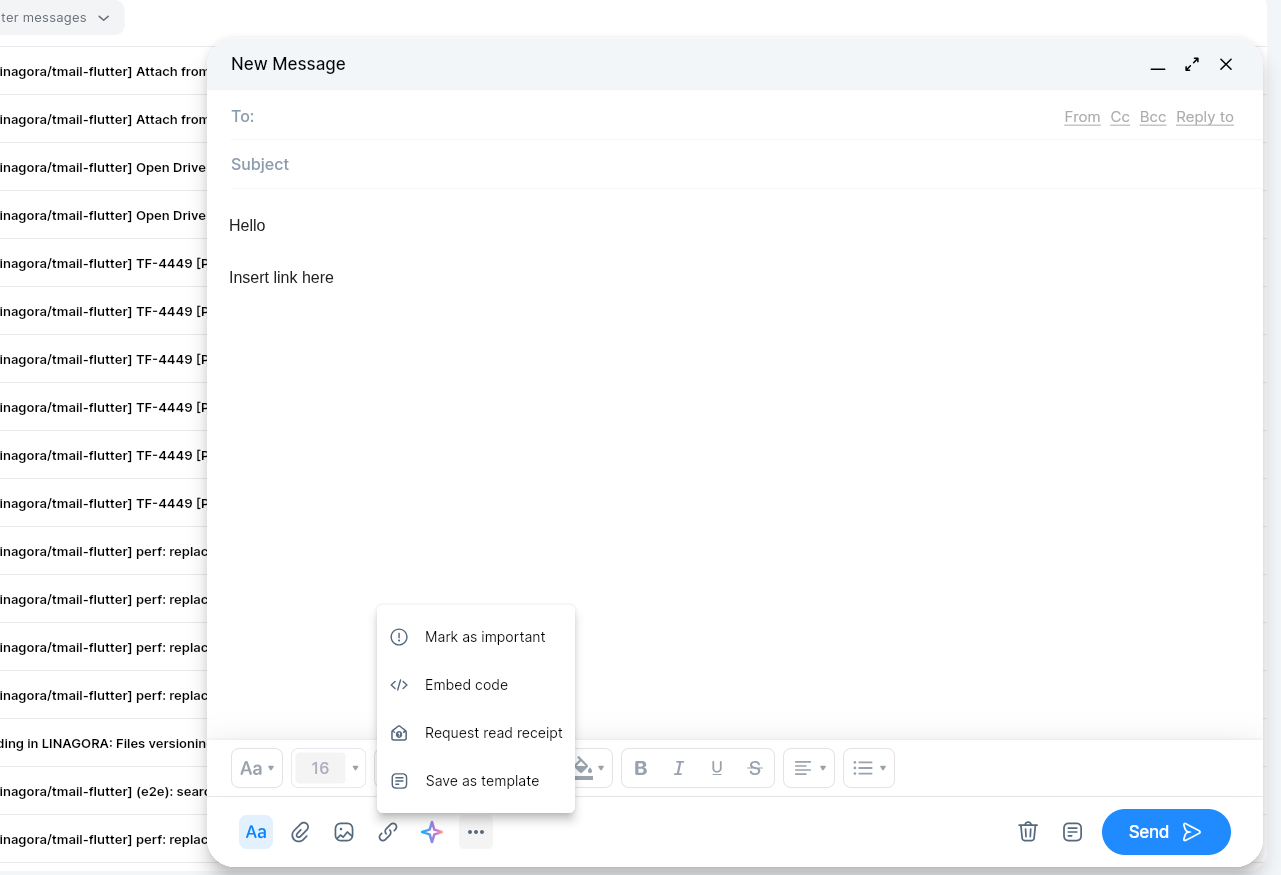
To save an email as a template:
- Open the composer.
- Write the reusable email content.
- Select the More options icon.
- Select Save as template.
The email content is saved as a template. Use templates for messages that you send repeatedly, such as standard replies, announcements, or instructions.
Save an Email as a Draft
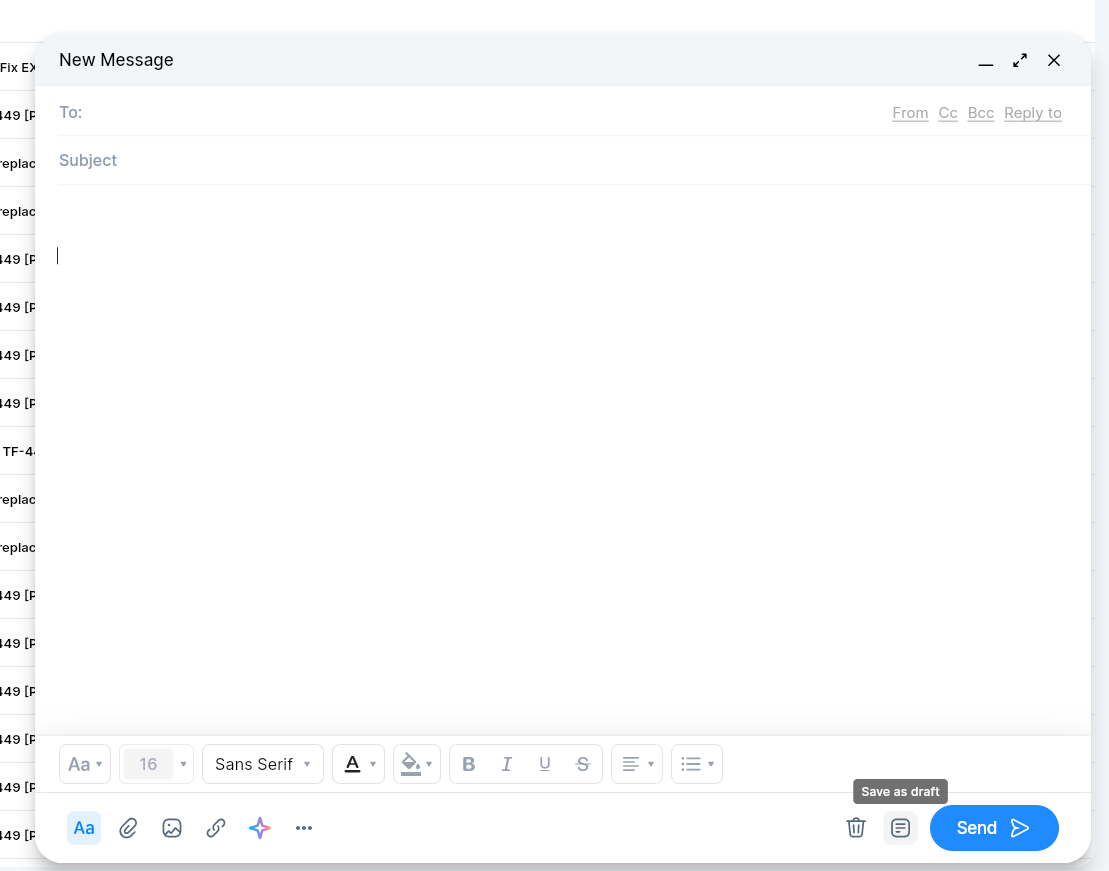
Use drafts when you want to continue writing later.
To save a draft:
- Open the composer and start writing email .
- Select Save as draft button
The email is saved in the Drafts folder. Open Drafts later to continue editing and send the email.
Check Sent and Outbox Folders
After you send an email, it appears in the Sent folder.
If an email is still being sent, it may appear in the Outbox folder first. After sending is complete, Twake Mail moves it to Sent.
Compose a New Email on mobile
The mobile composer lets you write and send emails from your phone.
To compose on mobile:
- Tap Compose.
- Check the From field.
- Add recipients in To.
- Add Cc, Bcc, or Reply-to if needed.
- Enter a subject.
- Write your message.
- Tap Send.