Twake Mail - Actions on email
This guide explains how to manage emails from the mail listing view and while reading an email.
Use Actions from the Mail Listing
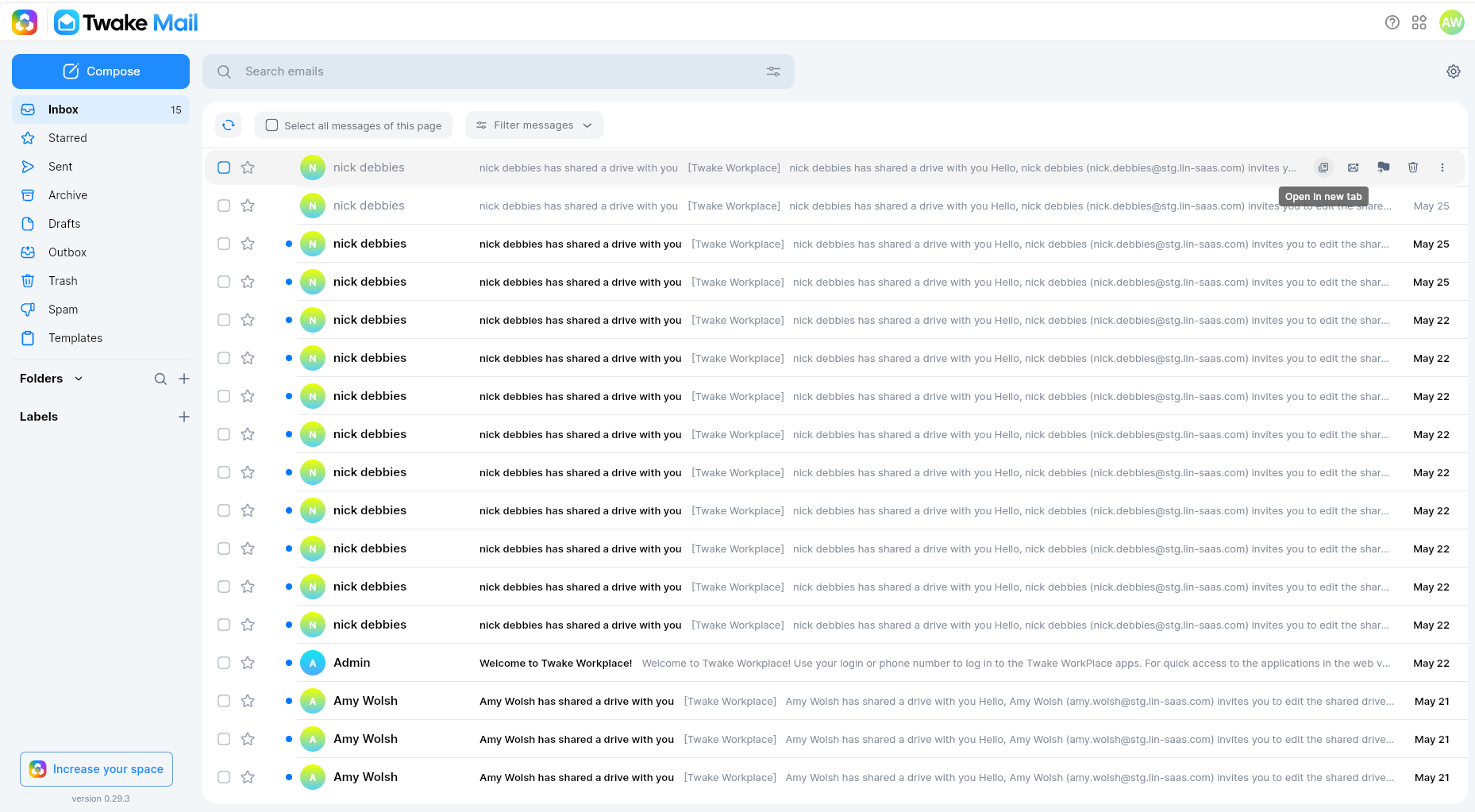
The mail listing view displays emails from the selected folder. Each row includes a checkbox, a star icon, and a More menu.
When you move your mouse over an email, quick action icons appear on the right side of the row.
Use Quick Actions
To use a quick action:
- Open a folder, such as Inbox.
- Move your mouse over the email.
- Select the action icon you want to use.
Quick actions include:
| Action | What it does |
|---|---|
| Open in new tab | Opens the email in a separate browser tab |
| Mark as read or unread | Changes the read status of the email |
| Move message | Moves the email to another folder |
| Move to trash | Moves the email to the Trash folder |
To mark an email as important, select the star icon next to the email.
Use the More Menu
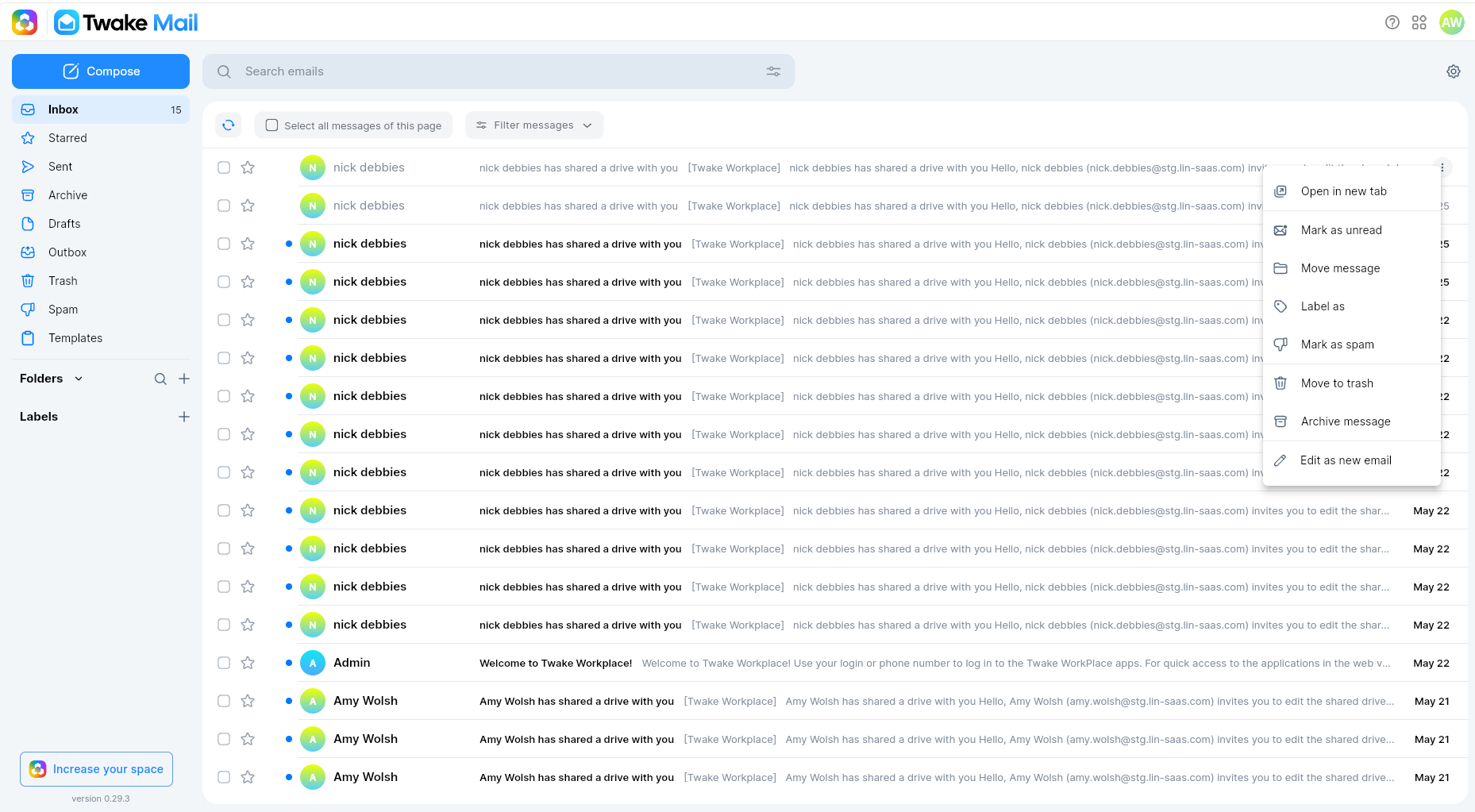
The More menu provides additional actions for an email.
To open it:
- Move your mouse over the email.
- Select the three-dot More icon on the right side of the row.
- Select an action from the menu.
The available actions include:
| Action | What it does |
|---|---|
| Open in new tab | Opens the email in a separate browser tab |
| Mark as read or unread | Changes the read status of the email |
| Move message | Moves the email to another folder |
| Label as | Applies a label to the email |
| Mark as spam | Moves the email to Spam and reports it as spam |
| Move to trash | Moves the email to the Trash folder |
| Archive message | Moves the email to Archive |
| Edit as new email | Opens a new email composer with content from the original email |
Apply Actions to Multiple Emails
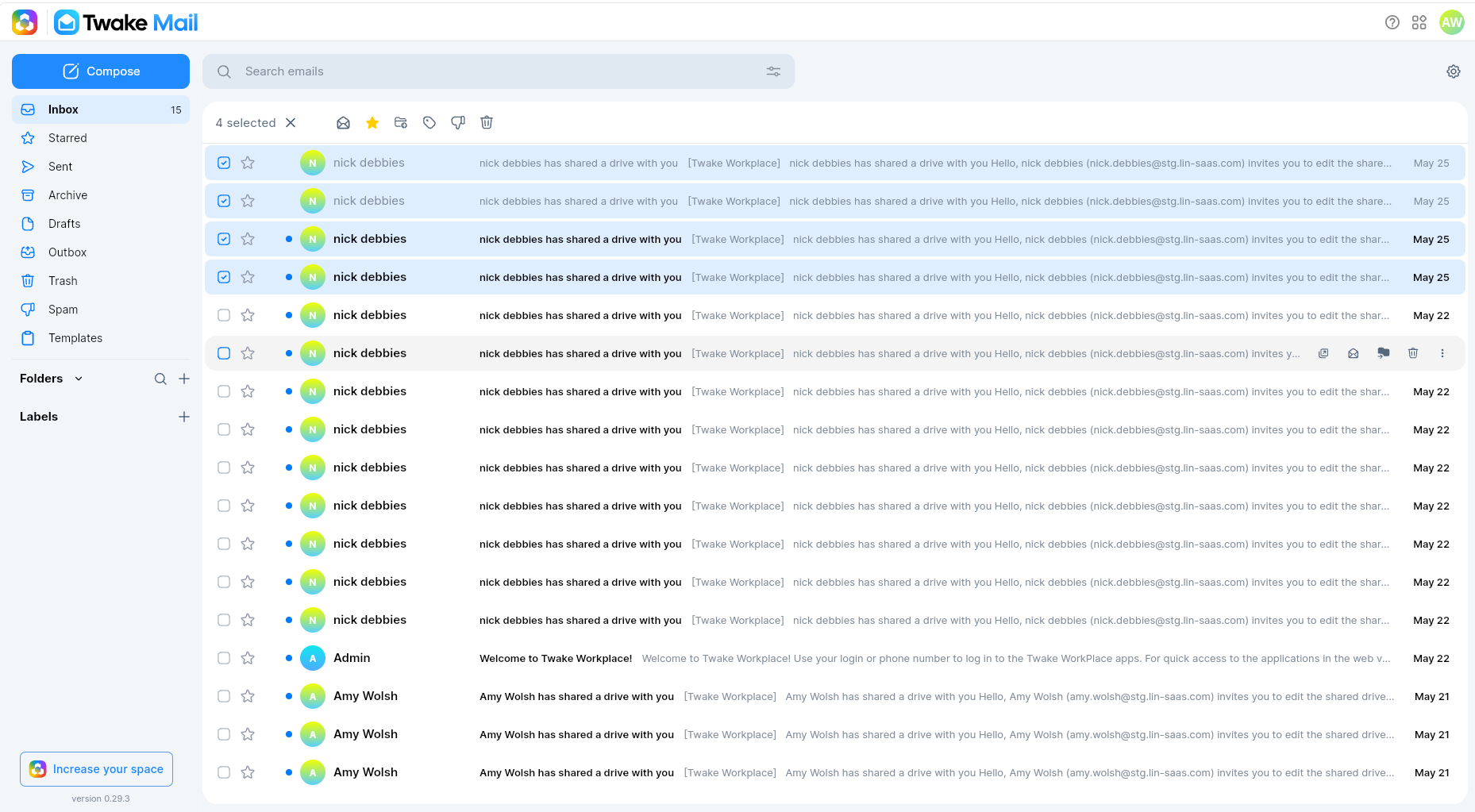
You can select several emails and apply the same action to all of them.
To select emails:
- Open the folder that contains the emails.
- Select the checkbox next to each email.
- Use the action toolbar above the mail listing view.
The toolbar shows how many emails are selected.
Available bulk actions include:
| Action | What it does |
|---|---|
| Mark as read or unread | Changes the read status of the selected emails |
| Star or unstar | Marks or unmarks the selected emails as important |
| Move message | Moves the selected emails to another folder |
| Label as | Applies a label to the selected emails |
| Mark as spam | Moves the selected emails to Spam and reports them as spam |
| Move to trash | Moves the selected emails to the Trash folder |
To cancel the selection, select the close icon next to the selected-email count.
Use Actions While Reading an Email
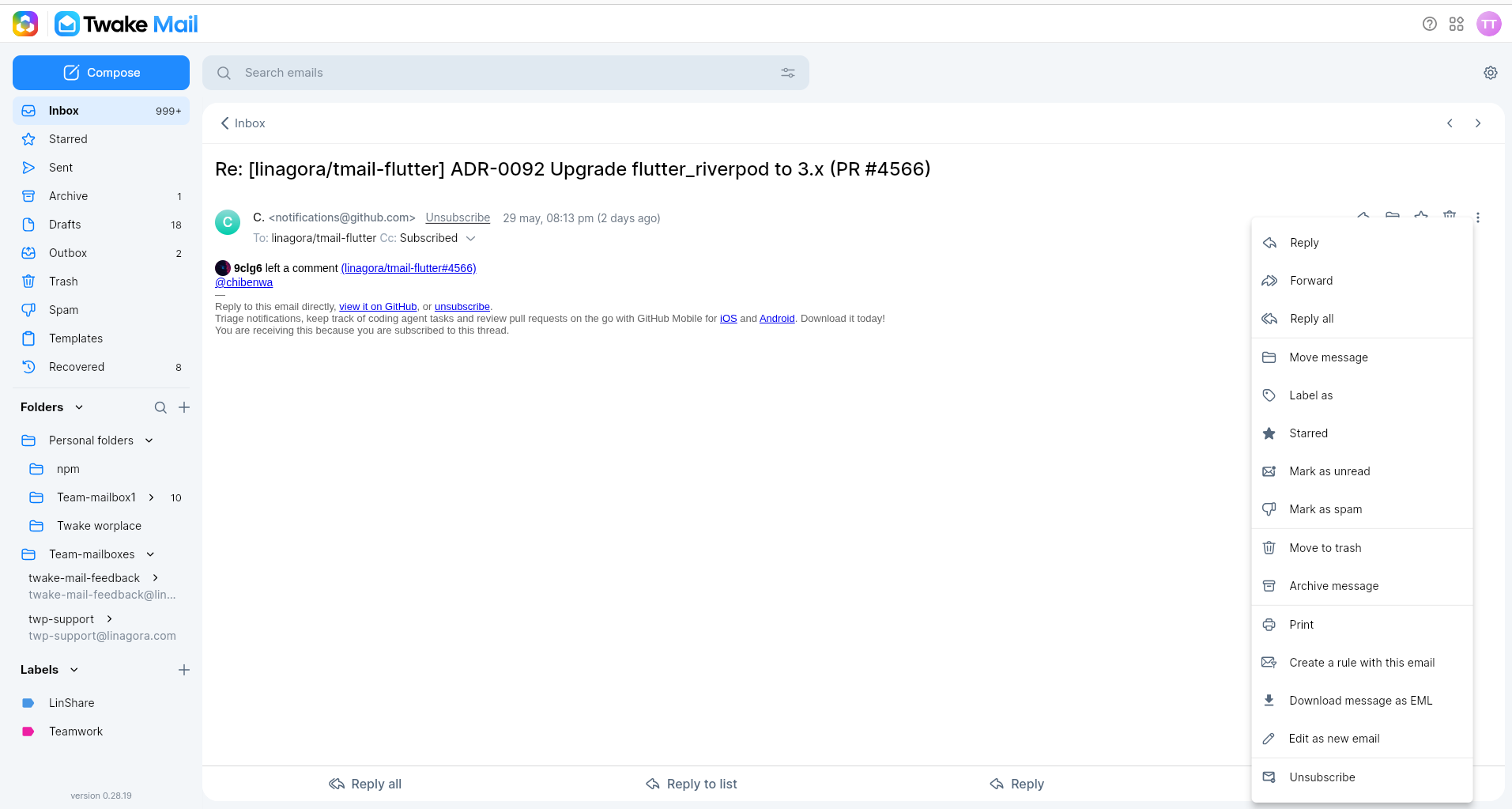
When you open an email, action icons appear near the top-right corner of the reading view. Reply,Reply all, Reply to list, and Forward, actions are also available at the bottom of the message.
Use the Reading View Actions
To manage an opened email:
- Open the email.
- Select an action icon or open the three-dot More menu.
- Follow any additional step, such as selecting a folder or label.
The More menu includes:
| Action | What it does |
|---|---|
| Reply | Replies to the sender |
| Reply all | It opens a composer, adds Re: prefix before the topics, set the sender email and all other recipients of the previous as a To recipients and quotes the previous email. |
| Reply to list | If the email was sent to a mailing list (e.g., team@company.com), clicking "Reply to List" will send your response to the entire list instead of just the sender. |
| Forward | Sends the email content to another recipient |
| Move message | Moves the email to another folder |
| Label as | Applies a label to the email |
| Starred | Marks the email as important |
| Mark as read or unread | Changes the read status of the email |
| Mark as spam | Moves the email to Spam and reports it as spam |
| Move to trash | Moves the email to the Trash folder |
| Archive message | Moves the email to Archive |
| Opens the print preview window | |
| Create a rule with this email | Creates an email rule based on the message |
| Download message as EML | Downloads the email as an .eml file |
| Edit as new email | Opens a new email composer with content from the original email |
| Unsubscribe | Click this button to request removal from the sender’s mailing list. A popup will appear to confirm the unsubscription. |