
Twake Mail - Trash
This guide explains how to use the Trash folder in Tmail to review deleted emails, restore emails, and empty Trash.
How Trash Works
When you move an email to Trash, the email is removed from its current folder and placed in the Trash folder.
Moving an email to Trash is not the same as permanently deleting it. You can still open the email from Trash and restore it if you need it later.
Move an Email to Trash
Use Move to trash when you no longer want an email to stay in its current folder.
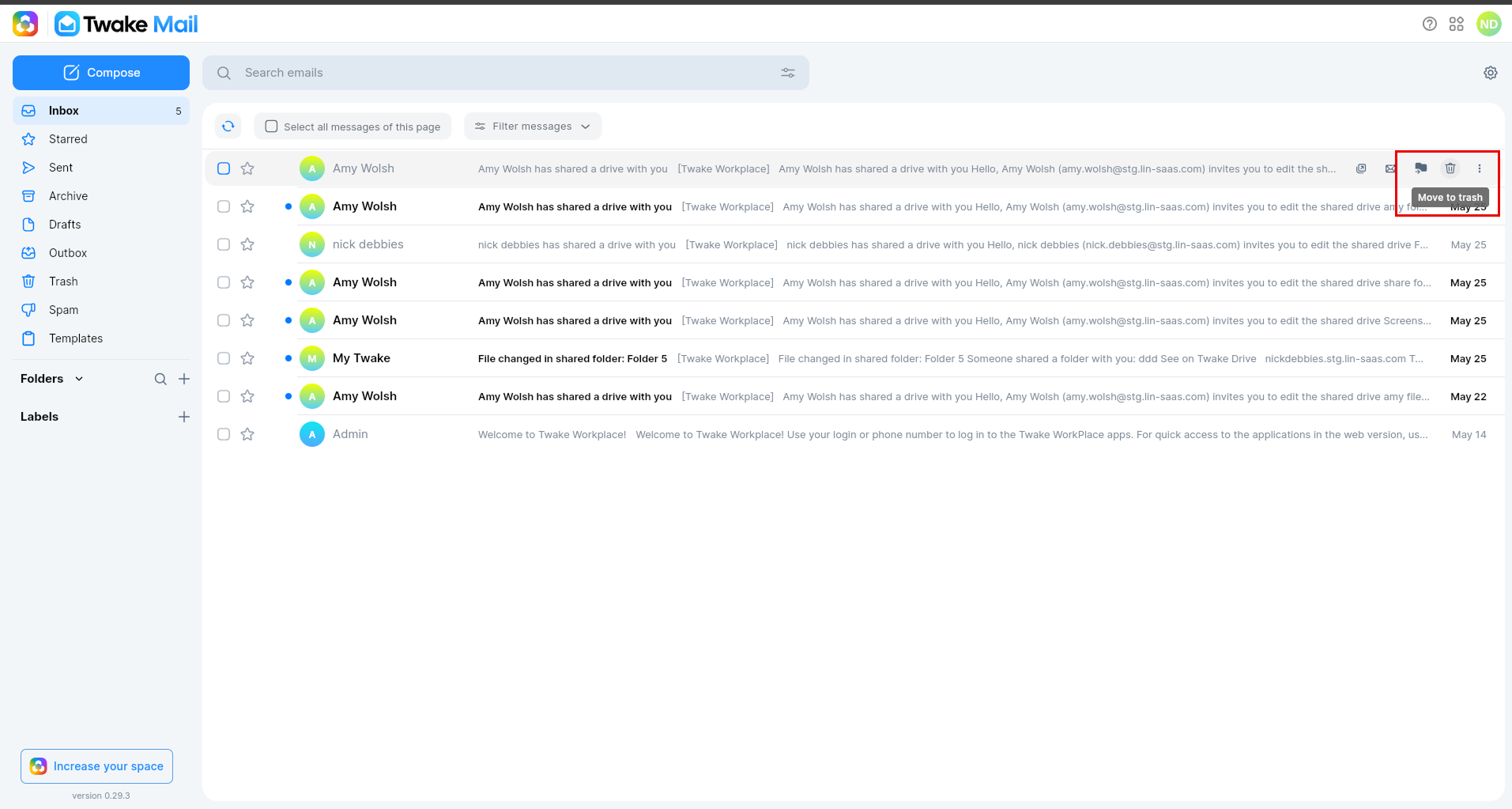
To move an email to Trash from the mail listing view:
- Open the folder that contains the email.
- Move your mouse over the email.
- Select the Move to trash icon, or open the More menu.
- Select Move to trash.
To move an opened email to Trash:
- Open the email.
- Open the email actions menu.
- Select Move to trash.
The email is moved to the Trash folder.
Move Multiple Emails to Trash
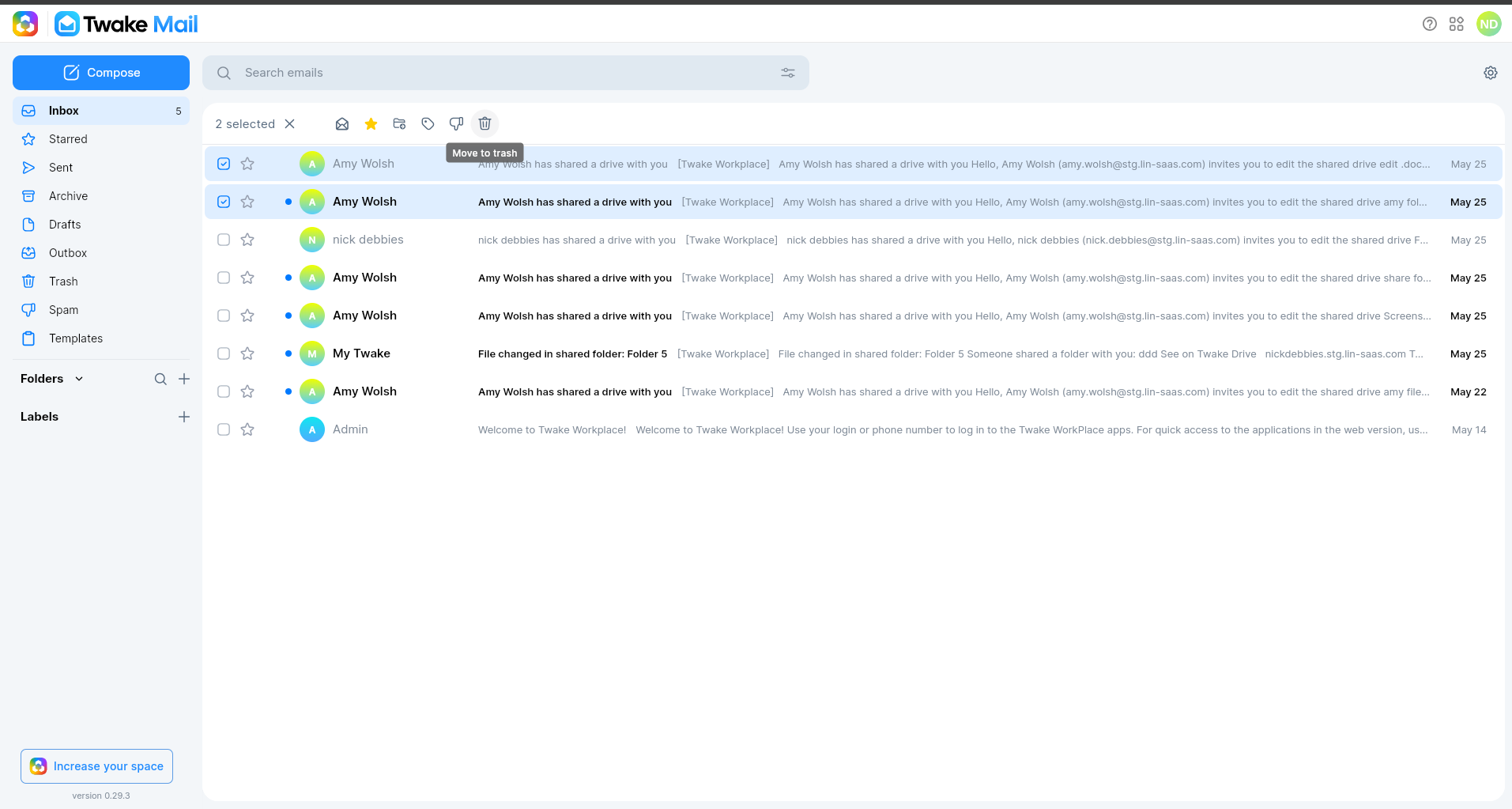
You can move several emails to Trash at the same time.
To move multiple emails:
- Open the folder that contains the emails.
- Select the checkbox next to each email.
- Select Move to trash from the action toolbar.
All selected emails are moved to Trash.
Empty Trash
Use Empty trash now when you want to permanently remove all the emails in Trash.
To empty Trash:
- Open the Trash folder.
- Select Empty trash now in the warning banner.
- Confirm the action if Tmail asks for confirmation.
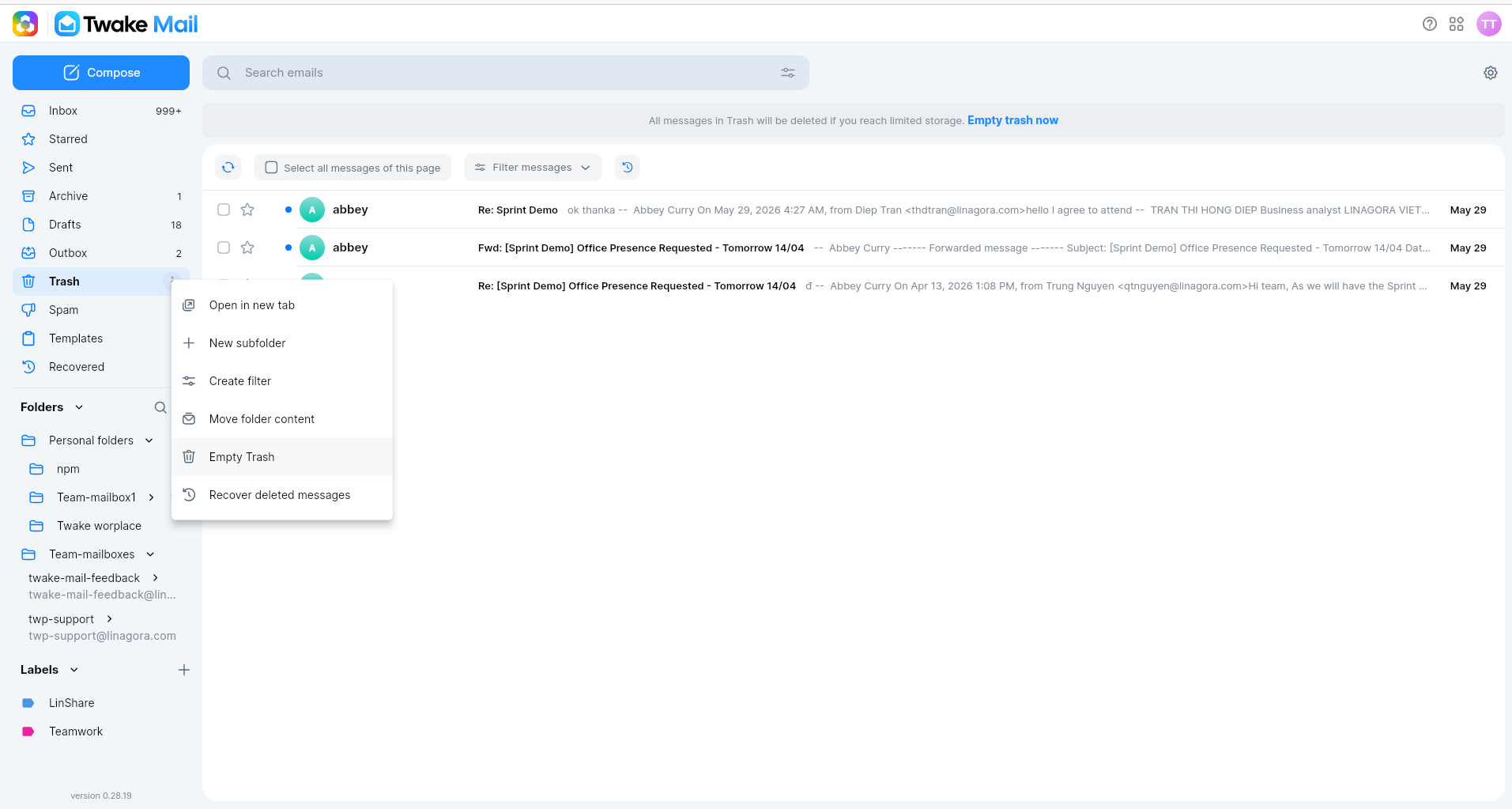
You can also select option "Empty Trash" from menu action of Trash folder
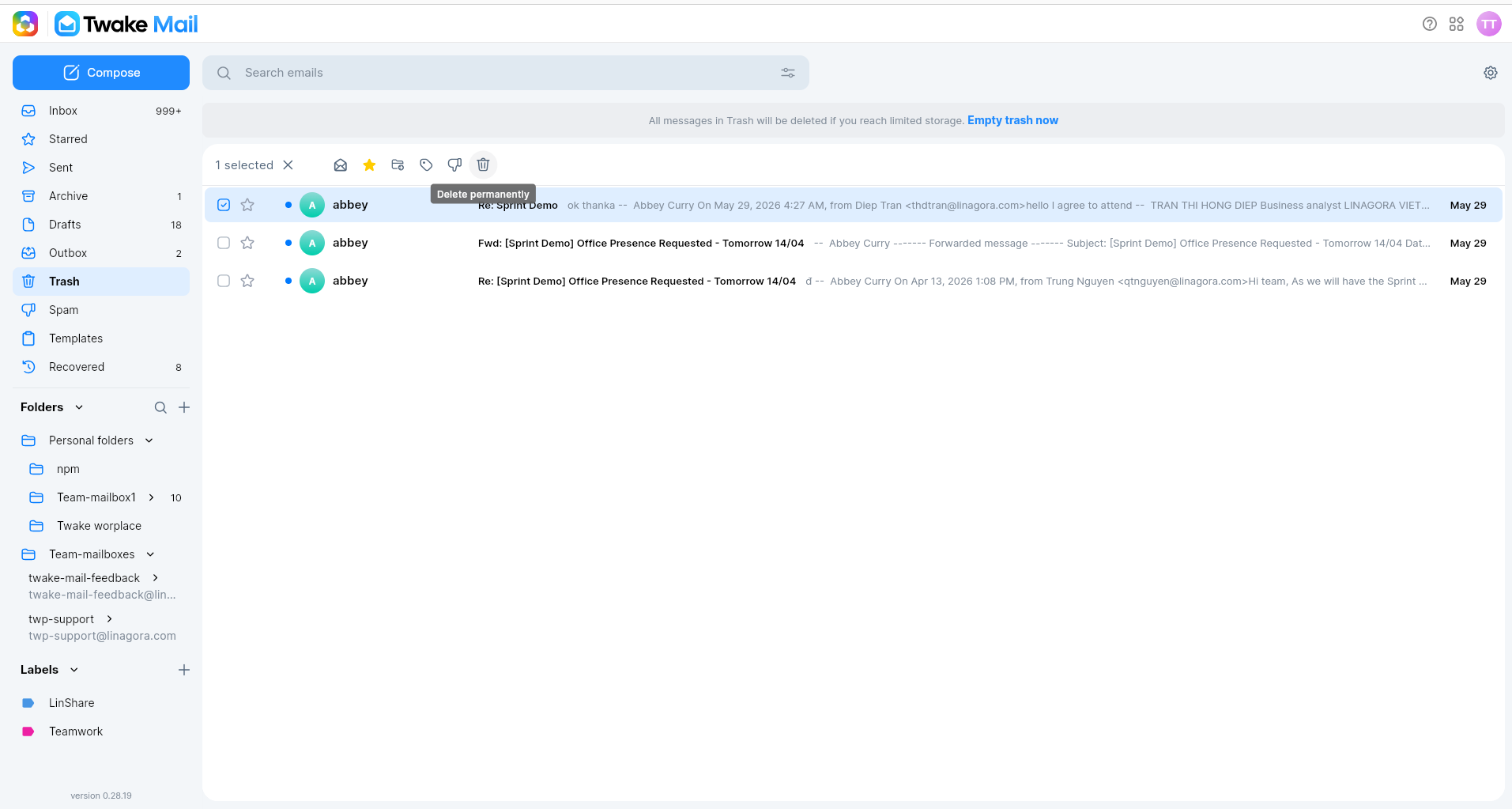
Emails in Trash also offer a permanent-delete action for selected messages:
To recover messages that you deleted permanently, see How to recover deleted messages